OneDrive / SharePoint Odoo Integration v.15
The tool to automatically synchronize Odoo attachments with OneDrive files in both ways
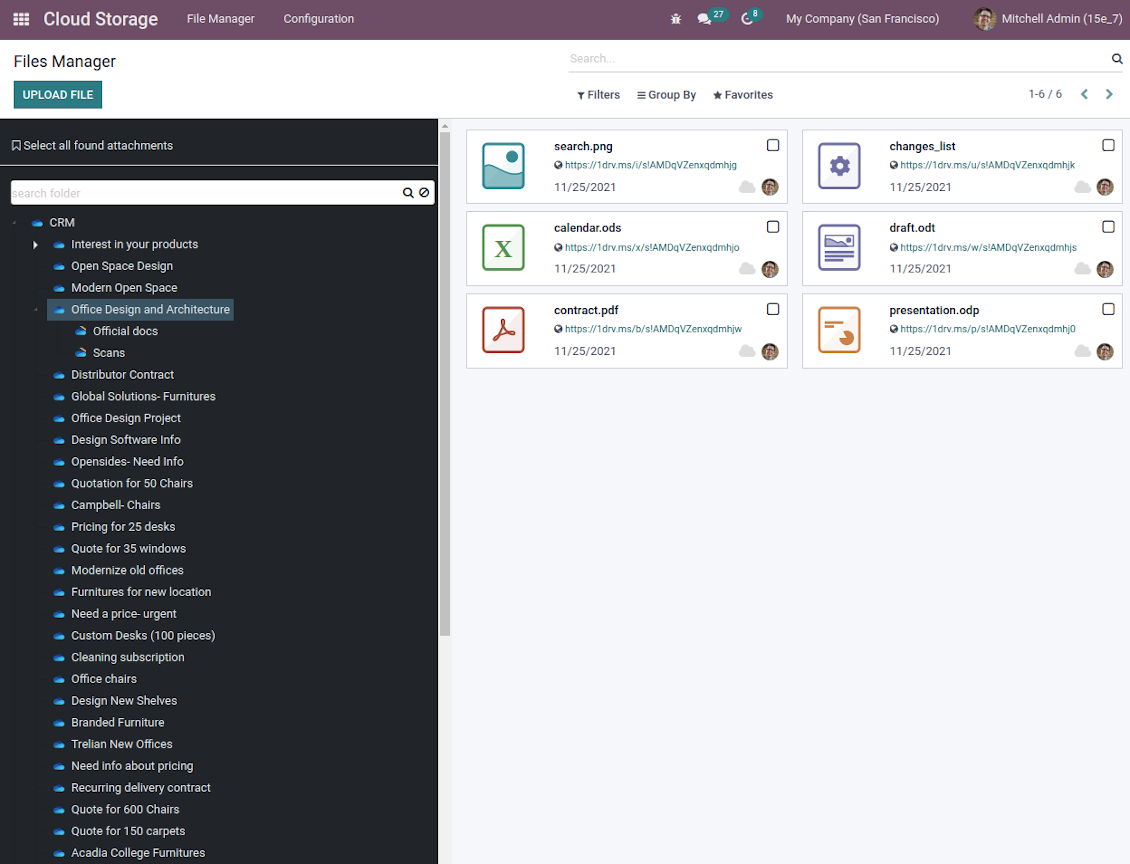
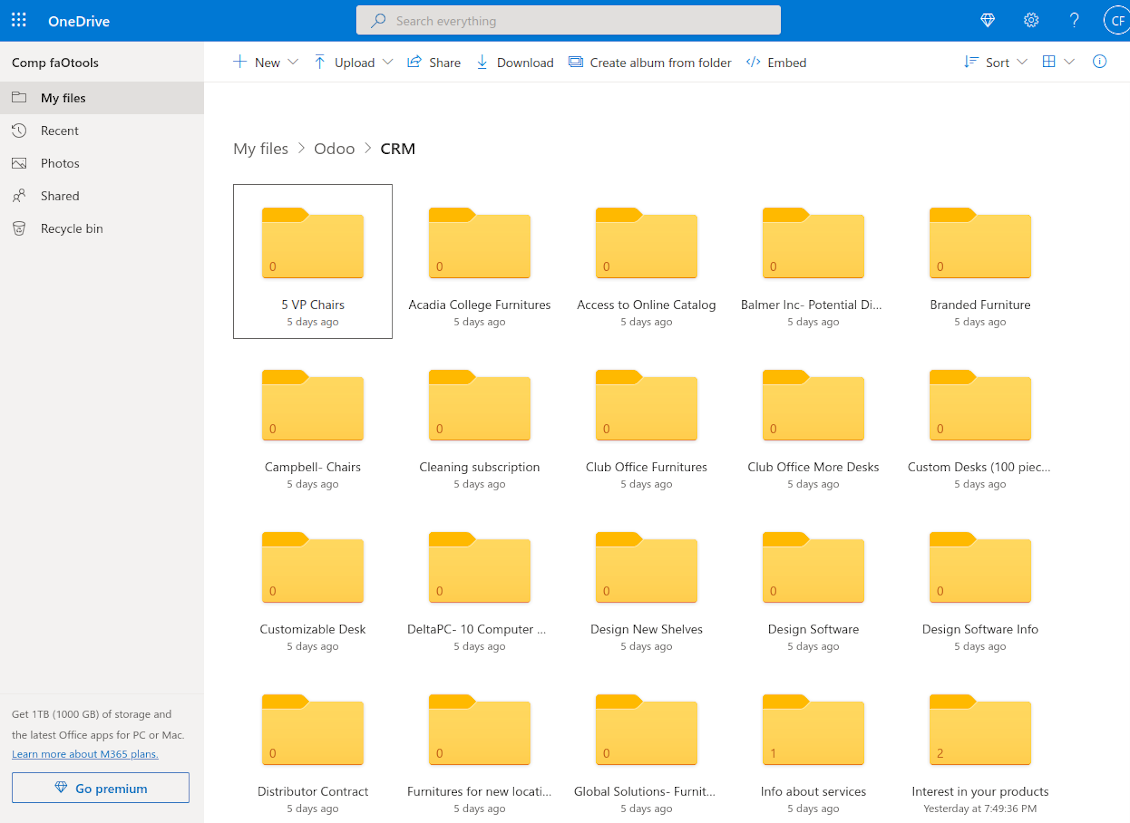
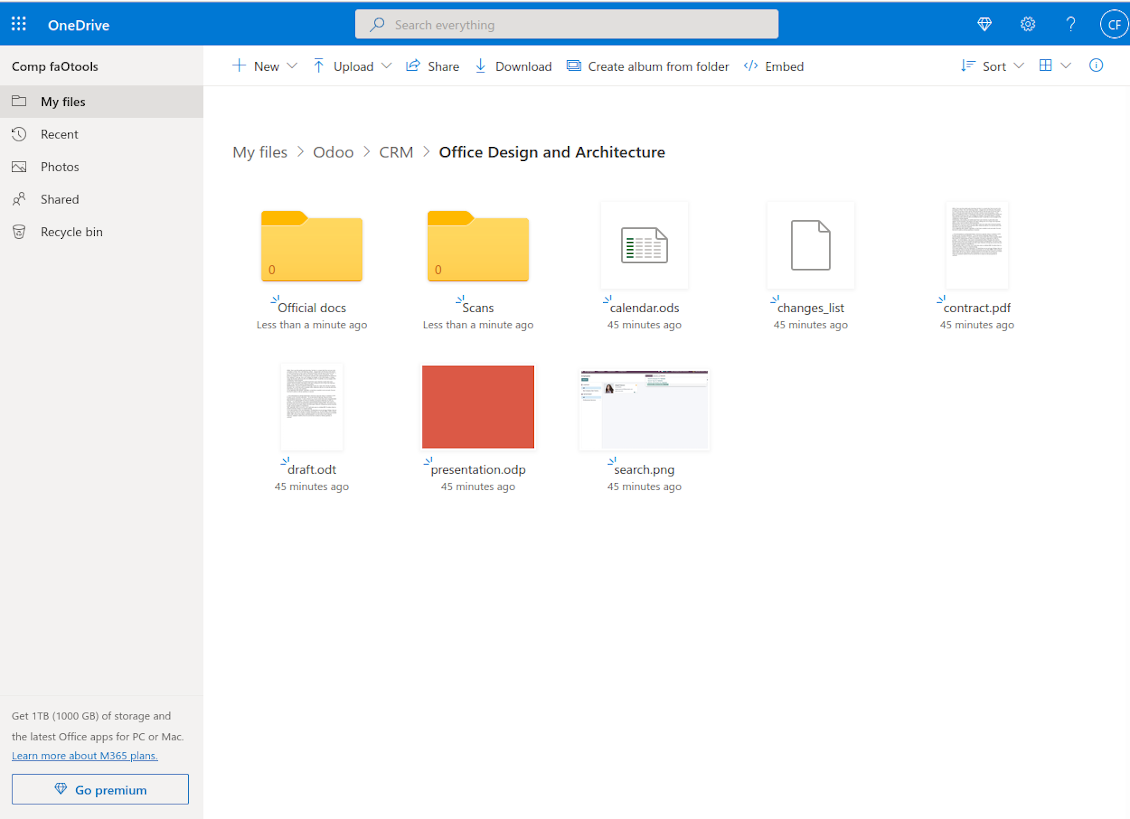
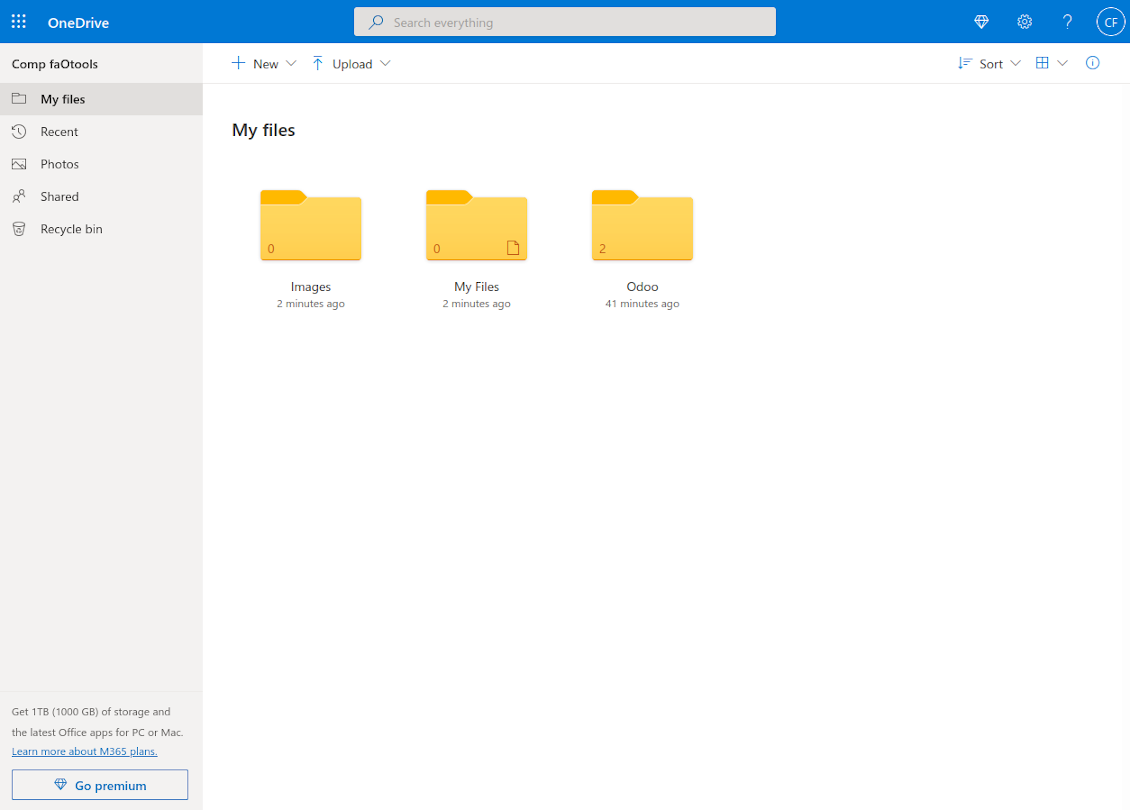
This is the tool to integrate OneDrive / SharePoint features with Odoo folders and files. The app automatically stores Odoo attachments and directories in SharePoint/OneDrive and provides instant access to them via web links.
Automatic folders' structure
Decide which Odoo document types should have their own folders trees and synchronize those to OneDrive/SharePoint
Automatic regular sync
Rely on auto-synchronization between Odoo and OneDrive / SharePoint based on scheduled jobs. No manual interaction is required
Bilateral sync
Odoo sends attachments to OneDrive / SharePoint and retrieves files from there. Binary content is kept in clouds, while Odoo provides direct access to synced items
Cloud synchronization history
Control OneDrive / SharePoint sync logs right in Odoo. Export and share those in case of any issues. Be notified of any client disconnections
File manager interface
Manage synced folders and attachments from a single Odoo view. Comfortably navigate by directories. Search and download files one by one or in batch. Upload and move attachments to folders
Attachment box
Organize files of any Odoo object in a set of subfolders. Instantly access folders and files in the attachment box and in OneDrive / SharePoint.
Works well with SharePoint. Supportive team
We've been using this with SharePoint and it's been working great. One of the best things is having everything, including logs right in Odoo's interface, so you can actually see what's going on. It's also super convenient that you can view or download synced files from the attachment box without having to leave the page or even log in to Sharepoint.
Setup was pretty smooth for us. When we had a few questions about setting up the folder hierarchy and priorities, the developer team got back to us in just a couple of hours and helped us figure it out. Great support and great extension!
Great support, assistance and very good connector!
We are very happy with the support we received when configuring the Sharepoint - Odoo connector. The connector has great functionalities.
All our questions were answered very fast (within one day).
FaOtools helped us optimising our connector and assisted us with future improvements.
We really recommend this connector.
very professional app, excellen t customer service
This app is very well programmed and does its job very well. But the best is the excellent customer service who also helps when the problem lies somewhere else. You receive a lot for your money.
An impressive app and world-class support
I have been very impressed by the way the OneDrive / SharePoint Odoo Integration module synchronises content in both directions and allows me to share documents in Odoo with my SharePoint site. Above all the technical support is top-notch, which greatly increases the value of this product. I highly recommend this product for anyone considering synchronising Odoo with SharePoint/OneDrive.
Works fine, good support
The first experience with the module is excellent. I had some trouble to configure things right on the Microsoft-side, but the team provided quick and good support.
How synchronization works
Automatic two-sided sync
-
Configure sync for one or multiple OneDrive / SharePoint instances
-
Integration is based on scheduled jobs and is fully automatized. The app regularly checks changes in systems and runs sync operations
-
Synchronization is bilateral. Updates in Odoo are reflected in OneDrive / SharePoint (direct sync); changes in OneDrive / SharePoint modify Odoo folders and attachments (backward sync)
-
Cloud connection with OneDrive / SharePoint might be reset. In this way, the app assumes getting back all items back to Odoo (reverse sync)
-
Odoo folders and attachments might be re-attached to a new cloud client from OneDrive / SharePoint. Hence, items would be first taken back to Odoo (reverse sync) and then put to new cloud storage (direct sync)
Queue-based synchronization
-
Once in 15 minutes, the app examines updates in Odoo and OneDrive / SharePoint to prepare a synchronization queue
-
Folders' checks follow the First-In-First-Out (FIFO) principle. So, directories that have not been examined for the longest will be processed first
-
Once in 15 minutes, the sync queue is run by the special scheduled job. Firstly, the most important (blocking) tasks would be done
-
Control planned jobs and their fulfillment in the special Odoo logs interface (Cloud Storage > Configuration > Sync Logs). Subscribe for particular cloud clients notifications
-
If the app faces sync failures, it will re-try operations afterward. Sync queue processing would not be stopped if there are items not blocked by such failures
Odoo attachments for OneDrive / SharePoint: direct sync
-
Direct sync prepares the folders' hierarchy and uploads Odoo attachments for OneDrive / SharePoint
-
Direct sync checks whether attachments are added or deleted for synced directories. If so, they would be created or removed in OneDrive / SharePoint. In particular, it means that any file added to a folder-related Odoo object (e.g. Quotation), would be automatically moved to a linked cloud client
-
Direct sync makes all synced Odoo attachments change their type to a link (URL), while binary content is removed with one of the next Odoo cleaners. So, no actual files would be stored on your Odoo server
-
Direct sync checks whether a new folder is added. Disregarding whether it is done manually or automatically, the app would generate a peer directory in OneDrive / SharePoint
-
Direct sync checks whether there are any updates in folders. If so, such changes are reflected in OneDrive / SharePoint
OneDrive / SharePoint files and folders for Odoo: backward sync
-
Backward sync checks whether any files or subfolders are added to OneDrive / SharePoint folders. If so, the app would create URL attachments/subdirectories inside linked Odoo directories (and hence Odoo objects if any)
-
Backward sync checks whether there are any updates in folders or attachments. Such updates would be then reflected in Odoo
-
Backward sync checks whether any files are deleted/moved in a OneDrive / SharePoint document folder. If so, a linked Odoo attachment would be also unlinked or moved
-
If you deleted a OneDrive / SharePoint folder related to a folder rule / Odoo object, their child files would be deleted as well. Thus, Odoo would remove related attachments. The folders, however, will be recovered with a direct sync
-
In case of conflicts, direct sync changes are in general considered more important than backward updates.
Resetting or changing OneDrive / SharePoint: reverse sync
-
In case you decided to reset the connection with OneDrive / SharePoint, files would be moved back to Odoo
-
In case you decided to change the cloud client of a folder rule or a folder, files would be first taken back to Odoo, and then direct sync for a new client would be done
-
Reverse sync operations are prioritized to direct and backward sync operations
-
Not all items can be correctly reversed to Odoo due to cloud client peculiarities. For example, there are documents that may exist only in cloud storage environments. The app would try to convert such documents, but in some cases, it would require manual interactions.
Määritys- ja asennusvinkkejä: OneDrive / SharePoint Odoo Integration Odoo v.15
Python dependency
The tool depends on the external library 'microsoftgraph'. Install this library for your Odoo server through the command:
pip3 install microsoftgraph-pythonConfiguration and log in
- Turn on the option 'OneDrive / SharePoint Sync' (cloud Storage > Configuration > Configuration). The optional add-on OneDrive / SharePoint Odoo Integration is required
- Make sure your Microsoft user has full admin rights for OneDrive / SharePoint you want to connect to Odoo. This user is required only to grant permissions, the user data would not be kept in Odoo, and would not be used afterward. Besides, make sure a Microsoft email address you use does not have a redirection (usually happens when you configure your domain name, while the prime address is still one of Microsoft domains like @outlook.com, @office365, etc.)
- Go to your Azure Portal: https://portal.azure.com/#blade/Microsoft_AAD_RegisteredApps/ApplicationsListBlade
The app must be registered inside a directory (tenant). Microsoft no longer allows creating a new app outside one.
- If you already have a company Microsoft 365 / Azure directory, switch the portal (top right) to it and continue.
- If you only have a personal account (@outlook.com, @hotmail.com, @live.com) and see "these applications are associated with the account ... but are not contained within any directory", you do not have a directory yet. Sign up for a free Azure account with the same Microsoft account: https://azure.microsoft.com/free/ - Try Azure for free. This creates a Default Directory for you at no cost.
- Microsoft asks for a card for identity verification only; a temporary ~1 USD hold is placed and reversed. You are not charged for the directory or for the app registration.
- The directory (Microsoft Entra ID Free) and any app registered in it keep working independently of the 30-day / $200 Azure trial credit. That credit is for paid Azure resources you are not using here. No payment is required for our app.
- If the whole directory sits completely unused for a very long time (Microsoft's own threshold is around 200 days of no activity at all), Microsoft may email a warning and eventually retire it. Since Odoo calls this app every time it syncs, an active connection keeps the directory active - this only matters if you stop syncing entirely for months.
- Once you are in a real directory (not "Microsoft Services"), open App registrations there.
- Click 'New registration'
- Introduce a new name for the application and assign the redirect URI as [YOURODOOSITENAME]/one_drive_token (e.g. https://odootools.com/one_drive_token). As the supported account types choose 'Accounts in any organizational directory (Any Azure AD directory - Multitenant) and personal Microsoft accounts (e.g. Skype, Xbox)'.
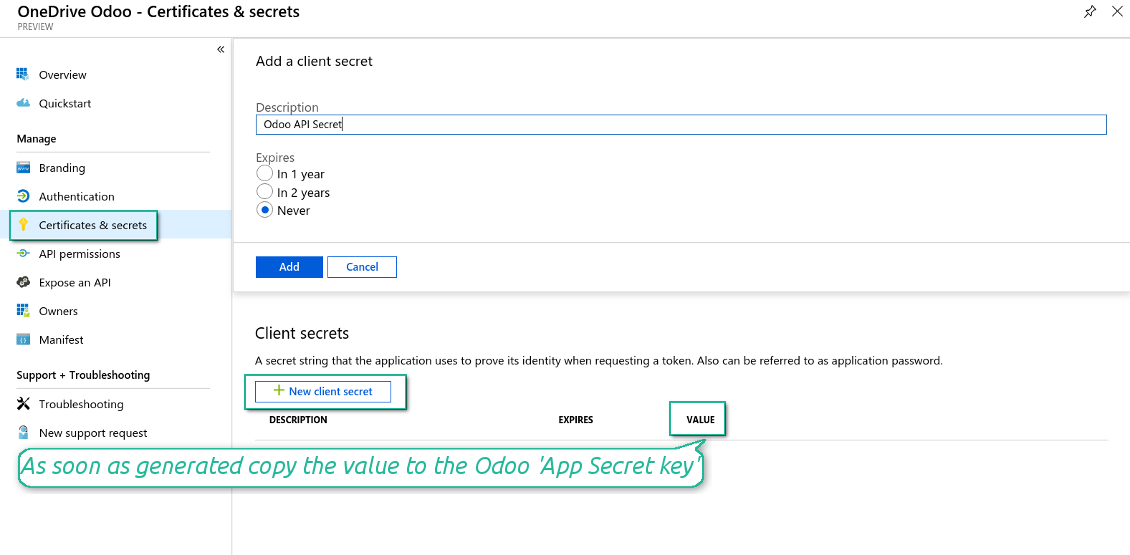
- Go to Certificates & secrets - Click 'New Client Secret'. Save somewhere the secret value
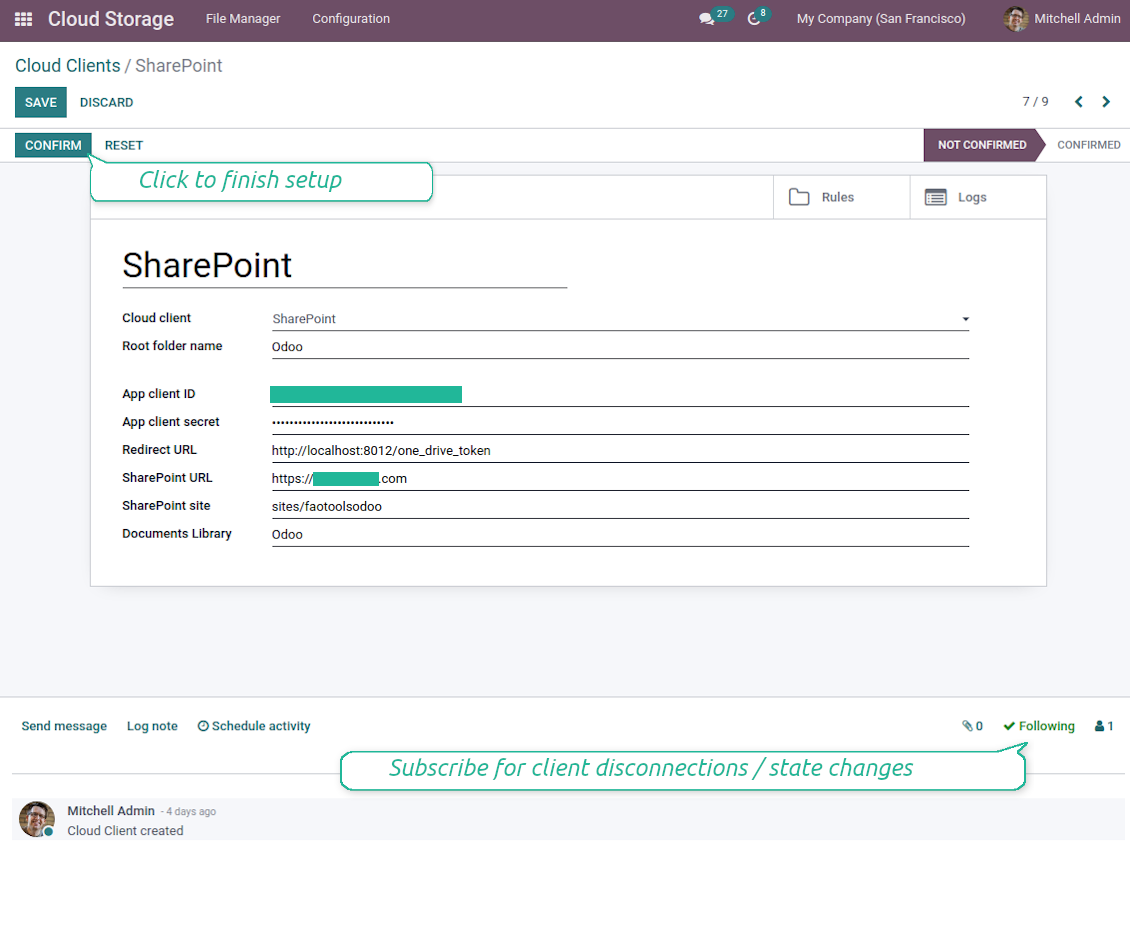
- Go to Odoo Cloud Storage > Configuration > Cloud Clients press 'Create'
- As a reference introduce any name which would be clear to all users
- As a Cloud client choose 'OneDrive' or 'SharePoint' depending on the software you are using
- As a Root folder name enter a title which would be users as the parent OneDrive directory for all synced folders. For example, 'Odoo' or 'OdooERP'
- Copy 'Application Client ID' to the 'App client ID'
- Copy secret value into the field 'App client secret'
- Insert previously generated redirect URL
- If you use SharePoint:
- Go to your SharePoint site and prepare a new documents library (drive). You might use one of the existing ones, e.g. 'Documents'. Odoo folder would be put there afterward, and it would be impossible to move it to another library
- The SharePoint URL should be of the type https://[URL]/. The last '/' is required - the site name should not be included. For example, https://odootools.sharepoint.com/
- SharePoint site should be either root (the very root SharePoint site), my_site_name (in that case it is considered as sites/my_site_name) or sites/my_site_name (instead of 'sites' it might be 'teams' and so on). There should be no '/' at the beginning or at the end. For example, sites/odootools
- As Documents Library use one created in SharePoint
- Press 'Confirm'. Odoo redirects you to the Microsoft login page. Check in the system, agree with all conditions, and grant all permissions asked. If Microsoft shows an account already signed in and says it does not exist in tenant 'Microsoft Services' (or any other unrelated tenant), do not click that row. Click 'Use another account' and sign in with the Microsoft account that owns the app's directory
- After login, OneDrive redirects you back to Odoo. OneDrive - Odoo synchronization is ready to be done
- Apply the newly created cloud client to folder rules and/or manual folders which should be synced to that OneDrive or SharePoint instance
- Await the sync scheduled job to be started. For testing purposes only: trigger integration manually from Cloud Storage > Configuration > Configuration > the button 'Launch sync'.
Watch also the videos to configure OneDrive and SharePoint
Create Azure application
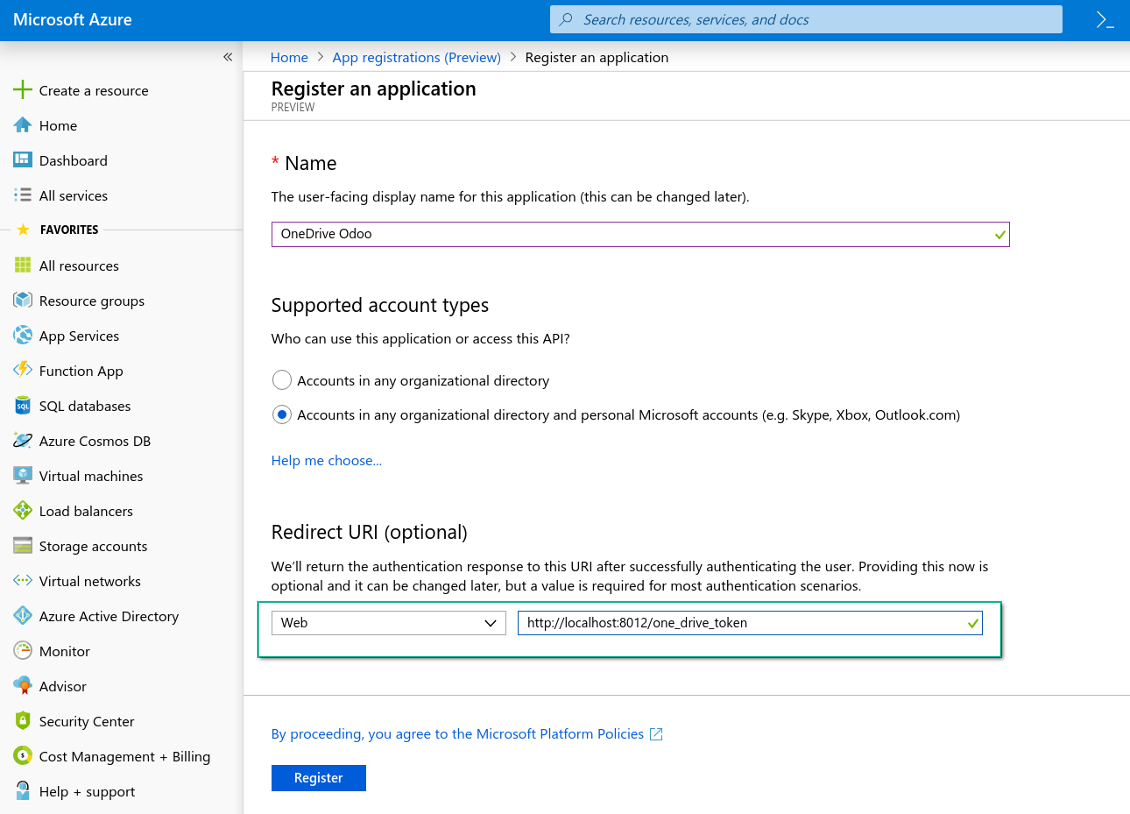
New OneDrive Web platform and redirect URL
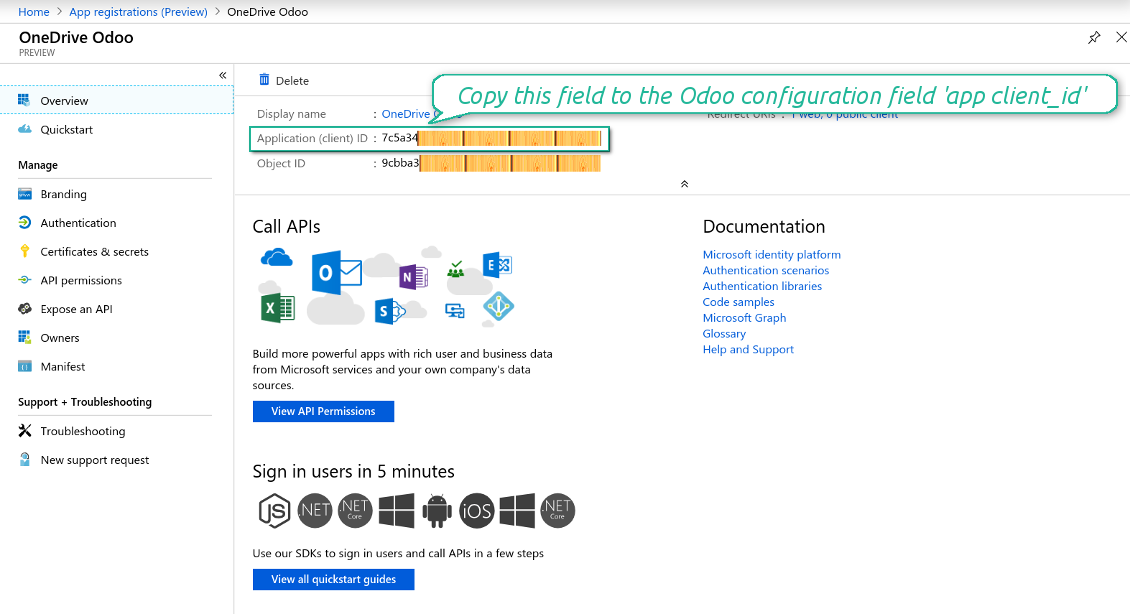
Generate new secret for Azure application
Enter configuration keys in Odoo
Usein kysytyt kysymykset aiheesta OneDrive / SharePoint Odoo Integration Odoo v.15
Näen virheen, kun napsautan synkronoidun kuvan pilvilinkkiä
Virhe «This item might have been deleted, expired, or you might not have permission to access it. Contact the owner of this item for more information.» tarkoittaa, ettet ole kirjautunut palveluun photos.onedrive.com.
Mihin synkronoidut tiedostot tallennetaan? Kopioidaanko ne sekä Odooseen että pilviin?
Sovellus olettaa, että liitteiden binaarisisältö pidetään Cloud Clientissä Odoo-palvelimen sijaan. Siksi tällaisista liitteistä tulee Odoossa URL-tyyppisiä, ja niihin pääsee milloin tahansa joko liitekentästä tai Cloud Clientistä.
Määrityksen jälkeen manuaalisia toimia ei tarvita, koska synkronointi on täysin automaattinen. Päätä vain, mitkä Odoo-asiakirjatyypit synkronoidaan, ja aseta kullekin liittyvä malli (asiakkaat, myynti- tai ostotilaukset, tehtävät, projektit jne.).
Voinko pitää useita kansioita samalle asiakirjatyypille? Esimerkiksi sisäiset projektit ja asiakasprojektit?
Kyllä. Tee sitä varten sääntö kullekin ja aseta suodattimet: esimerkiksi projektin tyypin mukaan.
Tee suodattimista toisensa poissulkevia, jotta asiakirja voidaan sijoittaa varmasti. Esimerkiksi: «asiakas mutta ei toimittaja», «toimittaja mutta ei asiakas». Muuten asiakirjan kansio hyppää mallista toiseen.
Onko ok, jos synkronoitavia kohteita on paljon, esimerkiksi 10000?
Kyllä, vaikka monien kansioiden/liitteiden kanssa prosessi voi olla hidas. Asiakkaat ovat silti raportoineet ympäristöistä, joissa on >10k kumppania ja ~5k tuotevarianttia, ja prosessit olivat hyväksyttäviä.
Muutama kohta:
- Synkronointi on rakennettu niin, ettei mikään kohde katoa, vaikka se ei olisi nopea. FIFO-jonot ja kunkin työn commit takaavat sen.
- Kohteiden määrää voi rajata loogisesti. Mallien asetukset antavat jättää vanhentuneet pois (esim. arkistoidut kumppanit tai 2 vuoden takaiset tilaukset).
Voiko synkronoinnin tehdä reaaliaikaiseksi?
Ei. Meillä on vahvat syyt välttää reaaliaikaista synkronointia:
Suorituskyky. Reaaliaikaisessa synkassa jokainen tiedoston lataus näyttää latausruudun.
Ristiriidat. Jos 2 käyttäjää muuttaa kohdetta yhtä aikaa, tilanne voi jäädä ratkaisematta. Säännöllisissä töissä voimme korjata myöhemmin; reaaliajassa tarvittaisiin jono, mikä sekoittaisi entisestään.
Toiminnallisuus. Erityisesti nimeäminen ja uudelleenjärjestely. Paluysynk nojaa tiukasti hakemistologiikkaan ja jokaisessa synkassa tarkistetaan 100 % kohteista. Jokaisen päivityksen jälkeen se olisi tuhansia pyyntöjä sekunnissa. Muuten muutokset katoaisivat.
Voinko muuttaa kansioiden oletusnimiä pilvissä?
Voit antaa mallien hakemistoille (myyntitilaukset, mahdollisuudet, toimittajat jne.) oman nimen mille tahansa asiakirjatyypille.
Kohdekansioissa (SO-001, John Smith jne.) työkalu käyttää Odoon näyttönimen muodostusta. Voit muuttaa sen nimilausekkeella. Syntaksi on sama kuin Odoon sähköpostimalleissa.
Voinko muuttaa synkronointitöiden taajuutta?
Ei, versiosta 15 alkaen ajastettuja töitä ei pidä muuttaa. Ne on optimoitu suoritettavaksi 15 minuutin välein, jotta yhteys pysyy mahdollisimman vakaana ja nopeana.
Varmista, että Odoo-palvelimen aikakatkaisut on asetettu vähintään 15 minuuttiin (900 sekuntia).
Jos synkronointi pitää keskeyttää hetkeksi, tee se kyseisen pilviasiakkaan lomakkeella.
Voinko synkronoida liitteet useisiin pilviasiakkaisiin
Kyllä, versiosta 15 alkaen voit määrittää useita yhteyksiä. Näin osa kansioista synkronoituu yhteen pilviasiakkaaseen ja osa toiseen.
Samaa kansiota ei voi millään synkronoida yhtä aikaa useaan pilvitallennukseen.
Käytämme pilvissä erityistä editoria (esim. OnlyOffice, Office 365 jne.). Avautuisivatko tiedostot siinä editorissa?
Kyllä, pilviasiakkaasi asetuksista riippuen.
Tarvitsenko vain Cloud Storage Solution -sovelluksen?
Versiosta 15 alkaen sovellusta voi käyttää yksinään liitteiden kansiointiin ja tiedostonhallintakäyttöliittymään.
Jos tavoitteena on yhteys johonkin pilviasiakkaista, on asennettava vähintään yksi valinnainen asiakassovellus.
Mitä tapahtuu, kun muutan kansion sääntöä?
Kansion sääntö muuttuessa myös kansiolista muuttuu. Jos kansio ei enää täytä ehtoja, se poistetaan. Jos tiedostot oli synkronoitu, paluysynk palauttaa ne Odooseen ja poistaa Cloud Clientista.
Jos asiakirjan kohde ei täytä kansion sääntöä, kansiota ei luoda. Jos se täyttää ehdot myöhemmin, liittyvä kansio luodaan.
Mitkä ovat tyokalujenne paivityskaytannot?
Odoo Apps Storen nykyisten kaytantojen mukaan:
- Versiolle 12.0 tai aiemmalle ostettu moduuli antaa pääsy kaikkiin versioihin 12.0 asti.
- Versiosta 13.0 alkaen jokainen moduuliversio ostetaan erikseen.
- Versiosta riippumatta osto antaa oikeuden kaikkiin paivityksiin ja korjauksiin paaversiossa.
faOtools-tiimi ei hallitse näitä kaytantoja. Kysymykset osoitetaan suoraan Odoo Apps Storen edustajille.
Miten asennan sovelluksen Odoo.sh-palveluun?
Suorin tapa on Odoo-kaupan sisaanrakennettu työnkulku:
1. Avaa moduulin sivu ja napsauta Deploy on odoo.sh
2. Sinut ohjataan GitHubiin. Kirjaudu sisään ja napsauta Create a new repo tai käytä olemassa olevaa. Repositorion on oltava yksityinen. OPL-1-lisenssin sovelluksia ei saa julkaista. Luo tarvittaessa uusi repo Odoo.sh-projektia varten
3. Siirry sitten odoo.sh:iin, napsauta Deploy, vahvista ja napsauta Continue. Asennus kaynnistyy.
Nämä vaiheet asentavat sovelluksen production-haaraan. Muille haaroille tai paivitykseen:
1. Lataa lahdekoodi Odoo-kaupasta
2. Commitoi moduuli GitHub-repositorioon. Mikään sovelluskansio/-tiedosto ei saa olla .gitignore-tiedostossa. odoo.sh:n luomat repositoriot voivat oletuksena ohittaa tarkeita polkuja (esim. /lib). Lataa kaikki moduulin hakemistot ja tiedostot
3. Deployaa odoo.sh-projektin kohdehaara tai odota automaattista koontia, jos asetukset niin maarittavat.
Miten asennan sovelluksen omalle palvelimelleni?
2. Käynnistä Odoo-palvelin uudelleen;
3. Ota kehittajatila kayttoon (tekniset asetukset);
4. Päivitä sovellusluettelo (Sovellukset-valikko);
5. Etsi sovellus ja paina Activate/Install;
6. Noudata sovellussivun ohjeita, jos niitä on.
Sovelluksella on lisaosia. Voinko ostaa ne myöhemmin?
Kyllä. Odoo lisää kaikki riippuvuudet ostoskoriin automaattisesti: jätä pois jo ostetut työkalut, jottet maksa kahdesti.
Asensin sovelluksen Odoo.sh-palveluun ja näin varoituksen/virheen testeissa
Punainen/oranssi varoitus ei vaikuta sovelluksen ominaisuuksiin. Joskus moduulimme eivät lapaise vakioautomaattitesteja, koska ne olettavat kayttaytymisen, joka on ristiriidassa sovelluksen tavoitteiden kanssa. Muutamme esimerkiksi hinnanlaskentaa, kun Odoo-testit vertaavat loppuhintaa vakioalgoritmiin.
Tarkista ensin kayttoon otetun tietokannan ominaisuudet. Toimiiko kaikki?
Jos oletat silti, että varoitus vaikuttaa todellisiin ominaisuuksiin, ota yhteyttä ja lähetä täydet asennuslokit sekä täydellinen luettelo kayttoon otetuista moduuleista (ydin ja kolmannet osapuolet).
Voinko ostaa sovelluksen suoraan teilta?
Ei, jaamme työkalut vain virallisen Odoo-sovelluskaupan kautta.
Haluan alennuksen
Valitettavasti meillä ei ole teknisia keinoja tarjota yksilöllisiä hintoja.
Voinko asentaa sovelluksen Odoo Online (SaaS) -tietokantaani?
Ei, kolmannen osapuolen sovelluksia ei voi käyttää Odoo Online -palvelussa. Odoo SaaS estää sen.
Tyokalulla on riippuvuuksia. Pitääko ne ostaa?
Kyllä, työkalu tarvitsee kaikki riippuvuuksissa merkittyt moduulit. Sovellussivun hinta sisältää jo nämä riippuvuudet.
Mikä on moduulin hinta Yhdysvaltain dollareina? Miksi se muuttui?
Moduuliemme hinta on euroissa. Odoo-kauppa muuntaa hinnat muihin valuuttoihin sisaisen kurssinsa mukaan. Siksi Yhdysvaltain dollarin hinta voi muuttua, kun kurssi paivittyy.
Sovellus- ja sivustotekstit muilla kielillä kuin englanniksi on tehty tekoälyn tuella ja linjattu virallisiin Odoo-käännöksiin. Jos huomaat virheen, lähetä käännösten oikeellisuutta koskeva tiketti niin korjaamme sen.
Virheiden ilmoittaminen
Jos kohtaat virheitä tai epäjohdonmukaista toimintaa, ota yhteyttä. Korjaamme 60 päivän kuluessa ostosta ja kehitämme työkaluja sen jälkeenkin.
Yhteydenottoon ei tarvita puhelinnumeroa eikä luottokorttia. Riittää lyhyt sähköpostirekisteröinti, joka kestää alle 30 sekuntia.
Liitä pyyntöön mahdollisimman paljon tietoja: kuvakaappaukset, Odoo-palvelinlokit ja täysi kuvaus ongelman toistamisesta. Työsuunnitelma (jos virhe vahvistetaan) tai ohjeet (muuten) valmistuvat yleensä muutamassa arkipäivässä.
Julkiset ominaisuuspyynnöt ja moduliehdotukset (ilmainen kehitys)
Olemme vahvasti motivoituneita kehittämään työkalujamme ja kiitollisia kaikesta palautteesta. Jos vaatimuksesi palvelevat yleisesti ja ne voidaan toteuttaa tehokkaasti, tiimi lisää ne tehtävälistaan.
Tällainen tehtävälista käsitellään säännöllisesti eikä siihen sisälly lisämaksuja. Emme voi luvata määräaikoja ja lopullista suunnittelua, mutta se voi olla hyvä tapa saada toivottuja ominaisuuksia ilman investointeja ja riskejä.
Yhteydenottoon ei tarvita puhelinnumeroa eikä luottokorttia. Riittää lyhyt sähköpostirekisteröinti, joka kestää alle 30 sekuntia.

Työkalu salasanojen turvalliseen säilytykseen Odoossa jaettuun käyttöön. Jaetut holvit

Työkalu syvän ja jäsennellyn tietopankin rakentamiseen sisäiseen ja ulkoiseen käyttöön. Knowledge System. KMS. Wiki-tyyliset versiot.
398€
Työkalu KPI-tavoitteiden asettamiseen ja täyttymisen seurantaan jaksoittain. KPI-koontinäytöt. Koontinäytön suunnittelija. KPI-kaaviot

Työkalu aikaperusteiseen palvelunhallintaan varauksista myyntiin ja arvosteluihin
398€
Työkalu Odoon hallintaan suosikki-AI-chateista MCP:n kautta. Claude. Mikä tahansa MCP-tekoäly.

Työkalu, jolla Odoo-liitteet järjestetään kansioihin ja hakemistot synkronoidaan pilviasiakkaisiin: Google Drive, OneDrive/SharePoint, Nextcloud/ownCloud, Dropbox, Amazon S3, Box ja NAS. DMS. Tiedostonhallinta. Asiakirjahallinta
398€
Työkalu: automaattisesti synkronoi Odoo liitteet kanssa Google Drive tiedostot ssa molemmat ways
487€
Työkalu: automaattisesti synkronoi Odoo liitteet kanssa ownCloud/Nextcloud tiedostot ssa molemmat ways
487€
Työkalu: automaattisesti synkronoi Odoo liitteet kanssa NAS Solutions ssa molemmat ways. Synology, QNAP, TrueNAS ja mikä tahansa muut WebDav-supporting NAS solutions
487€