OwnCloud / NextCloud Odoo Integration v.12
The tool to automatically synchronize Odoo attachments with OwnCloud / NextCloud files in both ways
Both OwnCloud and NextCloud don't have such disadvantages. This is the tool to integrate their features into your Odoo business work flow. The app automatically stores all Odoo attachments in OwnCloud or NextCloud, and it provides an instant access to them via web links. In such a way users work with files comfortably in the cloud storage, while the results are fully available in Odoo.
Automatic integration
Bilateral sync
How files and folders are synced from Odoo to OwnCloud / NextCloud
- Prepare and keep updated folders' structure in OwnCloud / NextCloud
- Upload new attachments to a correct folder
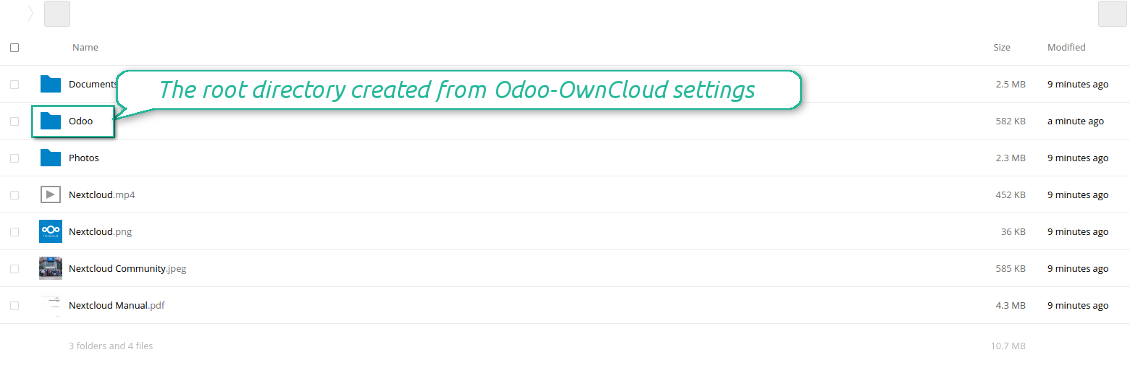
Odoo creates a convenient directory structure in OwnCloud / NextCloud: Odoo / Document type name / Document name / Files, where:
- Odoo is a central directory for Odoo Sync in your cloud storage.
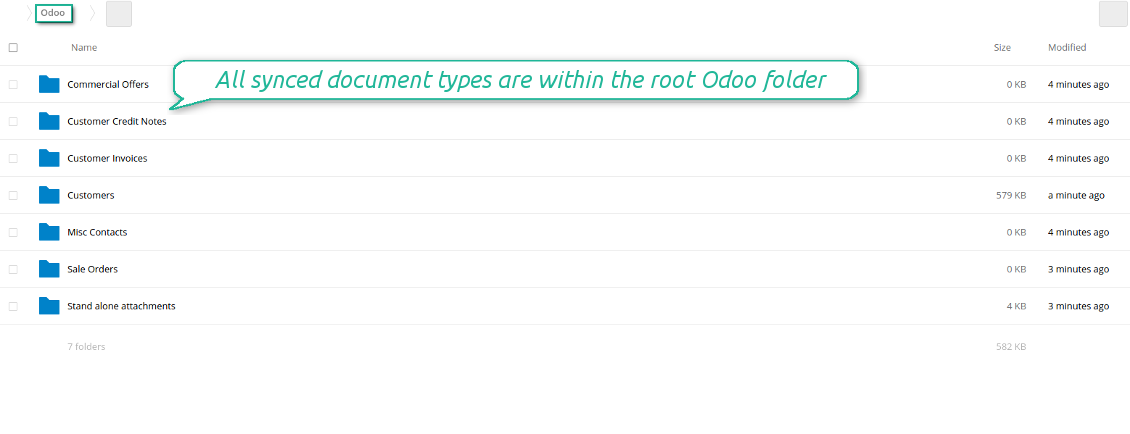
- Document type is a synced Odoo model, for example, 'Sale orders', 'Opportunities', 'Customers'
- You select document types by yourself. It might be any document type
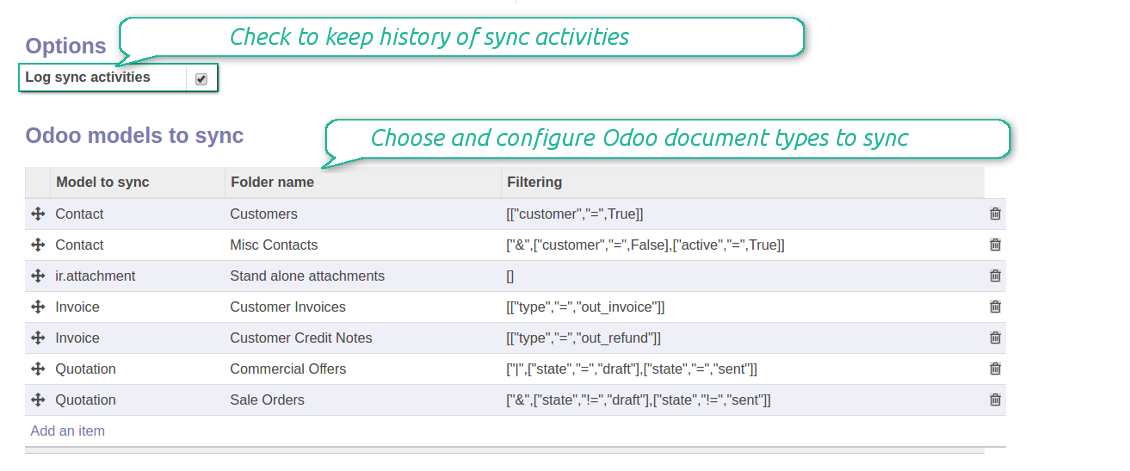
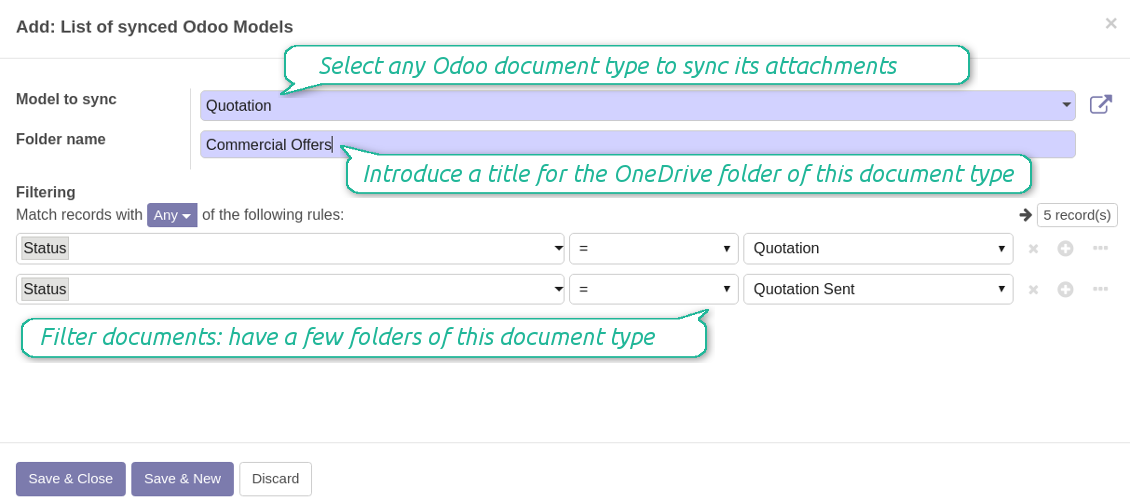
- Moreover, you might have a few folders for a single document type. Use Odoo domains to have not global 'Partners, but 'Customers' and 'Suppliers', not just 'Sale orders' but 'Commercial offers', 'To deliver', and 'Done orders'
- With each sync Odoo would try to update document types' folders. Add a new document type at any moment. It will appear in OwnCloud / NextCloud with a next sync
- You are welcome to introduce or change document types folder names at any moment in Odoo. Take into account: renaming in OwnCloud / NextCloud will be recovered to Odoo names
- If you remove a model from integration, it will not be deleted from OwnCloud / NextCloud to keep already synced files safe. However, new documents of this type would not be synced
- In case you removed a directory in OwnCloud / NextCloud, but it is still configured in Odoo, with a next sync a folder structure is going to be recovered (not files, surely).
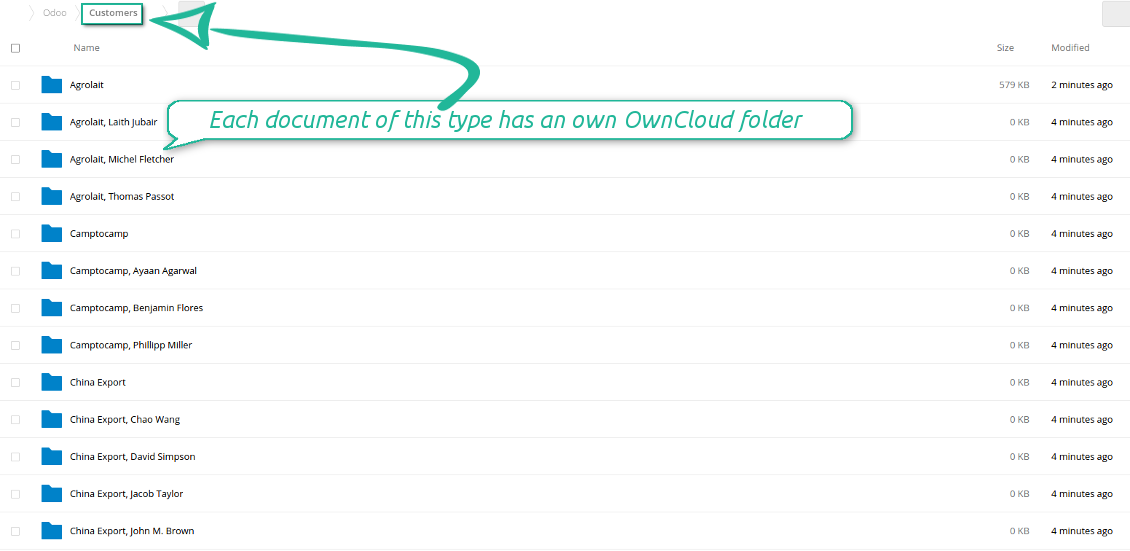
- Document is an exact object to sync. For instance, 'Agrolait' or 'SO019'
- Documents are synced in case they relate to a synced document type and satisfy its filters. For example, you are not obliged to sync all partners, you may integrate only 'Customers' and 'Vendors' or only 'Companies', not 'Contacts'
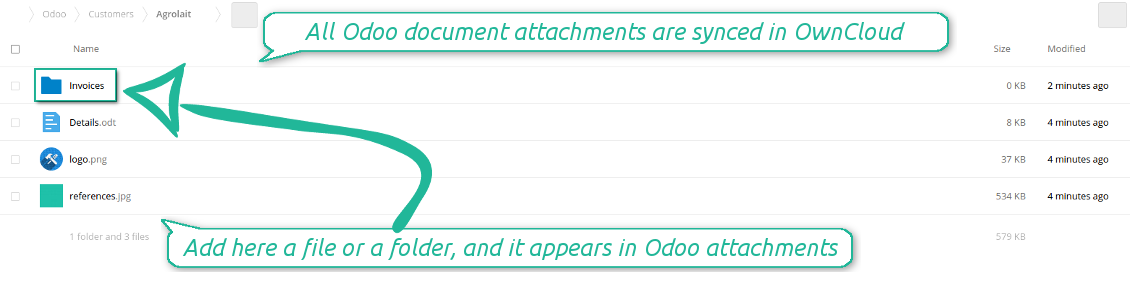
- Odoo would generate a folder in OwnCloud / NextCloud for each suitable document even for documents without attachments. It is needed for a backward sync to easily add new files
- OwnCloud / NextCloud folder name equals a real document name. It relies upon Odoo name_get method. Thus, Odoo 'Michael Fletcher' (a contact of 'Agrolait') would be OwnCloud / NextCloud 'Agrolait, Michael Fletcher'
- If an exact document changes its document type (e.g. a quotation is now confirmed), Odoo will automatically relocate its related folder to a proper parent directory (in the example: from 'Commercial offers' to 'To deliver')
- In case a document relates to a few types (for instance, you have 'Vendors' and 'Customers', while Agrolait is both), this document folder would be put into the most prioritized document type. A document type priority is higher as closer to the top in Odoo interfaces it is
- If an Odoo document is removed, the next sync will remove a corresponding OwnCloud / NextCloud directory
- In case you remove a directory in OwnCloud / NextCloud, but it still exists in Odoo, OwnCloud / NextCloud folder structure would be recovered (while files would be unlinked in both Odoo and OwnCloud / NextCloud)
- Folders renaming in OwnCloud / NextCloud will be replaced with Odoo names, Odoo document names are more important
- Files are real files taken from Odoo attachments
The resulted path would be, for example, 'Odoo / Quotations / SO019 / commercial offer.png'.
The only exclusion of the rule are stand alone attachments which do not relate to any Odoo documents (their document type is 'ir.attachment'). Such attachments' path is 'Odoo / Stand Alone Attachments / image.png'.
The direct sync might take quite a long, since a lot of folders should be created. It is not recommended to make sync too frequent: once an hour or two hours is fine.
FilesWith each direct sync, Odoo tries to find not yet synced attachments. If such attachments suit any document type to sync, a file will be uploaded to OwnCloud / NextCloud to a proper folder. In Odoo such attachments will become of 'url' type. It means that a file is not any more kept in Odoo server space, but now it is in OwnCloud / NextCloud. Until sync is done, Odoo attachment remains binary and stores an actual file. Such approach helps Odoo to work faster.
If you unlinked an attachment from Odoo, it would be deleted in OwnCloud / NextCloud as well.
Take into account that file names should be managed in OwnCloud / NextCloud: each backward sync would recover OwnCloud / NextCloud names, Odoo is here less important.
How items are retrieved from OwnCloud / NextCloud to Odoo
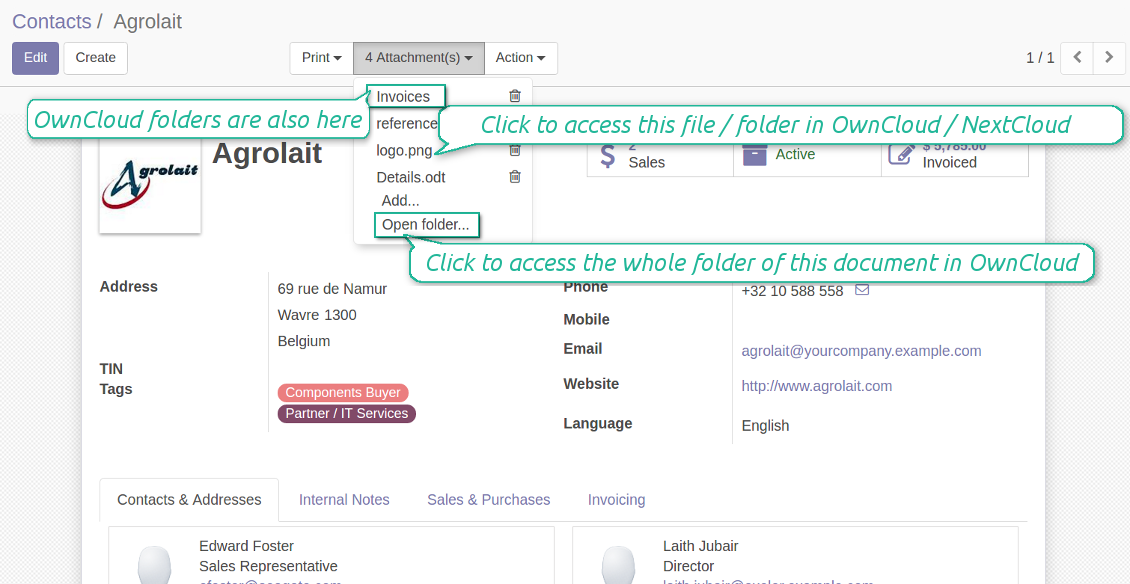
- If a new file is added to a proper document folder (e.g. to 'Odoo / Customers / Agrolait'), the same attachment will be added to Odoo document (in the example - to 'Agrolait')
- In document folders you can put not only files but also child folders. In that case a link for this folder (not its content) is kept in attachments
- In case you rename a file in OwnCloud / NextCloud, it will be renamed in Odoo as well
- Files' removal from OwnCloud / NextCloud leads to related Odoo attachments' removal
- If you move a file to another document folder, in Odoo a related attachment would be re-attached to this new document. Take into account: if you move a file for a not document folder, in Odoo attachment will be deleted as it has been removed from OwnCloud / NextCloud
- If you deleted a document type or document folder, their child files are deleted as well. Thus, Odoo would remove related attachments. The folders, however, will be recovered with a next direct sync. Folders' move to another directory is also considered as a removal. Avoid such situations by following the simple rule: folders are managed mostly by Odoo, files - mostly by OwnCloud / NextCloud.
Backward OwnCloud / NextCloud might take quite much time, since each folder should be checked (the more folders, the more time the backward sync requires). It is recommended to make frequency oftener than once an hour or two hours.
Screenshots
All document types are in the root directory 'Odoo'
Document types' folders
All document of this type has an own folder
Sync any documents you like
The tool let you split any business model into a few directories. Have a separate folder for individuals and companies, for European and American opportunities, for each project, etc.
Moreover, it is possible to guarantee that only topical documents are synced by using relative periods: leads registered in the last 3 months, invoices updated the last week, and so on.
Typical use cases
- Projects: automatically forward all project-related documents to OwnCloud / NextCloud to share those with a customer as a cloud link.
- Customers: add all partner files in a single directory available both from Odoo and from OwnCloud / NextCloud. Modify those using default cloud editors and access them when working in Odoo.
- Employees: gather all files by this employee in a single cloud folder: photos, document scans, contracts. Access and upload those from Odoo and OwnCloud / NextCloud alternatively.
- Opportunities: carefully store all specifications, requirements and any file which would let you make a good offer.
- Orders: keep all printings and contracts in OwnCloud / NextCloud with simple availability from Odoo.
Screenshots
Choose document types to be synced
Document type might have a few folders based on filters
Easy accessible files
Internal and public URLs
By default all links from Odoo to OwnCloud / NextCloud are internal. It means that only authorized users may access them and, after that, generate shared URLs for others.
It is possible to make them public using the option 'Use Public URLs'. In that case links will become 'shared', meaning that everybody may access those files by links. Although the links would be hardly known by external users, there is a slight chance that they become available as a result of some user actions. Besides, sharing links generation is not fast and might make the synchronization slower. Thus, be cautious if you decide to use shared links.
Screenshots
Fast access to OwnCloud / NextCloud files and folders
Synced files are simply found in OwnCloud / NextCloud. Add unlimited number of files or folders here
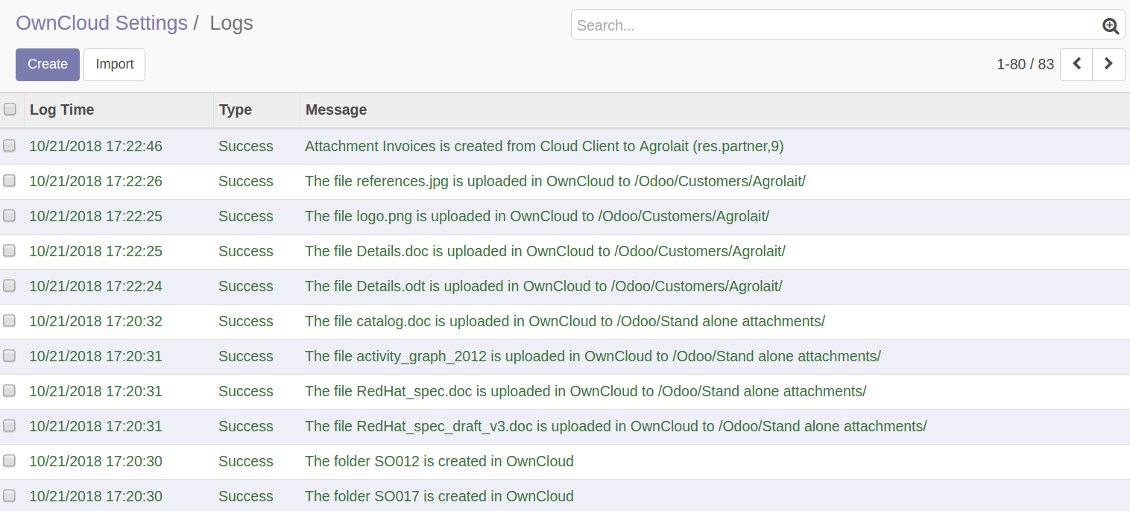
Sync logs in Odoo
Screenshots
Logged synchronisation activities
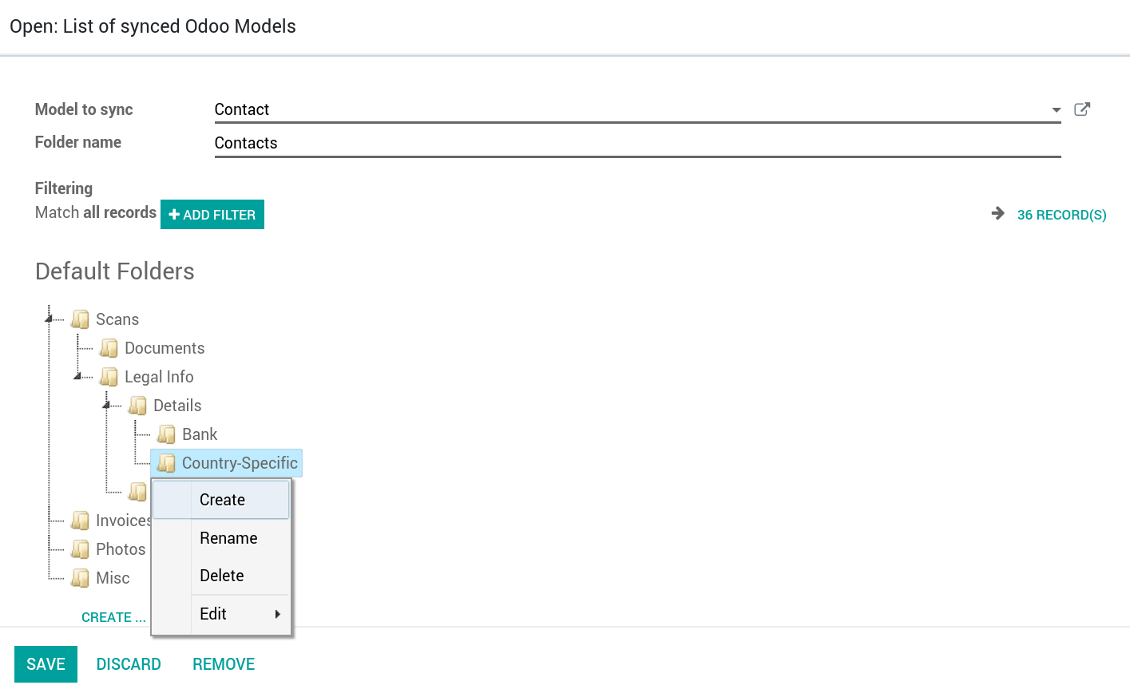
Default folders for documents
Screenshots
Default folders for this document types to be created while firstly synced
Applicable to all Odoo apps
A few important peculiarities to take into account
- Do not add folders inside root or document types' folders. If they have the same name as newly synced folders, the latter would not be uploaded
- Make sure your database has a proper SSL certificate required to use OwnCloud API
- Try to avoid the following symbols in folders' and files' names: *, ?, ", ', :, <, >, |, +, %, !, @, \, /,. Direct sync will replace such symbols with '-'. It is done to avoid conflicts with file systems.
Compatible with Odoo Enterprise Documents
How Odoo Enterprise Documents are synced
This tool is not in conflict with the 'documents' module provided by the Enterprise license. Attachments related to Enterprise folders would be synced as any other files: according to a document they relate to. In the most cases it means they would be linked to stand-alone attachments.
It is not always comfortable, and you might be interested in reflecting directories' structure introduced by the module 'Documents'. To this end the extension Cloud Sync for Enterprise Documents (its standard price is 44 Euros) is developed. This tool has the following features:
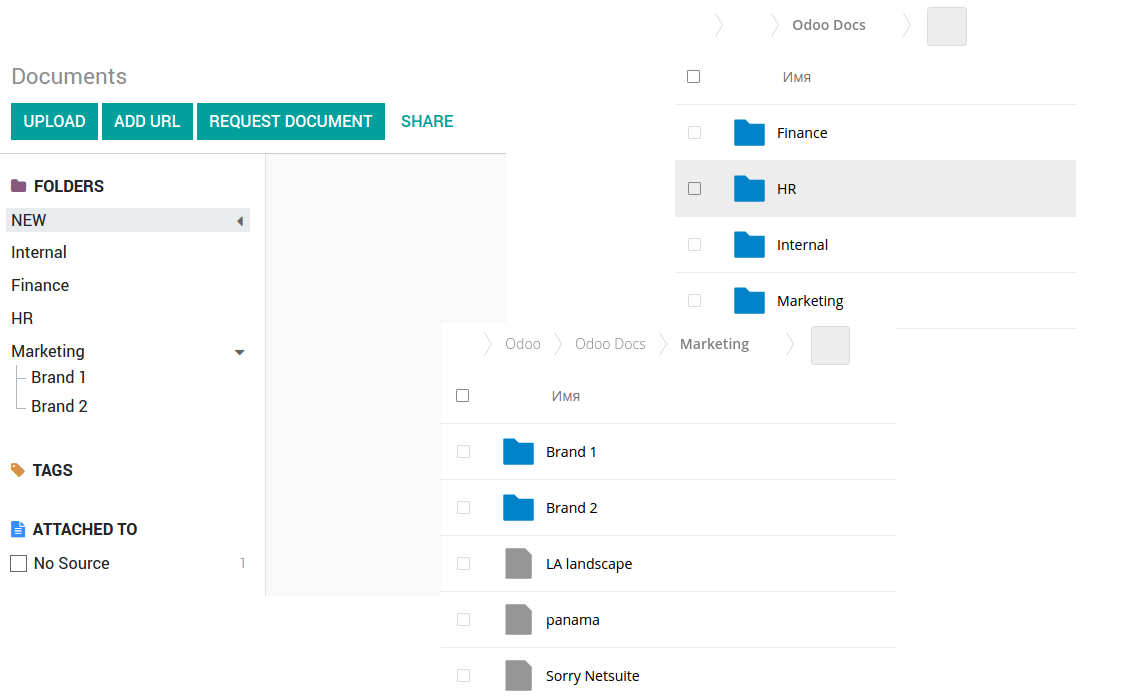
- The documents hierarchy is reflected within the folder 'Odoo / Odoo Docs'
- Each Odoo folder has a linked cloud folder. Take into account that folders created in the cloud storage will be synced as Odoo attachments. The key principle is: folders are managed by Odoo, files are managed by the cloud client
- All files are synced with the same logic as usual attachments. Files created in Odoo will be added to the cloud storage and will be replaced with links in Odoo. Files created in cloud storage will generate attachments within a paired directory
- Please do not name synced models as 'Odoo Docs'. This is the reserved name for Odoo Enterprise Documents
Screenshots
Odoo Enterprise documents synchronize
Very good product
A perfect solution to integrate Owncloud with Odoo. We sync a high volume of objects across multiple Odoo models, which works seamless and stable. For us it is the perfect solution to have an external DMS instead of the Odoo native attachment handling, which also enables us to interchange files between systems in our best-of-breed setup.
The team behind this module is extremely professional and responsive. They helped us on a few occasions and provided clear answers and prompt support when required, and they even went out of their way to assist us with another requirement we had. Cannot recommend the product and team highly enough, try this if you're in the market to connect Odoo with an external document solution.
Works according to specs
I have used this app with Odoo 12 and Nextcloud 16 and it works as specified. Odoo Tools offers very responsive support which is really helpful. Of course 5 stars...!
This is Awesome
I have used Cloud Sync on Next/Own Cloud and works really great.
Configuratie- en installatietips voor OwnCloud / NextCloud Odoo Integration Odoo v.12
Python dependency
pip install pyocclientConfiguration and log in
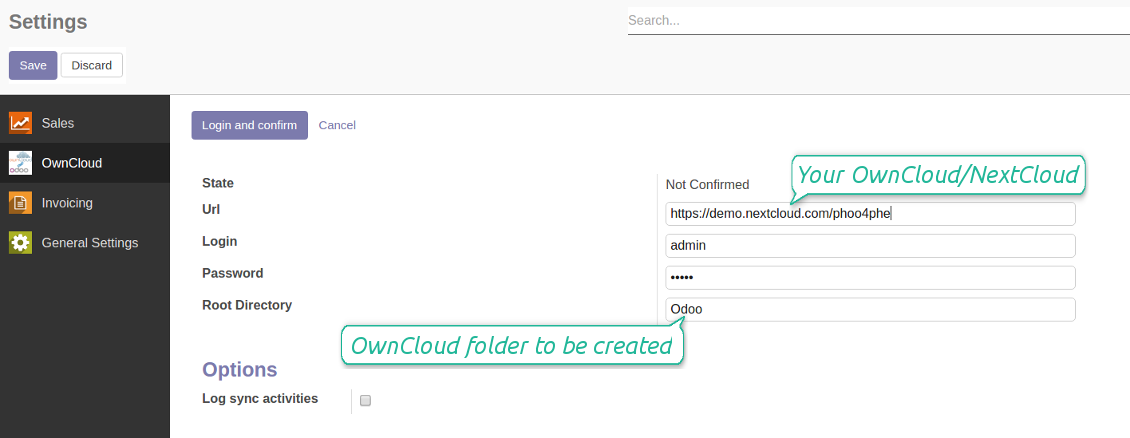
- Enter your cloud storage full url
- Select an OwnCloud / NextCloud, which has full rights to read, create, write and delete files and folders within a root directory
- Enter login and password of this user
- Introduce the title for OwnCloud / NextCloud folder, e.g. Odoo
- Push the button 'Save', and then - the button 'Login and Confirm'
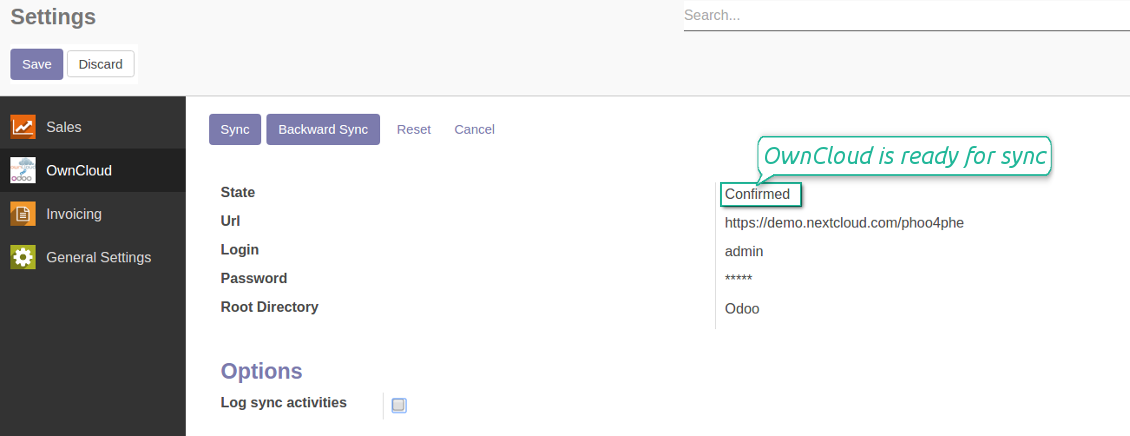
- If everything is fine, push the button 'Sync'
- Make sure that the root directory or its children are shared with your colleagues
Enter OwnCloud / NextCloud credentials
Confirmed credentials to start sync
Odoo server configuration and cron job configuration
To make sure the synchronization works correctly apply proper timeouts to the Odoo configuration file: LIMIT_TIME_CPU, LIMIT_TIME_REAL should be more than 900 seconds.
For Odoo.sh this should not be done, since timeouts are predefined and are not configurable.
Then, timeout should be entered to your Odoo. To that goal find the section 'Settings' on the app configuration page and copy the number there.
Afterwards, it is needed to make the cron jobs suit the applied timeouts. In the debug mode go to the Settings > Technical > Automation > Scheduled Jobs:
- Set up the job 'Synchronize attachments with cloud' as (a) frequency - 2*timeout; (b) the next execution as the next hour +timeout. For example, for 900seconds timeout: frequency - as 30minutes; the next execution - at 08:15
- Set up the job 'Synchronize attachments from cloud' as (a) frequency - 2*timeout; (b) the next execution as the next hour + timeout*2. For example, for 900seconds timeout: frequency - as 30minutes; the next execution- at 08:30.
Veelgestelde vragen over OwnCloud / NextCloud Odoo Integration Odoo v.12
Kan ik de frequentie van synchronisatietaken wijzigen?
Ja, dat kan. Doe het als volgt:
Zet de debugmodus aan
Ga naar technische instellingen > Automatisering > Geplande acties
Zoek de taken «Synchronize attachments with cloud» en «Update attachments from cloud».
Maak ze niet te frequent. Een taak moet bij voorkeur klaar zijn voordat de volgende start. De instelling hangt af van hoeveel items u moet synchroniseren. Meestal ligt de frequentie tussen 15 minuten en 4 uur.
Zet ook voldoende tijdslimieten in het Odoo-configuratiebestand. LIMIT_TIME_CPU en LIMIT_TIME_REAL moeten gelijk zijn aan of groter dan de geplande crontijd. Vanaf versie 13 geldt ook LIMIT_TIME_REAL_CRON.
Belangrijke opmerking voor Odoo.sh-klanten: de maximale crontijd kan tot 15 minuten beperkt zijn.
Kan ik een andere structuur van gesynchroniseerde mappen instellen dan de synchronisatie aanneemt?
Nee, deze functie bestaat pas vanaf versie 15. Daarvoor werkt de module met een vaste mappenstructuur:
Odoo - hoofdmap voor de sync
Modellen - mappen per Odoo-documenttype. Bijvoorbeeld «Projects», «Partners». Via het domein kunnen er specifiekere mappen zijn: «Customer 1 Projects», «Projects of the Customer 2», «Internal Projects», enz.
Objecten - mappen per document, bijv. «Project 1» of «Customer 1»
Bestanden en mappen van dit Odoo-document die gesynchroniseerd worden.
Zo kunt u bijvoorbeeld hebben:
Odoo / Projects / Project 1 / bestanden en mappen van project 1
Odoo / Customer 1 Projects / Project 1; Odoo / Customer 2 Projects / Project 3, ...
Odoo / Customers / Customer 1 / bestanden en mappen van klant 1
De structuur is altijd plat: alleen die niveaus. Verschillende documenttypen horen niet in dezelfde tak. In «Customer 1» kunt u niet tegelijk orders, facturen en projecten bewaren. Elk type heeft eigen map(pen). Anders is terug-sync onmogelijk, omdat er geen criterium is.
Moet ik in Odoo specifieke gebruikerstoegangen instellen?
Nee, de tool werkt met één gebruikers-eindpunt. Alle syncprocessen lopen onder één cloudbeheerder (app). Rechten voor aangemaakte mappen / bestanden worden niet geautomatiseerd. Beheer die in uw cloudoplossing.
Waar worden gesynchroniseerde bestanden bewaard? Worden ze gedupliceerd in Odoo en in de clouds?
De app gaat ervan uit dat de binaire inhoud van bijlagen in de Cloud Client blijft, niet op de Odoo-server. Zulke bijlagen worden in Odoo van het type URL en u kunt ze altijd openen vanuit het bijlagevak of vanuit de Cloud Client.
Na de setup zijn geen handmatige acties nodig: de synchronisatie is volledig automatisch. Bepaal welke Odoo-documenttypen gesynchroniseerd moeten worden en stel per type een gerelateerd model in (klanten, verkoop- of inkooporders, taken, projecten, enz.).
Kan ik meerdere mappen hebben voor hetzelfde documenttype? Bijvoorbeeld interne projecten en klantprojecten?
Ja, dat kan. Maak daarvoor per geval een regel en pas filters toe: bijvoorbeeld op projecttype.
Maak de filters onderling uitsluitend, zodat een document eenduidig wordt toegewezen. Bijvoorbeeld: «klant maar geen leverancier», «leverancier maar geen klant». Anders springt de documentmap van het ene model naar het andere.
Heb ik alleen de Cloud Storage Solution-app nodig?
Nee, de tool is alleen een technische kern. U hebt ook de connector van uw cloudclient nodig.
Is het oké als ik veel objecten moet synchroniseren, bijvoorbeeld 10000?
Ja, hoewel het bij veel mappen/bijlagen traag kan zijn. Klanten meldden echter omgevingen met >10k partners en ~5k productvarianten, en de processen waren acceptabel.
Enkele punten:
- De sync is zo gebouwd dat elk item wordt gesynchroniseerd en niet verloren gaat, ook al is het niet snel. FIFO-wachtrijen en een commit per taak garanderen dat.
- Het aantal objecten kan logisch worden beperkt. De modelconfiguratie laat toe verouderde items uit te sluiten (bijv. gearchiveerde partners of orders van 2 jaar geleden).
Is realtime synchronisatie mogelijk?
Nee. We hebben sterke redenen om realtime sync te vermijden:
Prestaties. Bij realtime sync geeft elke bestandsupload een laadscherm.
Conflicten. Als 2 gebruikers tegelijk een item wijzigen, kan dat onoplosbaar worden. Bij gewone taken kunnen we het later herstellen; bij realtime zou een wachtrij nodig zijn, nog verwarrender.
Functionaliteit. Vooral hernoemen en herstructureren. De terug-sync steunt strikt op de mappenlogica en controleert bij elke sync 100 % van de items. Na elke update zouden dat duizenden verzoeken per seconde zijn. Zo niet, dan gaan wijzigingen verloren.
Kan ik bijlagen synchroniseren naar meerdere cloudclients
Nee, deze functie is pas beschikbaar vanaf versie 15.
We gebruiken een speciale editor in onze clouds (bijv. OnlyOffice, Office 365, enz.). Worden bestanden in die editor geopend?
Ja, afhankelijk van de configuratie van uw cloudclient.
Kan ik OwnCloud-tags bijwerken met de connector?
Nee, de tags worden niet gesynchroniseerd. We hebben dit eerder overwogen, maar om verschillende redenen niet ingevoerd:
De connectorbibliotheek ondersteunt het ophalen of bijwerken van OwnCloud-tags niet
Odoo-bijlagen hebben geen attribuut «tags» en het is onduidelijk wanneer die tags aan gebruikers zouden worden toegekend.
Omdat de app tweezijdige sync biedt, kunnen er kritieke conflicten ontstaan die moeilijk op te lossen zijn.
Wat is het updatebeleid van uw tools?
Volgens het huidige beleid van de Odoo Apps Store:
- Elke module gekocht voor versie 12.0 of eerder geeft toegang tot alle versies tot 12.0.
- Vanaf versie 13.0 moet elke moduleversie apart worden gekocht.
- Ongeacht de versie geeft aankoop recht op alle updates en bugfixes binnen een hoofdversie.
Het faOtools-team bepaalt dit beleid niet. Neem voor vragen rechtstreeks contact op met vertegenwoordigers van de Odoo Apps Store.
Hoe installeer ik uw app op Odoo.sh?
De meest directe aanpak is de ingebouwde workflow van de Odoo-store:
1. Open de modulepagina en klik op Deploy on odoo.sh
2. U gaat naar GitHub. Log in en klik op Create a new repo of gebruik een bestaande. De repository moet privé zijn. Apps onder OPL-1 mogen niet openbaar. Maak zo nodig een nieuwe repo voor het Odoo.sh-project
3. Ga daarna naar odoo.sh, klik op Deploy, bevestig en klik op Continue. De installatie start.
Zo installeert u de app op de productiebranch. Voor andere branches of een update:
1. Download de broncode uit de Odoo-store
2. Commit de module naar de GitHub-repository. Geen app-mappen/bestanden in .gitignore. Repo's van odoo.sh negeren soms belangrijke paden (bijv. /lib). Upload alle modulemappen en -bestanden
3. Deploy de doelbranch van het odoo.sh-project of wacht op de automatische build.
Hoe installeer ik uw app op mijn eigen server?
2. Herstart de Odoo-server;
3. Zet de ontwikkelaarsmodus aan (technische instellingen);
4. Werk de applijst bij (Apps-menu);
5. Zoek de app en klik op Activate/Install;
6. Volg de richtlijnen op de app-pagina als die er zijn.
Uw app heeft extra add-ons. Kan ik die later kopen?
Ja. Odoo zet automatisch alle afhankelijkheden in de winkelwagen: sluit eerder gekochte tools uit om dubbel betalen te voorkomen.
Ik heb uw app op Odoo.sh gezet en zie een waarschuwing/fout in de tests
Een rode/oranje waarschuwing beinvloedt de functies van de app niet. Soms halen onze modules de standaard automatische tests niet, omdat die gedrag verwachten dat indruist tegen het doel van de app. We wijzigen bijvoorbeeld de prijscalculatie, terwijl de Odoo-tests de eindprijs met het standaardalgoritme vergelijken.
Controleer eerst de functies van de gedeployde database. Werkt alles?
Als u toch denkt dat de waarschuwing echte functies raakt, neem contact op en stuur de volledige installatielogs en de volledige lijst gedeployde modules (kern en derden).
Kan ik uw app rechtstreeks bij u kopen?
Nee, we verspreiden de tools alleen via de officiele Odoo-appwinkel.
Ik wil graag korting
Helaas hebben we geen technische mogelijkheid voor individuele prijzen.
Kan ik de app installeren op mijn Odoo Online (SaaS)-database?
Nee, apps van derden kunnen niet op Odoo Online. Odoo SaaS blokkeert die mogelijkheid.
Uw tool hangt van andere apps af. Moet ik die kopen?
Ja, de tool heeft alle modules in de afhankelijkheden nodig. De prijs op de app-pagina is inclusief die afhankelijkheden.
Wat is de prijs van de module in Amerikaanse dollars? Waarom is die veranderd?
De prijs van onze modules staat in euro. De Odoo-store rekent om volgens de interne wisselkoers. De prijs in Amerikaanse dollars kan dus wijzigen als die koers wordt bijgewerkt.
De teksten van de app en website in andere talen dan het Engels zijn met AI ondersteund en afgestemd op de officiële Odoo-vertalingen. Als u een fout ziet, een vertaalticket sturen en we corrigeren het.
Fouten melden
Als u bugs of inconsistent gedrag tegenkomt, aarzel dan niet om contact met ons op te nemen. We garanderen dat we binnen 60 dagen na aankoop oplossingen bieden en zijn zeer geïnteresseerd in het verbeteren van onze tools, zelfs na deze periode.
U heeft geen telefoonnummer of creditcard nodig om contact met ons op te nemen. U hoeft slechts een korte e-mailaanmelding door te geven, die niet langer dan 30 seconden duurt.
Vermeld zo veel mogelijk details in uw verzoek: schermafbeeldingen, Odoo-serverlogboeken, een volledige beschrijving om uw probleem te reproduceren enzovoort. Gewoonlijk kost het enkele werkdagen om een werkplan voor een probleem op te stellen (als een bug is bevestigd) of u richtlijnen te geven over wat er moet gebeuren (anders).
Aanvragen voor openbare functies en module-ideeën (gratis ontwikkeling)
We zijn sterk gemotiveerd om onze tools te verbeteren en zijn dankbaar voor alle feedback. Als uw vereisten van openbaar nut zijn en efficiënt kunnen worden geïmplementeerd, zal het team deze opnemen in onze takenlijst.
Zo'n to-dolijst wordt regelmatig verwerkt en er zijn geen extra kosten aan verbonden. Hoewel we geen deadlines en definitief ontwerp kunnen beloven, kan het een goede manier zijn om de gewenste functies te verkrijgen zonder investeringen en risico's.
U heeft geen telefoonnummer of creditcard nodig om contact met ons op te nemen. U hoeft slechts een korte e-mailaanmelding door te geven, die niet langer dan 30 seconden duurt.

De tool om wachtwoorden veilig in Odoo te bewaren voor gedeeld gebruik. Kluizen

De tool om een diepe kennisbank te bouwen, intern en extern. KMS. Wiki-achtige revisies
398€
De tool om KPI-doelen te zetten en de realisatie per periode te controleren. Dashboards. Grafieken

De tool voor tijdgebonden diensten van boeking tot verkoop en reviews
398€
De tool om Odoo vanuit AI-chats via MCP te beheren. Claude. Elke MCP-AI.

De tool om Odoo-bijlagen in mappen te structureren en te synchroniseren met Google Drive, OneDrive/SharePoint, Nextcloud/ownCloud, Dropbox, Amazon S3, Box en NAS. Bestandsbeheer. DMS
398€
De tool om Odoo-bijlagen bidirectioneel met OneDrive te synchroniseren
487€
De tool om Odoo-bijlagen bidirectioneel met Google Drive te synchroniseren
487€
De tool om Odoo-bijlagen bidirectioneel met NAS te synchroniseren. Synology, QNAP, TrueNAS, WebDAV
487€