Periodic Reporting and Reminders v.13
The tool to generate and periodically send reports and reminders
Any Odoo documents' reporting
Look at popular use cases
- To send periodical statistics for managers
- To forward to-do lists for certain actions
- To plan forthcoming events and actions
- To notify customers or suppliers of done jobs.
Pipeline results --> to get leads closed the previous month for a team manager
- Choose Lead/Opportunity as a model
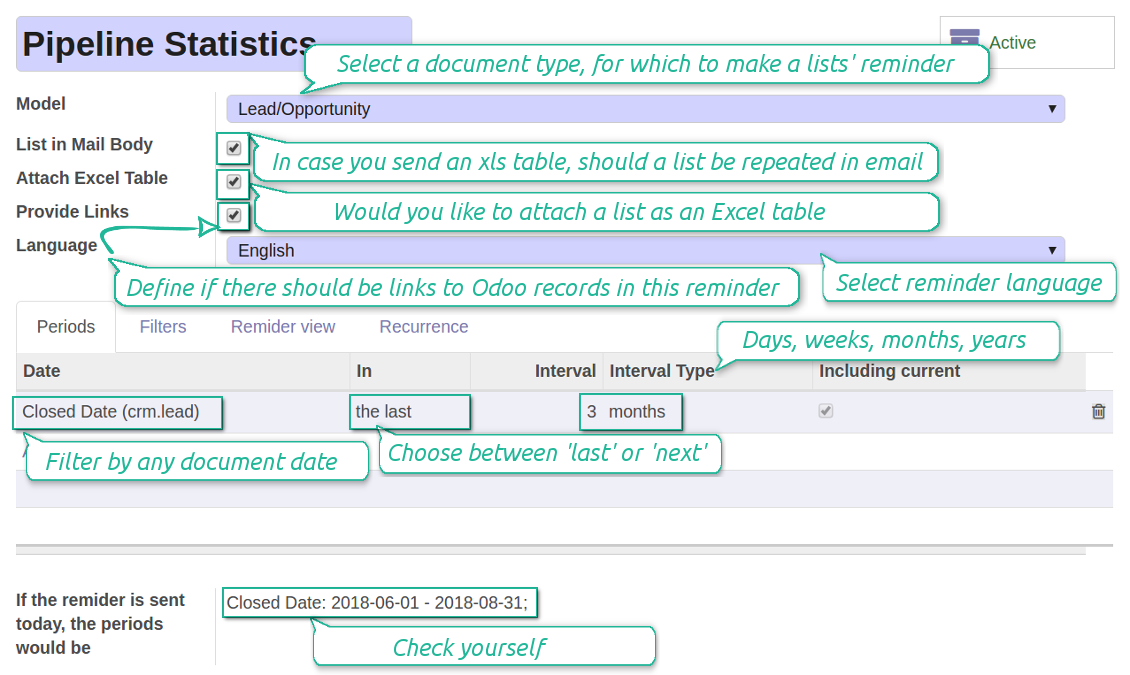
- Define a period as Closed Date in the last month
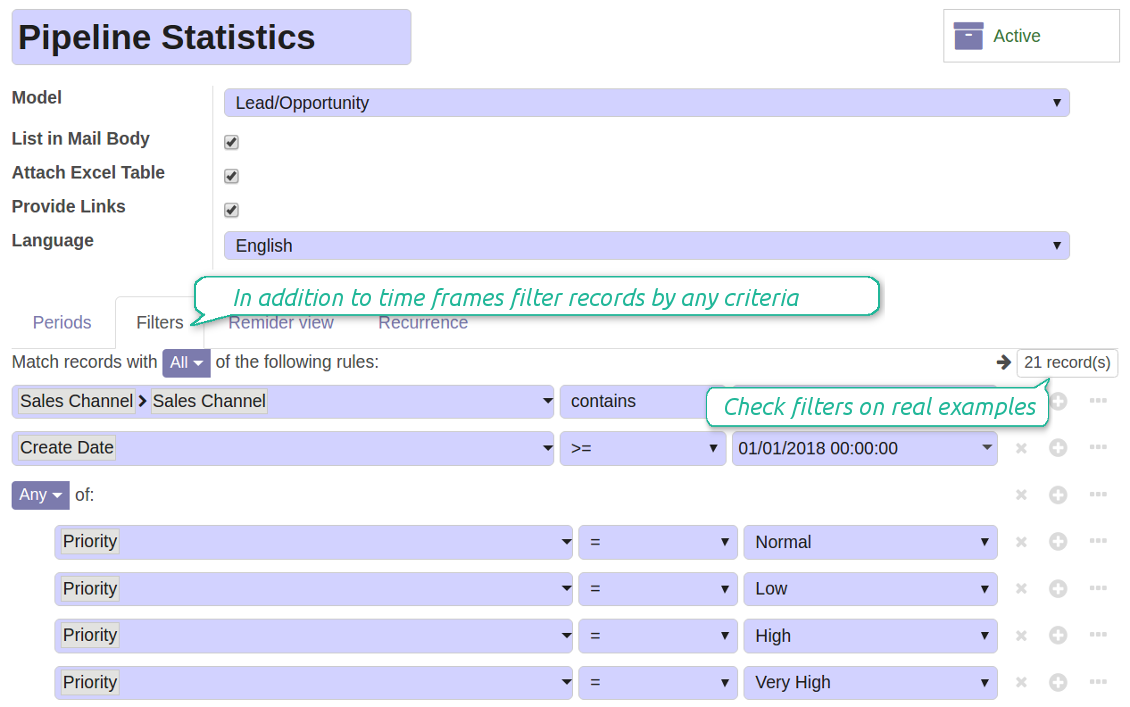
- Make a filter Sales Channel > Sales Channel contains 'Europe', where 'Europe' is your sales team
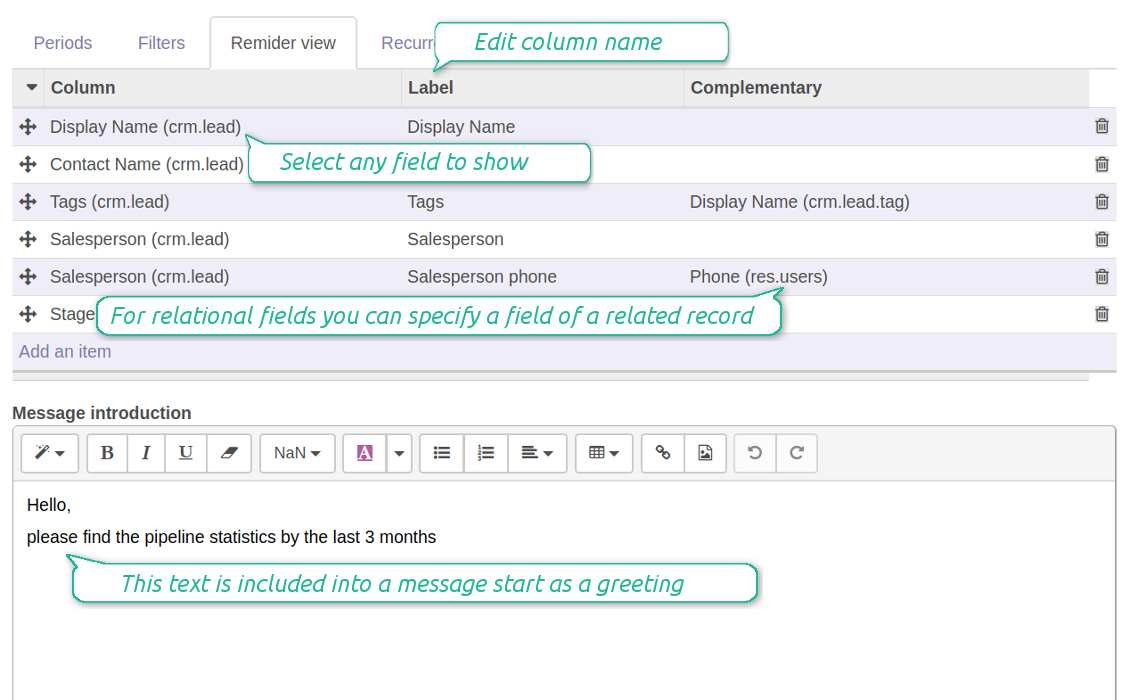
- As columns define Display Name, Salesperson > name, Salesperson > phone, Tags, Expected Revenue
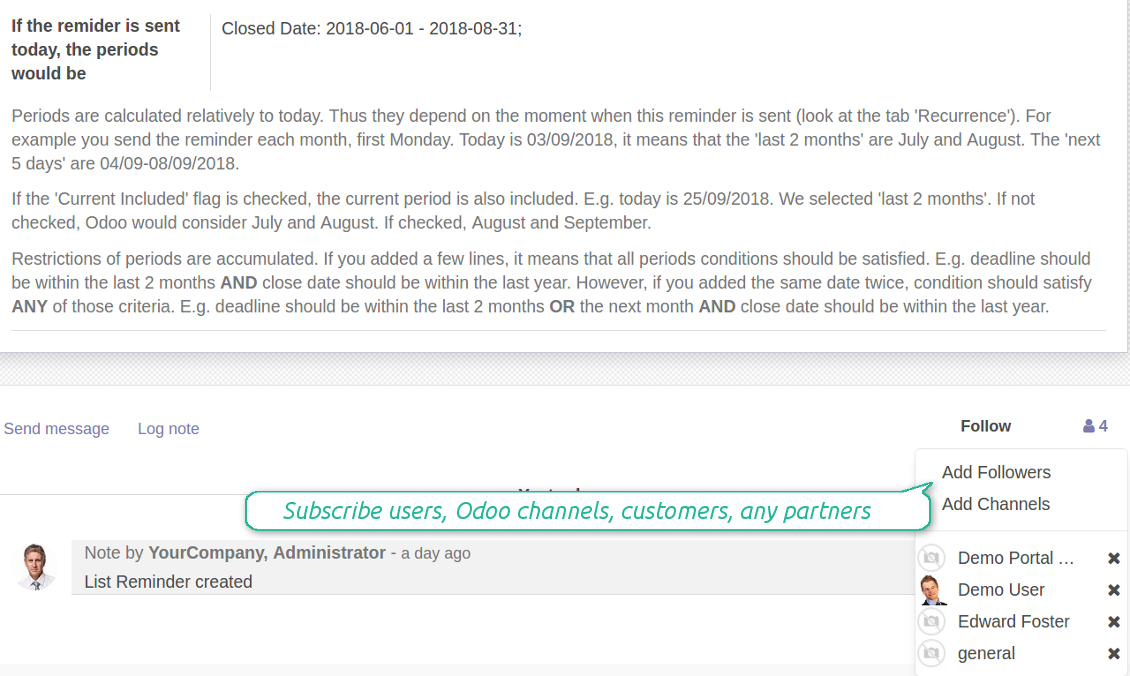
- Subscribe a sales team manager for this reminder
- Send a list each month, on the first Monday.
Similar lists might be configured for sale orders, deliveries, purchase orders, manufacturing operations, etc.
Daily to-do list --> to get activities which should be done today or previously
- Choose Activity as a document type
- Define a period as Due Date in the last 10000 days including this (to get even the eldest activities)
- Make a filter Assigned to > Name contains 'John Brown', where 'John Brown' is a user to notify
- As columns apply Display name, Category, Due Date, Note
- Subscribe a John Brown for this reminder
- Send a list everyday.
Similar reminders are usually prepared for project tasks, opportunities, planned deliveries or incoming shipments, etc.
Planned events --> to get events which will happen in forthcoming periods
- Choose Event as an object for this reminder
- Define a period as Start Date the last week, including this (it would be 'this week'), or the next 3 weeks
- Make no filters
- As columns apply Event name, Location, Start Date, End Date
- Subscribe a John Brown for this reminder, where John Brown is an event department head
- Send a list on Mondays.
Similar reminders are Okay for activities, tasks, leads, deliveries, incoming shipments, etc.
Customer project statistics --> to notify customers about their tasks
- Choose Task as a target model
- Define a period as Create Date in the last year
- Make 2 filters: Customer > Parent name is 'Agrolait' or Customer name is 'Agrolait', where 'Agrolait' is project customer
- As columns apply Display name, Deadline, Description, Last Stage Update, Stage > display name
- Subscribe a John Brown for this reminder, where John Brown is a managing partner of Agrolait
- Send a list on the 10th of January each year.
Similar statistics is frequently forwarded by support tickets, paid invoices, done sale orders, etc.
Configurable statistic and appearance
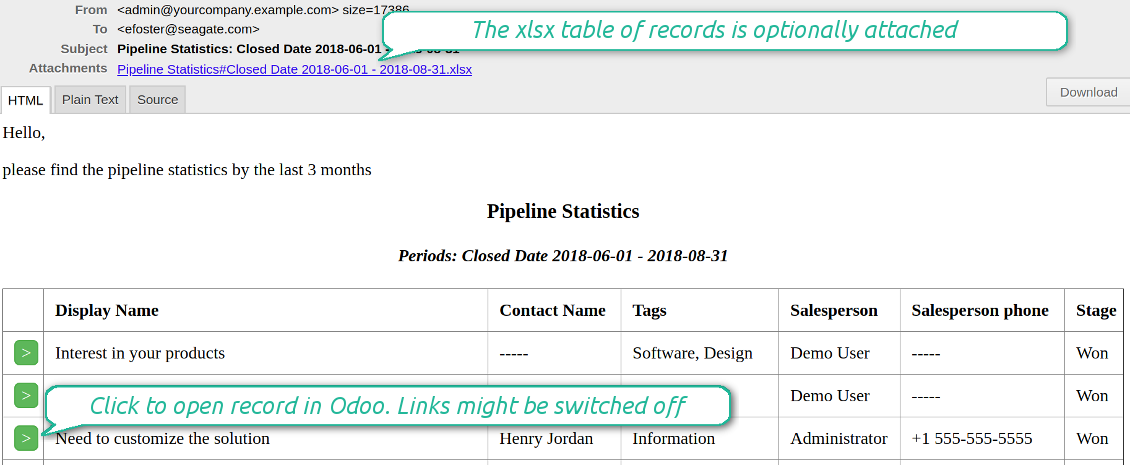
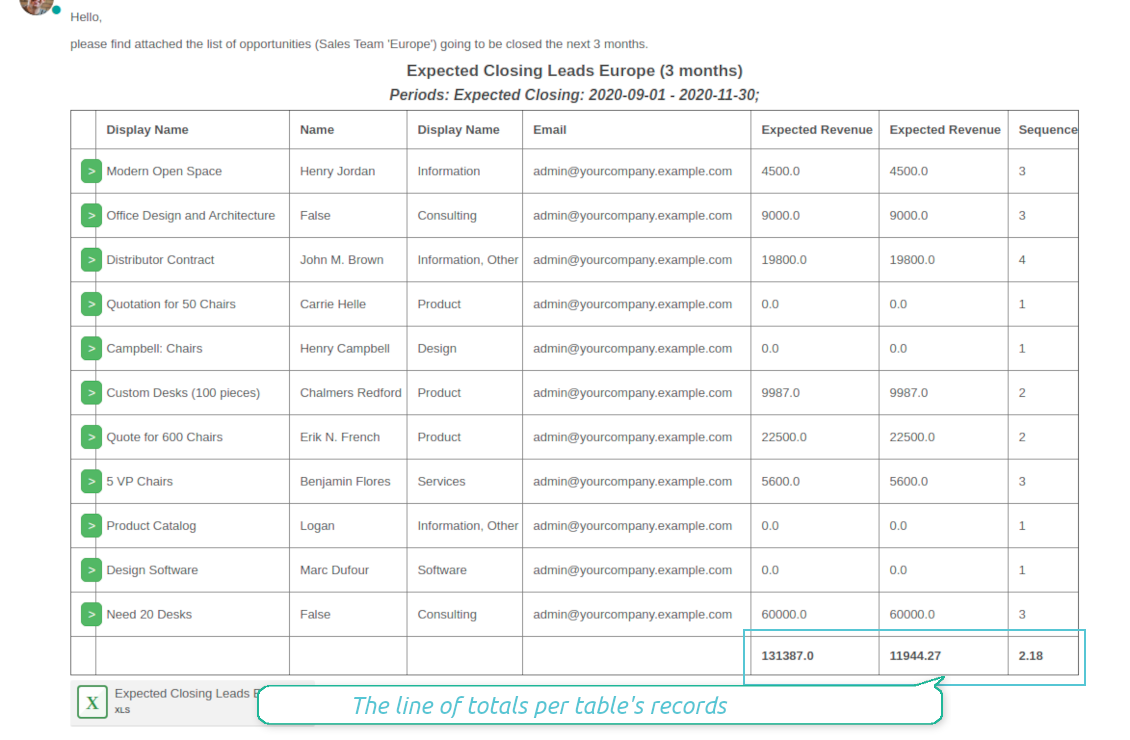
Send a table right in an email or/and as Excel (xlsx) table.
Reminder view features
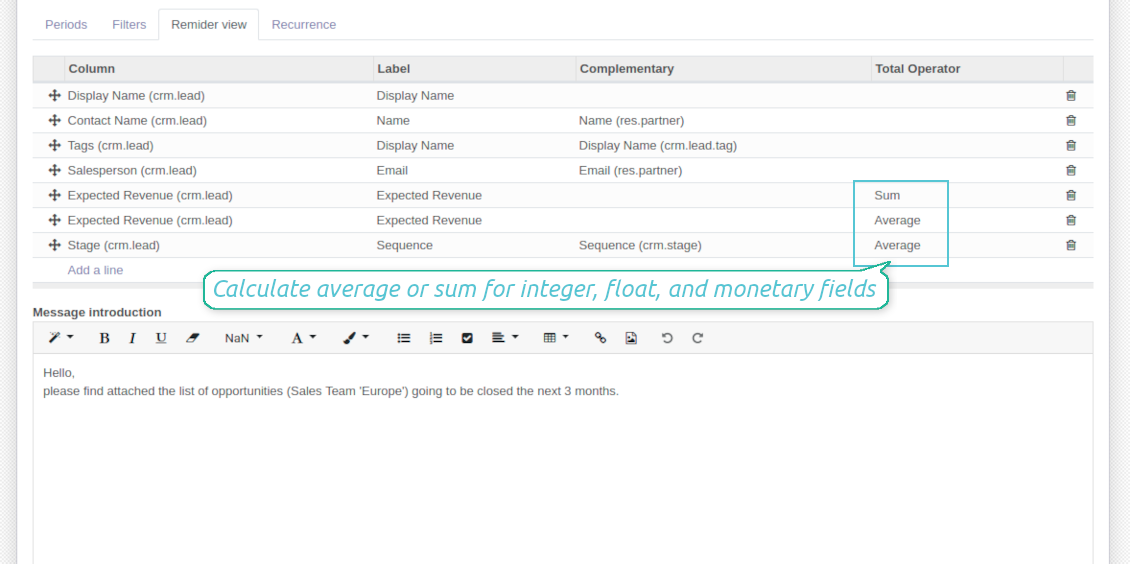
- The tool allows choosing an unlimited number of columns for this document. It might be any field of a target model of the following types: char, text, html, integer, float, selection, boolean, date, datetime and relations to other documents (many2one, one2many, many2many). The set includes even computed fields
- For relational fields you might choose the second level precision. For example, you might show a phone of a customer for a sales orders' reminder or tags' colors for tasks
- It is possible to adapt column names. By default a field description is stated (on the language of this reminder), but users are allowed to change them
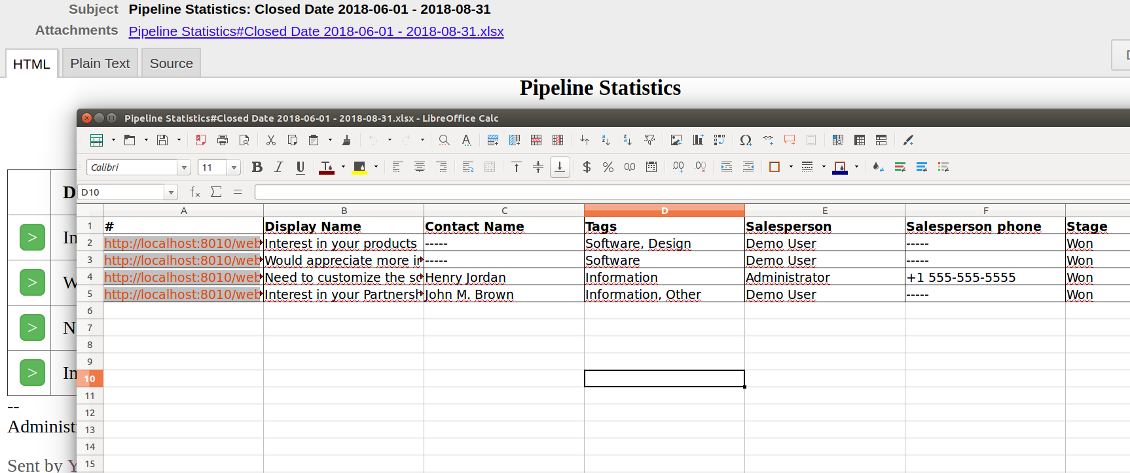
- Optionally attach an xlsx table for reminders. It would have the same columns as a reminder itself. It is also possible to exclude a list from email and leave only an xlsx table
- Include or exclude links to Odoo objects. References are great in case of internal reminders, but they are harmful in case of external ones
- Introduce any greeting text for a notification
- Choose reminders' language
- Do not change email template manually. It will break all styles. Look at the Configuration tab
Képernyőkép
Configure list columns and reminder appearance
Followers regularly receive lists on their email
The Excel (xlsx) table is optionally attached
Filtering and periods for analysis
Apply any sort of filters to include only required documents
How to limit documents by relative periods
- Restrict time frames by any date or datetime of a target document type. It might be deadline, create or close date, next activity day, etc.
- If you wish, apply a few periods based on different dates. For instance, select this month closed leads which have been opened the last year. Records should satisfy all of the criteria, however if you selected the same date twice, records should be within any of those periods. For example, a deadline should be within the last 2 months OR the next month AND a close date should be within the last year
- Periods are relative, so they are periods in comparison to today. E.g., 'this month', 'the last year', 'the next 5 weeks'
- Intervals may both define previous time frames ('the last') and forthcoming periods ('the next')
- As intervals select days, weeks, months, or years
- Exclude or include a current period. For example, you might send a reminder on the first day of a month for a previous one. Vice versa, forward a list on the last day of this month for a current one
- Test your settings according to a real-time-shown result below the table
How to filter documents under analysis
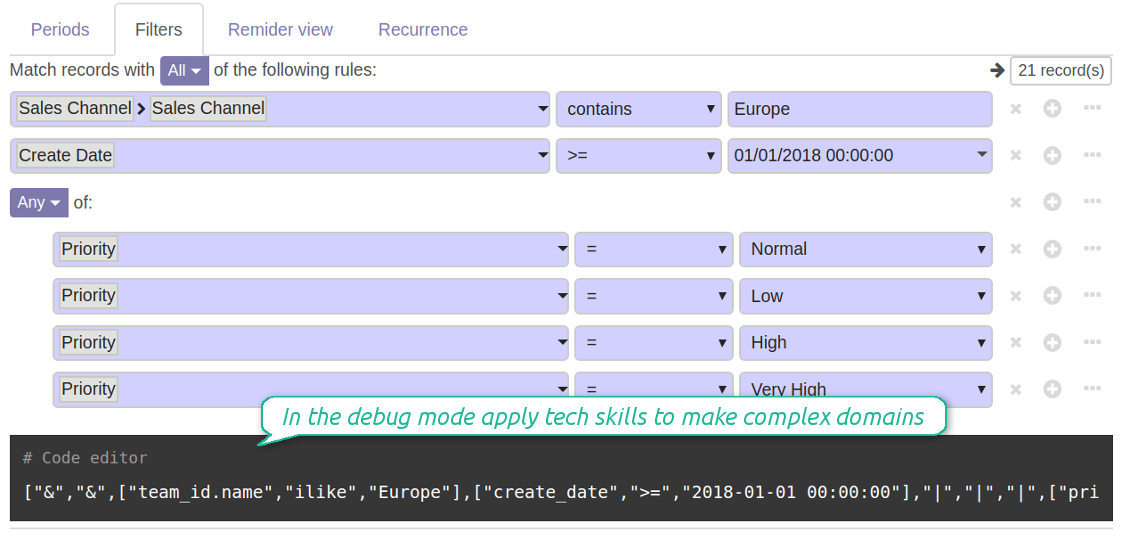
- Filters are organized as a domain constructor: you may use the most of storable fields with any level of precision. The latter means, for example, you can filter sales orders by a related partner country or even by a state of a company of a related partner
- Use both 'AND' ('all') and 'OR' ('any') operators to achieve a desired result
- Check yourself by pressing the button 'Records': it would show all documents which at the moment satisfy your search criteria (and you have an access to)
- If you feel confident to prepare Reverse Polish Notation domains, turn on the debug mode, and apply more complex expressions such as, for instance, ' category is child_of all'
Képernyőkép
Configure lists of records to be sent according to chosen periods
Filter Odoo records to be included into a list
Good at Odoo domains? Turn on the debug mode
Flexible recurrence
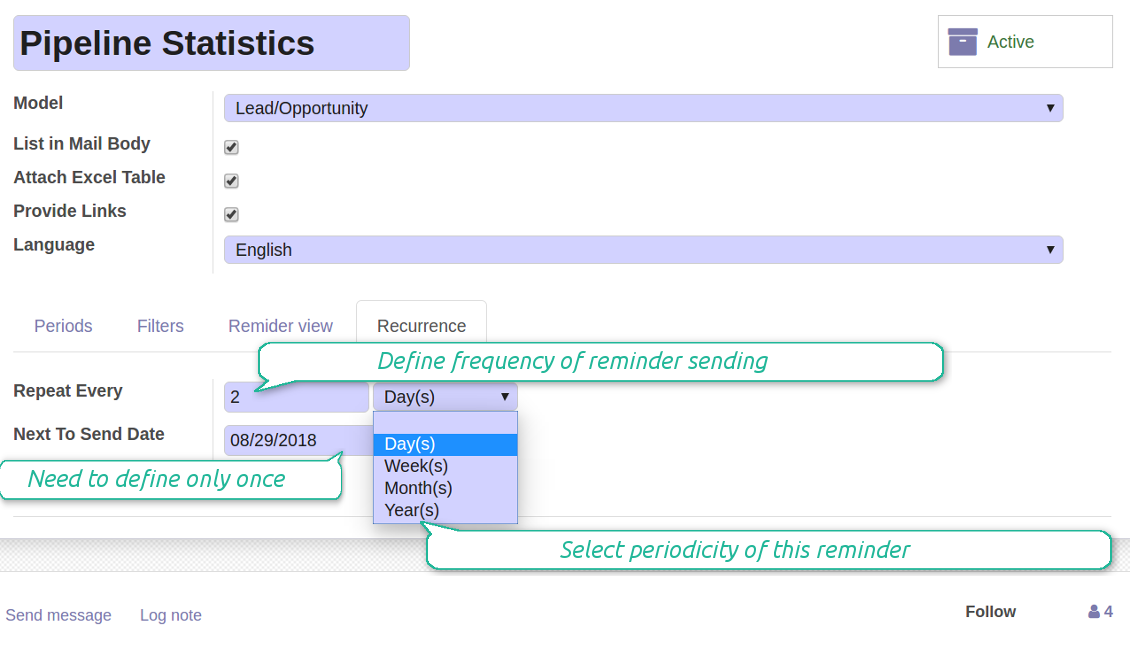
Which periodicity I may apply
- Send a reminder every day, each 5 days, each 181 days
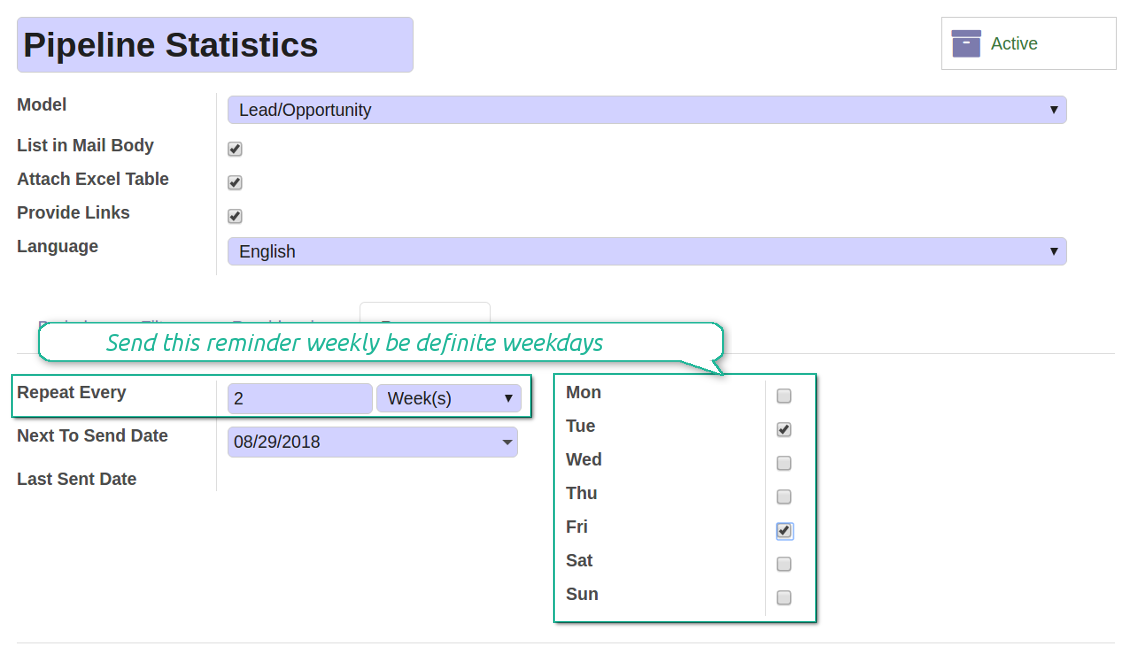
- Notify by exact weekdays, e.g. on Mondays and Thursdays
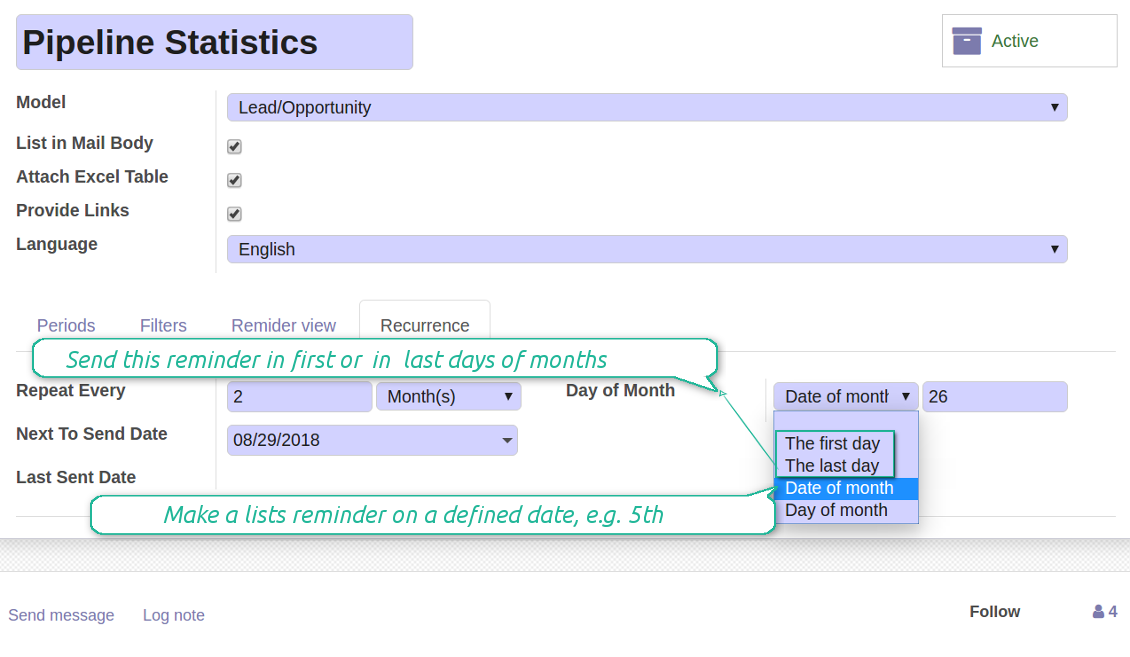
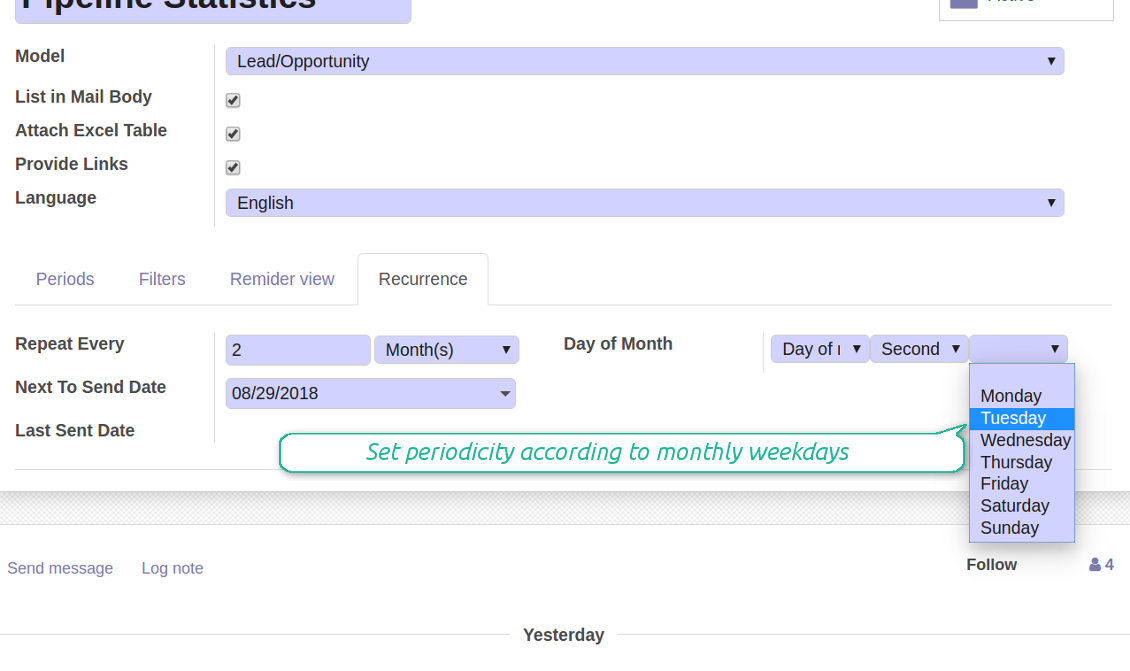
- For monthly reminders use:
- The first month day
- The last month day
- The exact date, e.g. the 16th
- A weekday, for instance, the first Monday, the last Friday, or the third Tuesday
- Prepare a yearly statistics on an exact year day, e.g. on the first of September
Képernyőkép
Flexibly configure reminders frequency
Send reminders weekly on predefined weekdays
Define a month day for lists notifications
Make reminder monthly on predefined weekdays
Great and very useful app
First of all, the team behind this app is great, support is immediate, and response is fast. The application is very useful in managing any type of notification to keep you updated with all what's happening within your company.
Aggregated figures
Képernyőkép
Calculate sum or average of records
Aggregated figures per report
Reminder for any Odoo partner
Képernyőkép
Remind to any user, customer, supplier or send lists to Odoo channels
Periodic reporting manager
User rights peculiarities
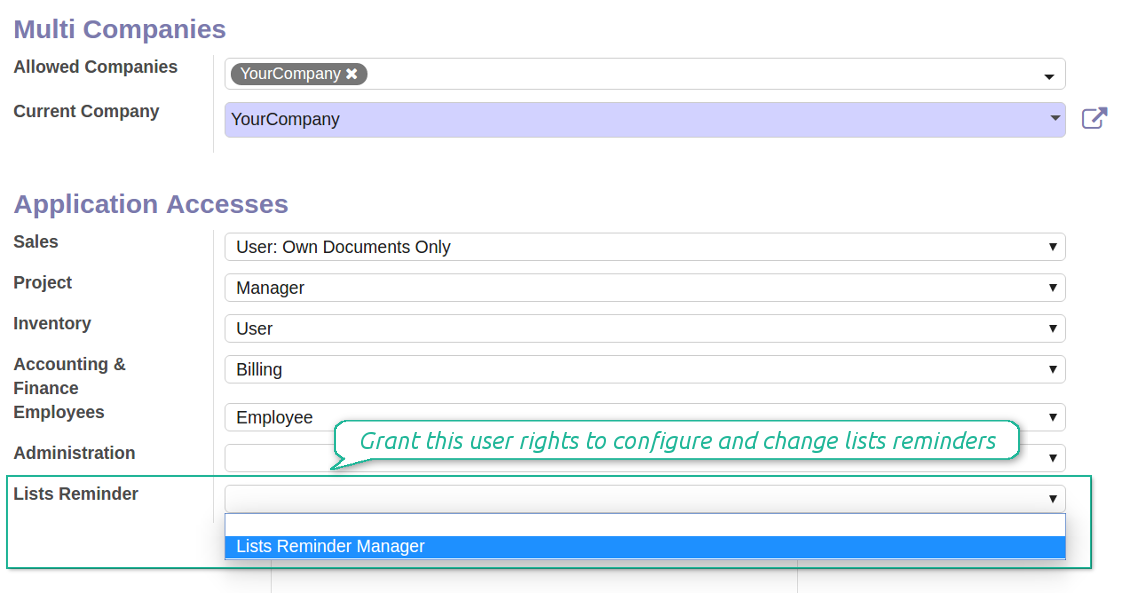
- To observe the reminders' menu and configure new notifications, select the right Lists Reminder 'Manager' or 'Only Own' in this user settings. 'Only Own' groups would allow to manage reminders which 'Responsible' is a current user
- Make sure you trust such a person. This user would be able to send any data by a document type to which he/she has a read access. It means, that if a user might read leads in general, but do not have rights to read the exact lead 'XXX', he/she would be able to send the data by the lead 'XXX' using the reminder
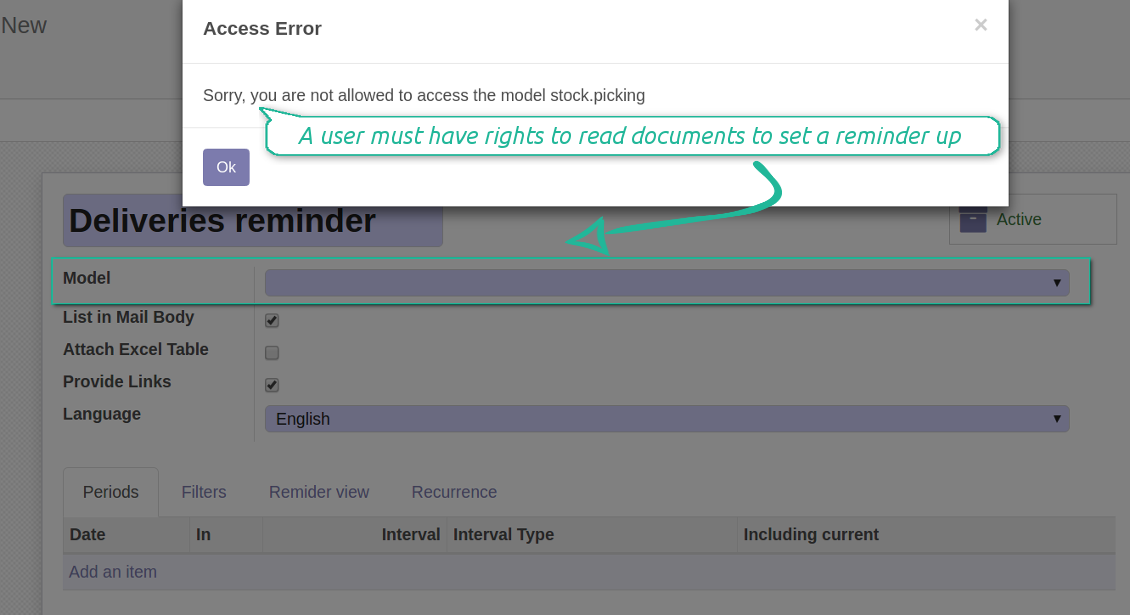
- To configure a reminder by this document type, a user should have a read access to such a model. For example, an employee without the right 'Warehouse user' might not prepare a reminder by deliveries
Képernyőkép
Make any user prepare lists reminders
Reminder managers may configure lists only for documents they can read
Konfigurációs és telepítési tippek: Periodic Reporting and Reminders Odoo v.13
Python dependency
To provide the feature of dynamic Excel table generation, install the Python library xlsxwriter:
pip3 install xlsxwriter
Email template
The basic reminder appearance should not be configured through Odoo email templates. In the debug mode go to:
- Settings > Technical > Email > Templates > Reminder
Do not change this template! Otherwise, its styles would be broken, and you would receive blank emails.
Have you broken everything? Not a problem, remove this template and update the module. The email appearance will be recovered.
Scheduled job (cron)
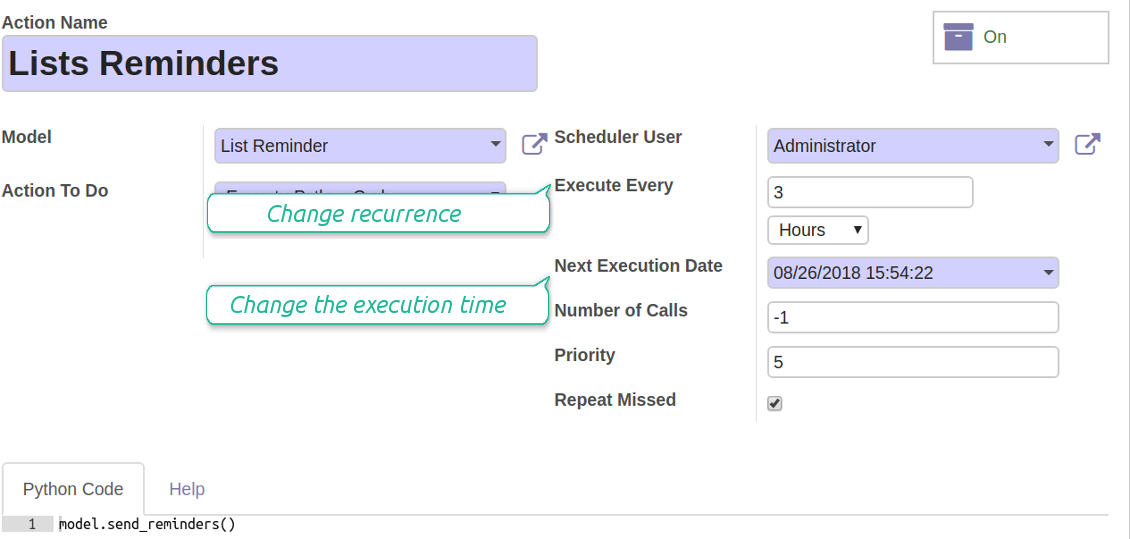
By default Odoo checks whether any reminder should be sent on a daily basis. You can change a frequency or time of check. In the debug mode go to:
- Settings > Technical > Automation > Scheduled Actions > Lists Reminders
The situation for a higher frequency is when you have many reminders with a lot records to search. In that case the cron job might be not ready with all actions in time, and it is better to repeat the check. However, be cautious: do not make it too frequent. Otherwise, one job would not be fulfilled until another one, and Odoo would collapse until a reminder is sent.
The cron job interval should be bigger than your Odoo configured timeout. Sometimes it is required to increase a timeout, if a number of documents in a list accounts for a few thousands records.
The module is not aimed to export data from Odoo. Do not try to send everyday your whole database.
Configure the planned job for reminders
Gyakran ismételt kérdések: Periodic Reporting and Reminders Odoo v.13
Mik az eszkozeik frissítési szabalyai?
Az Odoo Apps Store aktuális szabalyai szerint:
- A 12.0-s vagy korábbi verzióhoz vásárolt modul hozzáférést ad minden 12.0-ig tarto verzióhoz.
- A 13.0-s verzitol minden modulverziot külön kell megvasarolni.
- A verzioszamtol függetlenül a vásárlás jogot ad az adott foverzion belüli összes frissitesre es hibajavitasra.
A faOtools csapat nem irányítja ezeket a szabályokat. Kerdesekkel közvetlenül az Odoo Apps Store kepviseloit keresse.
Hogyan telepitem az alkalmazást Odoo.sh-re?
A legkozvetlenebb megkozelites az Odoo-aruhaz beépített munkafolyamata:
1. Nyissa meg a modul oldalat, es kattintson a Deploy on odoo.sh gombra
2. A GitHub oldalra kerül. Jelentkezzen be, majd kattintson a Create a new repo gombra, vagy használjon egy meglévőt. A tarhaznak privatnak kell lennie. OPL-1 licencu alkalmazások nem tehetok közzé. Szükség esetén hozzon létre uj repot az Odoo.sh-projekthez
3. Ezutan az odoo.sh-en kattintson a Deploy gombra, erősítse meg, majd kattintson a Continue gombra. Elindul a telepítés.
Ezek a lépések a production agra telepitik az alkalmazást. Mas agakhoz vagy frissiteshez:
1. Töltse le a forraskodot az Odoo-aruhazbol
2. Commitolja a modult a GitHub-tarhazba. Egyik alkalmazasmappa/-fájl sem kerulhet a .gitignore-ba. Az odoo.sh által létrehozott tarhazak fontos utvonalakat (pl. /lib) hagyhatnak figyelmen kívül. Töltse fel az összes modulkonyvtarat es fájlt
3. Deployolja az odoo.sh-projekt celagat, vagy várja meg az automatikus buildet, ha a beállítások igy szolnak.
Hogyan telepitem az alkalmazást a saját szerveremre?
2. Indítsa újra az Odoo-kiszolgálót;
3. Kapcsolja be a fejlesztői uzemmodot (technikai beállítások);
4. Frissítse az alkalmazaslistat (Alkalmazások menü);
5. Keresse meg az alkalmazást, es kattintson az Activate/Install gombra;
6. Kövesse az alkalmazasoldal utmutatasait, ha vannak.
Az alkalmazásnak extra kiegeszitoi vannak. Megvehetem őket később?
Igen. Az Odoo automatikusan a kosarba teszi a fuggosegeket: zárja ki a mar megvasarolt eszközöket, hogy ne fizessen kétszer.
Telepitettem az alkalmazást Odoo.sh-re, es figyelmeztetést/hibát latok a tesztekben
A piros/narancs figyelmeztetés nem befolyásolja az alkalmazás funkcióit. Néha a moduljaink nem mennek at a standard automatikus teszteken, mert azok az alkalmazás celjaival ellentetes viselkedést várnak. Például megvaltoztatjuk az arszamitast, miközben az Odoo-tesztek a végső árat a standard algoritmussal hasonlitjak össze.
Először ellenőrizze a telepített adatbázis funkciot. Minden működik?
Ha mégis ugy gondolja, hogy a figyelmeztetés valós funkciókat érint, írjon nekünk, es küldje el a teljes telepítési naplókat es a telepített modulok teljes listajat (mag es harmadik fel).
Megvehetem az alkalmazást közvetlenül onoktol?
Nem, az eszközöket csak a hivatalos Odoo alkalmazasboltban forgalmazzuk.
Kedvezmenyt szeretnék
Sajnos nincs technikai lehetosegunk egyedi árakat adni.
Telepithetem az alkalmazást az Odoo Online (SaaS) adatbazisomra?
Nem, harmadik feles alkalmazások nem használhatók az Odoo Online-on. Az Odoo SaaS ezt blokkolja.
Az eszköz mas alkalmazasoktol függ. Meg kell vennem őket?
Igen, az eszkoznek szüksége van minden függőségként jelölt modulra. Az alkalmazasoldal ara mar tartalmazza ezeket a fuggosegeket.
Mennyi a modul ara amerikai dollarban? Miért változott?
Moduljaink ara euroban van megadva. Az Odoo-aruhaz a belső arfolyama szerint vált mas penznemekre. Ezért az amerikai dollar ar valtozhat, amikor az arfolyam frissül.
Az alkalmazás és a webhely angolon kívüli nyelveken mesterséges intelligenciával készülnek és az hivatalos Odoo-fordításokhoz igazodnak. Ha hibát talál, küldjön fordításhelyességi jegyet és kijavítjuk.
Hibajelentés
Ha hibát vagy következetlen viselkedést lát, írjon nekünk. A vásárlástól 60 napon belül javítást vállalunk, és utána is fejlesztjük az eszközöket.
Nem kell telefonszám vagy bankkártya a kapcsolatfelvételhez. Elég egy rövid e-mailes regisztráció, ami 30 másodpercnél nem tart tovább.
Adjon meg minél több részletet: képernyőképek, Odoo-kiszolgálónaplók és a hiba reprodukálásának teljes leírása. Általában néhány munkanap kell a munkatervhez (ha a hiba megerősített) vagy az iránymutatáshoz (egyébként).
Nyilvános funkcióigények és modulötletek (ingyenes fejlesztés)
Erősen motiváltak vagyunk az eszközeink fejlesztésére, és hálásak minden visszajelzésért. Ha az igények közhasznúak és hatékonyan megvalósíthatók, a csapat felveszi őket a teendők listájára.
Az ilyen teendőlista rendszeresen feldolgozásra kerül, extra díj nélkül. Bár határidőt és végleges dizájnt nem ígérhetünk, jó módja lehet a kívánt funkciók befektetés és kockázat nélküli megszerzésének.
Nem kell telefonszám vagy bankkártya a kapcsolatfelvételhez. Elég egy rövid e-mailes regisztráció, ami 30 másodpercnél nem tart tovább.

Eszköz Odoo mellékletek mappákba rendezéséhez és könyvtárak szinkronizálásához felhőklientekkel: Google Drive, OneDrive/SharePoint, Nextcloud/ownCloud, Dropbox, Amazon S3, Box és NAS. DMS. Fájlkezelő. Dokumentumkezelő rendszer
398€
Eszköz jelszavak biztonságos, megosztott tárolására Odooban. Megosztott trezorok

Eszköz mély és strukturált tudásbázis építéséhez belső és külső használatra. Knowledge System. KMS. Wiki-szerű revíziók.
398€
Eszköz Odoo-mellékletek automatikus kétirányú szinkronizálásához OneDrive-fájlokkal
487€
Eszköz KPI-célok beállításához és teljesítésük időszakos ellenőrzéséhez. KPI-irányítópultok. Dashboard-tervező. KPI-diagramok

Eszköz időalapú szolgáltatáskezeléshez a foglalástól az értékesítésig és az értékelésekig
398€
Eszköz Odoo-mellékletek automatikus kétirányú szinkronizálásához Google Drive-fájlokkal
487€