Cloud Storage Solutions v.15
The tool to flexibly structure Odoo attachments in folders and synchronize directories with cloud clients: Google Drive, OneDrive/SharePoint, Nextcloud/ownCloud, Dropbox. DMS. File Manager. Document management system.
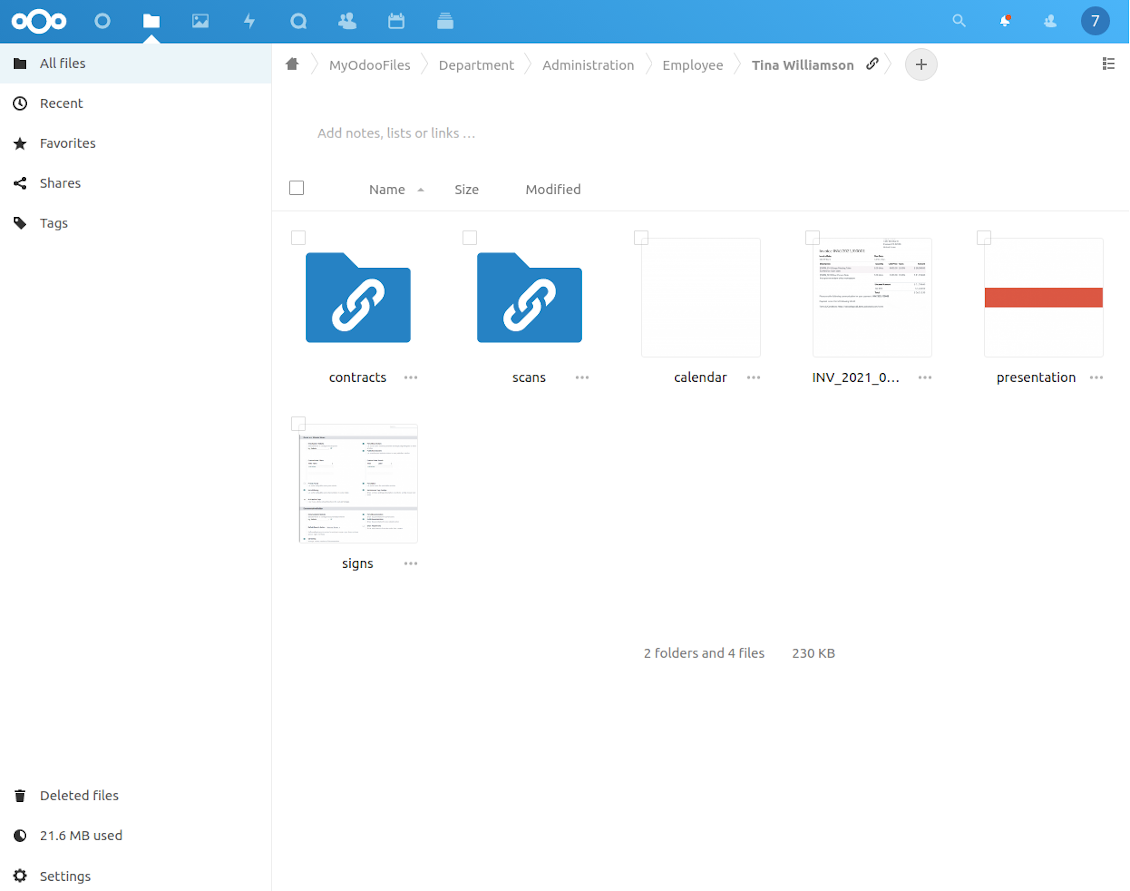
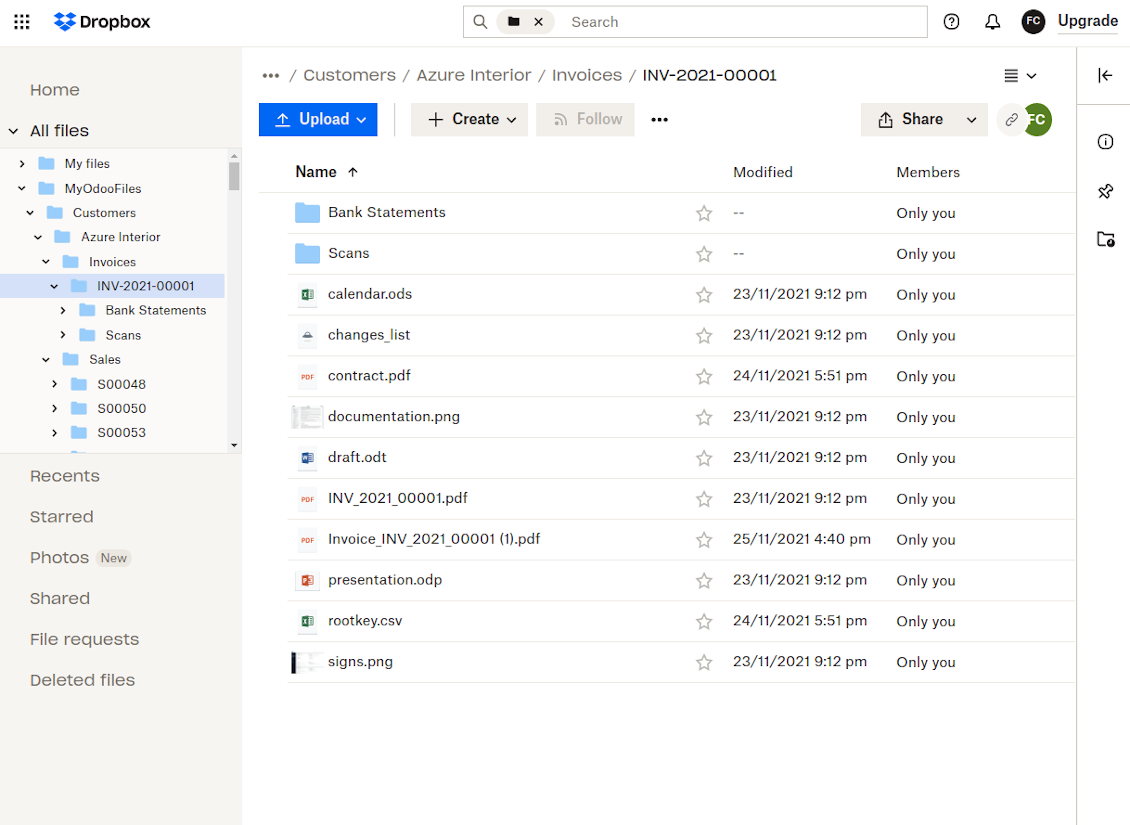
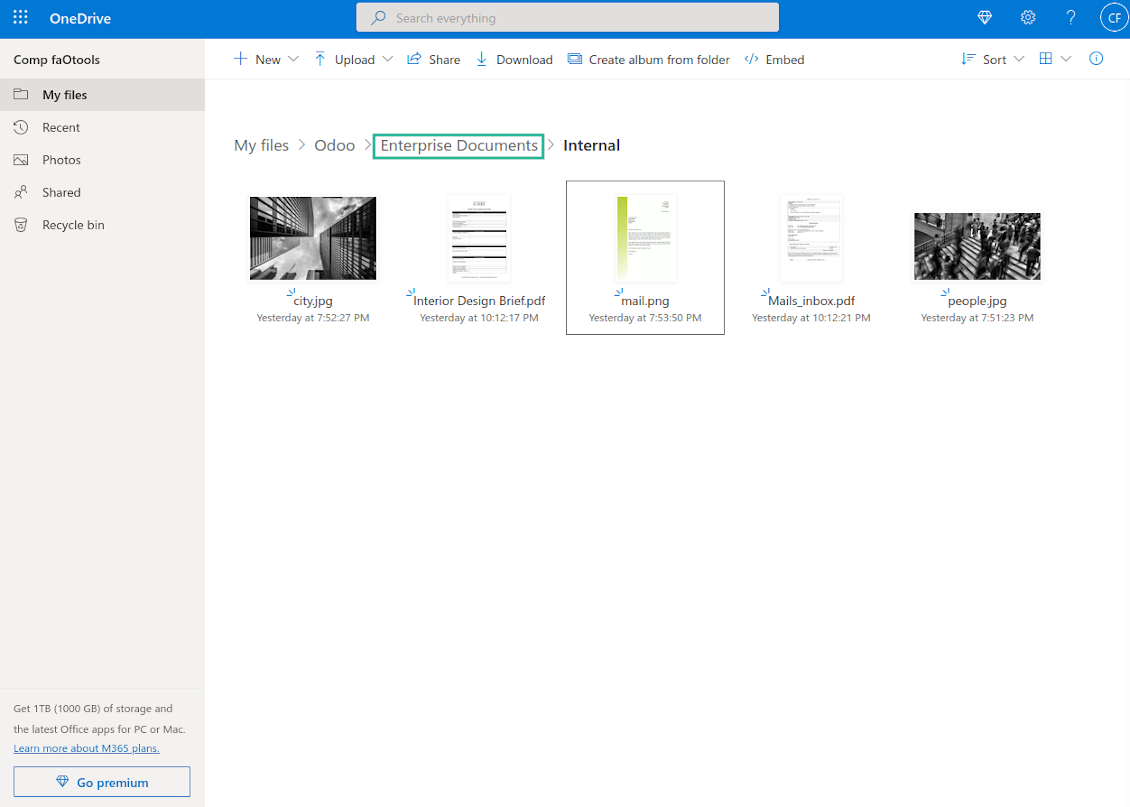
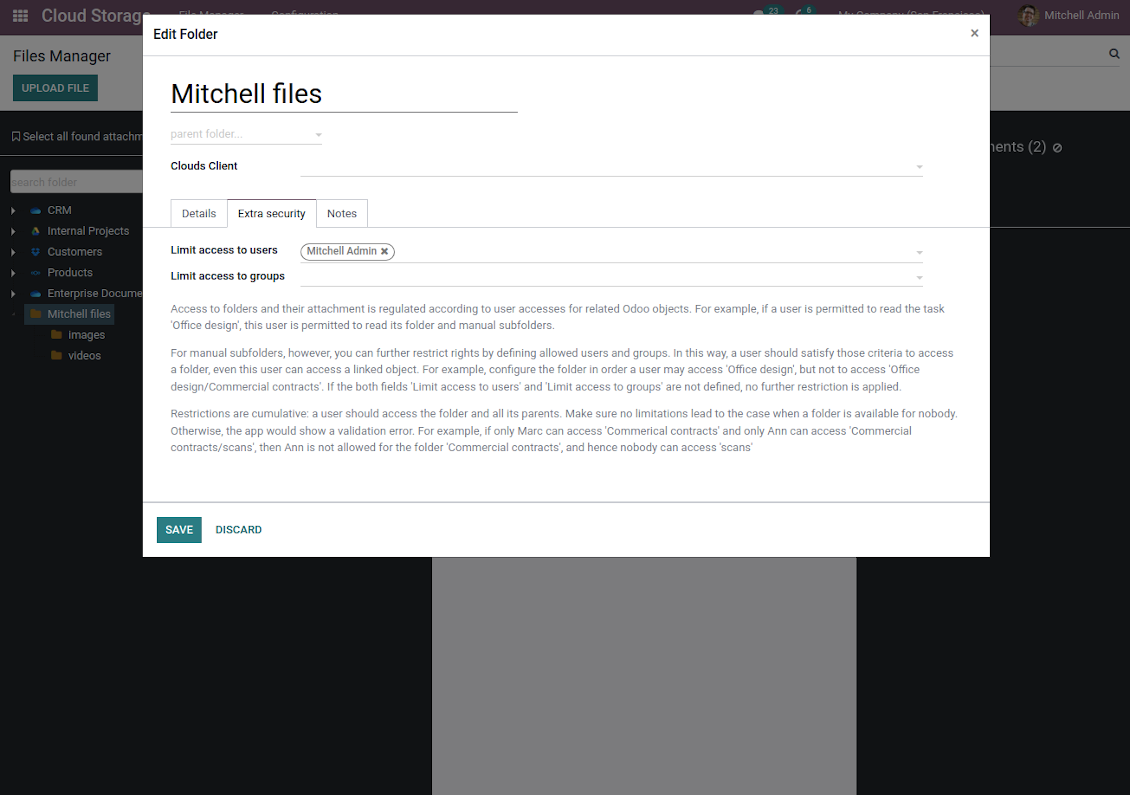

This is the tool to organize attachments in folders' trees and synchronize Odoo with the cloud storage solution(s) of your choice. The app introduces automatic algorithms to prepare directories for documents' and integrate those with workflows of Google Drive, OneDrive / SharePoint, Nextcloud / ownCloud, and Dropbox.
- the core module which introduces the file manager interface and basic mechanics for synchronizations with various cloud clients. Harganya ialah 398€.
- the connector to synchronize Odoo folders and attachments with Google Drive. The features assumed by this add-on are marked by the icon . Harganya ialah 89€.
- the connector to synchronize Odoo folders and attachments with Nextcloud or/and ownCloud. The features assumed by this add-on are marked by the icon . Harganya ialah 89€.
- the connector to synchronize Odoo folders and attachments with OneDrive or/and SharePoint. The features assumed by this add-on are marked by the icon . Harganya ialah 89€.
- the connector to synchronize Odoo folders and attachments with Dropbox. The features assumed by this add-on are marked by the icon . Harganya ialah 89€.
- an optional add-on to prepare workspace-related folders and to sync Odoo documents (introduced by the enterprise app 'Documents') with clouds. The features assumed by this add-on are marked by the icon . Harganya ialah 44€.
Automatic folders' structure
Decide which Odoo document types should have their own folder trees. Directories are regularly updated based on flexible rules and existing Odoo objects
Sync with chosen cloud storage solutions
Synchronize chosen folders and files with specific cloud storage: Google Drive, OneDrive, SharePoint, Nextcloud, Dropbox, and ownCloud. Have as many connections as you need
File manager interface
Manage folders and attachments from a single view. Comfortably navigate by directories. Search and download files one by one or in batch. Upload and move attachments
Attachment box
Organize files of any Odoo object in a set of subfolders. Instantly access folders and files in the attachment box and in synced cloud interfaces
Automatic regular sync
Rely on auto-synchronization between Odoo and cloud solutions based on scheduled jobs. No manual interaction is required
Bilateral sync
Odoo sends attachments to cloud storage solutions and retrieves files from there. Binary content is kept in clouds, while Odoo provides direct access to synced items
Cloud synchronization history
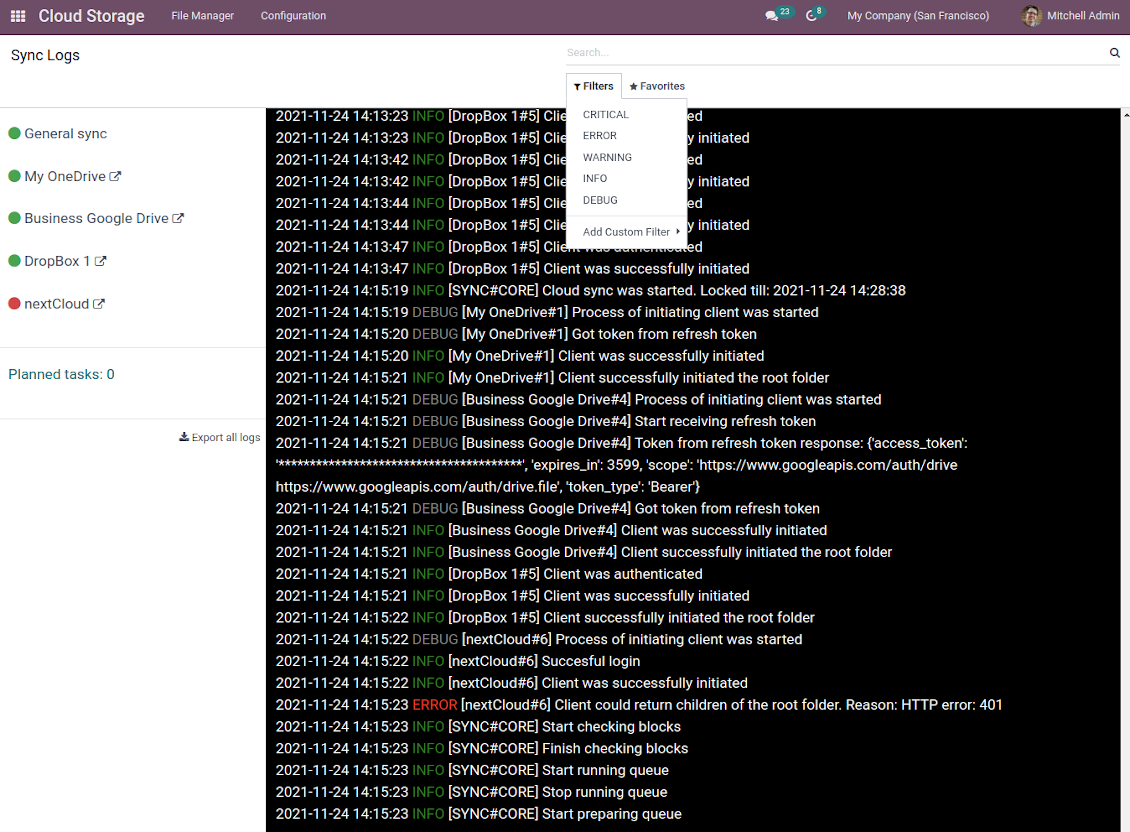
Control sync logs right in Odoo. Export and share those in case of any issues. Be notified of any client disconnections
Enterprise documents compatible
Set up rules to prepare folders based on Odoo Enterprise workspaces. All features, including sharing, downloading, and signing, would work even after sync.
Excellent
We have been using Cloud Storage Solutions for a few years already, starting with Odoo 17 mostly because our attachments were a mess. Now we're moving to Odoo 20, and we've surely decided to keep using the app. The File Manager is great for finding a file by folder or tag instead of remembering which sales order it was attached to. And the attachment box on contacts and projects shows the same folders, which lets us avoid excess clicks.
The folder rules are the part I keep showing people: new customer and project folders just appear, with the sub-folders we set up once, and everything lands in our Google Drive through the connector. We also use sharing a folder with our external partners, which is often especially efficient for tasks.
Big thanks to the team too. I asked a lot of questions about the sync and the access rights initially and now during the switch, and every answer came back fast. Really felt like they wanted it to work for us. Happy customer here.
Works well with SharePoint. Supportive team
We've been using this with SharePoint and it's been working great. One of the best things is having everything, including logs right in Odoo's interface, so you can actually see what's going on. It's also super convenient that you can view or download synced files from the attachment box without having to leave the page or even log in to Sharepoint.
Setup was pretty smooth for us. When we had a few questions about setting up the folder hierarchy and priorities, the developer team got back to us in just a couple of hours and helped us figure it out. Great support and great extension!
Tricky setup, but works perfectly now
Really solid module. We managed to get a very flexible folder structure (sorted by clients) and synced all our sales orders, invoices and tasks by projects to Google Drive.
Initial setup was a bit of a pain and kinda tricky to configure everything at first, but now it's running smoothly and works perfectly. The faotools team helped a lot. Def worth it if u need to keep your docs organized in Odoo and Google Drive.
Recommended!
Great support, assistance and very good connector!
We are very happy with the support we received when configuring the Sharepoint - Odoo connector. The connector has great functionalities.
All our questions were answered very fast (within one day).
FaOtools helped us optimising our connector and assisted us with future improvements.
We really recommend this connector.
Great module and Great Support!
The module works great! and the support is phenomenal!
A must-buy if it suits your requirements!
very professional app, excellen t customer service
This app is very well programmed and does its job very well. But the best is the excellent customer service who also helps when the problem lies somewhere else. You receive a lot for your money.
Excellent !!!
Great App and great Service from faOtools.
An impressive app and world-class support
I have been very impressed by the way the OneDrive / SharePoint Odoo Integration module synchronises content in both directions and allows me to share documents in Odoo with my SharePoint site. Above all the technical support is top-notch, which greatly increases the value of this product. I highly recommend this product for anyone considering synchronising Odoo with SharePoint/OneDrive.
Very good product
A perfect solution to integrate Owncloud with Odoo. We sync a high volume of objects across multiple Odoo models, which works seamless and stable. For us it is the perfect solution to have an external DMS instead of the Odoo native attachment handling, which also enables us to interchange files between systems in our best-of-breed setup.
The team behind this module is extremely professional and responsive. They helped us on a few occasions and provided clear answers and prompt support when required, and they even went out of their way to assist us with another requirement we had. Cannot recommend the product and team highly enough, try this if you're in the market to connect Odoo with an external document solution.
Works fine, good support
The first experience with the module is excellent. I had some trouble to configure things right on the Microsoft-side, but the team provided quick and good support.
Best module for integration with google drive
The module performs its function correctly and faOtools responds quickly to any problem and, in case of detecting any bug, quickly apply the changes. Its support is 10 stars.
Works according to specs
I have used this app with Odoo 12 and Nextcloud 16 and it works as specified. Odoo Tools offers very responsive support which is really helpful. Of course 5 stars...!
This is Awesome
I have used Cloud Sync on Next/Own Cloud and works really great.
Odoo File Manager Interface
-
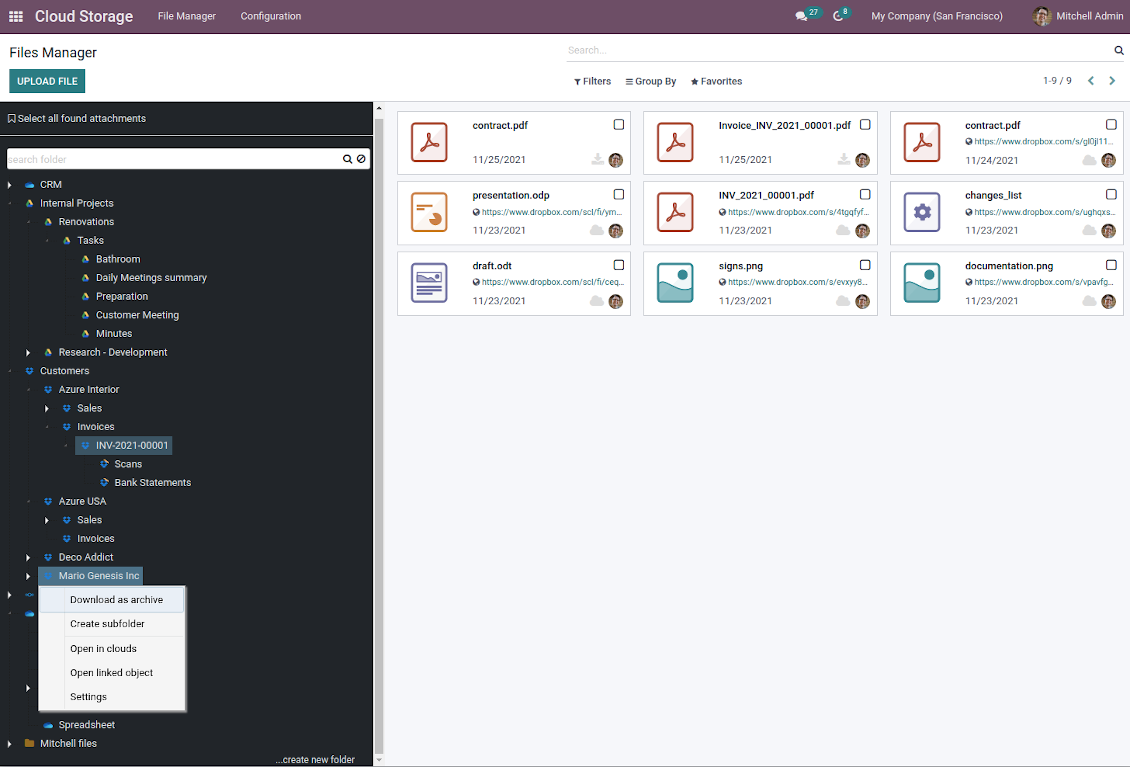
Comfortably navigate by folders' tree: select a directory to show its attachments; expand and hide folders' layers in a click
-
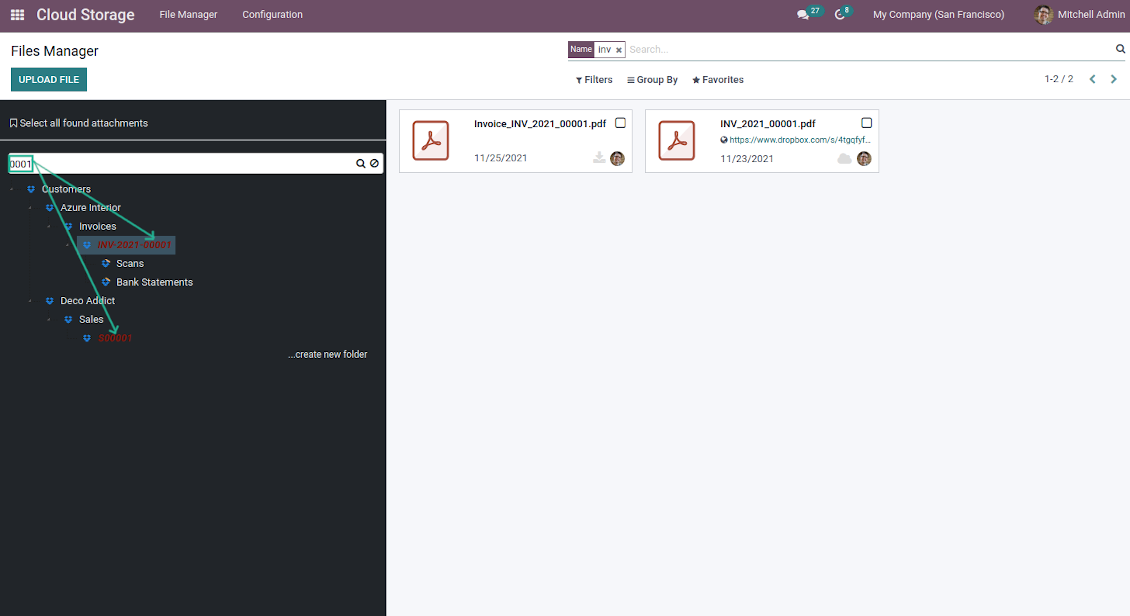
Search and highlight folders in seconds even if there are thousands of items (use the left navigation input 'search folder')
-
Add subfolders to any directory (right mouse click > Create subfolder)
-
Drag and drop to re-structure folders (relates only to manually created directories; for automatic folders change rules instead)
-
Download any folder with all attachments as a single zip archive (right mouse click > Download as archive)
-
Open any synced folder in its cloud client (right mouse click > Open in clouds)
-
Show a folder peer Odoo object if there is such a connection (right mouse click > Open linked object)
-
Change settings of manually created folders, including granting access rights (right mouse click > Edit Settings)
-
Upload attachment to a chosen directory (use the top header button 'Upload file')
-
Apply standard attachments' search and groupings to find required files
-
Instantly open any synced attachment in a linked cloud client (push the link in the middle of attachment cards)
-
Download any attachment to your local computer disregarding whether it is synced or not (push the icon 'cloud' or 'download' in the footer right corner)
-
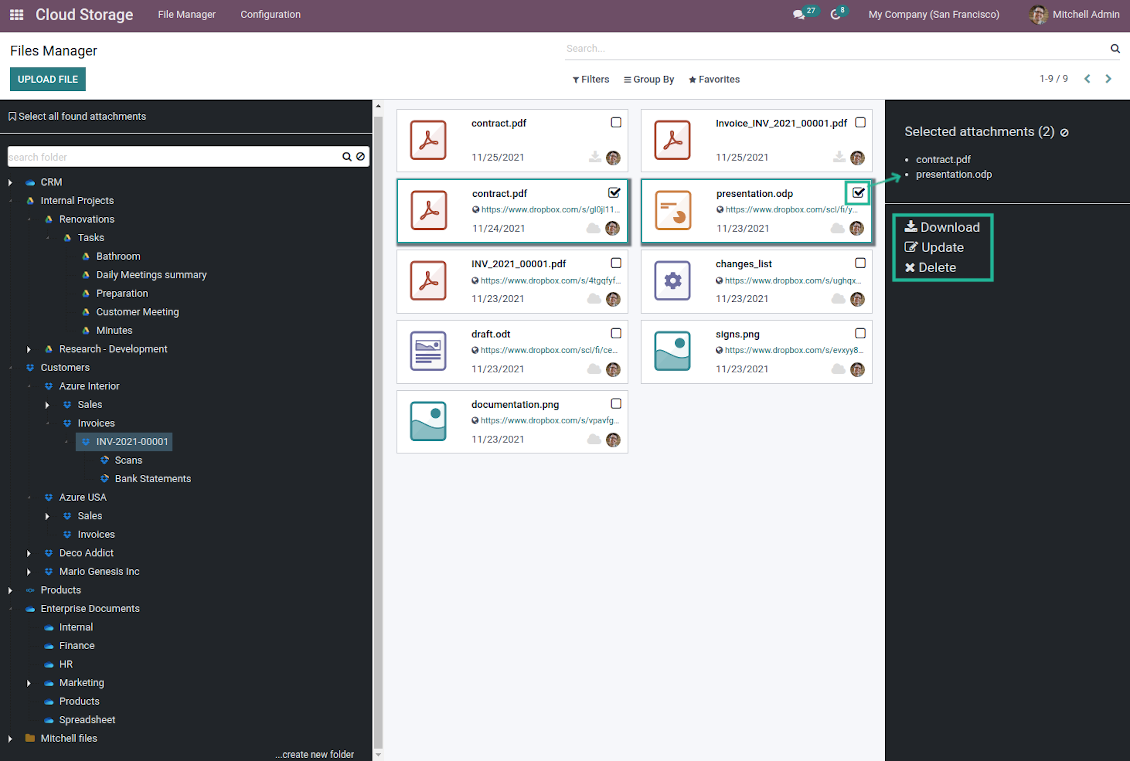
Consequentially select attachments and download them as a single zip archive
-
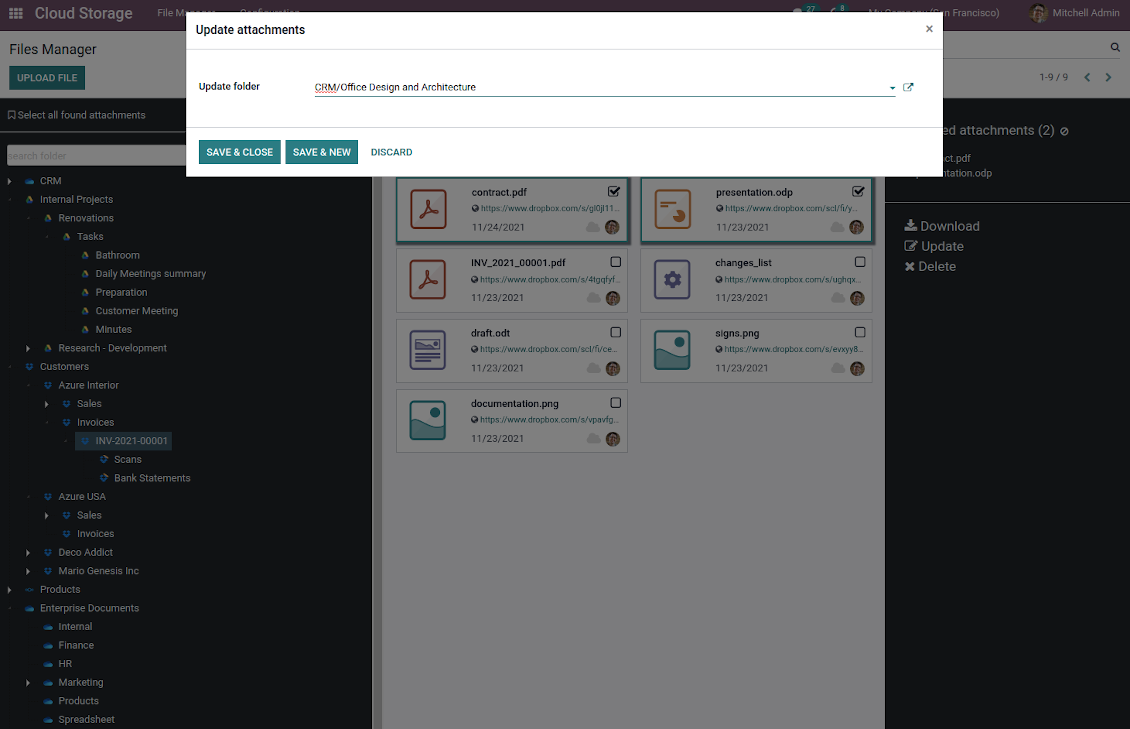
Comfortably move any file(s) to any folder, including re-attaching items between Odoo objects (e.g. from a sale order SO-001 to another quotation or its customer folder)
-
Delete attachments in batch.
Enhanced attachment box
-
Any Odoo object might be linked to its own folder. See Automatic folders' structure
-
Flexibly define subfolders to organize the structure you need (right mouse click > Create subfolder)
-
Drag and drop to re-structure subfolders
-
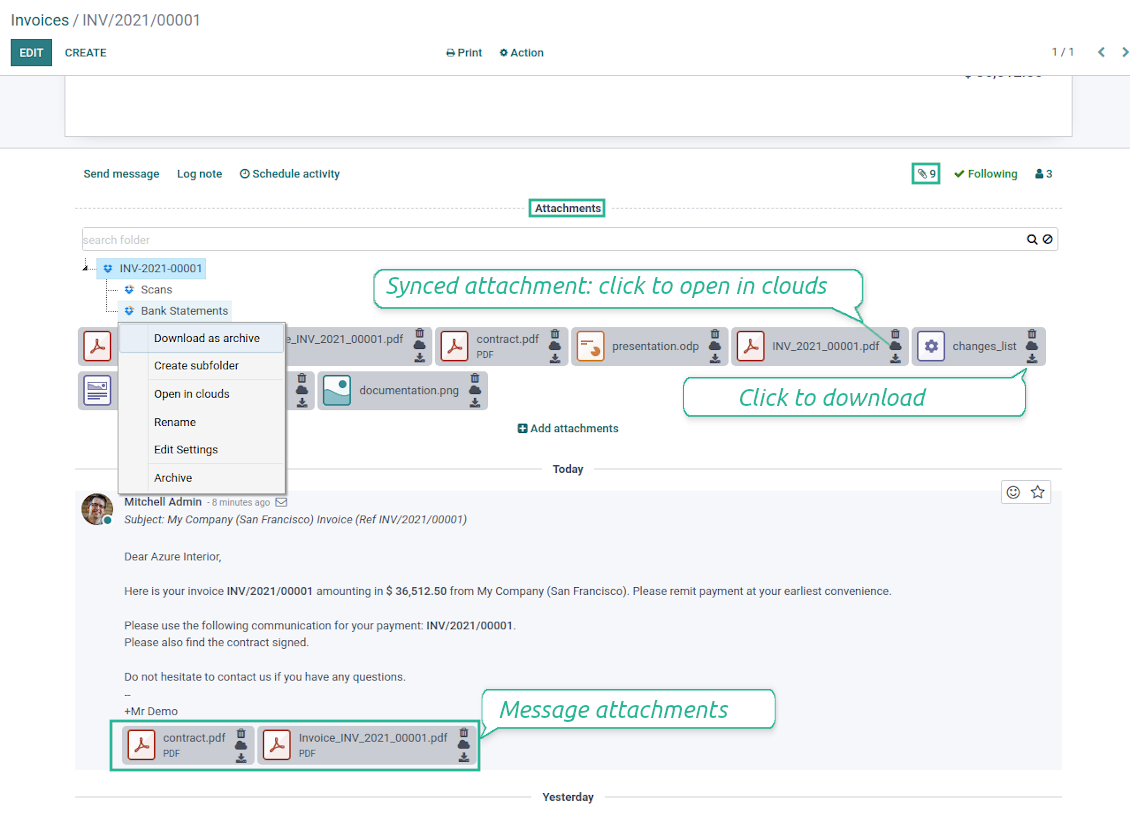
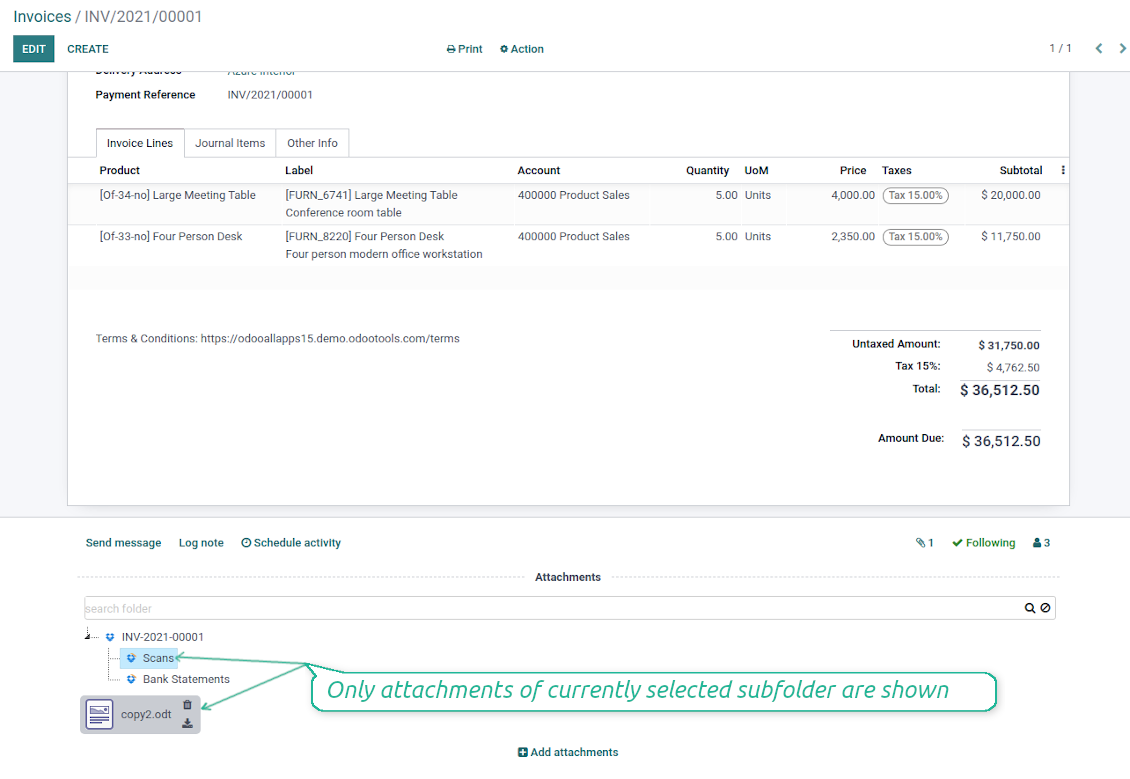
Select a folder to see its attachments. By default files of the object root directory are shown
-
Download any folder with all attachments as a single zip archive (right mouse click > Download as archive)
-
Open the already synced folder in its cloud client (right mouse click > Open in clouds)
-
Upload attachment to a chosen folder (use the button 'Add attachments' or drag files to the attachment box area)
-
Instantly open any synced attachment in a linked cloud client (push the icon 'clouds')
-
Download any attachment to your local computer disregarding whether it is synced or not (push the icon 'download')
-
Use standard Odoo preview for both synced and local files (click on a file thumbnail)
-
Delete attachments as usual
-
All actions are equally applicable to object attachments and attachments related to messages.
Cloud storage synchronization
Multi synchronization
-
Use optional add-ons to synchronize the document management system with the cloud client(s) of your choice: Google Drive, OneDrive, SharePoint, Nextcloud, Dropbox, and ownCloud
-
Establish multiple connections to different cloud clients simultaneously. For example, sync sales-related folders to Google Drive; tasks and projects - to SharePoint or OneDrive; HR documents - to Nextcloud / ownCloud; manufacturing specifications - to Dropbox. Take into account that a specific folder might be synced to only a single cloud storage solution. Its children would be synced to the same client
-
For each cloud client, the app lets set up a few instances. For example, for Google Drive, you may share some folders to your personal drive, others - to one of your team drives, and the rest - to your teammate's drive
-
To establish a connection with particular cloud storage, follow the instructions that are specific for client types. See the tab Configuration for details
-
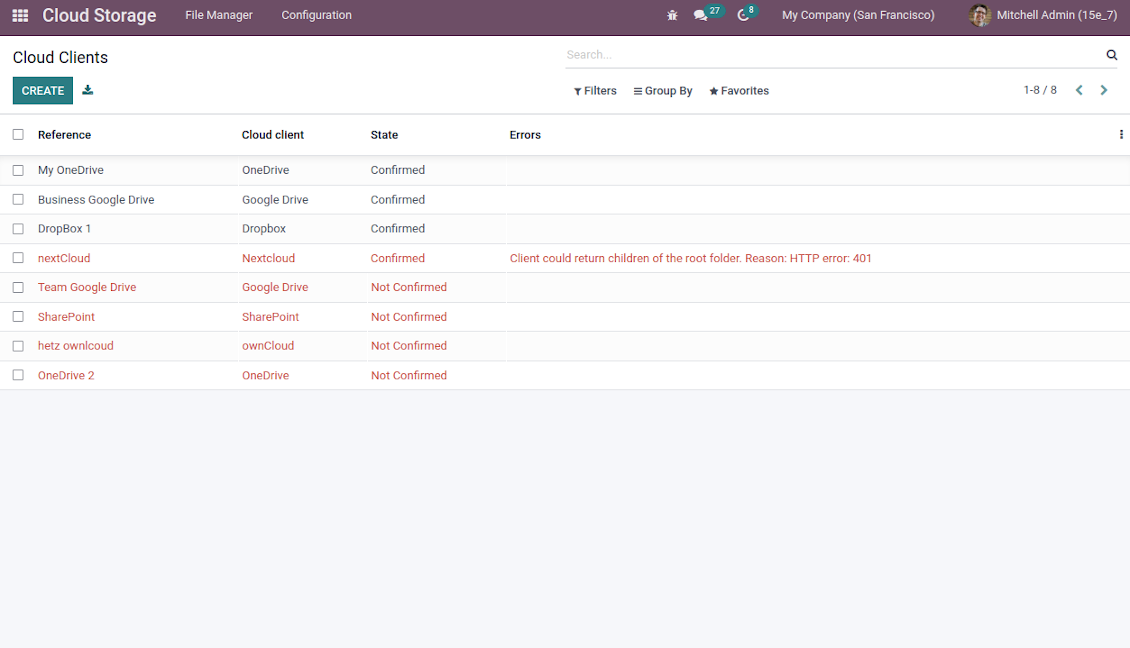
Any connection might be paused manually if it is needed. It might be also auto-stopped if there are critical issues during the sync. Then, you should re-connect to a target cloud client
Cloud clients
-
Synchronization for all cloud clients is based on the same principles and on the same queue. Simultaneously, there might be differences in sync results due to different features of various cloud storage solutions
-
Establishing connections for different types of cloud clients assumes installing optional add-ons, different approaches for Odoo, and external API configuration. Follow the instructions on the tab 'Guidelines'
-
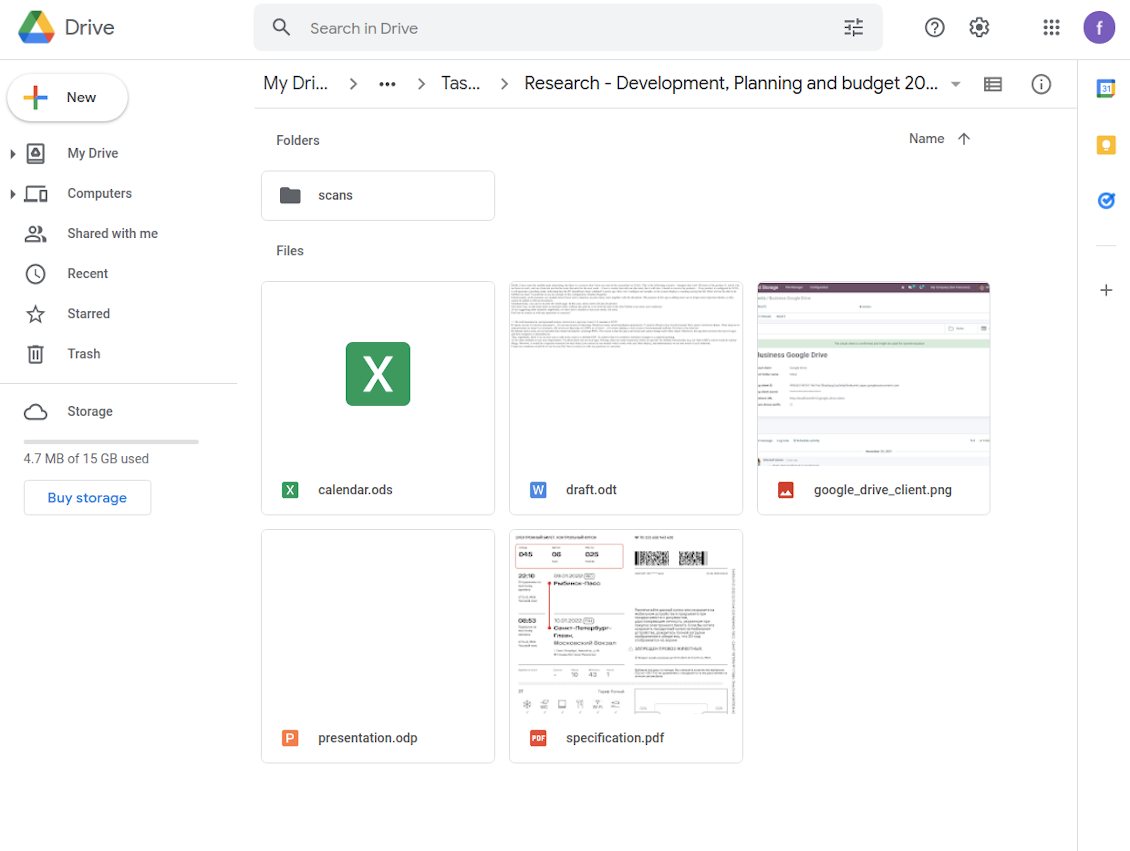
Google Drive Odoo Integration allows establishing a connection with any personal or team drive
-
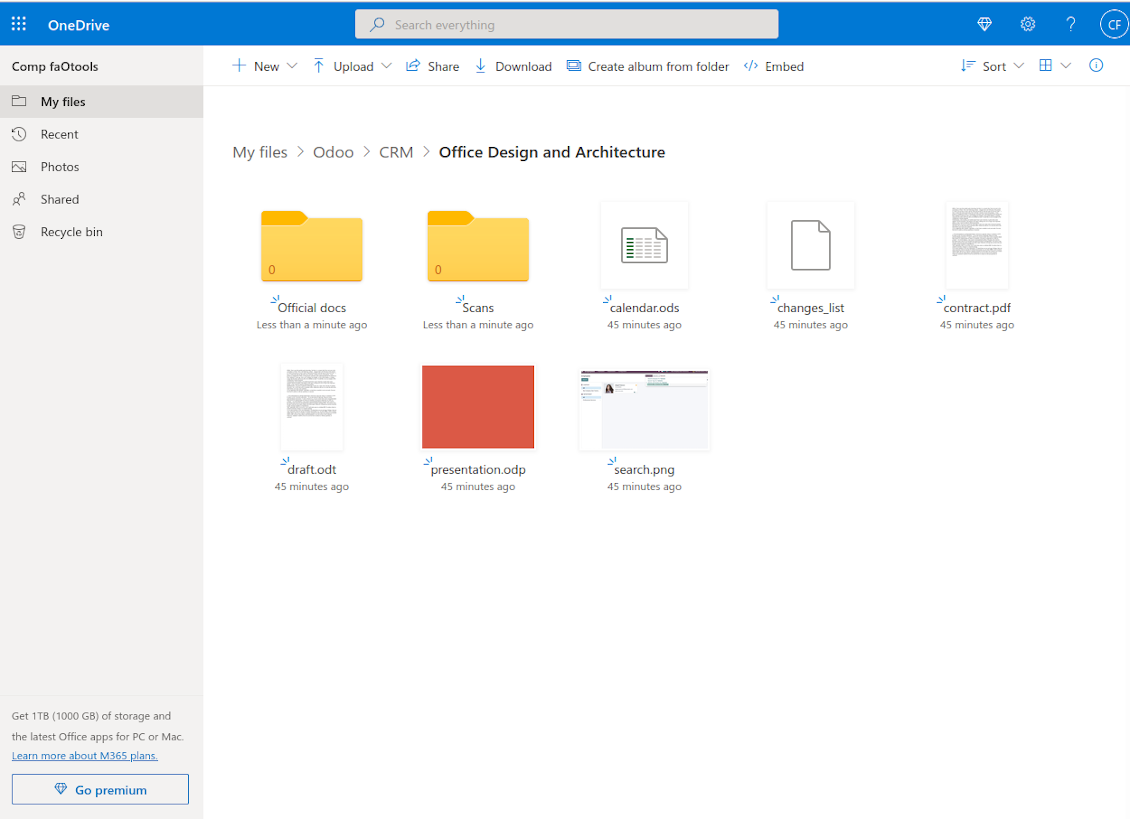
OneDrive / SharePoint Odoo Integration assumes synchronization with any drive of personal/business/SharePoint tariffs
-
ownCloud / Nextcloud Odoo Integration et integrate Odoo with any instances of ownCloud and Nextcloud. In comparison to other clients, the app allows setting the type of attachment links. By default Odoo links are internal: only authorized users may access them. Optionally make links public (the setting 'Use Public URLs'). See details on the guidelines tab
-
Dropbox Odoo Integration works for all DropBox tariffs, including Personal DropBox (Basic, Plus, Family) and business DropBox (Professional, Standard, Advanced). In comparison to other clients, the app allows choosing whether cloud items would be shared or internal. See details on the guidelines tab
Automatic two-sided sync
-
Integration is based on scheduled jobs and is fully automatized. The app regularly checks changes in systems and runs sync operations
-
Synchronization is bilateral. Updates in Odoo are reflected in cloud clients (direct sync); changes in cloud clients modify Odoo folders and attachments (backward sync)
-
Any cloud connection might be reset. In this way, the app assumes getting back all items back to Odoo (reverse sync)
-
Odoo folders and attachments might be re-attached to a new cloud client. Hence, items would be first taken back to Odoo (reverse sync) and then put to new cloud storage (direct sync)
Queue-based synchronization
-
Once in 15 minutes, the app examines updates in Odoo and cloud storage(s) to prepare a synchronization queue
-
Folders' checks follow the First-In-First-Out (FIFO) principle. So, directories that have not been examined for the longest will be processed first
-
Once in 15 minutes, the sync queue is run by the special scheduled job. Firstly, the most important (blocking) tasks would be done
-
Control planned jobs and their fulfillment in the special Odoo logs interface (Cloud Storage > Configuration > Sync Logs). Subscribe for particular cloud clients notifications
-
If the app faces sync failures, it will re-try operations afterward. Sync queue processing would not be stopped if there are items not blocked by such failures
Odoo attachments for cloud storage: direct sync
-
Direct sync prepares the folders' hierarchy and uploads Odoo attachments for cloud storage
-
Direct sync checks whether attachments are added or deleted for synced directories. If so, they would be created or removed in cloud storage. In particular, it means that any file added to a folder-related Odoo object (e.g. Quotation), would be automatically moved to a linked cloud client
-
Direct sync makes all synced Odoo attachments change their type to a link (URL), while binary content is removed with one of next Odoo cleaners. So, no actual files would be stored on your Odoo server
-
Direct sync checks whether a new folder is added. Disregarding whether it is done manually or automatically, the app would generate a peer directory in a cloud storage
-
Direct sync checks whether there are any updates in folders. If so, such changes are reflected in a cloud client
Cloud storage files and folders for Odoo: backward sync
-
Backward sync checks whether any files or subfolders are added to cloud storage folders. If so, the app would create URL attachments/subdirectories inside linked Odoo directories (and hence Odoo objects if any)
-
Backward sync checks whether there are any updates in folders or attachments. Such updates would be then reflected in Odoo
-
Backward sync checks whether any files are deleted/moved in a cloud document folder. If so, a linked Odoo attachment would be also unlinked or moved
-
If you deleted a cloud storage folder related to a folder rule / Odoo object, their child files would be deleted as well. Thus, Odoo would remove related attachments. The folders, however, will be recovered with a direct sync
-
In case of conflicts, direct sync changes are in general considered more important than backward updates.
Resetting or changing cloud client: reverse sync
-
In case you decided to reset the connection with a specific cloud client, files would be moved back to Odoo
-
In case you decided to change the cloud client of a folder rule or a folder, files would be first taken back to Odoo, and then direct sync for a new client would be done
-
Reverse sync operations are prioritized to direct and backward sync operations
-
Not all items can be correctly reversed to Odoo due to cloud client peculiarities. For example, there are documents that may exist only in cloud storage environments (e.g. Google Sheet). The app would try to convert such documents, but in some cases, it would require manual interactions.
Automatic folder structure
Rules for automatic folders
-
The app allows preparing its own folder for any Odoo object
-
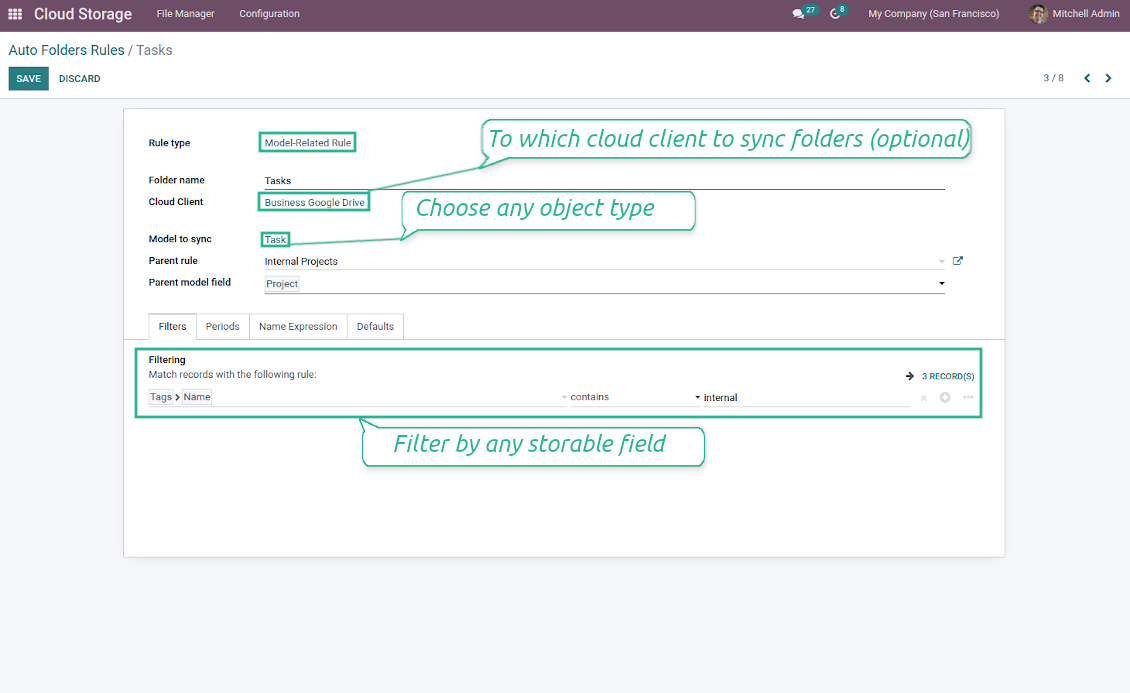
To configure a particular Odoo document type to generate a folder, you should just prepare a new folder rule (Cloud Storage > Configuration > Folder rules). For example, select the model 'Task' to make Odoo add a folder for each project task, so Tasks > Task 1, Task 2, ...
-
Automatically created directories would contain all attachments their linked objects have
-
Folders are updated regularly based on the scheduled job
Multi directories for each model
-
Each Odoo model might have a few linked folders
-
Apply any model storable field to filter Odoo objects and, in this way, split objects into a few super directories. For example, have own folders for individuals and companies, for European and American opportunities, for quotations and confirmed orders, for each project
-
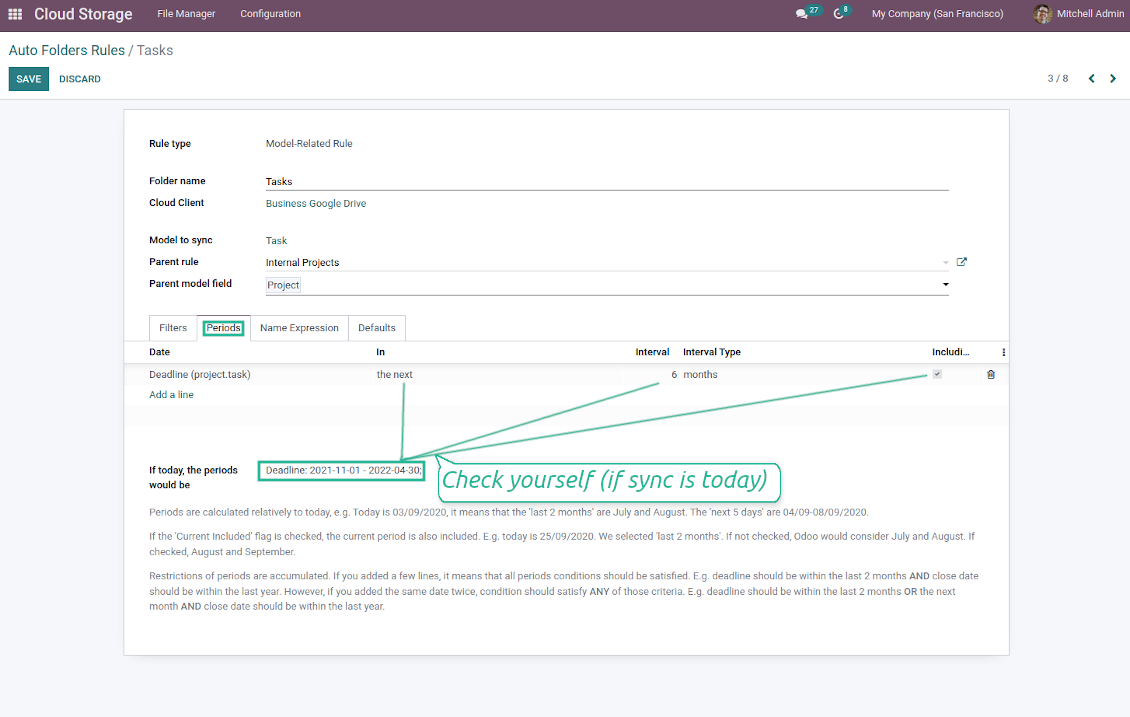
Filter Odoo objects by relative periods by applying date fields of linked documents. For example, leads registered in the last 3 months or invoices updated in the last week
-
As a result, the app lets have paths like 'Odoo > Quotations Europe > SO-001' or ' Odoo > the last year posted invoices (America) > SO-001'
Flexible folders' tree
-
It is possible to set up a hierarchy of folder rules to prepare a more flexible directories structure
-
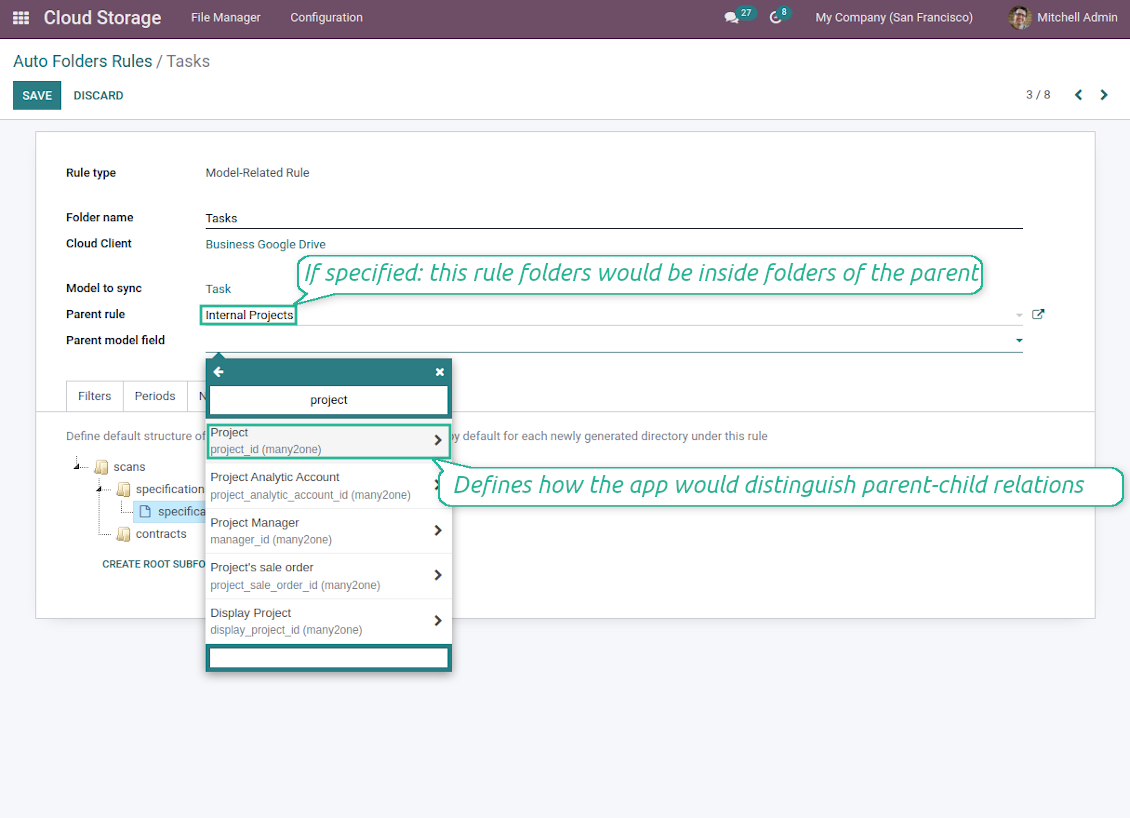
To that goal define a parent rule for a required folder configuration. For example, use a project-related rule as a parent for a task-related rule, a customer-related rule - for invoices-related rules
-
In order for folder relations to work correctly, it is also needed to enter a parent model field. So, it is the field that links models between each other (many2one relation). For example, 'Project' of a task, 'Customer' of a sales order, or 'Sales Team' of an opportunity
-
As a result, the tool allows reflecting your Odoo workflow logic and have paths like 'Odoo > Customers > Azure Interior > Projects > Software Design > Prepare Specification' and 'Odoo > Customers > Azure Interior > Quotations > SO-001'
Subfolders, default folders, and default files
-
The app lets add an unlimited number of manual subfolders for each folder. In particular, you may have a directories tree right in each object attachment box
-
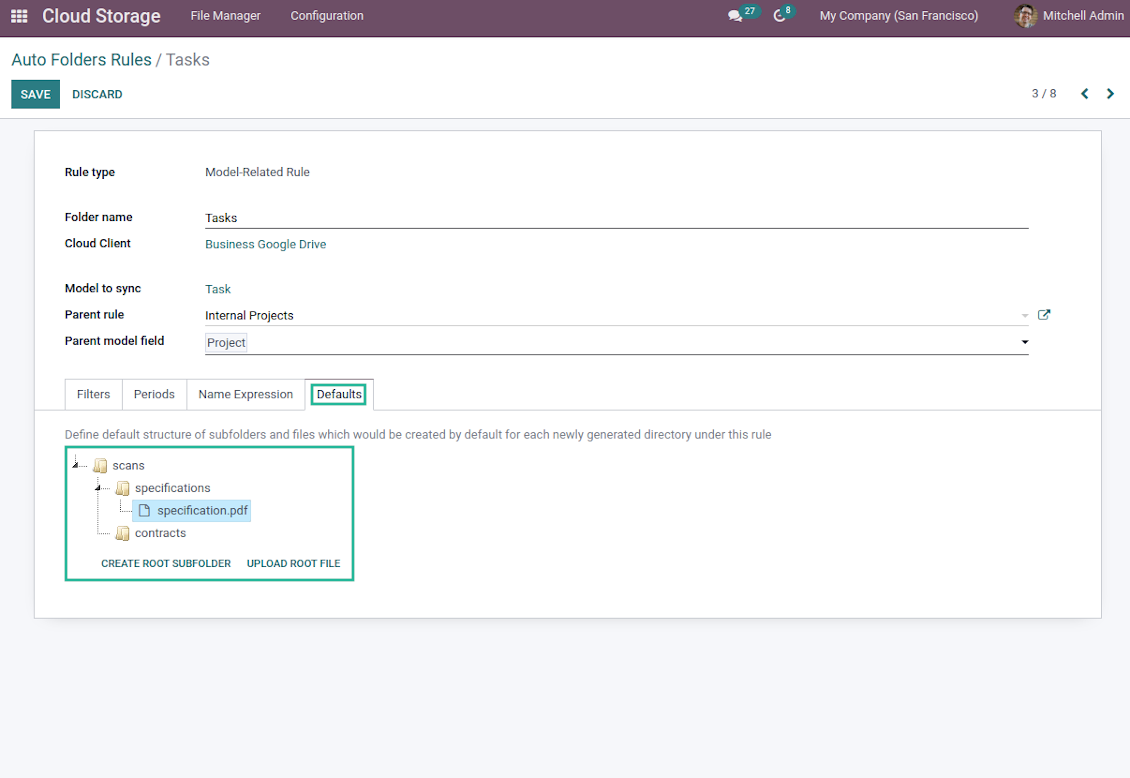
For the first generation, it is possible to define default folders, so subdirectories would be auto-generated for a specific Odoo object folder. Afterward, you may add delete/edit those or add new ones
-
The same mechanics are applied to prepare default files. For example, to have contract/personal card templates which then are assumed to be filled with real data
Configurable folder titles
-
Each folder rule assumes to generate a directory. Names for the such directory are assigned right on a rule form. For example, introduce 'Jobs' for a task-related rule or 'HR' for employees' folders. By default, the Odoo model name would be used
-
For object-related folders, the names are generated based on the Odoo name_get method. So, if not defined the opposite, it would be the same title as you see in the Odoo form view header
-
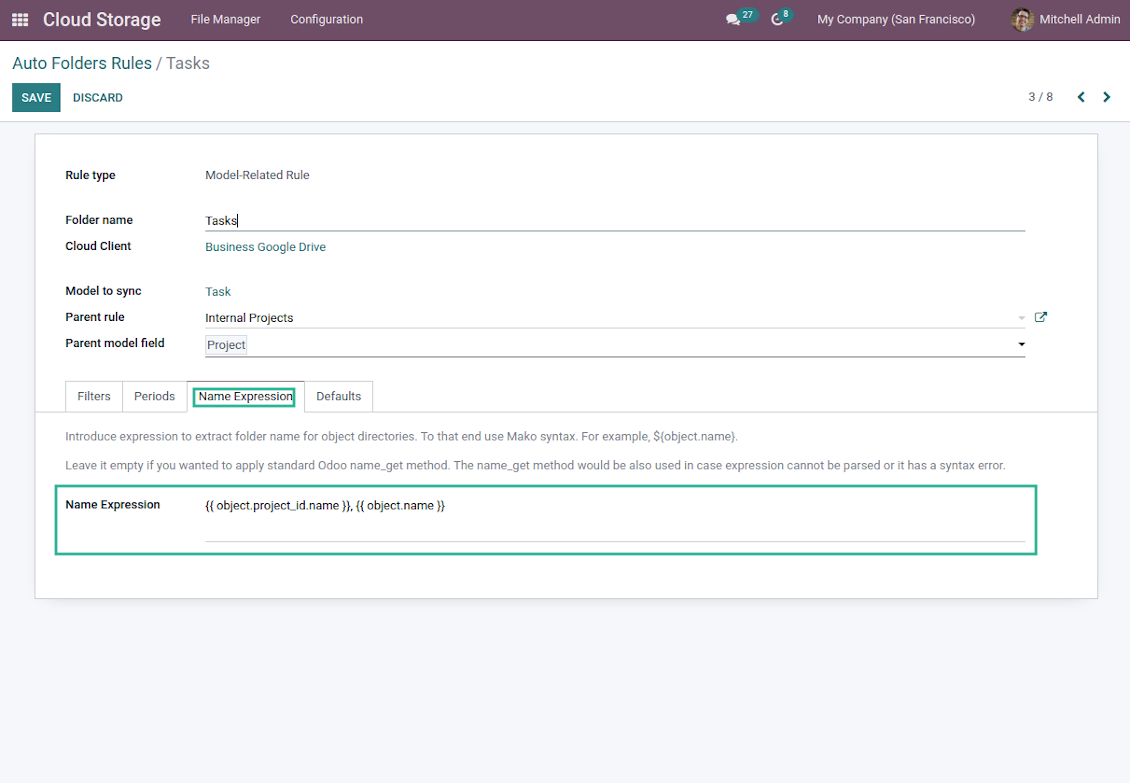
The app lets define complex name expressions for object-related folders (the tab 'Name Expression' on a folder rule form). To that goal, apply the syntax used in Odoo email templates. For example, {{ object.project_id.name }}, {{ object.name }} to reflect a project name in tasks folders
-
Avoid the following symbols in folders' and files' names: *, ?, ", ', :, <, >, /, +, %, !, @, \, /,. Direct sync will replace such symbols with '-'. It is done to avoid conflicts with file systems. Avoid also too long names: e.g. more than 100 symbols
Enterprise Documents
-
The app allows generating folders for workspaces introduced by the Odoo Enterprise apps 'Documents'
-
To force Odoo to prepare workspace-related directories, define folder rule(s) of the type 'Workspace-Related rule'. The tool would automatically create linked folders and sync those for chosen cloud storage with one of the next jobs
-
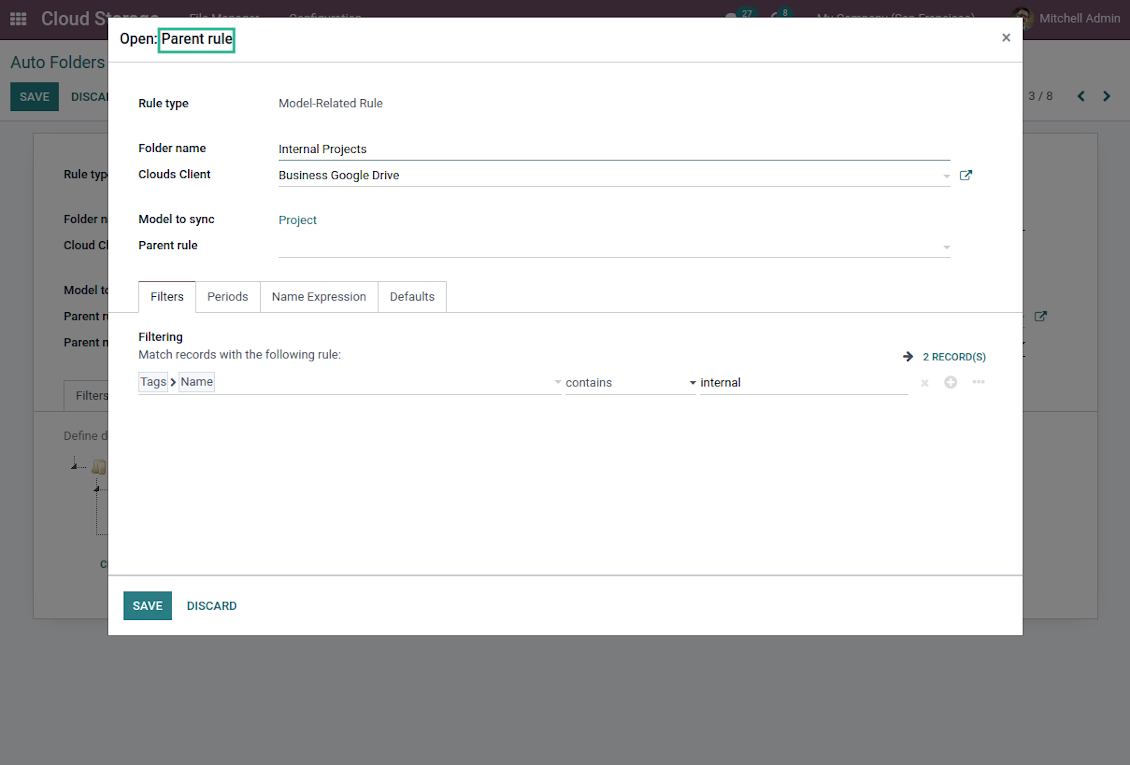
It is not obligatory to reflect the whole DMS structure. Thus, it is possible to filter workspaces by any storable field. For example, to add a folder only for workspaces that contain the keyword 'Internal'. Take into account: if a workspace was synced, all its child workspaces would be also synced
-
If you generated a subfolder for any workspace-related folder, the app would also create such a Documents workspace
Typical use cases
-
Customers: add all partner files in a single super directory. Optionally distinguish companies and individuals. For example, Odoo > Customers > Azure Interior > Contacts > John Brown
-
Sales orders and invoices: keep all sale-related printings and contracts in your own quotation directories for each customer. For example, Odoo > Customers > Azure Interior > Orders > SO-001 and Odoo > Customers > Azure Interior > Invoices > INV-00001
-
Opportunities: store all specifications, requirements, and any files which would let you make a good offer carefully structured by each sales team and case. For example, Odoo > Sale teams > Europe > Leads > Interest in 50 chairs
-
Project and tasks: prepare a folder for each customer project and task. For example, Odoo > Customers > Azure Interior > Projects > Software design > Tasks > Specification
-
Human resources: gather all files by each employee in a single folder: photos, document scans, contracts. Structure employees by department. For example, Odoo > Departments > Accounting department > Employees > Anita Olivier.
File manager and sync access rights
-
Access for each Odoo automatic folder is regulated based on a linked object. If such an Odoo object is available for a specific user, its directory would be also available for her/him. For example, if Anita Olivier is the task manager of 'Prepare specification', then she may access the folder 'Tasks' and 'Tasks > Prepare Specification'
-
Access for Odoo manual folders is regulated based on its user groups and users stated in those folders' settings. If nobody is specified, a manually created folder is available for everyone. For example, if Anita Oliver is a sales manager, she may access the quotation-related folder 'Odoo > Orders > SO-001'
-
To access any folder, a user should be able to access all its parents. For example, if Anita Oliver has rights for employees but does not have for departments, then she might not read 'Odoo > Departments > Administration > Employees > Mitchel Admin'. However, if the folder 'Employees' becomes a stand-alone folder without a parent, then Anita would be able to access 'Odoo > Employees > Mitchel Admin'
-
The app does not regulate access levels for cloud clients and their items. The tool regulates rights only for Odoo objects and synchronizes those to required storage. After the sync, if necessary, you should apply the settings for a target cloud client, folders, and files
-
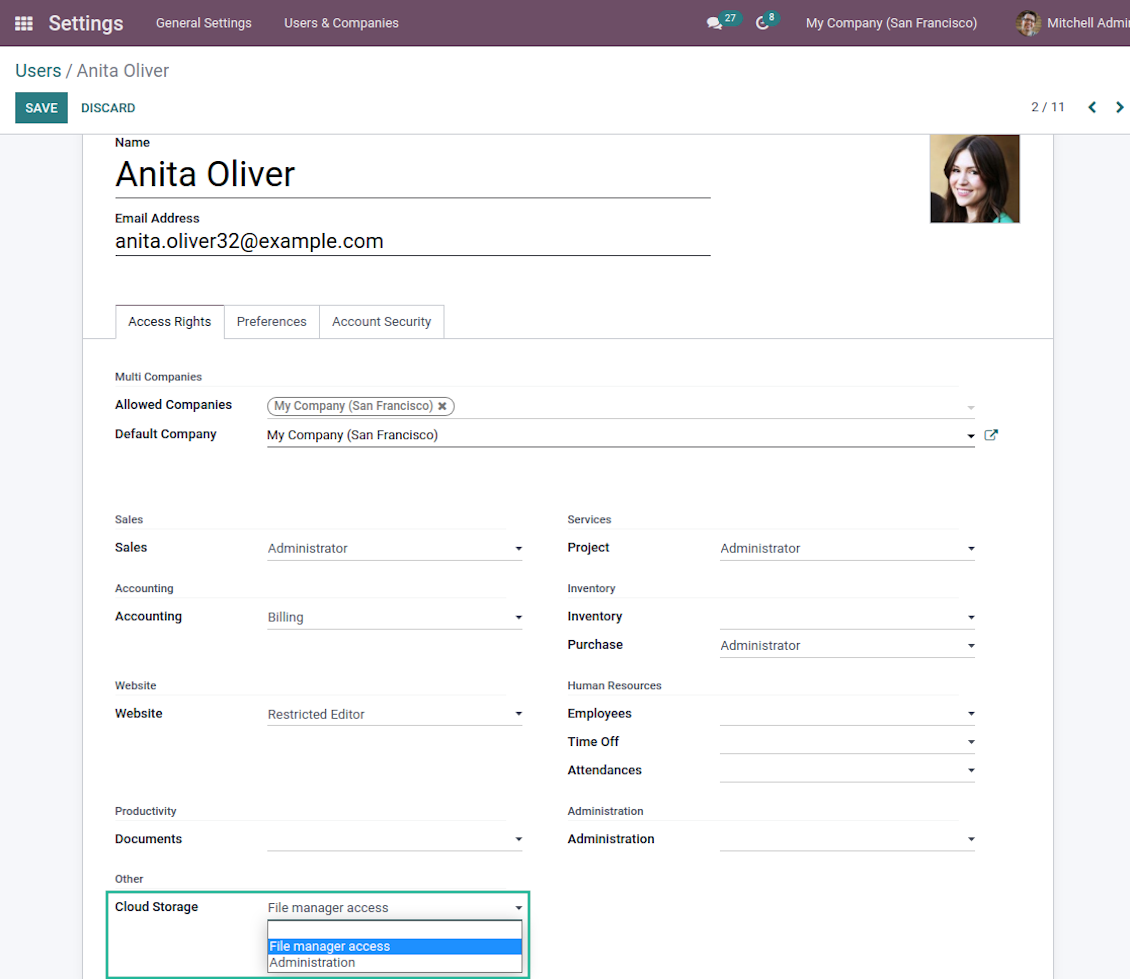
To observe the menu 'Cloud Storage' and the app file manager, a user should belong to the security group 'Cloud Storage > File Manager Access'
-
To configure automatic folder rules, establish connections with various cloud clients, control sync logs, and apply the app settings, a user should belong to the security group 'Cloud Storage > Administration'.
Use notes
-
The app assumes automatic regular synchronization with various cloud clients. Please take into account that synchronization is not real-time but is based on tasks queue and scheduled jobs. Depending on the number of folders and attachments, it might take time for the app to check all directories and do the jobs. That's why, until the sync is done, Odoo attachment interfaces work as in standard Odoo.
-
Cloud connections rely upon the API of the related cloud clients. Such communication between systems is risky by concept due to possible disconnections, API updates, and unsolvable conflicts. The app is designed to cope with such risks by carefully processing failures and checking cloud client states. Simultaneously, make sure that you have configured a proper backup strategy for both Odoo and cloud clients.
-
The special factors of risks are sync scope and reverse operations. The higher the sync scope is, the more it would take Odoo to finish integrations. Hence, more space for errors exists. Try to decrease sync scope logically by choosing only required folders. Reverse operations might be risky since assume reflecting cloud clients' features which might be absent in Odoo. For example, Google Sheets cannot be opened outside Google Docs. The app would try to solve the scenarios by applying similar features (e.g. by converting a file to simple electronic tables). However, that is not always possible, and in this way, manual interactions would be required.
Petua konfigurasi dan pemasangan untuk Cloud Storage Solutions Odoo v.15
Odoo server configuration
To make sure the synchronization works correctly apply proper timeouts to the Odoo configuration file: LIMIT_TIME_CPU, LIMIT_TIME_REAL, LIMIT_TIME_REAL_CRON should be more than 900 seconds.
For Odoo.sh this should not be done, since timeouts are predefined and are not configurable.
Avoid also changing the cron jobs frequency assumed by the app: '[Cloud Storage] Prepare Cloud Folders', '[Cloud Storage] Run / Prepare sync queue'. Those jobs are configured to be run each 15 minutes, and that frequency is used in the algorithms to avoid breaks and data losses. If you need to stop sync for a while, pause particular cloud clients instead.
Setting up Google Drive Integration
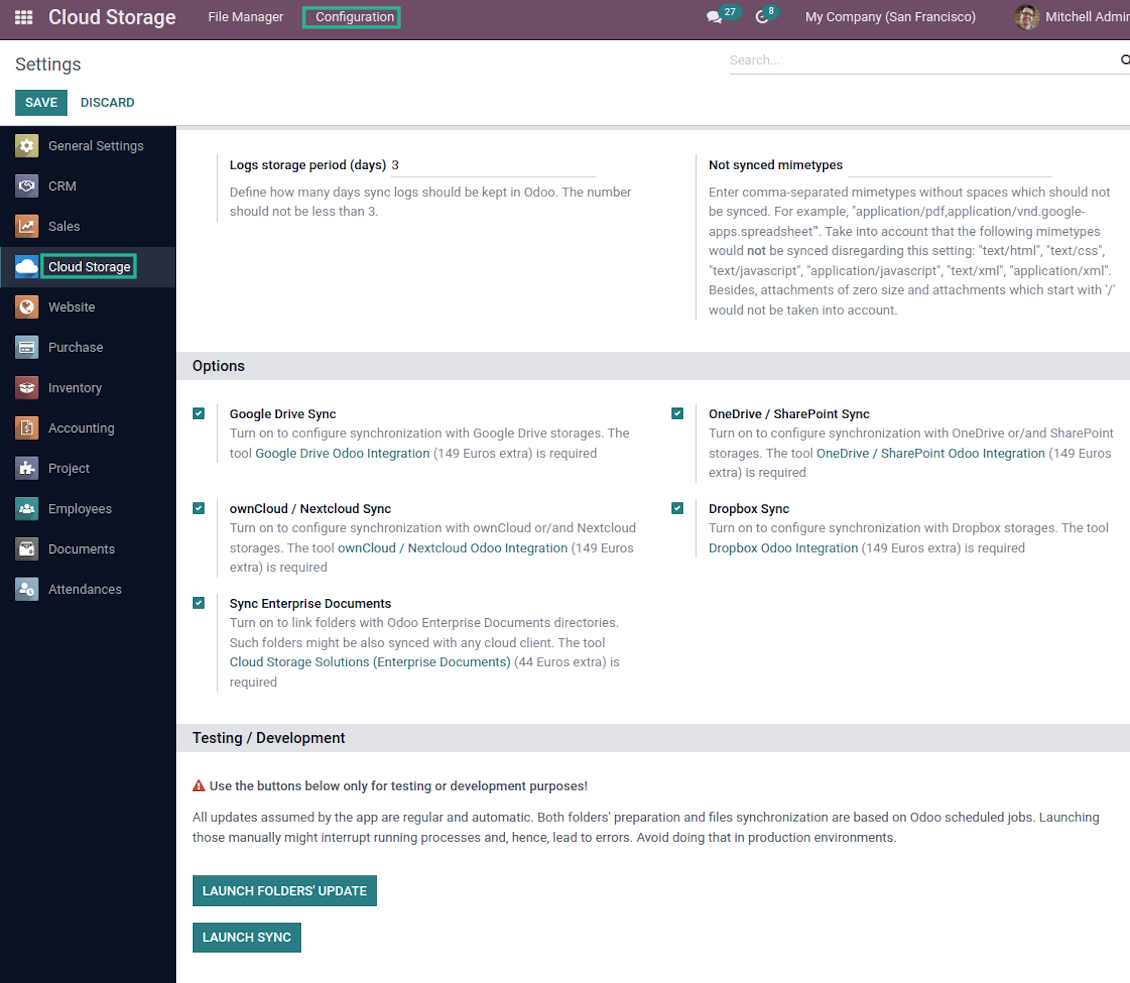
- Turn on the option 'Google Drive Sync' (cloud Storage > Configuration > Configuration). The optional add-on Google Drive Odoo Integration is required
- Go to the Google Cloud Console via the URL https://console.cloud.google.com
- Select or create a project
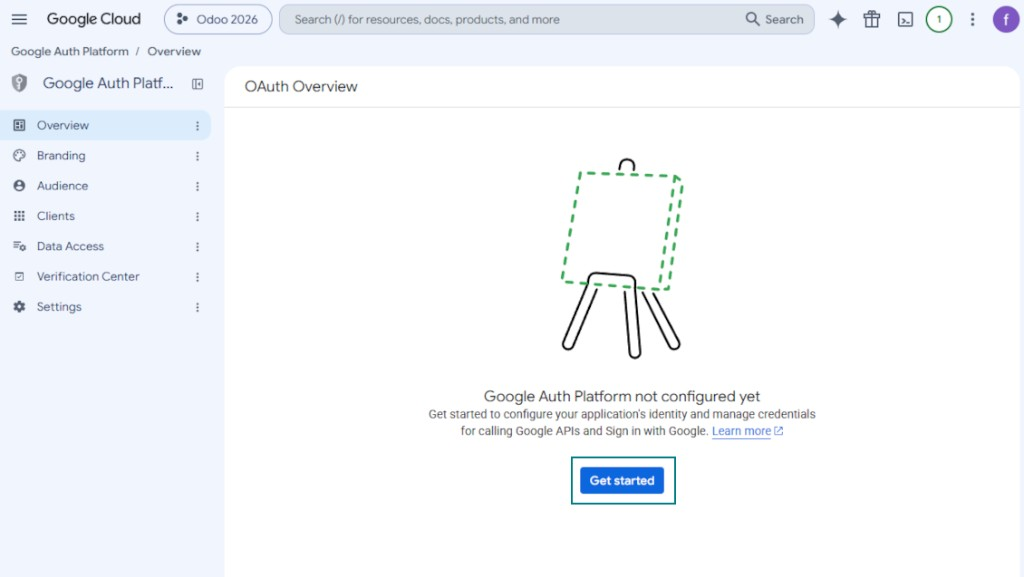
- After the project is selected, the console opens the Google Auth Platform. Press 'Get Started'
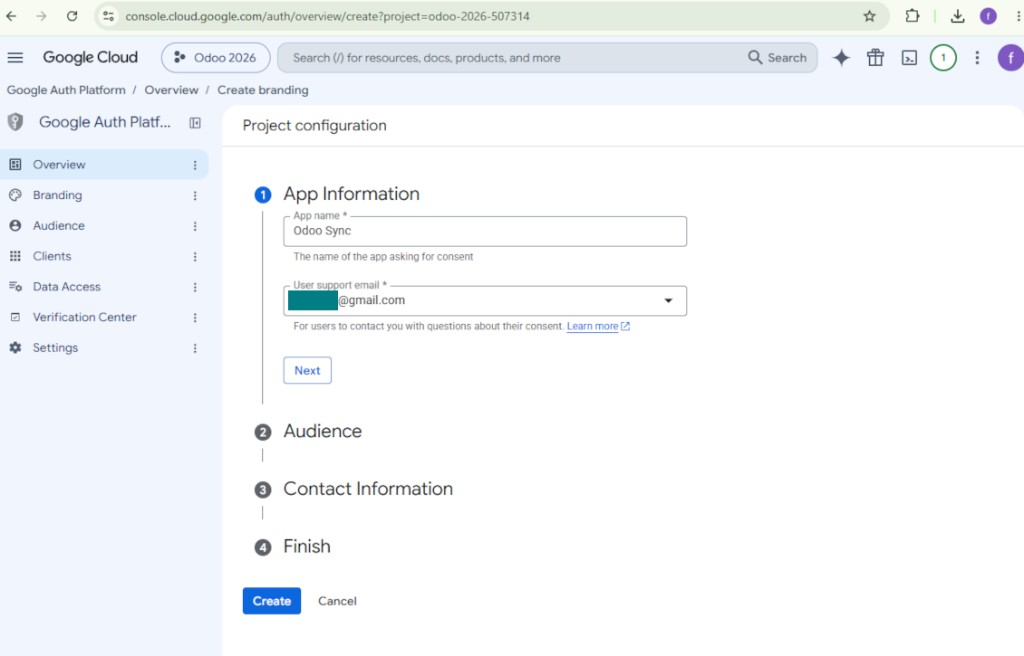
- Add app information
- As an app name select any suitable
- As a user support email select your email address
- Press 'Next'
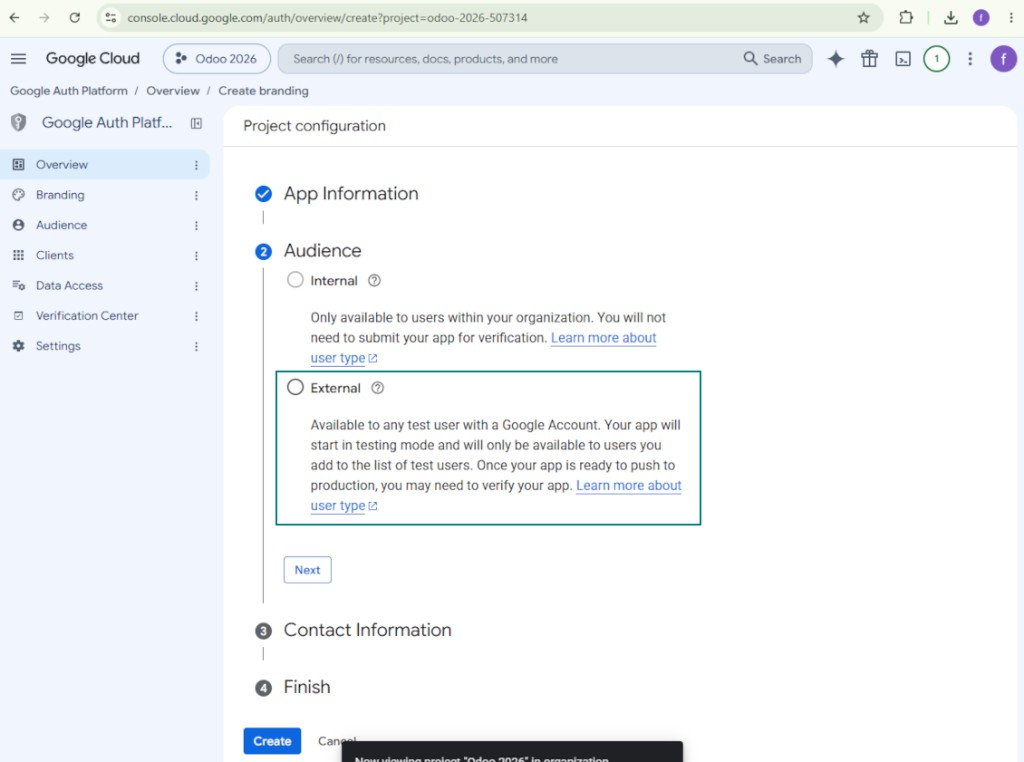
- As the audience select 'External' and press 'Next'. Note: you are anyway going to use this app only for your own Odoo connection
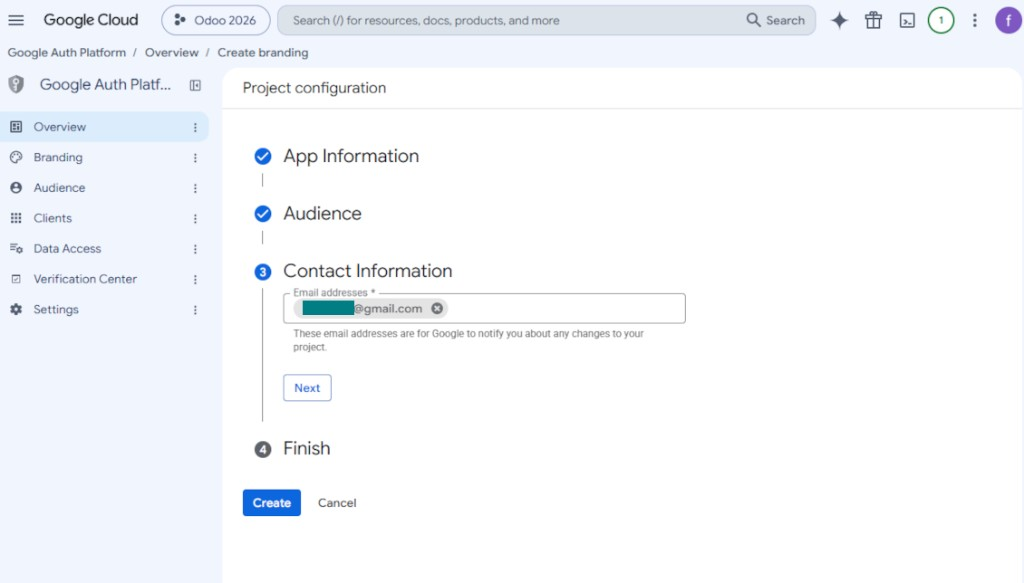
- As the contact information enter your Google or Google Workspace email address and press 'Next'
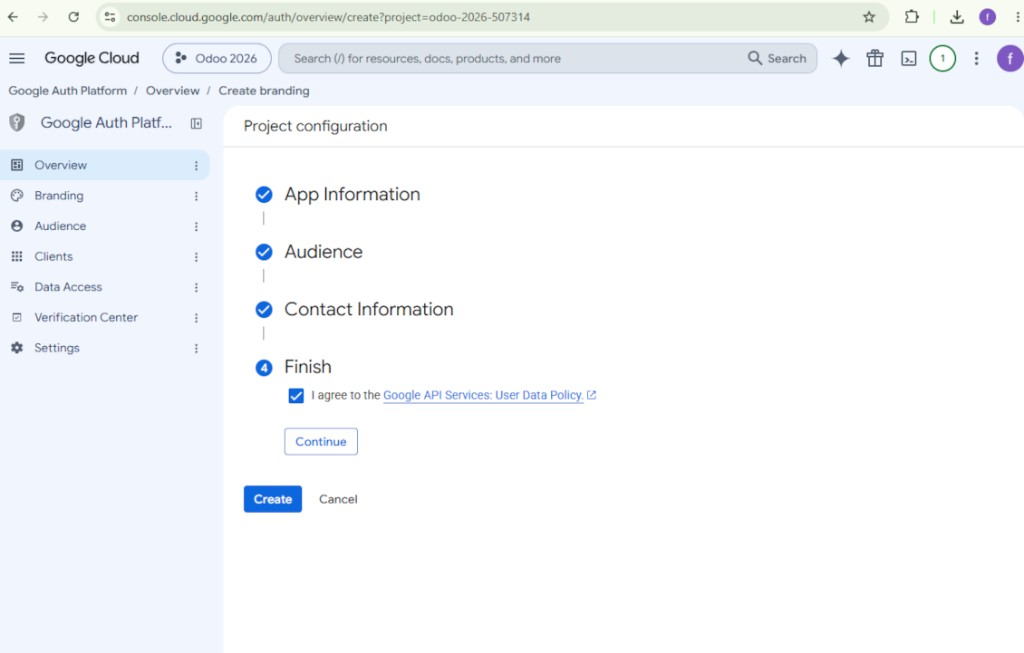
- Agree with the Google API Services User Data Policy, press 'Continue', and then press 'Create'
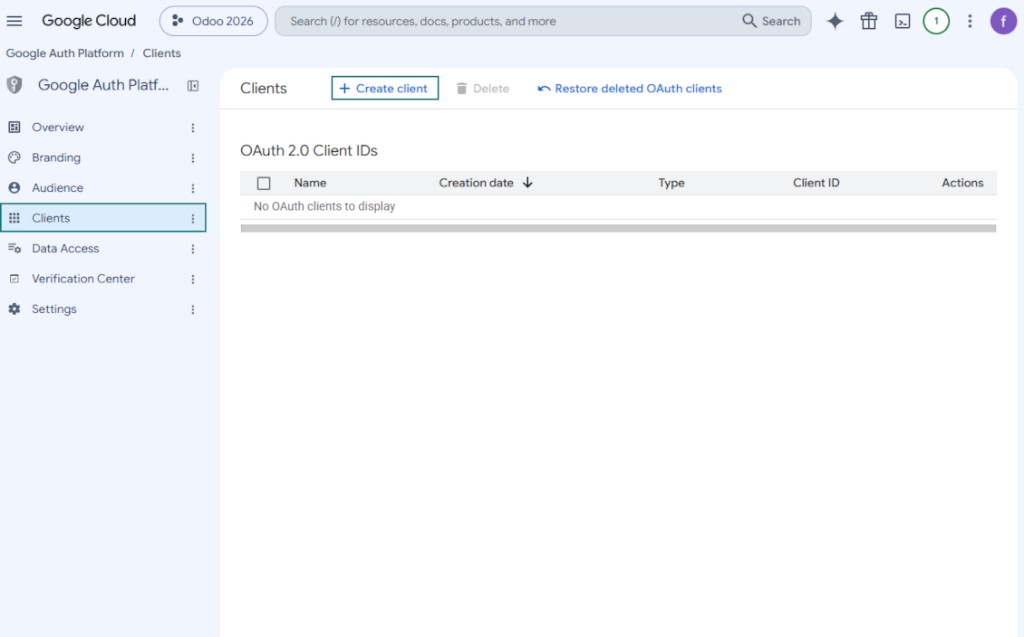
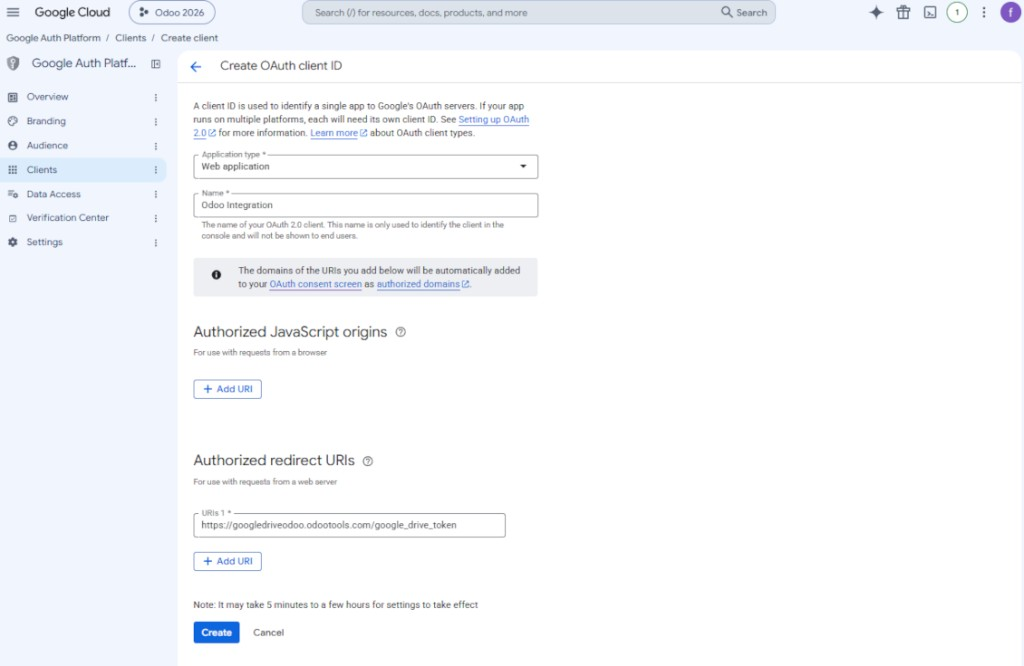
- Go to 'Clients' and press 'Create client'
- As the application type select 'Web application'
- As a name select any suitable
- As the authorized redirect URI, add the link in a format [YOURODOOSITENAME]/google_drive_token (e.g. https://odootools.com/google_drive_token).
- Press 'Create'
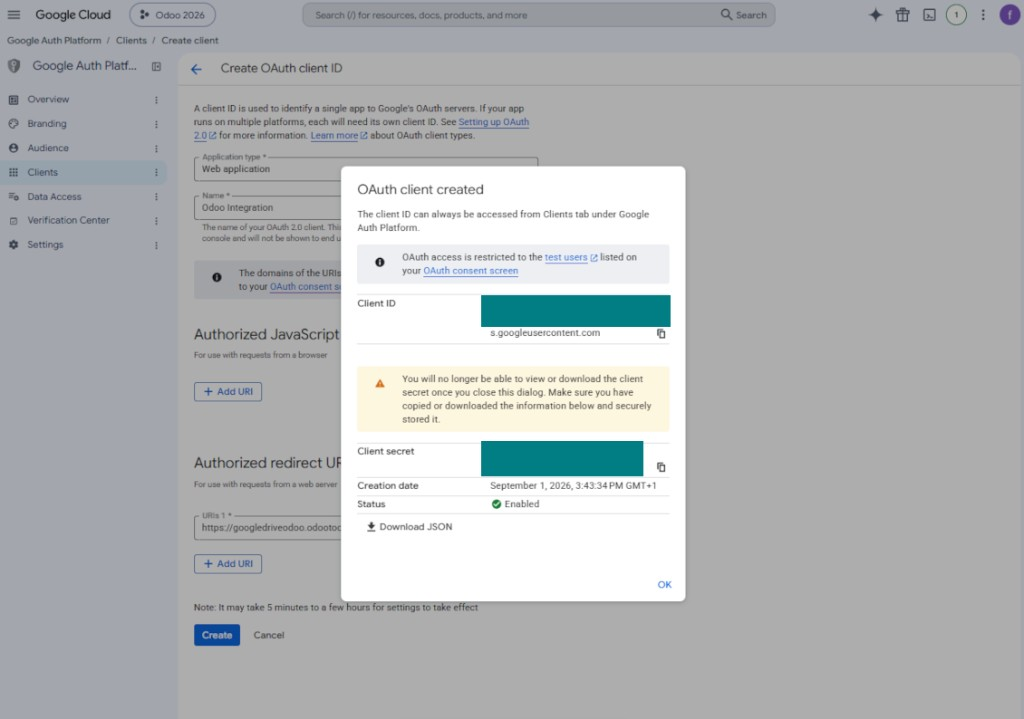
- Copy and safely store 'Client ID' and 'Client secret'. The client secret is shown only once
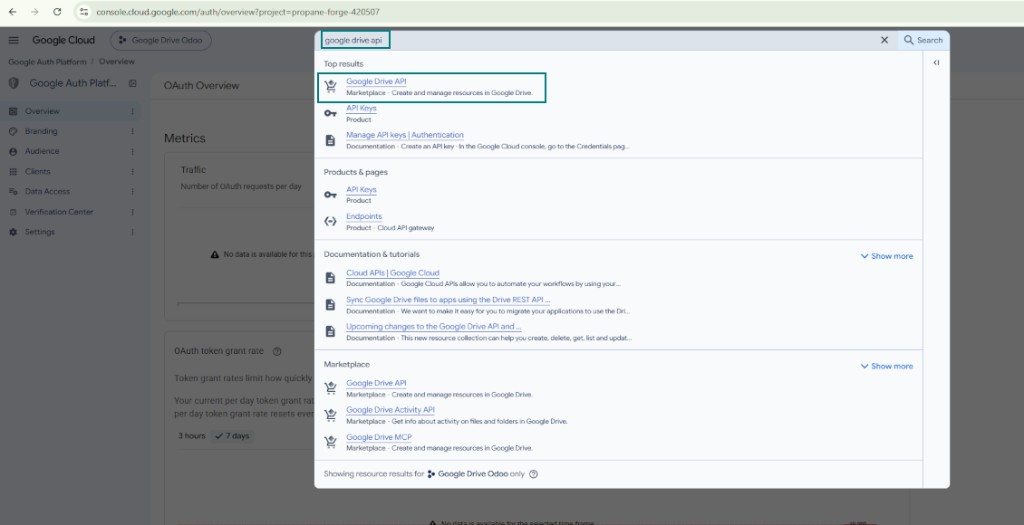
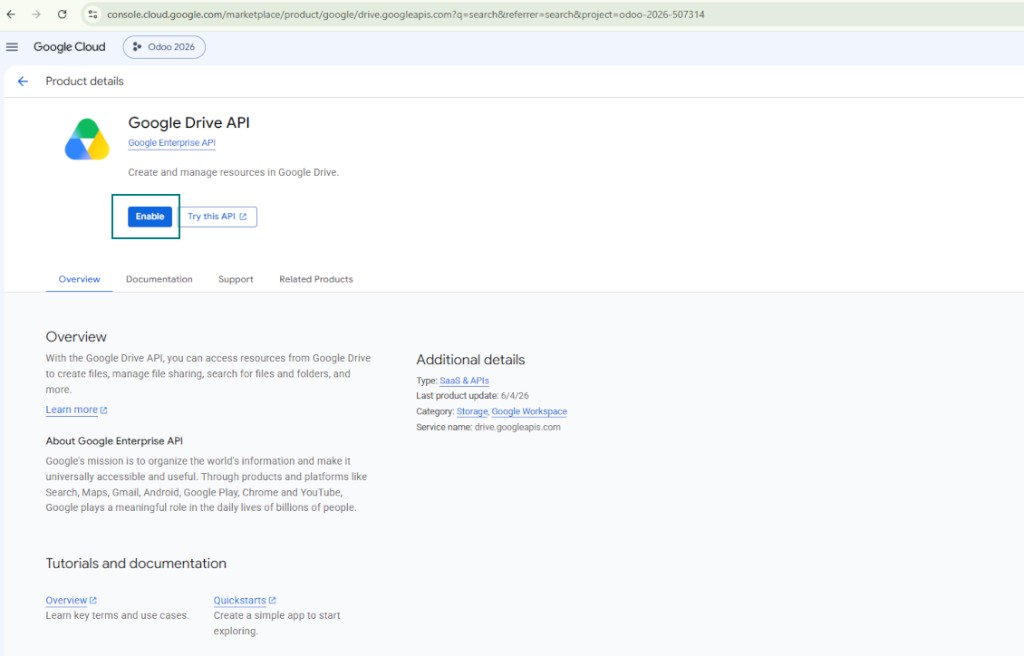
- Enable the Google Drive API for this project: type 'Google Drive API' in the top search box, open the found product, and press 'Enable'
- Go to 'Audience' and add your email address as a test user
- Publish the app. Otherwise, the app stays in the testing state and its token expires every 7 days
- Open 'Branding' and fill in the application home page and the application privacy policy link (for example, the links to your Odoo website). Add the domains of those links as the authorized domains
- Open 'Audience' and press 'Publish app'
- Do not upload an app logo. This would invoke a long and complex Google verification process that is of no actual need to you
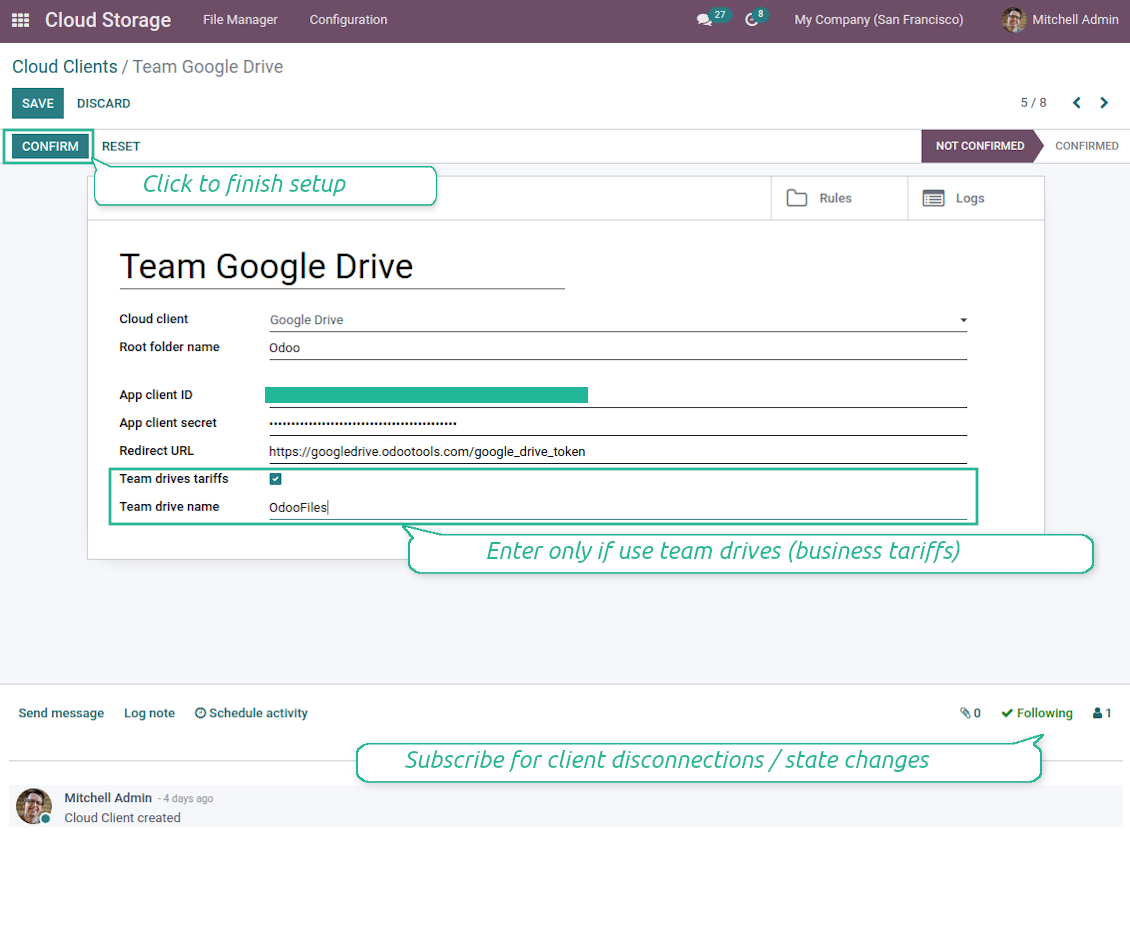
- Go to Odoo Cloud Storage > Configuration > Cloud Clients press 'Create'
- As a reference introduce any name which would be clear to all users
- As a Cloud client choose 'Google Drive'
- As a Root folder name enter a title which would be users as the parent Google Drive directory for all synced folders. For example, 'Odoo' or 'OdooERP'
- Copy 'Client ID' from step 9 into the field 'App client ID'
- Copy 'Client secret' from step 9 into the field 'App client secret'
- Insert the redirect URL you entered in step 9
- If you use team drives, check the related box. Make sure you really use team drives. In you Google Drive you should find the item 'Team Drives' in the left sidebar. This feature is available only for business and enterprise tariffs
- If the option 'Team Drive' is enabled, introduce its name. It should be absolutely the same as you see it in your Google Drive. Make sure that your user has full rights for all Google drives (usually, it is the same user who configures your team Google Drive)
- Press 'Confirm'. Odoo redirects you to Google login page. Check in the system, agree with all conditions, and grant all permissions asked
- After login, Google redirects you back to Odoo. Google Drive - Odoo synchronization is ready to be done
- Apply the newly created cloud client to folder rules and/or manual folders which should be synced to that Google Drive
- Await the sync scheduled job to be started. For testing purposes only: trigger integration manually from Cloud Storage > Configuration > Configuration > the button 'Launch sync'.
Open the Google Auth Platform
Add app information
Select the external audience
Add contact information
Agree with the policies and create the app
Create an OAuth client
Configure the web application client
Copy the client ID and client secret
Find the Google Drive API
Enable the Google Drive API
Fill in branding to publish the app
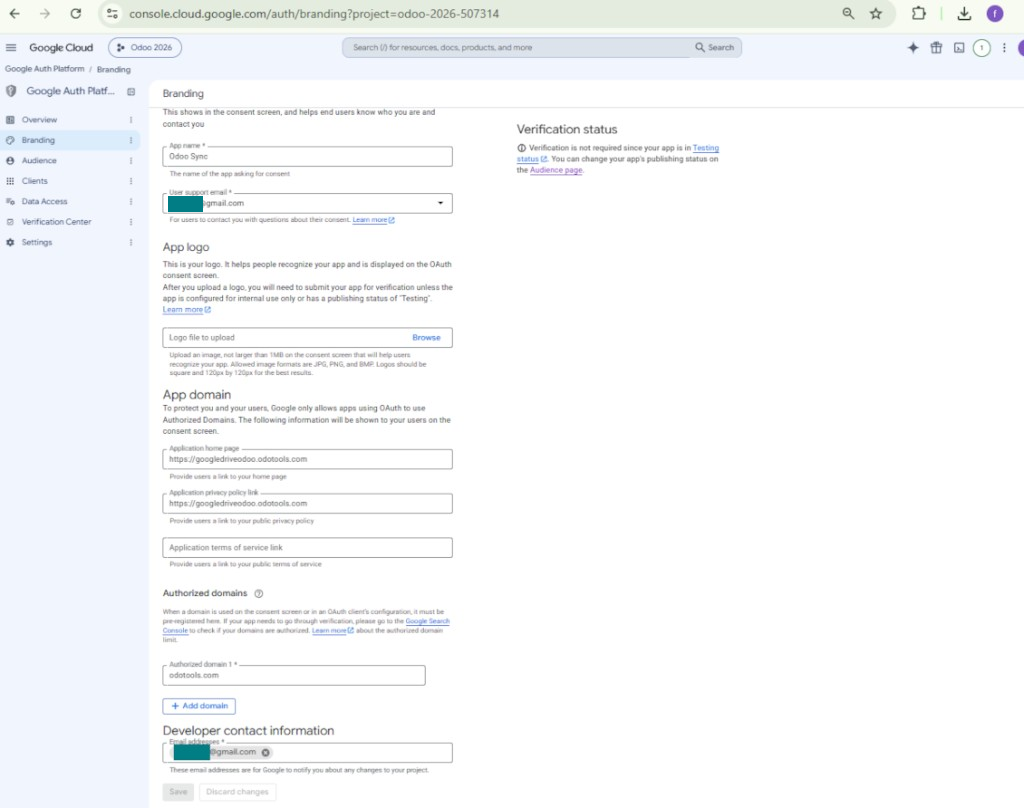
Add test users and publish the app
Enter Google app credentials to Odoo
Setting up Nextcloud or/and ownCloud Integration
Configuration and log in
- Turn on the option 'onwCloud / Nextcloud Sync' (cloud Storage > Configuration > Configuration). The optional add-on ownCloud / Nextcloud Odoo Integration is required
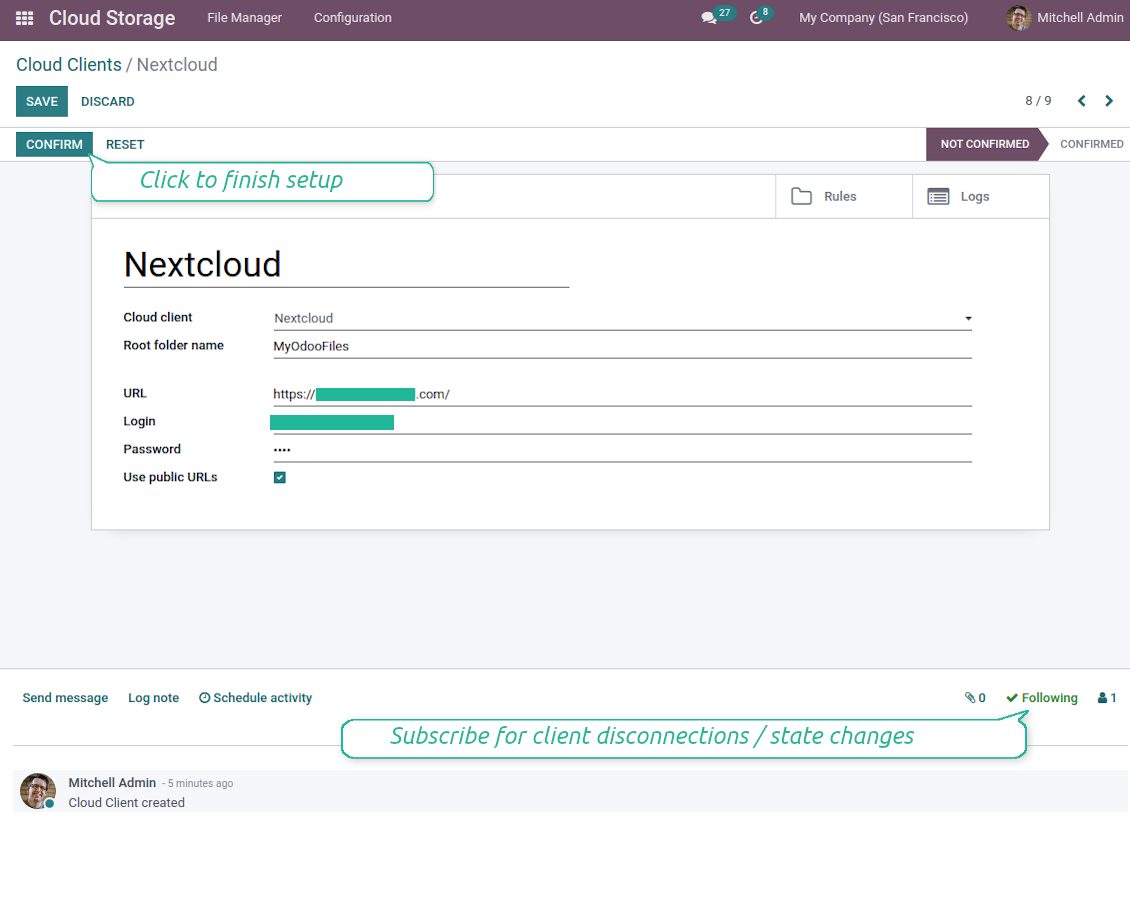
- Go to Odoo Cloud Storage > Configuration > Cloud Clients press 'Create'
- As a reference introduce any name which would be clear to all users
- As a Cloud client choose 'Nextcloud' or 'ownCloud' depending on the software you are using
- As a Root folder name enter a title which would be users as the parent directory for all synced folders. For example, 'Odoo' or 'OdooERP'
- Enter your ownCloud / Nextcloud full URL
- Select an ownCloud / Nextcloud user, which has full rights to read, create, write and delete files and folders within a root directory
- Enter login and password of this user to the fields 'Login' and 'Password'
- Choose whether you would like to apply public or internal URLs (see below)
- Press 'Confirm'. Odoo synchronization is ready to be done
- Apply the newly created cloud client to folder rules and/or manual folders which should be synced to that Nextcloud or ownCloud instance
- Await the sync scheduled job to be started. For testing purposes only: trigger integration manually from Cloud Storage > Configuration > Configuration > the button 'Launch sync'.
Internal and public URLs
By default links from Odoo to ownCloud / Nextcloud are internal: only authorized users may access them. Optionally make links public (the setting 'Use Public URLs'). Then, URLs would be 'shared', and everybody would access items by a direct link.
Be cautious if you decide to use shared (public) URLs. Although the links would be hardly known by external users, there is a slight chance that they become available as a result of some user actions. Besides, sharing links generation is not fast and might make the synchronization slower.
Enter ownCloud / Nextcloud credentials
Setting up OneDrive or/and SharePoint Integration
Python dependency
The tool depends on the external library 'microsoftgraph'. Install this library for your Odoo server through the command:
pip3 install microsoftgraph-python
Configuration and log in
- Turn on the option 'OneDrive / SharePoint Sync' (cloud Storage > Configuration > Configuration). The optional add-on OneDrive / SharePoint Odoo Integration is required
- Make sure your Microsoft user has full admin rights for OneDrive / SharePoint you want to connect to Odoo. This user is required only to grant permissions, the user data would not be kept in Odoo, and would not be used afterward. Besides, make sure a Microsoft email address you use does not have a redirection (usually happens when you configure your domain name, while the prime address is still one of Microsoft domains like @outlook.com, @office365, etc.)
- Go to your Azure Portal: https://portal.azure.com/#blade/Microsoft_AAD_RegisteredApps/ApplicationsListBlade
The app must be registered inside a directory (tenant). Microsoft no longer allows creating a new app outside one.
- If you already have a company Microsoft 365 / Azure directory, switch the portal (top right) to it and continue.
- If you only have a personal account (@outlook.com, @hotmail.com, @live.com) and see "these applications are associated with the account ... but are not contained within any directory", you do not have a directory yet. Sign up for a free Azure account with the same Microsoft account: https://azure.microsoft.com/free/ - Try Azure for free. This creates a Default Directory for you at no cost.
- Microsoft asks for a card for identity verification only; a temporary ~1 USD hold is placed and reversed. You are not charged for the directory or for the app registration.
- The directory (Microsoft Entra ID Free) and any app registered in it keep working independently of the 30-day / $200 Azure trial credit. That credit is for paid Azure resources you are not using here. No payment is required for our app.
- If the whole directory sits completely unused for a very long time (Microsoft's own threshold is around 200 days of no activity at all), Microsoft may email a warning and eventually retire it. Since Odoo calls this app every time it syncs, an active connection keeps the directory active - this only matters if you stop syncing entirely for months.
- Once you are in a real directory (not "Microsoft Services"), open App registrations there.
- Click 'New registration'
- Introduce a new name for the application and assign the redirect URI as [YOURODOOSITENAME]/one_drive_token (e.g. https://odootools.com/one_drive_token). As the supported account types choose 'Accounts in any organizational directory (Any Azure AD directory - Multitenant) and personal Microsoft accounts (e.g. Skype, Xbox)'.
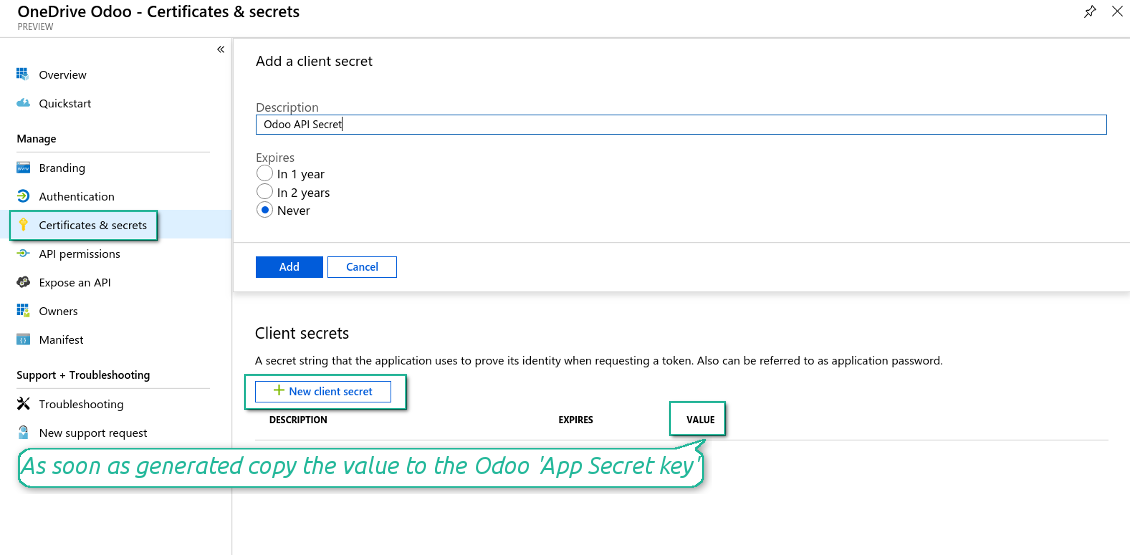
- Go to Certificates & secrets - Click 'New Client Secret'. Save somewhere the secret value
- Go to Odoo Cloud Storage > Configuration > Cloud Clients press 'Create'
- As a reference introduce any name which would be clear to all users
- As a Cloud client choose 'OneDrive' or 'SharePoint' depending on the software you are using
- As a Root folder name enter a title which would be users as the parent OneDrive directory for all synced folders. For example, 'Odoo' or 'OdooERP'
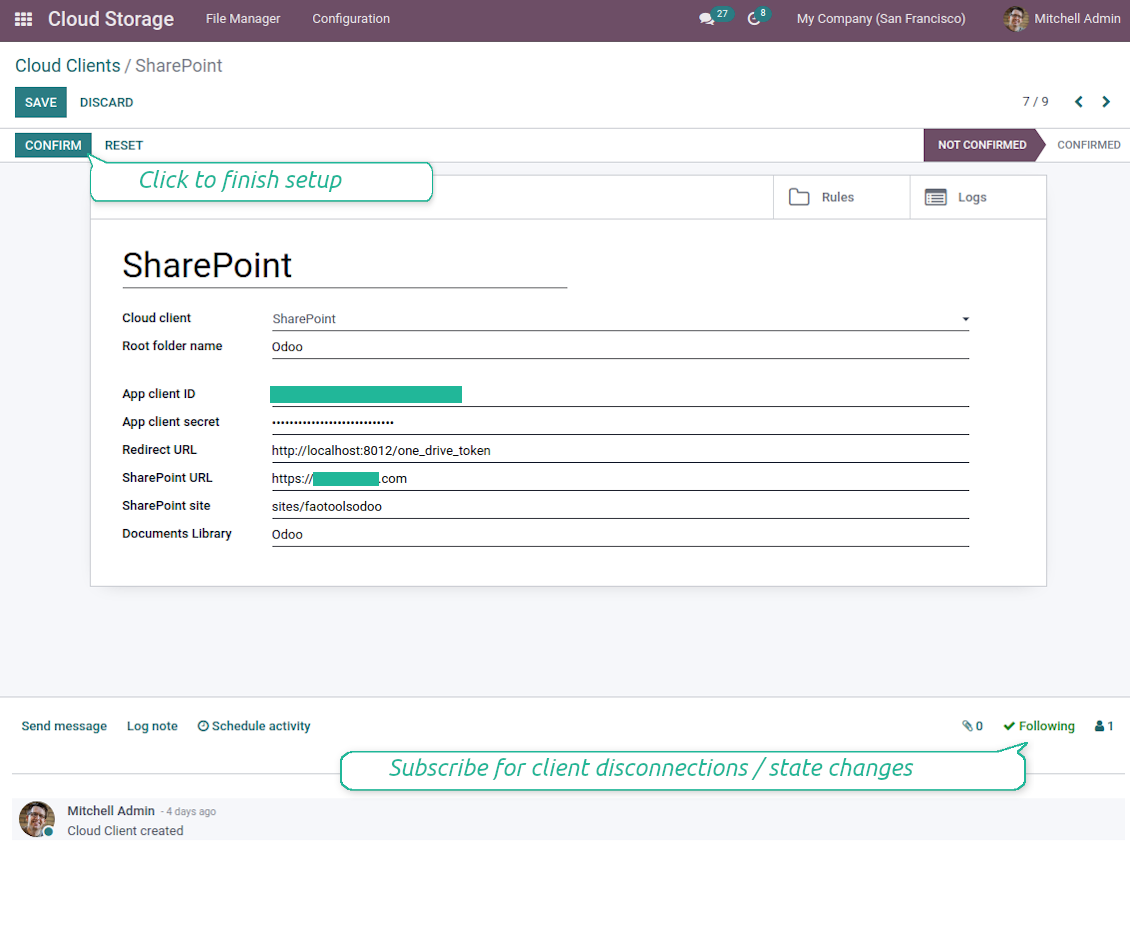
- Copy 'Application Client ID' to the 'App client ID'
- Copy secret value into the field 'App client secret'
- Insert previously generated redirect URL
- If you use SharePoint:
- Go to your SharePoint site and prepare a new documents library (drive). You might use one of the existing ones, e.g. 'Documents'. Odoo folder would be put there afterward, and it would be impossible to move it to another library
- The SharePoint URL should be of the type https://[URL]/. The last '/' is required - the site name should not be included. For example, https://odootools.sharepoint.com/
- SharePoint site should be either root (the very root SharePoint site), my_site_name (in that case it is considered as sites/my_site_name) or sites/my_site_name (instead of 'sites' it might be 'teams' and so on). There should be no '/' at the beginning or at the end. For example, sites/odootools
- As Documents Library use one created in SharePoint
- Press 'Confirm'. Odoo redirects you to the Microsoft login page. Check in the system, agree with all conditions, and grant all permissions asked. If Microsoft shows an account already signed in and says it does not exist in tenant 'Microsoft Services' (or any other unrelated tenant), do not click that row. Click 'Use another account' and sign in with the Microsoft account that owns the app's directory
- After login, OneDrive redirects you back to Odoo. OneDrive - Odoo synchronization is ready to be done
- Apply the newly created cloud client to folder rules and/or manual folders which should be synced to that OneDrive or SharePoint instance
- Await the sync scheduled job to be started. For testing purposes only: trigger integration manually from Cloud Storage > Configuration > Configuration > the button 'Launch sync'.
Create Azure application
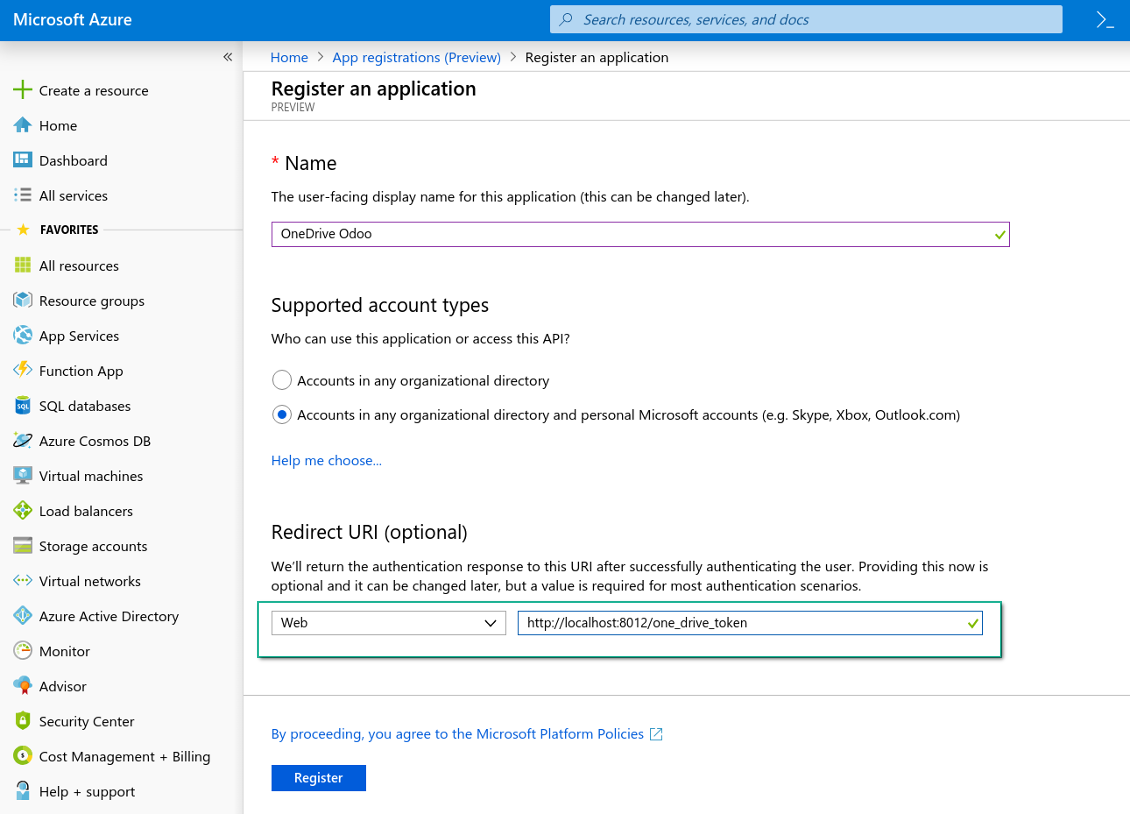
New OneDrive Web platform and redirect URL
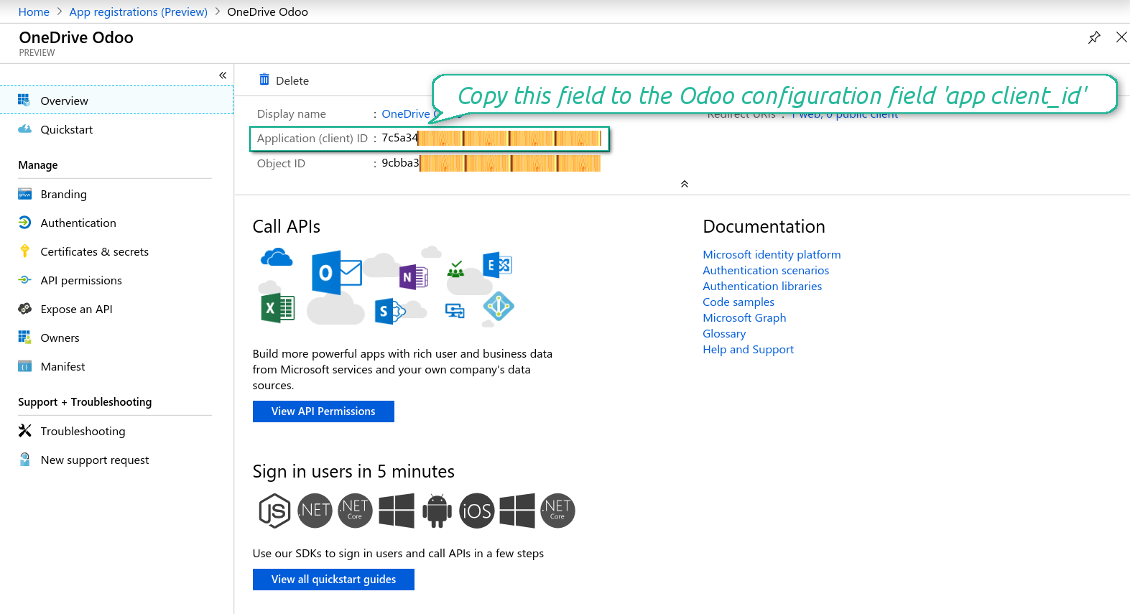
Generate new secret for Azure application
Enter configuration keys in Odoo
Setting up Dropbox Integration
Python dependency
The tool depends on the external library 'dropbox'. Install this library for your Odoo server through the command:
pip3 install dropbox
Configuration and log in
- Turn on the option 'Dropbox Sync' (cloud Storage > Configuration > Configuration). The optional add-on Dropbox Odoo Integration is required
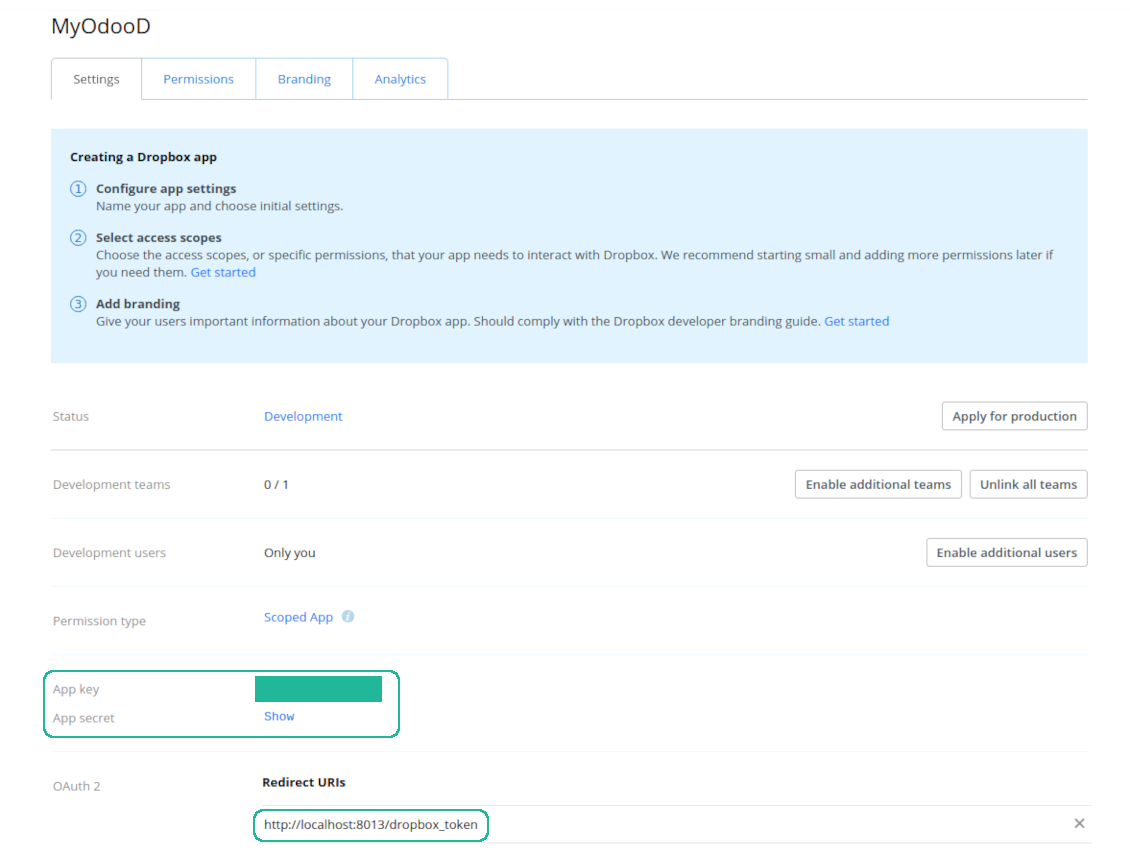
- Follow the URL https://www.dropbox.com/developers/apps/create
- Choose an API as 'Scoped access'
- Choose the type of access as 'Full Dropbox'
- Select any suitable name for the app and push the button 'Create app'
- Add the redirect URI as [YOURODOOSITENAME]/dropbox_token (e.g. https://faotools.com/dropbox_token). A valid SSL certificate (https) is required
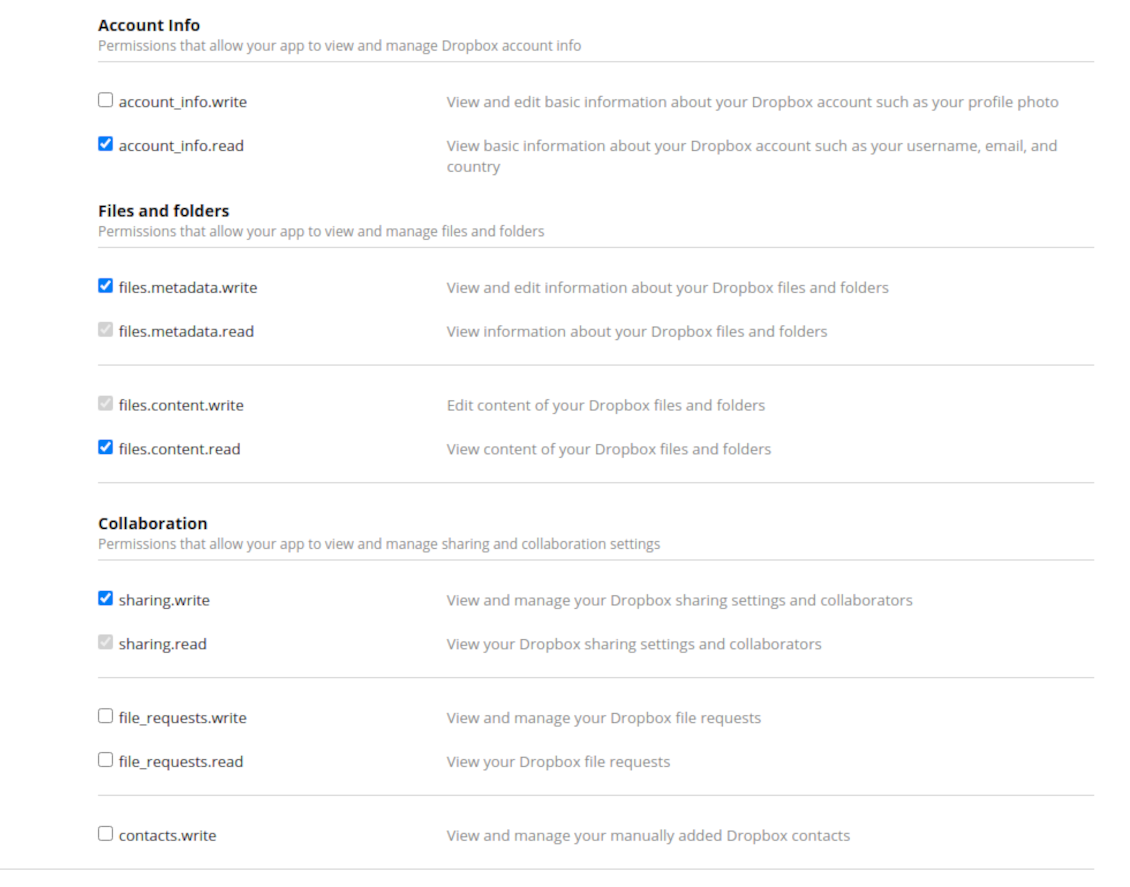
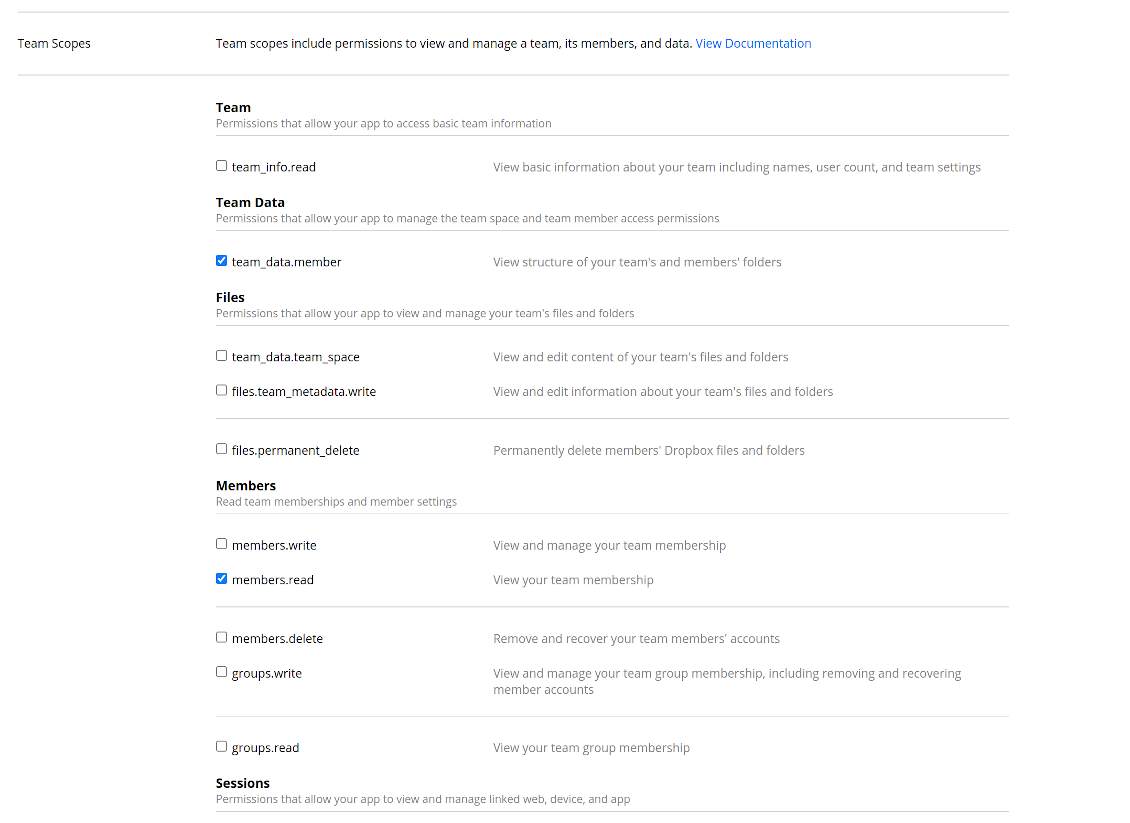
- Grant permissions to the app: 'Account Info (Read)', 'Files and folders Metadata (Write)', 'Files Content (Write)', 'Collaboration (Write)'. For team DropBox assign also 'Team Data Members', 'Members (Read)'. Make sure no other permissions are assigned.
- Submit App
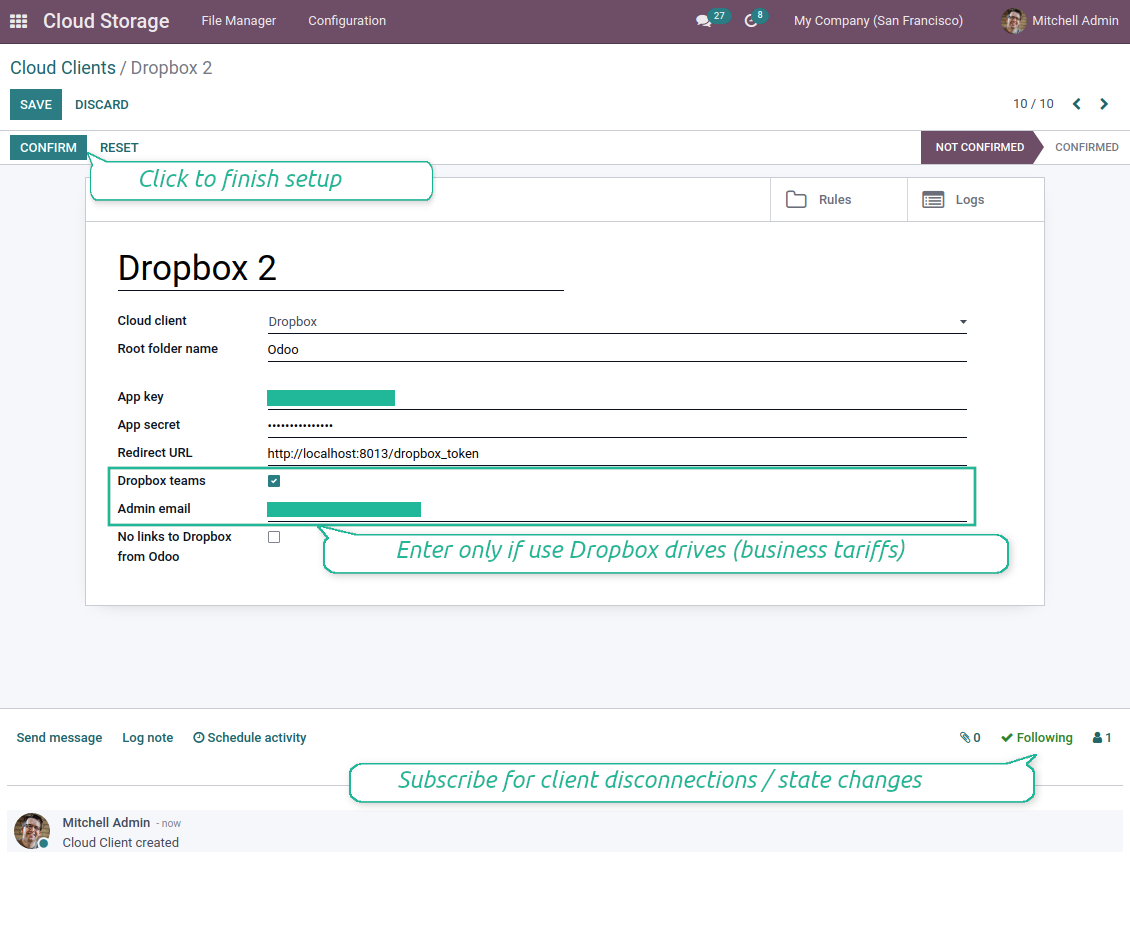
- Go to Odoo Cloud Storage > Configuration > Cloud Clients press 'Create'
- As a reference introduce any name which would be clear to all users
- As a Cloud client choose 'Dropbox'
- As a Root folder name enter a title which would be users as the parent Google Drive directory for all synced folders. For example, 'Odoo' or 'OdooERP'
- Copy 'App key' to the 'App key'
- Copy 'App Secret' into the field 'App secret'
- Insert previously generated redirect URL
- If you use Dropbox team drives
- Check the related box
- Set an email of the Dropbox user. Inside this user folder, all Odoo related items would be created, and only after that they are shared with all other users. Under this user, all files and folders are created, changed, moved, and deleted
- Press 'Confirm'. Odoo redirects you to the Dropbox login page. Check in the system, agree with all conditions, and grant all permissions asked
- After login, Dropbox redirects you back to Odoo. Dropbox - Odoo synchronization is ready to be done
- Apply the newly created cloud client to folder rules and/or manual folders which should be synced to that Dropbox instance
- Await the sync scheduled job to be started. For testing purposes only: trigger integration manually from Cloud Storage > Configuration > Configuration > the button 'Launch sync'.
Dropbox URLs
Dropbox has a specific way to generate links for existing files and folders. In particular, there are no concepts of internal or private URLs. Instead, each Dropbox item might get so-called shared URLs. Such shared links are either public or team-only. Moreover, the latter feature is available only for the Dropbox business account.
This tool relies upon shared links' mechanics. It means, that each attachment link is either public (all personal Dropbox accounts) or team-only (all business Dropbox accounts).
Sometimes it is considered to be not fully safe. Although website URLs will be hardly known by external users, there is a slight chance that they become available as a result of some user actions. Besides, sharing links generation is not super fast and might make the sync process slower. That is why the feature to switch off sharing URLs is introduced.
If checked, all Dropbox URLs in Odoo will be of type https://www.dropbox.com/home/Odoo/[PATH]. Such links will not work in many cases. Thus, if you need to open Dropbox files/folders from Odoo, be careful with the setting 'No links to Dropbox from Odoo'.
Create Dropbox app
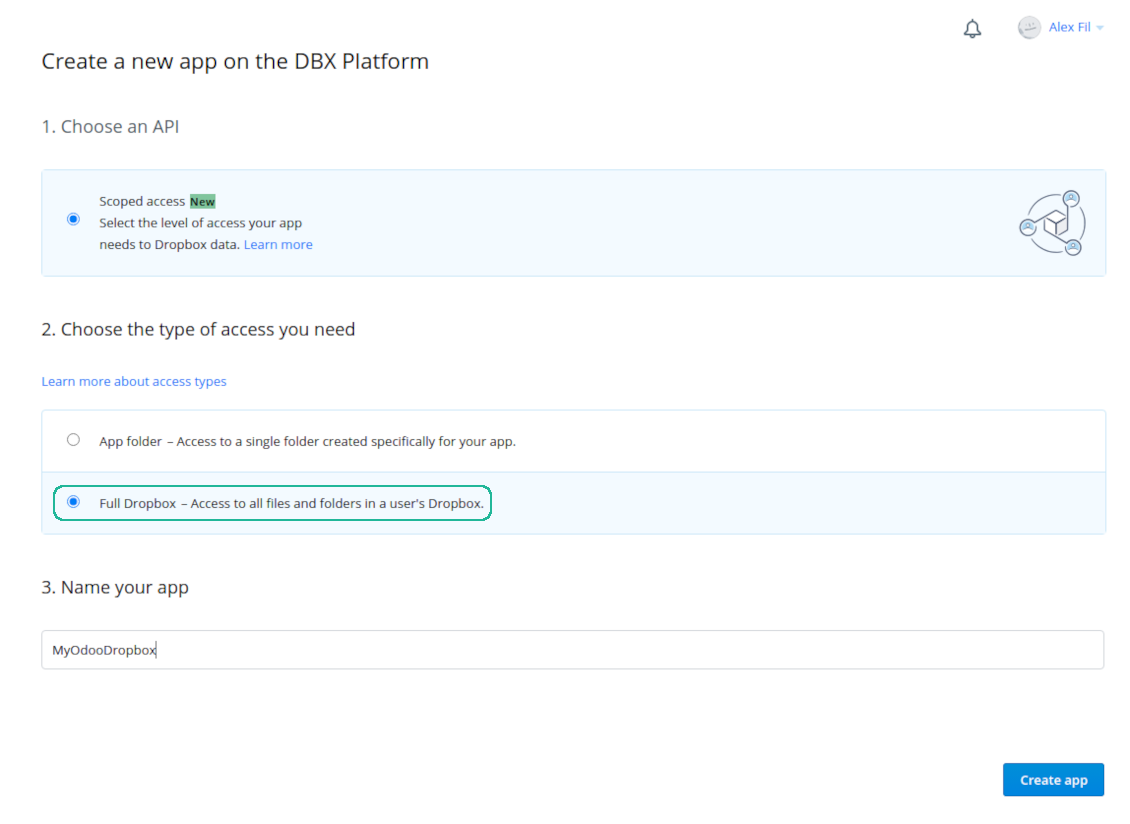
Set up Dropbox App: redirection URL
Dropbox permissions for personal accounts
Dropbox permissions for business accounts
Set up Odoo for Dropbox integration
General Python dependency
The tool depends on the external library 'sortedcontainers'. Install this library for your Odoo server through the command:
pip3 install sortedcontainersSoalan lazim tentang Cloud Storage Solutions Odoo v.15
Medan disegerak disimpan di mana? Adakah ia diduplikasikan ke Odoo dan clouds?
Aplikasi mengandaikan kandungan binari lampiran disimpan dalam Cloud Client, bukan pada pelayan Odoo. Lampiran sedemikian dalam Odoo menjadi jenis URL, dan anda boleh membukanya pada bila-bila masa dari kotak lampiran atau dari Cloud Client.
Selepas persediaan, tiada tindakan manual diperlukan kerana penyegerakan sepenuhnya automatik. Tentukan jenis dokumen Odoo yang perlu disegerakkan dan sediakan model berkaitan untuk setiap satunya (Pelanggan, pesanan jualan atau belian, Tugasan, Projek, dll.).
Bolehkah saya mempunyai beberapa folder untuk jenis dokumen yang sama? Contohnya, projek dalaman dan projek pelanggan?
Ya, anda boleh. Untuk itu sediakan peraturan untuk setiap satu, kemudian gunakan penapis: contohnya mengikut jenis projek.
Cuba jadikan penapis saling eksklusif supaya dokumen dapat ditetapkan dengan pasti. Contohnya 'pelanggan tetapi bukan pembekal', 'pembekal tetapi bukan pelanggan'. Jika tidak, folder dokumen tertentu akan meloncat dari satu model ke model lain.
Adakah tidak mengapa jika saya ada banyak objek untuk disegerakkan, contohnya 10000?
Ya, walaupun jika banyak folder/lampiran perlu disegerakkan prosesnya mungkin perlahan. Pada masa yang sama, pelanggan melaporkan persekitaran dengan >10k rakan dan ~5k varian produk untuk disegerakkan, dan prosesnya masih diterima.
Beberapa perkara yang perlu ditekankan:
- Penyegerakan dibina supaya setiap item disegerakkan dan tidak hilang, walaupun mungkin tidak pantas. Ini dijamin oleh baris gilir first-in-first-out dan setiap kerja yang dikomit.
- Bilangan objek boleh dihadkan secara logik. Konfigurasi model membolehkan anda menyekat penyegerakan item lapuk (cth. tiada gunanya menyegerakkan rakan yang diarkibkan atau pesanan 2 tahun lalu).
Bolehkah penyegerakan dibuat masa nyata?
Tidak. Kami mempunyai alasan kukuh untuk mengelak penyegerakan masa nyata:
Isu prestasi. Jika penyegerakan masa nyata, setiap muat naik fail akan memaparkan skrin muat.
Isu konflik. Jika 2 pengguna menukar item secara serentak, situasi yang tidak selesai mungkin timbul. Dengan kerja berkala kami boleh membetulkannya kemudian; pada masa nyata ia perlu disimpan sebagai baris gilir, yang lebih mengelirukan pengguna.
Isu fungsi. Khususnya menamakan semula dan menyusun semula item. Dalam penyegerakan undur, alat bergantung ketat pada logik direktori, dan setiap penyegerakan 100% item diperiksa. Jika dilakukan selepas setiap kemas kini, akan ada beribu permintaan sesaat. Jika tidak: perubahan akan hilang.
Bolehkah saya menukar nama folder lalai dalam awan?
Anda boleh menetapkan nama sendiri untuk direktori model (pesanan jualan, peluang, pembekal, dll.) bagi mana-mana jenis dokumen.
Untuk folder objek (SO-001, John Smith, dll.), alat bergantung pada kaedah Odoo untuk membina nama paparan jenis dokumen ini. Walau bagaimanapun anda boleh menukarnya dengan mentakrif ungkapan nama. Sintaks yang digunakan sama seperti templat e-mel Odoo.
Bolehkah saya menukar kekerapan kerja penyegerakan?
Tidak, mulai versi 15 anda tidak patut menukar kerja berjadual. Ia dioptimumkan untuk berjalan setiap 15 minit bagi menjamin sambungan paling stabil dan pantas.
Pastikan had masa pelayan Odoo sekurang-kurangnya 15 minit (900 saat).
Jika perlu hentikan penyegerakan seketika, lakukan pada borang cloud client tertentu.
Bolehkah saya segerakkan lampiran ke beberapa klien awan
Ya, mulai versi 15 anda boleh sediakan berbilang sambungan. Dengan itu sesetengah folder disegerakkan ke satu cloud client, yang lain ke yang lain.
Ambil perhatian bahawa folder yang sama tidak boleh disegerakkan ke beberapa cloud storages pada masa yang sama.
Kami menggunakan editor khas dalam awan kami (cth. OnlyOffice, Office 365, dll.). Adakah fail dibuka dalam editor itu?
Ya, bergantung pada konfigurasi cloud client anda.
Adakah saya hanya memerlukan aplikasi Cloud Storage Solution?
Bermula versi 15, aplikasi boleh digunakan bersendirian untuk menyusun lampiran dalam folder dan menyediakan antara muka pengurus fail.
Walau bagaimanapun, jika matlamatnya sambungan dengan salah satu klien awan, anda perlu memasang sekurang-kurangnya satu aplikasi pilihan berkaitan klien.
Apa yang berlaku apabila saya menukar peraturan folder?
Apabila peraturan folder berubah, senarai folder juga berubah. Jika folder tidak lagi memenuhi syarat peraturan, ia dialih keluar. Jika fail telah disegerakkan, segerak terbalik mengembalikannya ke Odoo dan memadamnya daripada Cloud Client.
Jika objek dokumen tidak memenuhi syarat peraturan folder, foldernya tidak akan dicipta. Jika kemudiannya memenuhi, folder berkaitan akan dijana.
Apakah dasar kemas kini alat anda?
Mengikut dasar Odoo Apps Store semasa:
- Setiap modul yang dibeli untuk versi 12.0 dan sebelumnya memberi akses ke semua versi sehingga 12.0.
- Bermula versi 13.0, setiap versi modul perlu dibeli berasingan.
- Tanpa mengira versi, pembelian memberi hak kepada semua kemas kini dan pembetulan pepijat dalam versi utama.
Sila ambil perhatian bahawa pasukan faOtools tidak mengawal dasar itu. Untuk soalan, hubungi terus wakil Odoo Apps Store.
Bagaimana memasang aplikasi anda di Odoo.sh?
Pendekatan paling terus ialah menggunakan aliran kerja terbina dalam kedai Odoo:
1. Buka halaman modul dan klik butang Deploy on odoo.sh
2. Selepas itu anda akan dihalakan ke halaman GitHub. Log masuk ke akaun, kemudian klik 'Create a new repo' atau guna yang sedia ada. Pastikan repositori bersifat peribadi. Tidak dibenarkan menerbitkan aplikasi di bawah lesen OPL-1. Jika perlu, cipta repo baharu untuk projek Odoo.sh
3. Kemudian pergi ke odoo.sh dan klik butang Deploy. Dalam tetingkap pop timbul, hantar keputusan dan klik 'Continue.' Tindakan ini akan mencetuskan pemasangan.
Langkah ini akan memasang aplikasi pada cabang pengeluaran projek. Jika anda mahu men-deploy aplikasi ke cabang lain atau mengemas kini modul, lakukan tindakan berikut:
1. Muat naik kod sumber aplikasi dari kedai Odoo
2. Commit modul ke repositori GitHub yang diperlukan. Pastikan tiada folder/fail aplikasi diabaikan (iaitu tidak termasuk dalam .gitignore repo). Repositori dicipta secara automatik oleh odoo.sh dan secara lalai mungkin termasuk item penting (cth., /lib). Muat naik semua direktori, subdirektori dan fail modul tanpa pengecualian
3. Deploy cabang sasaran projek odoo.sh atau, jika tetapan anda mengandaikan demikian, tunggu sehingga ia dibina secara automatik.
Bagaimana memasang aplikasi anda pada pelayan saya sendiri?
2. Mulakan semula pelayan Odoo;
3. Hidupkan mod pembangun (tetapan teknikal);
4. Kemas kini senarai aplikasi (menu aplikasi);
5. Cari aplikasi dan tekan 'Activate'/'Install';
6. Ikuti garis panduan pada halaman aplikasi jika ada.
Saya perasan aplikasi anda ada add-on tambahan. Boleh beli kemudian?
Ya, sudah tentu. Pada masa yang sama Odoo secara automatik menambah semua kebergantungan ke troli, jadi anda harus kecualikan alat yang sudah dibeli untuk elak bayaran berganda.
Saya menyebarkan aplikasi anda di Odoo.sh dan nampak amaran/ralat dalam ujian
Amaran merah/oren tidak mempengaruhi ciri aplikasi. Malangnya, modul kami kadang-kadang tidak lulus ujian automatik standard kerana ujian itu mengandaikan tingkah laku yang bercanggah dengan matlamat aplikasi. Contohnya kami mengubah pengiraan harga, manakala ujian modul Odoo standard membandingkan harga akhir dengan algoritma standard.
Pertama sekali, semak ciri pangkalan data yang dilancarkan. Adakah semuanya berfungsi dengan betul?
Jika anda masih menganggap amaran mempengaruhi ciri sebenar, hubungi kami dan hantar log pemasangan penuh serta senarai penuh modul yang dilancarkan (termasuk teras dan pihak ketiga).
Bolehkah saya membeli aplikasi terus daripada syarikat anda?
Tidak, kami hanya mengedarkan alat melalui kedai aplikasi Odoo rasmi.
Saya ingin mendapat diskaun
Malangnya, kami tidak mempunyai cara teknikal untuk memberikan harga individu.
Bolehkah saya memasang aplikasi pada pangkalan data Odoo Online (SaaS) saya?
Tidak, aplikasi pihak ketiga tidak boleh digunakan di Odoo Online. Malangnya Odoo SaaS menyekat kemungkinan itu.
Alat anda bergantung pada aplikasi lain. Patutkah saya membelinya?
Ya, alat memerlukan semua modul yang ditanda dalam kebergantungan untuk berfungsi dengan betul. Harga pada halaman aplikasi sudah merangkumi semua kebergantungan yang diperlukan.
Berapakah harga modul dalam dolar AS? Mengapa ia berubah?
Harga modul kami ditetapkan dalam euro. Kedai Odoo menukar harga ke mata wang lain mengikut kadar pertukaran dalamannya. Jadi harga dalam dolar AS mungkin berubah apabila kadar dikemas kini.
Teks aplikasi dan laman web dalam bahasa selain Inggeris dibantu AI dan diselaraskan dengan terjemahan rasmi Odoo. Jika anda nampak kesilapan, hantar tiket ketepatan terjemahan dan kami akan membetulkannya.
Pelaporan pepijat
Jika anda menemui pepijat atau tingkah laku tidak konsisten, sila hubungi kami. Kami jamin pembetulan dalam 60 hari selepas belian dan masih berminat menambah baik alat selepas tempoh itu.
Anda tidak memerlukan nombor telefon atau kad kredit untuk menghubungi kami. Hanya pendaftaran e-mel ringkas yang tidak mengambil lebih daripada 30 saat.
Sertakan sebanyak mungkin butiran dalam permintaan: tangkapan skrin, log pelayan Odoo, penerangan penuh cara menghasilkan semula masalah, dan sebagainya. Biasanya mengambil beberapa hari bekerja untuk menyediakan pelan kerja (jika pepijat disahkan) atau memberi garis panduan apa yang perlu dilakukan (jika tidak).
Permintaan ciri awam dan idea modul (pembangunan percuma)
Kami sangat bermotivasi untuk menambah baik alat kami dan berterima kasih atas sebarang maklum balas. Jika keperluan anda berguna secara awam dan boleh dilaksanakan dengan cekap, pasukan akan memasukkannya ke senarai tugasan kami.
Senarai tugasan sebegini diproses secara berkala dan tidak melibatkan yuran tambahan. Walaupun kami tidak dapat menjanjikan tarikh akhir dan reka bentuk muktamad, ini mungkin cara baik untuk mendapat ciri yang diingini tanpa pelaburan dan risiko.
Anda tidak memerlukan nombor telefon atau kad kredit untuk menghubungi kami. Hanya pendaftaran e-mel ringkas yang tidak mengambil lebih daripada 30 saat.
15.0.1.3.22
- The issue with not updating previously synced child folders is fixed.
15.0.1.3.21
- The failure re-tries number is now configurable and might differ for standard and reverse/move tasks.
15.0.1.3.19
- The tasks' parent blocking mechanism is optimized first to serve the most prioritized task.
15.0.1.3.17
- The blocking mechanism is specified for the sync operations to move items..
15.0.1.3.16
- The access to an intermediate rule-related folder is defined not based on that rule model but based on the parent folder access.
15.0.1.3.16
- The maximum size for the URLs is increased to 4096.
15.0.1.3.15
- The reverse sync is optimized. Hanging tasks caused by mutual blocking are removed.
15.0.1.3.14
- The issues with simultaneous reverse and backward synchronization are fixed.
15.0.1.3.13
- The algorithm to process rearranged and moved folders is optimized.
15.0.1.3.12
- The reverse synchronization algorithm is optimized.
15.0.1.3.11
- Special pre-failure checks for hanging tasks are introduced. Now if the task fully stops the cron job (e.g. because of the memory limit errors), the next cron will continue with a different task.
15.0.1.3.10
- The logging system is optimized to commit messages even if the job fails and fully stops the thread
15.0.1.3.9
- Duplicating attachments with explicitly passed res_model and res_id is fixed (HR Expenses compatibility is fixed).
15.0.1.3.8
- The feature of dynamic date in the relative periods is backported.
15.0.1.3.7
- The rare case when a folder's initial setup has failed 8 times but still should be synced is covered.
15.0.1.3.6
- The app is restructured to optimize the recent changes.

Alat untuk menyimpan kata laluan dengan selamat dalam Odoo untuk kegunaan bersama. Peti besi dikongsi

Alat untuk membina pangkalan pengetahuan yang mendalam dan berstruktur untuk penggunaan dalaman dan luaran. Knowledge System. KMS. Semakan seperti wiki.
398€
Alat untuk menetapkan sasaran KPI dan mengawal pemenuhannya mengikut tempoh. Papan pemuka KPI. Pereka papan pemuka. Carta KPI

Alat pengurusan perkhidmatan berasaskan masa dari tempahan temu janji hingga jualan dan ulasan
398€
Alat untuk mengurus Odoo dari sembang AI kegemaran melalui MCP. Claude. Mana-mana AI yang menyokong MCP.

Alat untuk menyegerakkan lampiran Odoo secara automatik dengan fail OneDrive secara dua hala
487€
Alat untuk menyegerakkan lampiran Odoo secara automatik dengan fail Google Drive secara dua hala
487€
Alat untuk menyegerakkan lampiran Odoo secara automatik dengan fail ownCloud/Nextcloud secara dua hala
487€
Alat untuk menyegerakkan lampiran Odoo secara automatik dengan penyelesaian NAS secara dua hala. Synology, QNAP, TrueNAS dan mana-mana NAS lain yang menyokong WebDav
487€