Universal Appointments and Time Reservations v.13
The tool for time-based service management from booking appointment to sale and reviews
This is an Odoo full-featured app to administrate, to control, and to improve service management workflow. The tool let you organize flawless time reservations, control fulfillment, evaluate customer satisfaction, sale and upsell goods in almost any industry. With all options installed the tool represents structured e-shop for your services.
Flexible module setup allows to reflect specifics of your business or even multiple businesses: automate resources distribution or let selecting those; have predefined appointment duration or let choose it manually; show or hide prices; apply booking restrictions or grant full freedom. Apply own settings to automate provision of your services.
- a core app to manage bookings. It might be used stand-alone for internal control of appointments and scheduling by phone, for example. Il suo prezzo è 398€.
- an optional module which introduces website booking process and let external users to schedule appointments and control reservations in portal. The features assumed by this add-on are marked by the icon . Il suo prezzo è 98€.
- an optional free module to introduce service pricing information and to link appointment with sales. The features assumed by this add-on are marked by the icon
- an optional free module to include service price lists and prices into reservation checkout process. The features assumed by this add-on are marked by 2 icons simultaneously: and
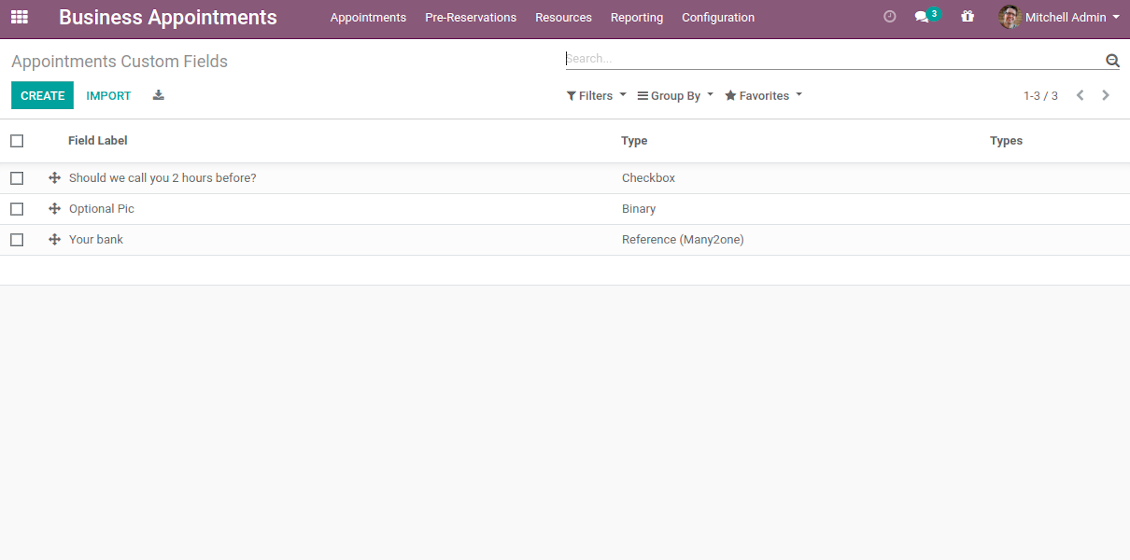
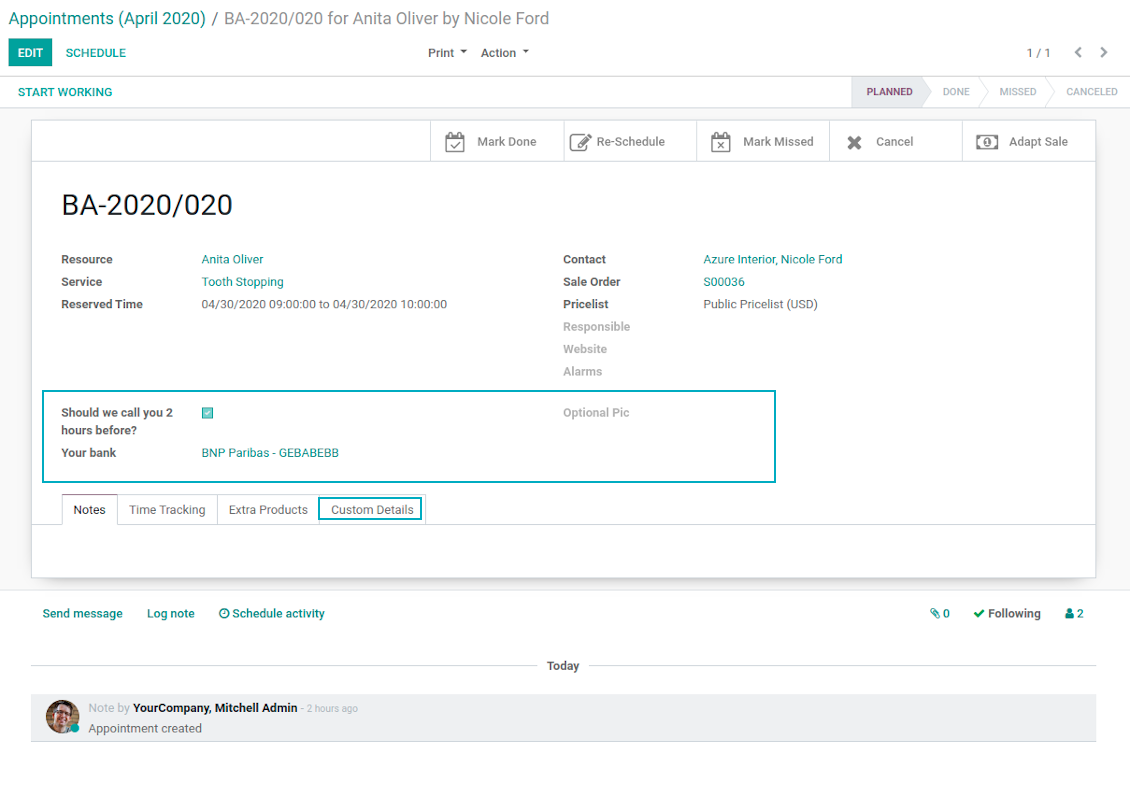
- an optional module which let you add and show custom fields for appointments and related objects. The features assumed by this add-on are marked by the icon . Il suo prezzo è 48€.
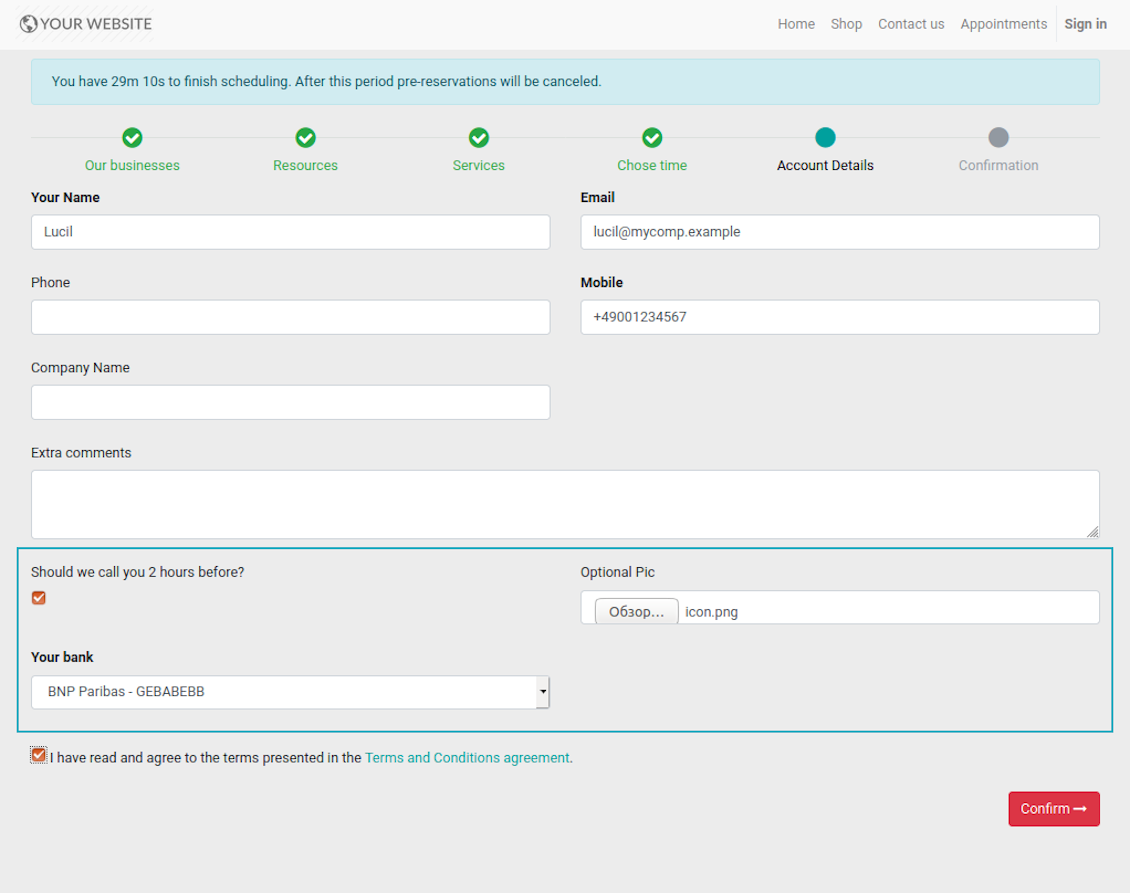
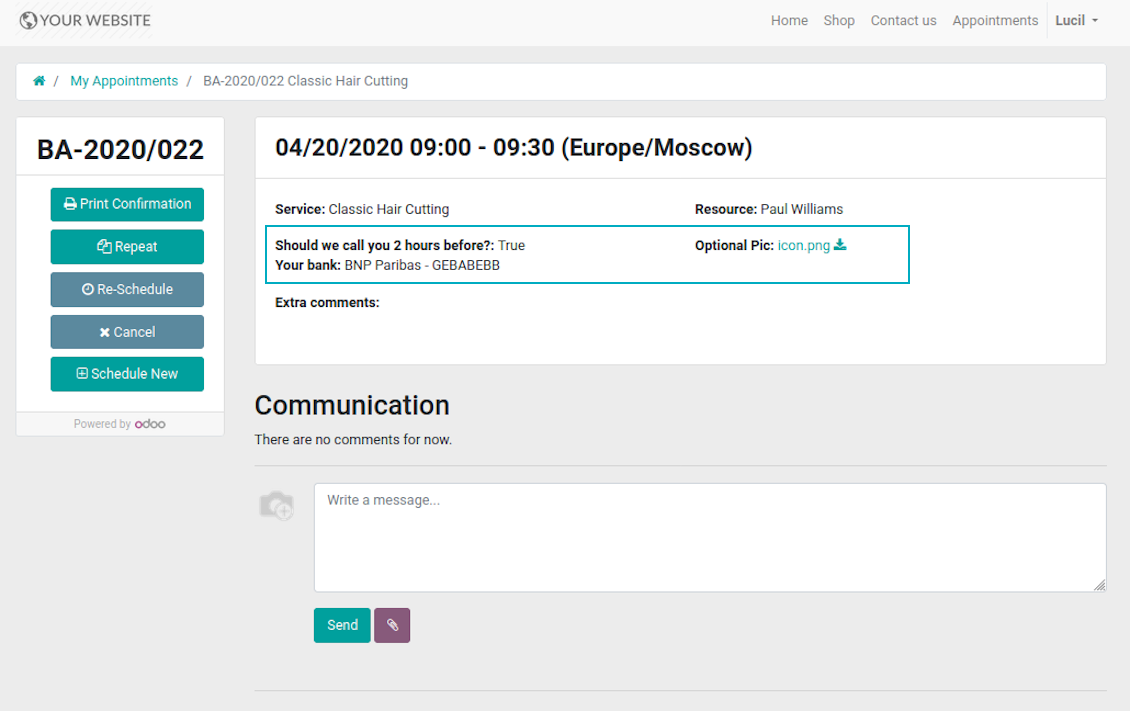
- an optional free module which shows custom fields on website and portal pages (frontend). The features assumed by this add-on are marked by 2 icons simultaneously: and
- an optional module which allows to track time spent on each appointment. The features assumed by this add-on are marked by the icon . Il suo prezzo è 10€.
- an optional free module which allows to consider employees as appointment resources. The features assumed by this add-on are marked by the icon .
Structured Service Management
The app let structure service management into 3 levels:
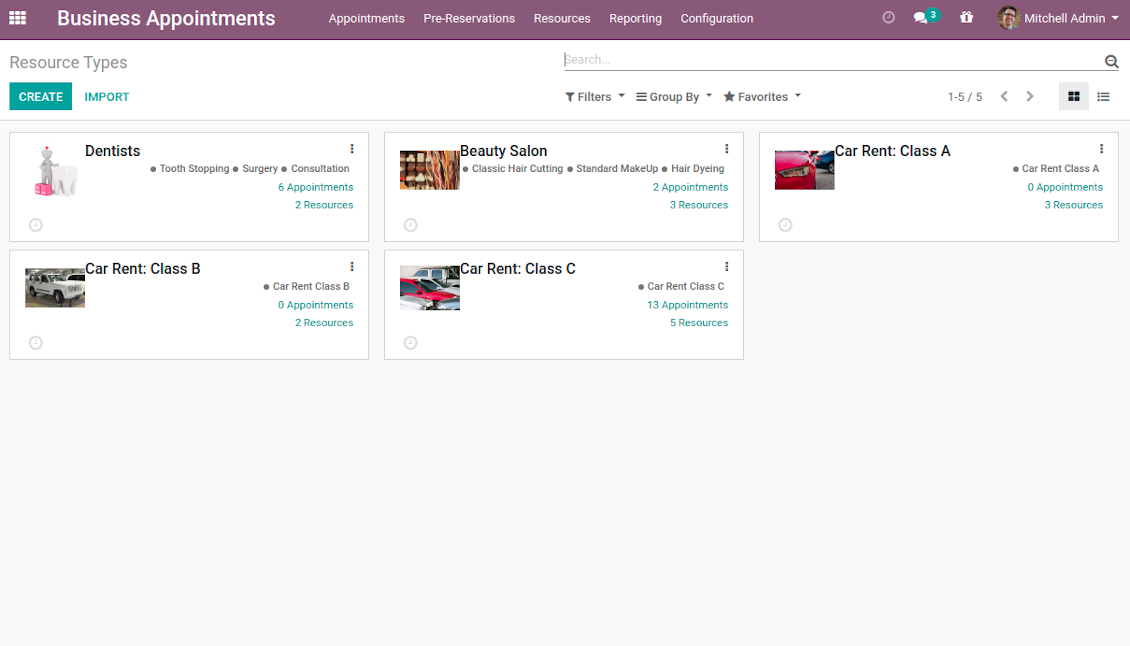
- Resource types - particular businesses (for example, beauty salon, dentists, or hairdressers) and groups of resources (for example class B cars & class C cars). Resource type contains main settings of how to organize service provision: how to allocate resources, how to calculate appointment total price, what are time restrictions, which services are possible, etc.
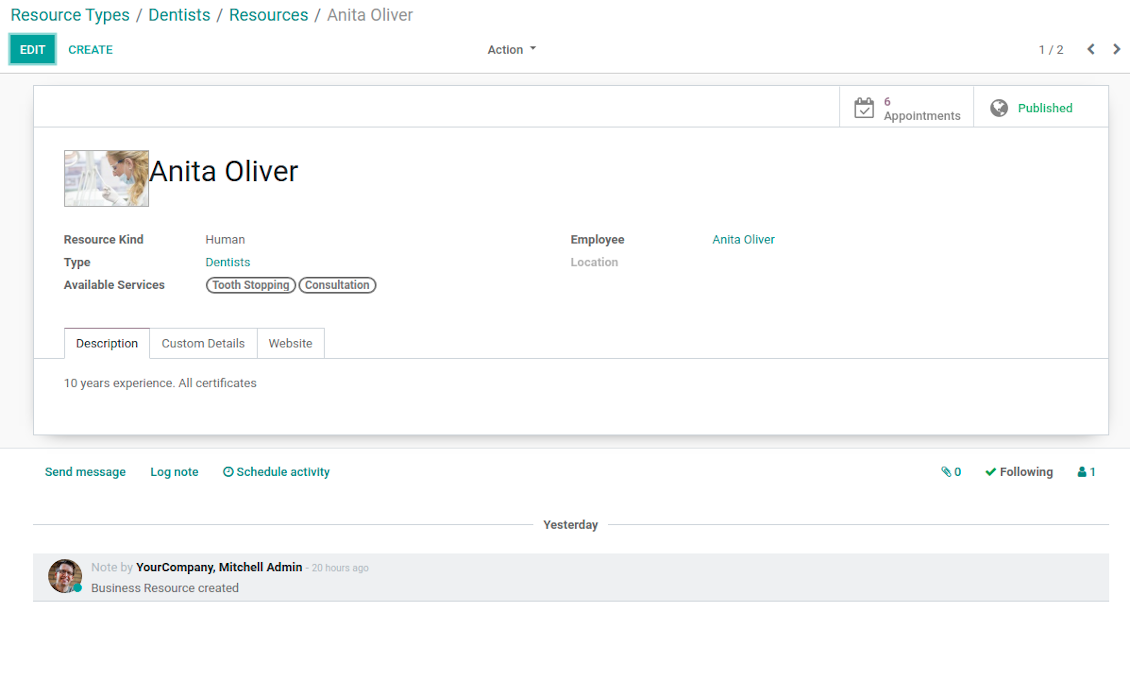
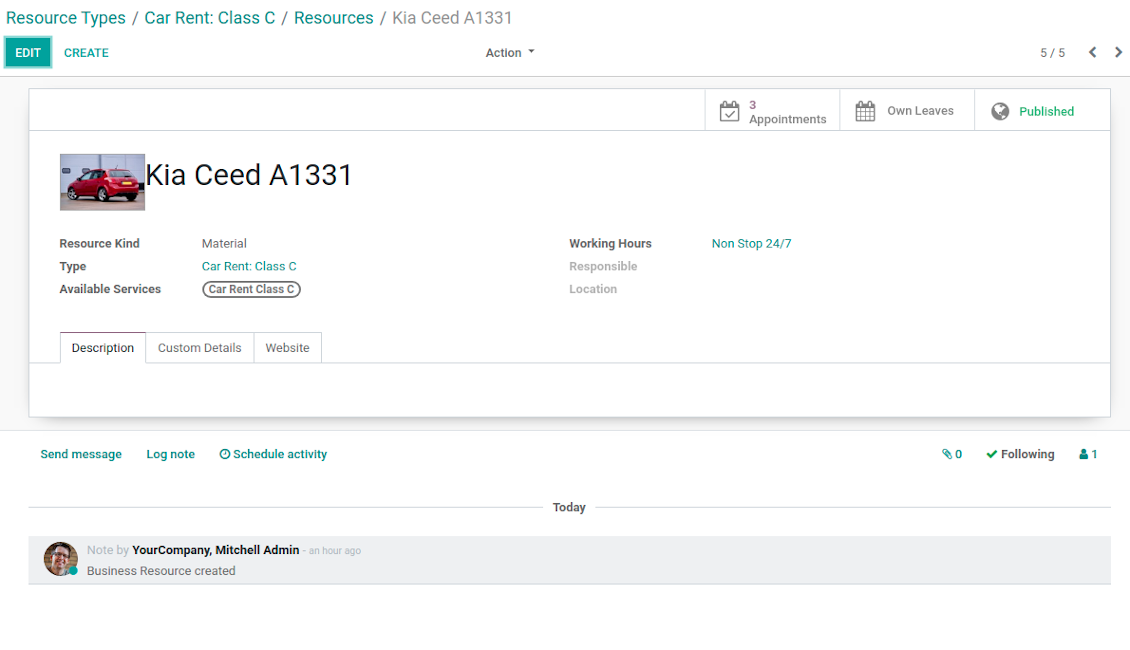
- Resources - certain specialists (for example, Dentist John Brown, Hairdresser Anna Green) and equipment or facility (for example, Mercedes A1231, Room 12). Resource defines available working time, responsible user, and so on.
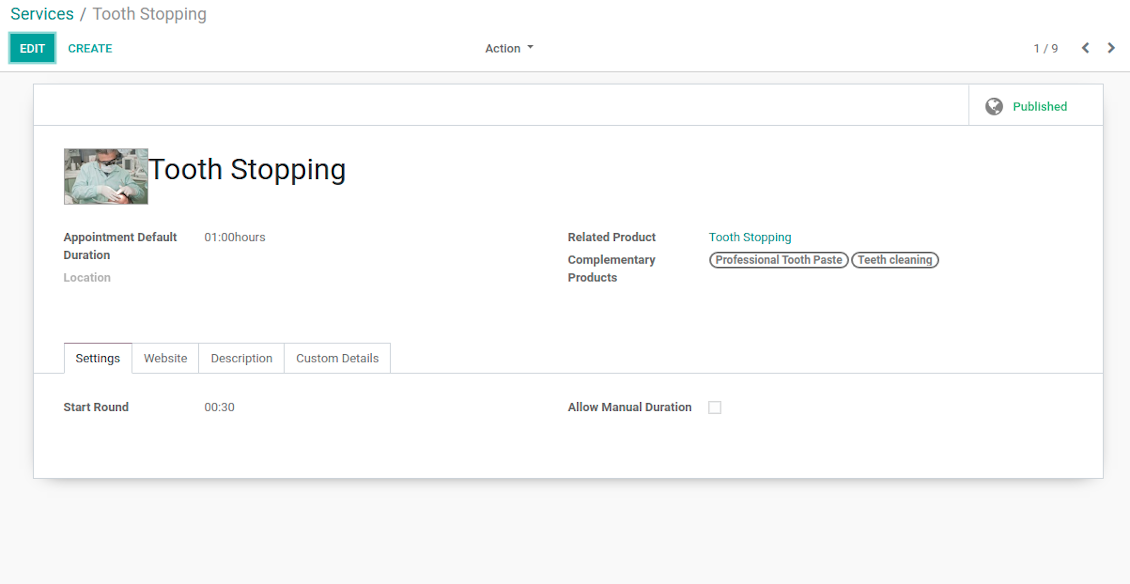
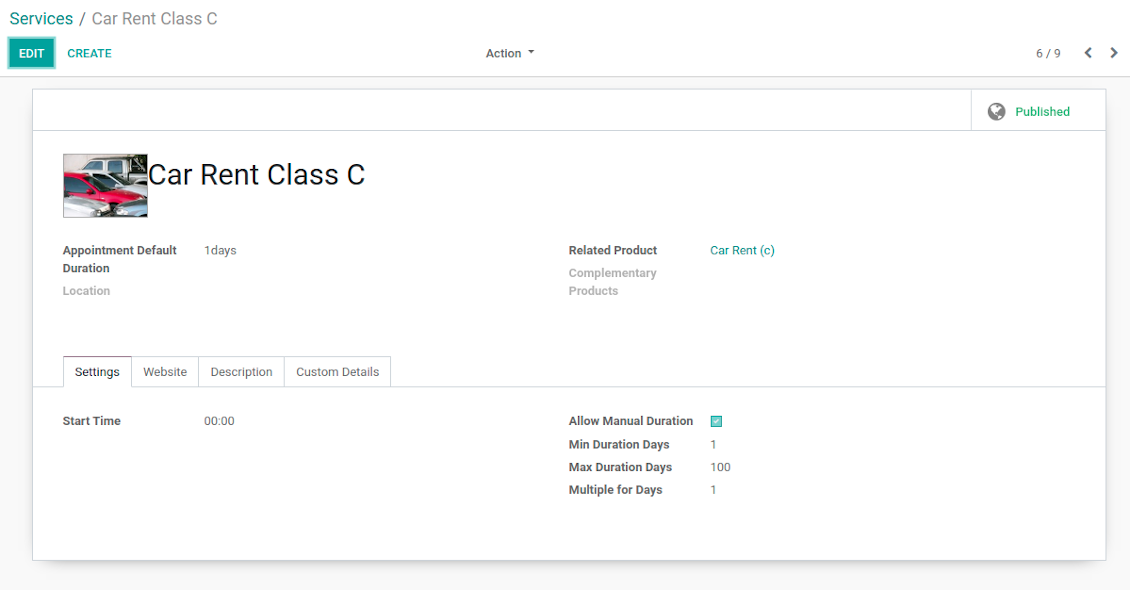
- Services - what actually should be done. For instance, consultation, tooth surgery, classic hair cutting, car class C rent. Service regulates time settings of appointments (how long should it take and when it can be started), which goods might be suggested as complementaries. Besides, each service might be linked to a standard Odoo product and in such a way it manages pricing details.
The tool does not force you to have multiple instances for each layer. In very simple cases, each level might be even reflected by a single representative. For example, Lawyers - Attorney Chris Black - Consultation. In case a step has a single option, the app would reflect that by simplifying appointment scheduling.
Schermate
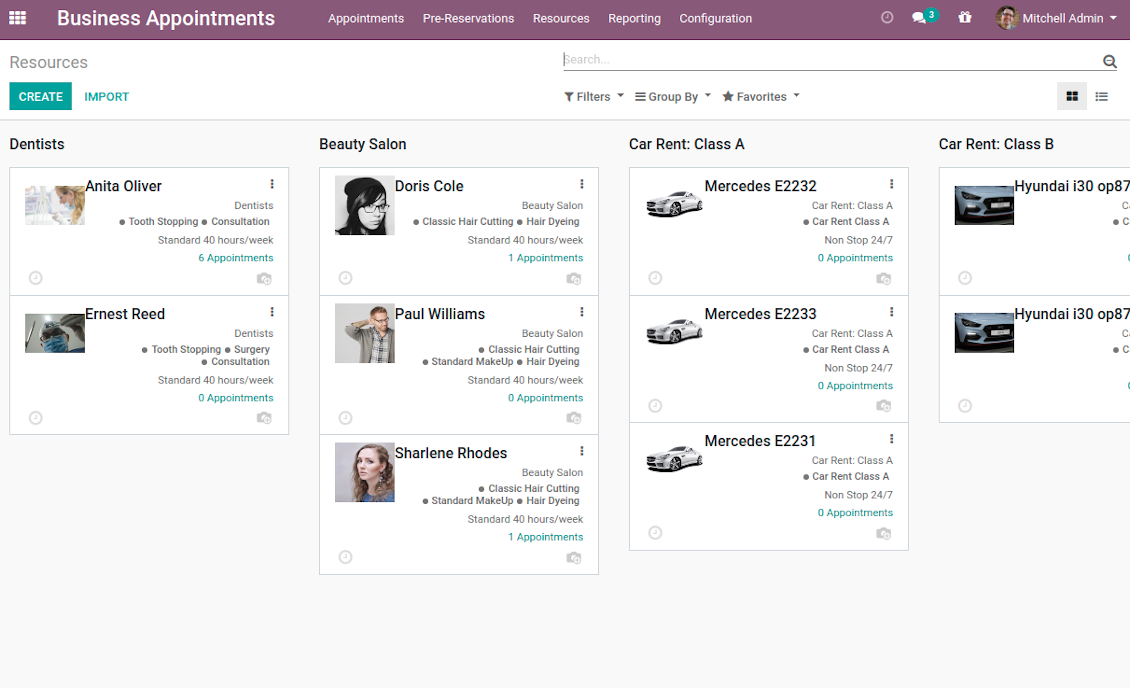
Resource types: your service businesses
Resources: specialists, equipment, and facilities
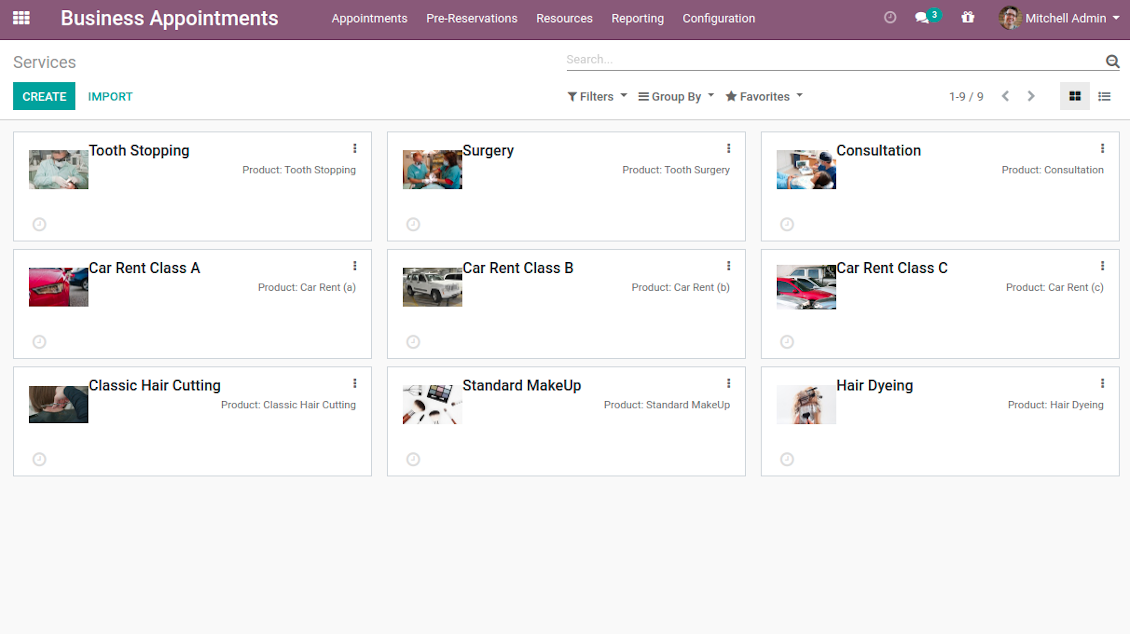
List of appointment services
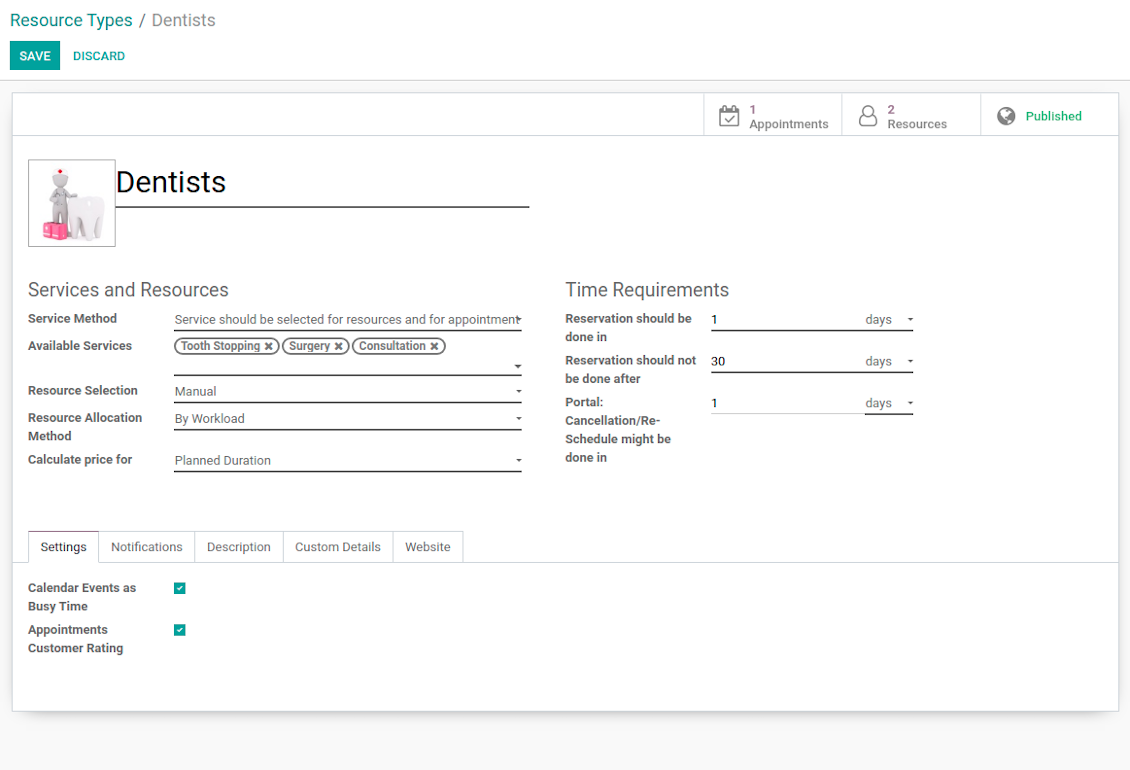
Appointment resource type settings
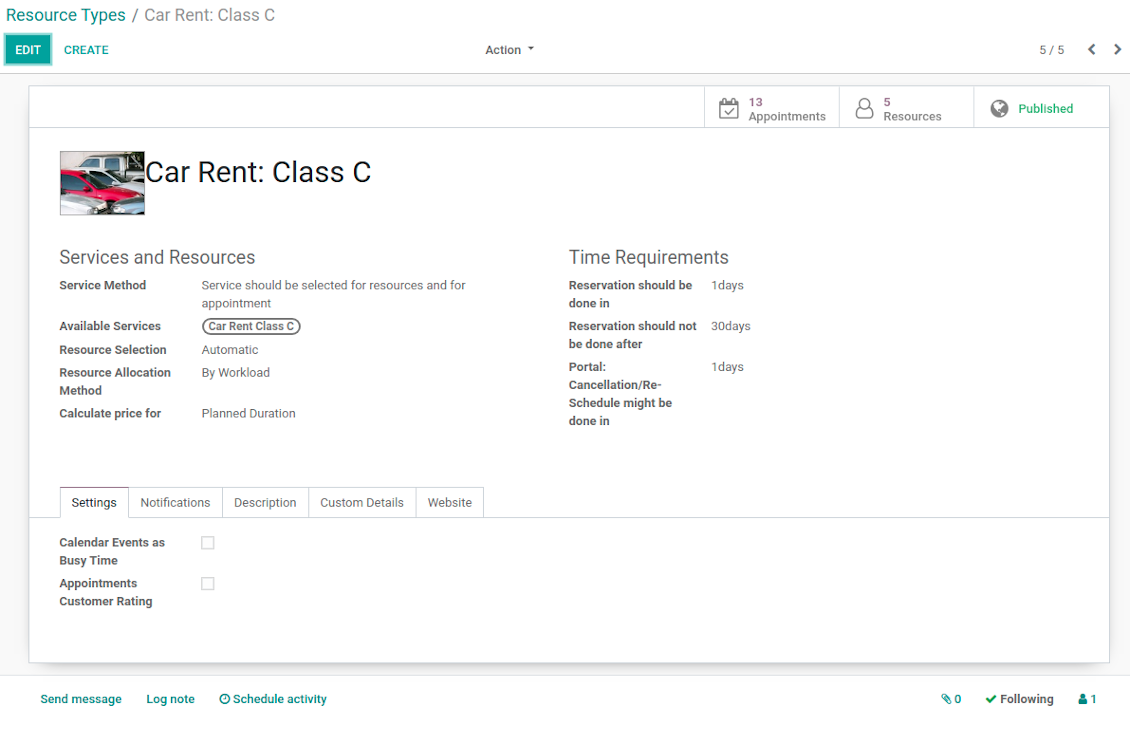
Resource type: facilities or equipment
Resource settings: specialist
Resource settings: equipment
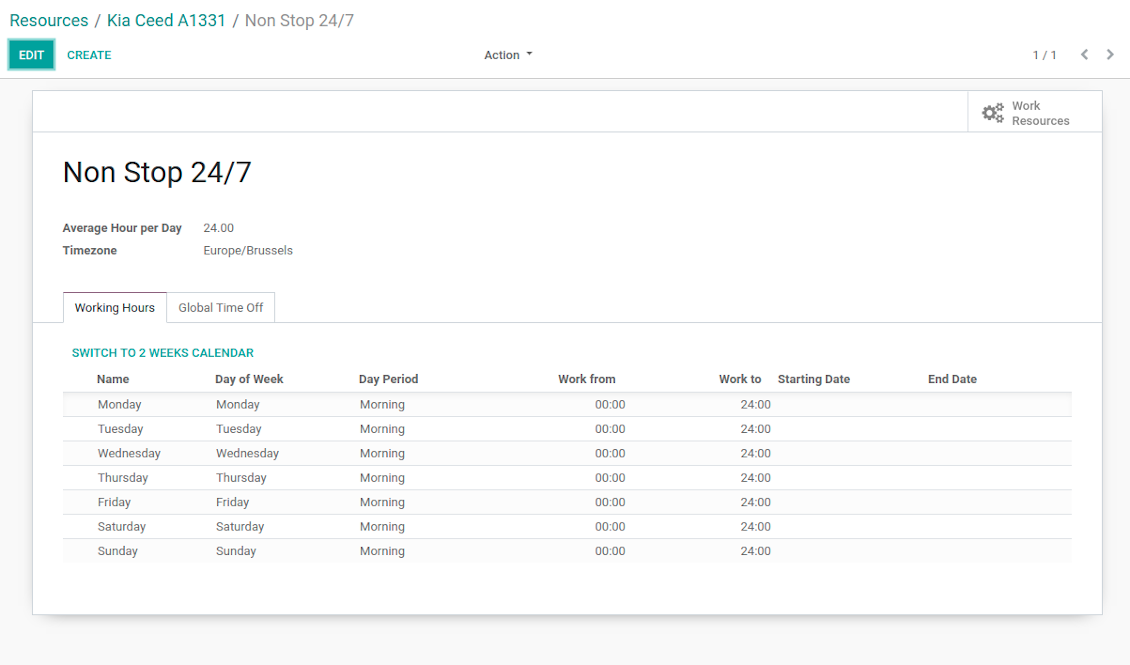
Working calendar per appointment resource
Appointment service with complementaries
Appointment service with manual duration
Reservation options
Reservation optional features
Auto Time Slots Generation and Smart Reservations
Planning appointments calendar is a critical challenge for service businesses. It is important to avoid both deadtime and customer dissatisfaction caused by waiting or cancellations. This tool aims to automate and to secure process through the smart system of vacant time slots based on working calendars, service peculiarities, and business specifics.
In particular, appointment manager / website visitor would see only those slots which are certainly available and suitable for definite service provision:
- Slots are generated according to configured resource business calendars. Each resource has an own calendar and time offs, so it is just impossible to schedule appointment for non-working time.
- Algorithm takes into account service duration. Depending on a chosen service or selected manual duration, available time slots would have the same required period.
- It is possible to apply reservation limits: per each business (resource type) you may define when appointment might be scheduled. For example, time slot is available not later than 2 days before, and not earlier than 30 days before. Similar rules are applicable for re-scheduling and cancellations.
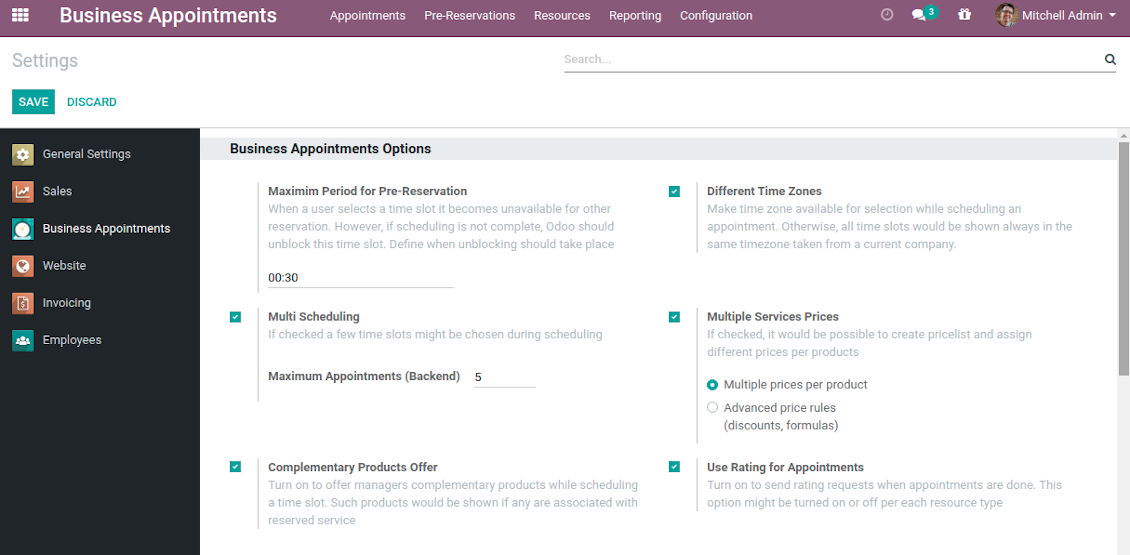
- As soon as a time slot is reserved, this slot would not be available for reservation. The tool introduces the system when even not yet confirmed appointments (pre-reservations) temporarily block other users choice for target slots. It means that nobody else would be able to schedule appointment for the same resource and for the same time. However, pre-reservation would be canceled if not done within a specified period (you may change this limit on the configuration page).
- If configured, the app would also consider simple meetings of resource responsible users as busy for time slots. So, even if an employee is working now, he/she would not be occupied for service provision.
- The tool is also perfect for multi timezone appointments, for example, for video cross-region consulting. You may either let users choose that time zone by themselves (default is a browser tz), or set the same timezone for all cases. Thus, there would be never confusions.
Automatic slots generation algorithm
While calculating available time slots, the tool follows the steps:
- Gets DURATION based on chosen service or entered manual duration.
- Calculates PERIOD within which vacant time slots are searched based on: (a) chosen date start / end; (b) resource type time frame restrictions.
- Gets TIMEZONE chosen or timezone according to the settings.
- Calculates possible resources according to selected filters.
- Checks each resource working calendar and leaves and calculates AVAILABLE PERIODS within the PERIOD for each resource (in TIMEZONE).
-
Adopts AVAILABLE PERIODS to blocking factors per each resource - so gets CLEANED PERIODS:
- Removes intervals of planned appointments by this resource.
- Removes intervals of pre-reservations by this resource.
- If configured: removes simple Odoo calendar events of this resource responsible managers.
- -- splits CLEANED PERIODS by DURATION and rounds according to service start round rule. So, get ROUGH SLOTS -- combines ROUGH SLOTS for possible resources by merging the same ones and adding different ones. Those combinations are FINAL SLOTS which are going to be shown for users.
Individual Customization Offer
The tool is universal and it is designed to work for the most service industries. Simultaneously, each company is unique, and it is hardly possible to take into account 100% of peculiarities of your particular business. Often the module might be a very good core but it would not be fully sufficient for your needs. Besides, we understand that the app covers really a lot of aspects and offers significant number of settings: effort would be required to apply all the features and potential. Our team offers to take those responsibilities, and help you in:
- Setting the tool up according to your company workflows
- Customizing and branding of website pages design, backend views, email templates and printings
- Developing extra features
- Creating brand new solutions based on this app know hows
- Adding complementary bridges with other Odoo apps
- Integrating the tool with external services
- Configuring your Odoo standard settings including email servers and cron jobs.
Organize your perfect service management system starting from $500. For details and conditions please contact our customization team using this form - https://itlibertas.com/business-appointment/customize.
Innovative Backend Appointment Calendar and Scheduling
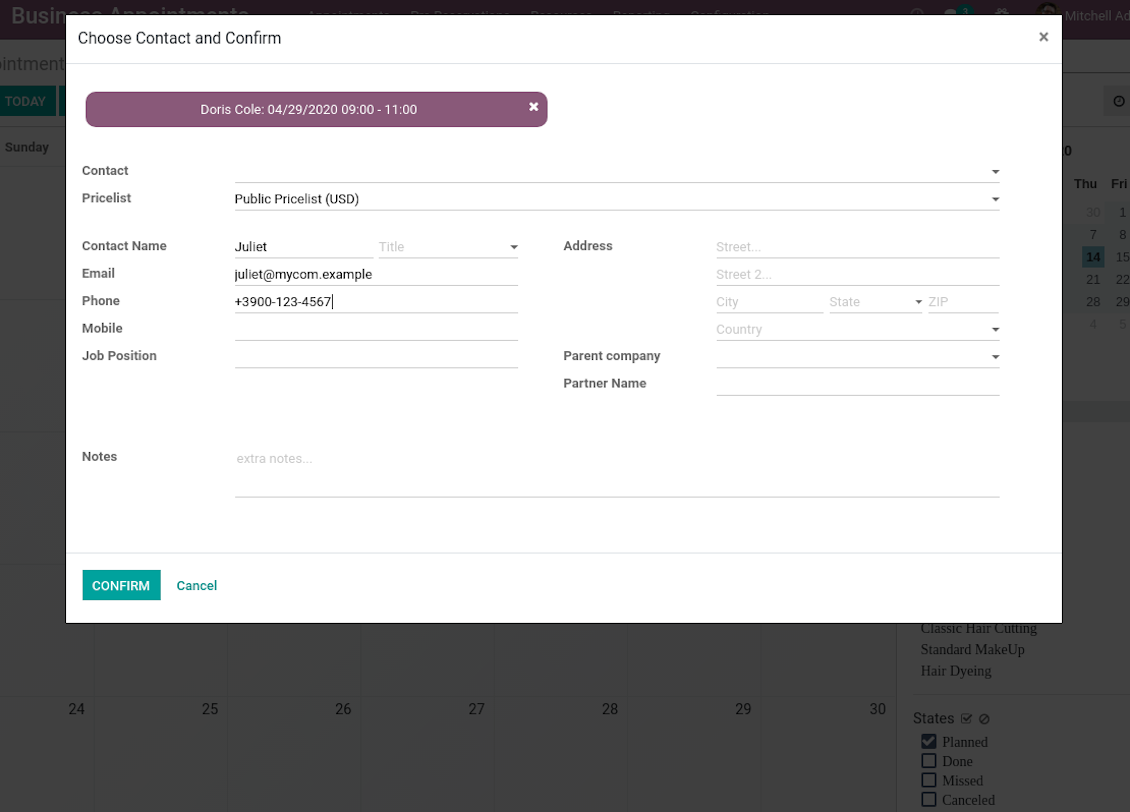
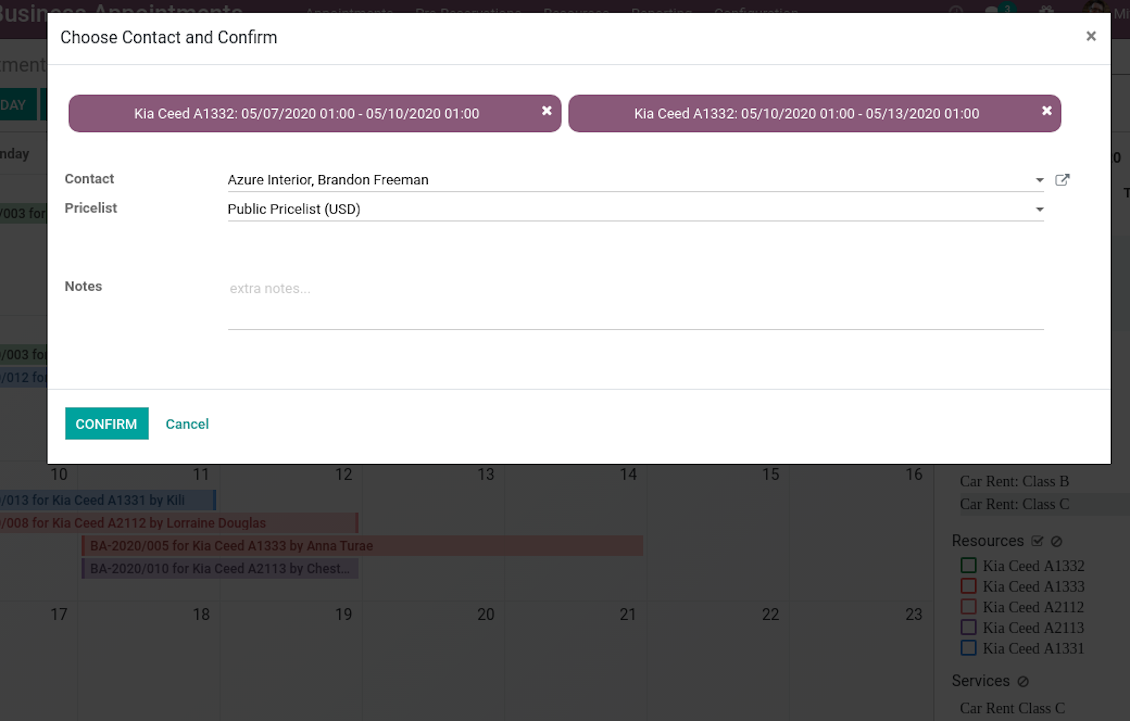
Automatic time slots generation assumes that no appointment might be entered manually, but it should be selected among available slots and according to the principles you set up. To that goal the tool introduces the special wizard, where managers might add client requirements and details to confirm reservation in a few clicks:
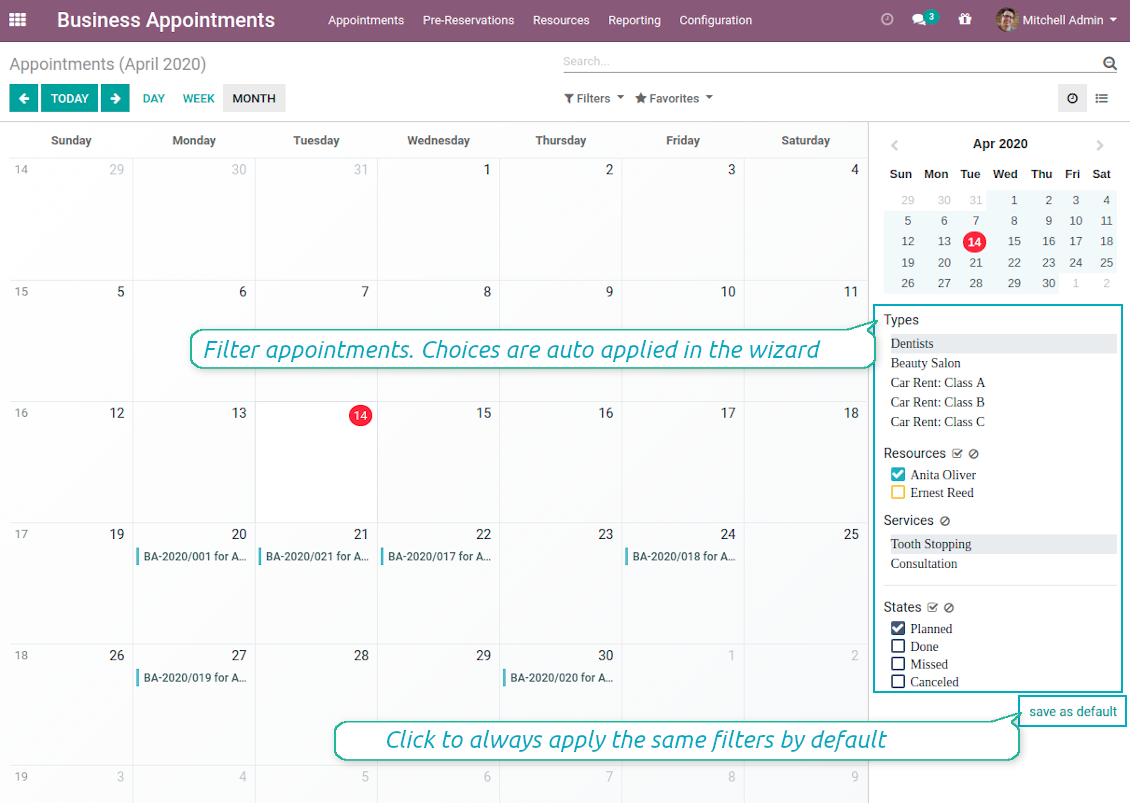
- To start new scheduling just pick up required time period on calendar - the wizard would be automatically initiated. Chosen dates are used as time range for slots. Besides, if you also selected filters by resources or by service, that resources and that service are going to be entered as well.
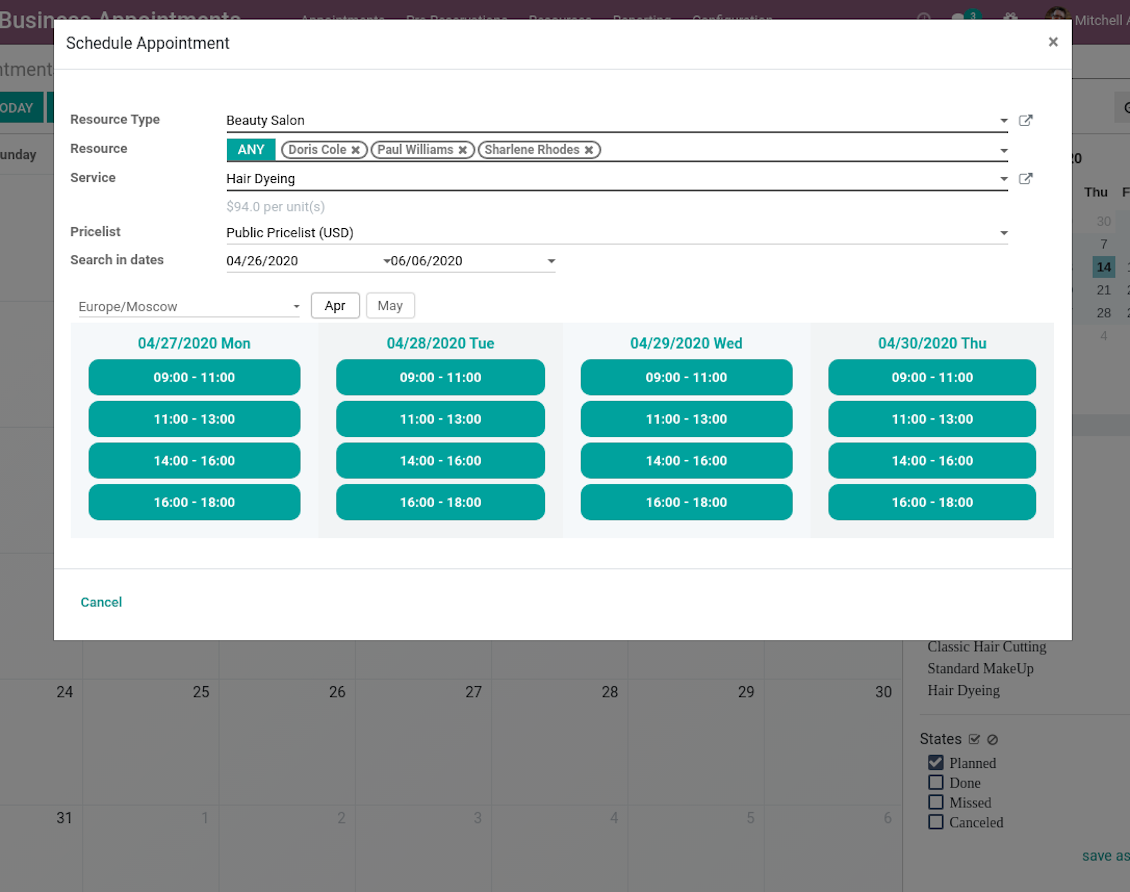
- In the wizard you can change which resource type, resource, service should be scheduled. The tool would automatically check and restrict viable options.
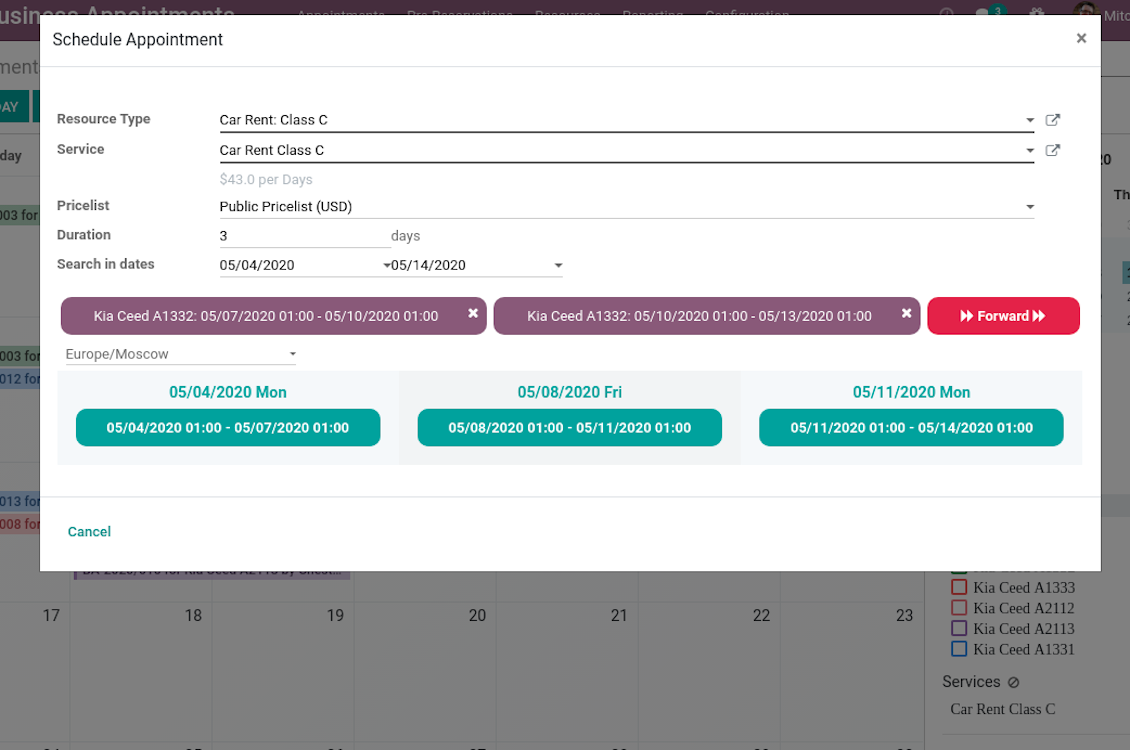
- As soon as wizard details are filled up, the tool would generate and show time slots. A manager should merely select a desired one. Selection means that this slot is pre-reserved and can not be used for other bookings. You may even let schedule a few appointments simultaneously (regulated by the special setting on the configuration page).
- Afterwards, the only thing left is to enter client details. That's it! Quick and simple!
From the appointments calendar you may also re-schedule reservations. To that end just drag and drop an event, and the tool would prepare possible time slots for simple selection.
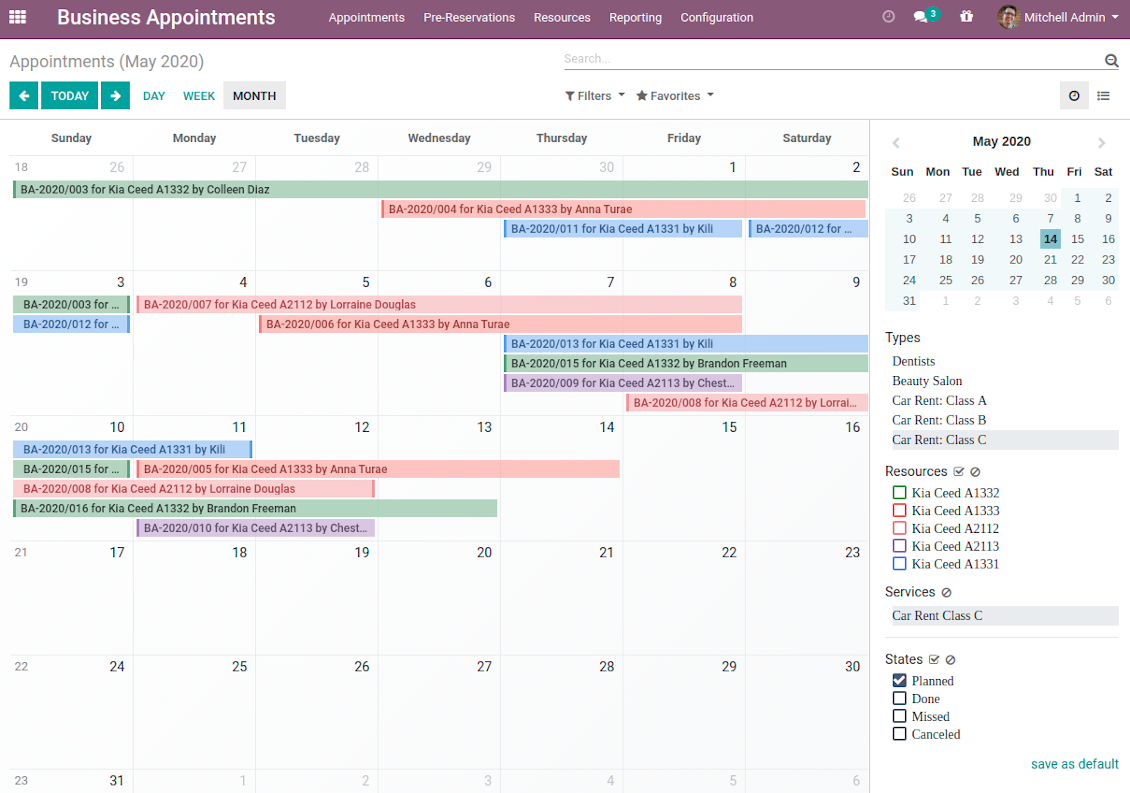
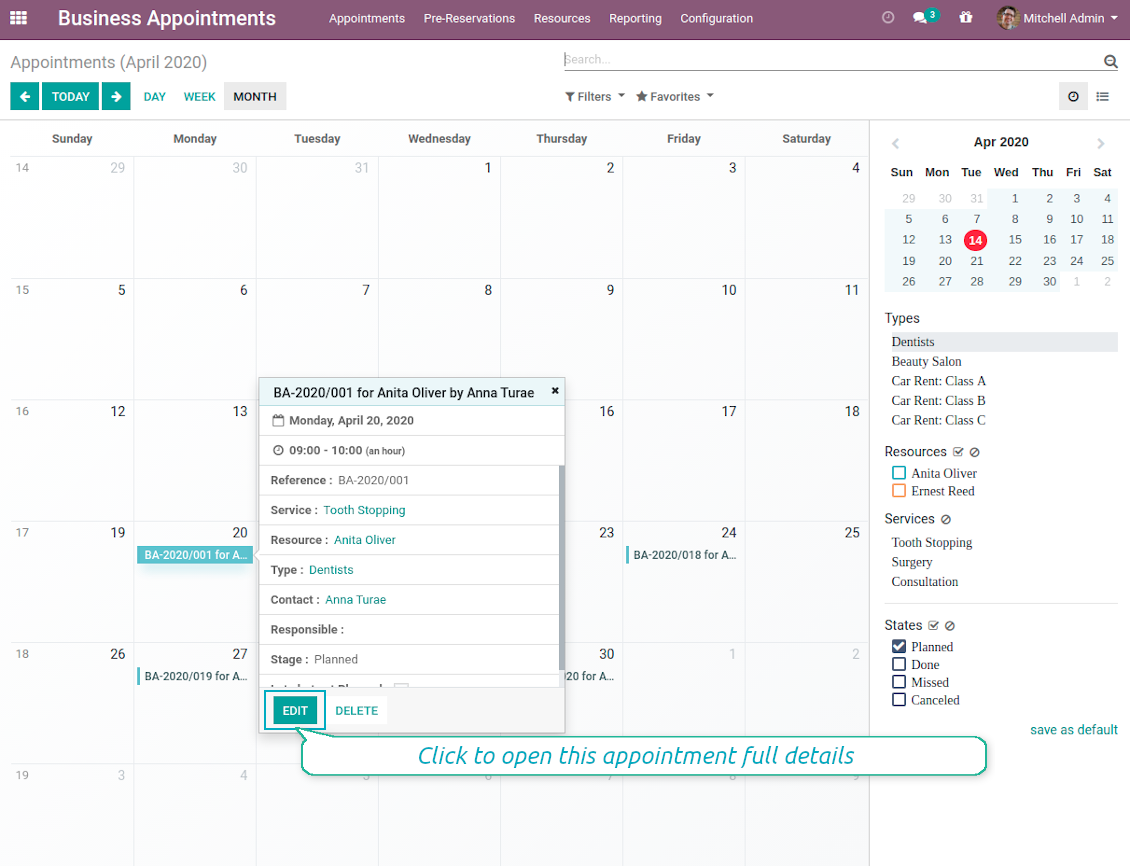
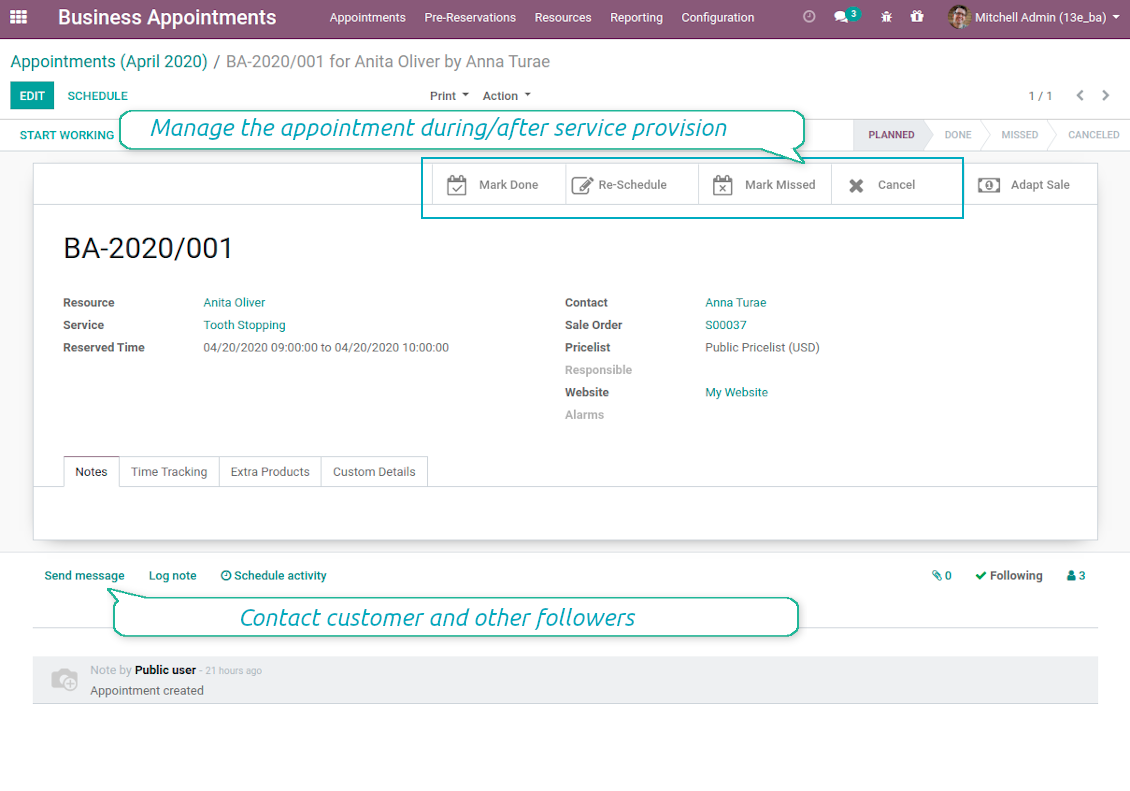
In such a way you can control bookings and proceed all required actions from the single calendar interface. Simultaneously, it is always possible to open full appointment details by clicking on its calendar card.
Schermate
Single view interface to control and schedule appointments
Calendar comfortable filtering and quick scheduling
Quick and comfortable backend scheduling
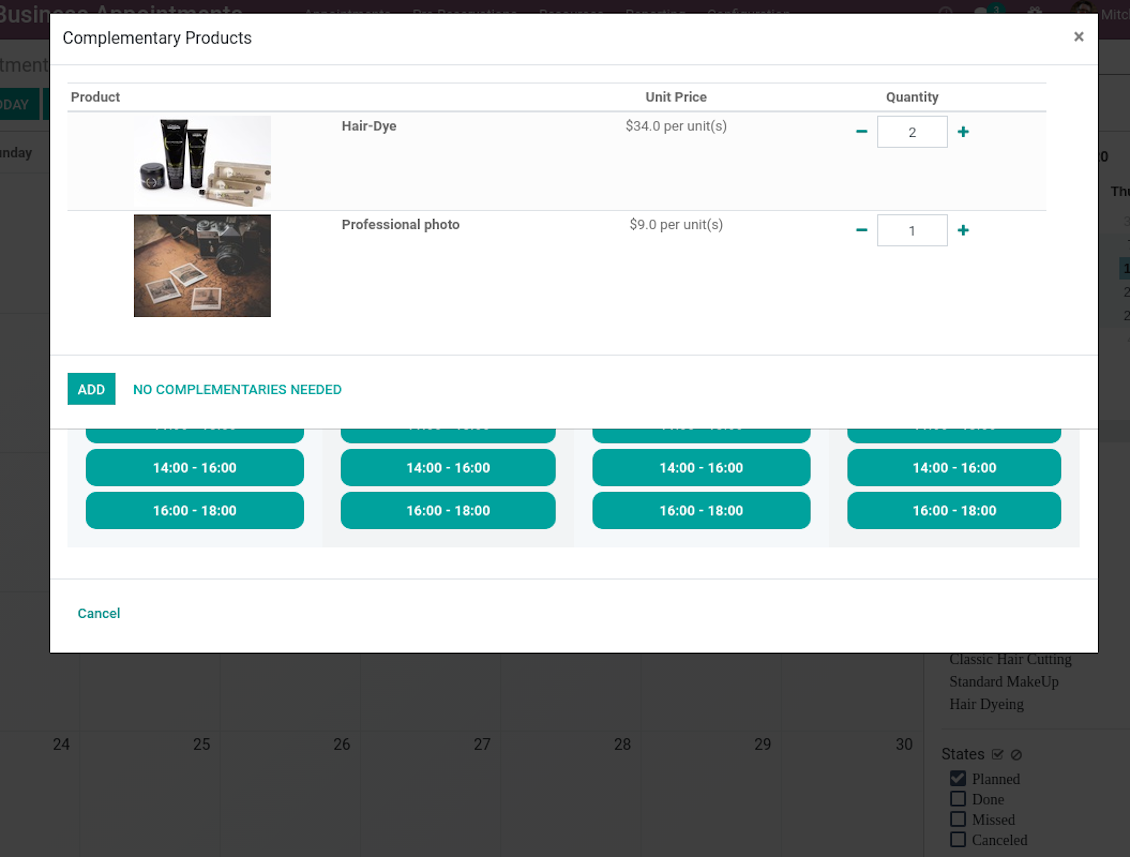
Upsell through offering complementaries
Choose customer or enter contact details to finish reservation
Quick appointment preview from calendar
Reservation full details and management
Multiple reservations during a single scheduling
A few appointments for the same customer
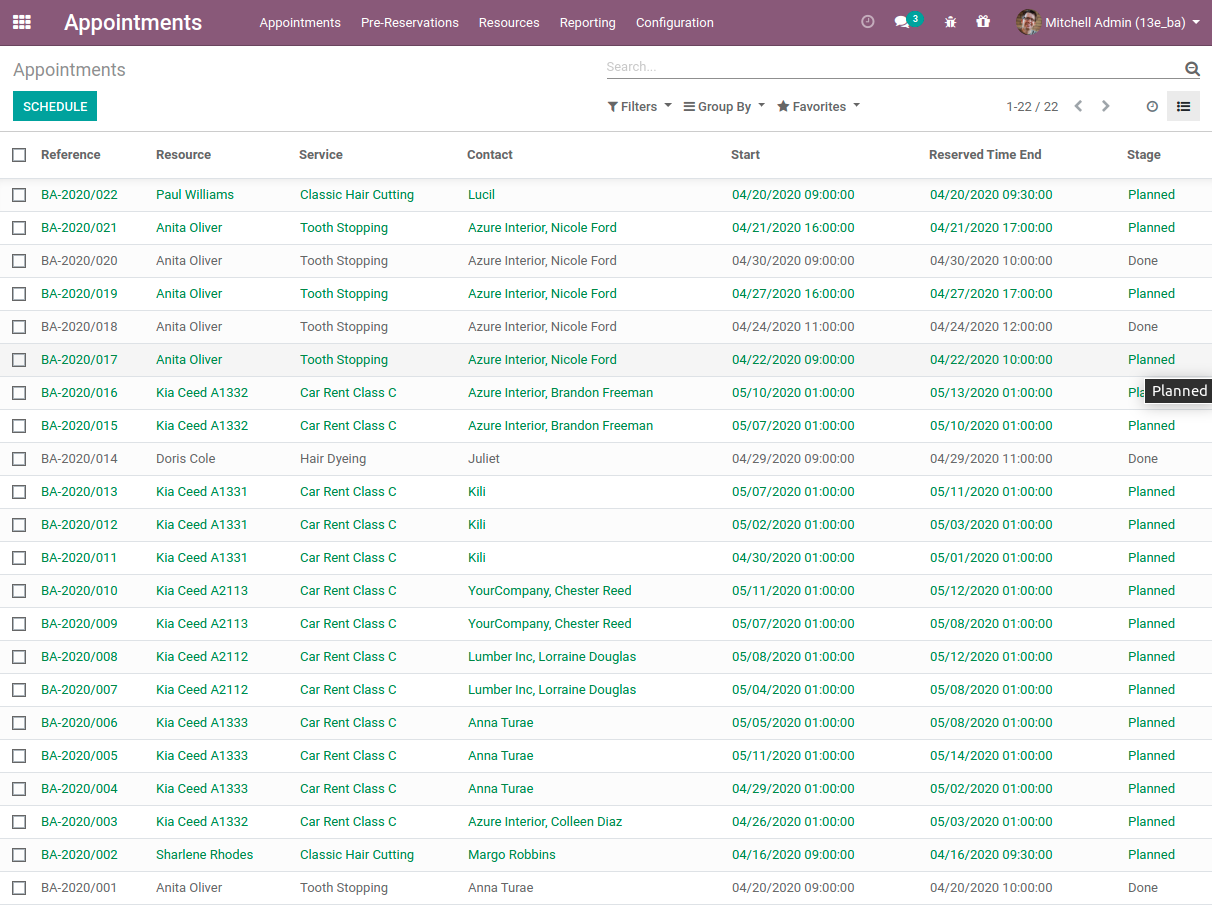
List of all appointments
Clear Website Booking Process
Scheduling an appointment through Odoo portal and website is organized as multi steps checkout process:
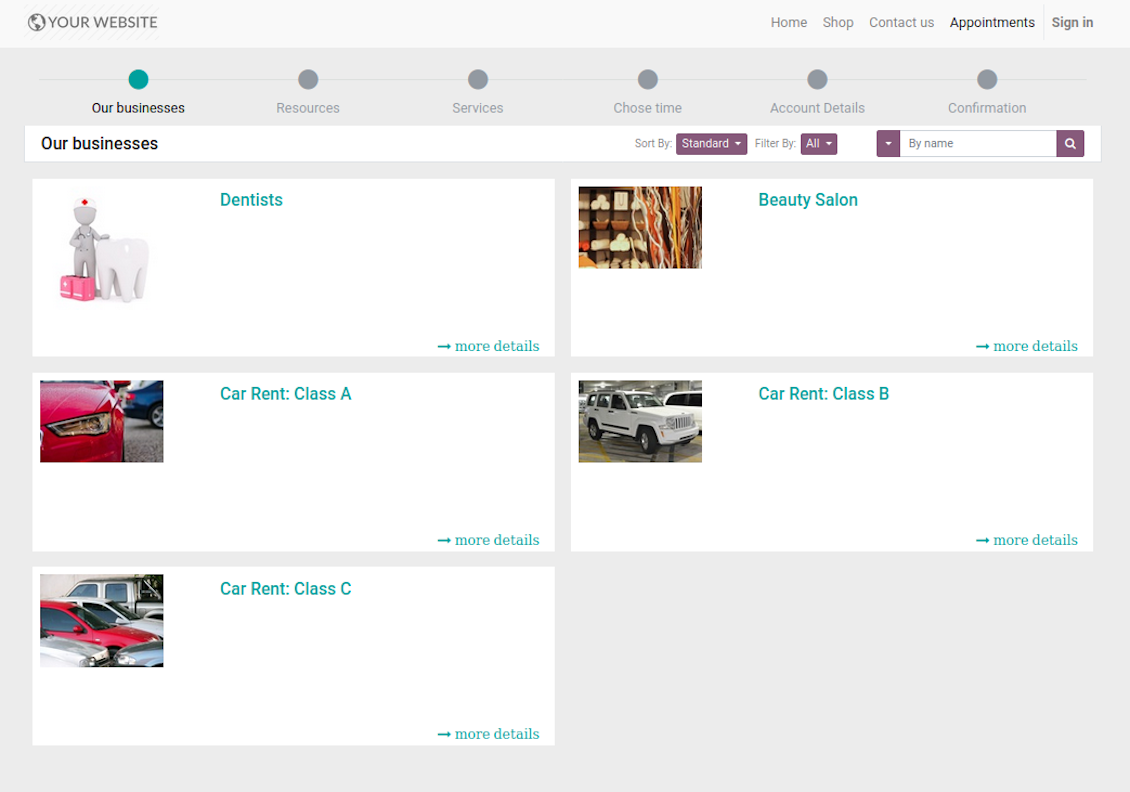
- Customer searches among resource types (businesses) and select a required one. For example, "Beauty salon" or "Class C Cars". The step would not be shown if there is a single published resource type for this website.
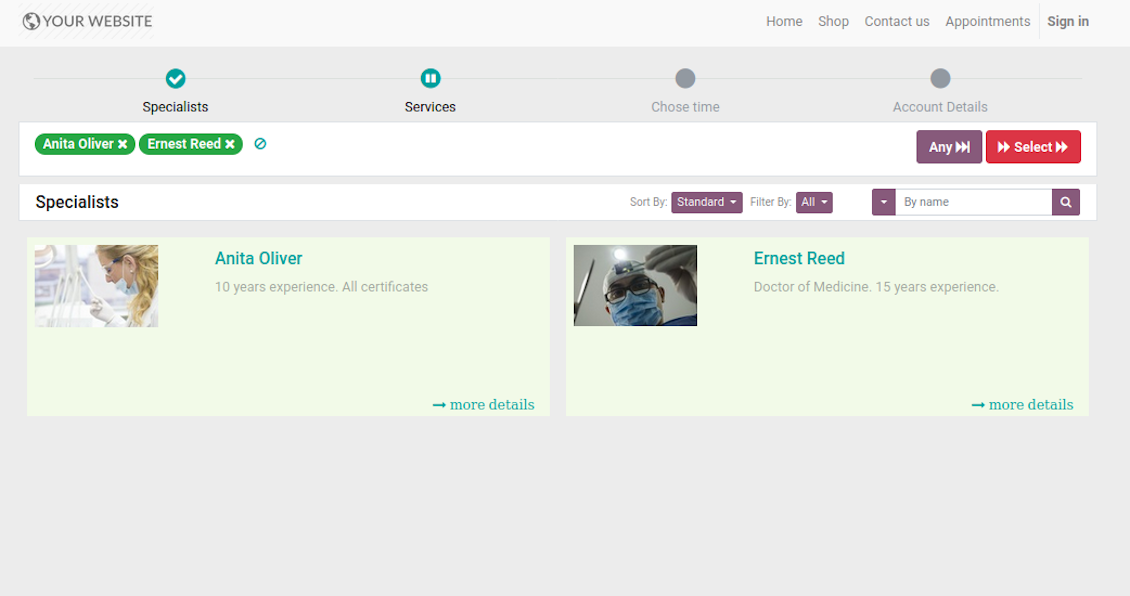
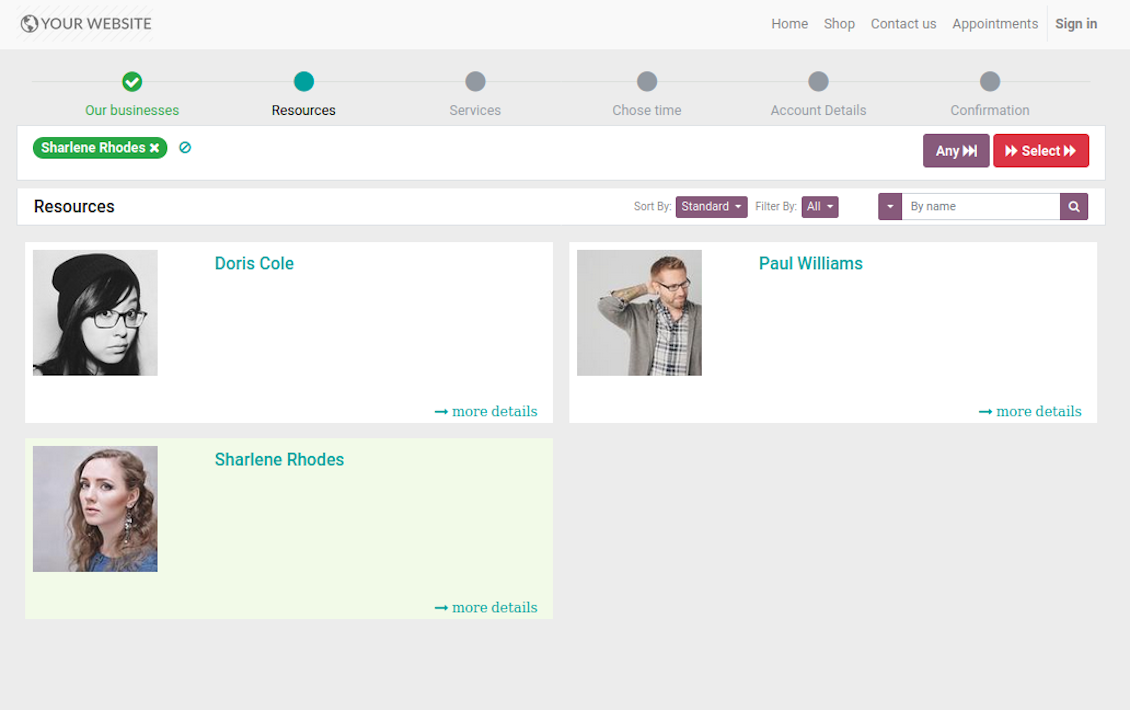
- Customer navigates over available for this type resources and select one, a few, or apply any (all). For example, "Hair Dresser John Brown" or "Opel Astra 1234". The step is missed in case there is a single published resource, or resource type assumes automatic allocation.
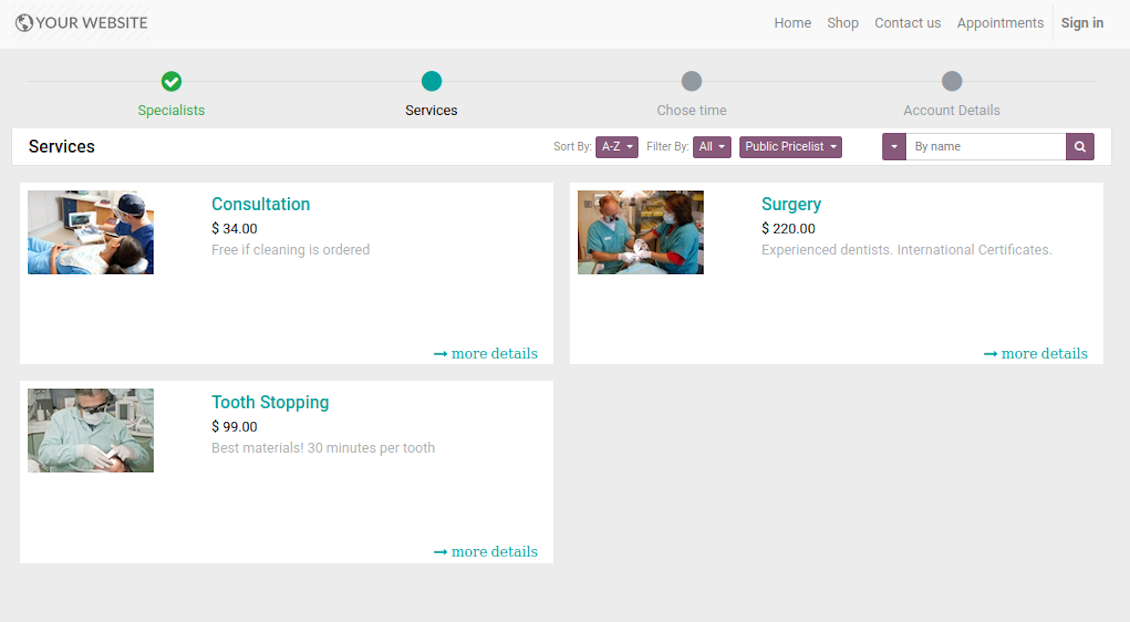
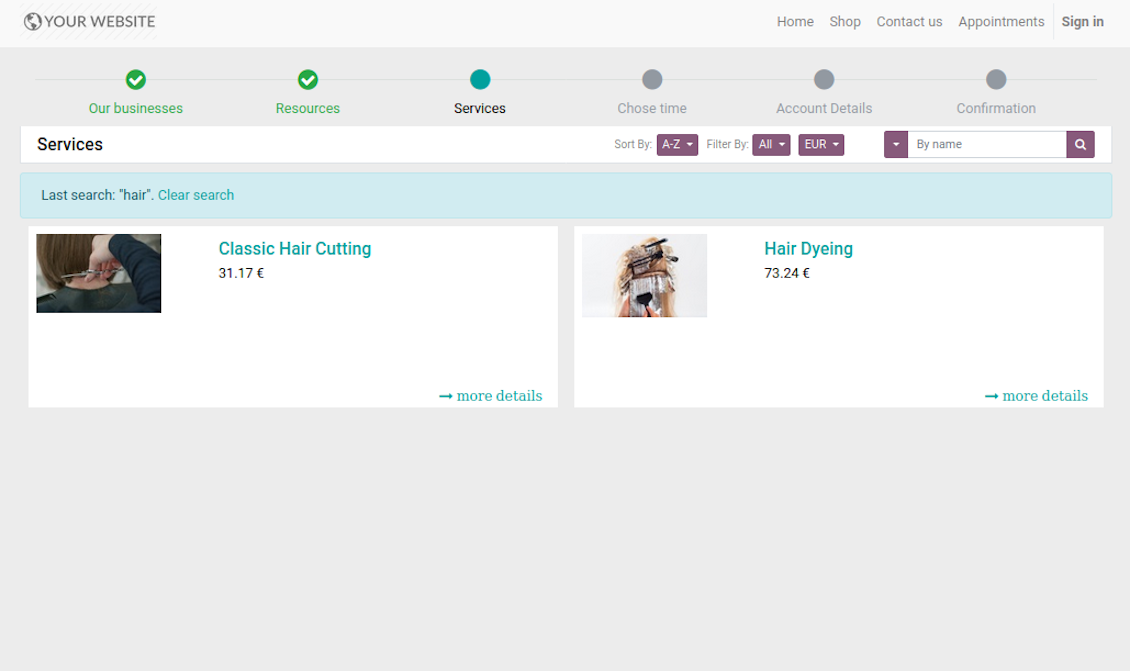
- Customer chooses desired service among provided by selected resources. For example, "Classic Hair Cutting" or "Car Rent Class C". Clients would not be asked to select a service, if there is only one published for this website.
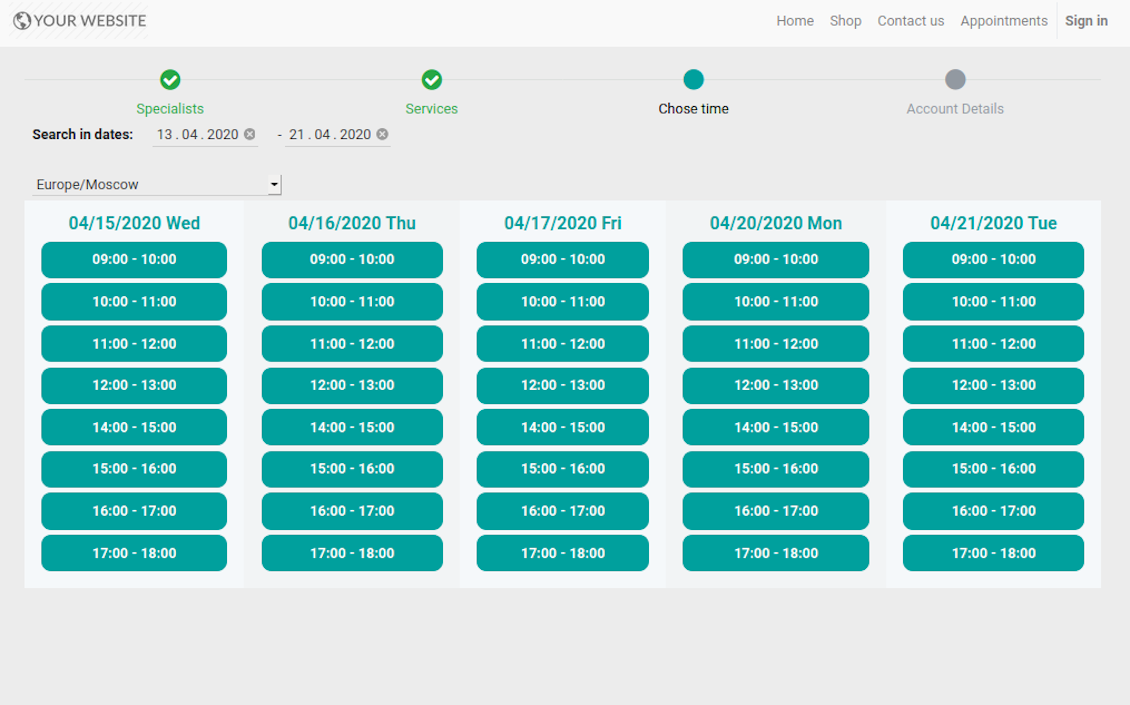
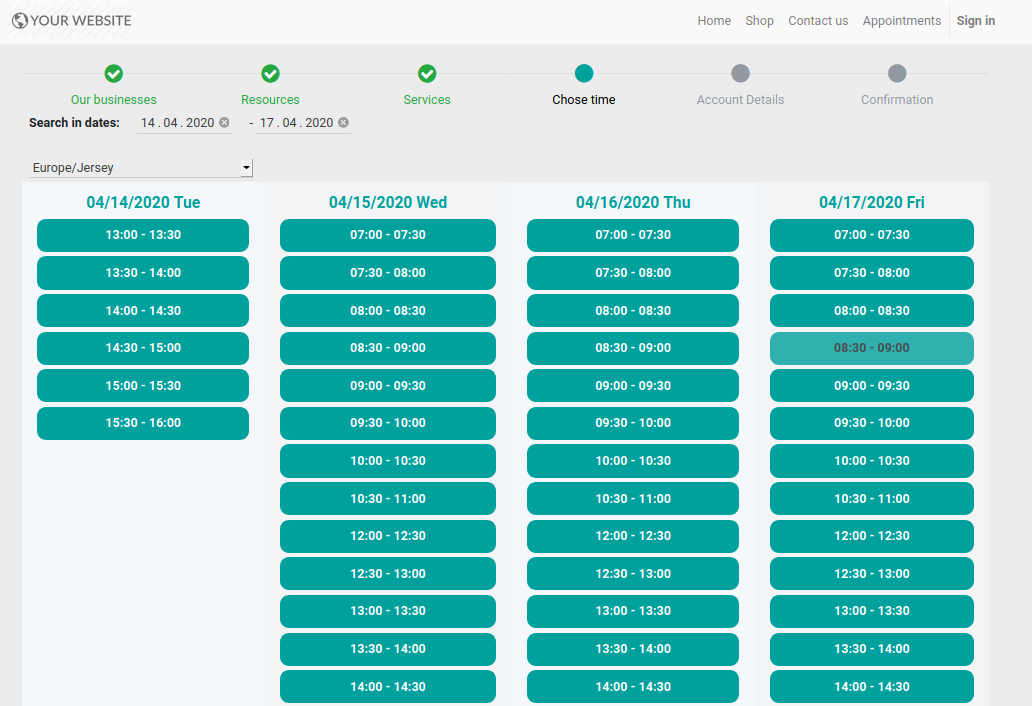
- Customer is shown available time slots. The interface let adopt time frames for search, change time zone, insert duration (for services with manual duration). Each action results in slots recalculation. The only thing needed is to select one which you like the most. Website visitors might be also allowed to book a few time slots for a chosen service (for example to plan appointments for the next few months). The step is required and might be not missed. As soon as pre-reservation is done, nobody else can book the same slot. Simultaneously, clients have limited time to make confirmation after which pre-reservation would be canceled (the exact time is up to you).
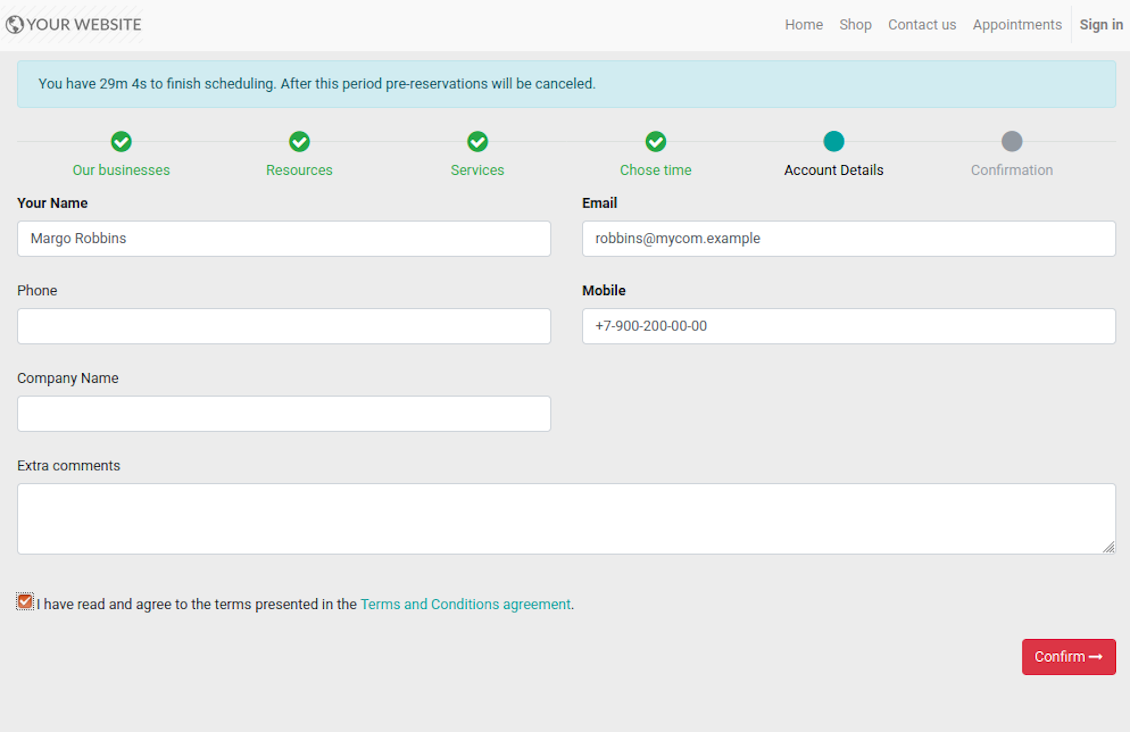
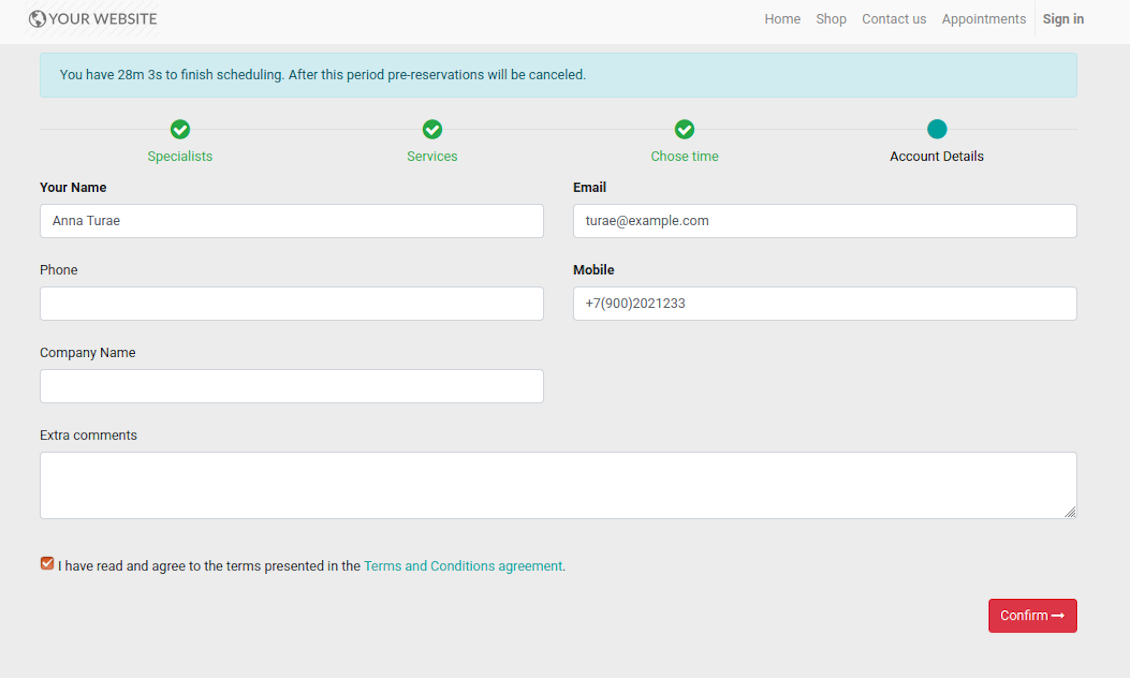
- Customer should enter contact details, set of which might be configured per website. By default required ones are name and email. Previously registered (portal) users would have fields auto populated. Here you can also optionally place a checkbox to agree with terms and conditions.
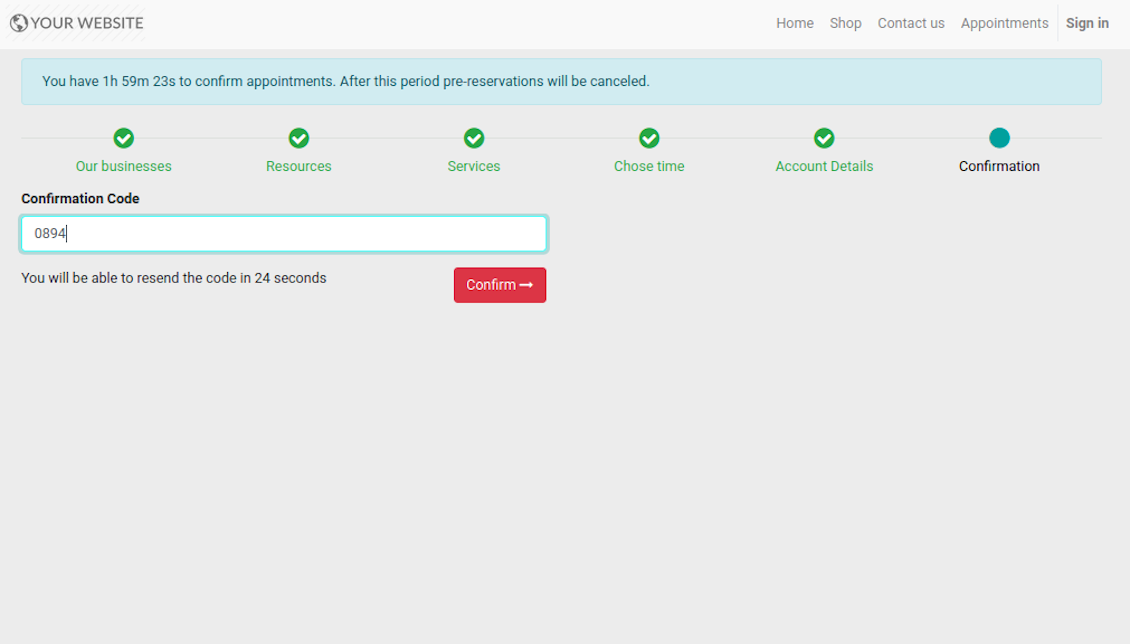
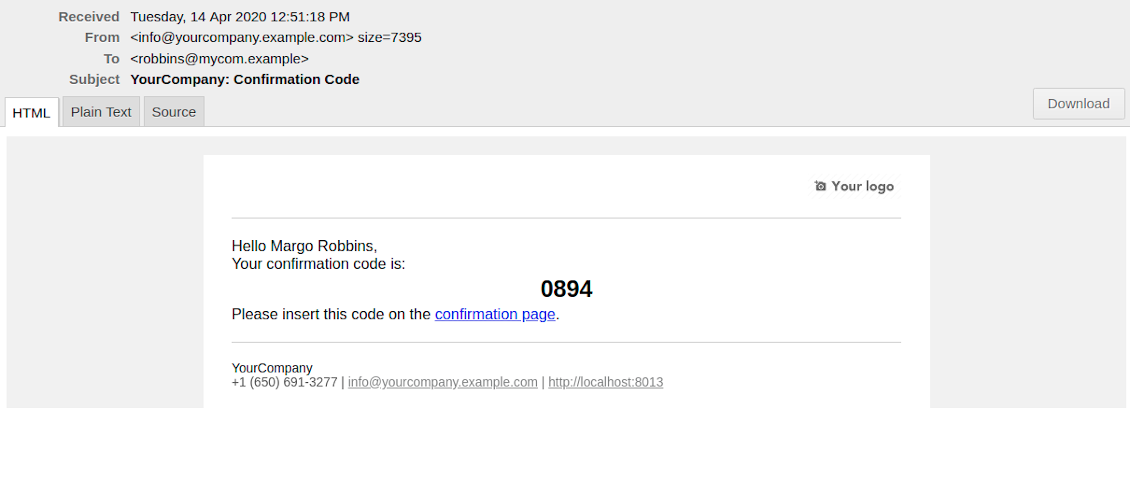
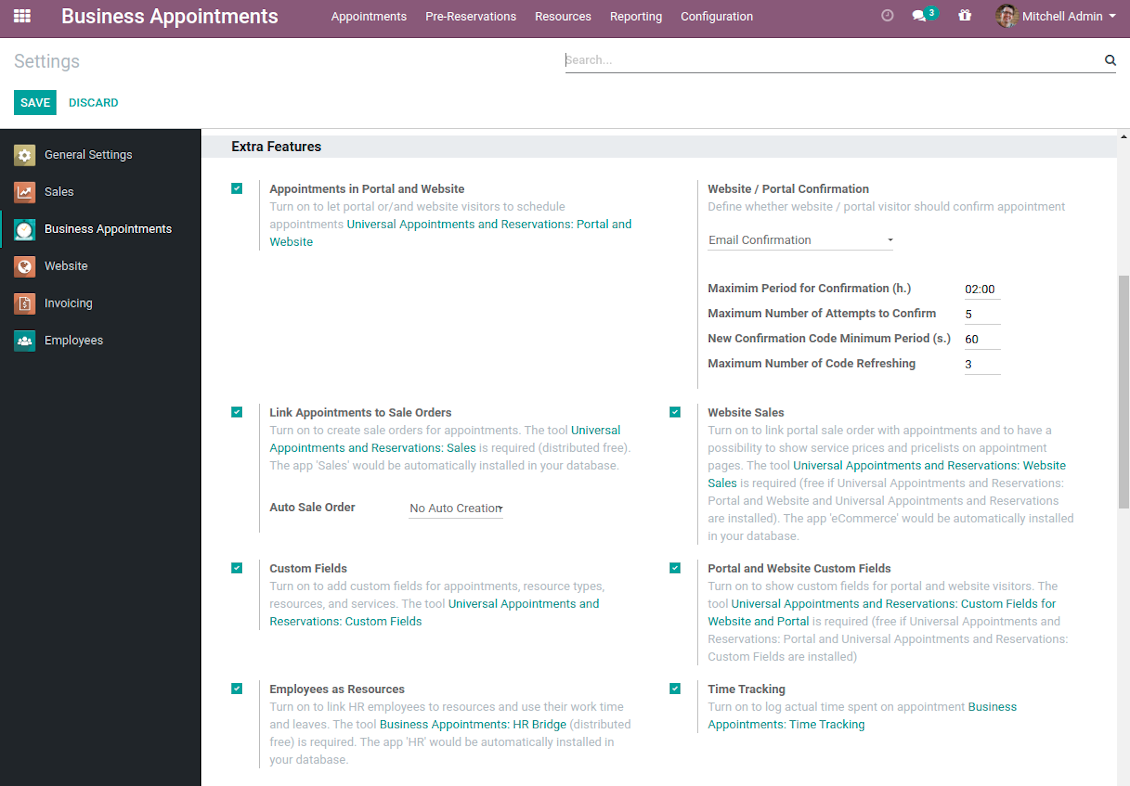
- [Optional Step] As the last step you may ask customers to confirm email / mobile or phone number. If confirmation option is turned on, website visitors would be obliged to insert received code. In case correct code is not introduced in time (change allowed period on the configuration page) - appointment would be canceled and time slot would be again available for others. Take into account that if you selected SMS confirmation (depends on Odoo SMS IAP), but you balance is not sufficient, confirmation code would be forwarded by email.
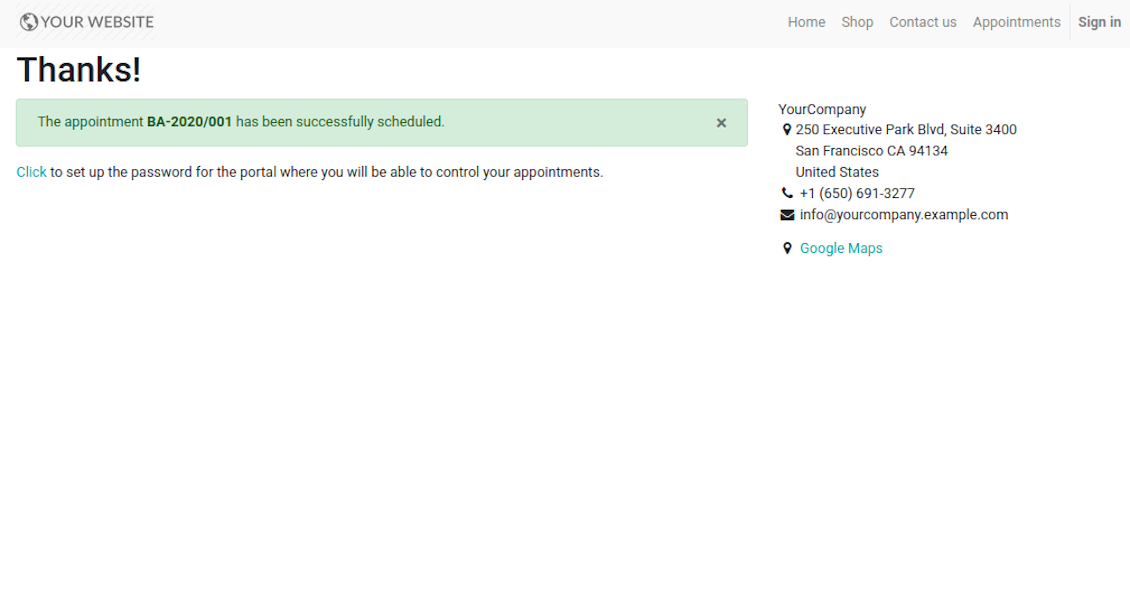
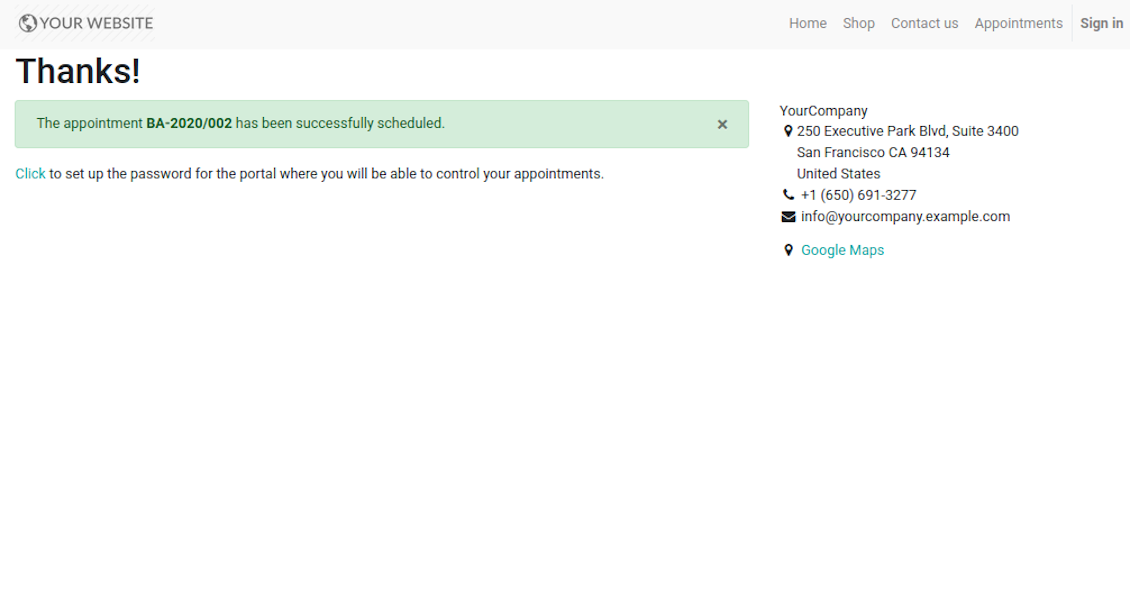
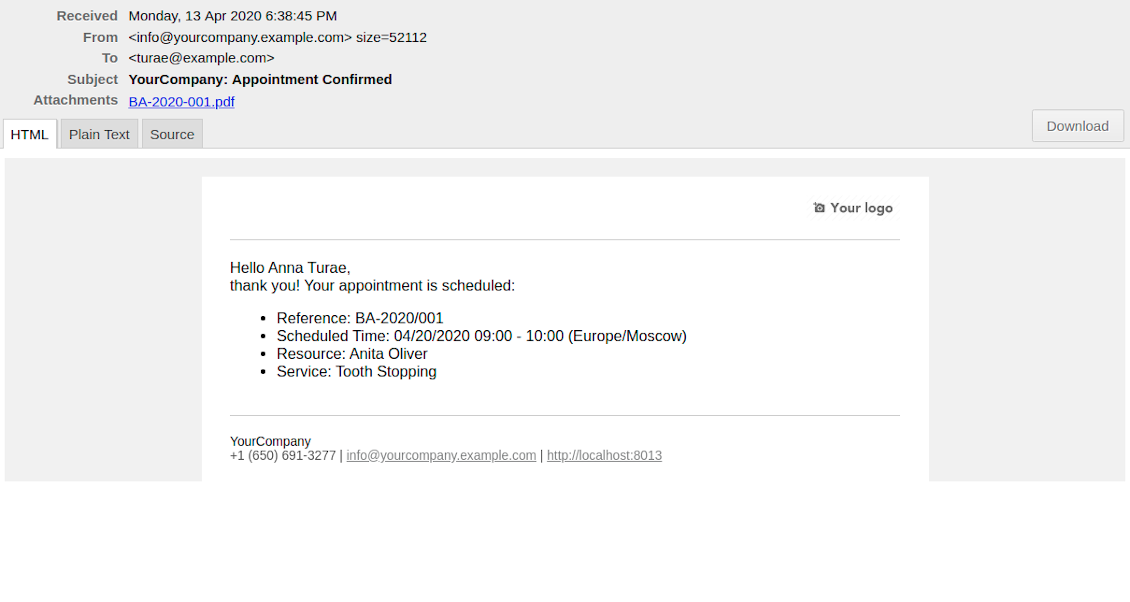
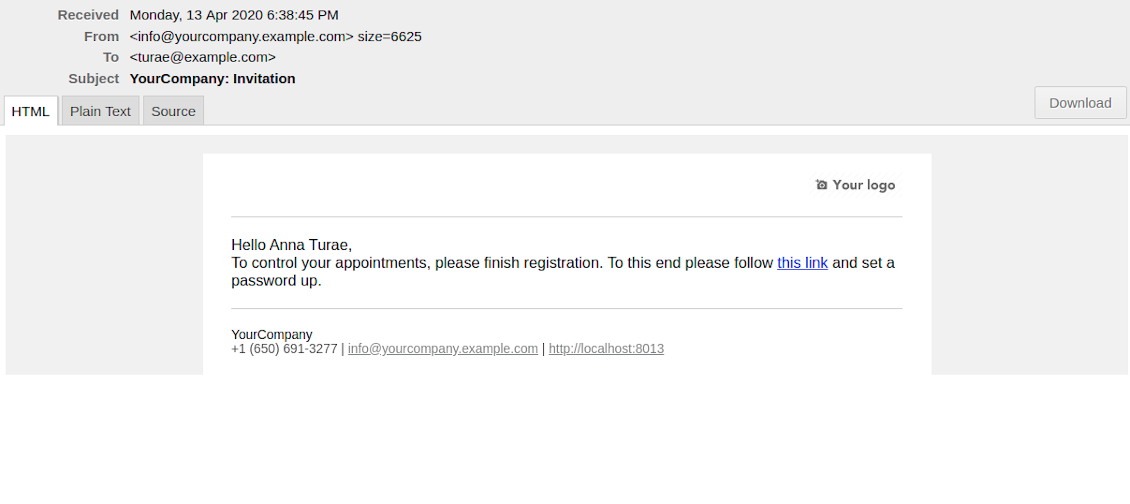
- That's it! Customer is redirected to the success page and receive confirmation email. For not yet registered users, Odoo would also offer to set up the password to control appointments in portal.
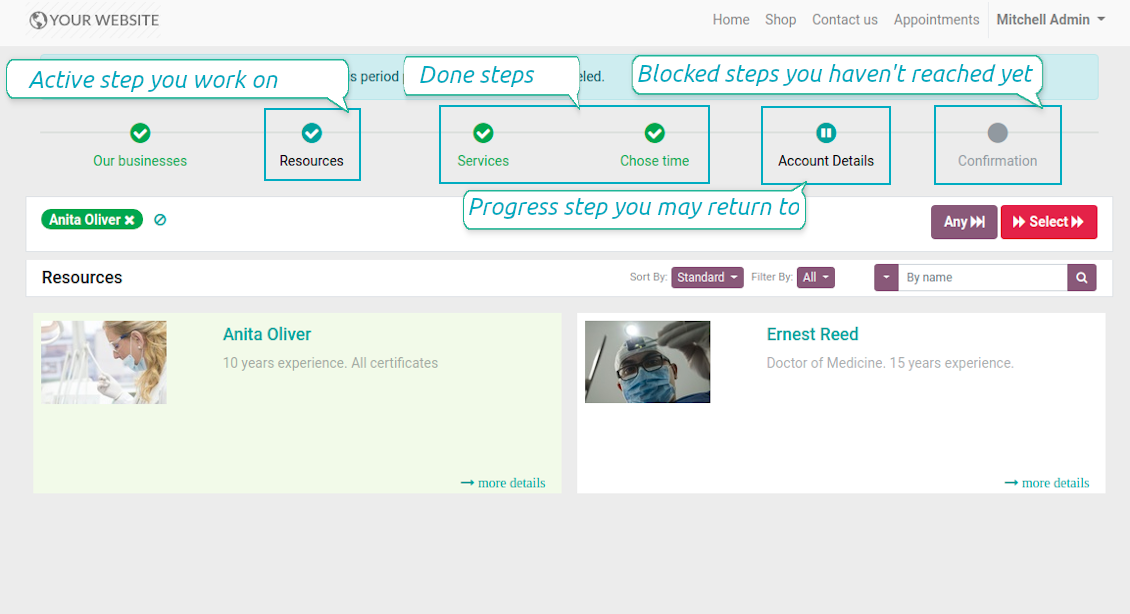
During the whole process customers might see the progress bar (if you have not purposefully turned it off). Progress bar let safely return to any previous step and get back to active one.
Schermate
Choose resource type for reservation: all booking steps
Choose resource for reservation: simple booking
Website resource reservation page
Choose service for reservation: simple booking
Choose service for reservation: all booking steps
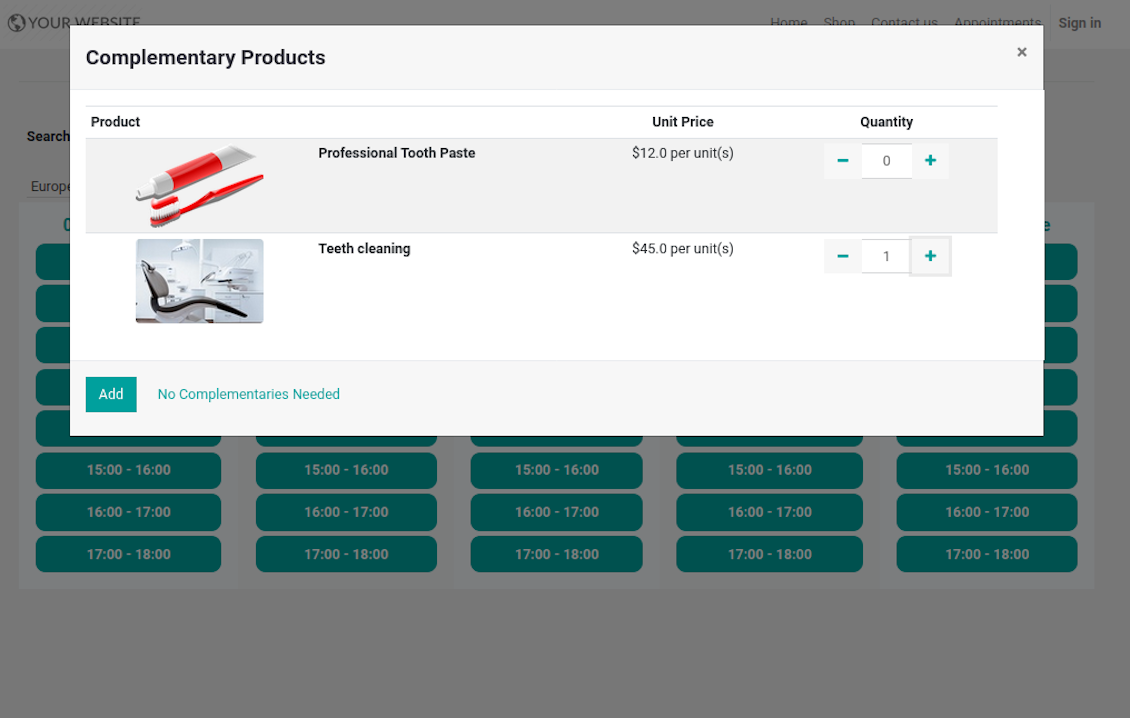
Choose complementaries for reservation: all booking steps
Choose time slot for reservation: simple booking
Choose time slot for reservation: all booking steps
Customer contact details for appointment: simple booking
Customer contact details for appointment: all booking steps
Confirm email address / mobile number by entering code
Confirmation code email to schedule appointment
Safely move forward and back through progress steps
Successful appointment: simple booking
Successful appointment: all booking steps
Appointment success email
Automatic registration after successful appointment
Comprehensive and well thought booking app
The app allows backend user to do some simple configuration to make the booking app able to fit in our different business models.
Very good support and also there is module enhancement from time to time with great usability improvements of more use cases.
Just great App and the best support you can imagine
Dear Olga and Alex
Thank you so much for this function which makes the tool perfect!
I've already installed it and tested it -- it works exactly the way the customers need it
This really makes your Appointment App the best tool available for Odoo :-)
I would also like to thank you for understanding my wishes and for taking care of them. That's exactly why I will choose and recommend faotools the nex time again.
Sale and Upsell Services
Sale Orders and Appointments
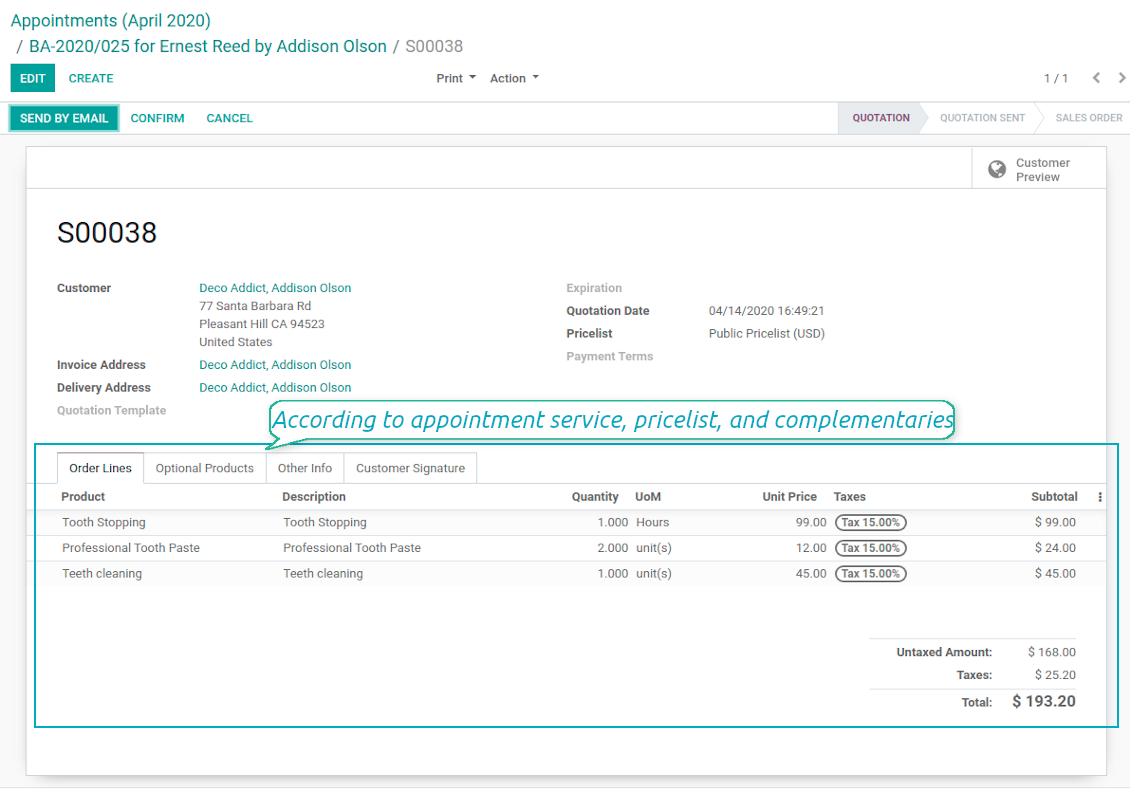
The final goal of service provision is to generate profit, which in row requires accurate pricing, transparent sale process, and upselling. The tool takes into account all those aspects, but it does not reinvent the wheel and it relies upon Odoo standard mechanics. In particular, the app let you link appointments and sale orders. You have 3 options to configure that link:
- Automatic confirmed sale order per each booking. If chosen, a sale order would be created as soon as appointment is scheduled. The method is suitable in case your service is standard, and final sale positions and details would hardly be changed during appointment. For example, fixed-price hair cutting.
- Draft sale order for reservations. If chosen, only a quotation would be generated. In such a way you would be more flexible in updating an order during service provision or beforehand. For example, if you want to add extra complementaries during a visit or to grant clients individual discounts, it would be suitable to rely upon that approach.
- Manual sale orders. If chosen, managers would have to create quotations while providing service. The method might be applicable when most of sale lines become clear only during the visit itself. For example, mobile phone repair business assumes initial diagnostics and only after that offering the price.
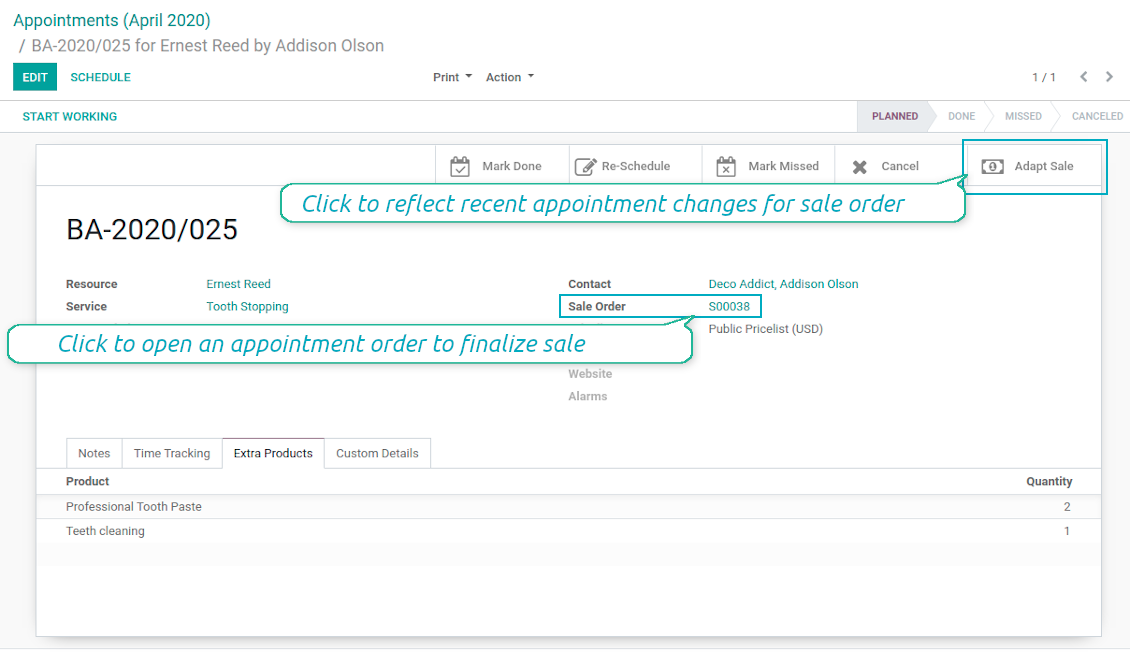
Until appointment sale order is not confirmed, you would be also able to update that right from a reservation form. Both service, quantity and complementary products are re-calculated in that case.
Service Pricing
Depending on your business model and industry specifics, you might prefer different pricing methods. The tool let you configure that per each resource type, and calculate remuneration for service provision:
- Per planned duration. For example, suitable for car rent or massage.
- Per unit: if appointment has the same price disregarding real duration. For example, standard haircutting or tire mounting are invoiced the same disregarding how much time they take.
- Per tracked (real) duration: when you want to invoice actual time spent on service provision. For example, the approach might be suitable for consultation or legal services.
Both service and complementary prices are pricelist dependent. It means, that a manager might select individual conditions during scheduling. In such a way, it is possible to apply various currencies, discounts, promos.
The feature is available for website / portal users as well. In case there are a few to-select price lists, such users would be able to choose the most suitable (e.g. in a correct currency). For portal user, their partner pricelist is selected by default.
Complementaries and Upselling
When a client finishes scheduling, it seems a good moment to increase a bill by offering complementary products. The tool aims to help you in that. If configured, Odoo would show popup wist suggested products:
- For backend managers: immediately after reserving a time slot.
- For website visitors / portal customers: also when selecting appropriate time for reservation.
The popup allows both adding one or a few ones of complementaries, and merely miss the step if suggested products are not required.
The feature is turned on/off on the configuration page: for backend and each website individually. Popup would be shown only in case there are complementaries defined for a booked service.
Schermate
Automatic or manual link between appointment and sale order
Sale is generated based on appointment details
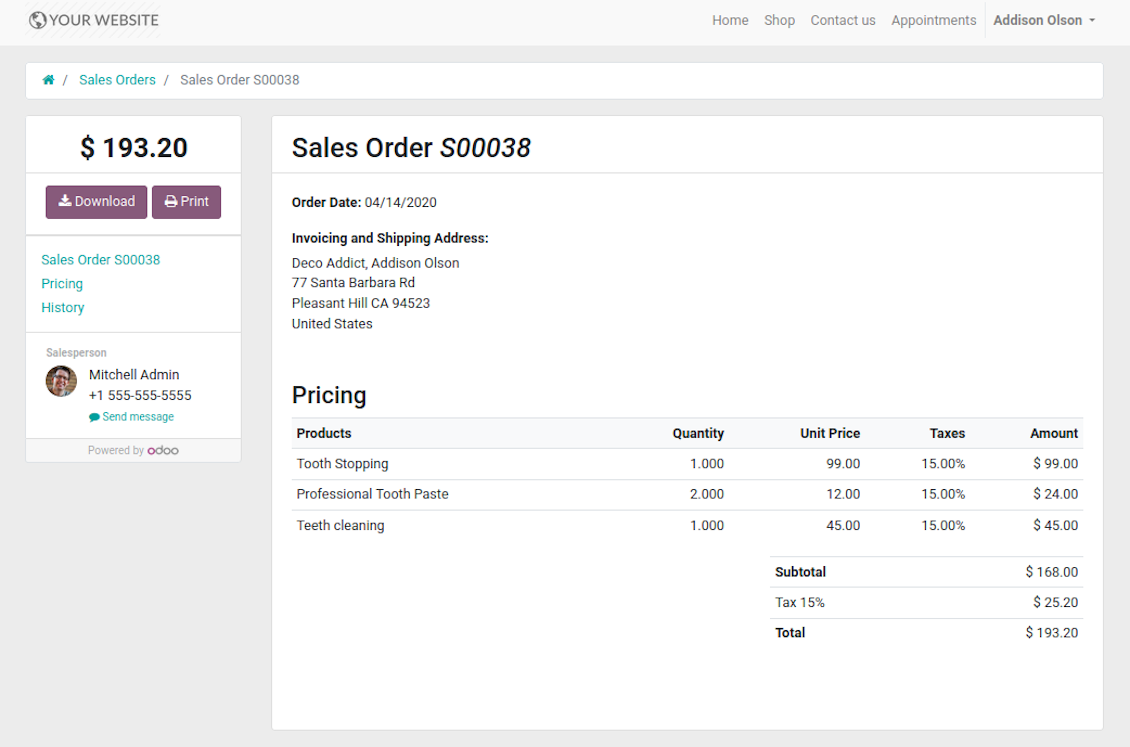
Portal users control appointment sales in standard way
Manual or Automatic Resource Allocation
In case you have a few resources of the same type, you probably face the challenge how to distribute appointments among those. Here are 2 main approaches covered by the tool:
- Each resource is unique, and you prefer to give clients a right to select among those. For example, customer would like to be consulted by a certain doctor, or to be serviced by a definite hairdresser. In such case you should set up manual allocation method for resource type.
- All resources are considered equally good for clients. For example, customer would hardly compare Opel Astra 1234 vs. Opel Astra 1235. Then, allocation should be done automatically.
Manual allocation does not ask a client to select resource as obligation. This is the right, which might be simply missed by explicitly choosing "any" or a few of resources.
Automatic allocation is configured per each resource type depending on your business specifics:
- Distribution by resource workload let assign appointments according to the total planned duration of all open appointments. For example, it might be fair in beauty salon to equally spread tasks.
- Allocation by appointments number does not take into account real duration of service provision, but only their absolute quantity. For example, it might be suitable for tire mounting where price is set up not per duration but per units.
- Distribution by order means that each resource has own priority, and allocation is done on a queue basis. Thus, the resource with the highest priority would be always chosen until it has available slots for the target moment. After that, the second-important resource is under consideration until it is also occupied, and so on. For example, such approach might work for facilities booking or car rental.
Take into account that resource allocation is applied not only if you choose automatic method, but also in case customer manually selects a few of resources. For example, a user does not know any of dentists, and he leaves a final assignment choice for you.
Appointment Duration according to Business Needs
Duration is applied per each service individually, and might be flexibly configured:
- It is possible both to have rigid duration for service (for example, standard hairdressing always lasts an hour) or let clients / managers select that manually (for example car rental might take from a day or 60 days).
- Duration is defined either in hours (for example, it might be suitable for consulting, repair) or in days (for example, applicable for equipment or room rent, conference translator services).
- For manual duration it is possible to apply restrictions: what is the maximum/minimum order, what should be the multiplier. For instance, you can simply apply the rule: a service should last not less than an hour, not more than 8 hours, but duration should be always multiplied for 30 minutes (1:20 is not possible, while 01:00 & 01:30 are fine).
- The app also allows to define the rule to round time slots start. Sometimes applied restrictions might result in calculated start you do not like. For example, for an hour-long service start at 12:23 is hardly good. To solve the problem you can simply set up rounding for an hour (other available options are 5, 10, 30 minutes; 2 hours; midnight or midday tomorrow)
Configurable Structures of Appointment Pages
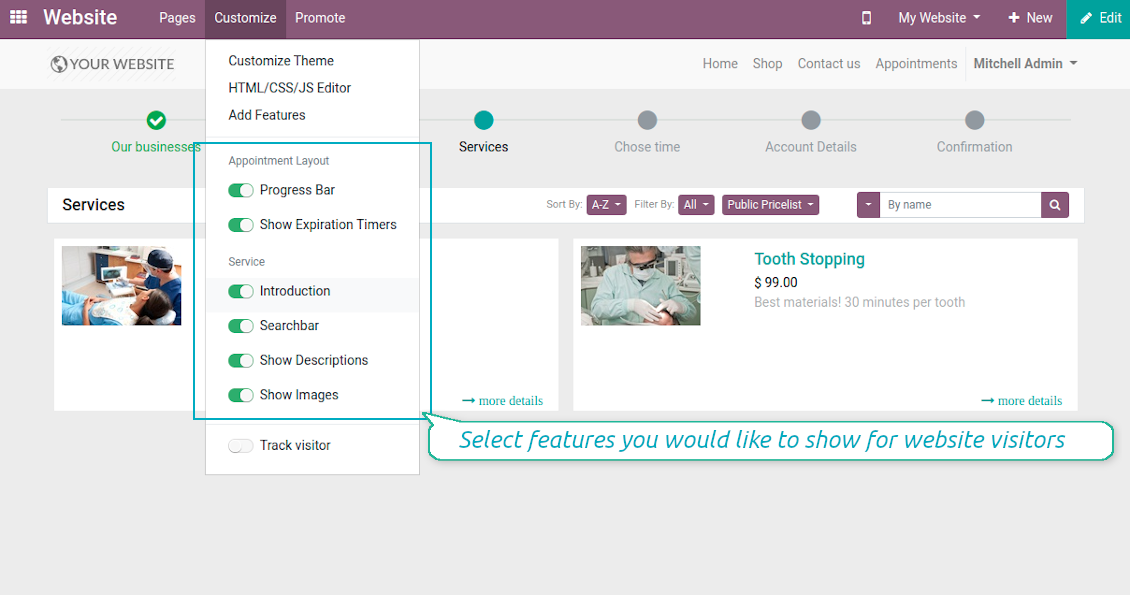
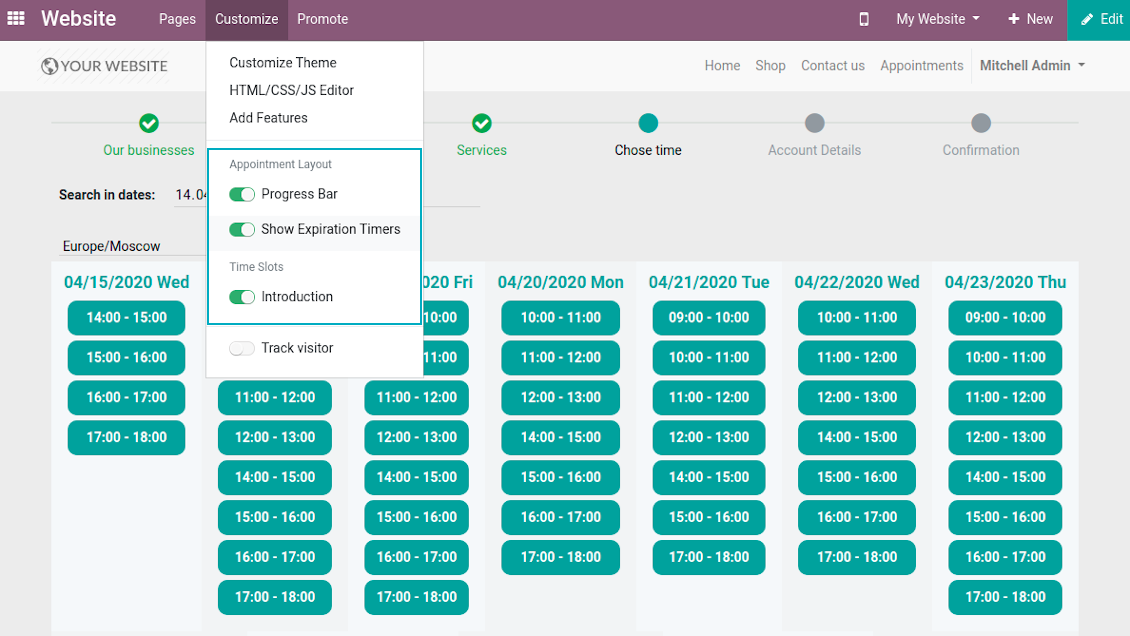
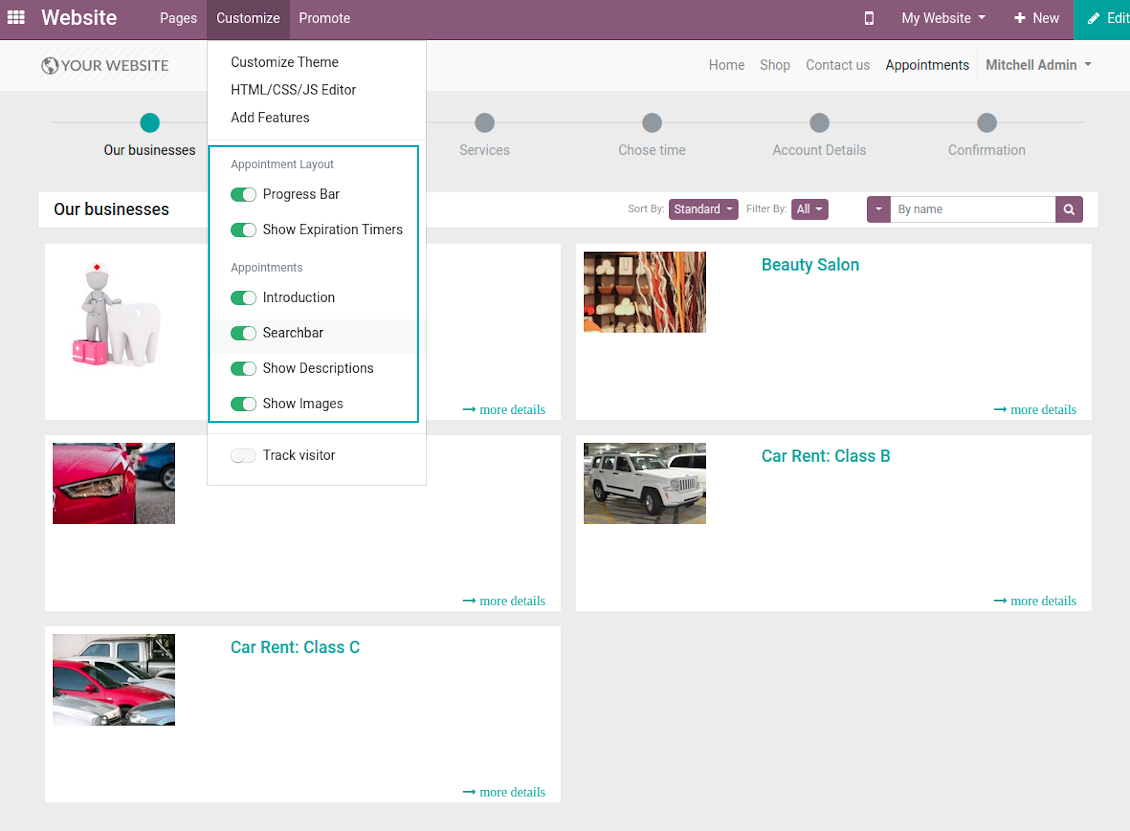
The tool let you significantly change website and portal pages structures using Odoo standard website customization tools:
- Show / hide progress bar.
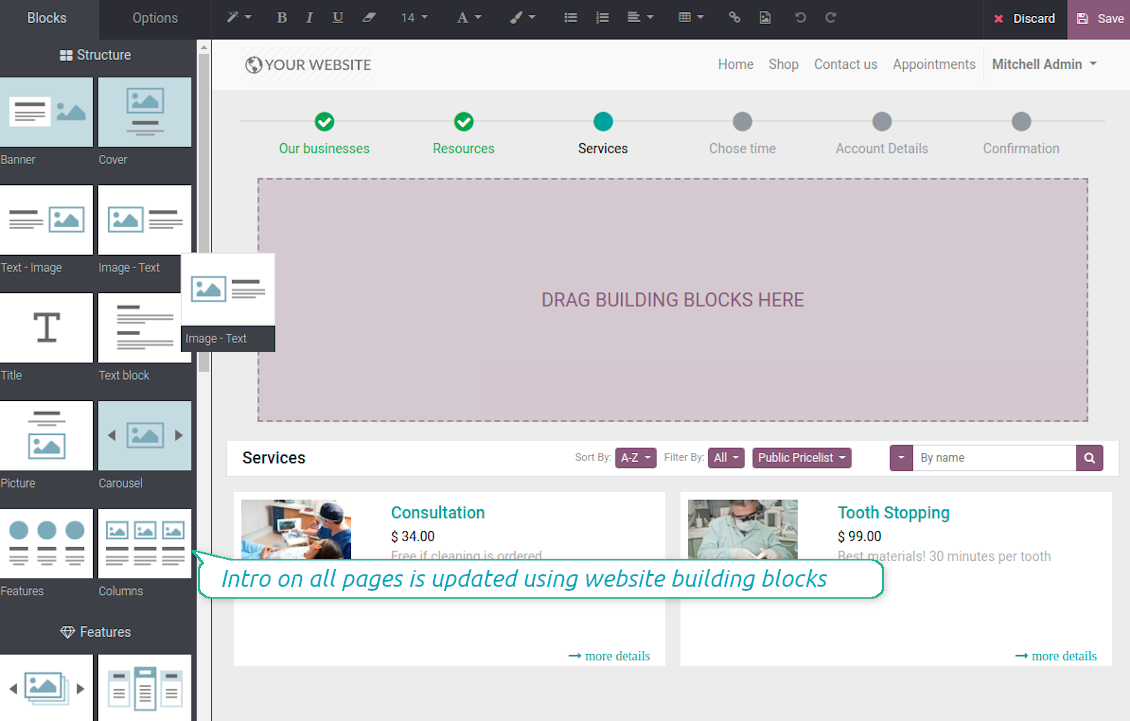
- Show / hide introduction block on pages.
- Show / hide resource types, resources, or services images.
- Show / hide short description for resource types, resources, or services.
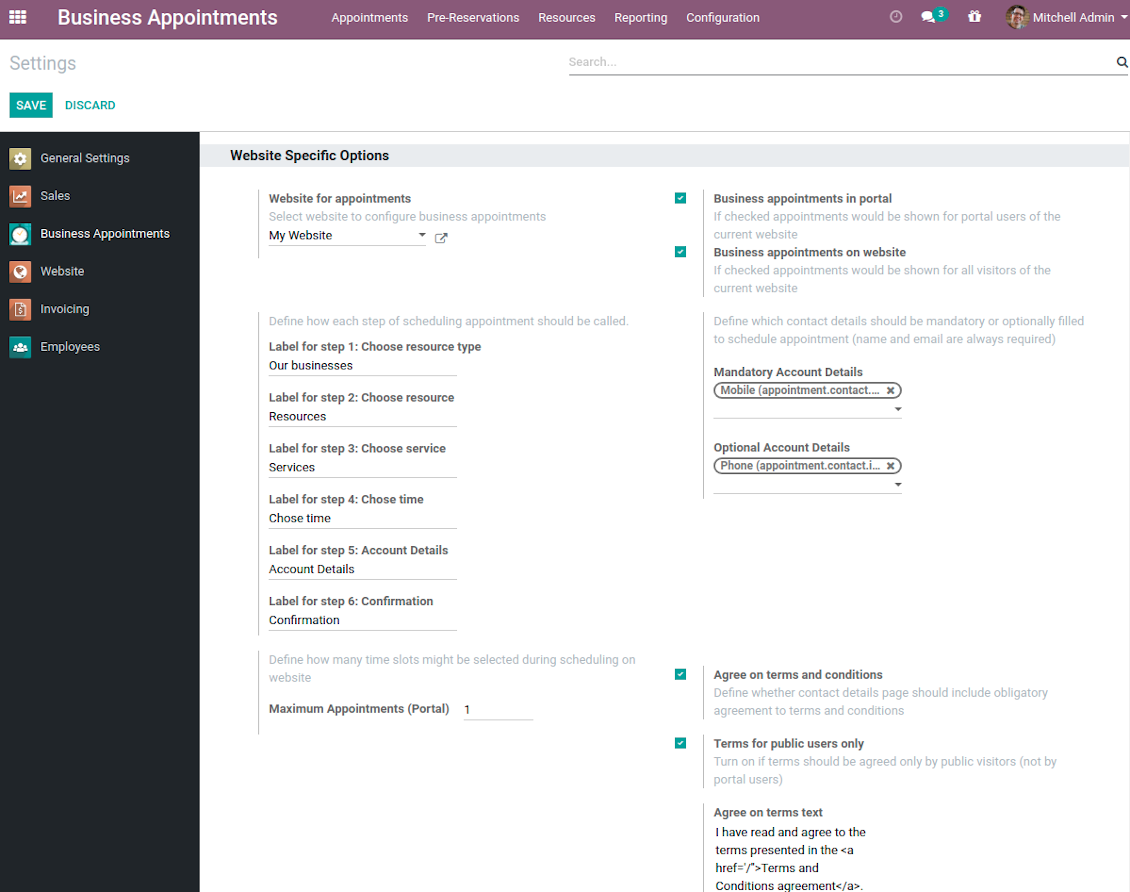
- Show / hide prices (on the configuration page).
- Show / hide full details pages for resource types, services, resources
- Show / hide pre-reservation and confirmation timers.
- Introduce your own names for progress steps (on the configuration page).
- Choose contact details fields required to be entered (on the configuration page).
- Define fields which should be entered for appointments.
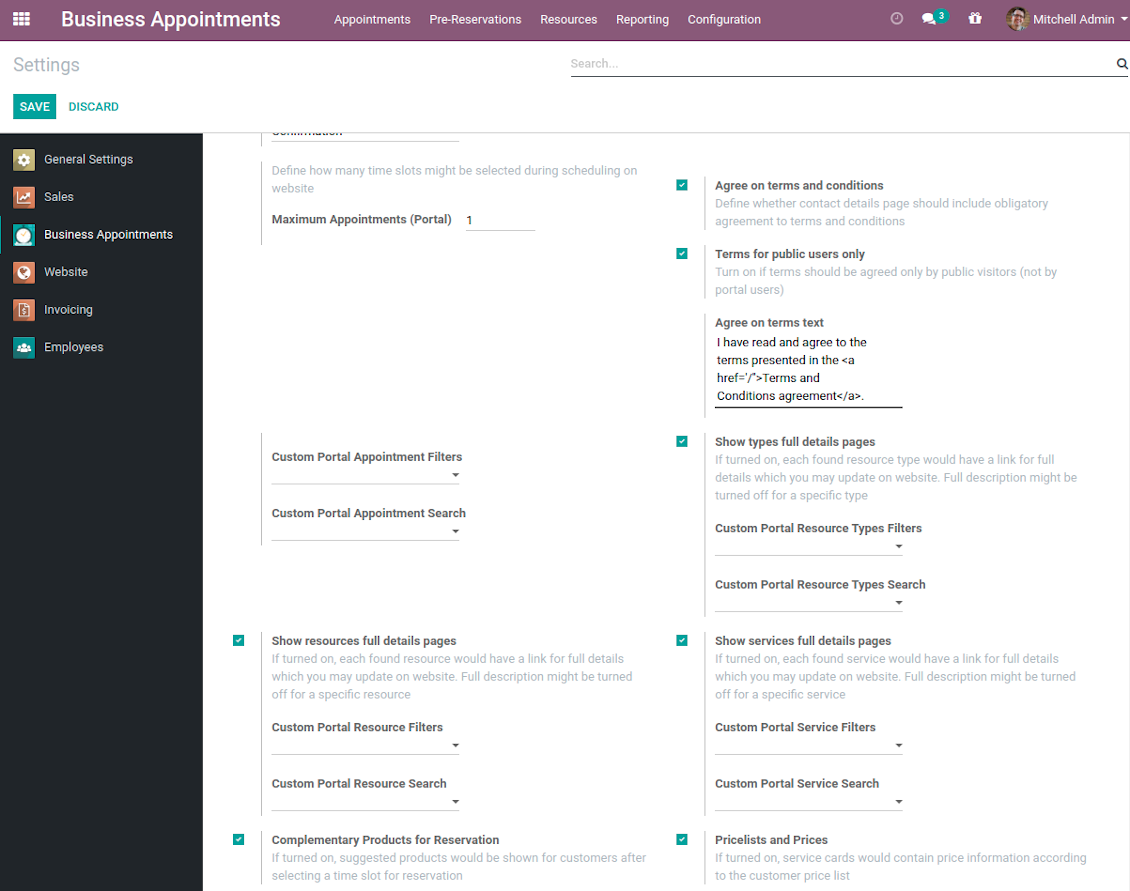
- Define filters and sorting criteria for resource types, resources, and service pages (on the configuration page). Here you can use custom fields.
- Show / hide agreement with terms and conditions for portal / public users (on the configuration page). Introduce your own text and link for that agreement.
- Prepare own full details pages for resource types, resources, and service using Odoo standard website builder.
Schermate
Customization of website pages structures
Time slots page customization
Custom introduction per all booking steps
Resource types selection page setup
Appointment configuration per website
Fully configurable website booking
Customer Ratings and Reviews
Client feedback is critically valuable for managing any service. This is why the tool applies Odoo rating features for appointments to automatically ask reviews. The feature is optional and might be turned on / off per each resource type.
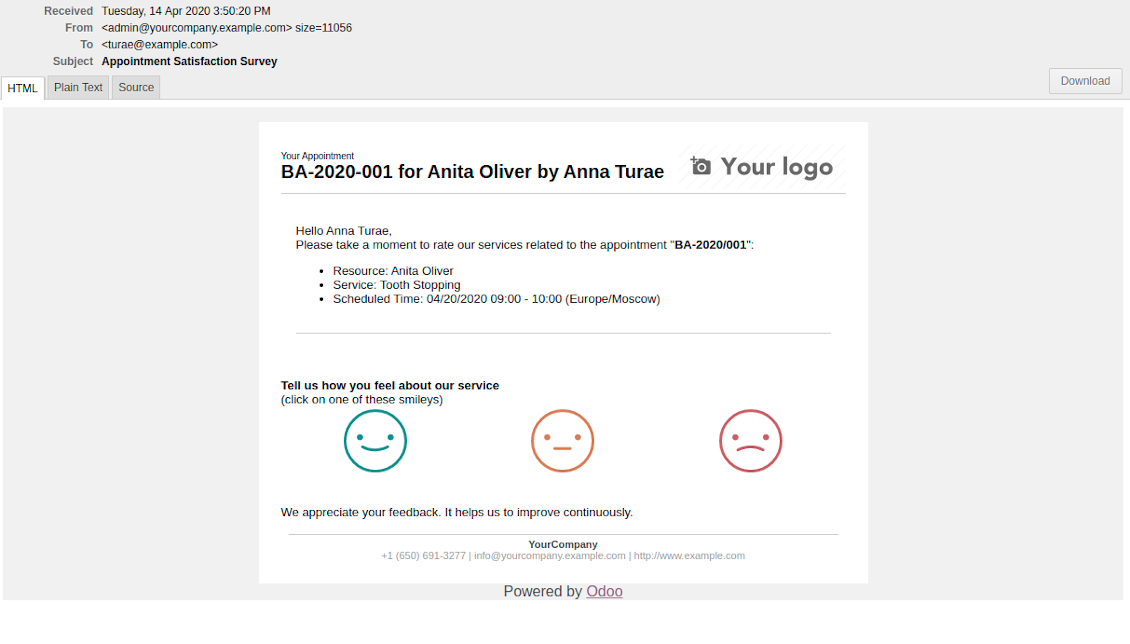
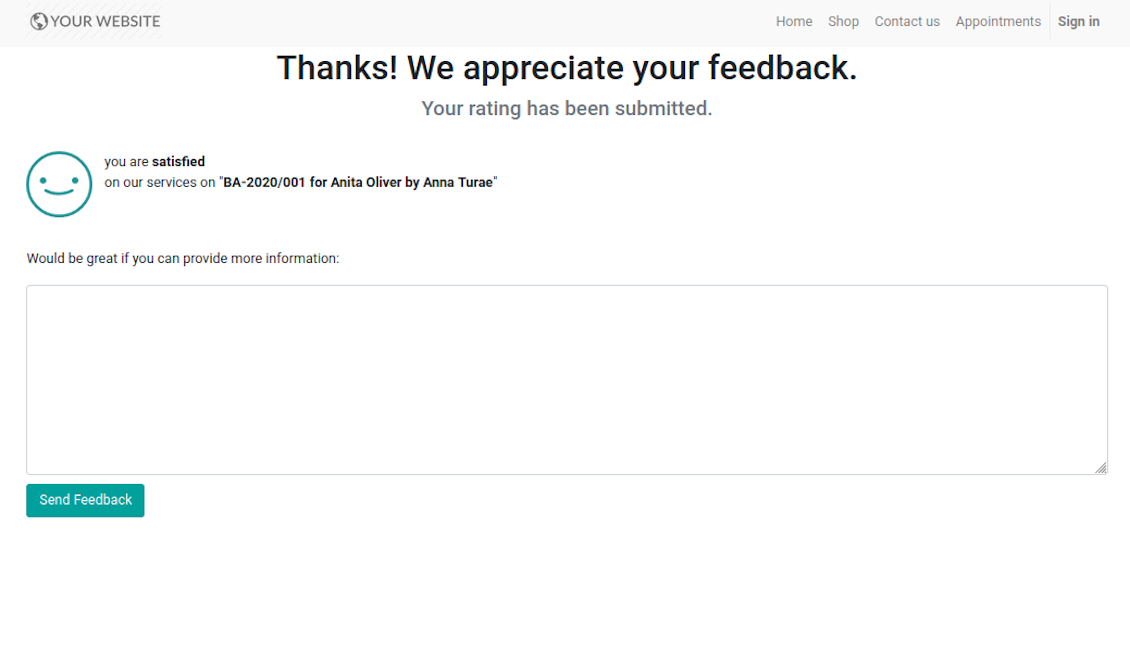
Feedback request is sent to a customer email as soon as a related appointment is marked done. Clients should just select among 3 simple "smiles": satisfied, not satisfied, highly dissatisfied. The choice is done right on the received email, which automatically redirects users to the page where they may optionally leave extra comment. Login is not required: page is available by access token.
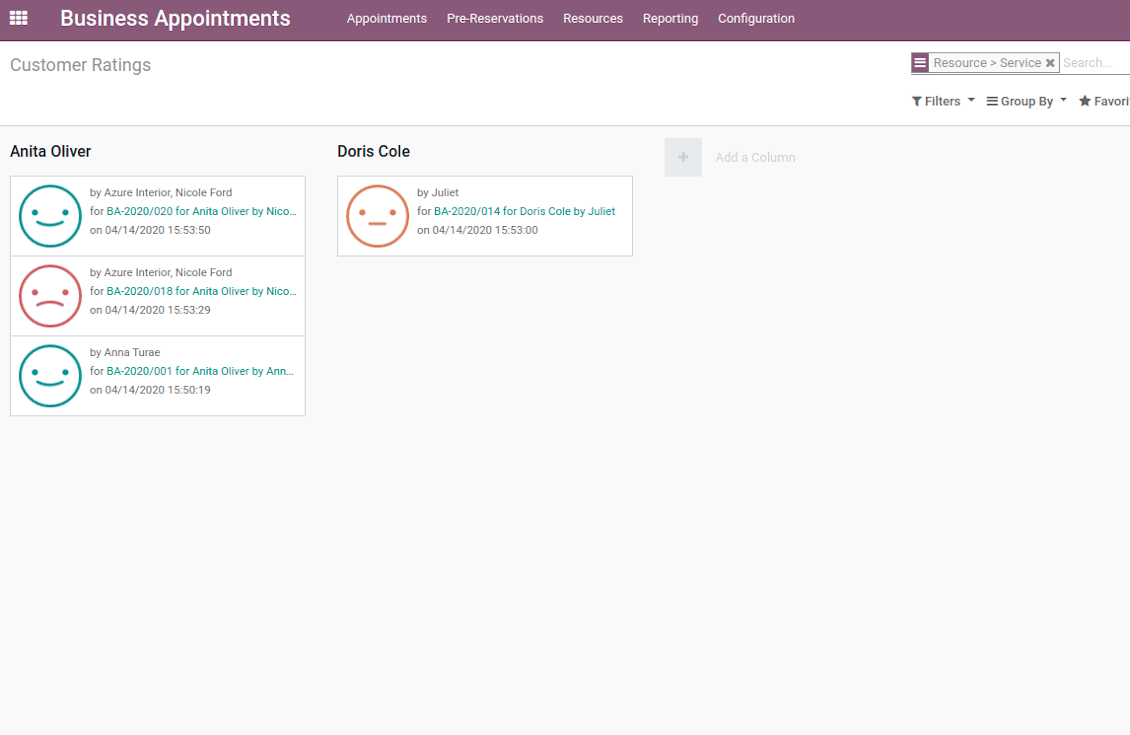
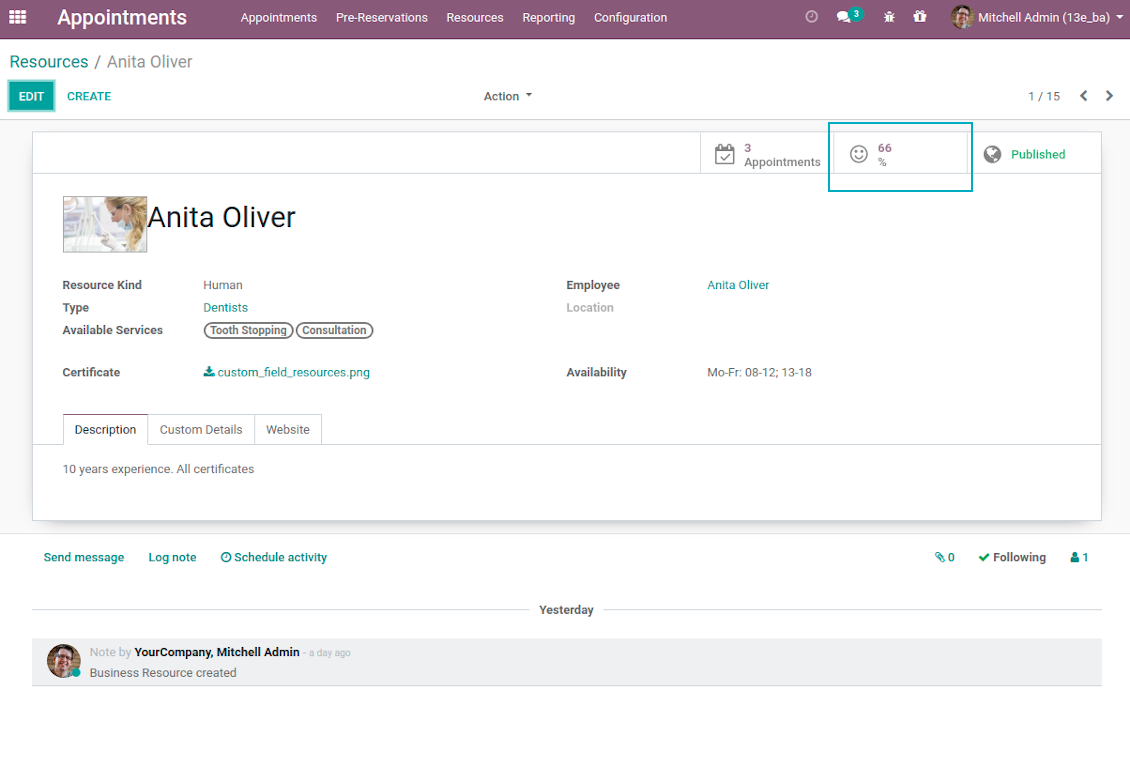
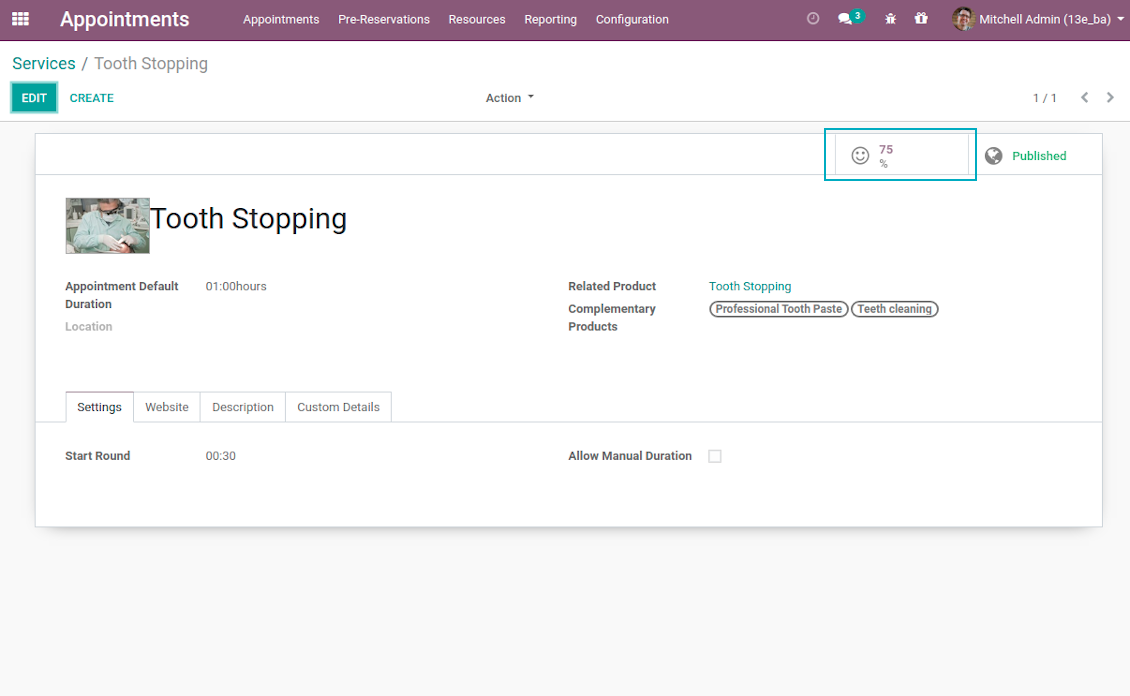
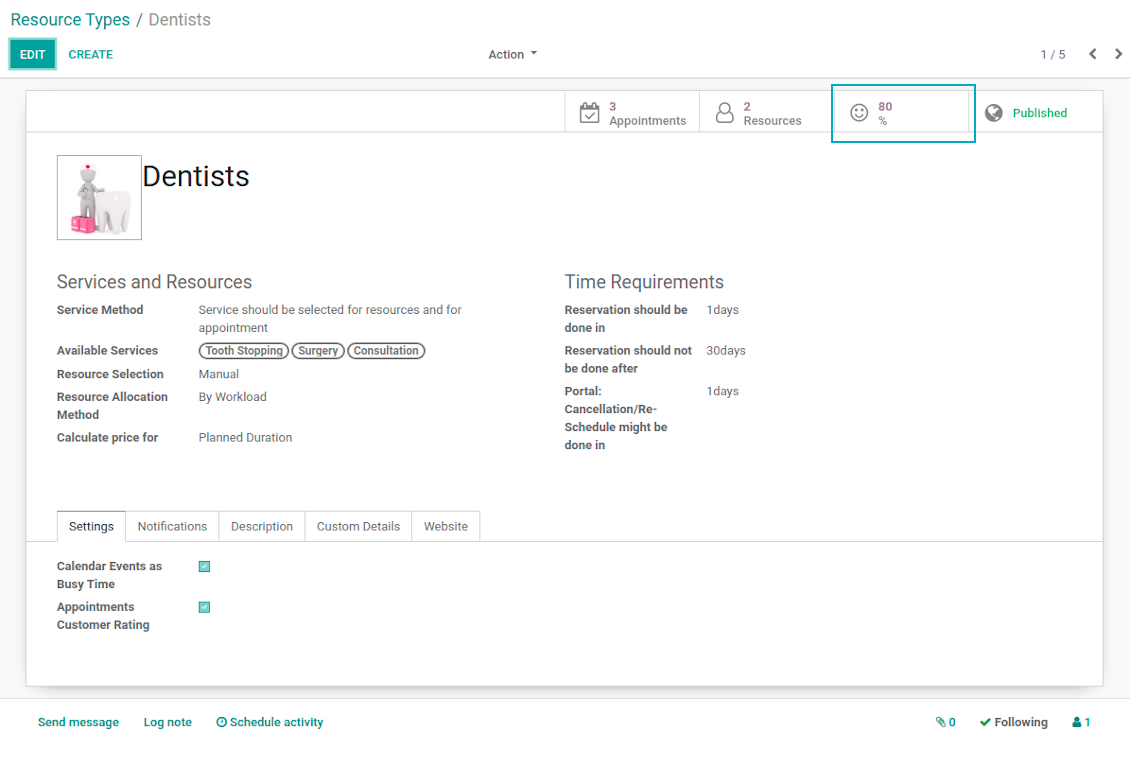
Final rating is calculated for resource types, resources, and services. The formula is =Number of Satisfied Reviews / Total Number of Reviews. You can simply evaluate feedback through the button from any named objects or through the special reporting menu.
Schermate
Feedback request is sent as soon as appointment is marked done
Review is left without need to register or login
Appointment feedback overview
Customer rating for resource
Client service evaluation rating
Review score for resource type
Custom Appointment and Business Details
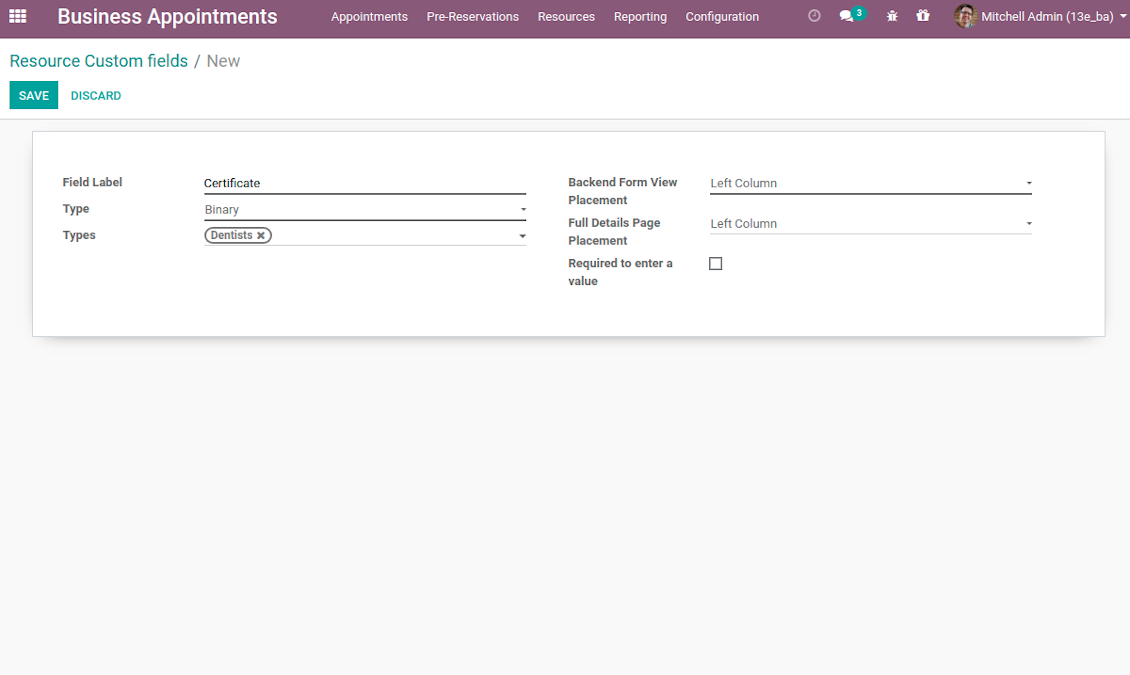
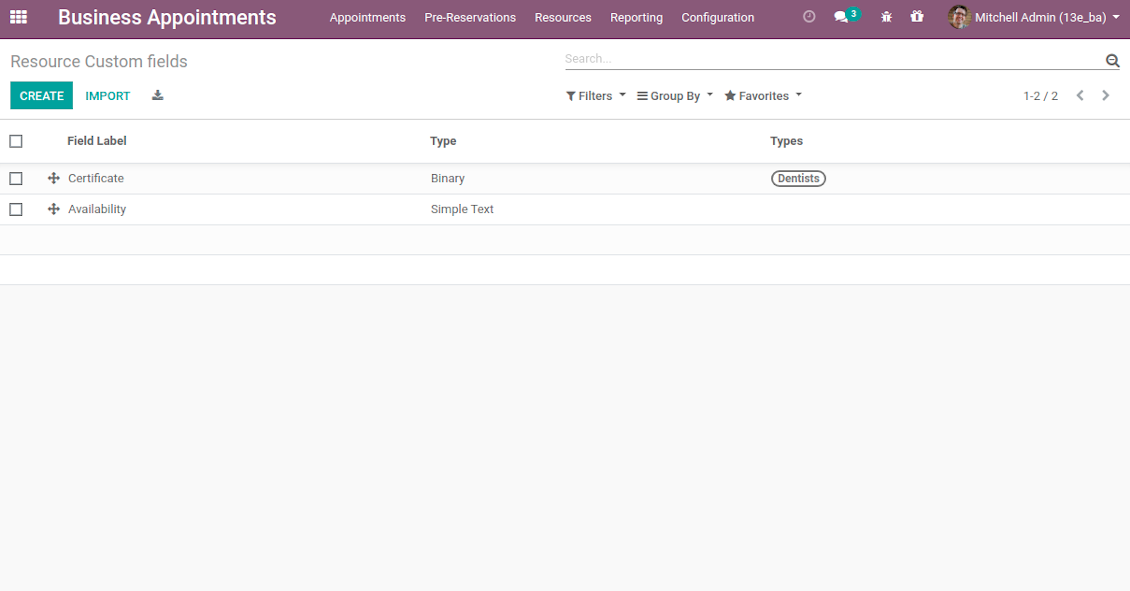
Often companies require specific information to explain their businesses and to fulfill certain tasks. To cover such needs the tool introduces custom fields which might be added to appointments, resource types, resources, and services. Adding a new custom field for any of those objects is as simple as creating a new document.
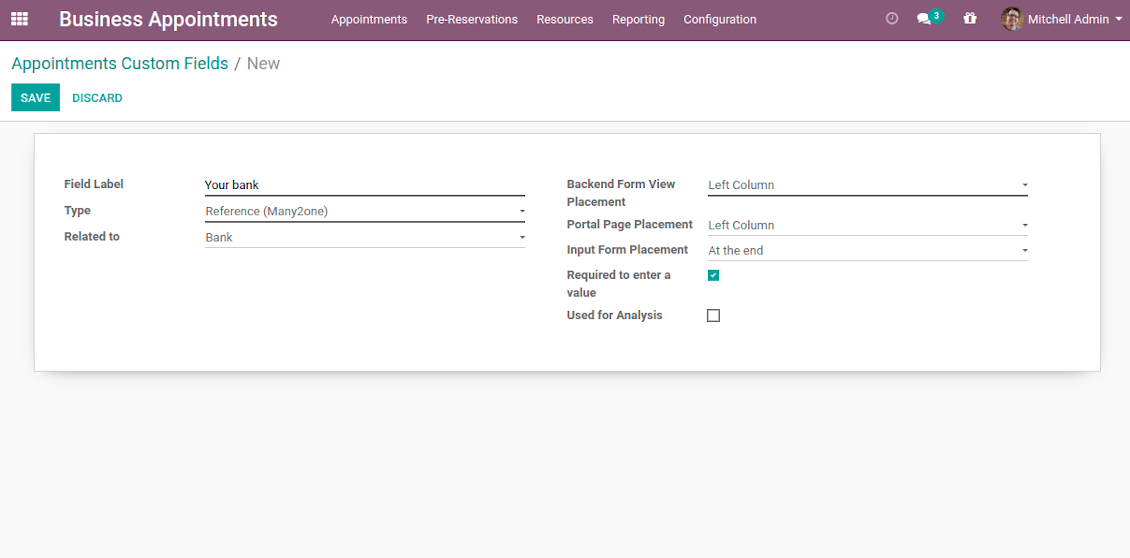
It is possible to prepare fields of various types: single line text (char), simple text without formatting (text), rich text (HTML-formatted text), integer and float numbers, drop-down choice with your own options (selection), checkbox (Boolean), date and date and time, binary (a file to upload), reference to another Odoo document (e.g. for a project task or a support ticket; many2one). Here you can also decide whether a field should be required to be entered before saving. Then, select an interface location where a custom fields should be placed:
- For appointments you may select location on a form view, portal page and website contact details confirmation page.
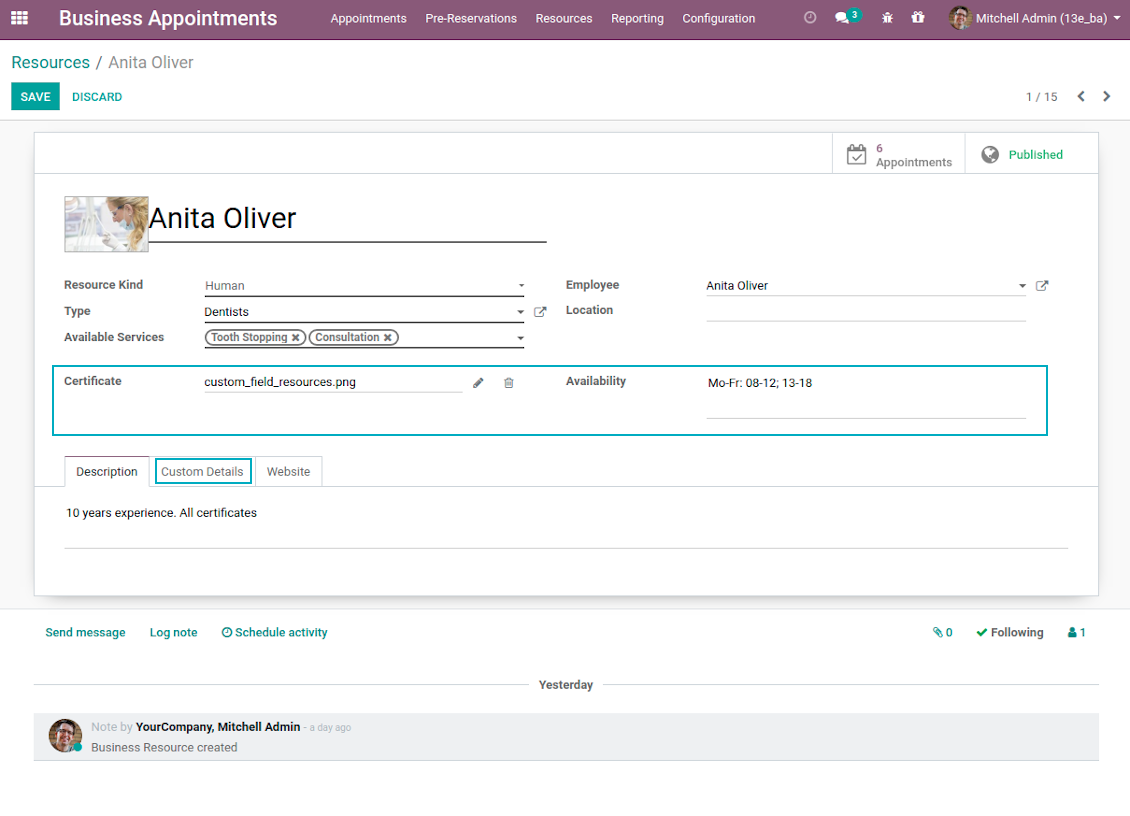
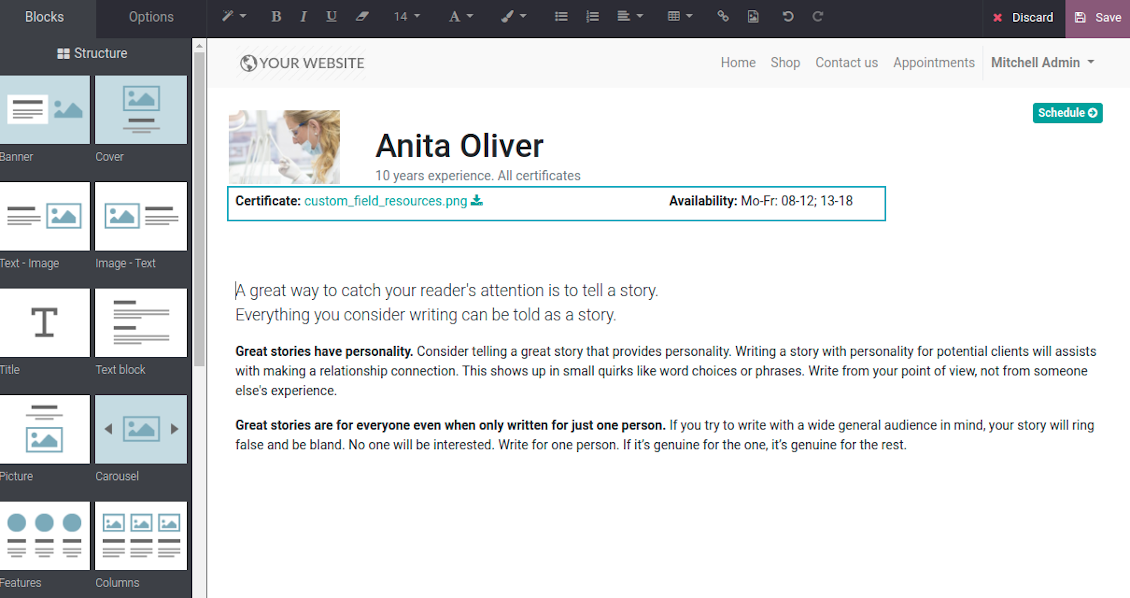
- For resource types, resources, and service you may add fields also for form and for website full details pages. Besides, you may have different resource fields depending on resource type (for example, dentists details differ from car details).
Schermate
Add custom details for appointment
List of appointment custom fields
Website reservation custom fields
Booking with custom fields: backend form view
Appointment custom details: portal view
Introduce custom fields for resource types, resources, and services
Unlimited number of custom fields for resources
Backend custom details for resource types, resources, and services
Full details page with custom fields
Portal Control of Reservations
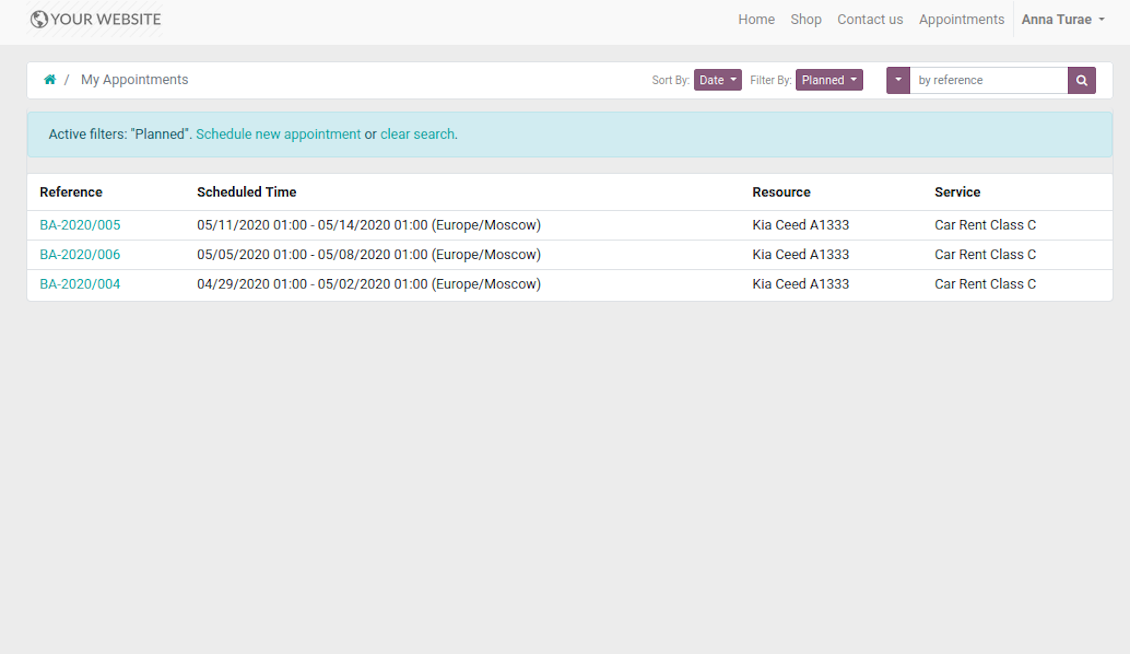
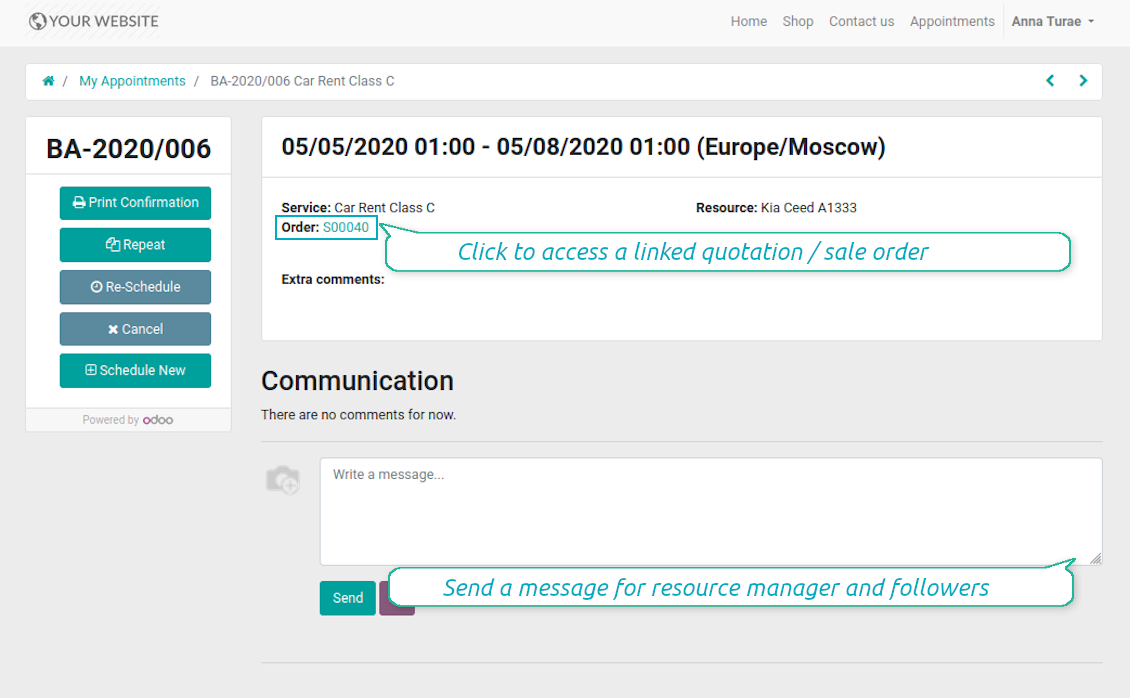
Customers may control their appointments right in Odoo portal. Here the whole list of open and closed bookings is available. Users might schedule new or repeat existing reservation, cancel or re-schedule planned ones. Each appointment also has chatter box which allows direct communication with resource manager and other followers.
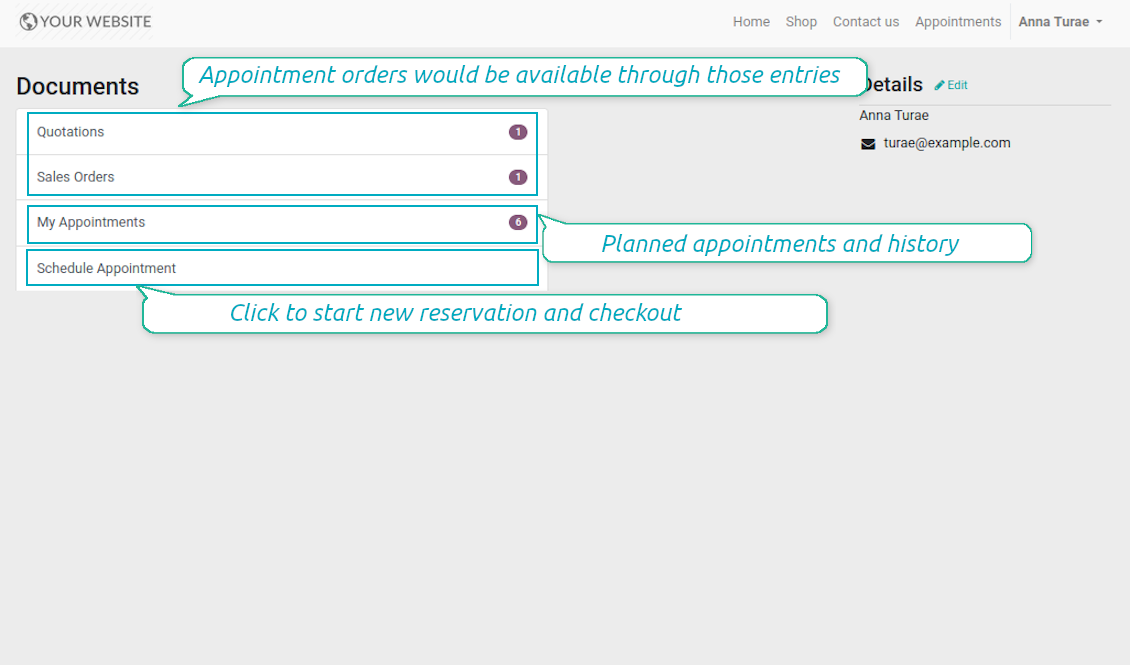
Besides, if appointment has a linked sale order (sent, confirmed or done) it would be also available through the standard portal entries Quotations and Sale Orders.
Schermate
List of appointments in portal
Manage appointment in portal
Bookings and orders in portal
Multi Websites and Multi Service Businesses
The tool is fully compatible with multi companies and multi website environments. Thus, it is possible to assign resource types, resources, and services for various contexts. In such way, you may organize a range of service businesses with different specifics using the same tool in a single Odoo database.
In particular, the most of online appointment features are configured per website. Even titles of progress steps, custom filters and sorting criteria, contact details fields are possible to re-define per each portal environment. For example, you are welcome to have car rental on one website, and beauty salon on another.
Configurable Reminders
Missed or delayed appointments cause direct profit and reputation losses for service businesses. The way to significantly decrease such losses is to remind managers and customers about reservations at the right time. The tool introduces the configurable alarm system which might be set up according to your own company principles.
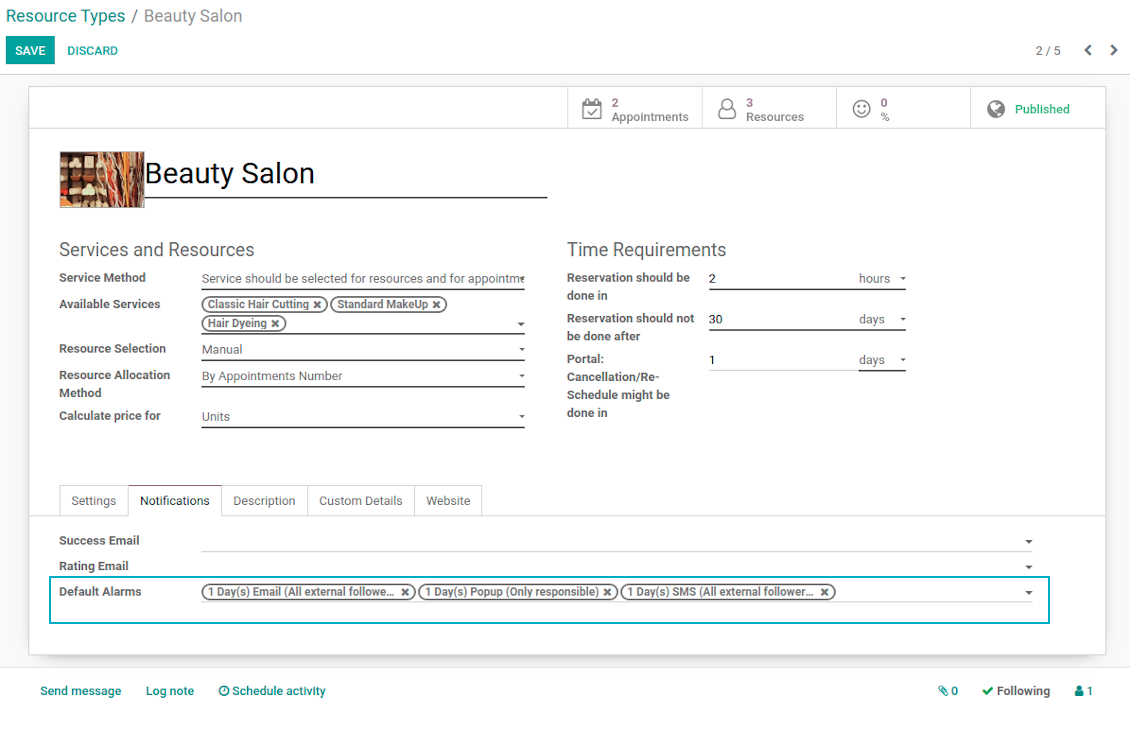
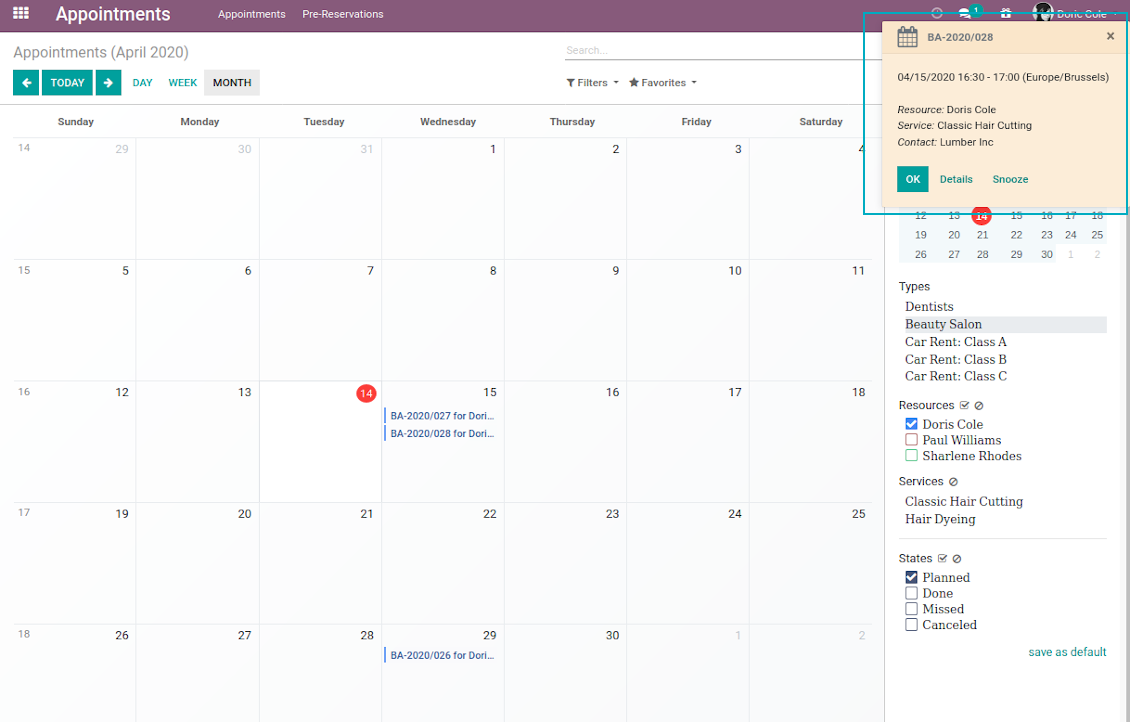
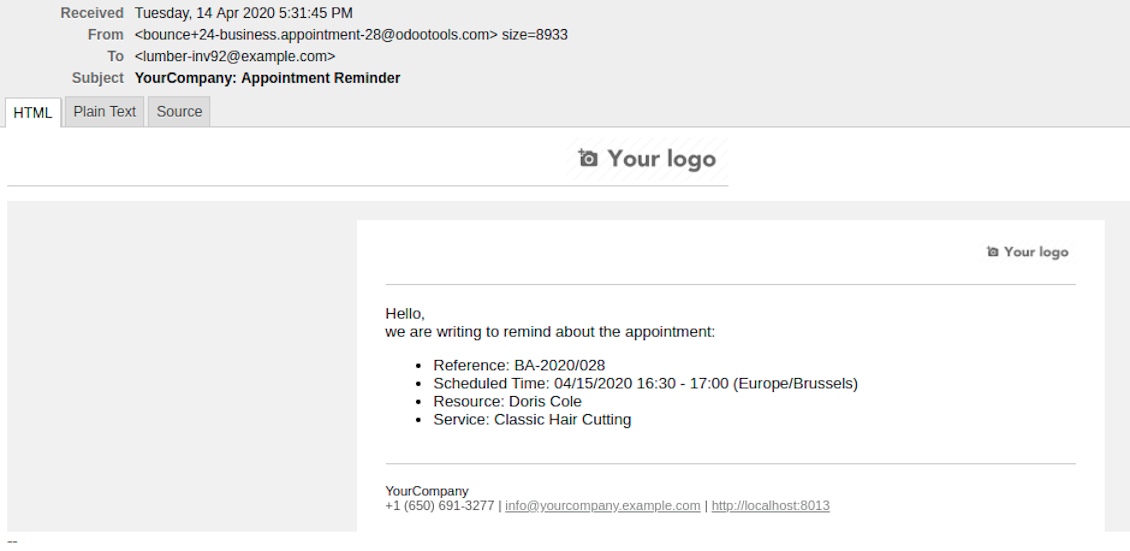
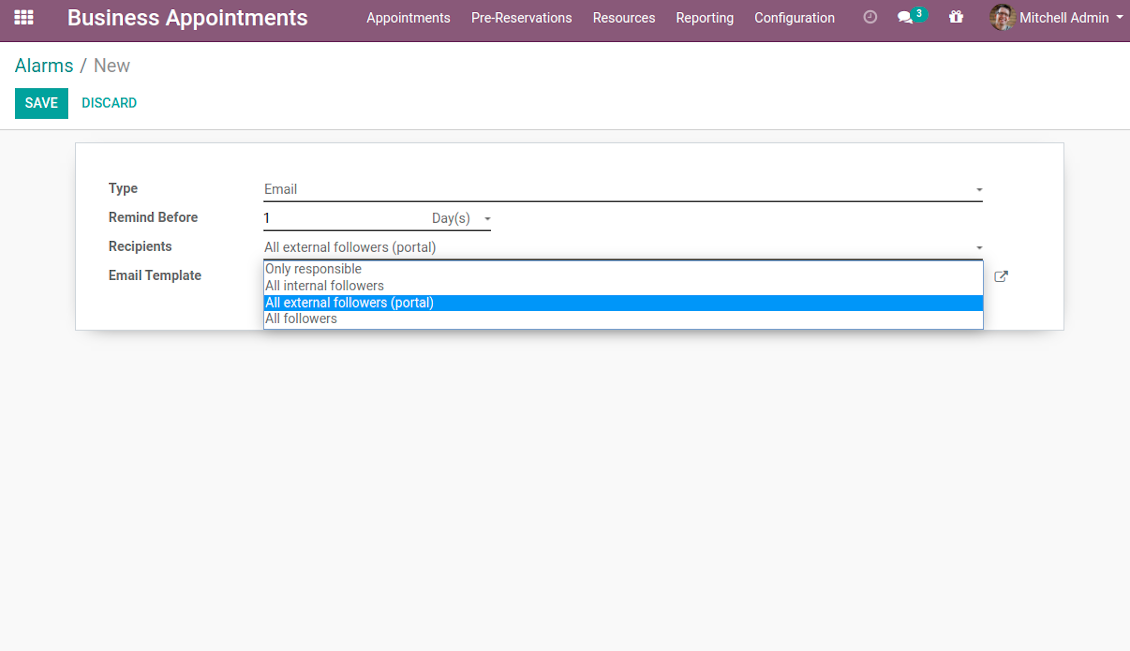
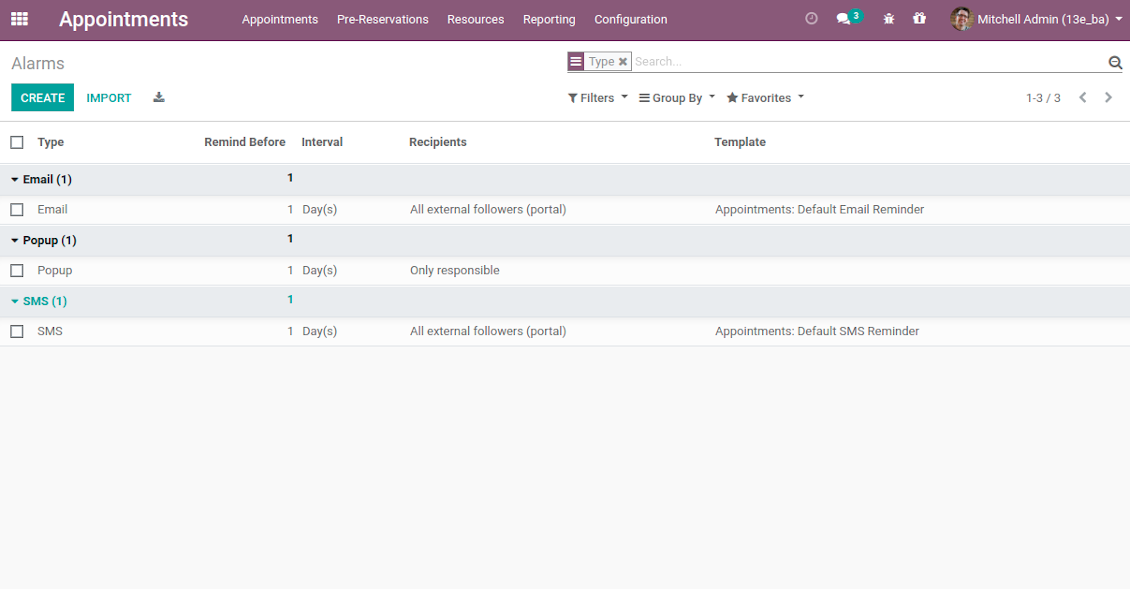
The app allows to prepare 3 types of alerts: popups, emails, and SMS. You can quickly create those trough the special configuration menu entry. Then, you may select default alarms for each resource type. Such alarms would be automatically applied to all new appointments of this type. So, there would be no need to manually add reminders for each, although their update would be possible (for example, to have unique notifications for very specific appointments). For each reminder you should define:
- Whom not notify: a responsible manager, external followers (clients), internal followers, or all followers. Popup alarms are available only for backend users.
- A period for alert: it is possible to apply time range in days, hours, or minutes. For instance, 2 days before scheduled date.
- For SMS and email alarms you should also specify a template which would be rendered based on a definite appointment details.
Take into account that SMS reminders are sent using the Odoo SMS server. So, make sure that you have sufficient balance for Odoo SMS IAP.
Schermate
Default appointment alarms are configured per resource type
Popup alarm for booking
Email notification for forthcoming appointment
Flexible reminder configuration: recipients, time, template
Configure your own appointment reminders
Secured Appointments
The tool introduces the own user rights system to make sure business data is secured. For backend users there are 2 groups which are allowed to work with appointments: "Appointments: Only Own" and "Appointments: Administrator". The latter users are allowed to manage all settings and update any appointment-related objects of their company(s). The former group has limitations:
- Users might only read resource types and services.
- Users might observe only resources, in which they are responsible managers or which do not have such managers at all.
- Users might create and update appointments related to resources which they can observe.
Portal and website security is based on different logic:
- All resource types, resources, and services should be website published in order to become available for selection for both public and portal visitors.
- Any visitor might schedule appointment and access resources / services without registration if you turned the option "Business appointments on website".
- Portal users have the same rights even the latter option is not turned on, but you switched the option "Business appointments in portal".
Misc Features
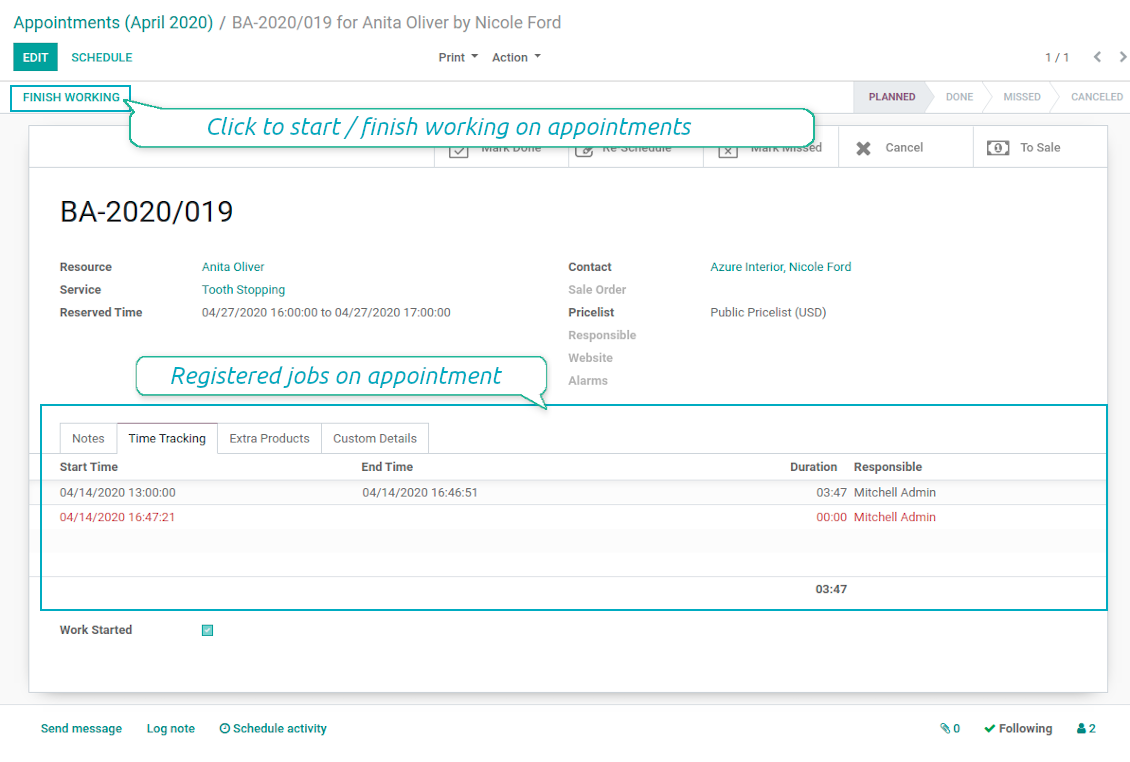
- The tool allows appointment managers to track time spent on providing service. This "real" time might be used not only for statistics, but also to calculate total appointment price.
- The tool let link resources and employees to automatically apply working calendars of the latter for appointments of this resource.
- All appointments have automatic numbers. You may change numbering logic (suffix, prefix, step, etc.) through configuring related Odoo sequence.
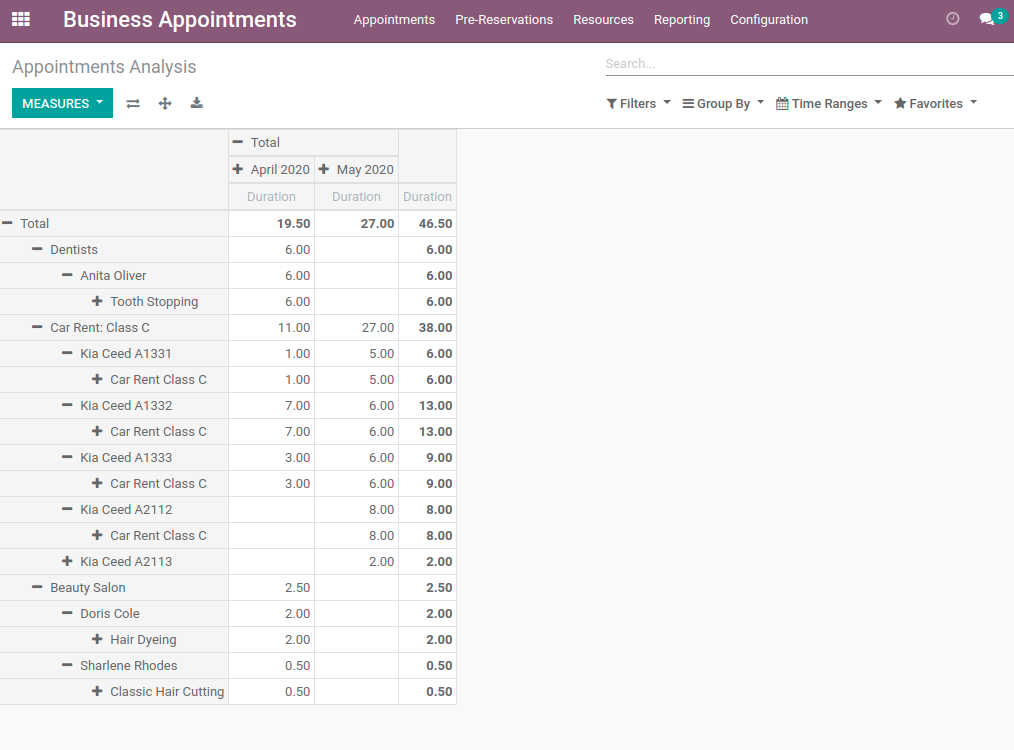
- The tool has an own report view, where you can analyze appointments on pivot and graph views.
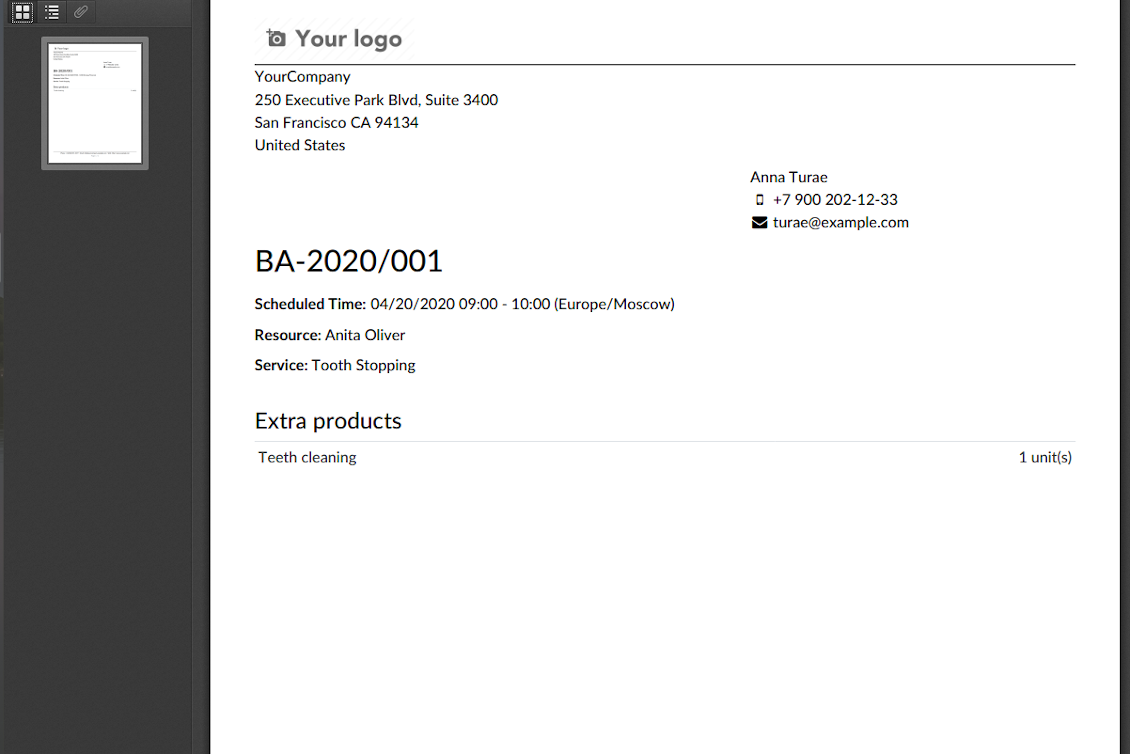
- Each appointment has a printing version which might be generated in backend and optionally in portal, and which is attached to all appointment confirmation emails. The printing version relies upon standard Odoo layouts, and might be also used as a service voucher.
Schermate
Appointment voucher
Appointments report
Track time and control jobs per appointment
Suggerimenti di configurazione e installazione per Universal Appointments and Time Reservations Odoo v.13
Python dependency
pip3 install phonenumbersDomande frequenti su Universal Appointments and Time Reservations Odoo v.13
Cos'e un voucher dell'appuntamento? Come lo modifico?
L'appuntamento ha un proprio allegato pdf (voucher). Questo allegato e generato automaticamente dai modelli web Odoo. Con certe competenze tecniche o con l'aiuto di un partner/fornitore Odoo e possibile modificare quel modello (come si fa per preventivi, fatture, ecc. di Odoo). Per impostazione predefinita usa il layout aziendale standard introdotto nell'app.
E possibile riservare piu servizi/risorse insieme in una sola prenotazione?
Nel backend potete attivare l'opzione ‘Multi scheduling’: il responsabile potrà creare piu prenotazioni per un cliente su servizi/risorse diversi e scegliere piu fasce orarie. Nel portale c'e l'opzione ‘Multi scheduling’. Consente al cliente di prenotare un servizio/una risorsa, ma per piu fasce. Per prenotare piu di un servizio/risorsa il cliente deve fare piu prenotazioni.
Che tipo di notifiche ricevono i responsabili degli appuntamenti?
Per responsabili/specialisti potete configurare iscrizioni per tipo di risorsa e risorse. Ad esempio, le notifiche sui nuovi appuntamenti sono collegate al sottotipo e-mail 'New appointments and recovering'. L'app consente anche di impostare promemoria per avvisare le parti coinvolte. Guardate l'app Appointments > Configurazione > Promemoria.
I clienti hanno conferma via e-mail e stampa di una prenotazione?
Non appena tutti i passaggi sono conclusi, il cliente riceve un'e-mail di conferma e viene reindirizzato per impostazione predefinita alla pagina di successo (a tale e-mail e allegato un pdf con un voucher). Nella pagina di successo e possibile stampare anche il voucher.
Cos'e una pre-prenotazione nella fase 'Waiting for confirmation'?
Quando un cliente inizia a prenotare un servizio e sceglie una fascia, questa diventa non disponibile per gli altri e avviene una pre-prenotazione. Per renderla di nuovo disponibile, impostate il tempo massimo della prenotazione. Dopo quel tempo, se il cliente non ha completato, la fascia torna disponibile.
Per impostare il tempo di pre-prenotazione:
1. Aprite l'app Appointments
2. Andate su Configurazione>Configurazione
3. In 'Maximum Period for Pre-Reservation' impostate il tempo
Se abbiamo piu filiali, possiamo dividere le risorse per filiale?
La divisione delle risorse puo essere configurata in modi diversi. Un approccio e il multi-aziende Odoo. Creando tipi di risorsa/risorse/servizi potete indicare l'azienda. Oppure renderli ‘global’, legati a tutte le aziende. Così l'insieme puo differire per azienda.
E anche possibile impostare il processo di appuntamenti in modo diverso su siti/filiali diversi. Scegliete il sito web che mostra un dato tipo di risorsa/risorse/servizi. Le filiali possono riguardare ambiti diversi: un sito per lezioni di inglese e il secondo per prenotare in palestra.
Anche senza assegnare aziende o siti diversi potete impostare appuntamenti per ambiti diversi. L'app e fatta perché decidiate voi quale passaggio collegare alle attività. Ad esempio un tipo di risorsa come clinica dentale in centro e un altro come odontoiatria chirurgica in zona residenziale. Così, con i tipi di risorsa, gestite filiali e dividete le risorse anche senza un ambiente multi-aziende.
E possibile selezionare prima il servizio e poi la risorsa?
Un utente puo prenotare senza creare un account?
Si, un utente puo creare un appuntamento senza account, ma solo la prima volta. Quando una persona prenota, la sua e-mail resta riservata in base e non puo essere riusata. Per le registrazioni successive o i contatti esistenti occorre accedere per prenotare.
L'utente puo iscriversi dall'e-mail di conferma o direttamente in Odoo. Il link di invito e di breve durata: se perde l'occasione, dovrà poi reimpostare una password o chiedere il vostro aiuto.
Come cambio la lingua delle e-mail di successo?
Per cambiare la lingua di un modello e-mail:
1. Assicuratevi che le lingue di destinazione siano installate nel vostro Odoo.
2. Poi attivate la modalità sviluppatore e andate su Tecnico > Modelli
3. Trovate il modello 'Appoints: Success Email'
4. Iniziate a modificare il modello e cliccate sull'icona lingua in alto a destra del modello dell'articolo.
5. Vedrete il corpo dell'articolo in tutte le lingue di sistema. Traducete a mano l'e-mail della lingua di destinazione, senza cancellare il codice. Salvate.
Poi cambiate anche la lingua del contatto (sulla scheda contatto, campo 'Lingua'). Tali contatti riceveranno l'e-mail in quella lingua.
Se una persona prenota per la prima volta sul vostro sito, per impostazione predefinita le viene assegnata la lingua del sito aperto. L'e-mail di conferma parte in quella lingua.
Cosa indica il campo 'Start Round' sulla scheda servizio?
Il campo 'Start round' arrotonda l'ora a questo valore, per evitare orari poco presentabili. Ad esempio, se ora sono le 9:48 e devo prenotare un servizio non oltre il giorno prima, il primo orario di domani sarà 9:48, poco comodo. Se arrotondate a un'ora (01:00), l'orario disponibile sarà 10:00.
Per altre opzioni ed esempi di arrotondamento ('Guida'), passate il mouse sul titolo del campo.
Non mi piace l'aspetto delle e-mail / SMS generate
Potete personalizzarli. I modelli sono nei menu Configurazione > Notifiche > Modelli e-mail e Modelli SMS.
Inoltre potete usare modelli diversi per tipi di risorsa diversi. Aprite un qualsiasi tipo di risorsa > Notifiche.
Non mi servono tutti i passaggi nella prenotazione sul sito. Posso escludere / nascondere alcuni?
Lo strumento lo fa gia automaticamente:
se c'e un solo tipo di risorsa pubblicato, il primo passaggio non viene mostrato;
se l'allocazione della risorsa e automatica o c'e una sola risorsa pubblicata, il secondo passaggio viene saltato;
se c'e un solo servizio pubblicato per il tipo di risorsa / le risorse scelti, il terzo passaggio viene saltato.
L'unico passaggio da configurare e la pagina di conferma: potete attivarla /disattivarla nella pagina di configurazione.
Come cambiare il numero di riferimento dell'appuntamento?
Quali sono le politiche di aggiornamento dei vostri strumenti?
Secondo le politiche attuali dell'Odoo Apps Store:
- Ogni modulo acquistato per la versione 12.0 o precedente da accesso a tutte le versioni fino alla 12.0.
- Dalla versione 13.0 ogni versione del modulo va acquistata separatamente.
- Indipendentemente dalla versione, l'acquisto da diritto a tutti gli aggiornamenti e le correzioni entro una major version.
Il team faOtools non controlla queste politiche. Per qualsiasi domanda, contattate direttamente i rappresentanti dell'Odoo Apps Store.
Come installo l'app su Odoo.sh?
L'approccio piu diretto e il flusso integrato dello store Odoo:
1. Apri la pagina del modulo e fai clic su Deploy on odoo.sh
2. Verrai reindirizzato a GitHub. Accedi e fai clic su Create a new repo o usa uno esistente. Il repository deve essere privato. Non e consentito pubblicare le app con licenza OPL-1. Se serve, crea un nuovo repo per il progetto Odoo.sh
3. Poi, in odoo.sh, fai clic su Deploy, conferma e fai clic su Continue. Parte l'installazione.
Questi passaggi installano l'app sul branch di produzione. Per altri branch o per aggiornare:
1. Scarica il codice sorgente dallo store Odoo
2. Esegui il commit del modulo nel repository GitHub. Nessuna cartella/file dell'app deve essere in .gitignore. I repo creati da odoo.sh a volte ignorano percorsi importanti (es. /lib). Carica tutte le directory e i file del modulo
3. Esegui il deploy del branch di destinazione del progetto odoo.sh oppure attendi la build automatica se previsto.
Come installo l'app sul mio server?
2. Riavvia il server Odoo;
3. Attiva la modalità sviluppatore (impostazioni tecniche);
4. Aggiorna l'elenco delle app (menu Applicazioni);
5. Trova l'app e premi Activate/Install;
6. Segui le linee guida nella pagina dell'app, se ci sono.
L'app ha componenti extra. Posso acquistarli dopo?
Si. Odoo aggiunge automaticamente le dipendenze al carrello: escludi gli strumenti gia acquistati per non pagare due volte.
Ho distribuito l'app su Odoo.sh e vedo un avviso/errore nei test
Un avviso rosso/arancione non influisce sulle funzioni dell'app. A volte i nostri moduli non superano i test automatici standard perché questi assumono un comportamento in conflitto con gli obiettivi dell'app. Ad esempio cambiamo il calcolo del prezzo, mentre i test Odoo confrontano il prezzo finale con l'algoritmo standard.
Controllate prima le funzioni del database distribuito. Funziona tutto?
Se pensate ancora che l'avviso influisca sulle funzioni reali, contattateci e inviate i log di installazione completi e l'elenco completo dei moduli distribuiti (core e di terze parti).
Posso acquistare l'app direttamente da voi?
No, distribuiamo gli strumenti solo tramite lo store ufficiale delle app Odoo.
Vorrei uno sconto
Purtroppo non abbiamo i mezzi tecnici per prezzi individuali.
Posso installare l'app sul database Odoo Online (SaaS)?
No, le app di terze parti non si possono usare su Odoo Online. Odoo SaaS blocca questa possibilità.
Lo strumento dipende da altre app. Devo acquistarle?
Si, lo strumento richiede tutti i moduli indicati nelle dipendenze. Il prezzo sulla pagina dell'app le include gia.
Qual e il prezzo del modulo in dollari USA? Perché e cambiato?
Il prezzo dei nostri moduli e in euro. Lo store Odoo converte le valute secondo il proprio tasso interno. Quindi il prezzo in dollari USA puo cambiare quando il tasso viene aggiornato.
I testi dell'app e del sito web in lingue diverse dall'inglese sono realizzati con l'assistenza dell'IA e allineati alle traduzioni ufficiali di Odoo. Se noti un errore, invia un ticket di traduzione e lo correggeremo.
Segnalazione degli errori
Se riscontri bug o comportamenti incoerenti, non esitare a contattarci. Garantiamo di fornire soluzioni entro 60 giorni dall'acquisto e siamo fortemente interessati a migliorare i nostri strumenti anche dopo questo periodo.
Non hai bisogno di un numero di telefono o di una carta di credito per contattarci. Dovresti solo effettuare una breve registrazione via e-mail, che non richiede più di 30 secondi.
Includi nella richiesta il maggior numero possibile di dettagli: schermate, registri del server Odoo, una descrizione completa di come riprodurre il problema e così via. In genere sono necessari alcuni giorni lavorativi per preparare un piano operativo relativo a un problema (se viene confermato un bug) o fornire indicazioni su cosa fare (in caso contrario).
Richieste di funzionalità pubbliche e idee per moduli (sviluppo gratuito)
Siamo fortemente motivati a migliorare i nostri strumenti e saremmo grati per qualsiasi feedback. Se le tue esigenze sono di uso pubblico e possono essere implementate in modo efficiente, il team le includerà nella nostra lista di cose da fare.
Tale elenco di cose da fare viene elaborato regolarmente e non prevede costi aggiuntivi. Sebbene non possiamo garantire scadenze e progettazione finale, potrebbe essere un buon modo per ottenere le funzionalità desiderate senza investimenti e rischi.
Non hai bisogno di un numero di telefono o di una carta di credito per contattarci. Dovresti solo effettuare una breve registrazione via e-mail, che non richiede più di 30 secondi.

Lo strumento per strutturare gli allegati Odoo in cartelle e sincronizzare con Google Drive, OneDrive/SharePoint, Nextcloud/ownCloud, Dropbox, Amazon S3, Box e NAS. Gestione file. DMS
398€
Lo strumento per sincronizzare gli allegati Odoo con OneDrive in entrambi i sensi
487€
Lo strumento per sincronizzare gli allegati Odoo con Google Drive in entrambi i sensi
487€
Lo strumento per conservare le password in Odoo in modo sicuro e condiviso. Vault

Lo strumento per una knowledge base strutturata, interna ed esterna. KMS. Revisioni tipo wiki
398€
Lo strumento per impostare target KPI e controllarne il raggiungimento per periodo. Dashboard. Grafici

Lo strumento per gestire Odoo dalle chat IA tramite MCP. Claude. Qualsiasi IA con MCP.

Lo strumento per unire diversi eventi Odoo in pochi super calendari configurabili

Lo strumento per tradurre gli URL delle pagine del sito Odoo
38€