About Lost Messages Routing
Lost Messages Routing is an Odoo app that helps ensure no messages are lost. If an email can't be attached, it will be marked as 'lost' and added to the special view, from which you can attach it to the required document thread.
You can route both lost messages and any other messages that are stored in Odoo. Lost messages are kept in the special menu 'Lost Messages'. Ordinary messages are kept in the Odoo technical menu 'Messages'.
The app allows lost messages to be batch-addressed through the tree mass action. In such a way, a few messages might be added to the same Odoo document.
It is possible to restrict Odoo models to which messages might be routed. This way, responsible users can route messages only to allowed-for-routing models.
Configure Odoo to send notifications about lost messages. Choose users who should be warned.
The special user group 'Lost Messages Manager' has been introduced to manage lost messages. This is the only user type that can see the app and manage lost messages.
Convenient lost messages menu
Configurable notifications
Simple addressing and mass processing
Secured administration
Managing Lost Messages
A lost message is one that Odoo cannot automatically attach to any object's thread. The module Lost Messages Routing finds such messages using the standard Odoo mail fetching scheduled jobs and marks them as 'lost'. After that, the messages are moved to the special menu 'Lost Messages'.
The module Lost Messages Routing has a convenient interface that can be accessed in two ways. To open the Lost Messages menu:
1. Click on the app's icon on the main interface (visible only to the user group 'Lost Messages Manager')
2. In developer mode, go to Technical > Lost Messages (available for the system administrator).
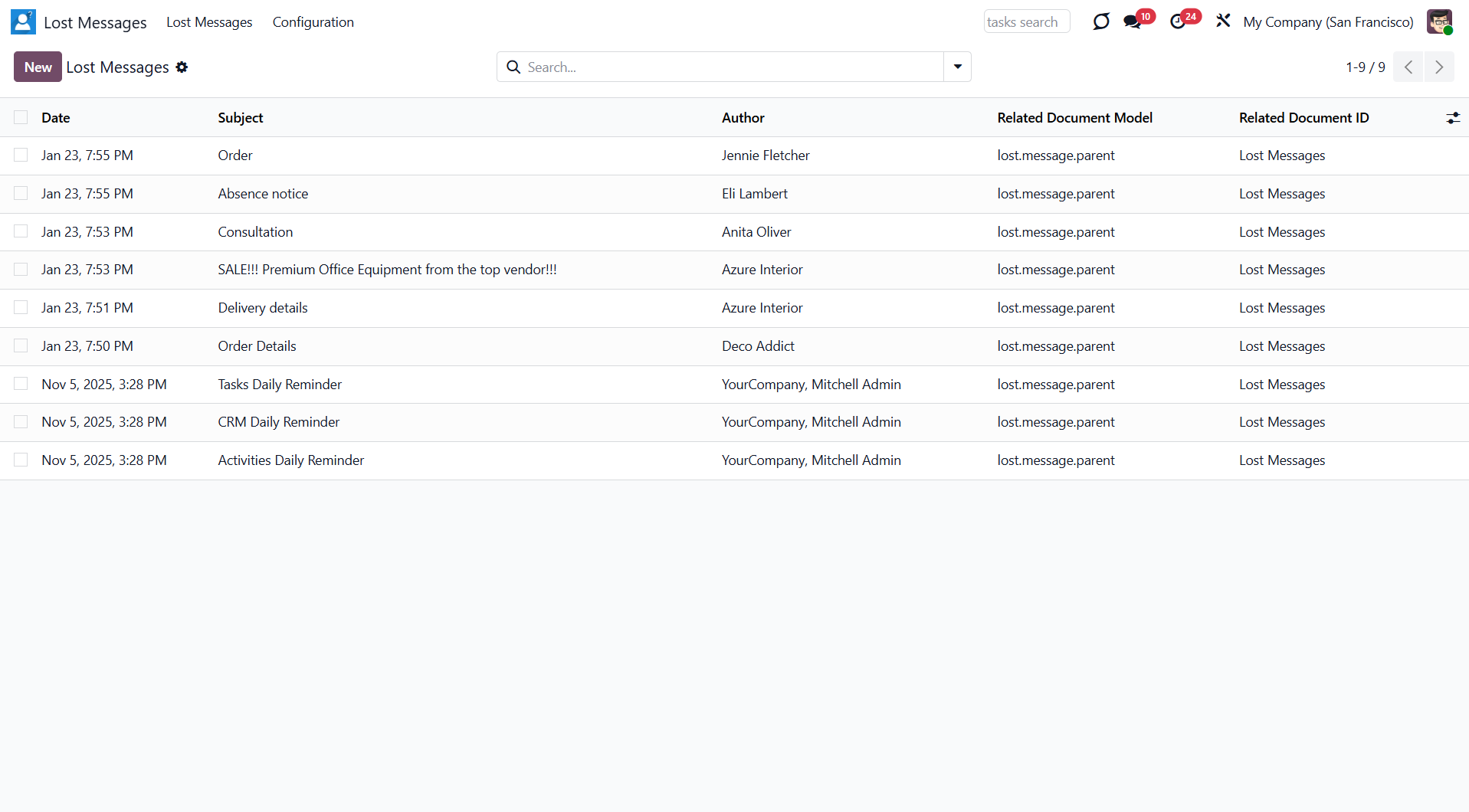
As you open the app, you see the same interface used in the 'Messages' section of the technical menu.
From the list view, you can see:
1. The date and time when the message was sent
2. The subject of the message, if any
3. The author of the message, if the sender's email is attached to one of the contacts.
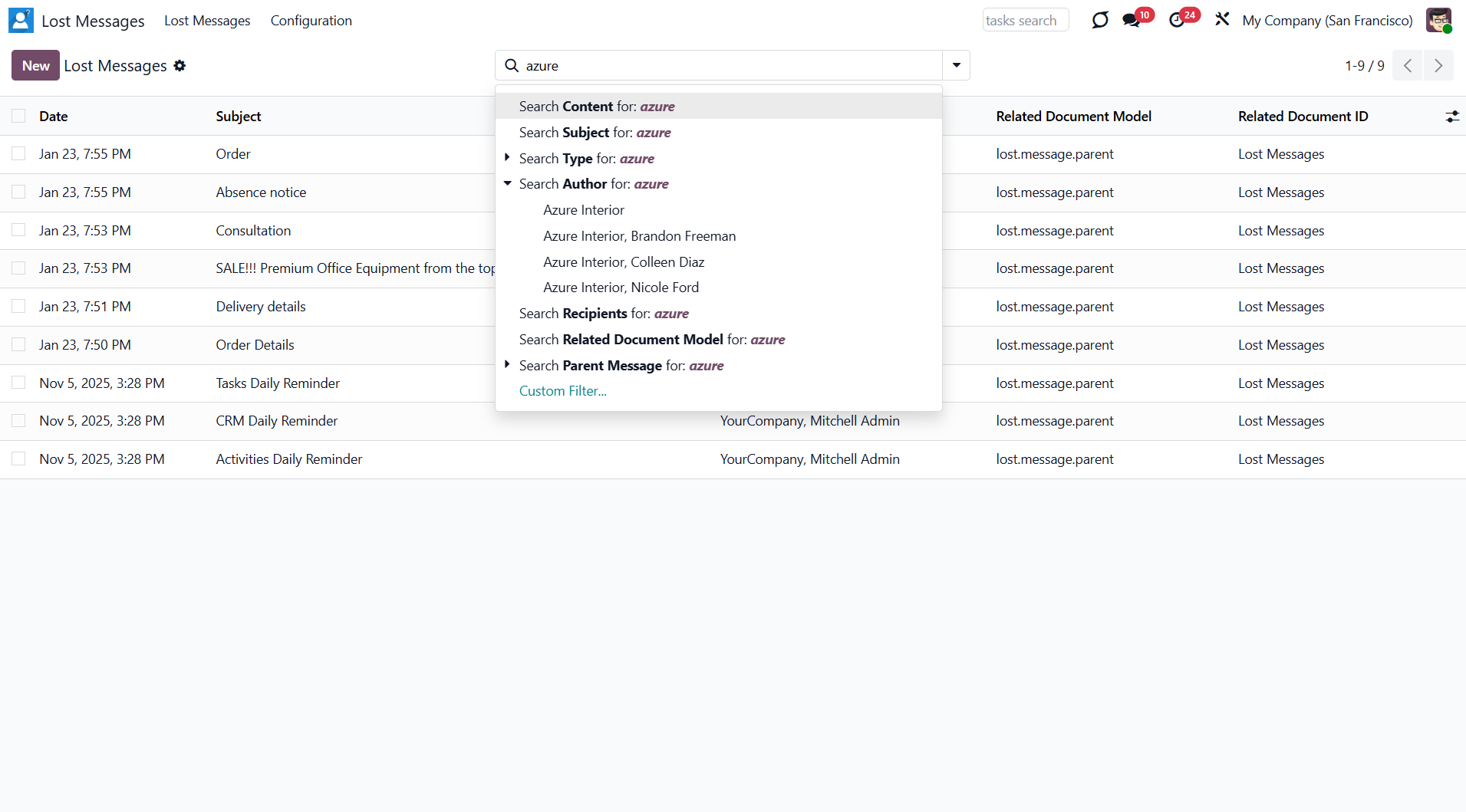
You can use the search bar to navigate through messages using various parameters:
1. Content
2. Subject
3. Author
Just start typing the word and choose the required option.
Routing Lost Messages
The module allows not only viewing lost messages but also attaching them to any object with a thread. You can either route a single message or several messages in a batch. Click a message to view its body and additional details. This information might help you decide which model and object the message relates to.
There are several ways to route a message:
1. After opening a message, by clicking the button 'Route Manual'
2. By selecting one or several messages from the list and choosing the action 'Route Manual'.
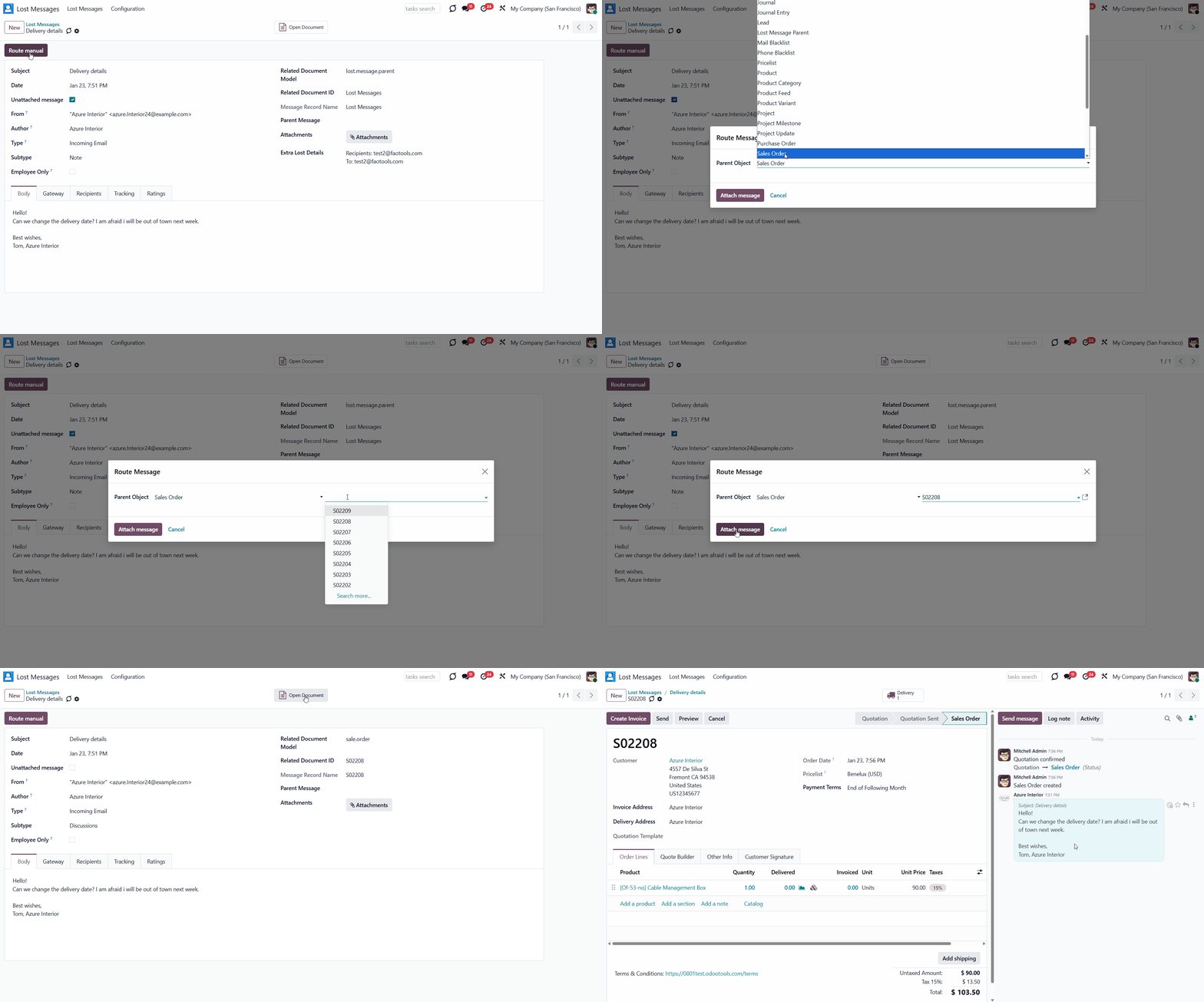
To route a single message:
1. Open a message
2. Click 'Route Manual'
3. Define a model and choose a parent object (click the icon to see the object). Only allowed models are seen and can be chosen for routing (see Configuring Models for Routing)
4. Click 'Attach Message'.
After routing, the message will be added to the thread of a chosen object. As it is no longer ‘lost’, it will be removed from the lost messages menu. The message will be stored with the ordinary messages in the technical menu ‘Messages’, where you can find it and reroute it again if necessary.
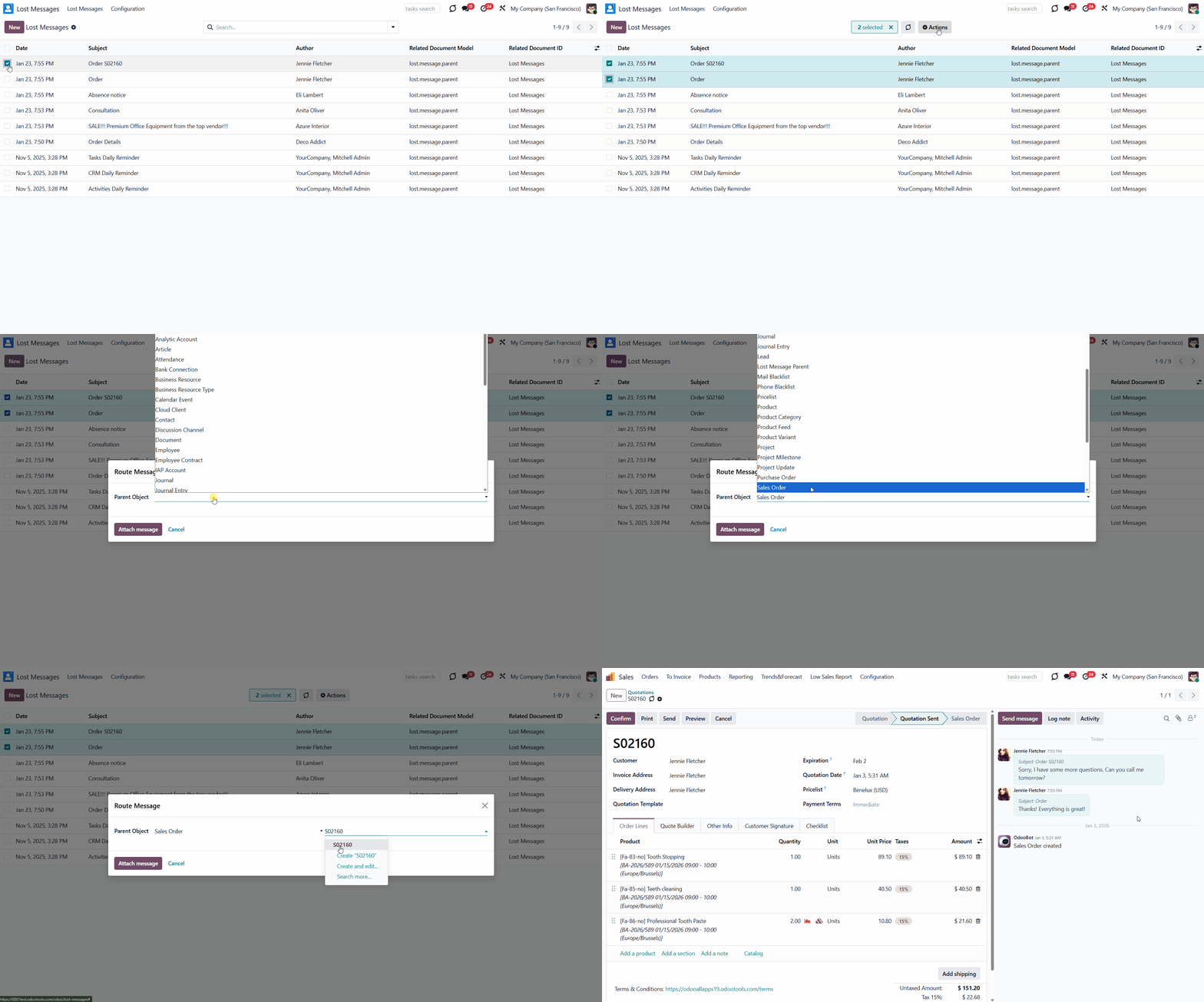
The app also allows batch addressing through the tree mass action. In such a way, a few messages might be added to the same Odoo document.
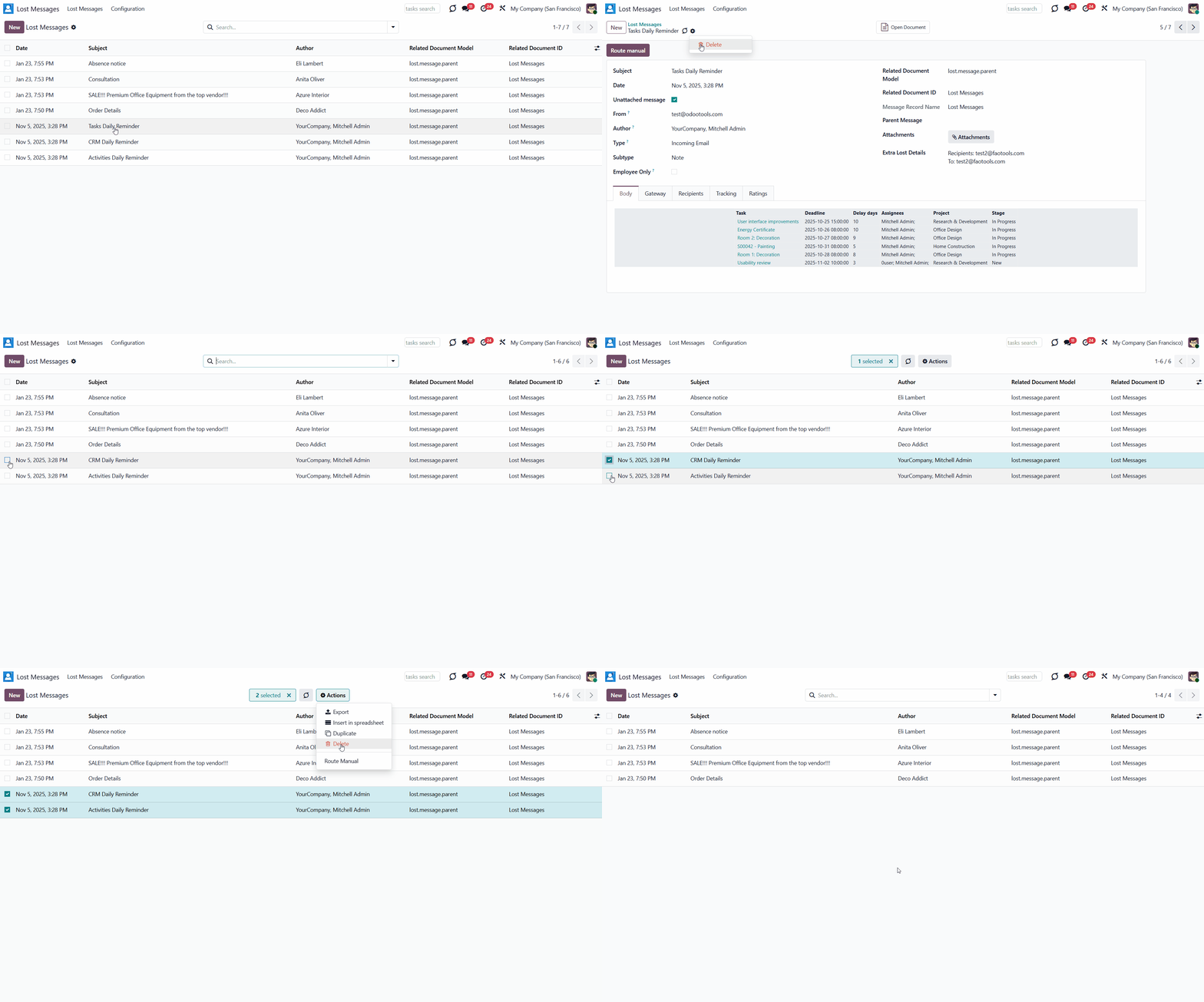
To route one, several, or all messages from the app's menu:
1. Select one or several messages by putting a tick in the box by the required message, or choose all by ticking the box above all messages
2. Click Actions > Route Manual
3. Define a model and choose a parent object (click the icon to see the object). Only allowed models are seen and can be chosen for routing (see Configuring Models for Routing)
4. Click 'Attach Message'.
After routing, the message will be added to the thread of a chosen object. As it is no longer ‘lost’, it will be removed from the lost messages menu. The message will be stored with the ordinary messages in the technical menu ‘Messages’, where you can find it and reroute it again if necessary.
Sometimes, it might be necessary to delete an object. For example, when it is spam. In this case, you can delete it by selecting the message in the main menu and choosing the action 'Delete'. Or, after opening it, click on the gear above and choose 'Delete'.
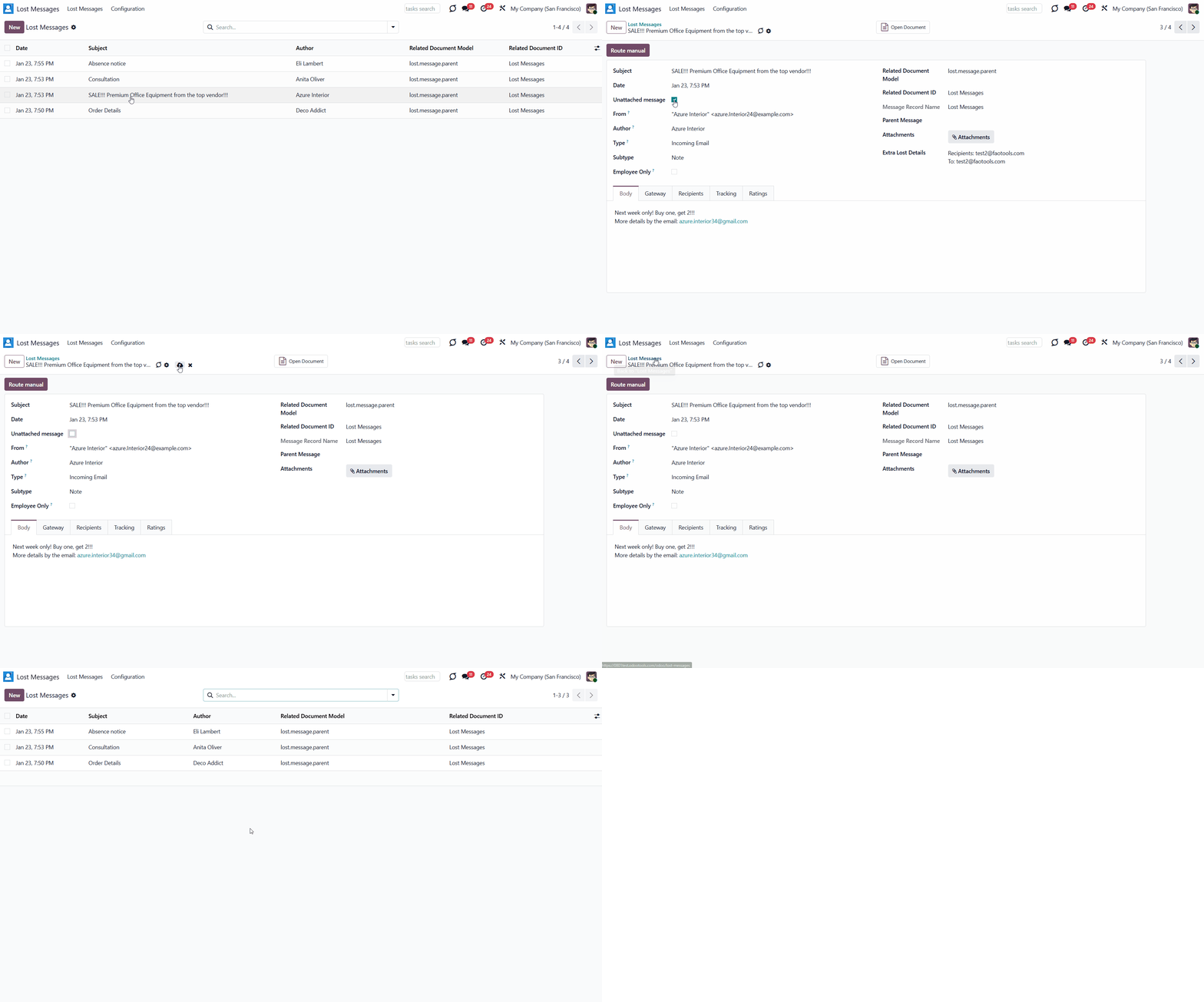
If the message is neither spam nor lost, you can remove the tick 'Unattached message' in the form. In this case, the message will disappear from the lost messages menu; however, it will still be accessible from the technical menu 'Messages'.
Routing Messages
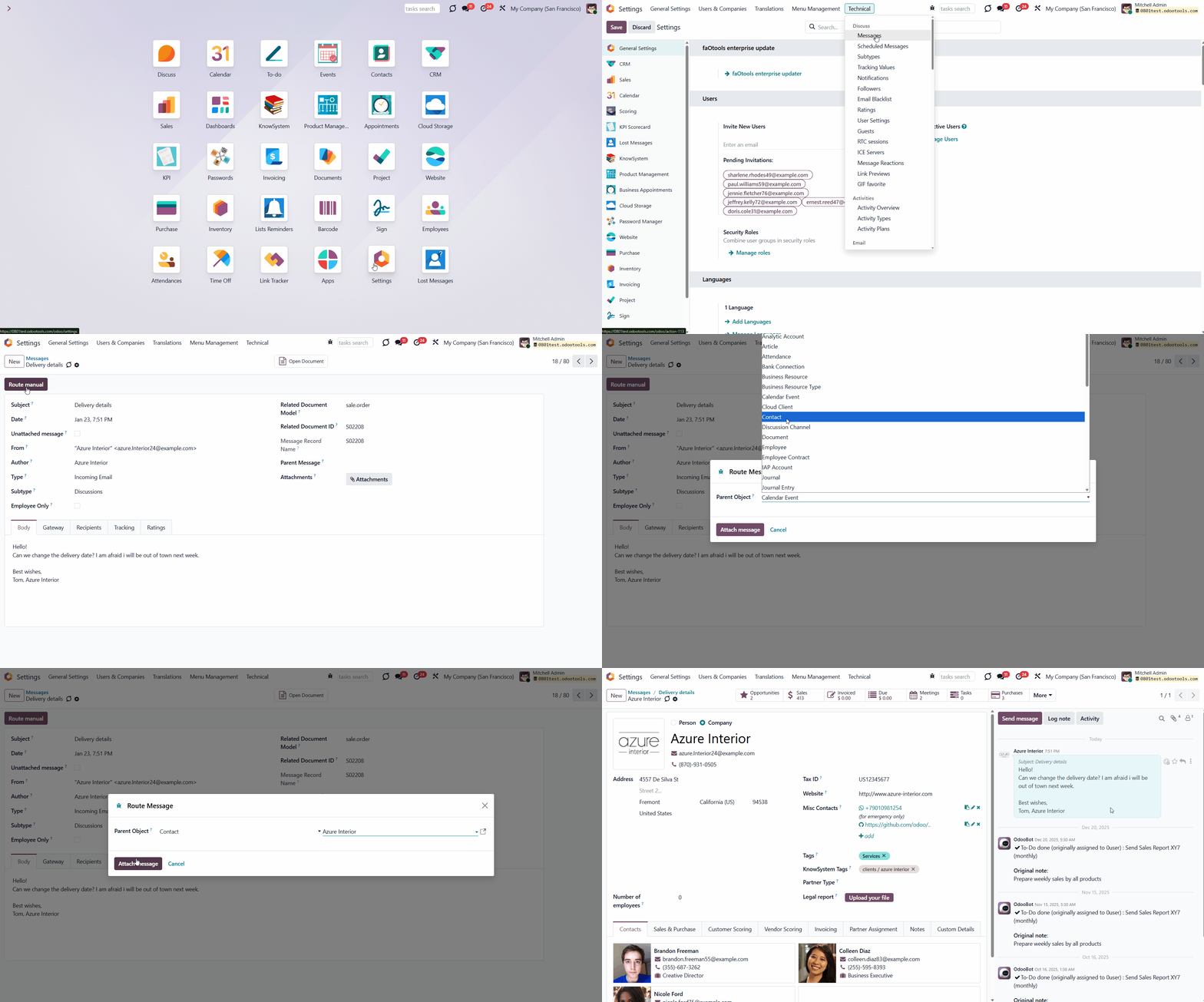
Any message stored in Odoo can be rerouted. It is beneficial in situations where a client has multiple orders and a message ends up in the wrong object's thread. This opportunity is available only to system administrators, as access to technical menus is required.
You can route the messages from the technical menu 'Messages', where all the messages are stored.
From here, it is also possible to reroute previously routed messages.
Configuring Models for Routing
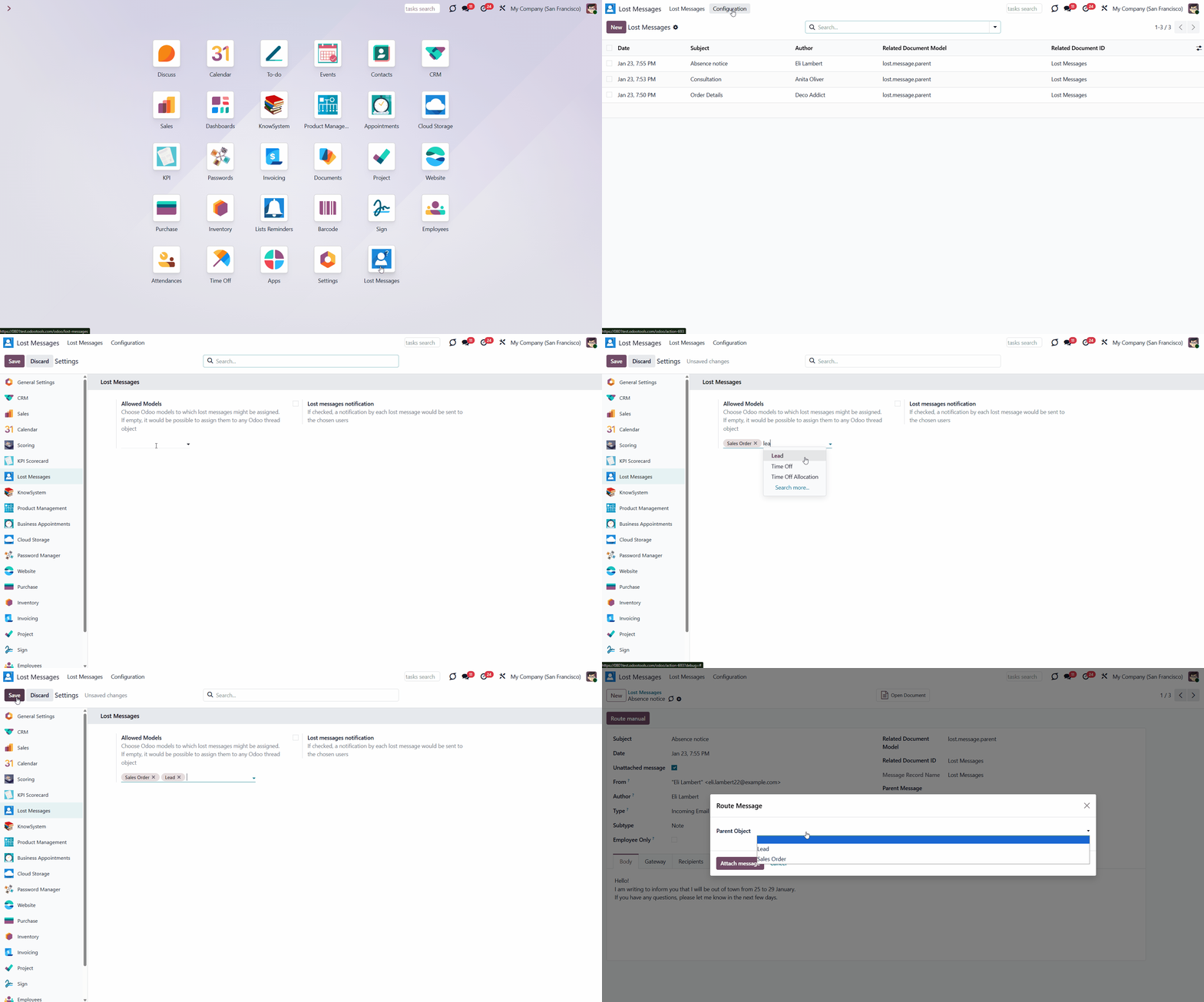
Restrict Odoo models to which messages might be routed. For that, open the module's settings by clicking the 'Configuration' tab, find the 'Allowed Models' field, define the models that can be used to route messages, and click 'Save'.
Let's select the 'Sales Order' and 'Lead / Opportunity' models as 'Allowed Models'. After that, it will be possible to add a lost message only to objects related to the models 'Sales Order' and 'Lead / Opportunity'. For example, you can add a lost message 'Change the delivery time' to the related object 'S00234'. In this case, it is also essential to have access to the object 'S00234' (see Access Rights).
Any model that assumes a communication thread, even a custom one, can be used for routing.
If the field is left empty, a message can be routed to any object with an Odoo email thread.
Lost Messages Notifications
To react quickly when a message is lost, you can set notifications. Choose the users who should be warned; if a message is marked as 'lost', they will be notified by email.
To configure notifications:
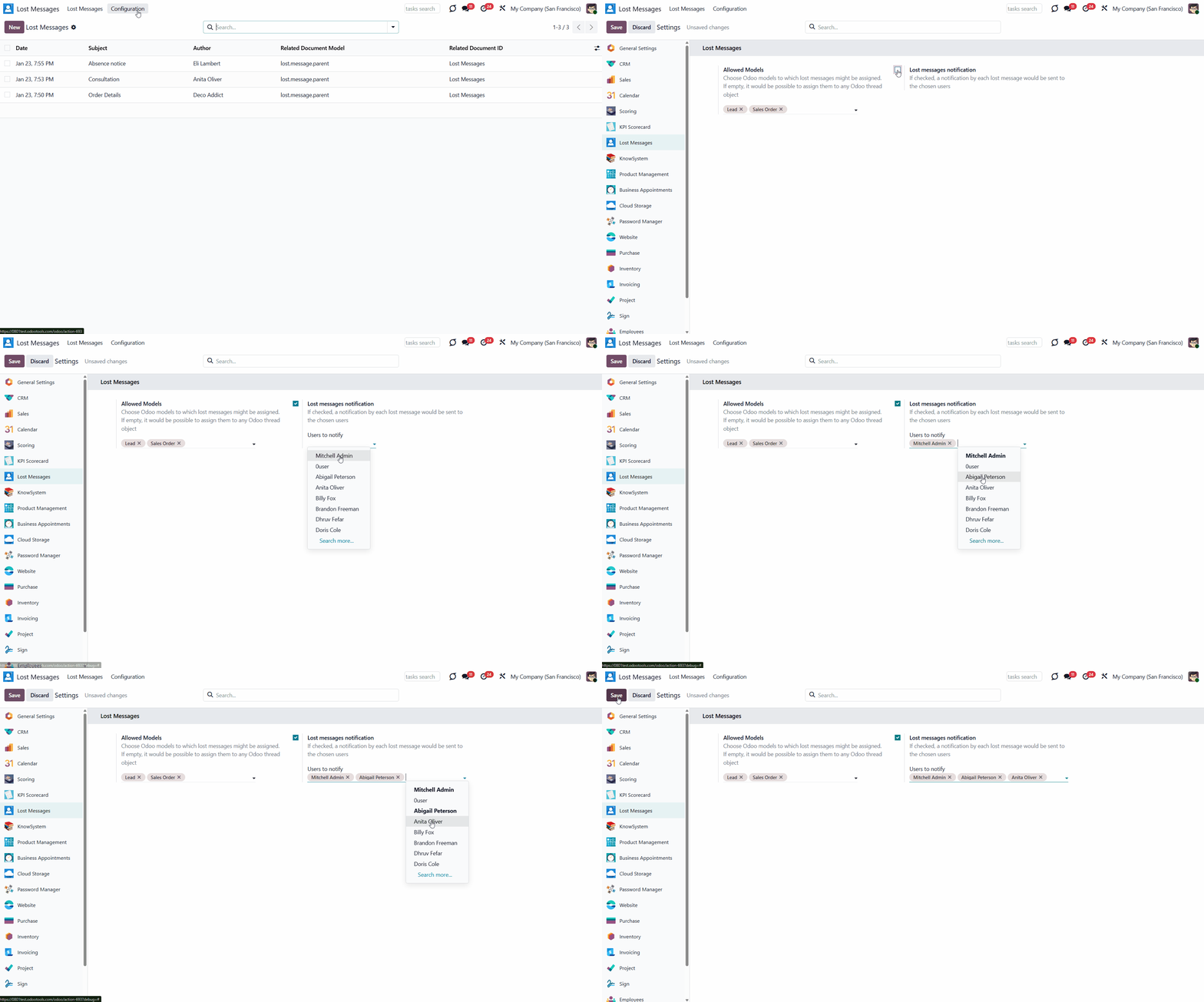
1. In the menu Lost Messages
2. Click 'Configuration'
3. Tick the box 'Lost messages notification'
4. Choose some users to be notified
5. Click 'Save'.
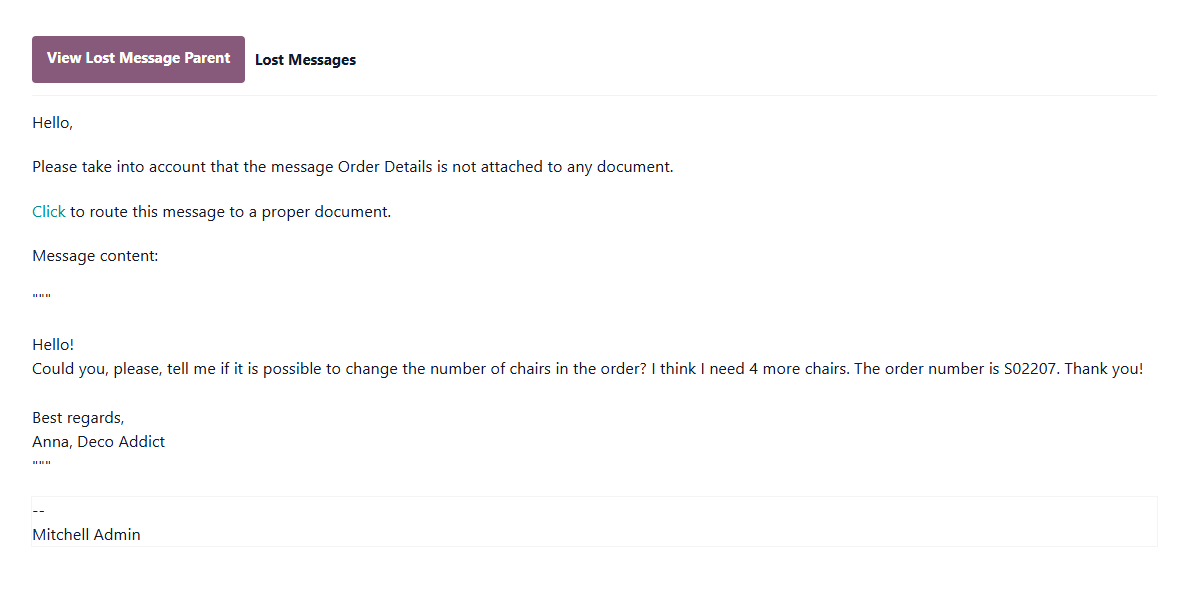
The chosen users will be notified by email about each lost message. The email subject will be 'The message is not attached'. In the email's body, users will find the message's subject, if any, and its body.
You can open the lost message for further action by clicking the 'Click' button. After that, you will be redirected to the message form, from which a message can be routed (see Routing Lost Messages).
Access Rights
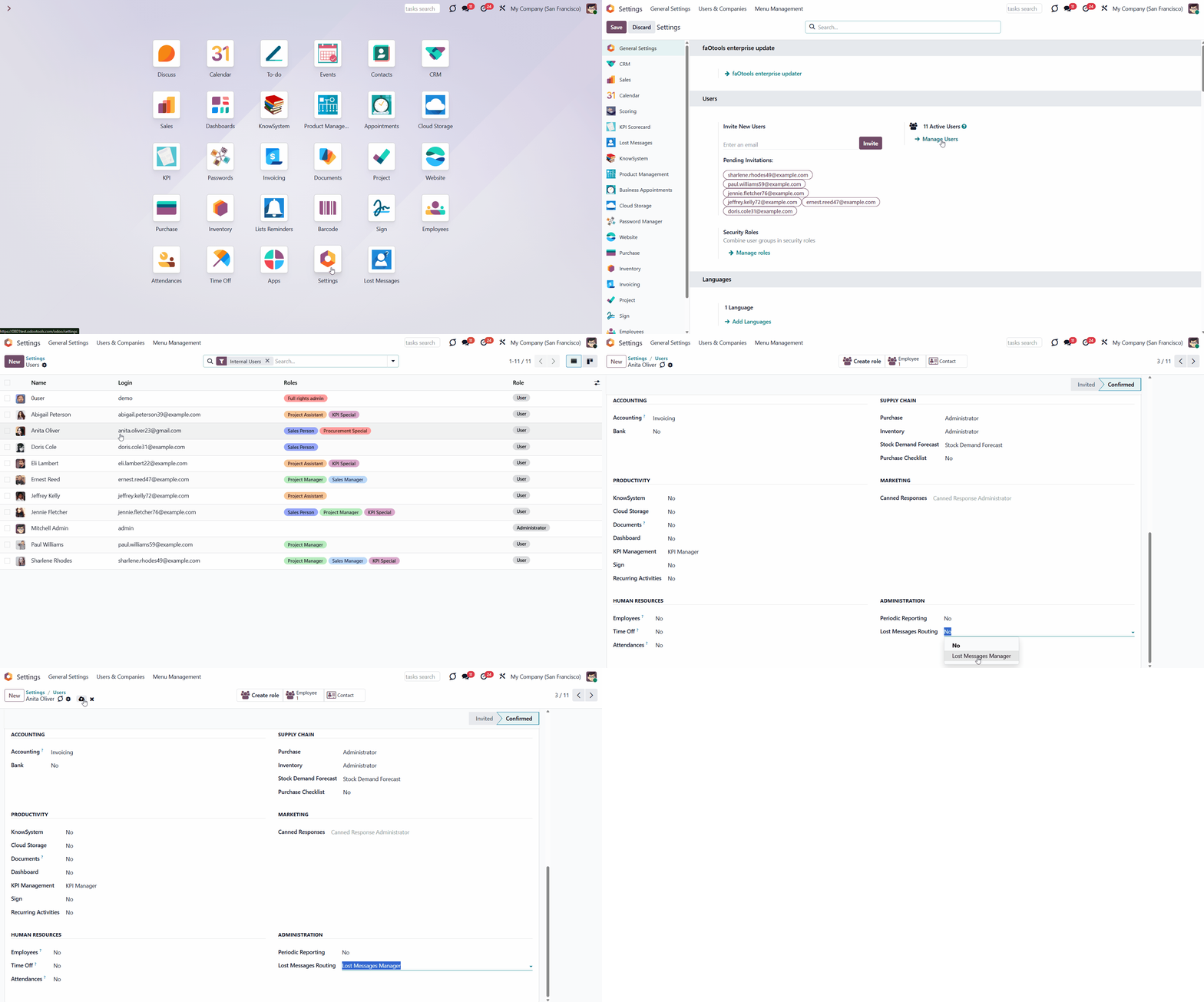
The special user group 'Lost Messages Manager' has been introduced to manage lost messages. Other users have no access to it. To assign a 'Lost Messages Manager':
1. Go to the General Settings
2. Choose a particular user
3. Scroll to the bottom of the page to the section 'Administration'
4. Find the field 'Lost Messages Routing' and choose the option 'Lost Messages Manager'.
After assigning the user group 'Lost Messages Manager', the 'Lost Messages' special menu will become available to those users. Messages can be routed through it even if the developer mode is off.
Admin can route a message in developer mode through the technical menu even without being a lost messages manager.
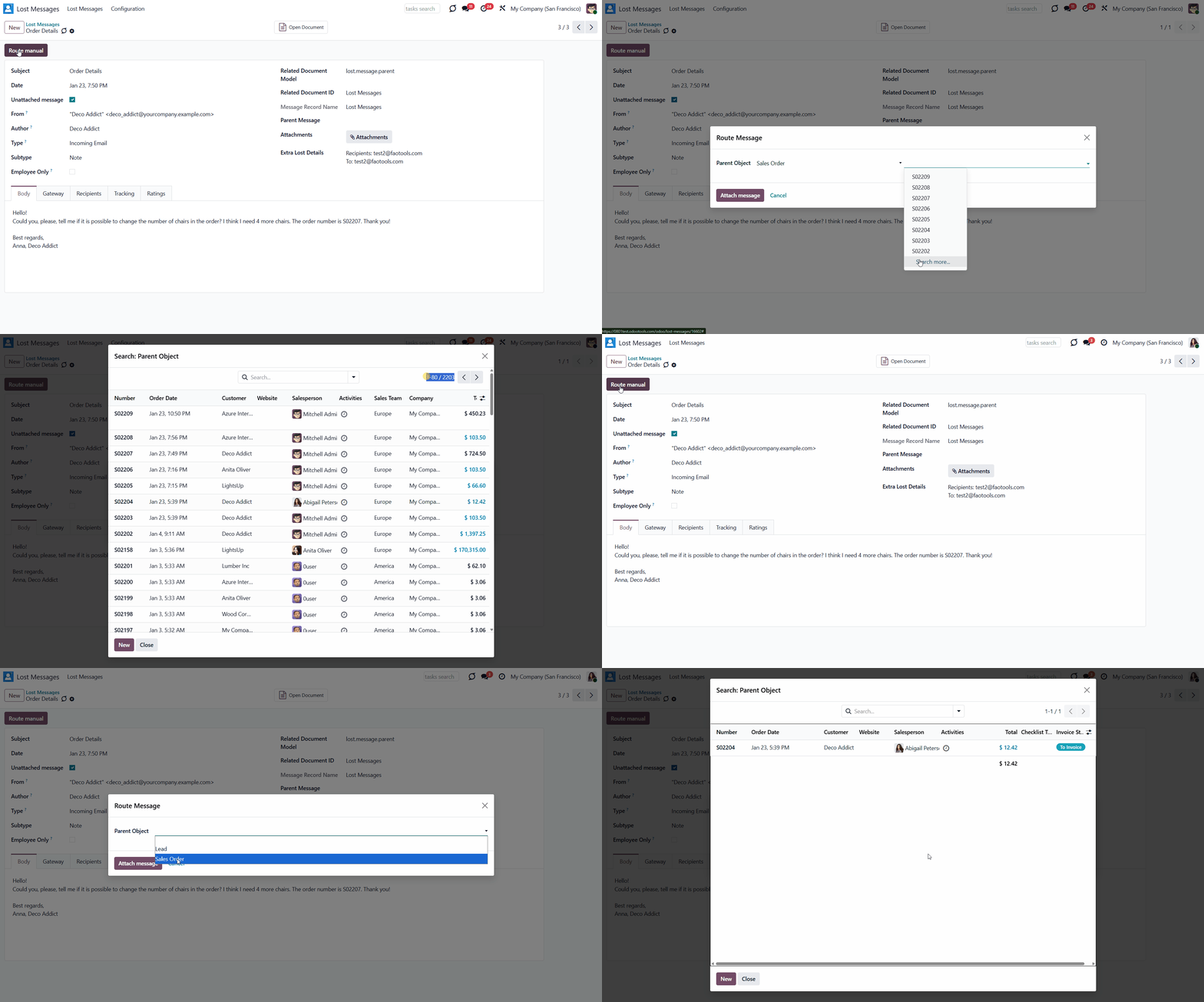
It is also essential to ensure that rights are granted not only to the model but also to the objects to which a message should be routed. Without access, the object will not be visible when defining a model and object for routing. Thus, without access to the object, a user cannot route a message to it.
For example, a lost messages manager received a message from Azure Interior requesting to change the delivery date of the Sales Order 'S01349'. The manager has access to the model 'Sales Order', so they can use it as a Parent Object. However, in the list of available objects, the user will not find the order 'S01349' because another salesperson is responsible for it.
About Lost Messages Routing
Lost Messages Routing is an Odoo app that helps ensure no messages are lost. If an email can't be attached, it will be marked as 'lost' and added to the special view, from which you can attach it to the required document thread.
You can route both lost messages and any other messages that are stored in Odoo. Lost messages are kept in the special menu 'Lost Messages'. Ordinary messages are kept in the Odoo technical menu 'Messages'.
The app allows lost messages to be batch-addressed through the tree mass action. In such a way, a few messages might be added to the same Odoo document.
It is possible to restrict Odoo models to which messages might be routed. This way, responsible users can route messages only to allowed-for-routing models.
Configure Odoo to send notifications about lost messages. Choose users who should be warned.
The special user group 'Lost Messages Manager' has been introduced to manage lost messages. This is the only user type that can see the app and manage lost messages.
Convenient lost messages menu
Configurable notifications
Simple addressing and mass processing
Secured administration
Managing Lost Messages
A lost message is one that Odoo cannot automatically attach to any object's thread. The module Lost Messages Routing finds such messages using the standard Odoo mail fetching scheduled jobs and marks them as 'lost'. After that, the messages are moved to the special menu 'Lost Messages'.
The module Lost Messages Routing has a convenient interface that can be accessed in two ways. To open the Lost Messages menu:
1. Click on the app's icon on the main interface (visible only to the user group 'Lost Messages Manager')
2. In developer mode, go to Technical > Lost Messages (available for the system administrator).
As you open the app, you see the same interface used in the 'Messages' section of the technical menu.
From the list view, you can see:
1. The date and time when the message was sent
2. The subject of the message, if any
3. The author of the message, if the sender's email is attached to one of the contacts.
You can use the search bar to navigate through messages using various parameters:
1. Content
2. Subject
3. Author
Just start typing the word and choose the required option.
Routing Lost Messages
The module allows not only viewing lost messages but also attaching them to any object with a thread. You can either route a single message or several messages in a batch. Click a message to view its body and additional details. This information might help you decide which model and object the message relates to.
There are several ways to route a message:
1. After opening a message, by clicking the button 'Route Manual'
2. By selecting one or several messages from the list and choosing the action 'Route Manual'.
To route a single message:
1. Open a message
2. Click 'Route Manual'
3. Define a model and choose a parent object (click the icon to see the object). Only allowed models are seen and can be chosen for routing (see Configuring Models for Routing)
4. Click 'Attach Message'.
After routing, the message will be added to the thread of a chosen object. As it is no longer ‘lost’, it will be removed from the lost messages menu. The message will be stored with the ordinary messages in the technical menu ‘Messages’, where you can find it and reroute it again if necessary.
The app also allows batch addressing through the tree mass action. In such a way, a few messages might be added to the same Odoo document.
To route one, several, or all messages from the app's menu:
1. Select one or several messages by putting a tick in the box by the required message, or choose all by ticking the box above all messages
2. Click Actions > Route Manual
3. Define a model and choose a parent object (click the icon to see the object). Only allowed models are seen and can be chosen for routing (see Configuring Models for Routing)
4. Click 'Attach Message'.
After routing, the message will be added to the thread of a chosen object. As it is no longer ‘lost’, it will be removed from the lost messages menu. The message will be stored with the ordinary messages in the technical menu ‘Messages’, where you can find it and reroute it again if necessary.
Sometimes, it might be necessary to delete an object. For example, when it is spam. In this case, you can delete it by selecting the message in the main menu and choosing the action 'Delete'. Or, after opening it, click on the gear above and choose 'Delete'.
If the message is neither spam nor lost, you can remove the tick 'Unattached message' in the form. In this case, the message will disappear from the lost messages menu; however, it will still be accessible from the technical menu 'Messages'.
Routing Messages
Any message stored in Odoo can be rerouted. It is beneficial in situations where a client has multiple orders and a message ends up in the wrong object's thread. This opportunity is available only to system administrators, as access to technical menus is required.
You can route the messages from the technical menu 'Messages', where all the messages are stored.
From here, it is also possible to reroute previously routed messages.
Configuring Models for Routing
Restrict Odoo models to which messages might be routed. For that, open the module's settings by clicking the 'Configuration' tab, find the 'Allowed Models' field, define the models that can be used to route messages, and click 'Save'.
Let's select the 'Sales Order' and 'Lead / Opportunity' models as 'Allowed Models'. After that, it will be possible to add a lost message only to objects related to the models 'Sales Order' and 'Lead / Opportunity'. For example, you can add a lost message 'Change the delivery time' to the related object 'S00234'. In this case, it is also essential to have access to the object 'S00234' (see Access Rights).
Any model that assumes a communication thread, even a custom one, can be used for routing.
If the field is left empty, a message can be routed to any object with an Odoo email thread.
Lost Messages Notifications
To react quickly when a message is lost, you can set notifications. Choose the users who should be warned; if a message is marked as 'lost', they will be notified by email.
To configure notifications:
1. In the menu Lost Messages
2. Click 'Configuration'
3. Tick the box 'Lost messages notification'
4. Choose some users to be notified
5. Click 'Save'.
The chosen users will be notified by email about each lost message. The email subject will be 'The message is not attached'. In the email's body, users will find the message's subject, if any, and its body.
You can open the lost message for further action by clicking the 'Click' button. After that, you will be redirected to the message form, from which a message can be routed (see Routing Lost Messages).
Access Rights
The special user group 'Lost Messages Manager' has been introduced to manage lost messages. Other users have no access to it. To assign a 'Lost Messages Manager':
1. Go to the General Settings
2. Choose a particular user
3. Scroll to the bottom of the page to the section 'Administration'
4. Find the field 'Lost Messages Routing' and choose the option 'Lost Messages Manager'.
After assigning the user group 'Lost Messages Manager', the 'Lost Messages' special menu will become available to those users. Messages can be routed through it even if the developer mode is off.
Admin can route a message in developer mode through the technical menu even without being a lost messages manager.
It is also essential to ensure that rights are granted not only to the model but also to the objects to which a message should be routed. Without access, the object will not be visible when defining a model and object for routing. Thus, without access to the object, a user cannot route a message to it.
For example, a lost messages manager received a message from Azure Interior requesting to change the delivery date of the Sales Order 'S01349'. The manager has access to the model 'Sales Order', so they can use it as a Parent Object. However, in the list of available objects, the user will not find the order 'S01349' because another salesperson is responsible for it.