About Joint Calendar
Joint Calendar is an Odoo tool that combines different Odoo events in one or a few configurable super calendars. Odoo users often need to keep track of many details spread across numerous interfaces. Switching between those is not comfortable and error-prone for planning. This tool solves the problem. The app allows users to configure rules to join and share various document types in a single super calendar view, with easily accessible source objects.
The tool might merge any Odoo document type into the same view: opportunities, meetings, phone calls, activities, sales or purchase orders, shipments and deliveries, tasks and tickets, and time-offs, etc.
You can configure as many calendars as needed for various functional areas or user groups. Each joint calendar has its menu item.
Define on your own what constitutes a joint event title, start or stop dates, target attendees, etc. Have the same document appear twice on the same calendar, with different start dates.
Joint events and their source documents are interrelated. Update the former, and the latter will be changed immediately. A reverse operation will be applied according to the system schedule.
Calendar configuration lets you assign pop-ups and email alarms. Thus, you can be notified of any Odoo event or activity.
You can regulate joint calendar access rights on the form. Make it public or share it only with selected user groups. Shared calendars are especially suitable for team interactions. Users might switch between document types and participants in a single click.
Joint events are updated regularly by the cron job. It is fast, especially if you apply time frames. Refreshing is also available from the calendar interface.
Any Odoo document on the same calendar
Reminders for any Odoo documents
Instant access to source details
Simple user rights administration
Configuring Odoo Shared Calendars
The tool might merge any Odoo document type into the same view: opportunities, meetings, phone calls, activities, sales or purchase orders, shipments and deliveries, tasks and tickets, and time-offs, etc.
Configure as many calendars as you need: for various functional areas or different user groups. Each super calendar has its menu item. Based on the company's needs, you can combine all required documents into a single calendar or logically divide them into several calendars. For example, you can create a calendar 'Various calendars' for all documents, or you can make a 'Sales Calendar', which will include everything that relates to sales, and a 'Tasks and Time Offs' calendar, which will consist of only tasks, employees' time offs, and leaves.
To create a Calendar:
1. Open the Events app and click Configurations > Calendars in the systray
2. Click 'New'
3. Introduce the title
4. Add Rules (see Joint Calendar Rules)
5. Go to the tab 'Settings'
6. Add/Remove the tick 'Active menu', to add/remove the Calendar from the Event's systray
7. Optionally add the sequence, set the privacy, time limits, and alarms.
The 'Generate Events' button above the calendar form can trigger the scheduled job to add events to the calendar (see Joint Calendar Scheduled Jobs).
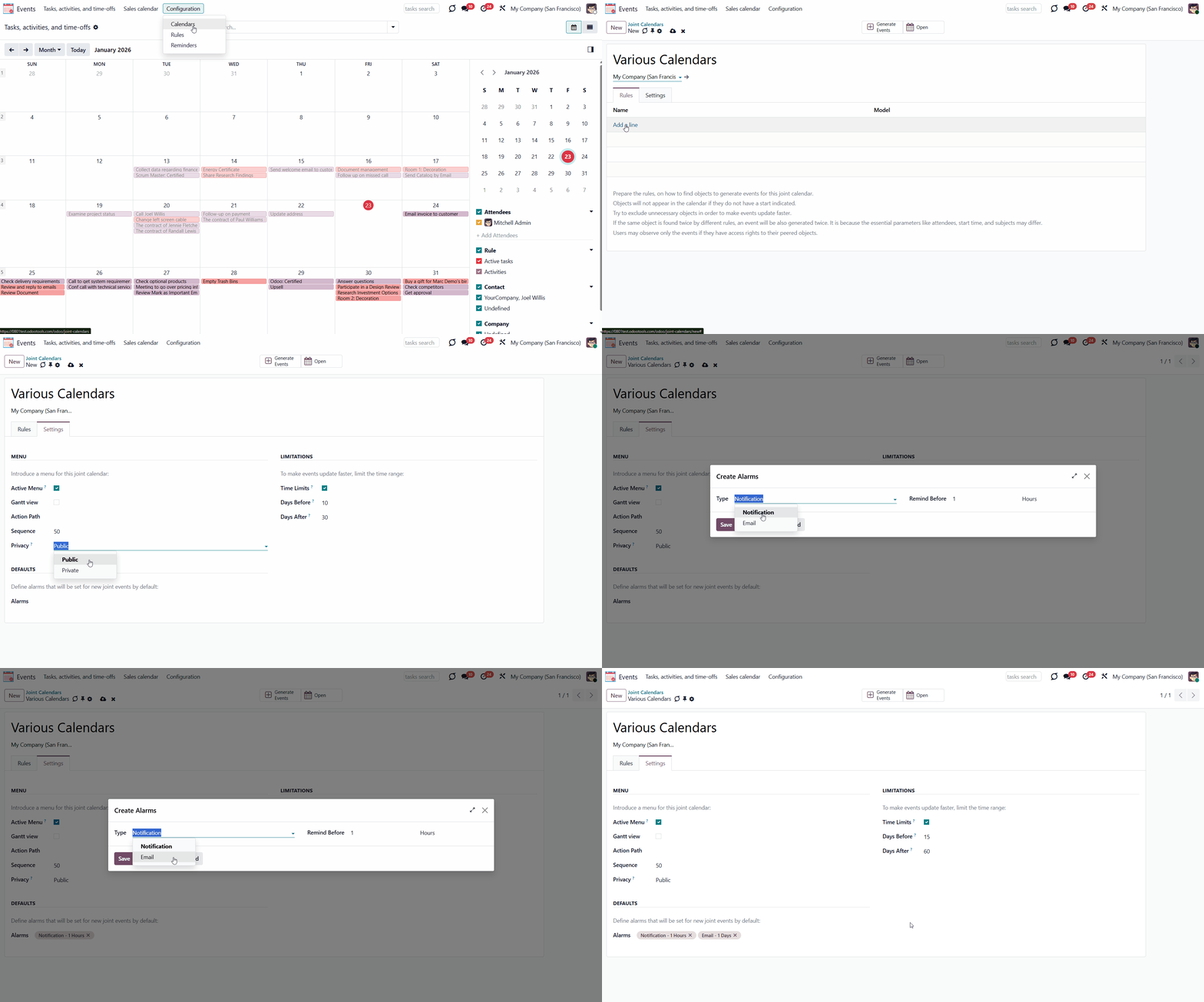
When you add rules to the calendar, you specify which models should be presented in it (see Joint Calendar Rules). This allows you to keep rules logically divided across several calendars and conveniently switch between them, preventing the calendar from becoming overloaded (see Joint Calendar Interface). Also, it is beneficial to configure rules in a batch, as the calendar's settings control privacy, time limits, and alarms.
While editing or creating a calendar, you can find all the configuration options in the 'Settings' tab.
The first feature is 'the Active menu'. If it is turned on, the entry for this shared calendar will be available under the menu ‘Events’ (see Joint Calendar Interface). Otherwise, the calendar will not be shown, and you will not be able to access it. This feature is useful when you no longer need a calendar but don't want to delete it yet, as it might still be useful later.
If the option is turned off for all calendars, the 'Events' menu will be hidden from the main menu.
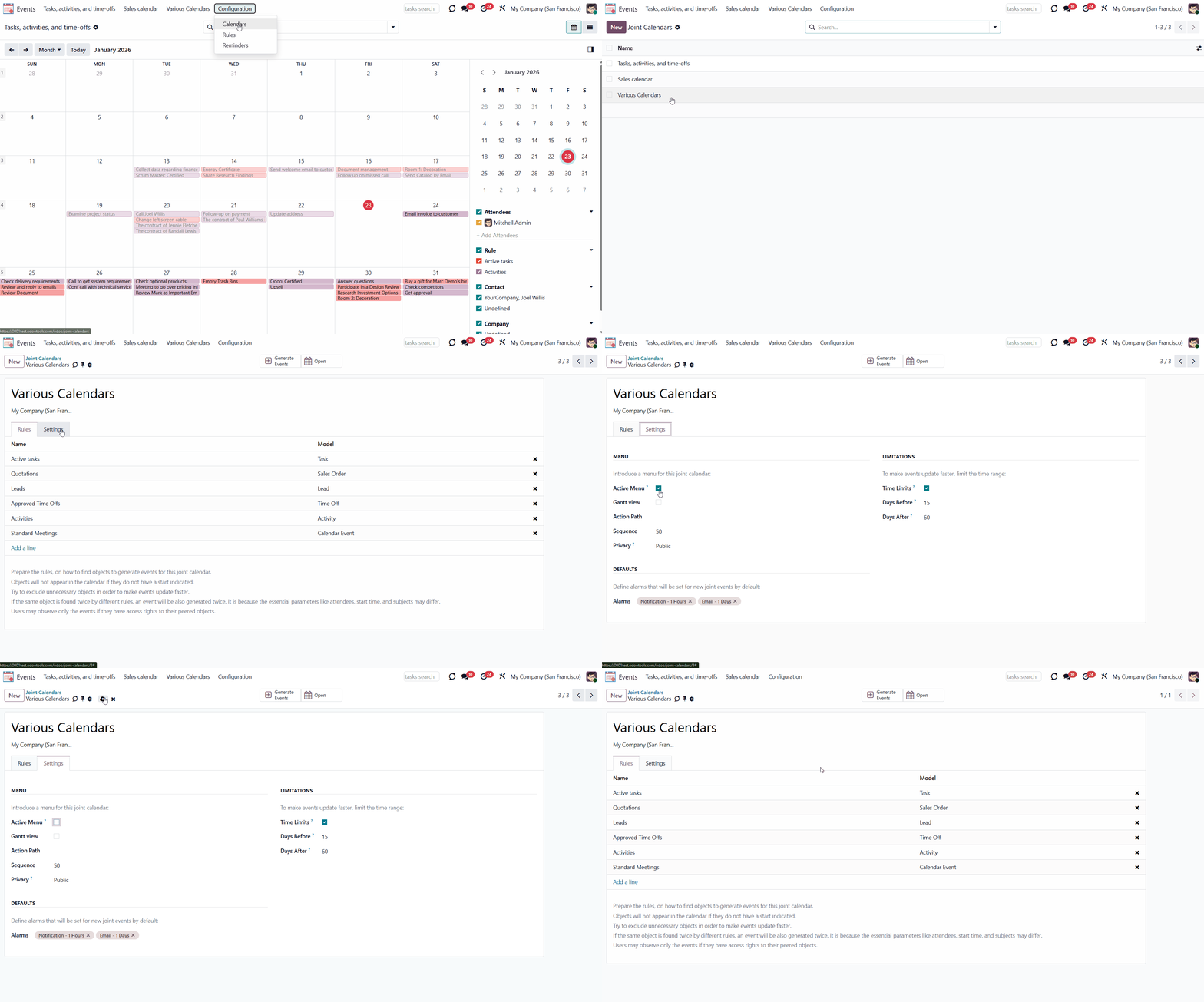
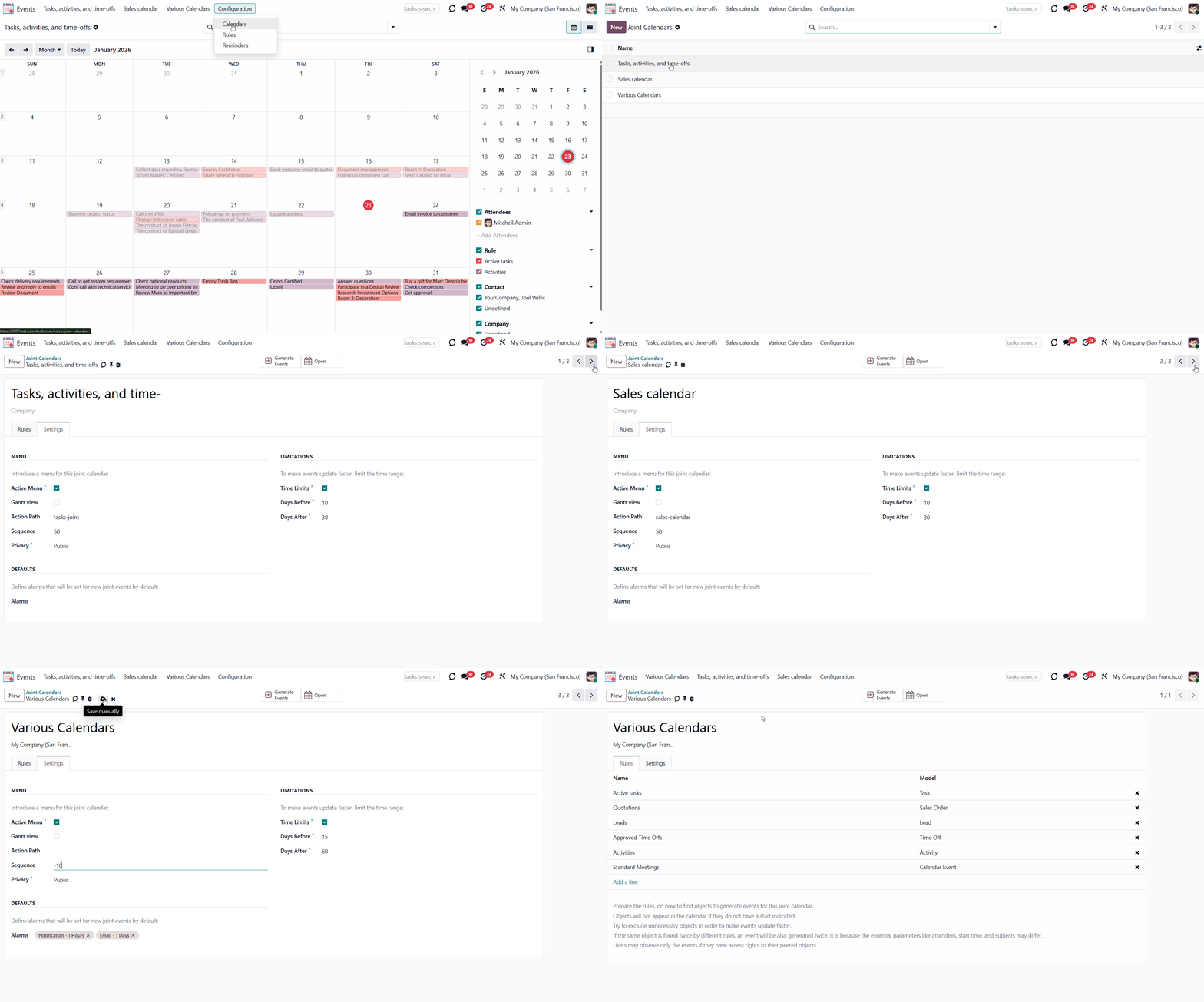
The 'Sequence' field below 'Active menu' determines the order in which calendars are displayed in the systray. The Calendar that goes first has a lower sequence. So, the calendar with sequence 20 will be displayed before the calendar with sequence 50.
To change the sequence, type the number in the field 'Sequence'. The number can be either positive, negative, or zero.
You can set access rights for each calendar. The calendar may be public (visible to everyone) or private (visible only to specific user groups).
The field 'groups' appears as you choose the option 'private' in the field ' Privacy'. Users may observe only the events to which related objects they have access rights (see Joint Calendar Access Rights).
Shared calendars are especially suitable for team interactions. Users might switch between document types and participants in a single click.
It is also possible to set limitations to make events update faster and consume system resources efficiently. For that, tick the 'Time limits' box and set 'Days before' and 'Days after', so that only events within this time range are shown in the calendar. By default, events are shown 10 days before and 30 days after. For example, you have a Task 'Fix the sink' for the 30th of March. Today is the 15th of March, so the task will not appear in the calendar. However, in 5 days it will appear, as it is set to show events 10 days in advance. And the event will stay on the calendar till the 29th of April.
If you remove the tick from the 'Time Limits' box, then the events for all time will be shown (see Refreshing Joint Events & Scheduled Jobs).
Calendar configuration lets you assign default pop-ups and email alarms. Thus, you can be notified of any Odoo event or activity. You can choose the type of alarm and the warning time (see Joint Calendar Alarms).
It is also possible to set an alarm for a particular event (see Joint Calendar Interface).
Joint Calendar Rules
To add a new document type for a shared interface, you should set up a shared calendar rule. Rules define which Odoo objects should trigger events, which fields of those objects should be used and displayed, and whether any filtering should be applied.
Define on your own what to consider a joint event title, start or stop dates, target attendees, etc. Have even the same document twice on the same calendar, just with a different start.
To create a rule:
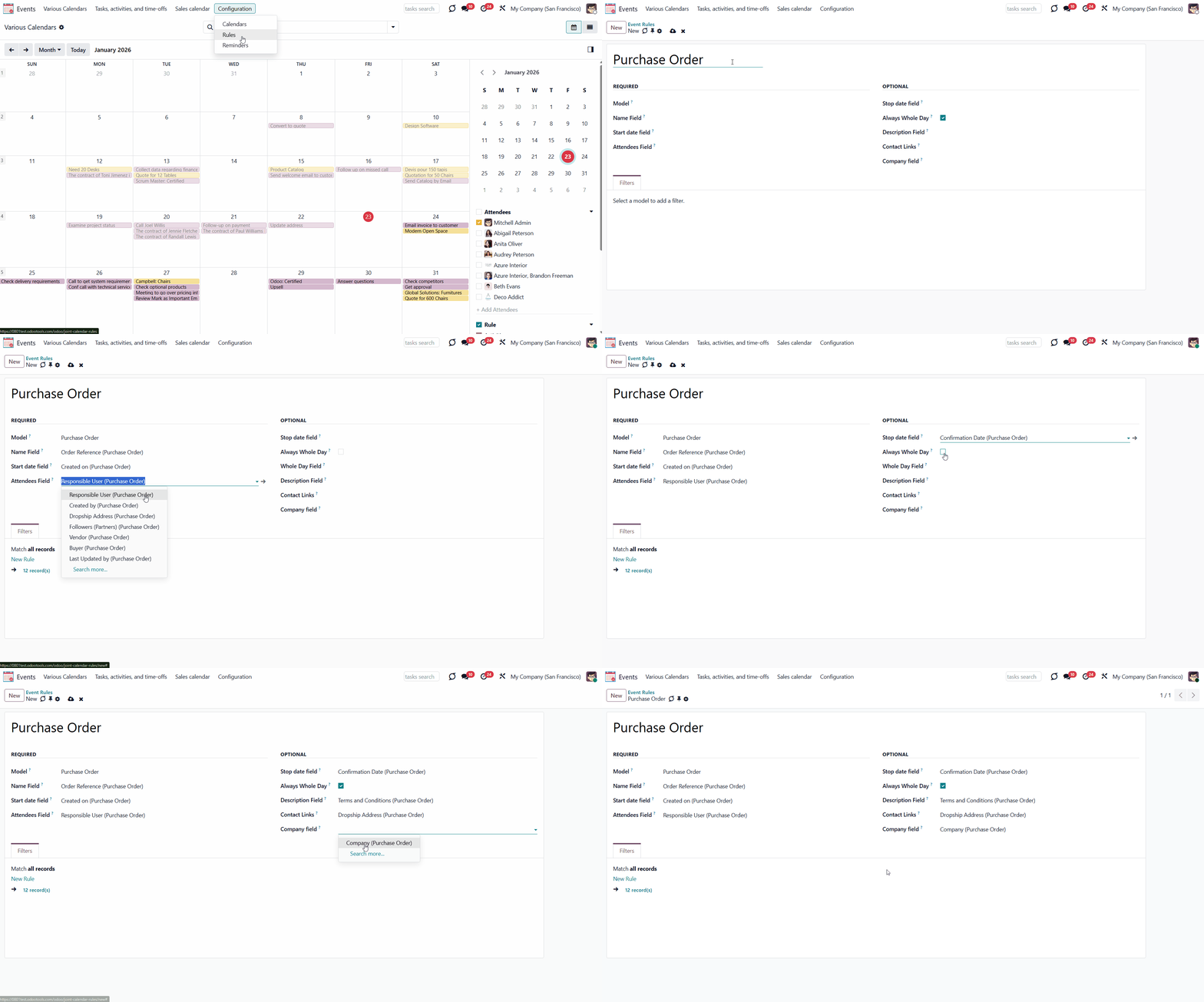
1. Open the Events app and click Configurations > Rules in the systray
2. Click 'New'
3. Type the rule title
4. Choose a model (see Rules Fields)
5. Define a name field (see Rules Fields)
6. Select a start date field (see Rules Fields)
7. Choose an attendees' field (see Rules Fields)
8. Optionally add a stop date field (see Rules Fields)
9. Optionally choose a description field (see Rules Fields)
10. Optionally select a contact links field (see Rules Fields)
11. Optionally add filters to specify events that should be shown in a calendar with this rule (see Filters)
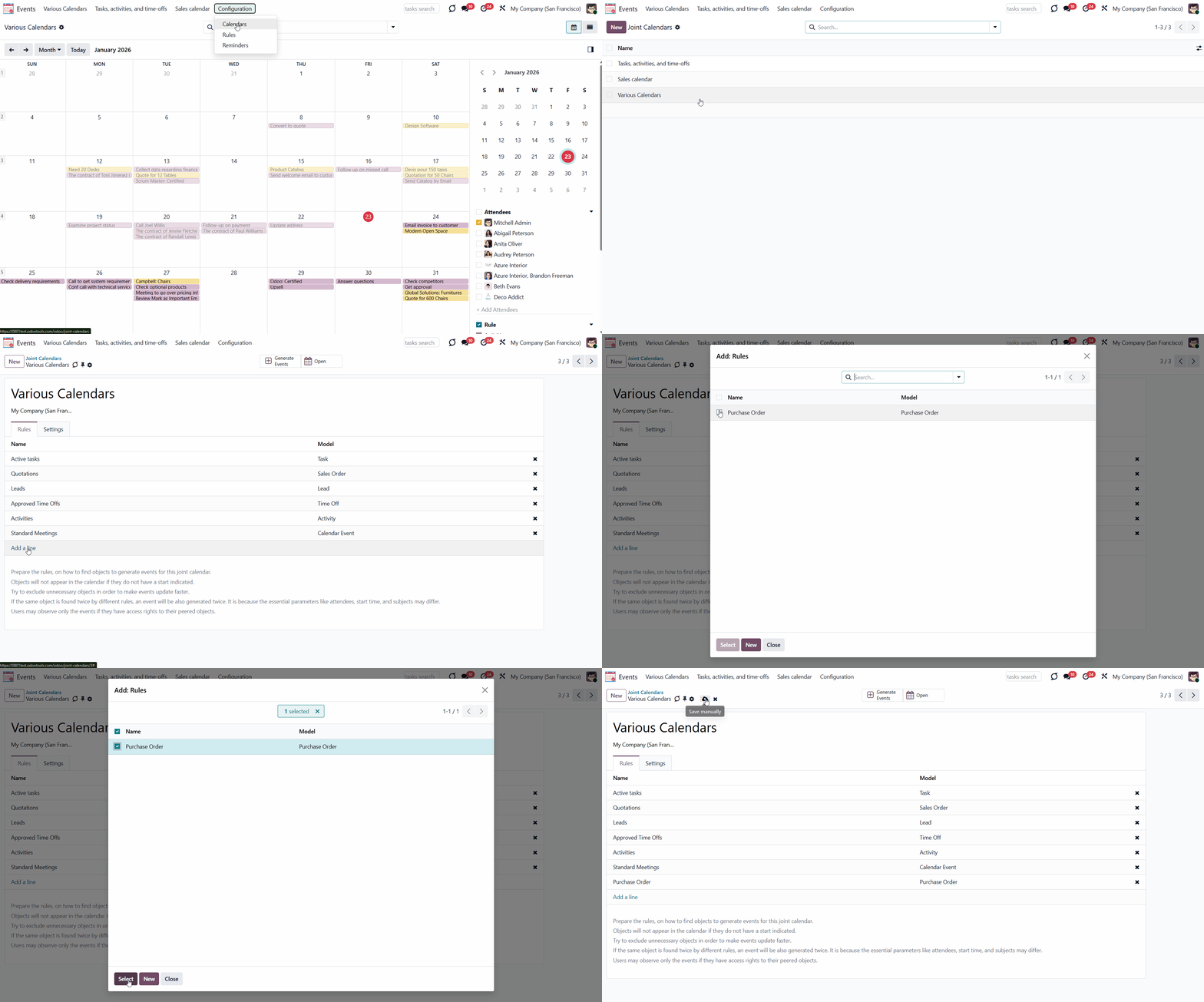
You can add a rule to a calendar while creating or editing it, in the Rules tab by clicking 'Add a line'. To delete a rule from the calendar, click the cross by it.
You cannot add the same rule to one calendar twice. However, you can create a slightly different rule using a different title or field.
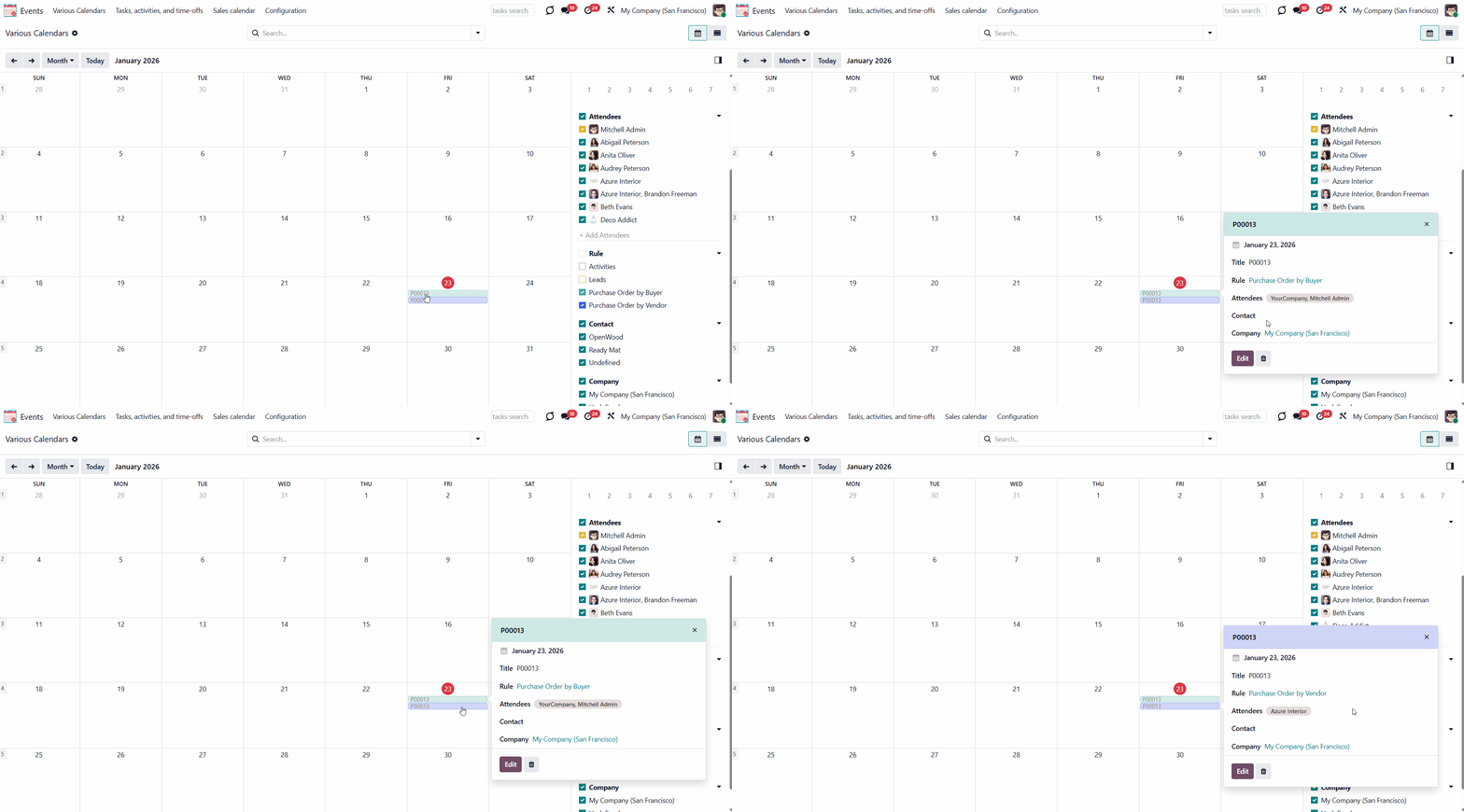
If the same object is found twice by different rules, an event will also be generated twice. This is because essential parameters like attendees, start time, and subjects may differ.
Setting up Joint Rule
Each field of a rule serves a particular purpose. Below is a description of each setting.
Model - a target Odoo document, which defines what objects to scan: opportunities, tasks, orders, meetings, activities, and so on. You can also choose your custom document type (including those created in Odoo Studio). The mandatory field.
For example, if you choose the 'Sales Order' model, events will be created based on the existing Odoo quotations.
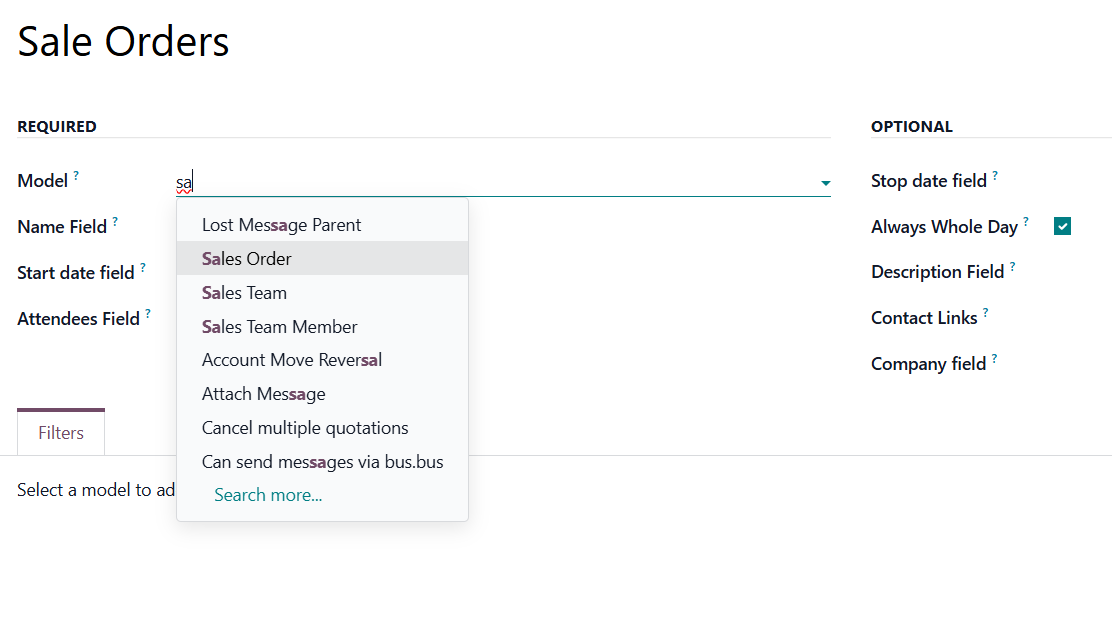
Name - a field of the target Odoo model, which defines what to use as a joint event name (also used as calendar event title). Usually, it is 'name', 'subject', or 'reference'. The mandatory field.
For example, if you create a rule for the model 'Sale Order' and choose the ‘Order reference’ for the Name Field, then an event related to the quotation ‘S00001’ will also be named ‘S00001’.
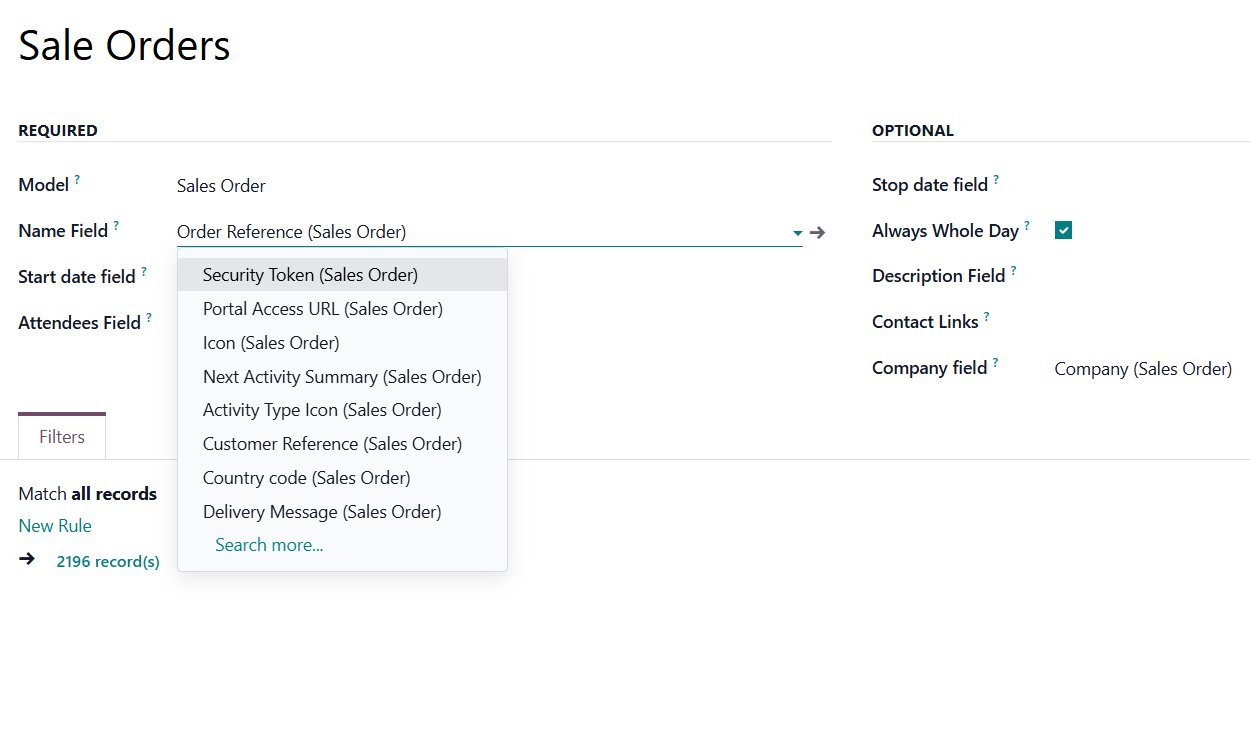
Start date - a field of the target Odoo model, which defines when an event starts. For example, 'expecting closing' for opportunities or 'order date' for quotations. It may be any date or a date with the time field of a source Odoo object. The mandatory field.
For example, if you create a rule for the model 'Sale Order' and choose the 'Order Date' for the Start date field, then the event will appear in the calendar on the same day for which the quotation is planned.
If the start date field in the event document is left blank, the event will not appear in the calendar.
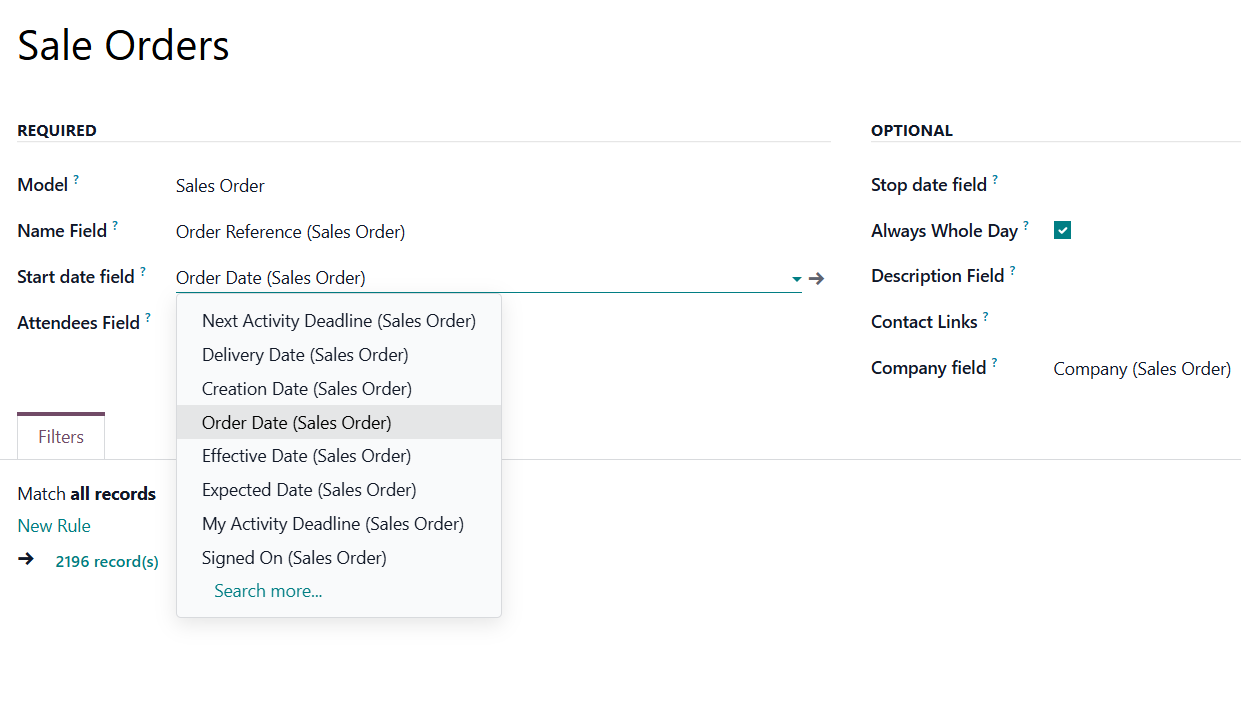
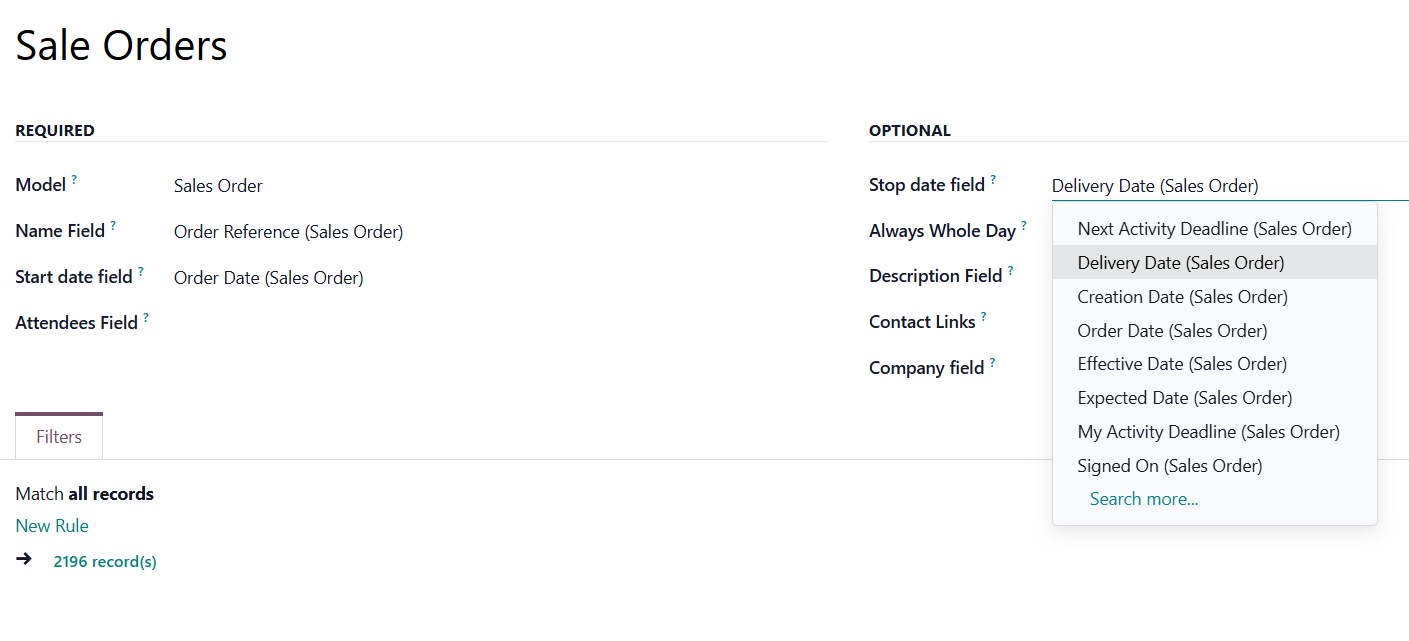
Stop date - a field of the target Odoo model, which defines when an event is shown as finished on a calendar. The optional field.
For example, if you create a rule for the model 'Sale Order' and choose the 'Delivery Date' for the Stop date field. The event will be shown in the events menu from the day for which this quotation is planned (Start Date field - Order Date) until the day of the product's delivery.
If you leave the field empty, the event will appear in the events menu only on the day specified by the Start Date field.
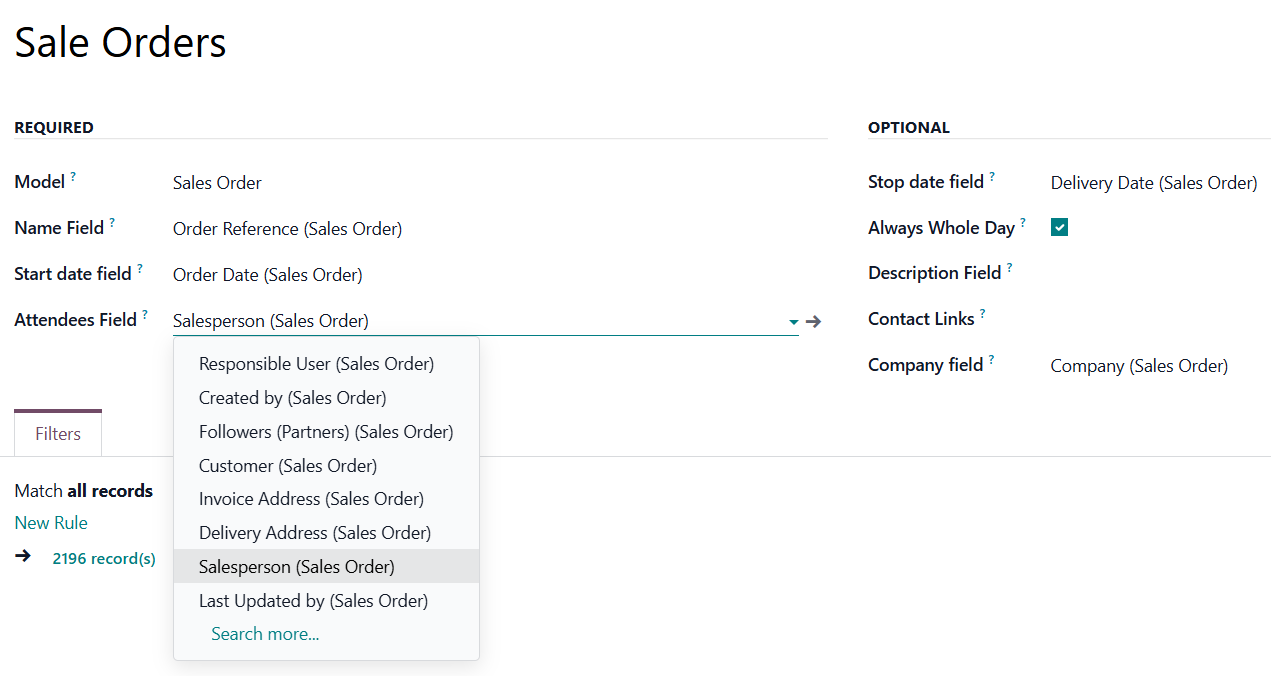
Attendees - a field of the target Odoo model that defines the participants (responsible people, event owners). For instance, 'assigned to', 'salesperson', or 'attendees'. You may use the event document 'followers' since it's possible to apply both users and partners. The mandatory field.
For example, if you create a rule for the model 'Sale Order' and choose 'Salesperson' for the Attendees field, then joint event participants would include a quotation salesperson. Also, the event will appear when you sort events by this salesperson in the attendees section of the 'Events' menu (see Joint Calendar Interface).
Description - a field of the target Odoo model, which shows the notes that the event has, if there are any. Usually, the fields like 'internal notes' or 'comments' are used. The optional field.
For example, if you create a rule for the model 'Sale Order' and choose 'Terms and Conditions' for the Description field, then the related terms and conditions will be shown on the event's card.
If you leave the field empty, then the event's description field will also be empty.
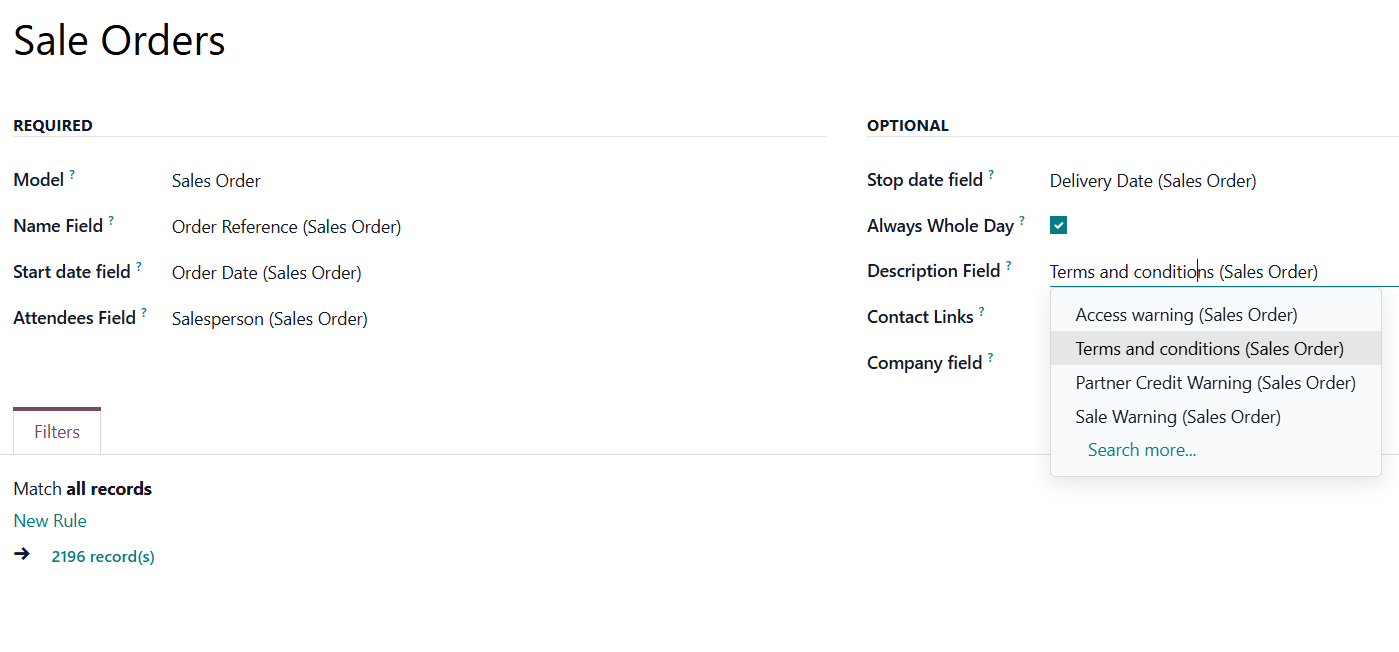
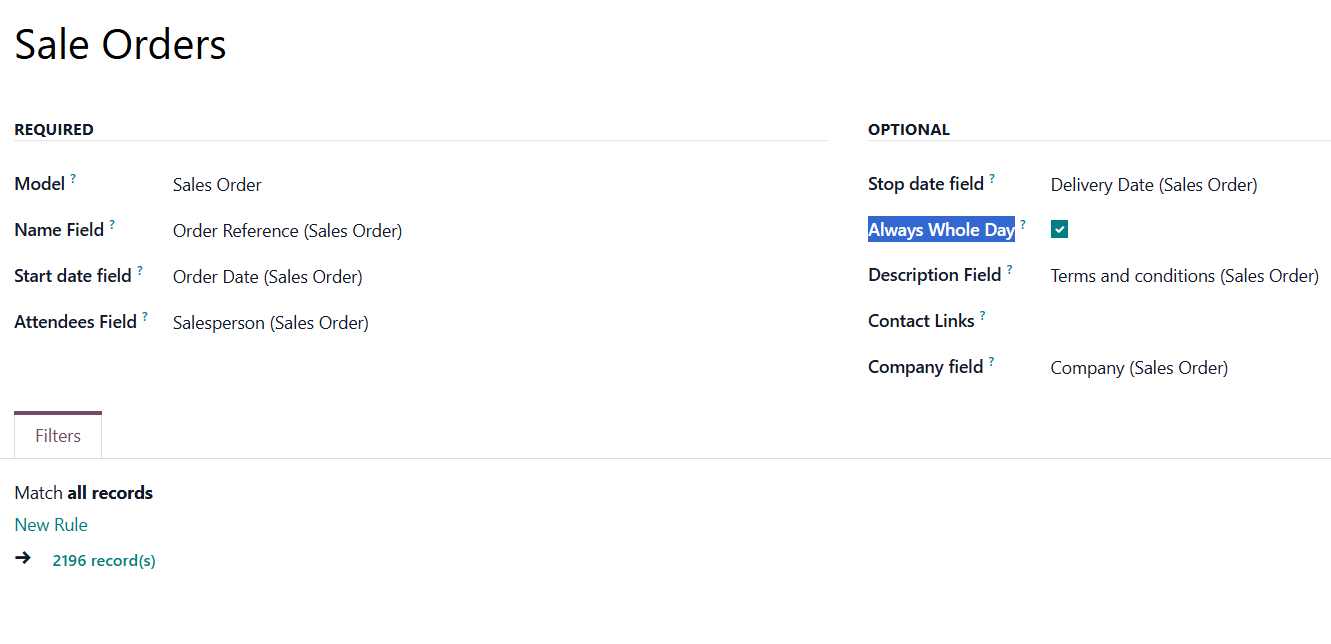
Always Whole Day - an option that can be turned on/off. When it is turned on, all generated events created with the rule will last the entire day, regardless of whether start or stop is specified in hours and minutes. Such an event will be shown at a special place on the calendar.
For example, if you create a rule for the model 'Sale Order' and enable the 'Always Whole Day' option, the event will appear on the daily and weekly super calendars above the timeline.
If you turn off the option, if the start or stop is defined in hours/minutes, the event will be placed at a specific time on the day's timeline, and you will see the time before the event's title.
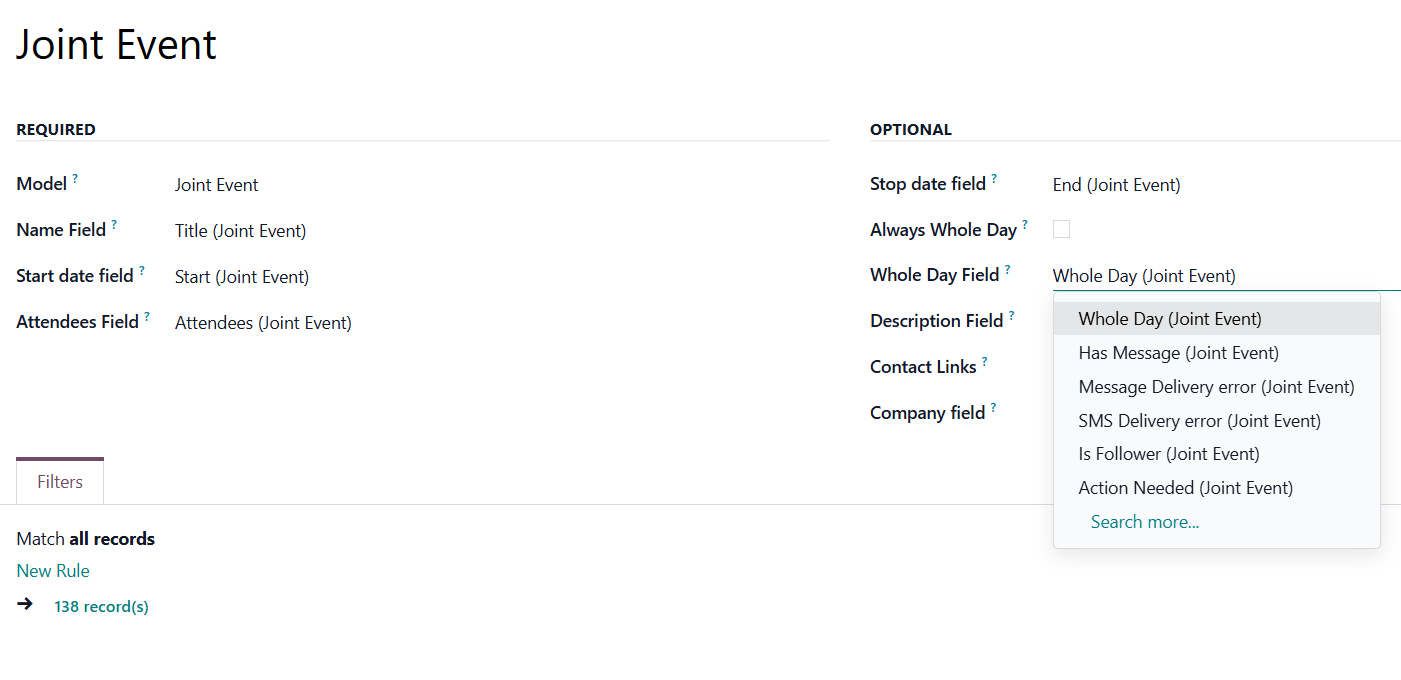
Whole Day - a special Boolean field of the source object indicates that a related joint event may last the entire day. This setting is usually applied to standard Odoo calendar events, which may have a specific time or be scheduled for an entire day. This optional field is available only if the 'Always Whole Day' setting is turned off.
For example, if we create a rule for the model 'Calendar Event' and set 'All Day' as the Whole Day field, then if the event lasts all day, an event without timing will be created. The event will be on the calendar the whole day and placed above the timeline.
If you leave the field empty, the calendar event will still be shown if it has a definite time.
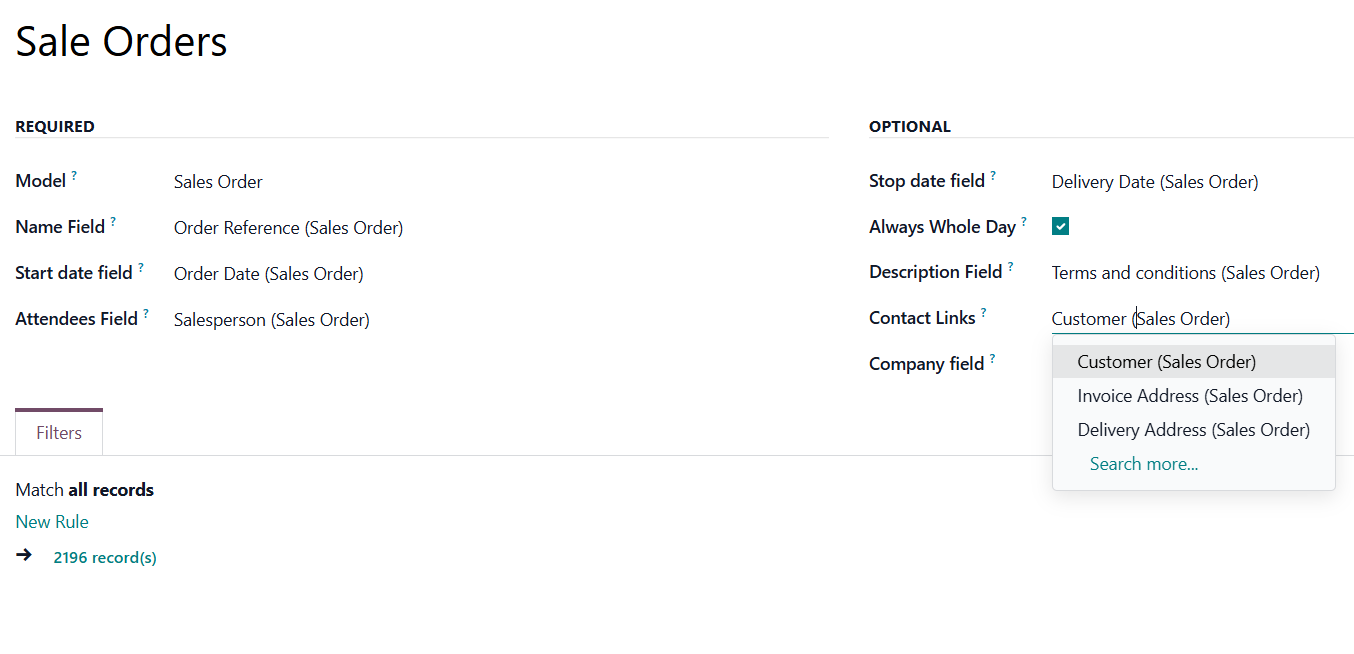
Contact Link - a field of the target Odoo model that defines a specific partner that is linked to the event. Usually, the fields like 'customer' or 'vendor' are used. The optional field.
For example, if we create a rule for the model 'Sale Order' and set 'Customer' as the Contact Links field, then the user from that field will be written to the event template in the 'Contact' field.
If you leave the field empty, the event will not be linked to the contact.
Company field - a field of the target Odoo model, which defines what company the object relates to. The optional field.
For example, if we create a rule for the model 'Sale Order' and choose 'Company' as the Company field, then, in case we assign a calendar to a particular company, the module will be able to distinguish to which company the object relates, and, therefore, will show only the related ones.
If you leave the field empty, the module will not be able to distinguish the objects and will show events for all companies, even if the calendar refers to a particular company.
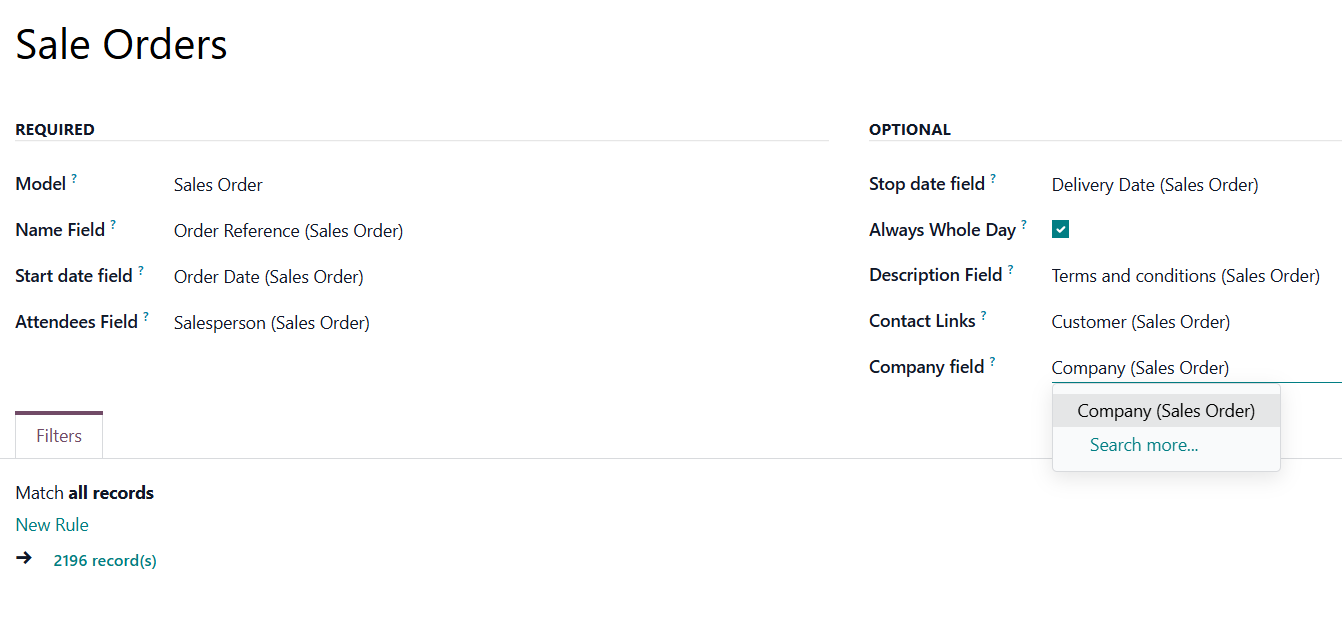
Domain - the Odoo filters' constructor to include only topical documents in a merged calendar. You might apply any storable attribute. For example, show only quotations, not sales orders or opportunities, for this sales team.
Creating domains lets you filter the records used to create events. Only the ones that match the specified conditions will be used. If you edit or delete an automatic rule, the matching records list will change.
You can apply filters to any storable field. For example, you can show only the sales orders for a particular salesperson or sales team, only the tasks for a specific project, only the opportunities for an individual customer, etc.
How to add a rule:
1. Start creating or editing a rule
2. Click '+Add Filter'
3. Choose an ID by scrolling or typing the beginning in the search field and choosing the filter options
For example, let's see some filters that can be added to the 'Sale Order' model.
If you add the domain 'Salesperson contains Anita Oliver', events will be created only based on orders related to Anita.
If you introduce a filter 'Total >=50000', then only the orders with a total greater than or equal to 50000 will be considered for joint events.
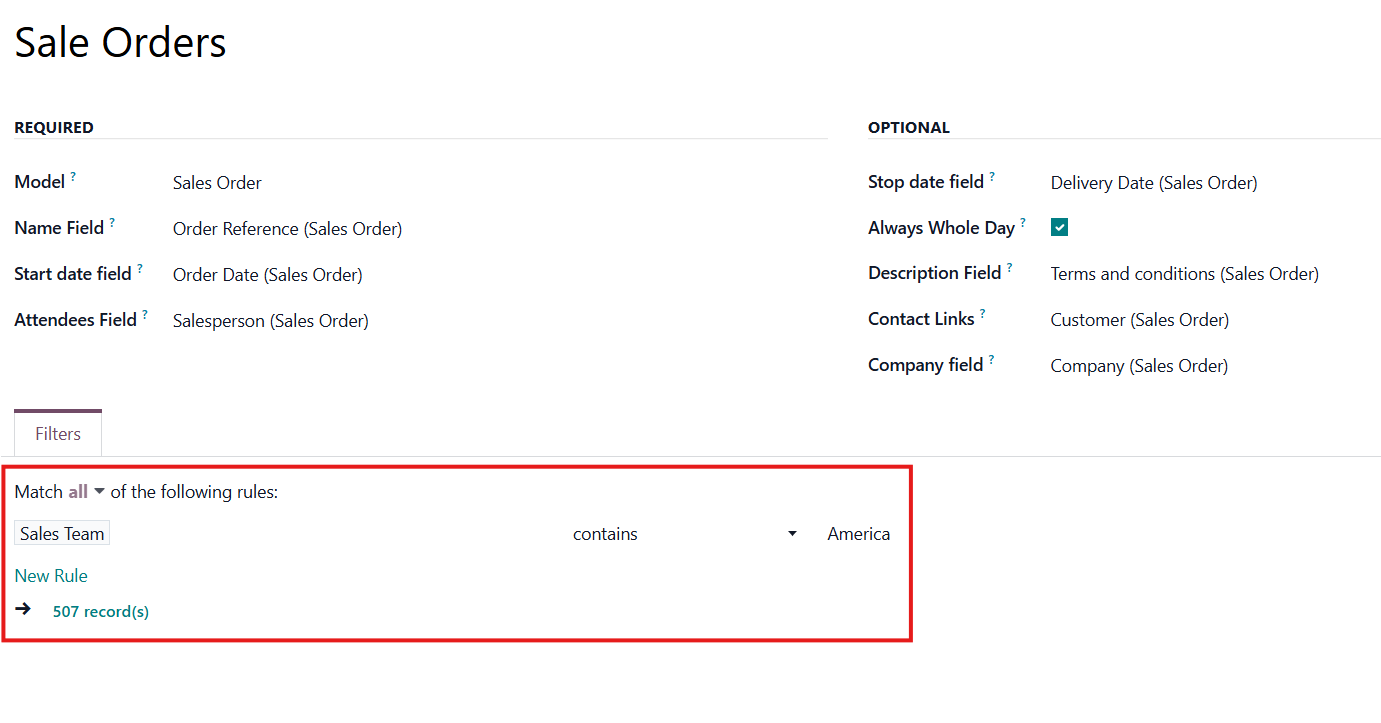
If you add a filter 'Sales Team contains America', only the matching records will be used to create events; in this case, only the Sales Orders of the sales team America.
If the field is left empty, all the records will be used to create events.
Rules Examples
Here are some examples of applicable Joint Calendar rules:
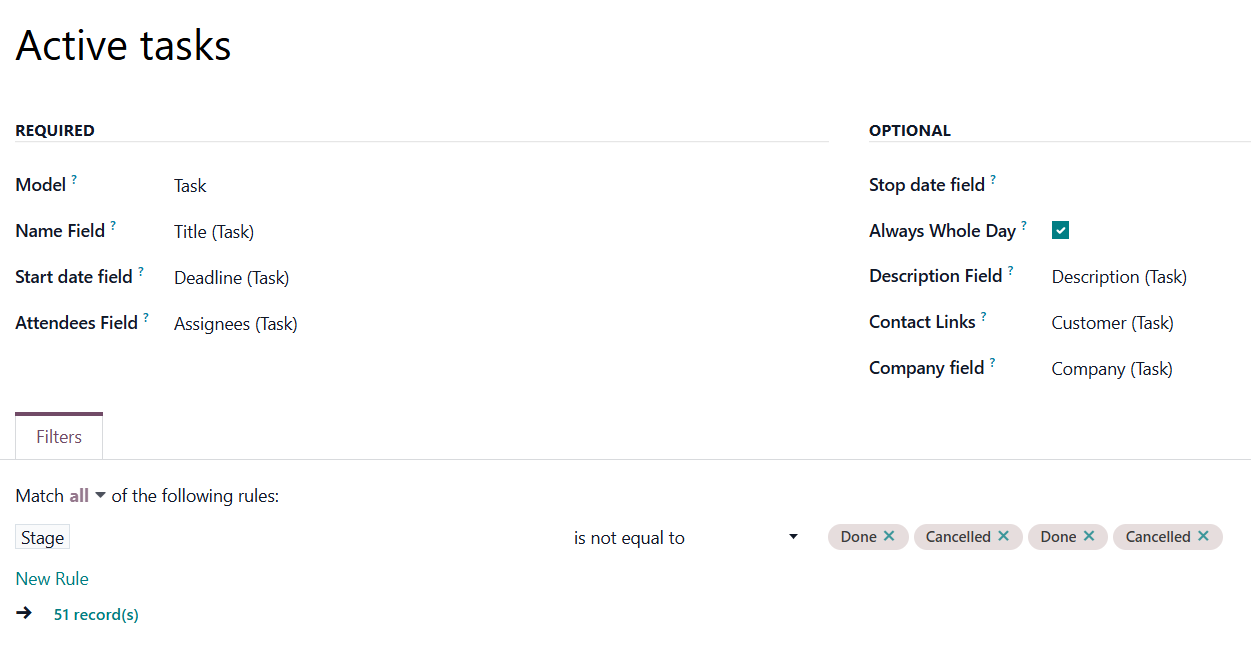
- As a model, use 'Task'
- As a name, use 'Title'
- As a start date field, use 'Deadline'
- As attendees' field, use 'Assignees'
- As a domain, optionally you can set definite projects or stage name
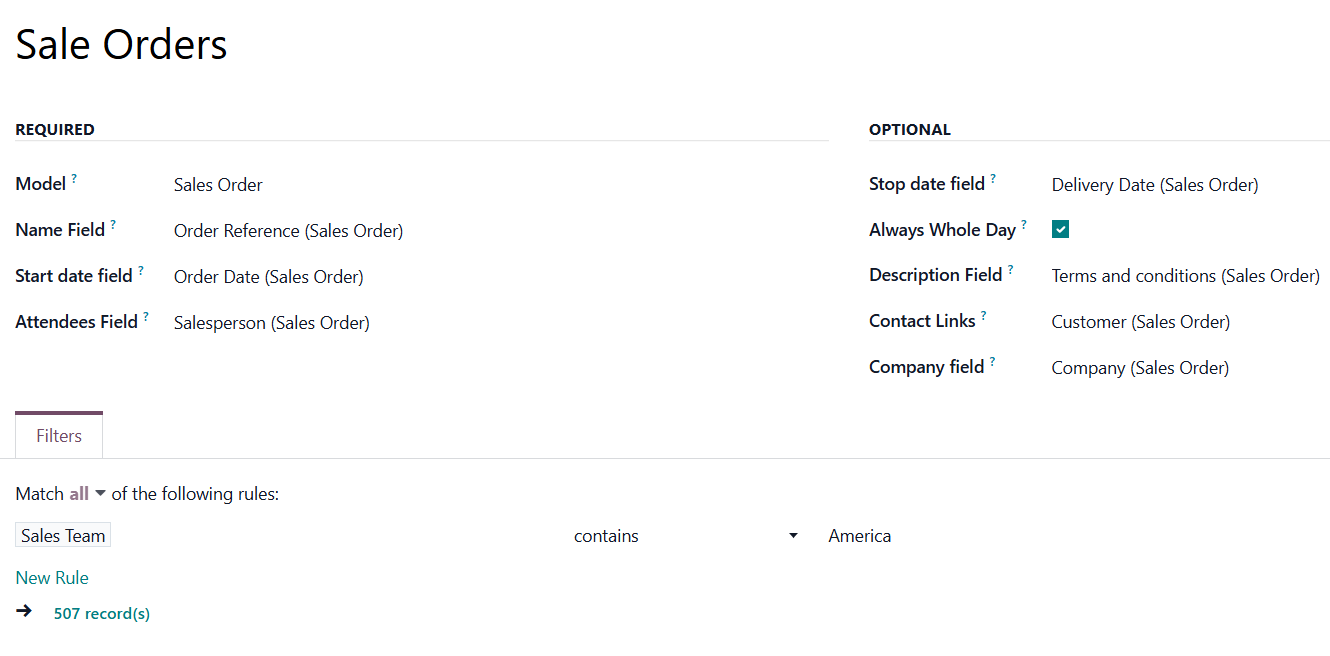
- As a model, use 'Sales order'
- As a name, use 'Order Reference'
- As a start date field, use 'Order Date'
- As attendees' field, use 'Salesperson'
- As a contact link, use 'Customer'
- As a domain, optionally restrict quotations by sales teams
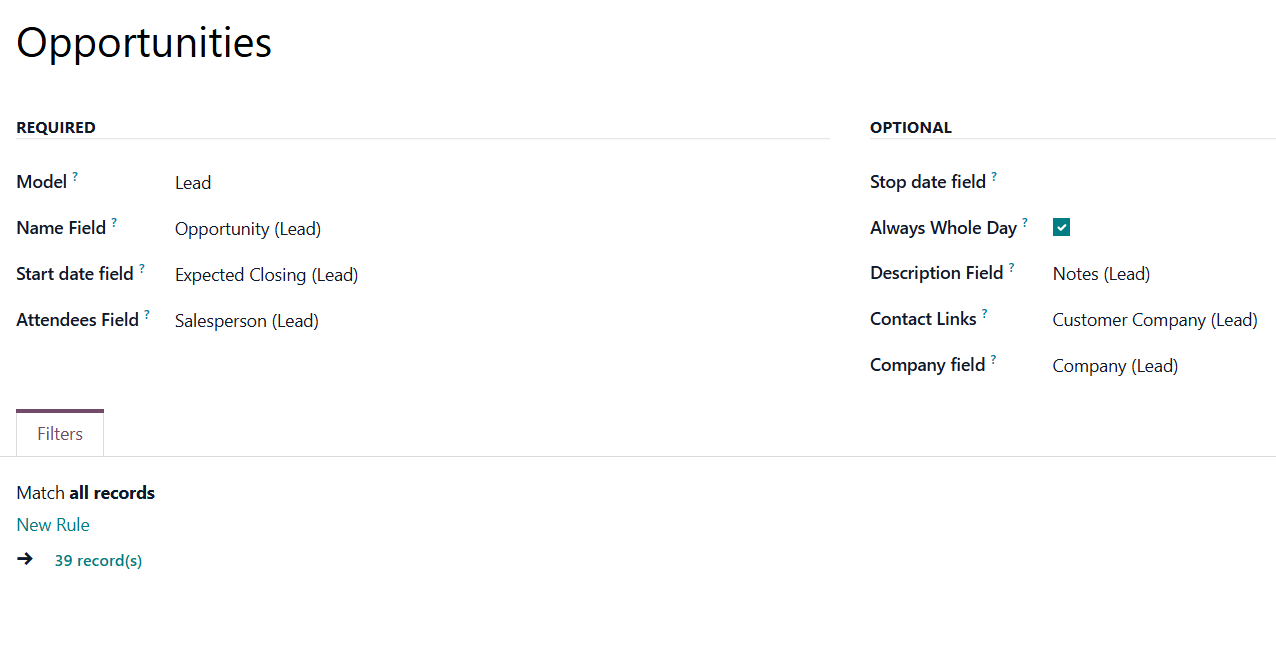
- As a model, use 'Lead'
- As a name, use 'Opportunity'
- As a start date field, use 'Expecting Closing'
- As attendees' field, use 'Salesperson'
- As a contact link, use 'Customer Company'
- As a domain, optionally restrict opportunities by sales teams
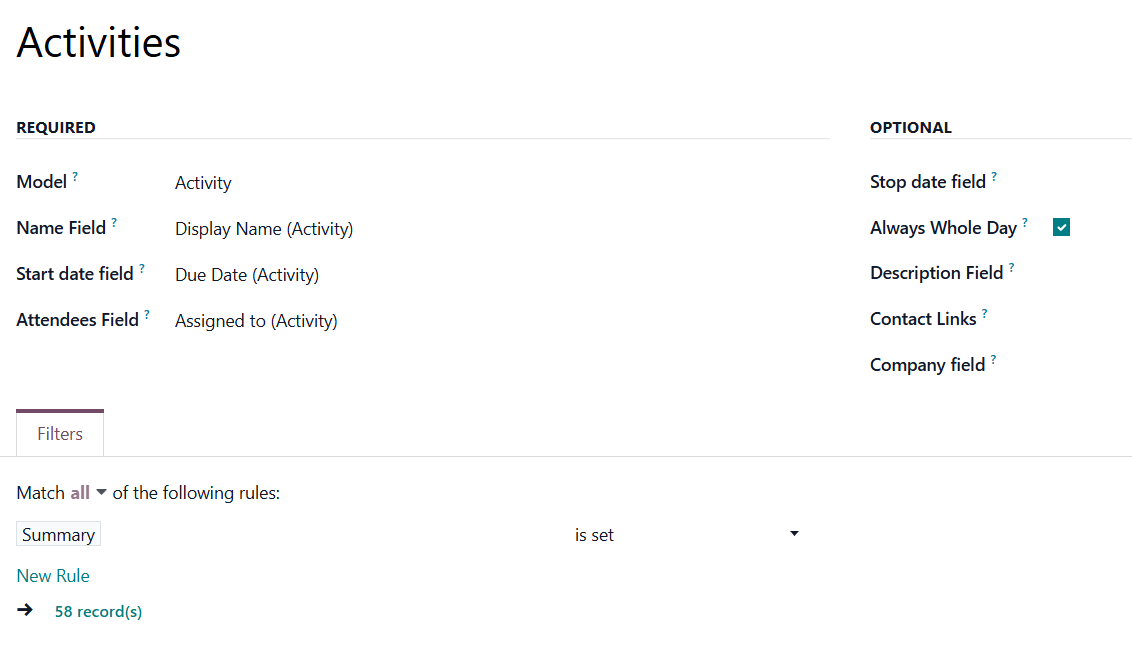
- As a model, use 'Activity'
- As a name, use 'Display Name'
- As a start date field, use 'Due Date'
- As attendees' field, use 'Assigned to'
- As a domain, optionally apply 'Summary is set'
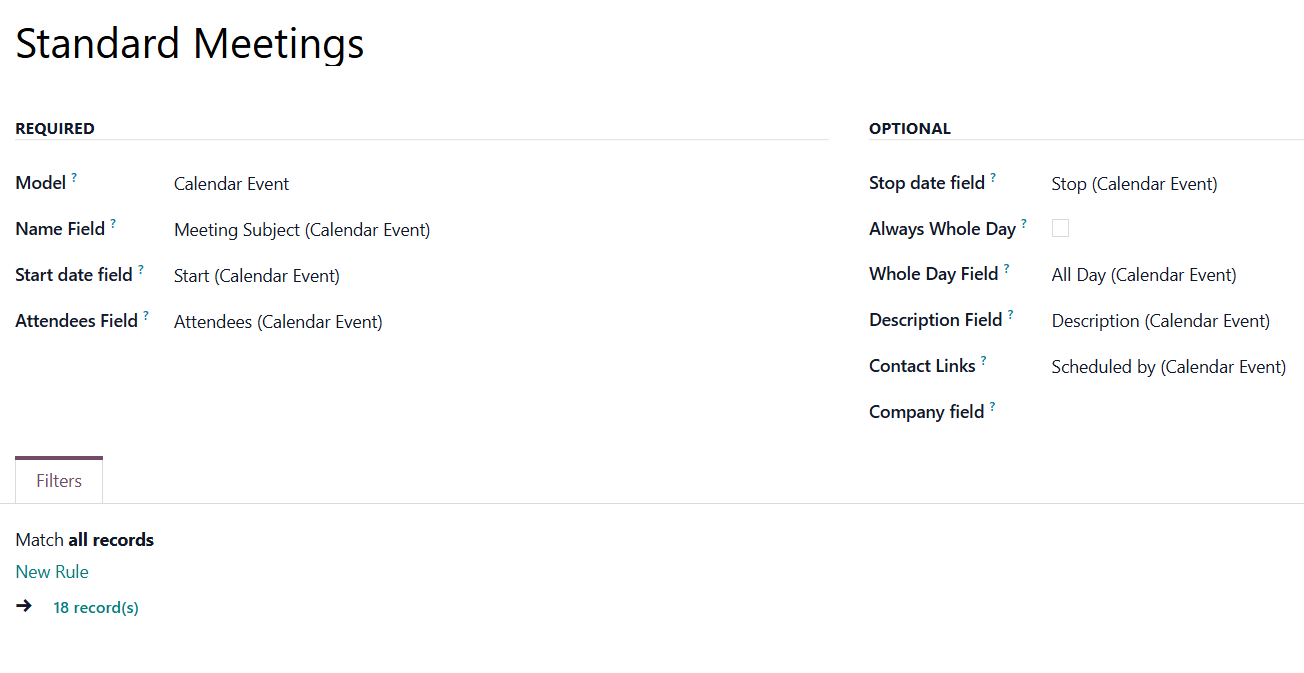
- As a model, use 'Calendar Event'
- As a name, use 'Meeting Subject'
- As a start date field, use 'Start'
- As a stop date field, use 'Stop'
- As attendees' field, use 'Attendees'
- As a whole day field, use 'All Day'
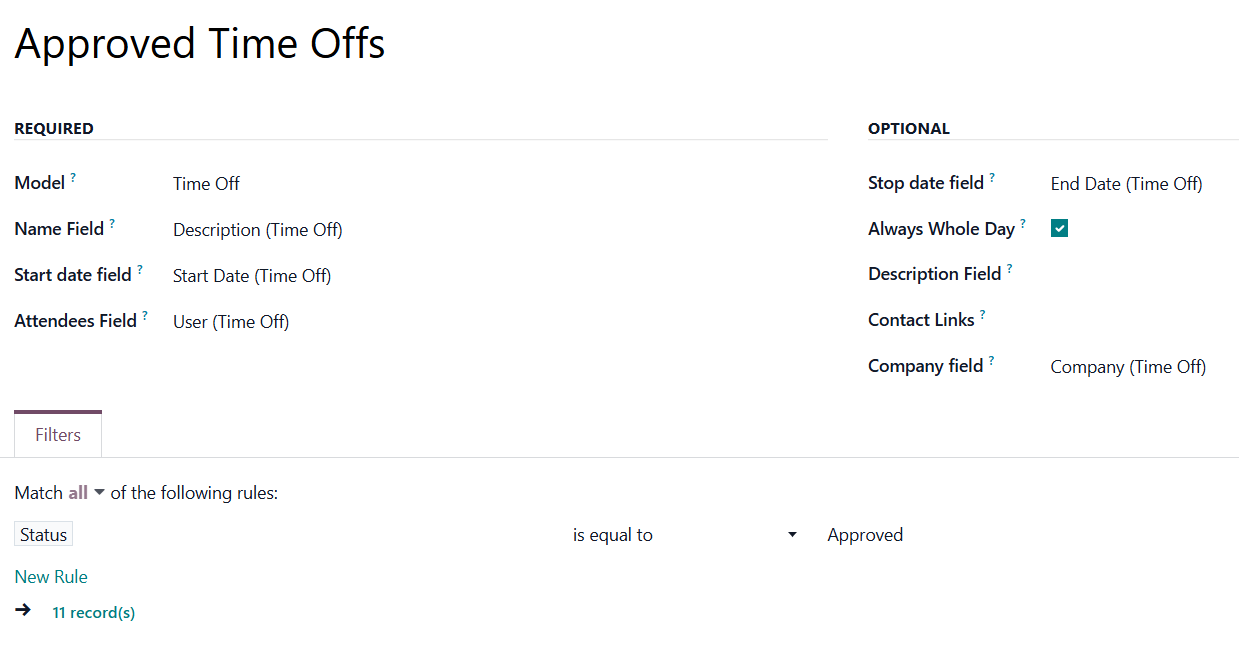
- As a model, use 'Time Off'
- As a name, use 'Description'
- As a start date field, use 'Start Date'
- As attendees' fields, use 'User'
- As a stop date field, use 'End Date'
- As a domain, filter by status use 'Status is equal to Approved' to show only approved leaves
Joint Calendar Interface
Users may access Joint Calendar through the interface events menu. Each super calendar has its systray button. Thus, you can choose which one to show among the created calendars.
By default, the first calendar is opened. You can change the calendar's order by setting up its sequence in the settings tab while creating or editing a calendar. The calendar with the minor sequence goes first (see Creating Calendars).
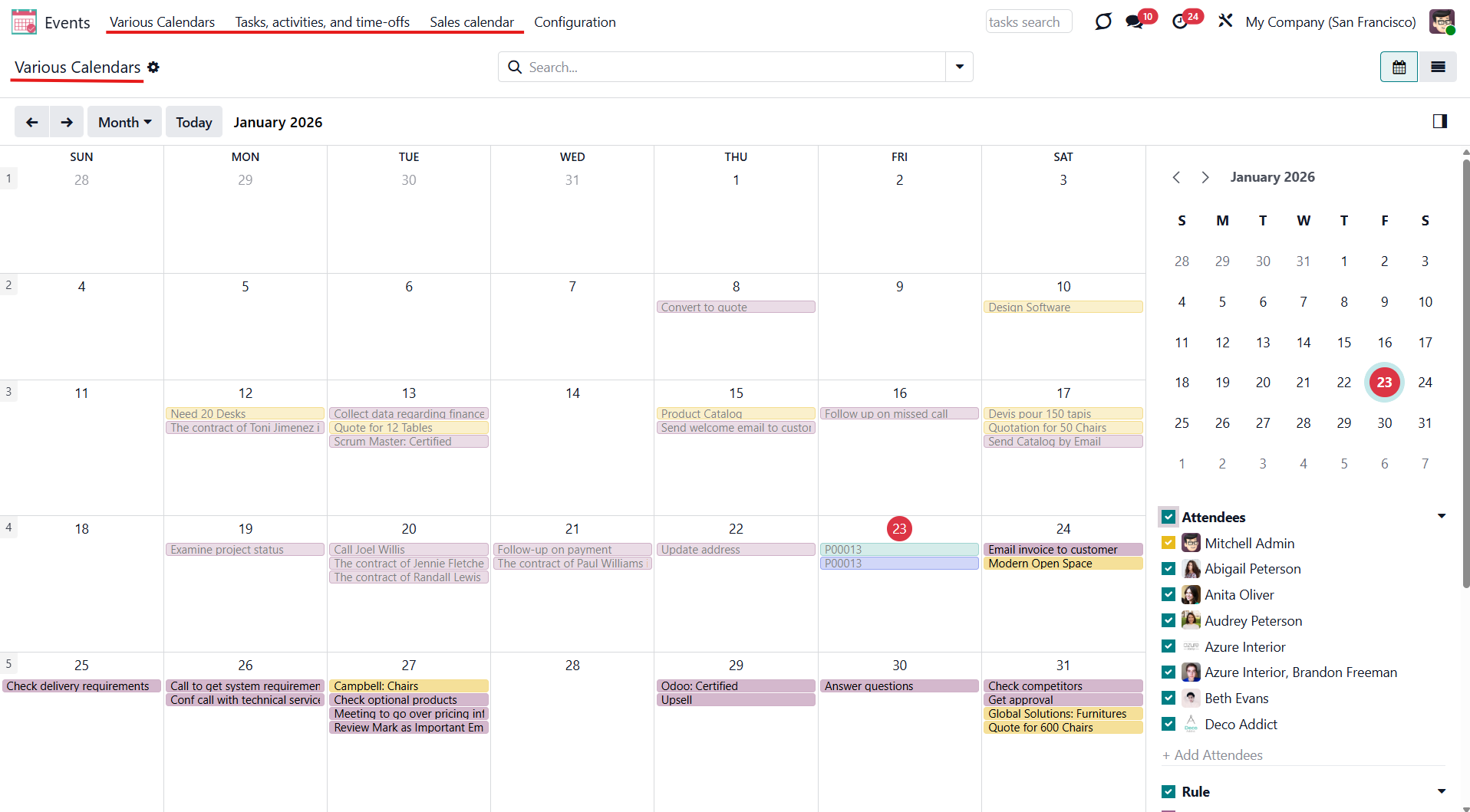
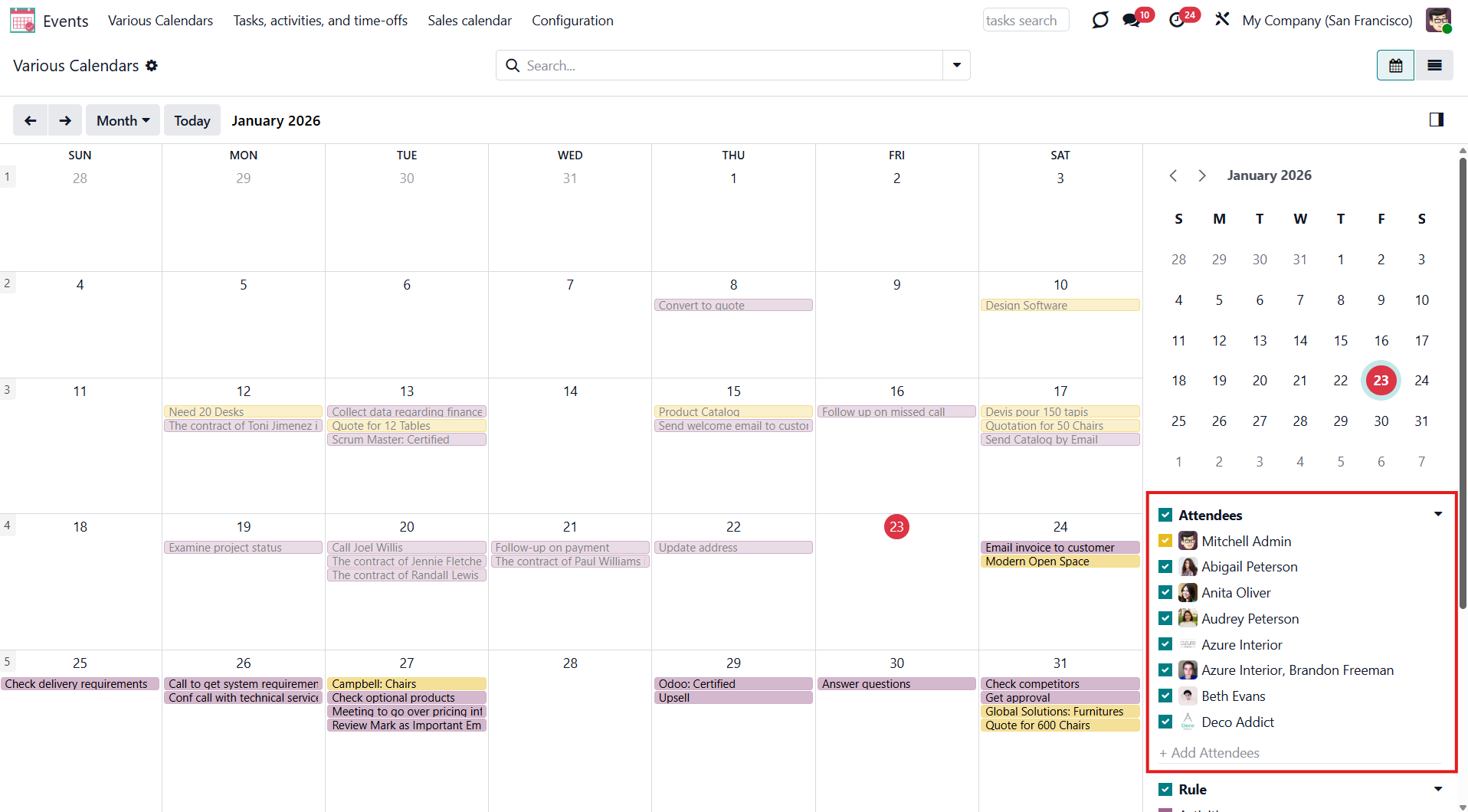
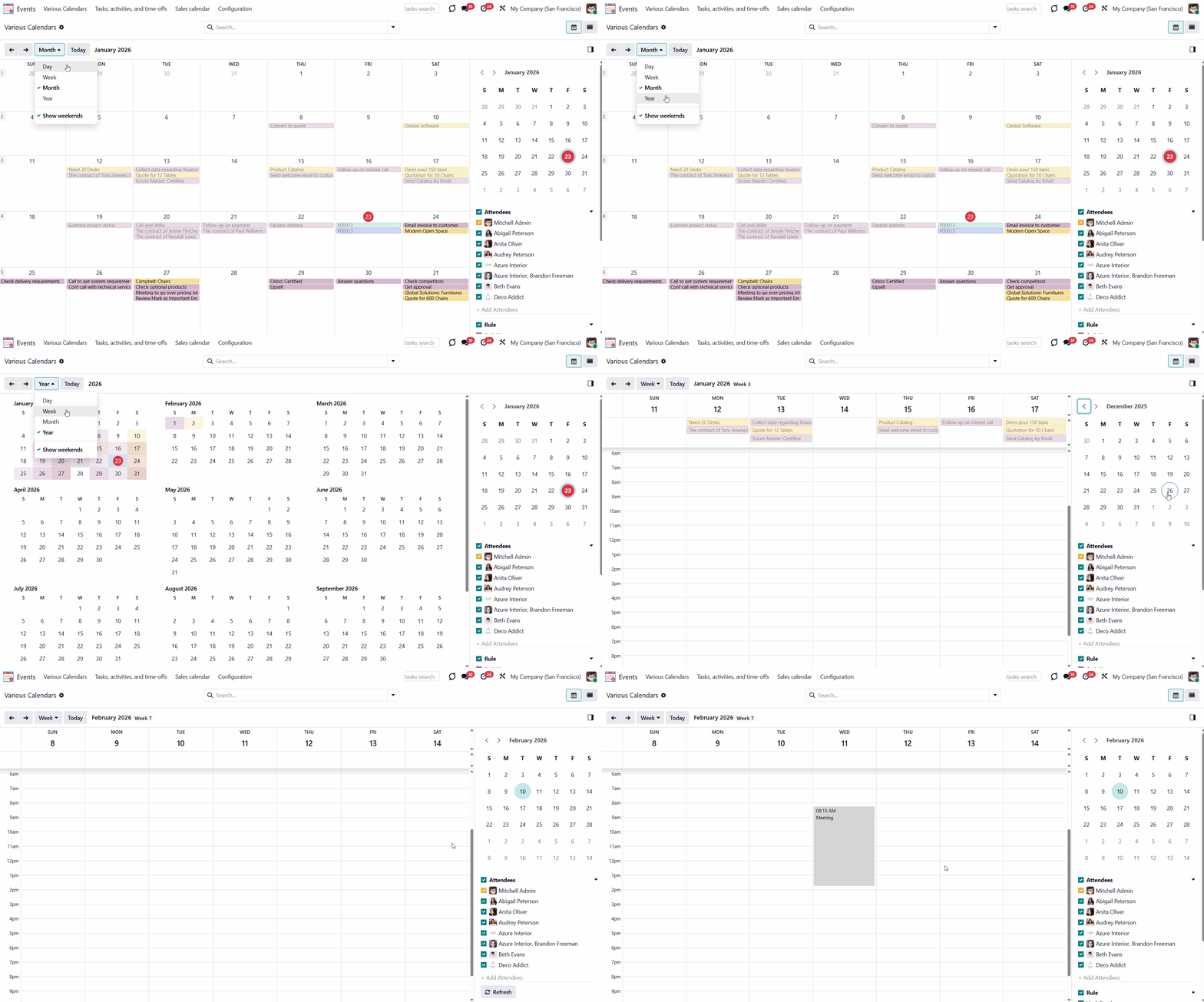
When a user clicks a super calendar menu, they see joint events on a monthly timetable. In the top-left corner, you can switch between daily, weekly, monthly, and yearly views. In the right navigation bar, you see a small calendar that lets you quickly jump to the required date. To do that, click the day you want to see. Use arrows to see the previous/next month.
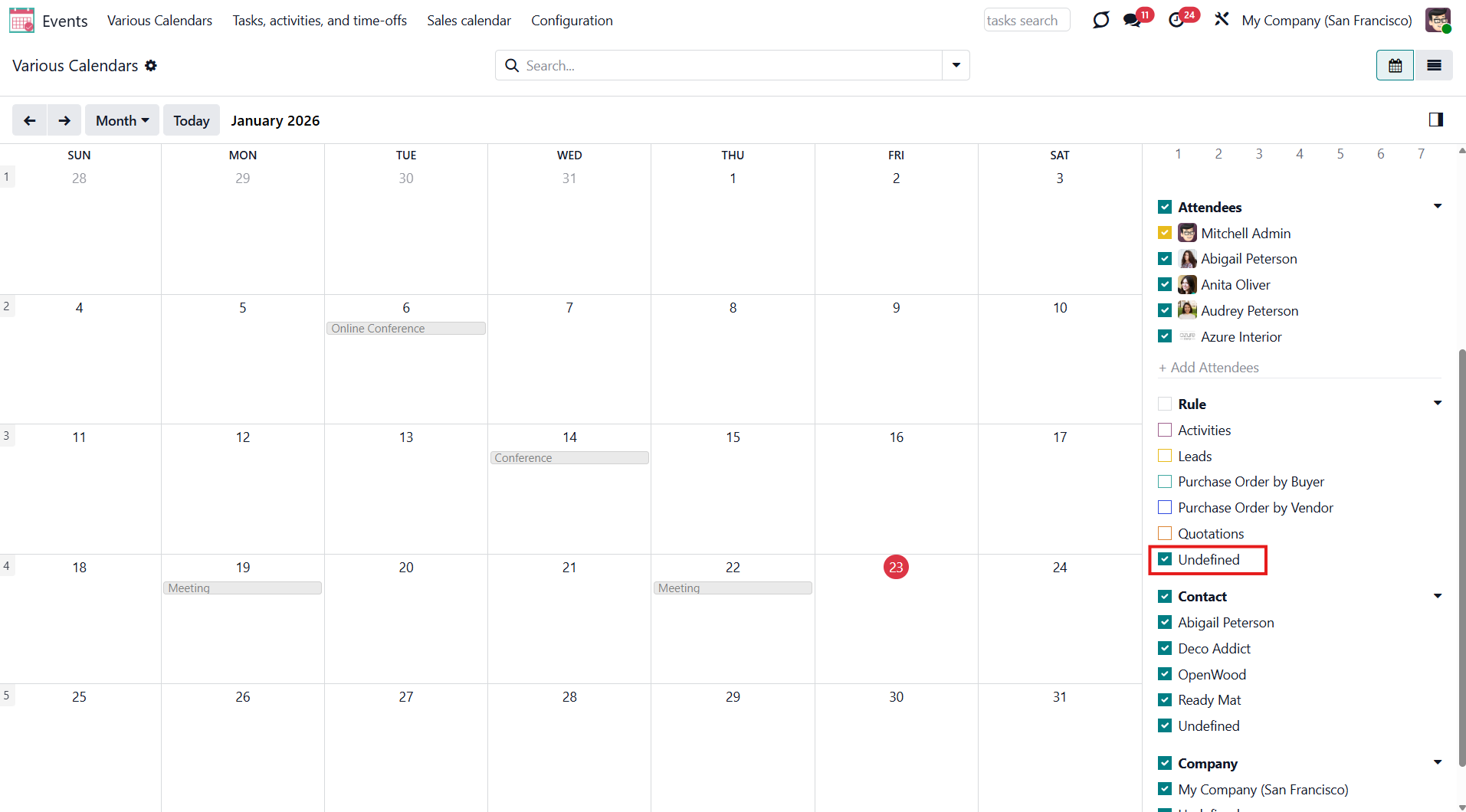
Here you can filter joint events by a joint rule, so by an actual Odoo model. For example, to show only tasks or sales orders. Each of them is marked by color. Without color, manually created joint events (not linked to any Odoo object) would be available under the filter ‘Undefined’.
To create a joint event manually, click on any day, introduce the event name, and click 'New'. The undefined event will be available for the same calendar from which it was created.
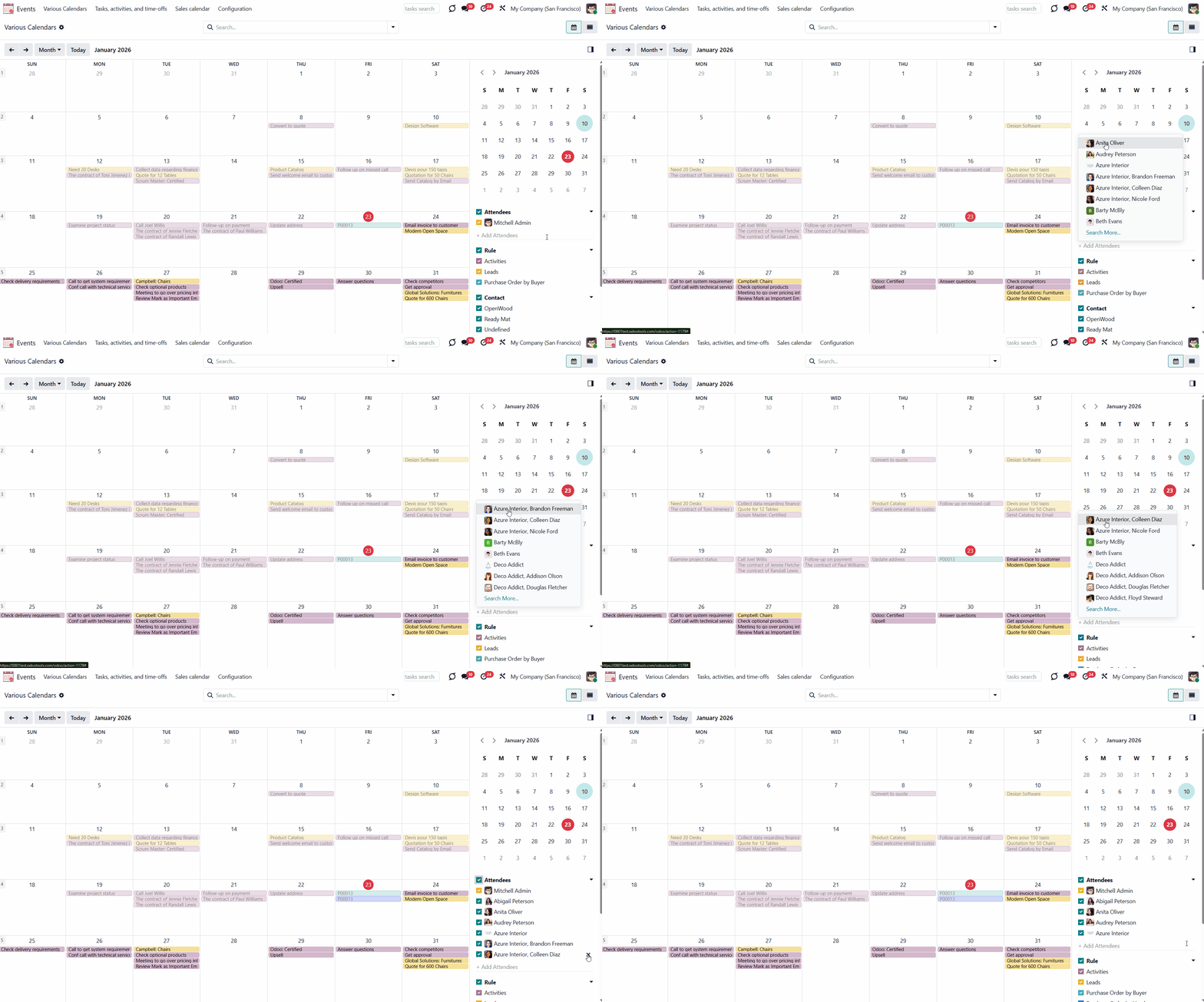
Also, below the model filtering, you can search for actual joint event attendees, for instance, to see only your own documents or those of a particular person(s). Add a new attendee filter by clicking the field ‘+ Add Attendees' and choosing a person from the list. You can also start typing the person's name.
It is only up to you to decide which attendees to keep. You can delete the ones you don't need by clicking the cross next to the person.
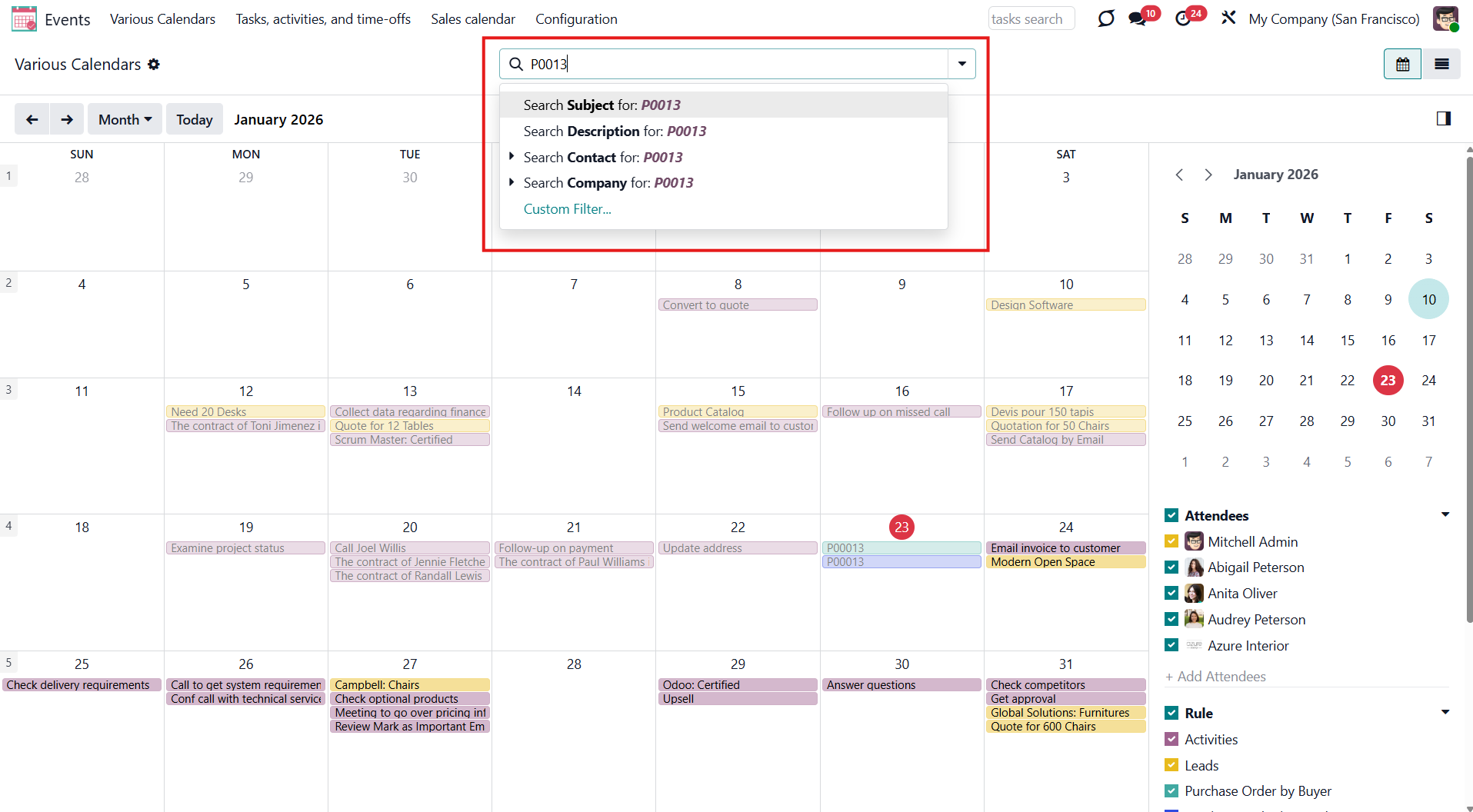
Use the Odoo standard omnibox above the calendar to search by:
1. Subject (the title of the event)
2. Description (by event's extra notes)
3. Contact (the customer)
4. Company (the company of the event)
To search, start typing the word and then choose the search option.
You can access an event's primary information right from the Events app. Click on an event in the calendar to see its details.
Click the 'Edit' button to change the start or end date and time, the contact, and to configure an alarm for this object.
Joint events and their source documents are interrelated. Update the former, and the latter will be changed according to the system schedule.
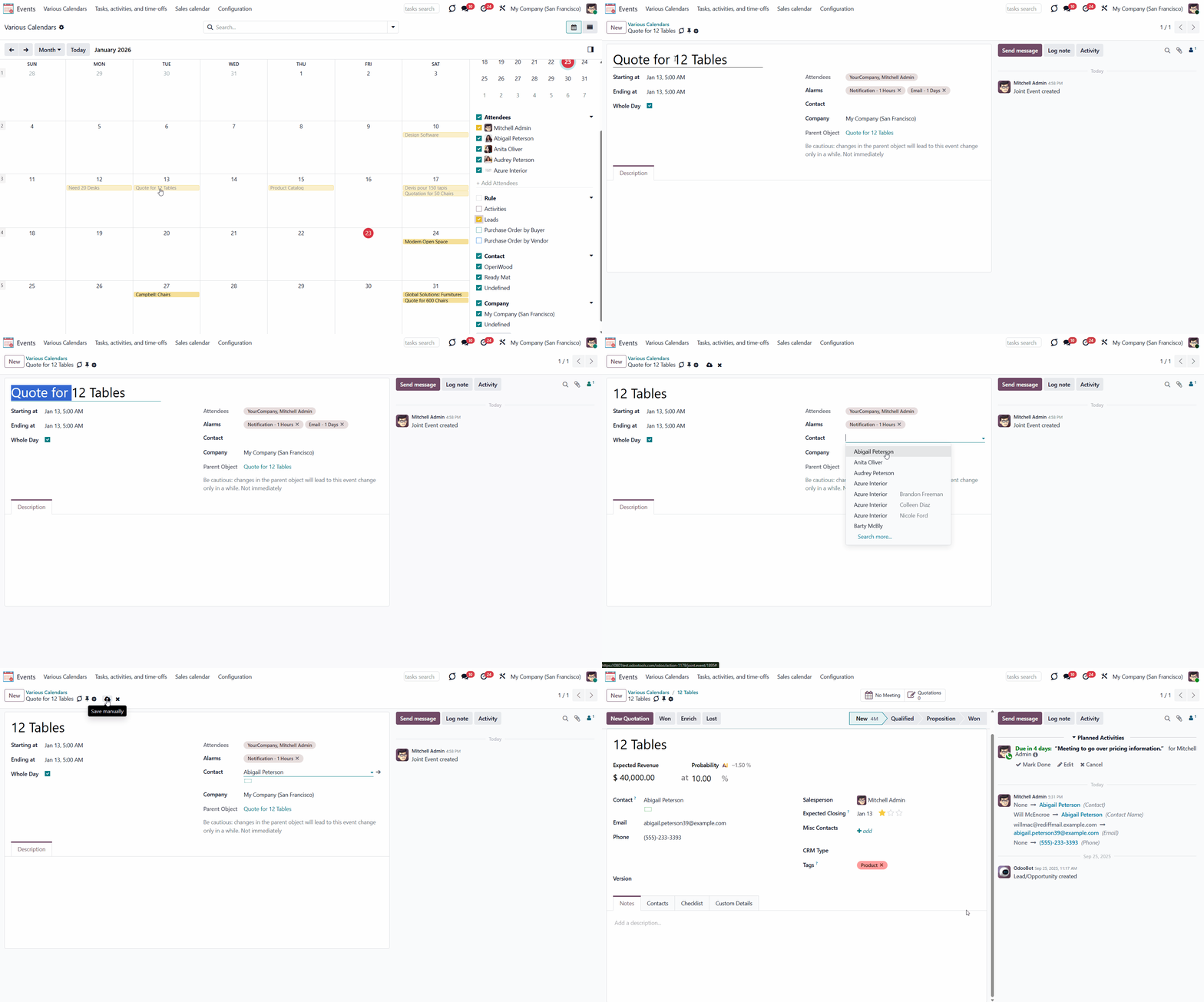
Changes to the event card will be reflected in the source document immediately. However, the read-only and computed fields cannot be changed. So, if you try to change such fields, the changes will be reverted with the next scheduled job.
You can find out what type of field is used by clicking on the arrow by it as you create a rule.
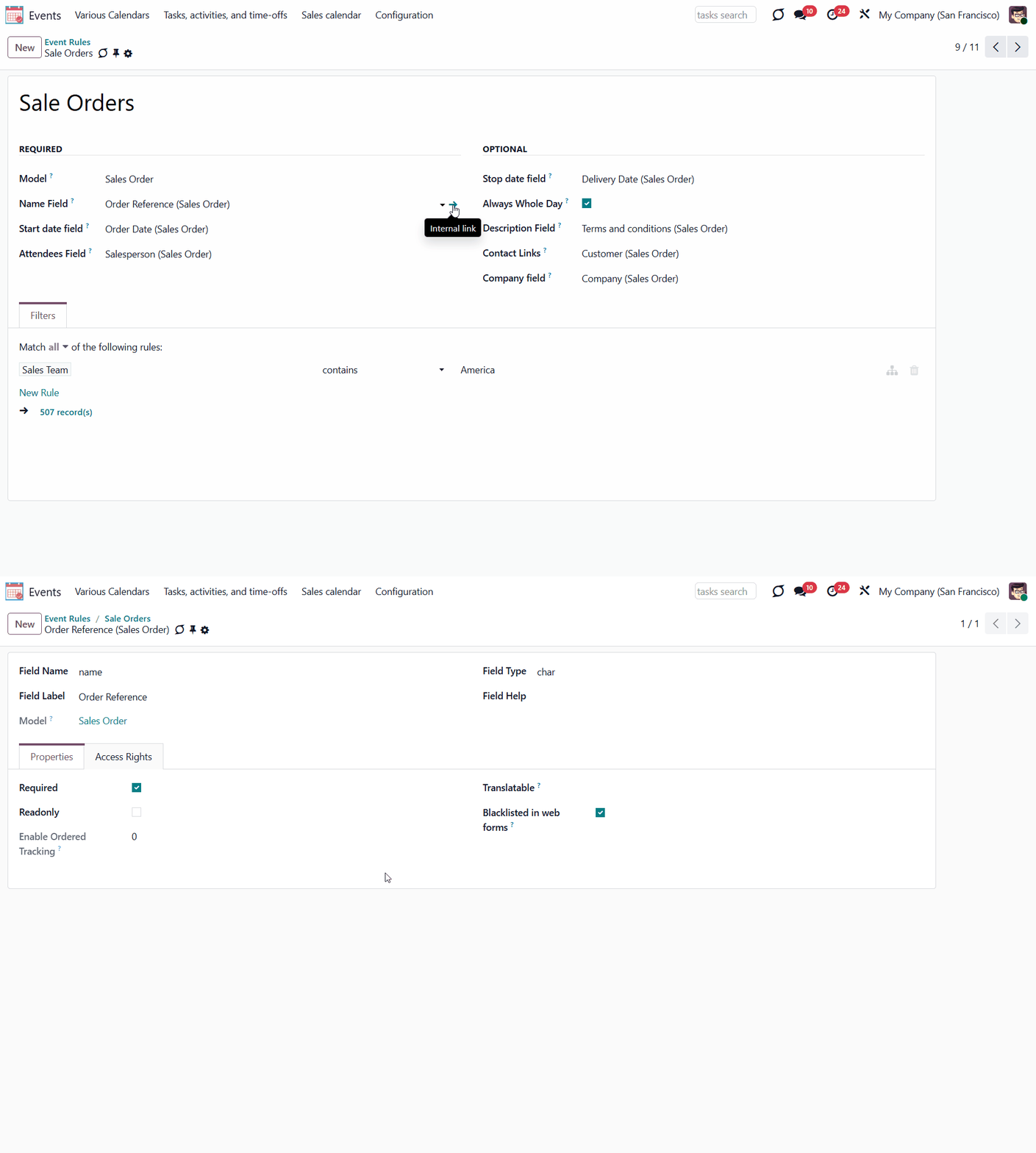
For example, you created an event based on the task 'Customizable desk'. After a while, you decided to change the task's name to 'White desk', and the related event's name changed after the system update. If you change the event's name to 'Black desk', the next scheduled job will restore the title to 'White desk' because the used field is read-only.
At the same time, if you create an event based on the opportunity 'Quote for 12 tables' and decide to change its title to 12 tables, the title of the related opportunity will be changed as well, while it isn't read-only.
If you click on the parent object, you will be redirected to the source document.
You can also delete an event by clicking 'Delete'. However, this will not delete the source document.
Joint Calendar Access Rights
Various users can see joint events differently depending on their access rights.
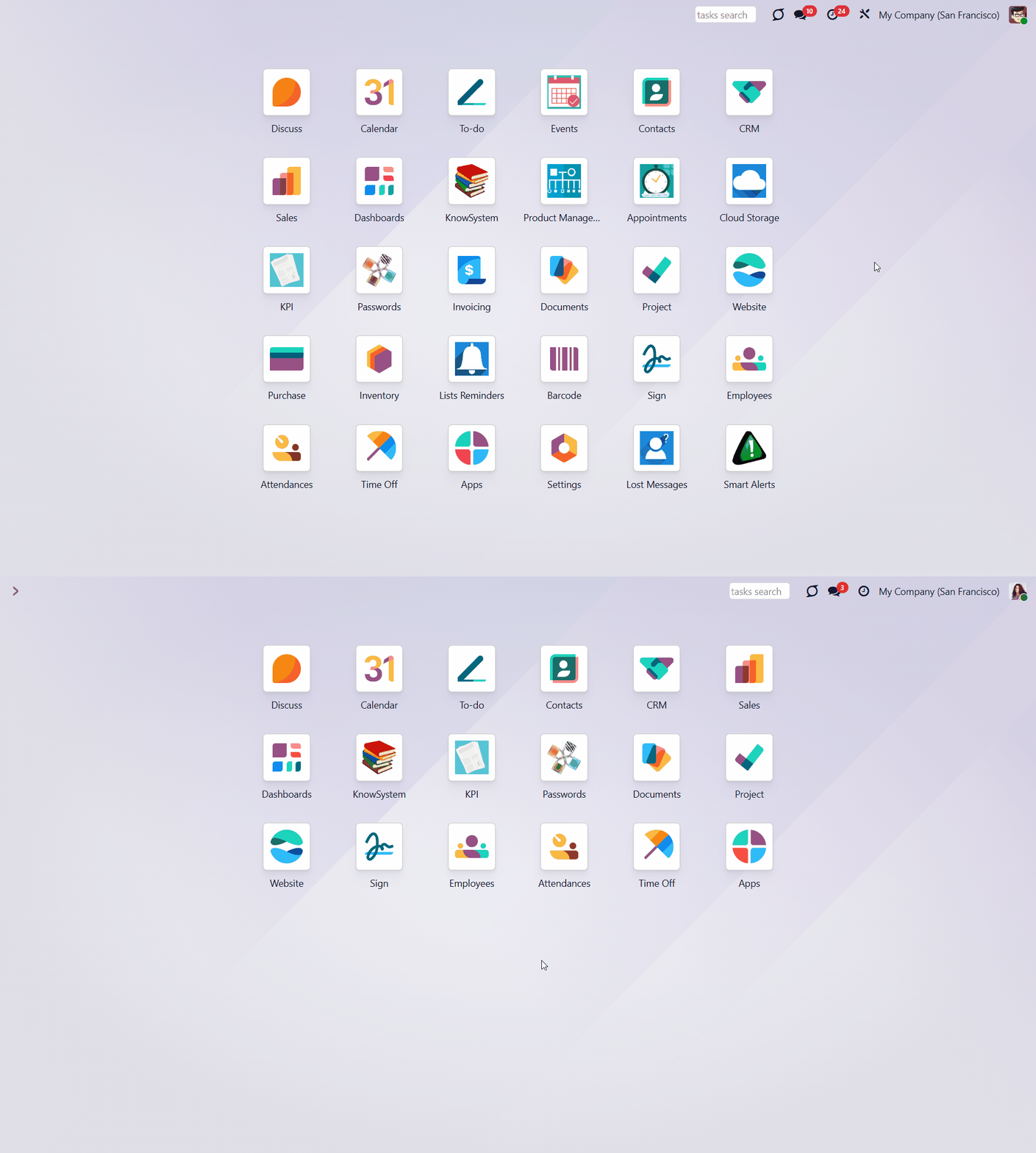
There is no need to configure any additional roles to see the events menu. If a person has access to one of the calendars, then the 'Events' menu will be visible to this user, and the corresponding calendar's title will be added to the events' systray.
If a user does not have access to a particular calendar, it will not be visible.
Keep in mind that if there are calendars but a user has no access to any of them, the events menu will be hidden for that user.
If there are no calendars, the events menu will not be shown in the module's menu for all users.
Access to the calendar doesn't guarantee that a person will see all the events that it includes. Users may observe only the events to which the related objects to which they have access rights. Thus, if a user has rights to the object AND the calendar, they can access the joint event linked to the object.
The related Odoo modules regulate object permissions. For example, Abigail Peterson sees the order 'S02204', but doesn't have access to Mitchel's order 'S02203', so she will not see it in the calendar either.
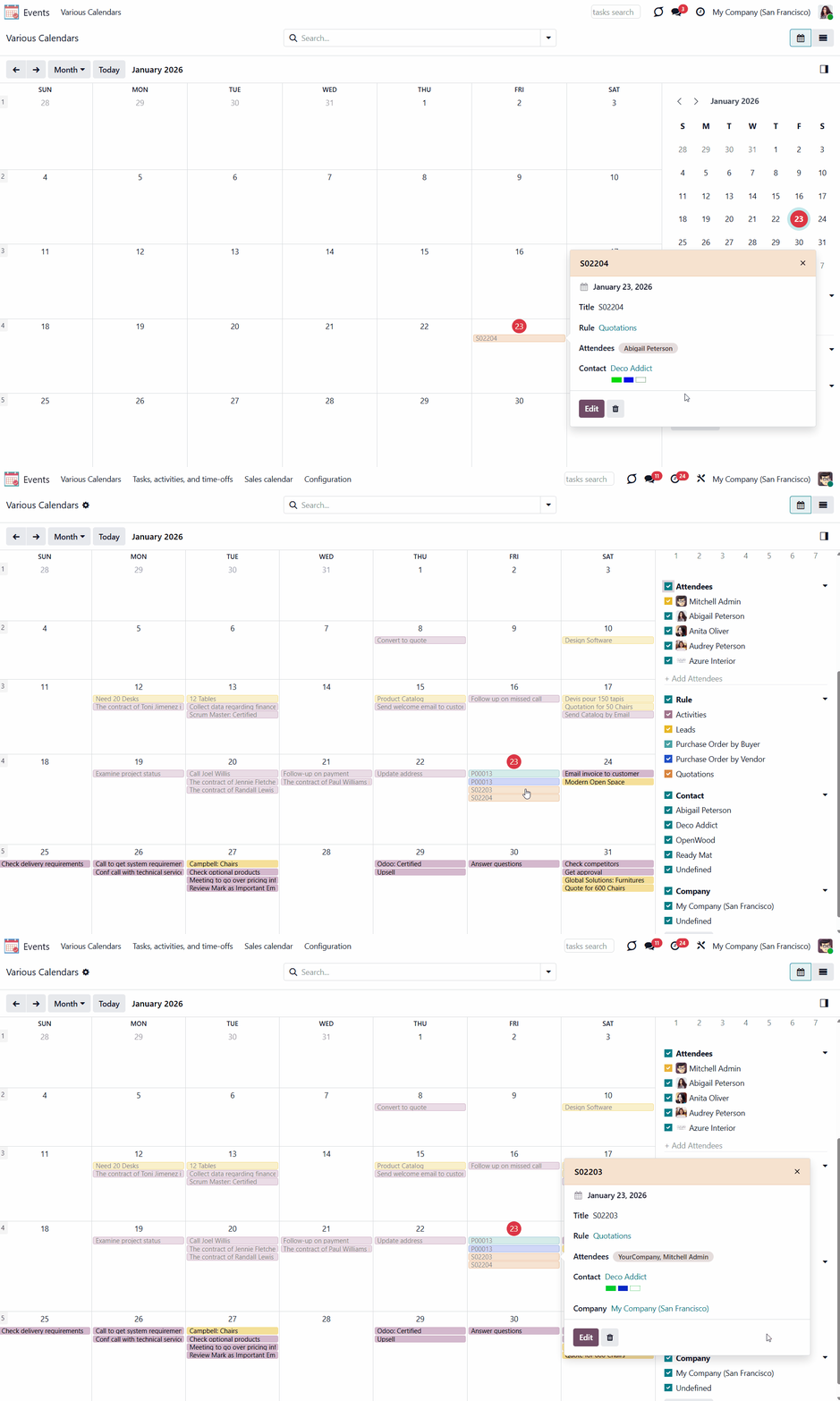
Sometimes there may be some undefined objects. An undefined object is an object that was created right from the calendar, has no parent object, and is not regulated by a rule. You can see all undefined events by ticking the line 'Undefined' in the section 'Rule' on the right side of the interface.
Everyone with access to the calendar can create and view its undefined events.
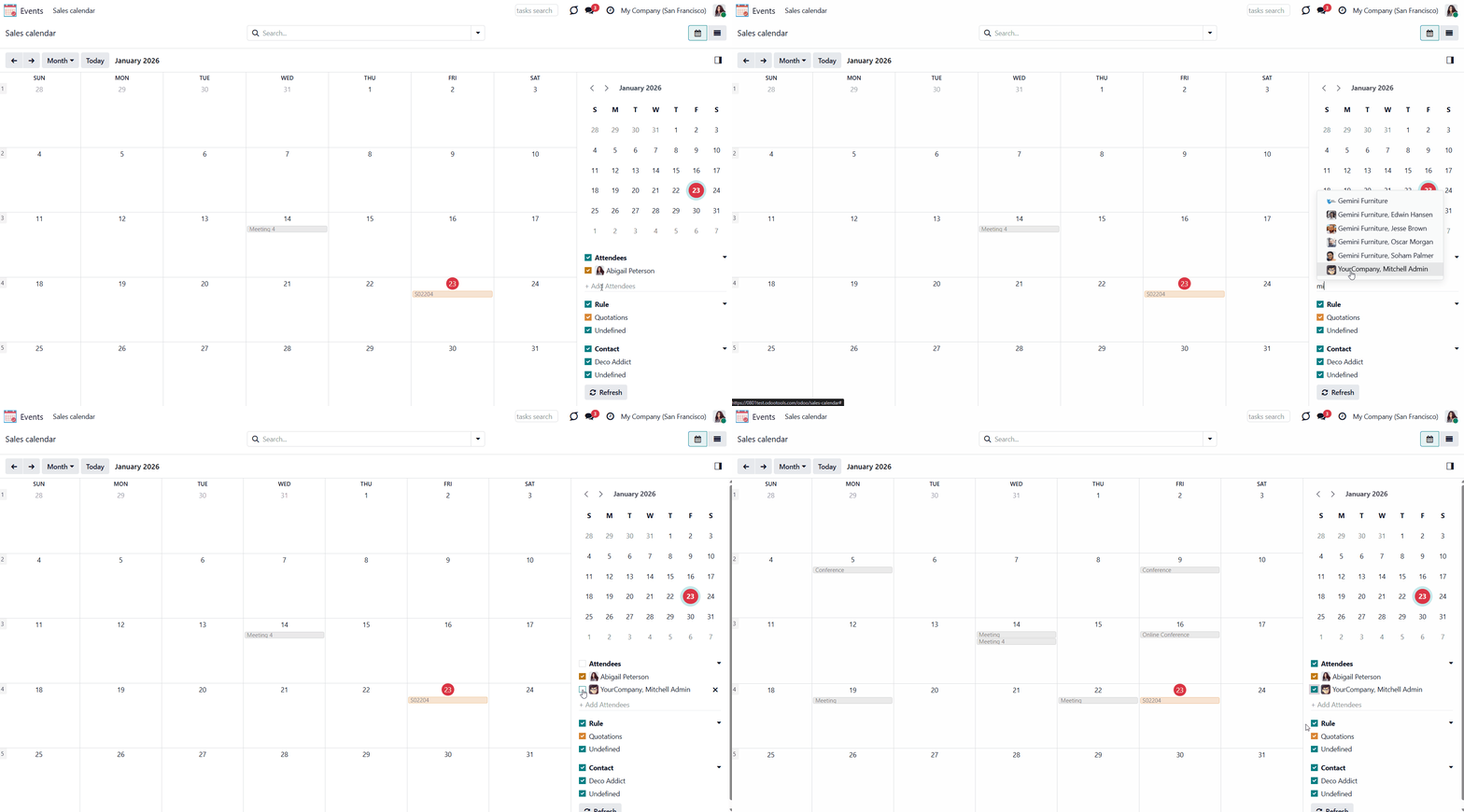
Let's see an example. We have a 'Sales Calendar', which can be accessed by sales administrators and salespeople. If Abigail Peterson, our salesperson, enters the 'Events' menu, she will see this calendar. By default, she sees only her events. In January, she created the event - 'Meeting 4'. If she clicks another attendee, e.g., Mitchell Admin, on the right side of the interface, then she will see all Mitchel's events to which she has access. However, those events do not involve Abigail herself.
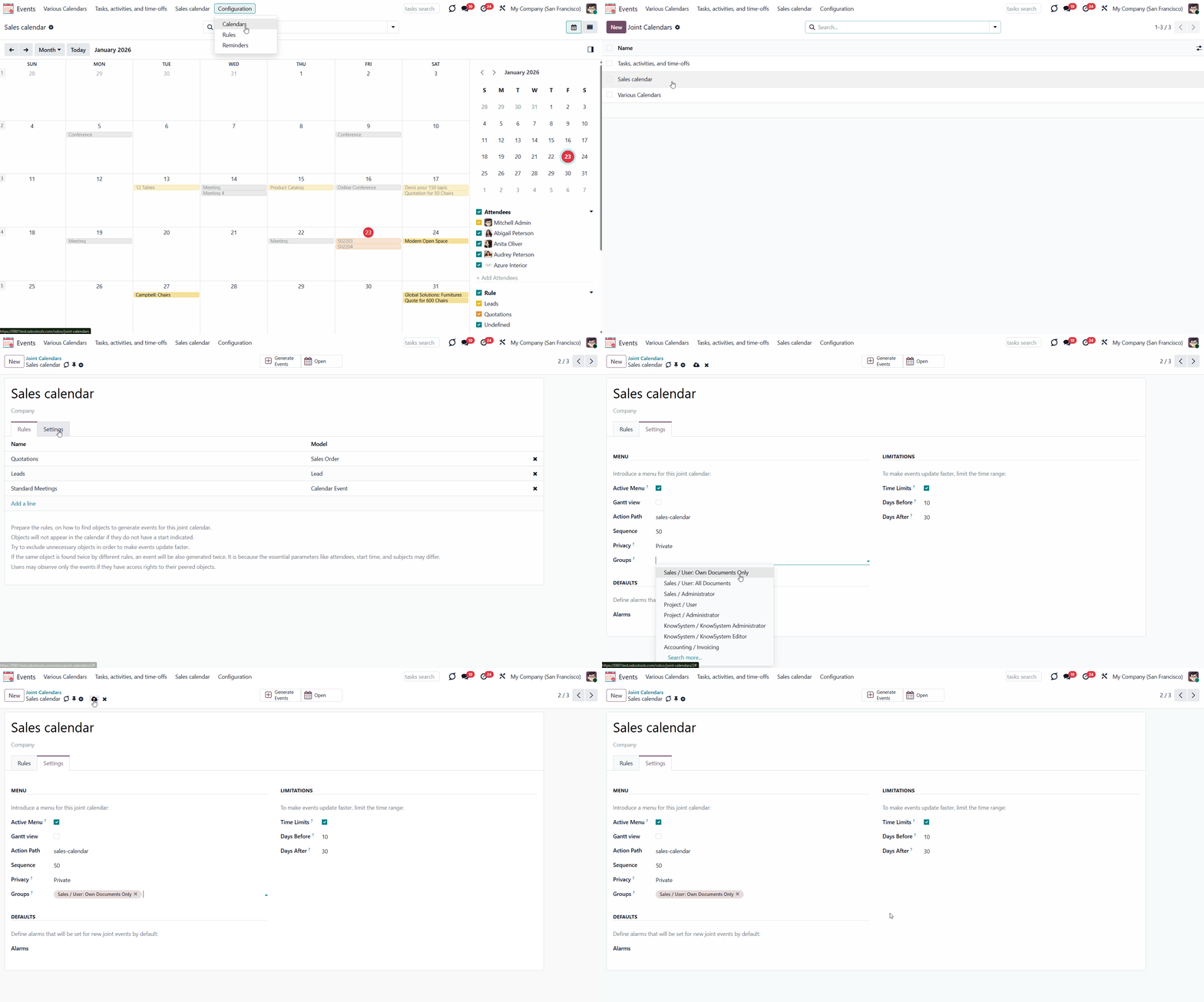
The system administrators have the right to create and edit joint calendars and rules.
When you create or edit a calendar, you can set its access rights in the Settings tab. The calendar may be public (visible to everyone) or private (visible only to specific user groups).
If you choose to make the calendar private, you can specify which groups can see it. Add the groups in the field 'groups', which appears when you choose the option 'private' in the field ' Privacy'. You can add as many groups as necessary.
It might be handy if you want to create a calendar for a particular department or team so that they can control the related events.
For example, create a 'Sales Calendar' for the sales department. Then specify the group 'Sales / User: Own Documents Only'. This way, all users who have the proper and extended sale rights, e.g., Sale Administrators, will be able to see the 'Sales Calendar'.
Configuring Alarms & Notifications
Set the alarms to be warned before an event starts. You can either set an alarm for the automatically created events or set an alarm manually for a particular event. It is possible to add more than one alarm.
The alarm for automatically created events can be set in the tab 'Settings' when you create or edit a Calendar. The person or people who will be warned are defined by the Attendees field of a rule (see Rules Fields).
When you edit the alarms of existing calendars, the changes aren't applied to already existing events, only to newly generated ones. This was made to allow manual changes to the alarms for separate events. Otherwise, even after changing the alarms for an event, the settings would revert to their defaults with the next scheduled job.
The alarm for a particular event can be set right in the 'Events' menu. Just click on the event and choose 'Edit'. You can add or delete an alarm (see Joint Calendar Interface).
The calendar's alarm settings do not affect alarms for undefined events; these should be added manually if necessary.
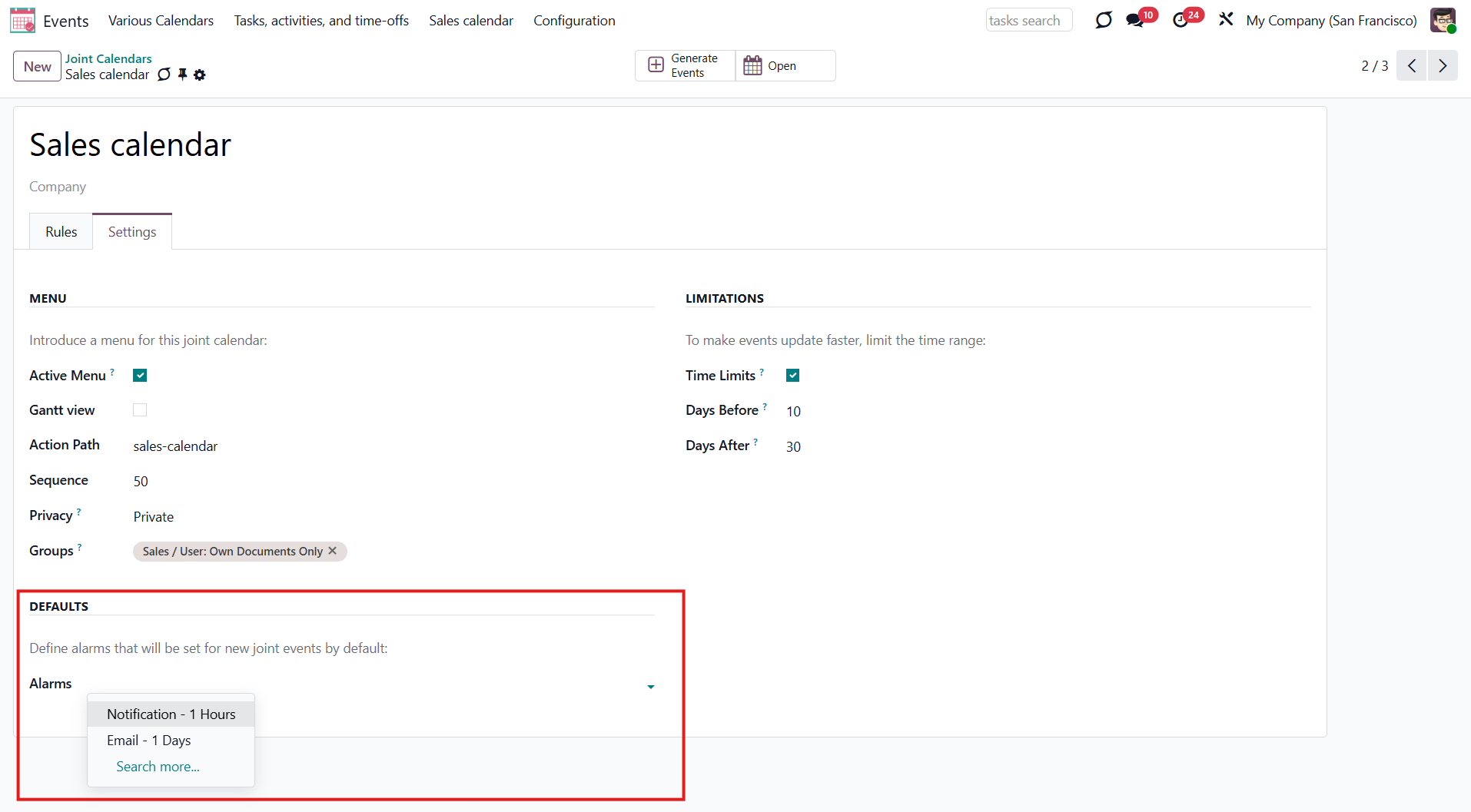
Users can be notified through the standard Odoo pop-up notification or by email. You can choose the type of reminder while creating or editing it.
The alarms can be created through the separate menu or directly in the 'Alarms' field, in the form of a calendar or an event.
To create an alarm through the special menu:
1. Open the Events app
2. In the systray, go to Configuration > Reminders
3. Click 'New'
4. Choose the alarm type
5. Choose the time before the event, when the reminder should be sent by typing the number of periods and choosing the type of period (minutes, hours, or days) in the field 'Remind before'.
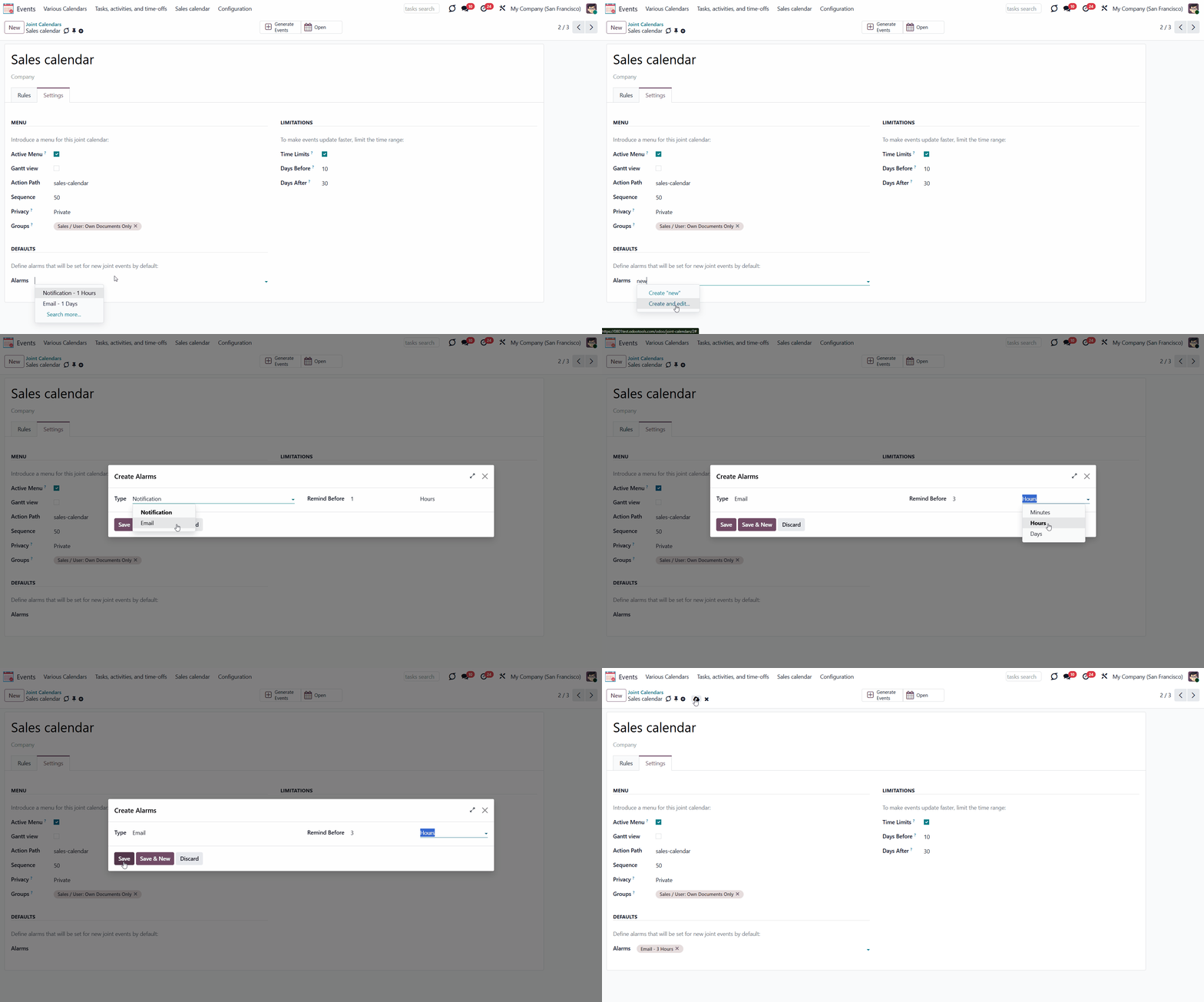
To create an alarm right from the form of a calendar or an event:
1. Type its title in the field 'Alarms' and click 'Create and Edit'.
2. Choose the alarm type
3. Choose the time before the event, when the reminder should be sent by typing the number of periods and choosing the type of period (minutes, hours, or days) in the field 'Remind before'
4. Click 'Save&Close'.
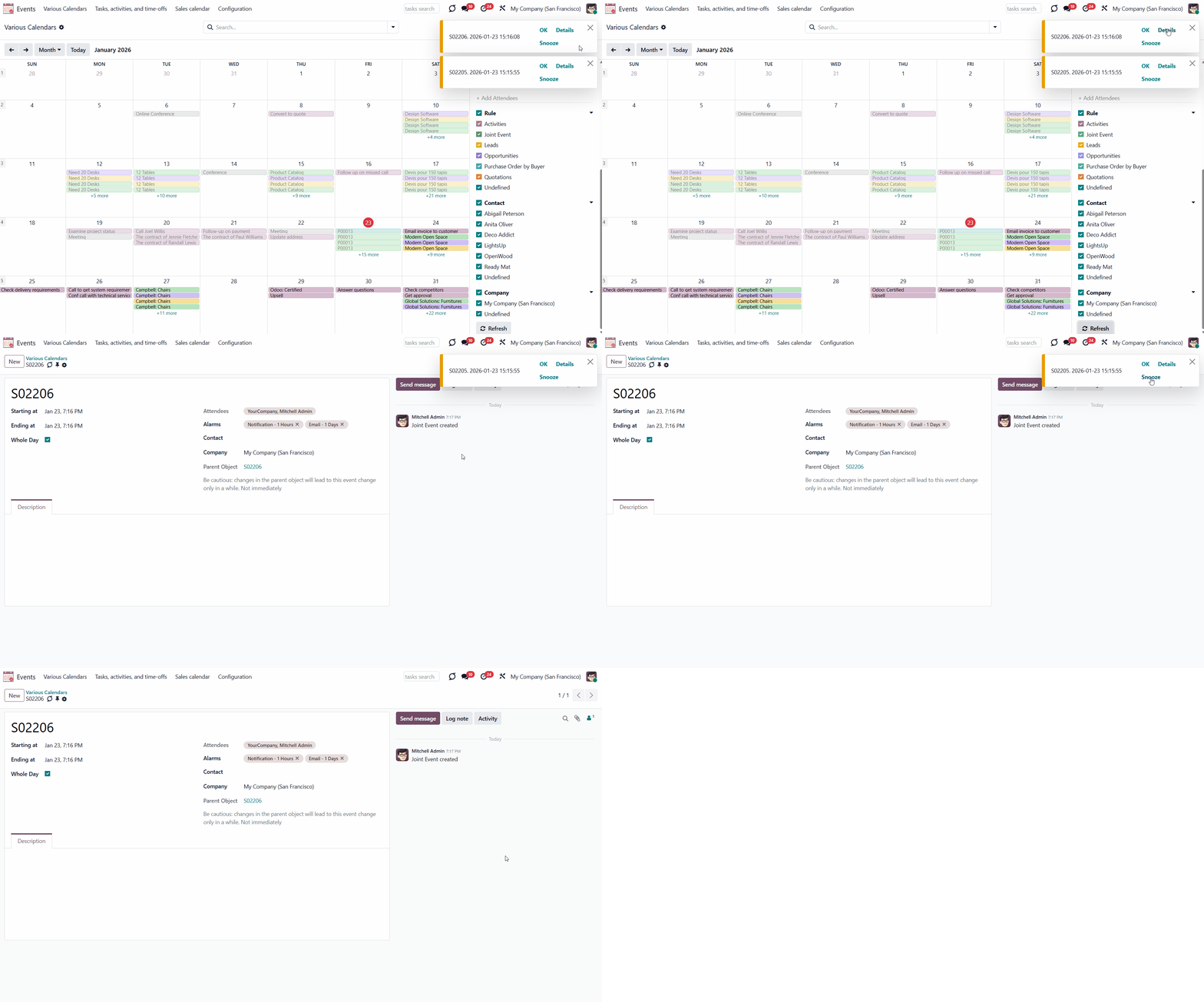
If a notification to remind them of an event is set, users (attendees) will see a pop-up window at the event's alarm time. The pop-up window has three buttons.
To turn off the alarm, click 'OK'.
To view the event details, click 'Details'.
If you want to receive another alarm about the event later, click 'Snooze'. The alarm will repeat later.
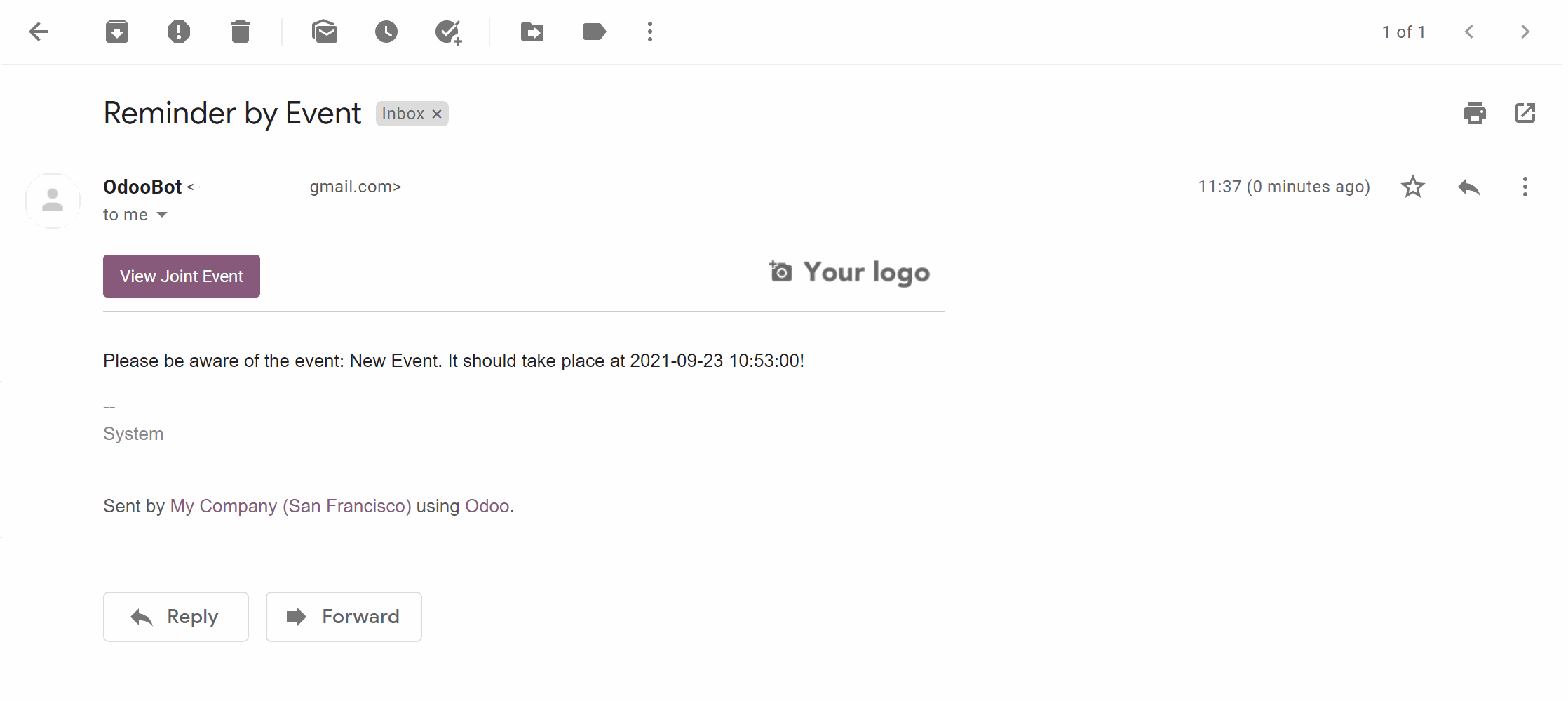
If an email alarm for an event is set, users (attendees) will receive an email at the event's reminder time. The email includes the event name and time.
You can also click on the 'View Joint Event' button to be redirected to the event.
Refreshing Joint Events & Odoo Scheduled Jobs
The module automatically collects various documents into a single super interface according to flexibly configured rules. The calendar is updated regularly according to the system schedule.
It is possible to set any update frequency. However, it isn't recommended to do it more often than once every 5 minutes. If you have a large number of objects, it is better to update them even less frequently so Odoo has enough time to process the events list. If necessary, set calendar limits and filters in the rules to create only the events that match the corresponding condition.
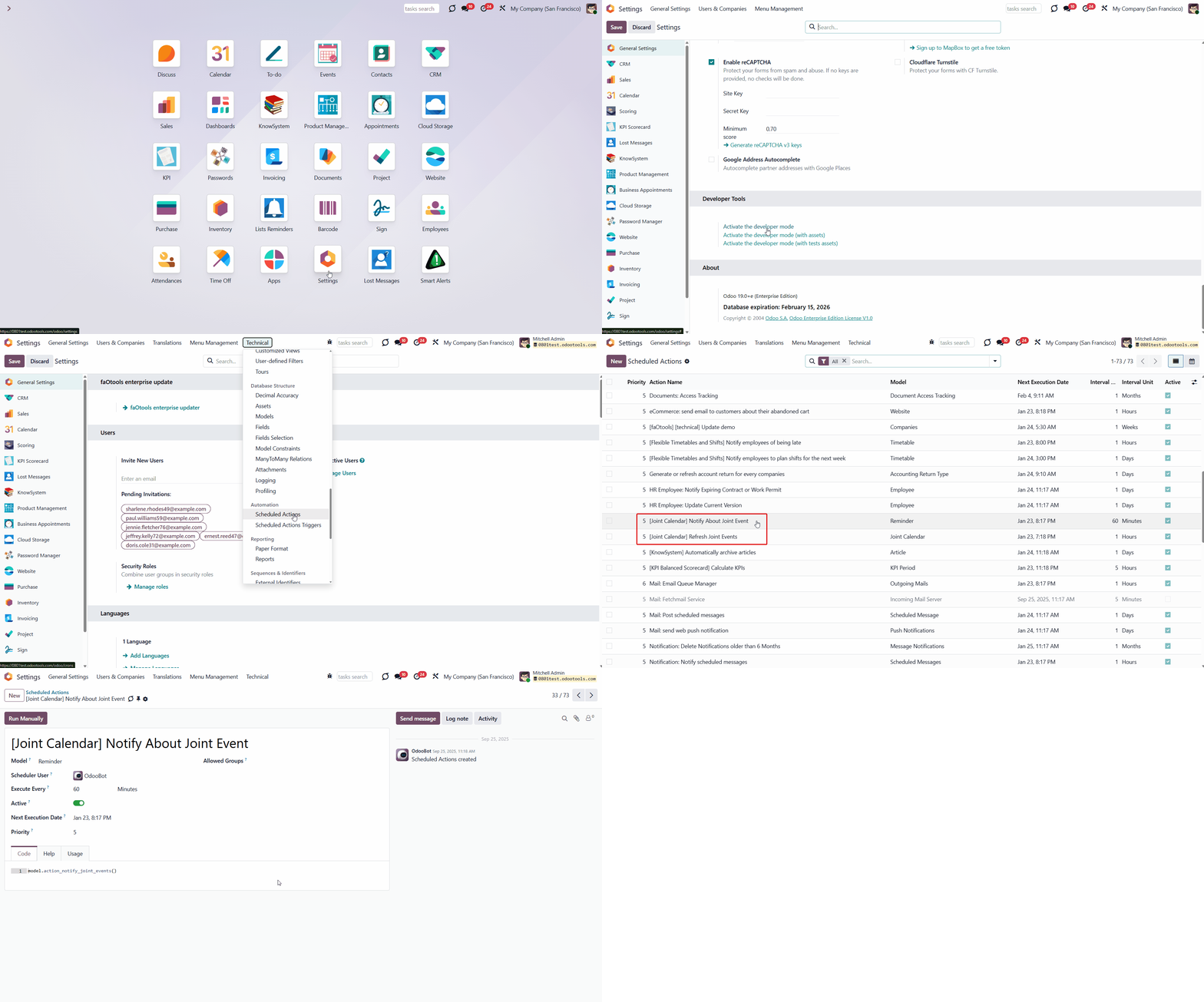
To change the frequency of the merged calendar refreshing and the email reminders' checks:
1. Turn on the debug mode
2. Go to technical settings > Automation > Scheduled jobs
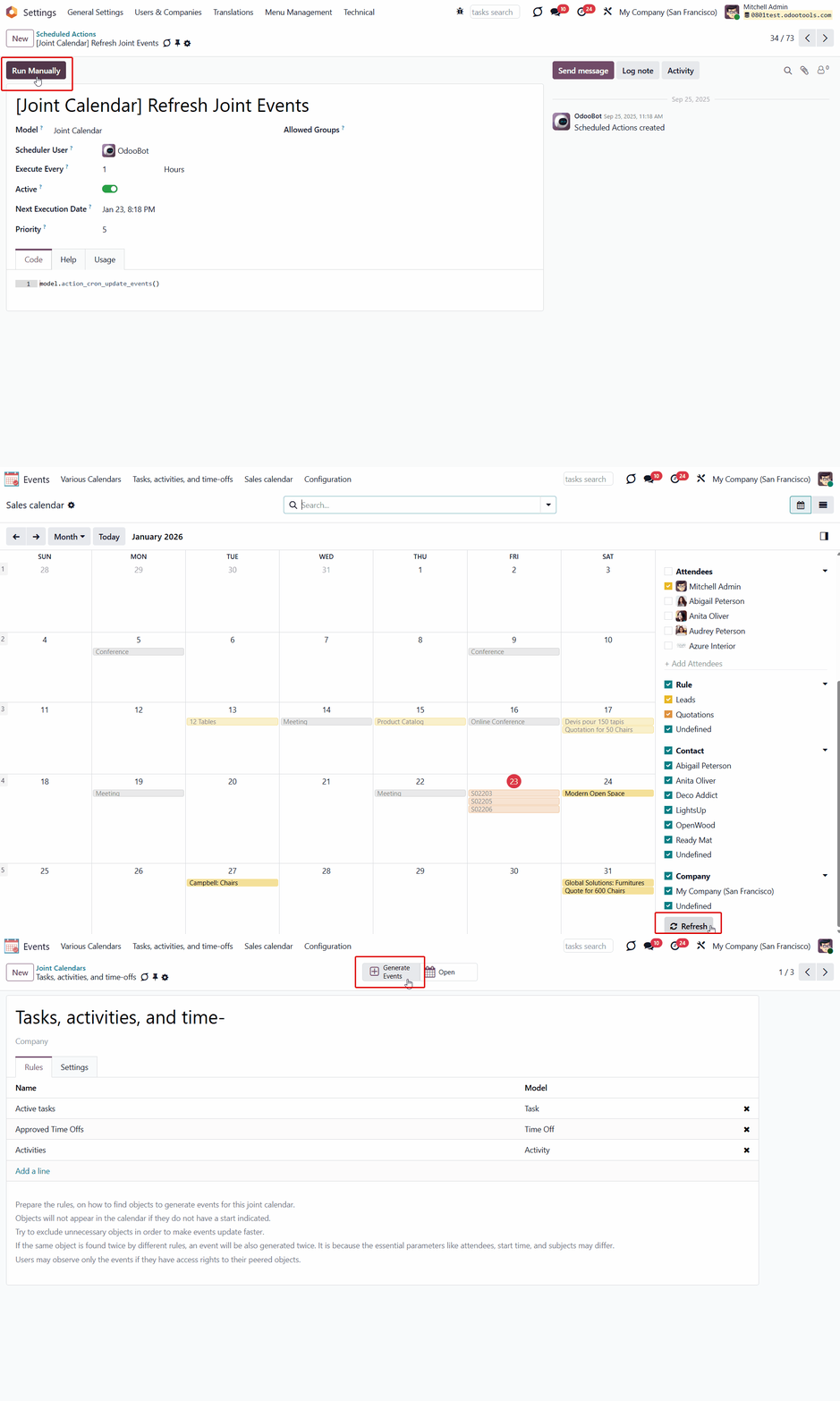
3. Find the job 'Refresh Joint Events' to change the frequency of the super calendars' update
4. Find the job 'Notify About Joint Event' to change the frequency of email alarms
The module does not run in real-time, but according to the system schedule.
You can also launch the events update manually:
1. From the user's calendar interface (by clicking 'Refresh')
2. From the calendar's settings (by clicking 'Generate Events')
After the update, don't forget to hard reload the browser page (CTRL+SHIFT+R).
Time Limits
All matching-the-rules events are checked regularly. If you have many documents found by joint rules in your database, refreshing might take longer or not be fast enough to avoid Odoo server timeouts. That’s why filtering documents for a calendar and introducing time limits is preferable.
Time limits define which documents are considered based on a document start field.
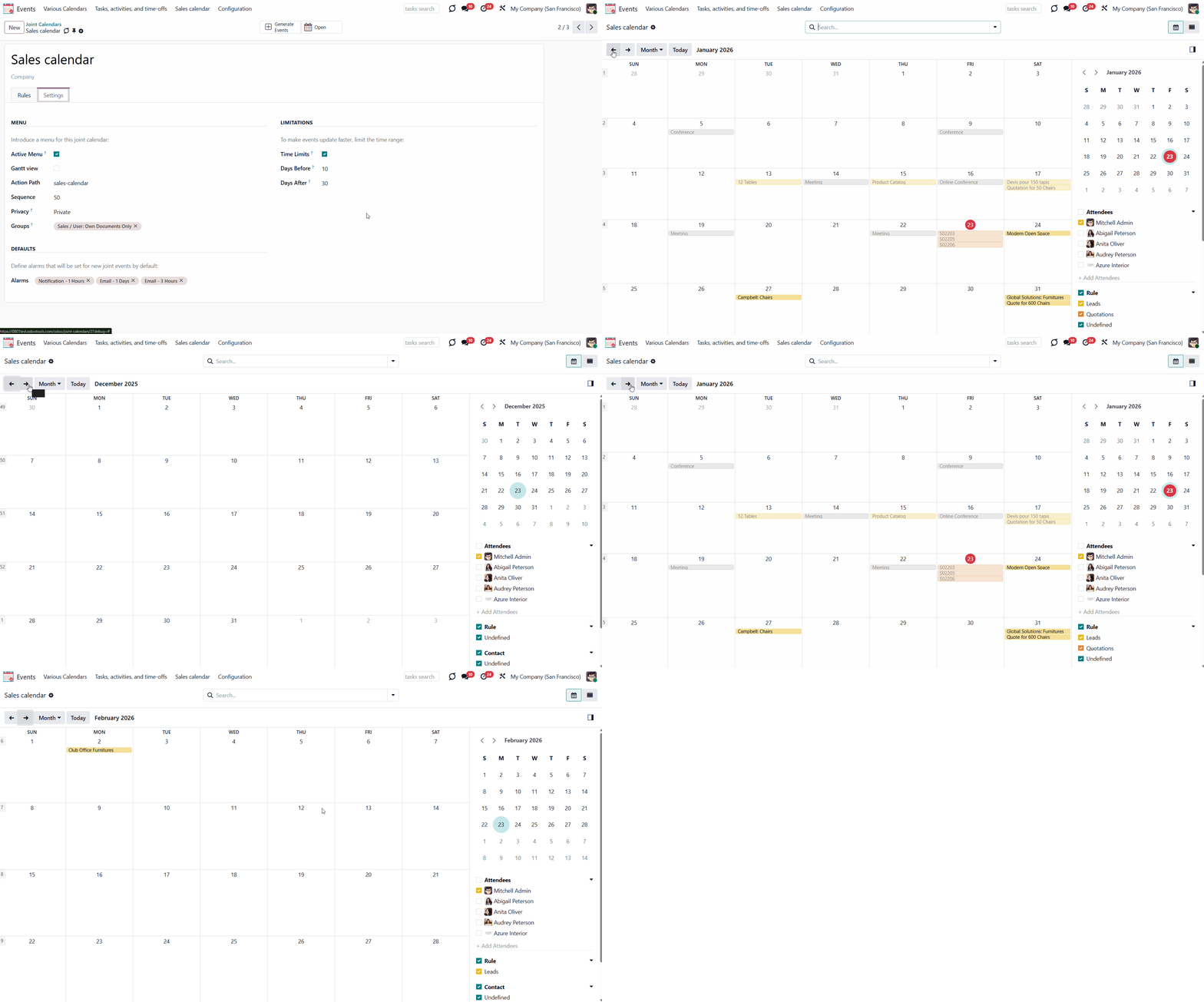
While creating or editing a calendar, you can specify time limits in the Settings tab. Tick the box 'Time Limits' and choose the days before and after the event.
For example, you have a Task 'Fix the sink' with a deadline set for the 30th of March. Today is the 12th of March, so the task will not appear in the calendar. However, in 8 days it will appear, as it is set to show events 10 days in advance. The event will stay on the calendar until the 29th of April.
If you remove the tick from the 'Time Limits' box, then the events for all time will be shown. However, we highly recommend using this function, as specifying time limits will help events update more quickly and use system resources more efficiently.
Joint Calendar: Gantt
Joint Calendar: Gantt is an optional add-on that introduces the Gantt view for events. The add-on requires Odoo's Enterprise license. This way, you can have a single super Gantt view for various Odoo documents: tasks, time-offs, manufacturing orders, quotations, etc.
The add-on helps you manage events conveniently: reassign responsible users, drag and drop them to change periods, etc.
The Gantt view is enabled per calendar, so you decide which calendars switch to it. To add the Gantt view to a calendar, check the box 'Gantt view' in the shared calendar settings. After you save the changes, the app will automatically extend a target super calendar action.
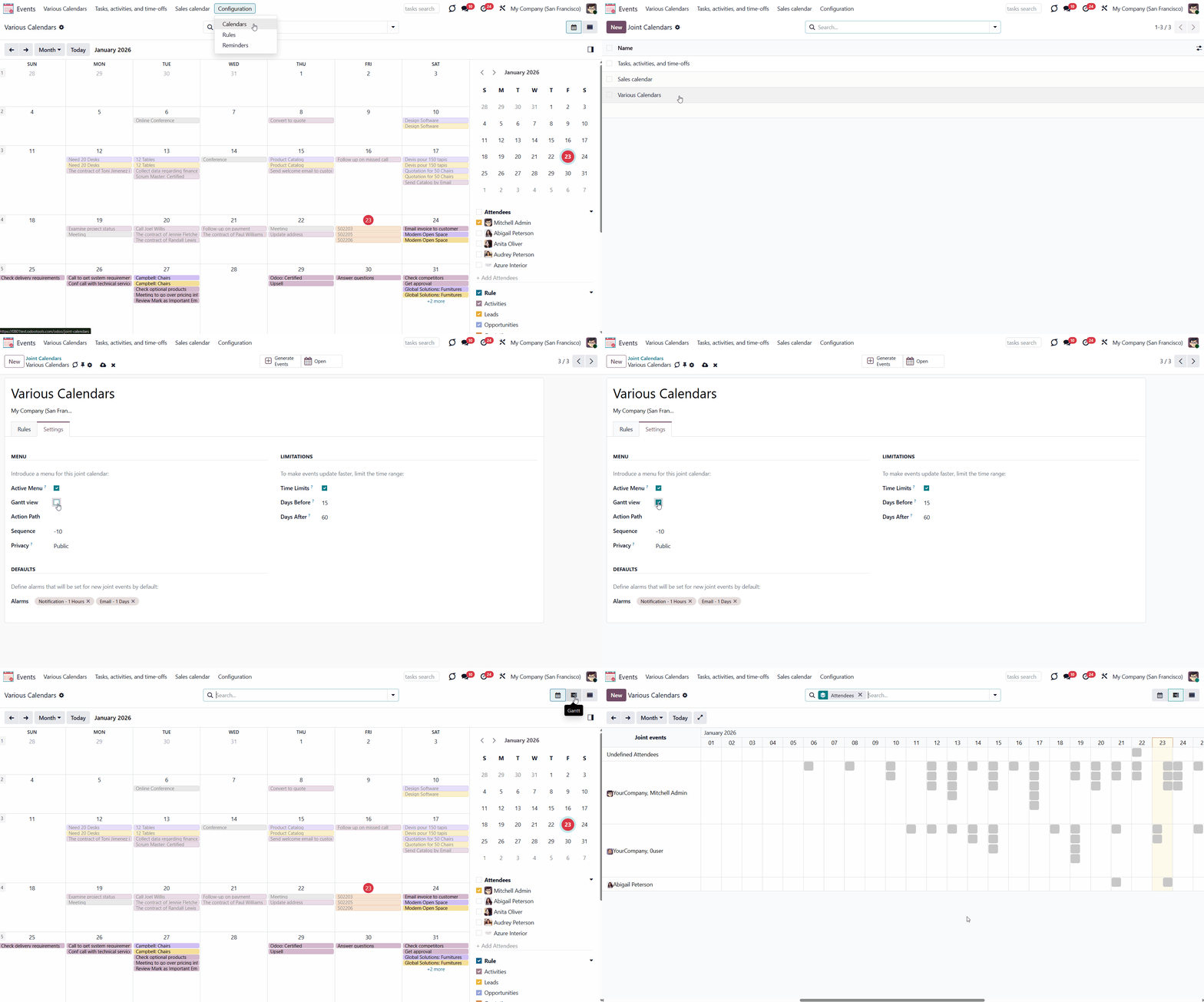
As you open the events menu and choose the calendar, you will find the buttons to switch between the event views in the top right corner above the calendar. Click on the second button () to switch to the Gantt view.
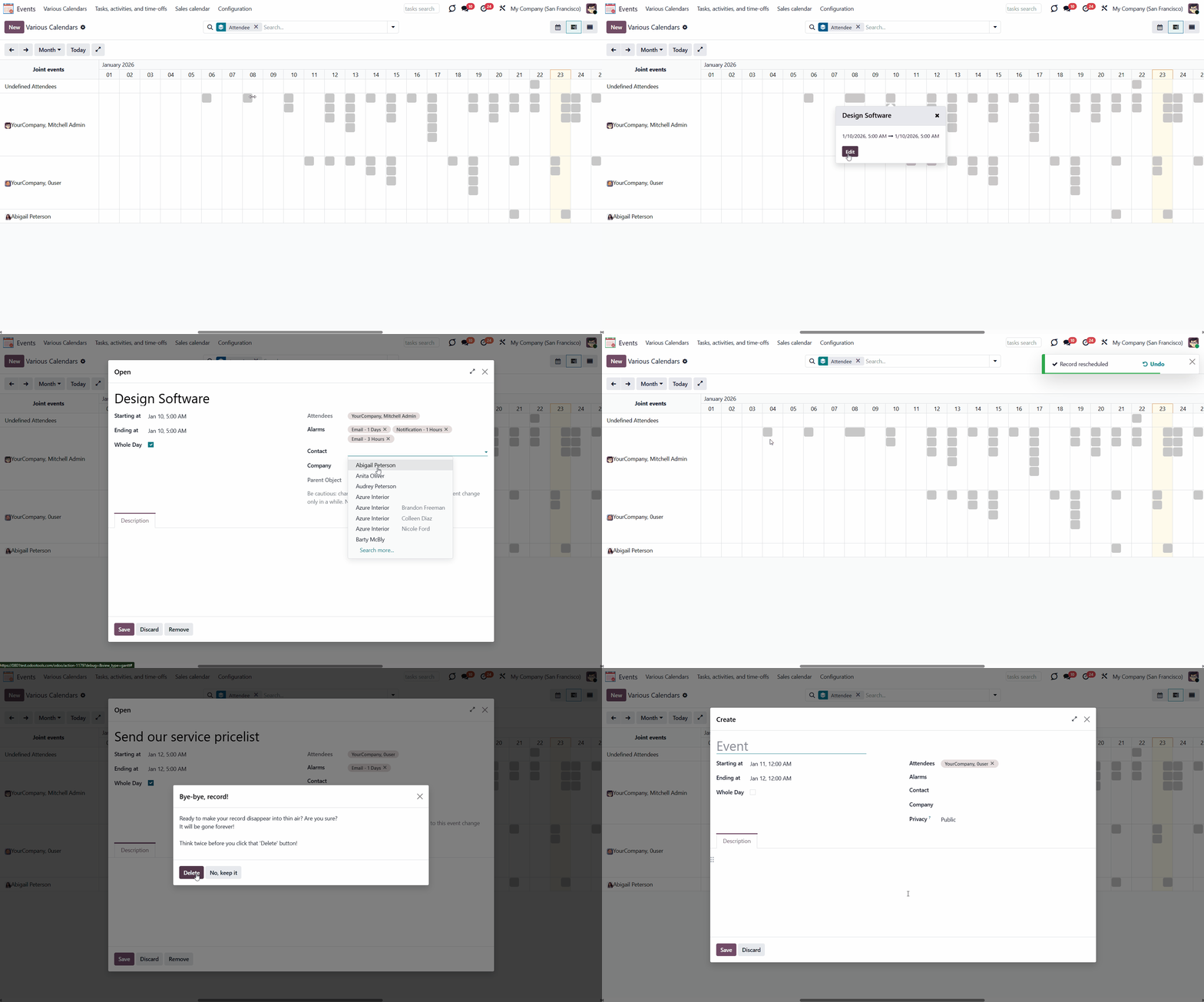
In the Gantt view, by default, you see attendees on the vertical scale and dates/days/time on the horizontal scale. You can select various searching and filtering criteria to limit the number of shown events. For example, show only events related to the contact Deco Addict.
Apply various grouping options to create or change different hierarchies of groupings by clicking each option in turn. To reset the grouping, click the cross next to it in the search bar. For example, click the attendee option, then the rule option, and then the contact.
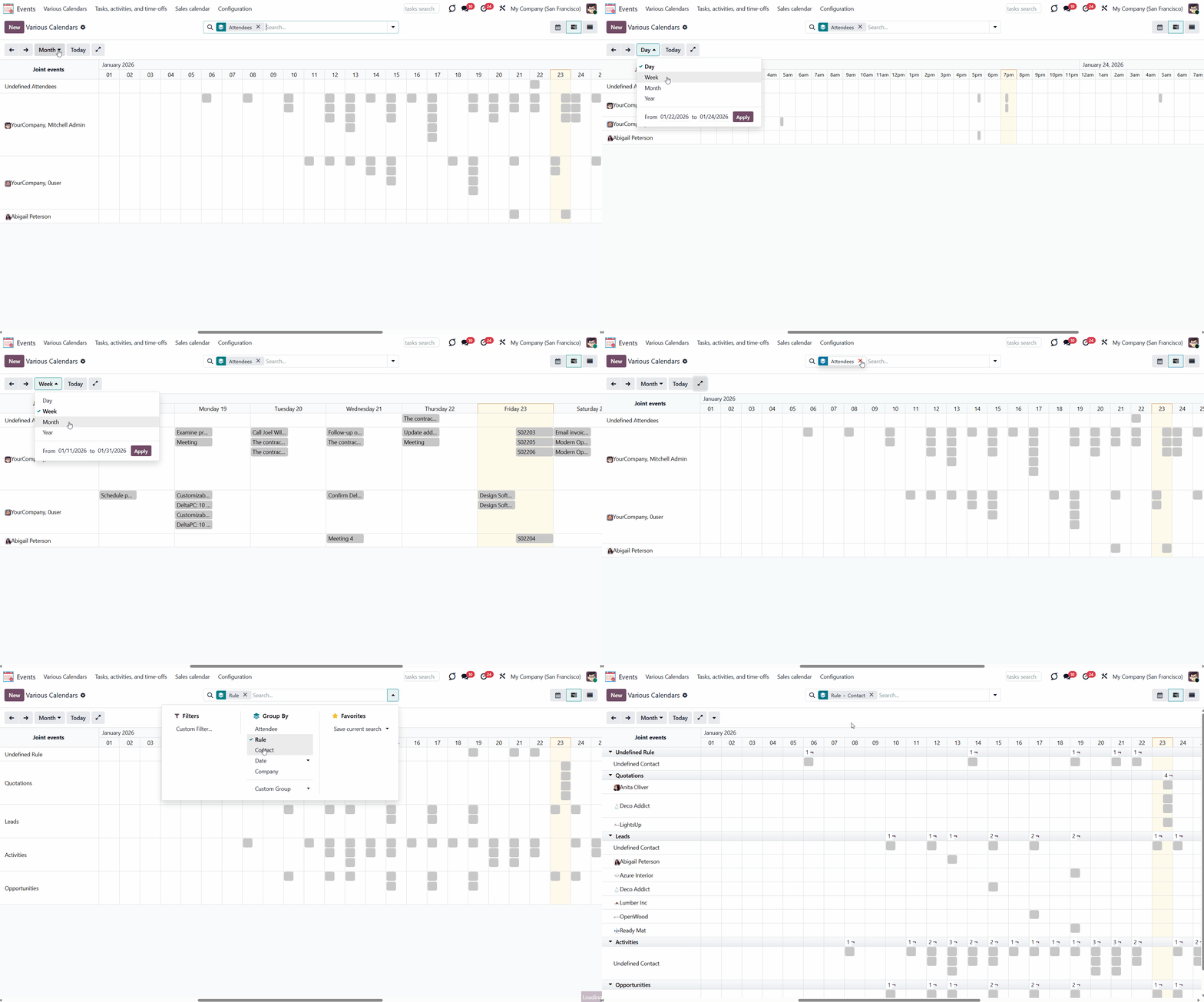
You can instantly access information about any event by clicking on it. Then click 'Edit' to view the event. There, you can see the event details, change its start and end dates, add/remove alarms, and so on.
To add a new event, click a cell. The pop-up creation wizard will appear, and you can add the event details.
Change the event's day/time by dragging and dropping it.
To delete an event, open it by clicking on it, press 'Remove', and confirm your choice.
About Joint Calendar
Joint Calendar is an Odoo tool that combines different Odoo events in one or a few configurable super calendars. Odoo users often need to keep track of many details spread across numerous interfaces. Switching between those is not comfortable and error-prone for planning. This tool solves the problem. The app allows users to configure rules to join and share various document types in a single super calendar view, with easily accessible source objects.
The tool might merge any Odoo document type into the same view: opportunities, meetings, phone calls, activities, sales or purchase orders, shipments and deliveries, tasks and tickets, and time-offs, etc.
You can configure as many calendars as needed for various functional areas or user groups. Each joint calendar has its menu item.
Define on your own what constitutes a joint event title, start or stop dates, target attendees, etc. Have the same document appear twice on the same calendar, with different start dates.
Joint events and their source documents are interrelated. Update the former, and the latter will be changed immediately. A reverse operation will be applied according to the system schedule.
Calendar configuration lets you assign pop-ups and email alarms. Thus, you can be notified of any Odoo event or activity.
You can regulate joint calendar access rights on the form. Make it public or share it only with selected user groups. Shared calendars are especially suitable for team interactions. Users might switch between document types and participants in a single click.
Joint events are updated regularly by the cron job. It is fast, especially if you apply time frames. Refreshing is also available from the calendar interface.
Any Odoo document on the same calendar
Reminders for any Odoo documents
Instant access to source details
Simple user rights administration
Configuring Odoo Shared Calendars
The tool might merge any Odoo document type into the same view: opportunities, meetings, phone calls, activities, sales or purchase orders, shipments and deliveries, tasks and tickets, and time-offs, etc.
Configure as many calendars as you need: for various functional areas or different user groups. Each super calendar has its menu item. Based on the company's needs, you can combine all required documents into a single calendar or logically divide them into several calendars. For example, you can create a calendar 'Various calendars' for all documents, or you can make a 'Sales Calendar', which will include everything that relates to sales, and a 'Tasks and Time Offs' calendar, which will consist of only tasks, employees' time offs, and leaves.
To create a Calendar:
1. Open the Events app and click Configurations > Calendars in the systray
2. Click 'New'
3. Introduce the title
4. Add Rules (see Joint Calendar Rules)
5. Go to the tab 'Settings'
6. Add/Remove the tick 'Active menu', to add/remove the Calendar from the Event's systray
7. Optionally add the sequence, set the privacy, time limits, and alarms.
The 'Generate Events' button above the calendar form can trigger the scheduled job to add events to the calendar (see Joint Calendar Scheduled Jobs).
When you add rules to the calendar, you specify which models should be presented in it (see Joint Calendar Rules). This allows you to keep rules logically divided across several calendars and conveniently switch between them, preventing the calendar from becoming overloaded (see Joint Calendar Interface). Also, it is beneficial to configure rules in a batch, as the calendar's settings control privacy, time limits, and alarms.
While editing or creating a calendar, you can find all the configuration options in the 'Settings' tab.
The first feature is 'the Active menu'. If it is turned on, the entry for this shared calendar will be available under the menu ‘Events’ (see Joint Calendar Interface). Otherwise, the calendar will not be shown, and you will not be able to access it. This feature is useful when you no longer need a calendar but don't want to delete it yet, as it might still be useful later.
If the option is turned off for all calendars, the 'Events' menu will be hidden from the main menu.
The 'Sequence' field below 'Active menu' determines the order in which calendars are displayed in the systray. The Calendar that goes first has a lower sequence. So, the calendar with sequence 20 will be displayed before the calendar with sequence 50.
To change the sequence, type the number in the field 'Sequence'. The number can be either positive, negative, or zero.
You can set access rights for each calendar. The calendar may be public (visible to everyone) or private (visible only to specific user groups).
The field 'groups' appears as you choose the option 'private' in the field ' Privacy'. Users may observe only the events to which related objects they have access rights (see Joint Calendar Access Rights).
Shared calendars are especially suitable for team interactions. Users might switch between document types and participants in a single click.
It is also possible to set limitations to make events update faster and consume system resources efficiently. For that, tick the 'Time limits' box and set 'Days before' and 'Days after', so that only events within this time range are shown in the calendar. By default, events are shown 10 days before and 30 days after. For example, you have a Task 'Fix the sink' for the 30th of March. Today is the 15th of March, so the task will not appear in the calendar. However, in 5 days it will appear, as it is set to show events 10 days in advance. And the event will stay on the calendar till the 29th of April.
If you remove the tick from the 'Time Limits' box, then the events for all time will be shown (see Refreshing Joint Events & Scheduled Jobs).
Calendar configuration lets you assign default pop-ups and email alarms. Thus, you can be notified of any Odoo event or activity. You can choose the type of alarm and the warning time (see Joint Calendar Alarms).
It is also possible to set an alarm for a particular event (see Joint Calendar Interface).
Joint Calendar Rules
To add a new document type for a shared interface, you should set up a shared calendar rule. Rules define which Odoo objects should trigger events, which fields of those objects should be used and displayed, and whether any filtering should be applied.
Define on your own what to consider a joint event title, start or stop dates, target attendees, etc. Have even the same document twice on the same calendar, just with a different start.
To create a rule:
1. Open the Events app and click Configurations > Rules in the systray
2. Click 'New'
3. Type the rule title
4. Choose a model (see Rules Fields)
5. Define a name field (see Rules Fields)
6. Select a start date field (see Rules Fields)
7. Choose an attendees' field (see Rules Fields)
8. Optionally add a stop date field (see Rules Fields)
9. Optionally choose a description field (see Rules Fields)
10. Optionally select a contact links field (see Rules Fields)
11. Optionally add filters to specify events that should be shown in a calendar with this rule (see Filters)
You can add a rule to a calendar while creating or editing it, in the Rules tab by clicking 'Add a line'. To delete a rule from the calendar, click the cross by it.
You cannot add the same rule to one calendar twice. However, you can create a slightly different rule using a different title or field.
If the same object is found twice by different rules, an event will also be generated twice. This is because essential parameters like attendees, start time, and subjects may differ.
Setting up Joint Rule
Each field of a rule serves a particular purpose. Below is a description of each setting.
Model - a target Odoo document, which defines what objects to scan: opportunities, tasks, orders, meetings, activities, and so on. You can also choose your custom document type (including those created in Odoo Studio). The mandatory field.
For example, if you choose the 'Sales Order' model, events will be created based on the existing Odoo quotations.
Name - a field of the target Odoo model, which defines what to use as a joint event name (also used as calendar event title). Usually, it is 'name', 'subject', or 'reference'. The mandatory field.
For example, if you create a rule for the model 'Sale Order' and choose the ‘Order reference’ for the Name Field, then an event related to the quotation ‘S00001’ will also be named ‘S00001’.
Start date - a field of the target Odoo model, which defines when an event starts. For example, 'expecting closing' for opportunities or 'order date' for quotations. It may be any date or a date with the time field of a source Odoo object. The mandatory field.
For example, if you create a rule for the model 'Sale Order' and choose the 'Order Date' for the Start date field, then the event will appear in the calendar on the same day for which the quotation is planned.
If the start date field in the event document is left blank, the event will not appear in the calendar.
Stop date - a field of the target Odoo model, which defines when an event is shown as finished on a calendar. The optional field.
For example, if you create a rule for the model 'Sale Order' and choose the 'Delivery Date' for the Stop date field. The event will be shown in the events menu from the day for which this quotation is planned (Start Date field - Order Date) until the day of the product's delivery.
If you leave the field empty, the event will appear in the events menu only on the day specified by the Start Date field.
Attendees - a field of the target Odoo model that defines the participants (responsible people, event owners). For instance, 'assigned to', 'salesperson', or 'attendees'. You may use the event document 'followers' since it's possible to apply both users and partners. The mandatory field.
For example, if you create a rule for the model 'Sale Order' and choose 'Salesperson' for the Attendees field, then joint event participants would include a quotation salesperson. Also, the event will appear when you sort events by this salesperson in the attendees section of the 'Events' menu (see Joint Calendar Interface).
Description - a field of the target Odoo model, which shows the notes that the event has, if there are any. Usually, the fields like 'internal notes' or 'comments' are used. The optional field.
For example, if you create a rule for the model 'Sale Order' and choose 'Terms and Conditions' for the Description field, then the related terms and conditions will be shown on the event's card.
If you leave the field empty, then the event's description field will also be empty.
Always Whole Day - an option that can be turned on/off. When it is turned on, all generated events created with the rule will last the entire day, regardless of whether start or stop is specified in hours and minutes. Such an event will be shown at a special place on the calendar.
For example, if you create a rule for the model 'Sale Order' and enable the 'Always Whole Day' option, the event will appear on the daily and weekly super calendars above the timeline.
If you turn off the option, if the start or stop is defined in hours/minutes, the event will be placed at a specific time on the day's timeline, and you will see the time before the event's title.
Whole Day - a special Boolean field of the source object indicates that a related joint event may last the entire day. This setting is usually applied to standard Odoo calendar events, which may have a specific time or be scheduled for an entire day. This optional field is available only if the 'Always Whole Day' setting is turned off.
For example, if we create a rule for the model 'Calendar Event' and set 'All Day' as the Whole Day field, then if the event lasts all day, an event without timing will be created. The event will be on the calendar the whole day and placed above the timeline.
If you leave the field empty, the calendar event will still be shown if it has a definite time.
Contact Link - a field of the target Odoo model that defines a specific partner that is linked to the event. Usually, the fields like 'customer' or 'vendor' are used. The optional field.
For example, if we create a rule for the model 'Sale Order' and set 'Customer' as the Contact Links field, then the user from that field will be written to the event template in the 'Contact' field.
If you leave the field empty, the event will not be linked to the contact.
Company field - a field of the target Odoo model, which defines what company the object relates to. The optional field.
For example, if we create a rule for the model 'Sale Order' and choose 'Company' as the Company field, then, in case we assign a calendar to a particular company, the module will be able to distinguish to which company the object relates, and, therefore, will show only the related ones.
If you leave the field empty, the module will not be able to distinguish the objects and will show events for all companies, even if the calendar refers to a particular company.
Domain - the Odoo filters' constructor to include only topical documents in a merged calendar. You might apply any storable attribute. For example, show only quotations, not sales orders or opportunities, for this sales team.
Creating domains lets you filter the records used to create events. Only the ones that match the specified conditions will be used. If you edit or delete an automatic rule, the matching records list will change.
You can apply filters to any storable field. For example, you can show only the sales orders for a particular salesperson or sales team, only the tasks for a specific project, only the opportunities for an individual customer, etc.
How to add a rule:
1. Start creating or editing a rule
2. Click '+Add Filter'
3. Choose an ID by scrolling or typing the beginning in the search field and choosing the filter options
For example, let's see some filters that can be added to the 'Sale Order' model.
If you add the domain 'Salesperson contains Anita Oliver', events will be created only based on orders related to Anita.
If you introduce a filter 'Total >=50000', then only the orders with a total greater than or equal to 50000 will be considered for joint events.
If you add a filter 'Sales Team contains America', only the matching records will be used to create events; in this case, only the Sales Orders of the sales team America.
If the field is left empty, all the records will be used to create events.
Rules Examples
Here are some examples of applicable Joint Calendar rules:
- As a model, use 'Task'
- As a name, use 'Title'
- As a start date field, use 'Deadline'
- As attendees' field, use 'Assignees'
- As a domain, optionally you can set definite projects or stage name
- As a model, use 'Sales order'
- As a name, use 'Order Reference'
- As a start date field, use 'Order Date'
- As attendees' field, use 'Salesperson'
- As a contact link, use 'Customer'
- As a domain, optionally restrict quotations by sales teams
- As a model, use 'Lead'
- As a name, use 'Opportunity'
- As a start date field, use 'Expecting Closing'
- As attendees' field, use 'Salesperson'
- As a contact link, use 'Customer Company'
- As a domain, optionally restrict opportunities by sales teams
- As a model, use 'Activity'
- As a name, use 'Display Name'
- As a start date field, use 'Due Date'
- As attendees' field, use 'Assigned to'
- As a domain, optionally apply 'Summary is set'
- As a model, use 'Calendar Event'
- As a name, use 'Meeting Subject'
- As a start date field, use 'Start'
- As a stop date field, use 'Stop'
- As attendees' field, use 'Attendees'
- As a whole day field, use 'All Day'
- As a model, use 'Time Off'
- As a name, use 'Description'
- As a start date field, use 'Start Date'
- As attendees' fields, use 'User'
- As a stop date field, use 'End Date'
- As a domain, filter by status use 'Status is equal to Approved' to show only approved leaves
Joint Calendar Interface
Users may access Joint Calendar through the interface events menu. Each super calendar has its systray button. Thus, you can choose which one to show among the created calendars.
By default, the first calendar is opened. You can change the calendar's order by setting up its sequence in the settings tab while creating or editing a calendar. The calendar with the minor sequence goes first (see Creating Calendars).
When a user clicks a super calendar menu, they see joint events on a monthly timetable. In the top-left corner, you can switch between daily, weekly, monthly, and yearly views. In the right navigation bar, you see a small calendar that lets you quickly jump to the required date. To do that, click the day you want to see. Use arrows to see the previous/next month.
Here you can filter joint events by a joint rule, so by an actual Odoo model. For example, to show only tasks or sales orders. Each of them is marked by color. Without color, manually created joint events (not linked to any Odoo object) would be available under the filter ‘Undefined’.
To create a joint event manually, click on any day, introduce the event name, and click 'New'. The undefined event will be available for the same calendar from which it was created.
Also, below the model filtering, you can search for actual joint event attendees, for instance, to see only your own documents or those of a particular person(s). Add a new attendee filter by clicking the field ‘+ Add Attendees' and choosing a person from the list. You can also start typing the person's name.
It is only up to you to decide which attendees to keep. You can delete the ones you don't need by clicking the cross next to the person.
Use the Odoo standard omnibox above the calendar to search by:
1. Subject (the title of the event)
2. Description (by event's extra notes)
3. Contact (the customer)
4. Company (the company of the event)
To search, start typing the word and then choose the search option.
You can access an event's primary information right from the Events app. Click on an event in the calendar to see its details.
Click the 'Edit' button to change the start or end date and time, the contact, and to configure an alarm for this object.
Joint events and their source documents are interrelated. Update the former, and the latter will be changed according to the system schedule.
Changes to the event card will be reflected in the source document immediately. However, the read-only and computed fields cannot be changed. So, if you try to change such fields, the changes will be reverted with the next scheduled job.
You can find out what type of field is used by clicking on the arrow by it as you create a rule.
For example, you created an event based on the task 'Customizable desk'. After a while, you decided to change the task's name to 'White desk', and the related event's name changed after the system update. If you change the event's name to 'Black desk', the next scheduled job will restore the title to 'White desk' because the used field is read-only.
At the same time, if you create an event based on the opportunity 'Quote for 12 tables' and decide to change its title to 12 tables, the title of the related opportunity will be changed as well, while it isn't read-only.
If you click on the parent object, you will be redirected to the source document.
You can also delete an event by clicking 'Delete'. However, this will not delete the source document.
Joint Calendar Access Rights
Various users can see joint events differently depending on their access rights.
There is no need to configure any additional roles to see the events menu. If a person has access to one of the calendars, then the 'Events' menu will be visible to this user, and the corresponding calendar's title will be added to the events' systray.
If a user does not have access to a particular calendar, it will not be visible.
Keep in mind that if there are calendars but a user has no access to any of them, the events menu will be hidden for that user.
If there are no calendars, the events menu will not be shown in the module's menu for all users.
Access to the calendar doesn't guarantee that a person will see all the events that it includes. Users may observe only the events to which the related objects to which they have access rights. Thus, if a user has rights to the object AND the calendar, they can access the joint event linked to the object.
The related Odoo modules regulate object permissions. For example, Abigail Peterson sees the order 'S02204', but doesn't have access to Mitchel's order 'S02203', so she will not see it in the calendar either.
Sometimes there may be some undefined objects. An undefined object is an object that was created right from the calendar, has no parent object, and is not regulated by a rule. You can see all undefined events by ticking the line 'Undefined' in the section 'Rule' on the right side of the interface.
Everyone with access to the calendar can create and view its undefined events.
Let's see an example. We have a 'Sales Calendar', which can be accessed by sales administrators and salespeople. If Abigail Peterson, our salesperson, enters the 'Events' menu, she will see this calendar. By default, she sees only her events. In January, she created the event - 'Meeting 4'. If she clicks another attendee, e.g., Mitchell Admin, on the right side of the interface, then she will see all Mitchel's events to which she has access. However, those events do not involve Abigail herself.
The system administrators have the right to create and edit joint calendars and rules.
When you create or edit a calendar, you can set its access rights in the Settings tab. The calendar may be public (visible to everyone) or private (visible only to specific user groups).
If you choose to make the calendar private, you can specify which groups can see it. Add the groups in the field 'groups', which appears when you choose the option 'private' in the field ' Privacy'. You can add as many groups as necessary.
It might be handy if you want to create a calendar for a particular department or team so that they can control the related events.
For example, create a 'Sales Calendar' for the sales department. Then specify the group 'Sales / User: Own Documents Only'. This way, all users who have the proper and extended sale rights, e.g., Sale Administrators, will be able to see the 'Sales Calendar'.
Configuring Alarms & Notifications
Set the alarms to be warned before an event starts. You can either set an alarm for the automatically created events or set an alarm manually for a particular event. It is possible to add more than one alarm.
The alarm for automatically created events can be set in the tab 'Settings' when you create or edit a Calendar. The person or people who will be warned are defined by the Attendees field of a rule (see Rules Fields).
When you edit the alarms of existing calendars, the changes aren't applied to already existing events, only to newly generated ones. This was made to allow manual changes to the alarms for separate events. Otherwise, even after changing the alarms for an event, the settings would revert to their defaults with the next scheduled job.
The alarm for a particular event can be set right in the 'Events' menu. Just click on the event and choose 'Edit'. You can add or delete an alarm (see Joint Calendar Interface).
The calendar's alarm settings do not affect alarms for undefined events; these should be added manually if necessary.
Users can be notified through the standard Odoo pop-up notification or by email. You can choose the type of reminder while creating or editing it.
The alarms can be created through the separate menu or directly in the 'Alarms' field, in the form of a calendar or an event.
To create an alarm through the special menu:
1. Open the Events app
2. In the systray, go to Configuration > Reminders
3. Click 'New'
4. Choose the alarm type
5. Choose the time before the event, when the reminder should be sent by typing the number of periods and choosing the type of period (minutes, hours, or days) in the field 'Remind before'.
To create an alarm right from the form of a calendar or an event:
1. Type its title in the field 'Alarms' and click 'Create and Edit'.
2. Choose the alarm type
3. Choose the time before the event, when the reminder should be sent by typing the number of periods and choosing the type of period (minutes, hours, or days) in the field 'Remind before'
4. Click 'Save&Close'.
If a notification to remind them of an event is set, users (attendees) will see a pop-up window at the event's alarm time. The pop-up window has three buttons.
To turn off the alarm, click 'OK'.
To view the event details, click 'Details'.
If you want to receive another alarm about the event later, click 'Snooze'. The alarm will repeat later.
If an email alarm for an event is set, users (attendees) will receive an email at the event's reminder time. The email includes the event name and time.
You can also click on the 'View Joint Event' button to be redirected to the event.
Refreshing Joint Events & Odoo Scheduled Jobs
The module automatically collects various documents into a single super interface according to flexibly configured rules. The calendar is updated regularly according to the system schedule.
It is possible to set any update frequency. However, it isn't recommended to do it more often than once every 5 minutes. If you have a large number of objects, it is better to update them even less frequently so Odoo has enough time to process the events list. If necessary, set calendar limits and filters in the rules to create only the events that match the corresponding condition.
To change the frequency of the merged calendar refreshing and the email reminders' checks:
1. Turn on the debug mode
2. Go to technical settings > Automation > Scheduled jobs
3. Find the job 'Refresh Joint Events' to change the frequency of the super calendars' update
4. Find the job 'Notify About Joint Event' to change the frequency of email alarms
The module does not run in real-time, but according to the system schedule.
You can also launch the events update manually:
1. From the user's calendar interface (by clicking 'Refresh')
2. From the calendar's settings (by clicking 'Generate Events')
After the update, don't forget to hard reload the browser page (CTRL+SHIFT+R).
Time Limits
All matching-the-rules events are checked regularly. If you have many documents found by joint rules in your database, refreshing might take longer or not be fast enough to avoid Odoo server timeouts. That’s why filtering documents for a calendar and introducing time limits is preferable.
Time limits define which documents are considered based on a document start field.
While creating or editing a calendar, you can specify time limits in the Settings tab. Tick the box 'Time Limits' and choose the days before and after the event.
For example, you have a Task 'Fix the sink' with a deadline set for the 30th of March. Today is the 12th of March, so the task will not appear in the calendar. However, in 8 days it will appear, as it is set to show events 10 days in advance. The event will stay on the calendar until the 29th of April.
If you remove the tick from the 'Time Limits' box, then the events for all time will be shown. However, we highly recommend using this function, as specifying time limits will help events update more quickly and use system resources more efficiently.
Joint Calendar: Gantt
Joint Calendar: Gantt is an optional add-on that introduces the Gantt view for events. The add-on requires Odoo's Enterprise license. This way, you can have a single super Gantt view for various Odoo documents: tasks, time-offs, manufacturing orders, quotations, etc.
The add-on helps you manage events conveniently: reassign responsible users, drag and drop them to change periods, etc.
The Gantt view is enabled per calendar, so you decide which calendars switch to it. To add the Gantt view to a calendar, check the box 'Gantt view' in the shared calendar settings. After you save the changes, the app will automatically extend a target super calendar action.
As you open the events menu and choose the calendar, you will find the buttons to switch between the event views in the top right corner above the calendar. Click on the second button () to switch to the Gantt view.
In the Gantt view, by default, you see attendees on the vertical scale and dates/days/time on the horizontal scale. You can select various searching and filtering criteria to limit the number of shown events. For example, show only events related to the contact Deco Addict.
Apply various grouping options to create or change different hierarchies of groupings by clicking each option in turn. To reset the grouping, click the cross next to it in the search bar. For example, click the attendee option, then the rule option, and then the contact.
You can instantly access information about any event by clicking on it. Then click 'Edit' to view the event. There, you can see the event details, change its start and end dates, add/remove alarms, and so on.
To add a new event, click a cell. The pop-up creation wizard will appear, and you can add the event details.
Change the event's day/time by dragging and dropping it.
To delete an event, open it by clicking on it, press 'Remove', and confirm your choice.