About KPI Balanced Scorecard
KPI Balanced Scorecard is an Odoo app that allows users to set KPI targets and track their fulfillment over periods. The app introduces a convenient KPI dashboard for managing both company and personal targets. It helps organize work into a set of periodic goals and manage them across any business or functional area. For that purpose:
- The app introduces a clear system to get Odoo storable details: a count of records, a sum or an average of numeric fields, or even pure Python code.
- Actual values are recalculated by a dedicated Odoo cron job. So, it is always possible to identify which KPIs require more attention at a glance.
- You can share KPI targets with interested users to organize a transparent dashboard of goals, from global to particular ones.
- It is possible to consider only those KPIs that are of interest: for example, only sales-related or for a definite user. Hierarchy allows highlighting targets with indicative padding for an instant overview of sub-KPIs.
- Help hints are available for most objects to simplify KPIs setup (turn on/off help tabs through the app configuration page).
- The module supports a multi-company environment, and, therefore, all KPI calculations and settings are configured for each company separately.
Set KPI Targets by periods
Drag and drop interface for KPI formulas
Use any Odoo data to calculate KPIs
Auto and regularly updated KPIs
Concepts and terms
Here, you can find all the terms used in the documentation.
KPI (KPI Formula, Key Performance Indicator) – the formula/instruction for Odoo that defines how to calculate figures based on existing Odoo data and settings. This central configuration object enables the tool to construct mathematical expressions via drag-and-drop. Examples of KPIs are 'Total Sales in Europe' and 'Done Tasks per Day of John Brown'.
A KPI Period – a time frame for which companies set their targets to control performance (in a similar way as financial performance is controlled within accounting/fiscal periods). You can set periods of any length, and for any date. Typically, an annual (2026, 2025), quarterly (Q1 2026, Q2 2026), or monthly (Jan 2026, Feb 2026) approach is applied. KPI Targets are calculated for each specific period.
KPI Target – actual company goal based on a specific KPI and KPI period. It allows you to set a planned KPI value and automatically calculate the actual value based on Odoo data and the KPI formula for this KPI period. Responsible managers regularly set KPI targets for each analytic period and may share them among interested users to continuously control results. These are the examples of KPI Targets: Total Sales in Europe in 2026 (target: $1,000,000; actual: $800,000); Done Tasks per Day by John Brown in July 2026 (target: 1,5; actual: 2).
Basic measurement – the core configuration object for retrieving actual KPI values from Odoo data. Although basic measurements are not used for formula constructions, they are required to prepare any formula variables. These are the examples of basic measurements: Aggregated Sum by Done Sales Orders (the period is defined according to a sale order date); The Total Number of Tasks in the State ‘Done’ (the period is defined according to the last stage update date).
Python code measurement – a specific type of basic measurement that requires technical knowledge and allows the creation of instructions for the module on how to get the data from Odoo.
Measurements (Variables) – a specification of a basic measurement. The key idea of distinguishing KPI Variables from Basic measurements is to simplify data preparation. You define 'Total Sales' once and then use it unlimitedly for 'Sales Europe', 'Sales John Brown', 'Website Sales', etc. Measurements are used to build KPI formulas (available for drag-and-drop).
Constant – the specific KPI Variables used when data can not be retrieved from modules, and/or when figures remain the same during the whole period. For example, 'Total Investments' or 'Number of Employees' are often frozen for a specific period. Constants are used to build KPI formulas (available for drag-and-drop).
KPI Scorecard – the special interface to configure and control targets, which are shown according to a chosen period. The interface allows you to choose, close, and reopen periods; set, substitute, and filter KPI Targets (see KPI History).
A KPI Category – KPIs storage, which is used for convenient navigation over KPIs and managing access rights to them. To control KPIs for specific areas, combine them into corresponding categories. For example, 'Sales KPIs' and 'Team Europe KPIs'.
A KPI Tag – a special object to structure KPI targets for convenient management and search.
KPI History – the special interface of a specific KPI target to control its KPI values for all periods, including a graph of similar periods.
Closing KPI period – the special action to stop KPI re-calculations and finalize the period results (it can be compared with closing a fiscal year).
KPI User – any internal user who can see or edit one or several KPIs or KPI Categories.
KPI Manager – the assigned user or users with full rights for all KPIs, regardless of the settings.
The difference between KPI and KPI Target
Two important concepts are used in the module: KPI and KPI Target. They have significant differences.
A KPI (or Key Performance Indicator) is a formula that represents a measurable value that demonstrates how effectively a company is achieving key business objectives. It is used to evaluate the extent to which a company's goals are achieved. It may focus on the overall performance of the business, of some smaller departments (sales, appointments, HR, etc.), or even particular employees.
The company's performance, based on a specified formula, is displayed in the 'Actual Value' column of the Single View Interface (see Single View Interface).
A KPI Target is a goal, a particular number/amount. It has guidelines and requires a calculation formula. Therefore, we can imagine it as Formula (KPI) + Period.
In the Single View Interface, KPI Targets are specified in the 'Target Value' column (see Single View Interface).
A KPI Target is set manually by the person responsible. To be valid, the goal should be SMART. The letter in the abbreviation SMART stands for:
1) Specific (related to a particular Odoo model)
2) Measurable (see Measurements)
3) Achievable (possible to fulfill)
4) Relevant (acute for the company development)
5) Time-specific (see Periods).
KPIs (key performance indicators) - measurements that evaluate a specific activity's organizational or personal success. Different companies have different KPIs depending on their strategy and business area. However, all KPIs share a common core attribute: they must be measurable within a target period. To that end, KPIs enable the construction of formulas to retrieve Odoo datasets and convert them into numerical figures. Formula preparation is as simple as writing down a mathematical expression: drag and drop formula parts in the right order with correct operators. KPIs, KPI periods, and KPI targets. KPIs are success metrics you can use to plan your company's activities. Simultaneously, measurements are almost senseless unless you have target values for those KPIs. That is possible only within a time-constrained period. For example, 'Sell as much as you can' is not a goal, whereas 'Generate 100,000 Euro Revenue in the year 2026' is a clear objective for a salesperson. To that end, KPI periods are introduced.
A combination of a KPI and a KPI period results in a KPI target. Exactly with those targets, you work on the scorecard interface. For each KPI you would like to manage in this period, you should define a planned value to compare to the actual value at the end of the period.
In this way, a KPI itself defines how to compute the actual value for a period and how to estimate the result ('the more, the better' or 'the less, the better'), but does not assume setting targets. The latter should be done for each period.
Basic Measurements
Basic measurements are the core object for retrieving actual KPI values from Odoo data. Although Basic measurements are not used for formula constructions, they are required to prepare any Variable.
A Basic measurement provides the most general instructions for the module to retrieve the data, while Variables specify the data to retrieve. For example, 'Total Number of Sales Orders' should be a Basic measurement. In contrast, a narrower 'Number of Quotations of the Sales Team Europe' is recommended as a precision of that basic measurement - Variable. Each Basic measurement may have an unlimited number of linked Measurements (Variables).
By default, the KPI module contains some Basic measurements, which you can use to create Variables.
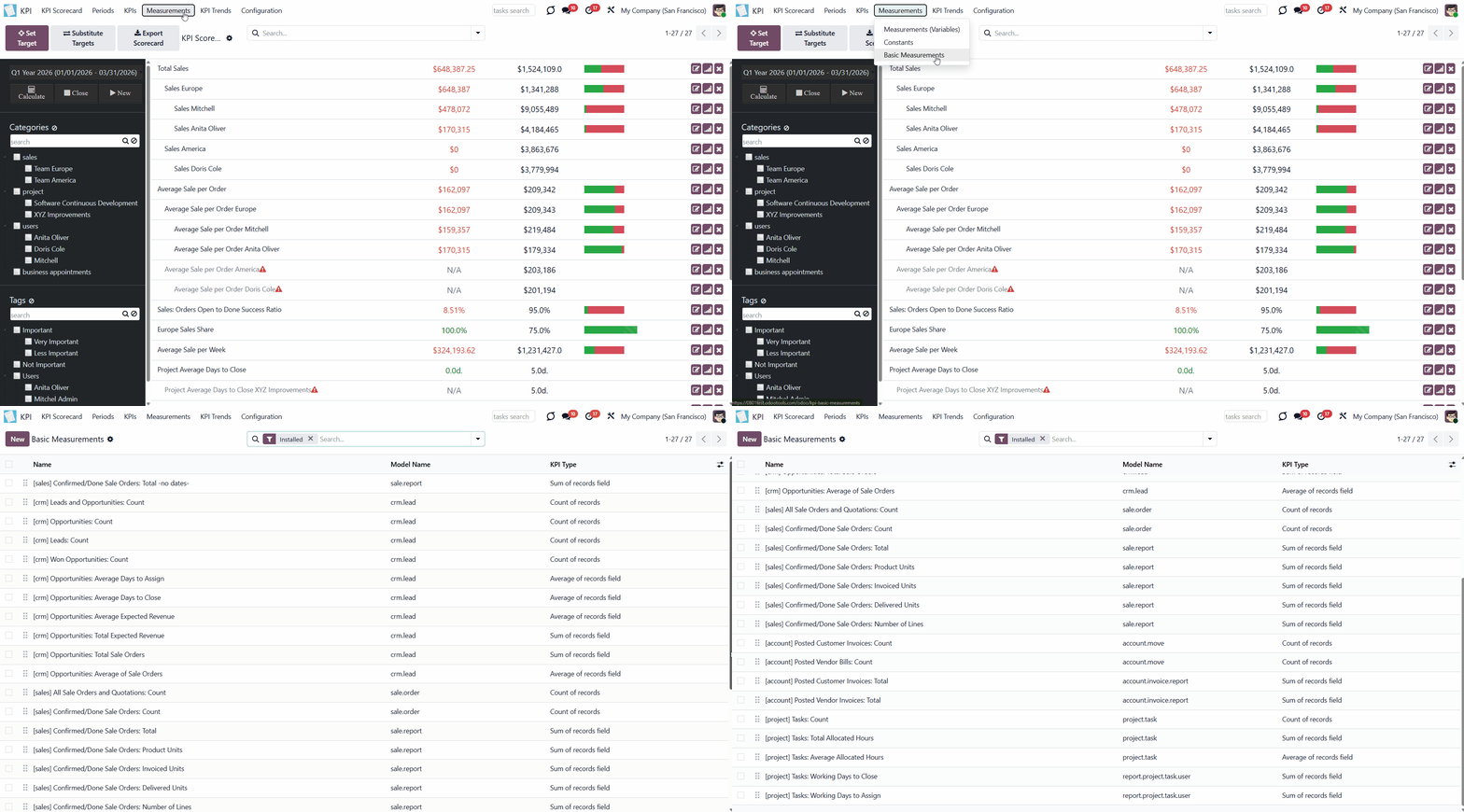
To create a Basic measurement:
1. Go to Measurements > Basic Measurement
2. Click 'New'
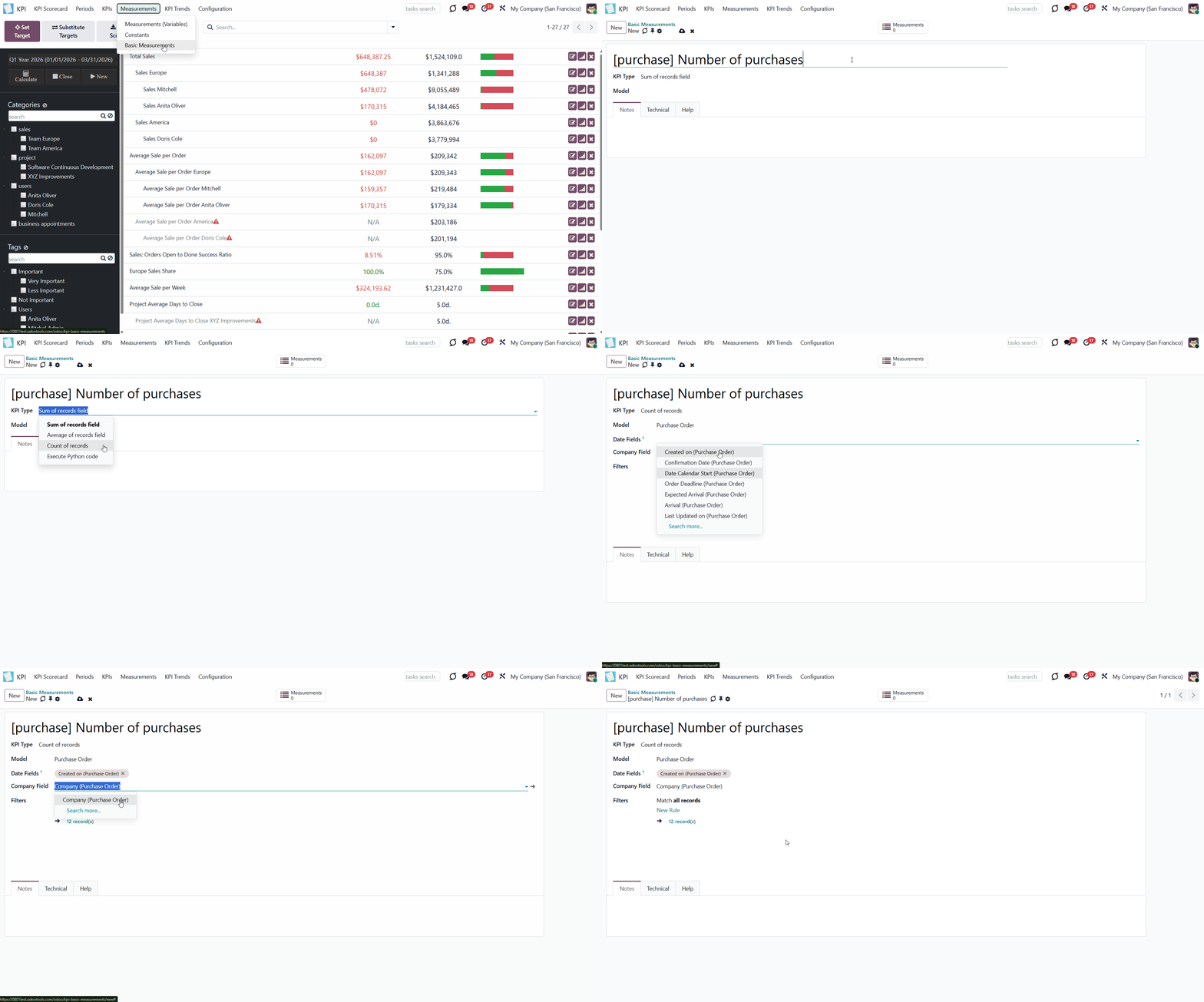
3. Type a name and optionally add a model type before it (for example, [purchase]) to find the measurement quickly
4. Choose a KPI Type to activate a set of further fields and define the way the module will get the information for calculations (for example, the records can be counted, or the value of particular record fields will be counted)
5. Choose a Model, an Odoo object from which the data will be taken (for example, Sale Orders, Purchases, Quotations)
6. Based on the KPI Type, you will see a set of other fields
7. Add a 'Measure field' for the analysis (the fields from which the module will take the data to count, to calculate the sum of records, or count the average value of the fields (Only for types: 'Sum of records field', 'Average of records field')
8. Add one or several date fields (those will be considered in the calculations when the period is stated, for example, order date or delivery date). If you choose several fields, then for the record to be considered for calculations, both of those fields should be within the period
9. Add a company field for the analysis if you work in a multi-company environment (for example, if you have two or more companies, you may want to calculate KPI for each of them, so for the app to be able to distinguish companies, the field should be added as you create a Basic measurement)
10. It is possible to add some filters. However, it is recommended to add only basic ones and then specify them while creating a Measurement (Variable) (thus, your Basic measurement will be more general, and you will have more possibilities for creating a Variable. For example, you created a Basic measurement 'Sales Total', which you can use to create Variables: Sales Total Team America, Sales Total Team Europe, Sales Total John White...).
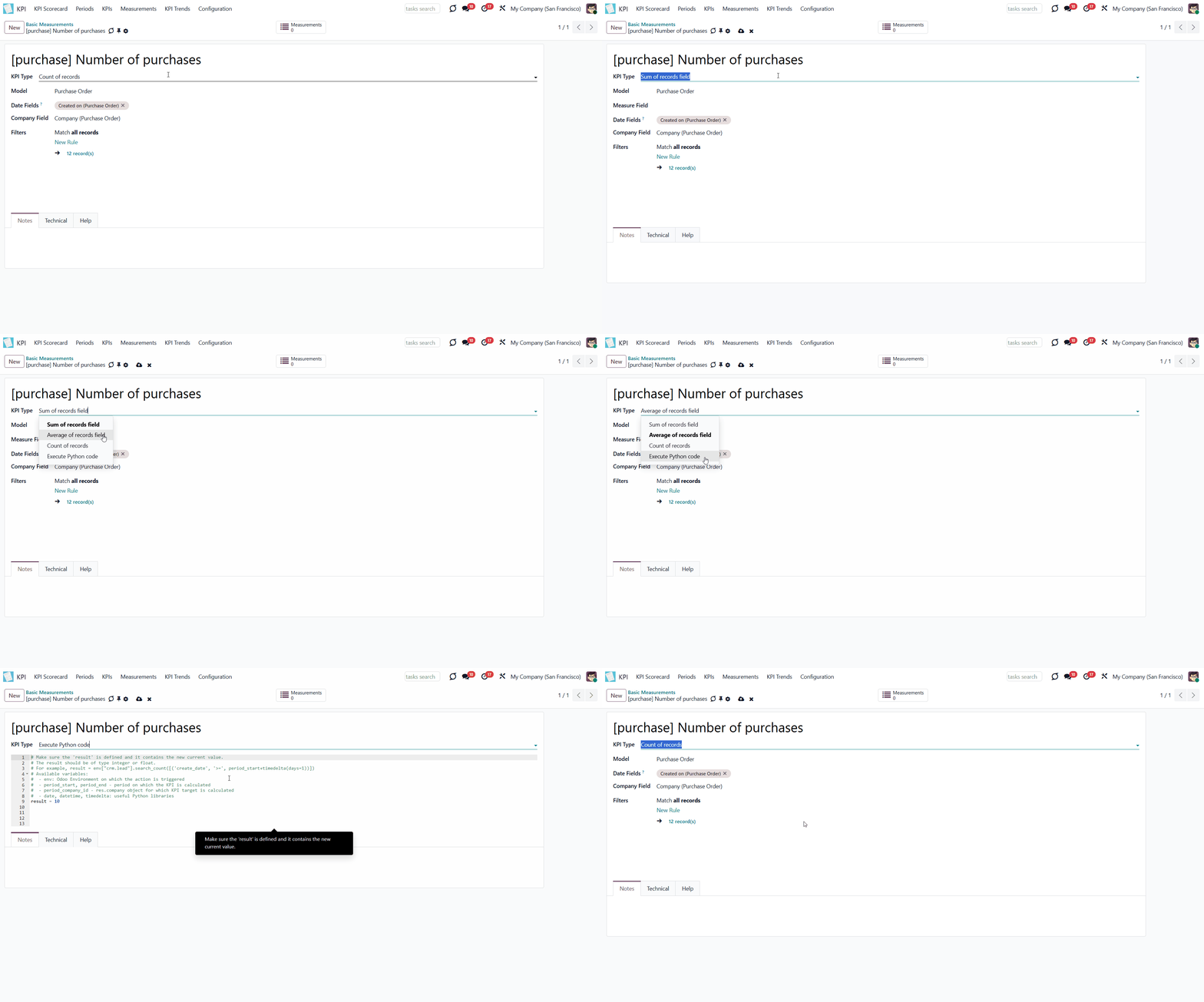
The first field, 'KPI Type', defines how Odoo data should be calculated:
1) Choose the KPI Type 'Count of records' if you want to count all matching records, for example, the number of registered leads or the number of posted customer invoices
2) Choose the KPI Type 'Sum of records field' if you want to sum up a particular number field of records, for example, the sum of the total amount of all orders, or the sum of paid taxes by invoices
3) Choose the KPI Type 'Average of records field' to get the average of record's number of records, for example, average planned hours per task or average days to assign a lead
4) Choose the KPI Type 'Executing Python code' to compute any figures based on any Odoo data. This type requires technical knowledge (see Executing Python code)
The second field, 'Model', defines an object from which the information is taken. It assumes that you determine how records should be searched and which record fields should be used for computations. For example, 'Sales Order', 'Task', 'Lead/Opportunity'. You can also rely on standard or custom objects (including those created in the Odoo studio)
The third field, 'Measure field', is required only for calculating the KPI types 'Average' and 'Sum'. It defines which figure you use for calculations, such as the 'total amount' of the Sales Analysis Report or the 'work hours of tasks'. It is a 'Column' in the database table related to the model above.
The list of fields varies by chosen model. For example, the 'Articles' model has measure fields such as the number of likes or dislikes, and the number of times it is referred to in emails. The 'Sale Order' model has total, delivery orders, and invoice counts.
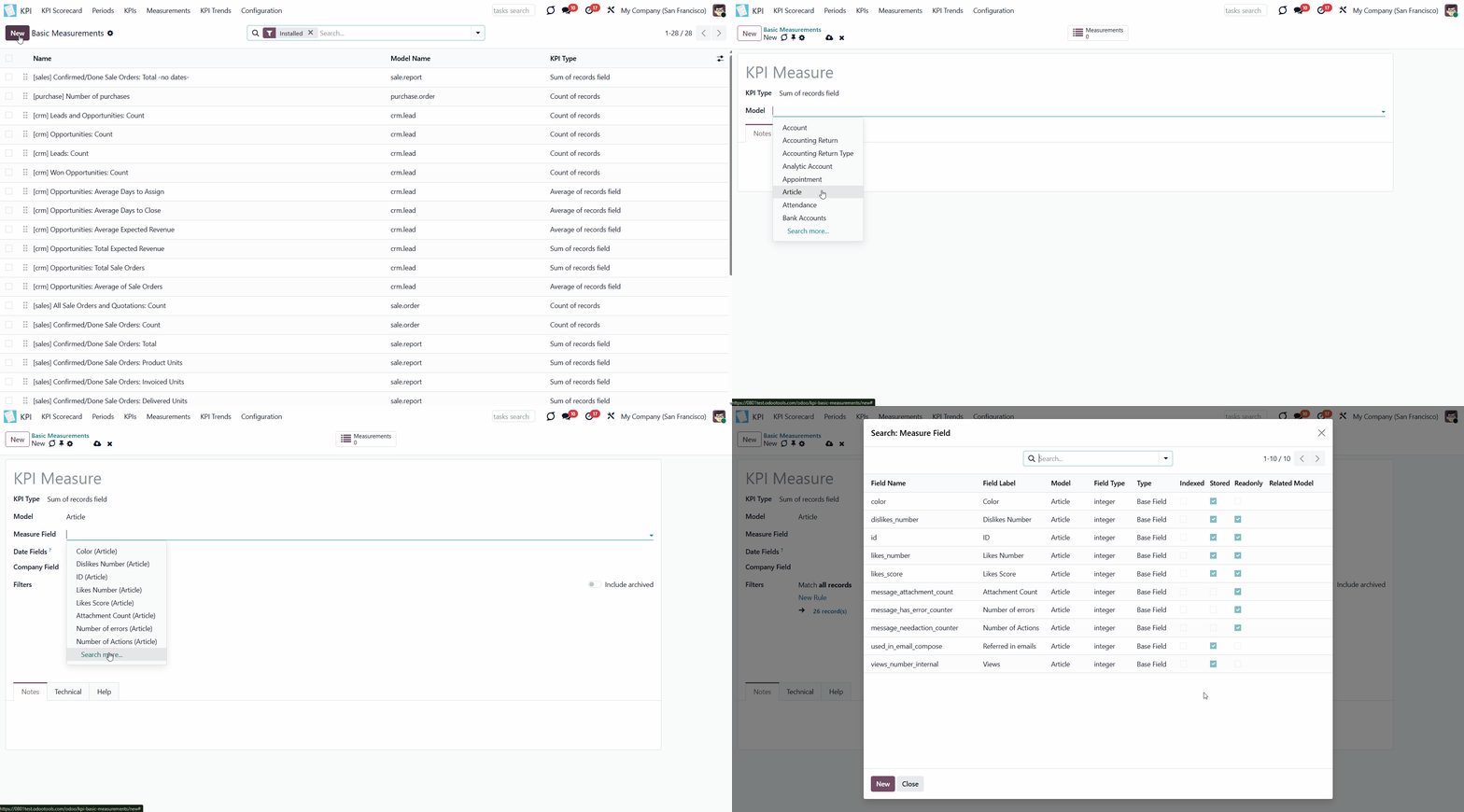
The fourth field, 'Date fields', is required to determine whether a specific document type falls within the considered period and to define how to distribute objects by time intervals. It assumes that you define how records should be searched and which record fields should be used for computations.
Each model has a list of available date fields. The object's fields that store time-related information can be selected. For example, for tasks, you might use the create date to analyze jobs registered within this KPI period (e.g., 'Total number of tasks created in January 2026'), the order date for a sale order, the revision date for an article, and the reserved time for an appointment.
For example, you create a Basic measurement 'Total Sales' for the model 'Sales Order'. In the 'Date Fields' field, you choose 'order date'. Then, after creating the corresponding Variable and KPI Formula, you set a KPI Target of $100,000 for the Period 'The Year 2026'. The module will receive instructions to consider only sales orders created during this period. Sales orders from the period will be used to calculate the actual value.
It is also possible to apply a few date fields, so matching ALL those date objects will be considered(e.g., 'Opportunities opened and won in January 2026').
If date fields are not specified, the calculation will consider all records across all time periods. For example, you created the Basic measurement 'Total Sales' and left the date field empty. After setting the KPI Target, the module won't receive instructions on how to filter objects by date or where to obtain the date information. That means the KPI Period would not influence this Basic measurement. Therefore, all existing sales orders, regardless of the period, will be used for calculations.
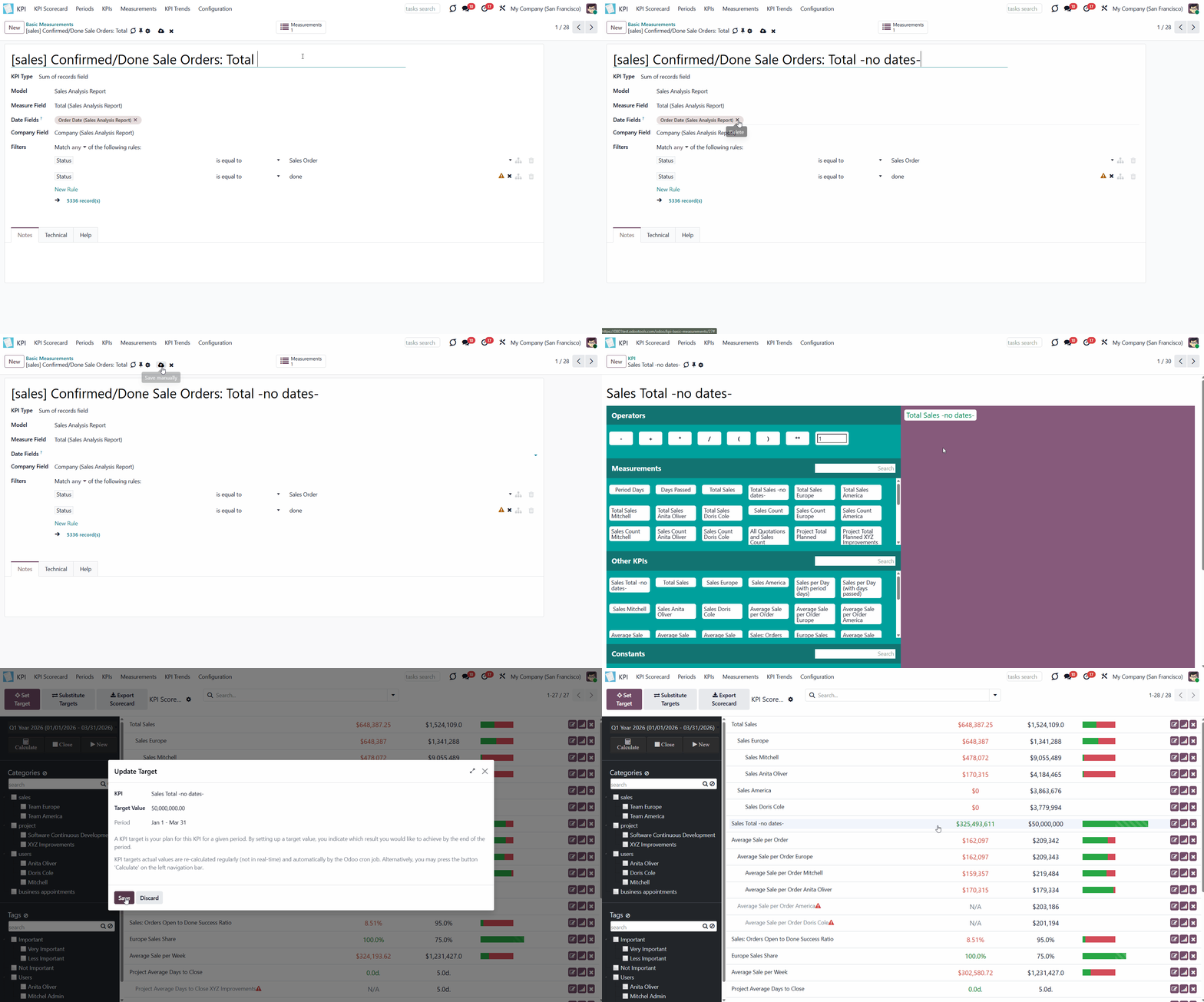
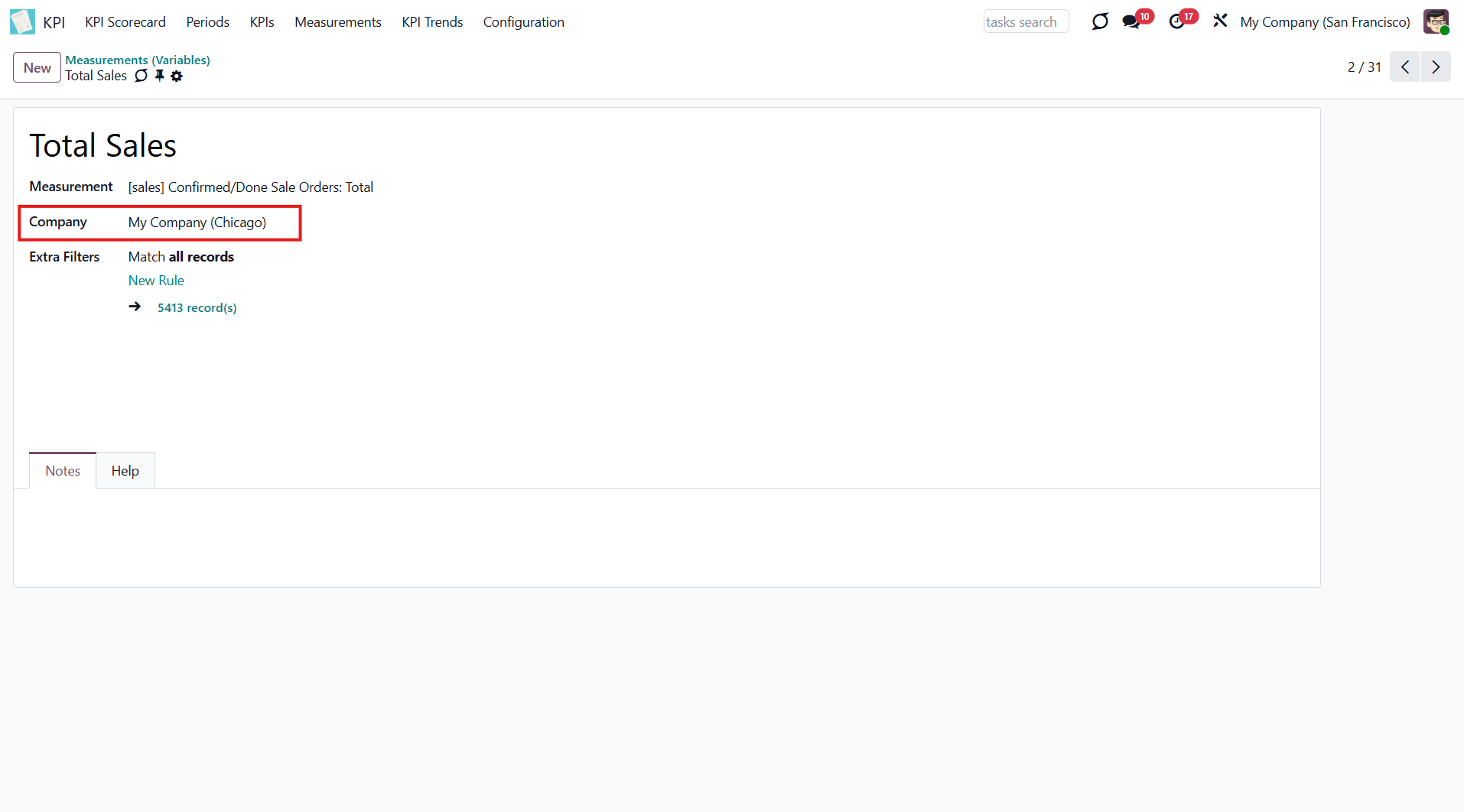
The fifth field, 'Company Field,' is required for a multi-company environment. This field instructs the module on where to search for the related company model.
Even after selecting this field at the Basic measurement level, you can create a global Variable that counts the result, ignoring the company. For that, leave the field 'Company' empty.
For example, you create a Variable 'Total Sales Chicago' based on the Basic measurement 'Total Sales', and in the 'Company' field, select 'Company Chicago'. If you didn't select the field on which the module will decide to which company an object relates (while creating the Basic measurement), then as you set the KPI Target, you still will see the global result - the total sales of all teams.
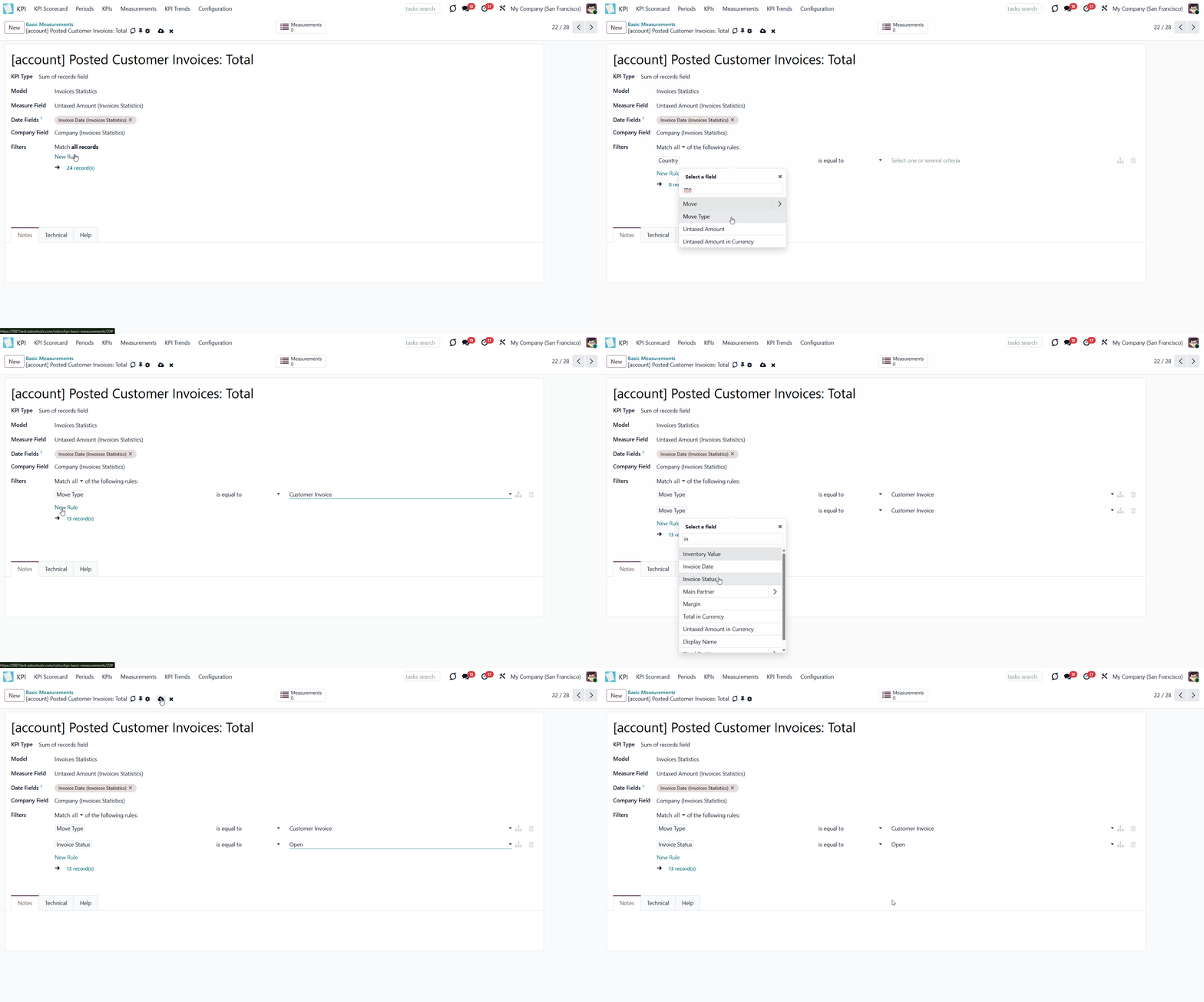
The 'Filters' section displays records for the selected module, which will be used to calculate values. 'Filters' also allow you to restrict records set by any stored field. For example, you can count only won opportunities by stage settings, or only posted customer invoices by journal entry type and state.
Let's add some filters to create a Basic measurement 'Posted Customer Invoice'. In this case, we need to filter records by type and status. The first filter is 'Move Type is equal to Customer Invoice', and the second one is 'Invoice Status is equal to Open'. Above the filtering options, we can choose whether the records should match ALL or ANY of our filters. When we select ALL, only records that match both move type and invoice status are included in subsequent calculations. Click on 'N records' to see all the matching invoices.
It is recommended to use 'Filters' for low-level filtering in Basic measurements and then specify them in KPI Variables. This way, you avoid double work and create more Variables based on one Basic measurement.
Also, avoid adding dates to the filtering options, as you will be required to change dates every time you create a KPI Target for a new Period. If you don't add date restrictions as a filter, you can simply 'Substitute Targets', and records will be analyzed based on the fields chosen in the fourth field, 'Date Fields' (for example, 'Create Date') (see KPI Scorecard).
Executing Python code
'Python code' is a special type of basic measurement. This type requires technical knowledge, but lets you compute any figures from any Odoo data without restrictions. Such measurement might be any Python basic script with the possibility of SQL queries (through using 'env.cr') In calculations, you may rely upon the special variables: 'period_start' (the first date of the period), 'period_end' (the last date of the period), 'period_company_id' - res.company object for which Odoo makes calculations at the moment (according to a KPI period under consideration) Correct Python code assumes saving the value into the special variable 'result'.
Basic measurements for the 'Execute Python code' type can no longer be specified because they do not correspond to any records. However, such measurements should be linked to a single KPI variable.
Basic Measurements Examples
Based on one Basic Measurement, you can create multiple Variables for different KPIs (see Measurements (Variables)). Here are some Basic Measurement Examples that you can make:
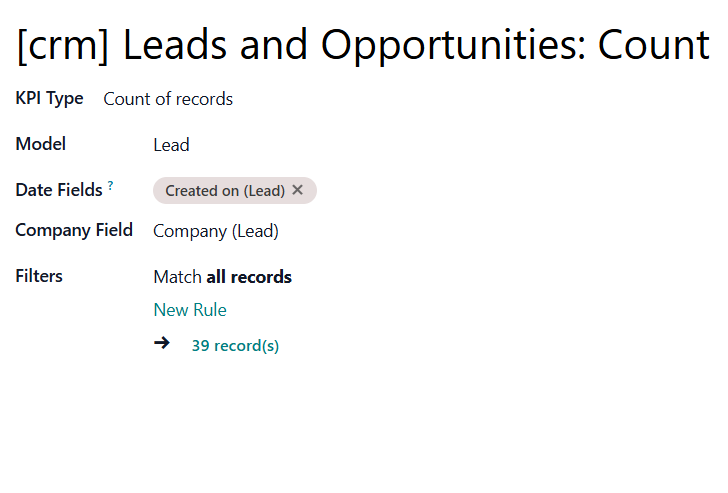
The Purpose of the Basic Measurement is to count all Leads and Opportunities. This way, you can find the exact number of Leads and Opportunities your salespeople processed.
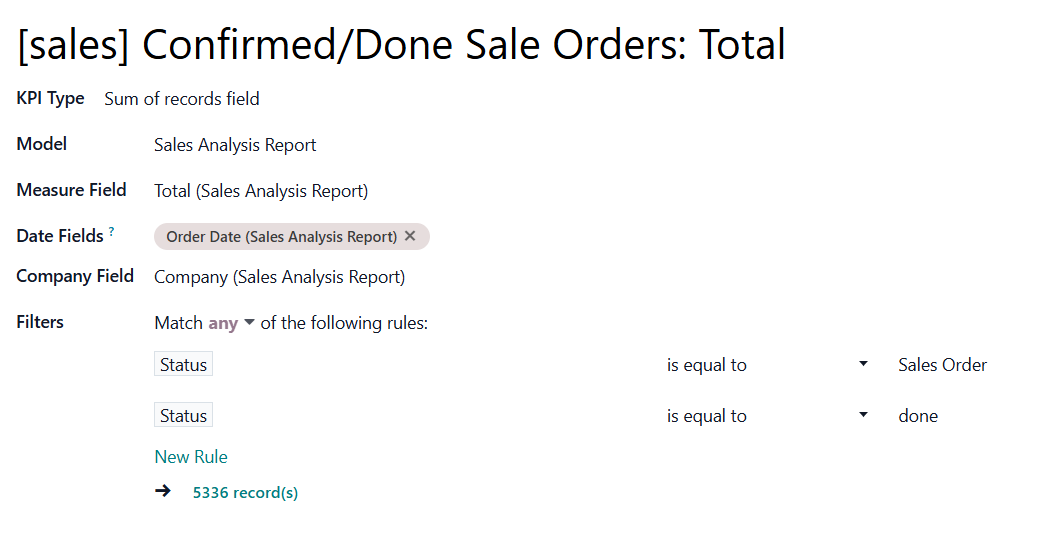
The Basic Measurement that sums the total value of All done Sale Orders. Choose the 'Measure field' - 'Total', so the module will sum the value from it. To consider only 'done' orders, add 2 Filters: Status is equal to Sales Order; Status is equal to Sales Done. Make sure that records match 'Any' of those filters. This way, you can determine how much the company earned on sales.
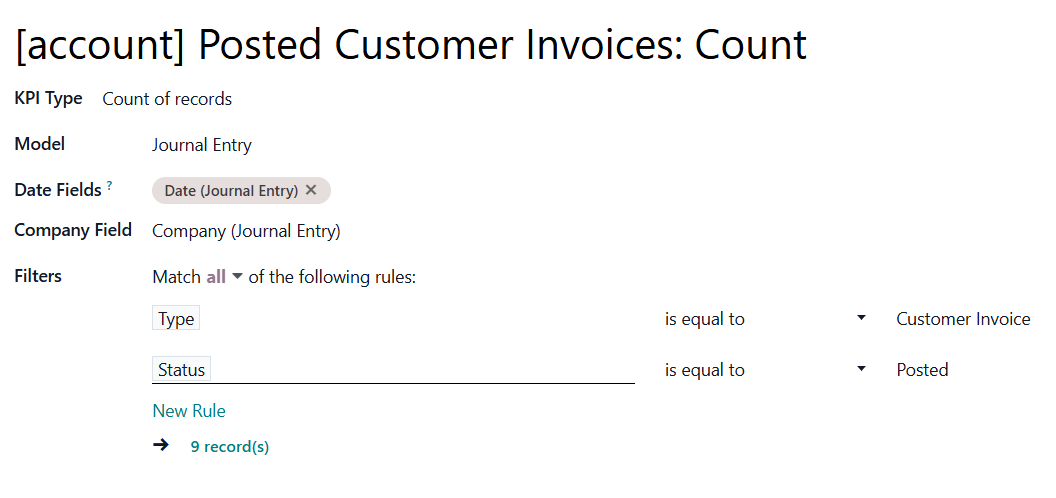
The Purpose of the Basic Measurement is to count all posted customer invoices. In the field Filters, choose 'Type is equal to Customer Invoice' and 'Status is equal to Posted'. This will tell you how well the sales process goes.
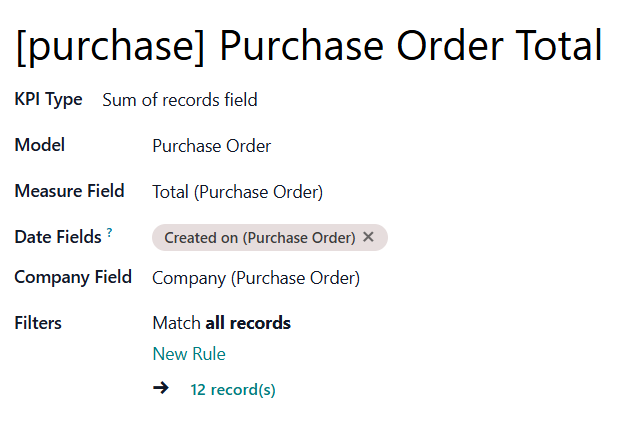
The Basic Measurement that sums the total value of All Purchases. Choose the 'Measure field' - 'Total', so the module will sum the value from it. This way, you will know how much was spent on the vendor's products over a particular period.
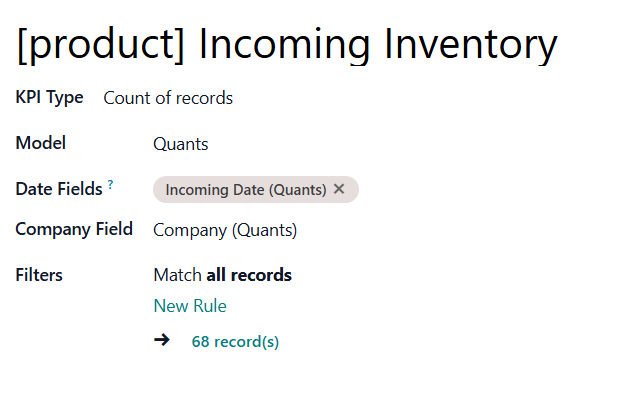
Count all the product quants in stock. This way, you can find out how many products are available for sale.
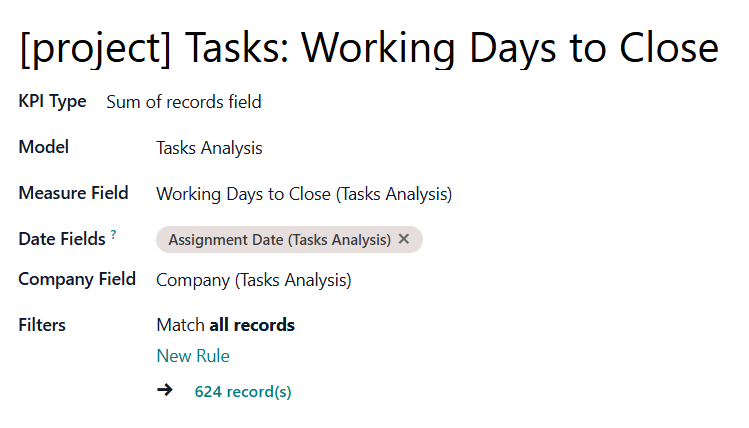
The Basic Measurement can count the number of days for which all tasks were completed. This way, you can find out how much time your workers need to finish their work.
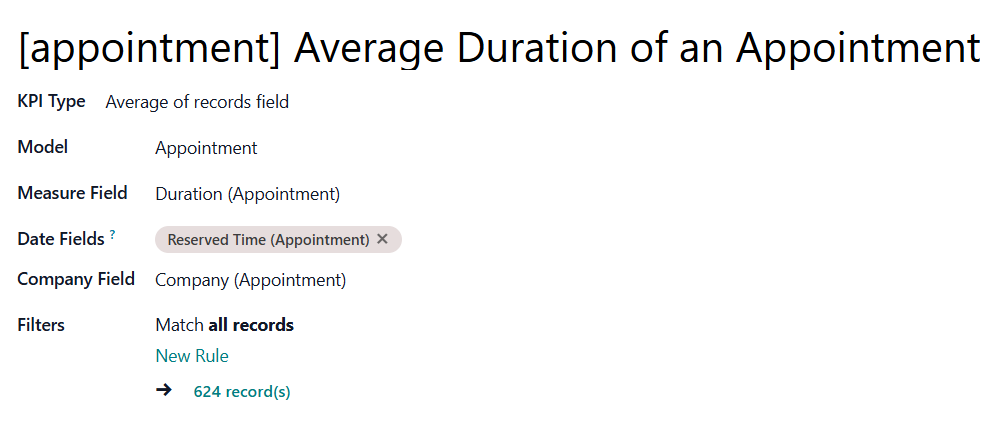
When the appointment time isn't set and can vary, create this Basic Measurement to track the average appointment time. For example, the average time users rent a car. This way, you can determine what services require more time and, therefore, introduce interesting discounts to make other appointments last longer.
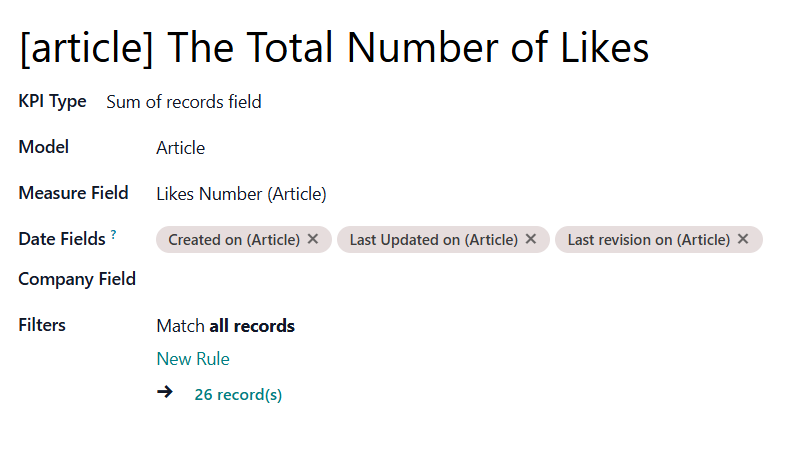
Use the Basic Measurement 'The Total Number of Likes' to assess the quality of the articles in general. To consider only popular articles, add a Filter Views > 10. This way, you can see the users activity on the article's page and whether the articles are successful.
Constants
KPI Constants are a special type of KPI Variable used when data cannot be retrieved from modules or when figures remain the same throughout the period. For example, 'Total Investments' or 'Number of Employees' are often frozen for a specific period.
Compared with measurements, KPI Constants are fixed and do not depend on actual Odoo data. This allows the introduction of figures that cannot be retrieved from modules and/or should remain constant throughout the whole period. For example, you might set the 'Total Size of Investments' to calculate return on investments or the 'Number of Salesmen' to get sales revenue per person.
To create a Constant:
1. Go to Measurements > Constants
2. Click 'New'
3. Type the constant's title
4. Put the global value (the number, which will be used for all periods except for the specified ones).
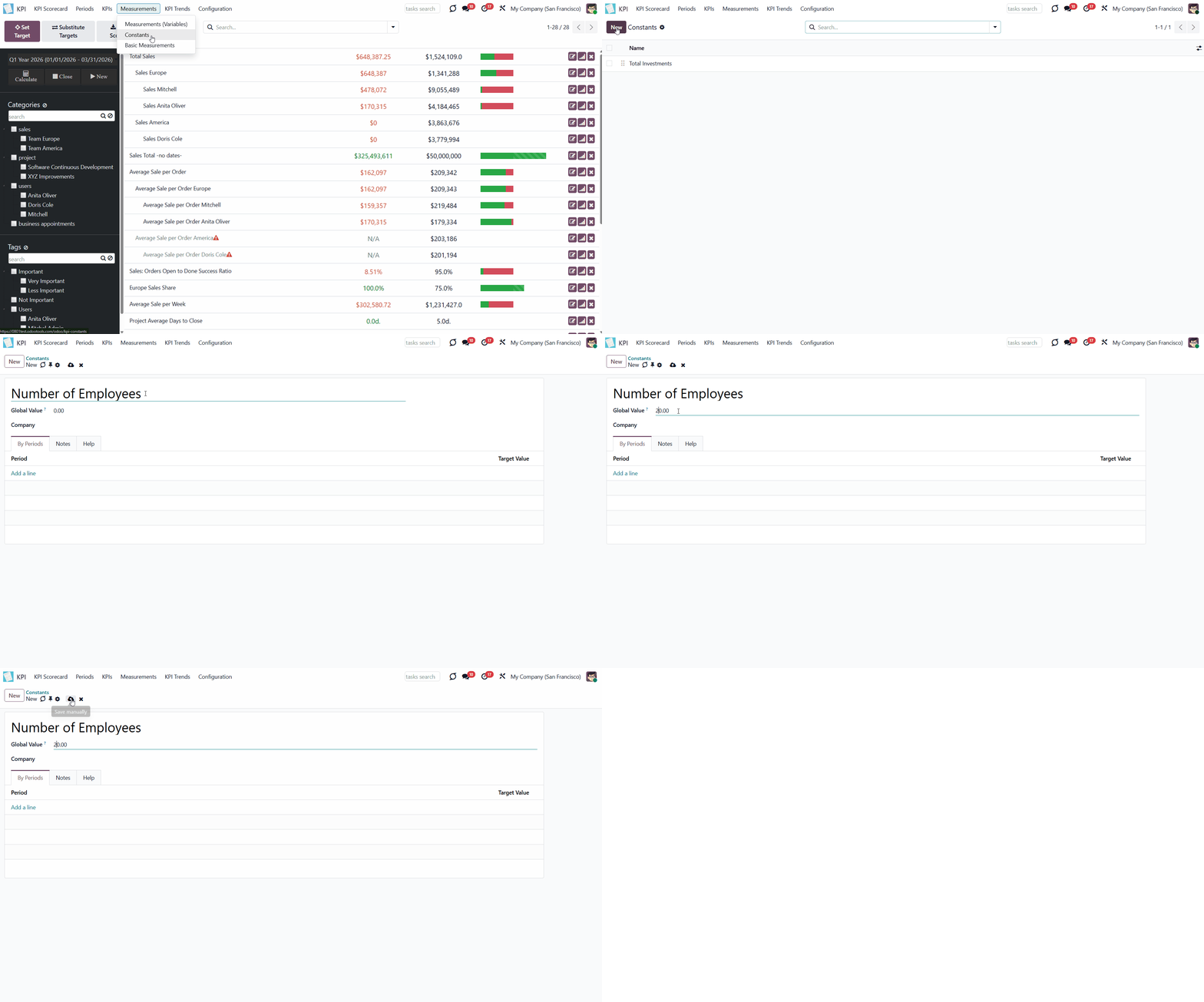
KPI Constant value might be defined for each period.
Besides, for each period, the app automatically calculates a parent period. If one period is fully contained within another, the latter is considered a parent for the former. For example, Y2026 (01/01/2026 - 12/31/2026) is a parent of Q3 (07/01/2026 - 09/30/2026); Q3 is a parent of July (07/01/2026 - 09/30/2026); but for 06/30/2026 - 07/31/2026, the parent would be Y2026, since this period is not fully inside Q3.
The global value is applied if there is no value for this period and for its parent.
To define a value for a particular time frame:
1. Start creating or editing a Constant
2. Find the tab 'By periods' and click 'Add a line'
3. Choose an existing period and type the value for this period that will be used for calculations instead of the global value.
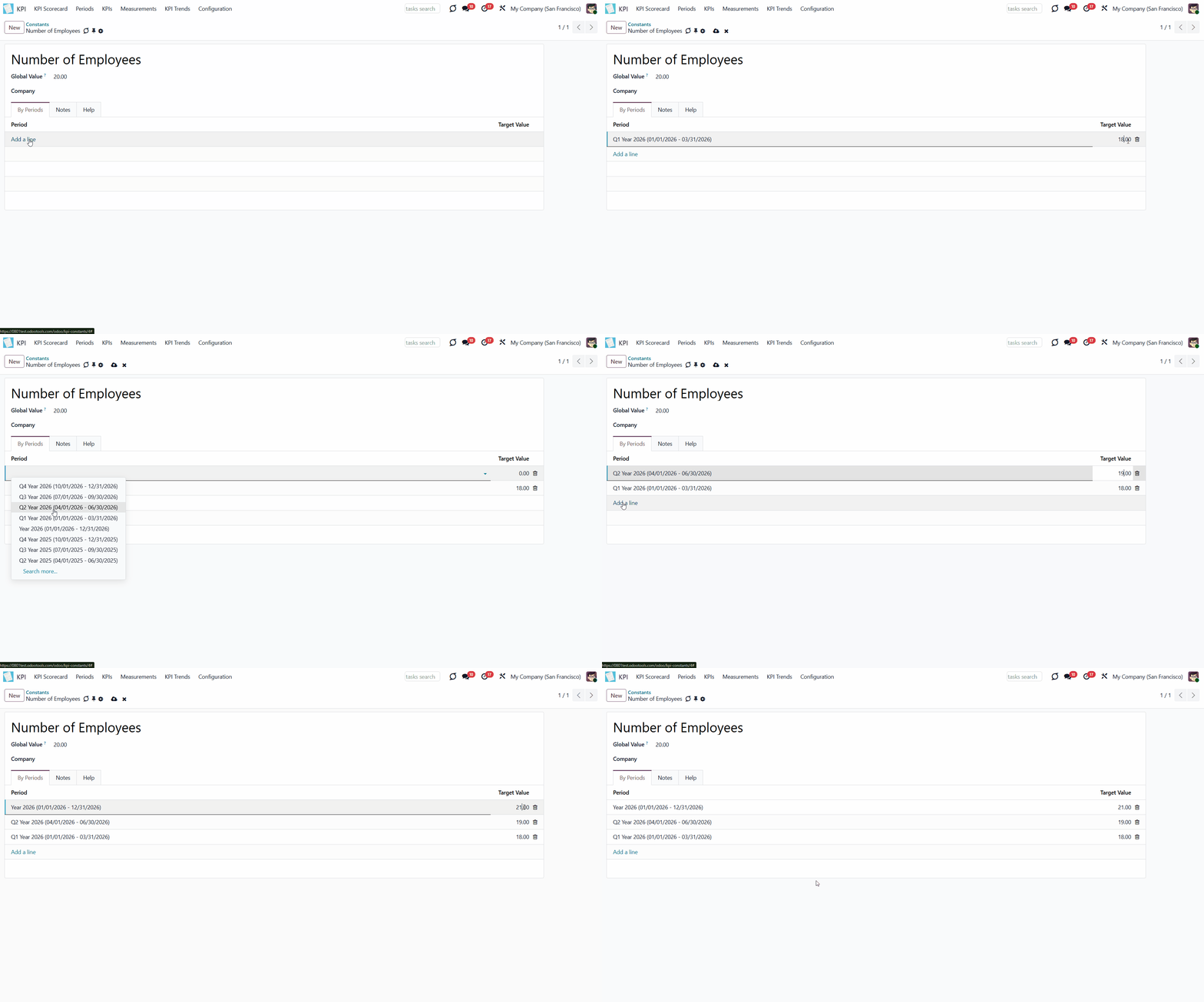
As an example, let's create a constant 'Number of Employees'.
The Global Value - the general number of employees - is 20. This value will be used for all calculations containing the constant 'Number of employees'.
For example, let's create a constant 'Number of Employees'.
However, during the year, we experienced some changes. In the first quarter of 2026, the company had 18 employees. During the second quarter, we hired one additional employee, bringing our total to 19. So, let's add the values for these periods. Now, 18 is used for calculations for the first quarter of 2026 and 19 for the second.
As we don't state the number of employees for the third quarter, the value for its parent - Y2026-'21' will be used for calculations.
Quarter 4 of 2025 doesn't have a value and doesn't have a parent value, so the global value - '20' - would be applied.
Measurements (Variables)
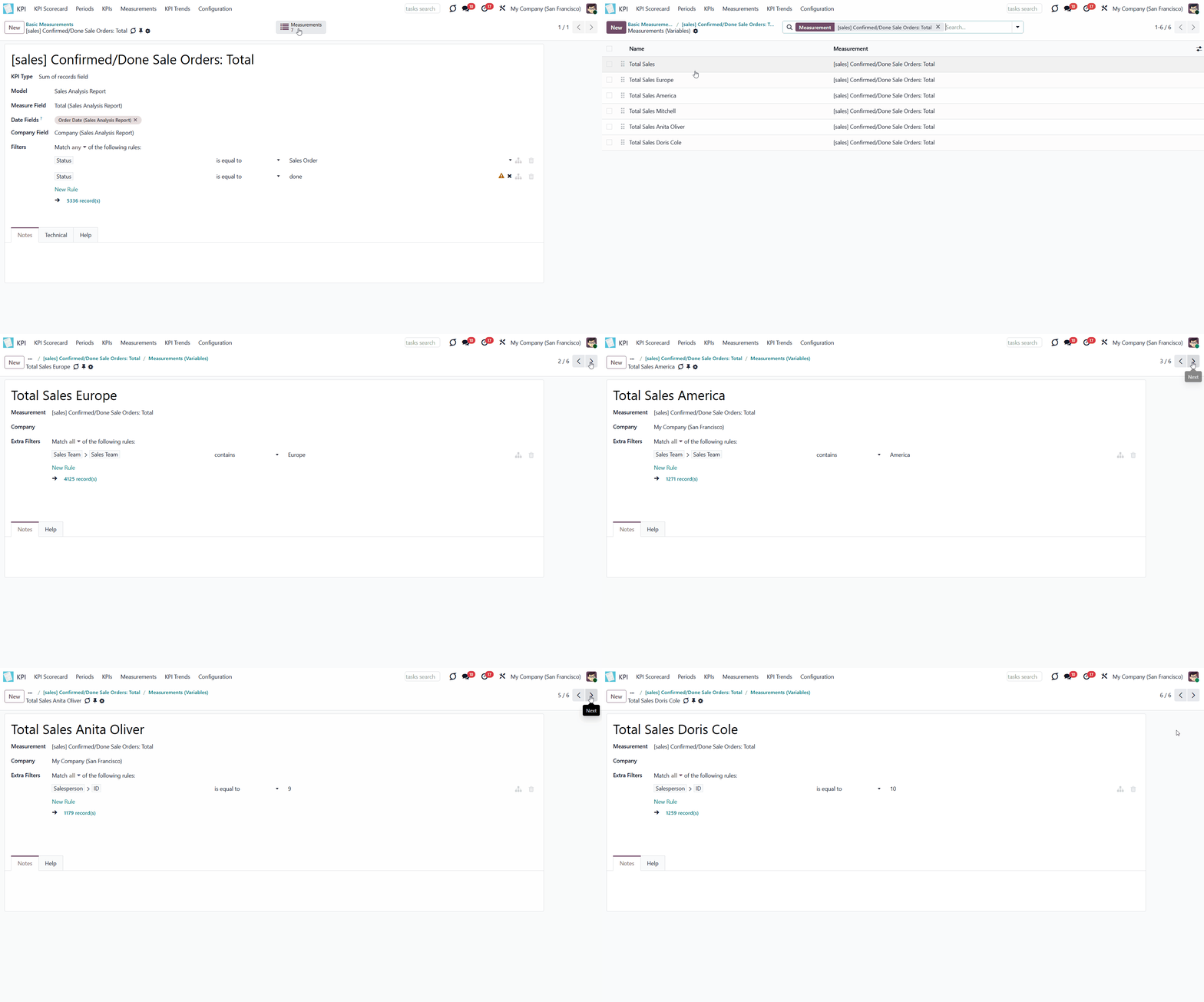
Measurement (Variable) - is a specification of a basic measurement. The key idea is to simplify data preparation. You define 'Total Sales' once and then use it unlimitedly for 'Sales Europe', 'Sales John Brown', 'Website Sales', etc.
Specify Basic measurements through the Odoo built-in domain constructor, which lets you filter by any storable attributes. Create a variable to add more filters to Basic measurements.
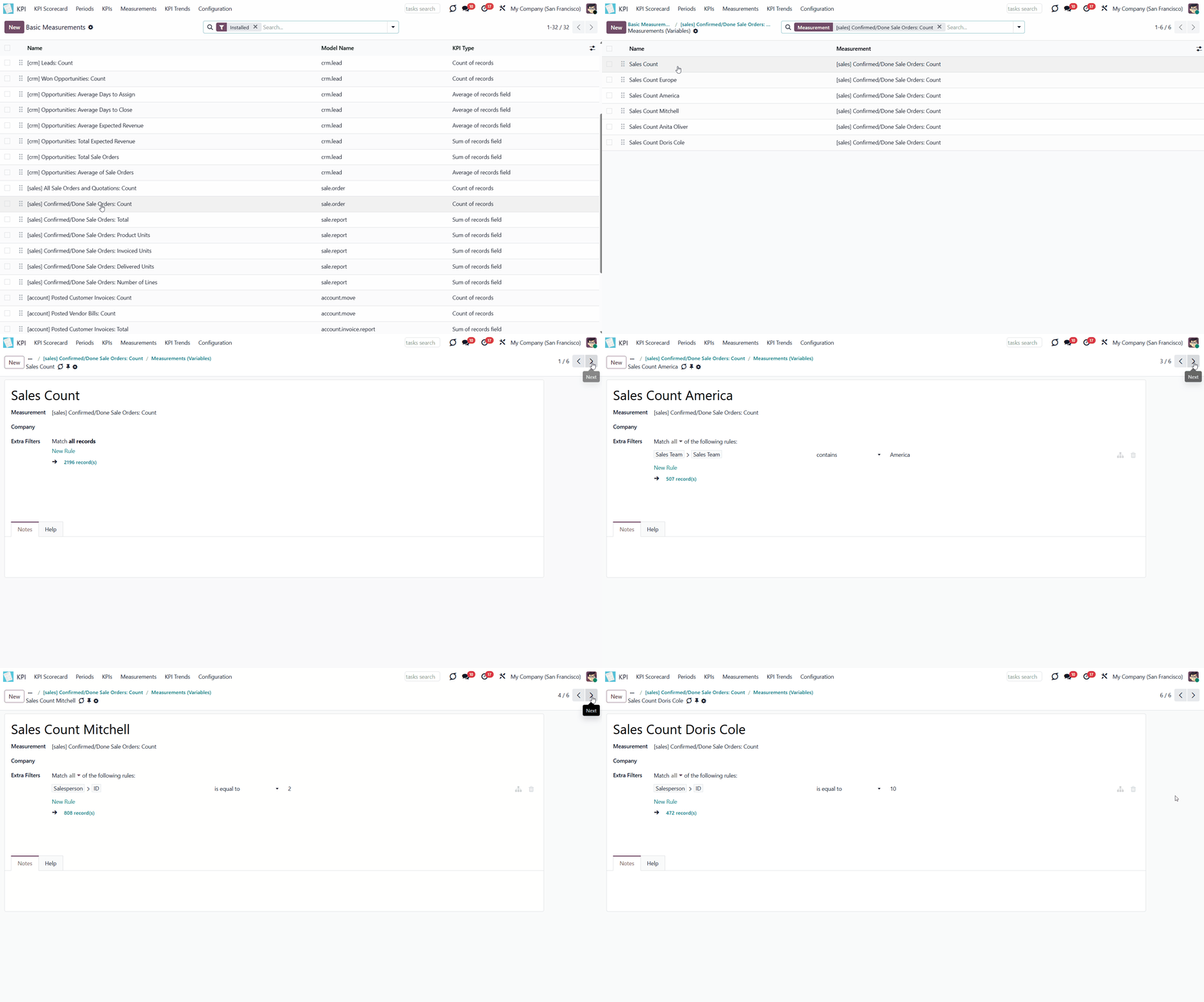
For example, create a Basic measurement 'Sales Count' for the Model 'Sale Order', which counts the number of sale orders. The Basic measurement uses the KPI Type 'Count of records'. Apply filters Status is equal to 'sale'; Status is equal to 'done' to the Basic measurement. Based on the Basic measurements, you can create other Variables: Sales Count America and Sales Count Europe using the filter 'Sales Team > Sales Team contains 'Europe'/ 'America'. You can also create a variable to count sales of a particular salesperson by the filter 'Salesperson ID is equal to 2'.
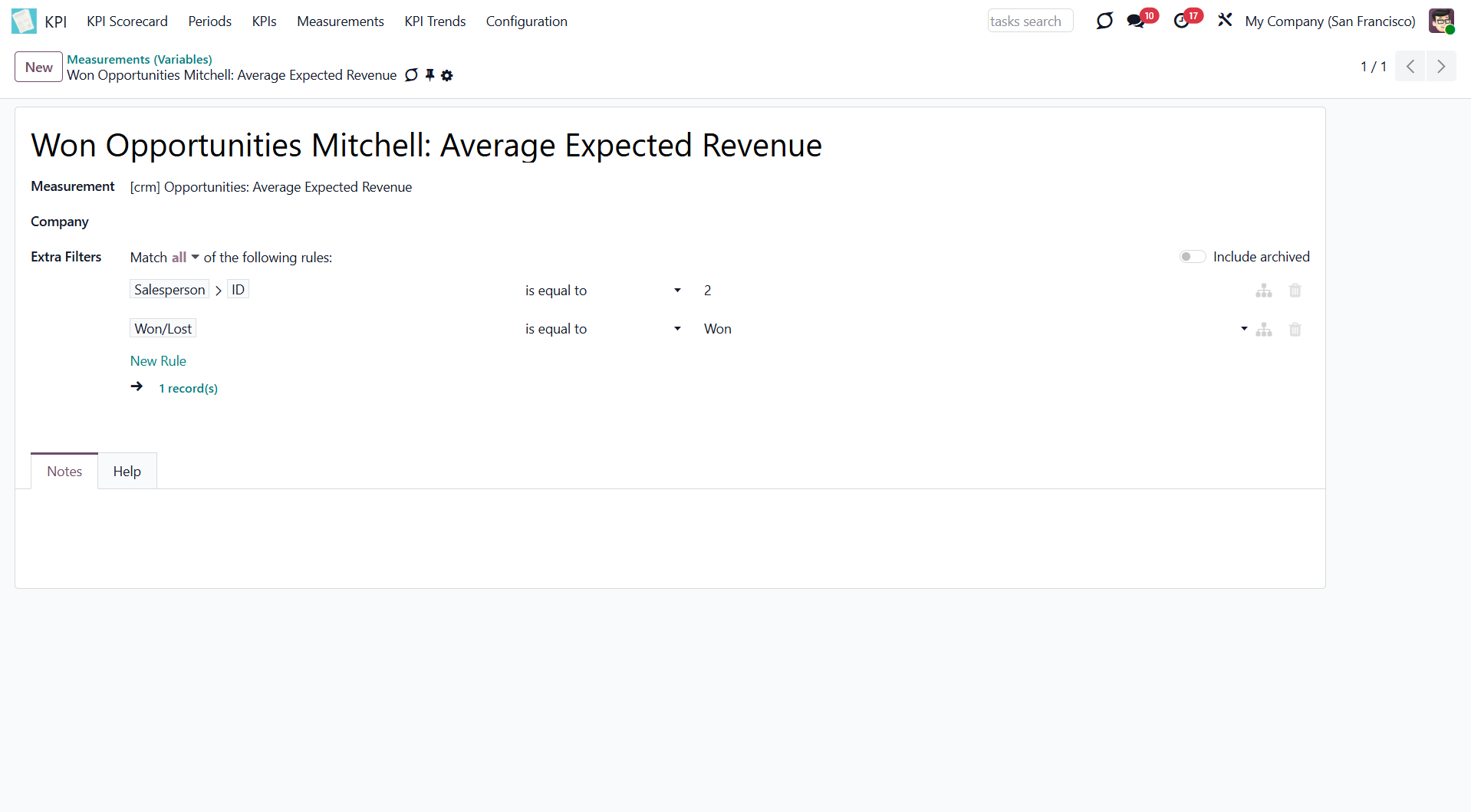
Another example is based on the Basic measurement 'Opportunities: Average Expected Revenue' for the Model 'Lead/Opportunity', which calculates the average revenue and uses the KPI Type 'Average of records field'. Based on this measurement, you can create a Variable to count the average expected revenue only on the 'Won' stage. For that purpose, use the Filter 'Won/Lost is equal to Won'. You can also create a Variable to view the expected revenue for a particular salesperson, including opportunities at the Won stage only. You can use the same filter, 'Won/Lost is equal to Won', and add one more filter, 'Salesperson ID is equal to 2'.
Based on one Basic measurement, you may create as many Variables as you need. You can also create a Variable by linking it to a Basic measurement (Basic measurements are not used to create a formula by themselves). For example, create a Basic Measurement 'Total Sales' and link it to a Variable 'Total Sales'.
An exception is Basic measurements of the 'Execute Python Code' type. As they work on the code level, they cannot be specified anymore. So, there can be only one linked Variable (see Execute Python Code).
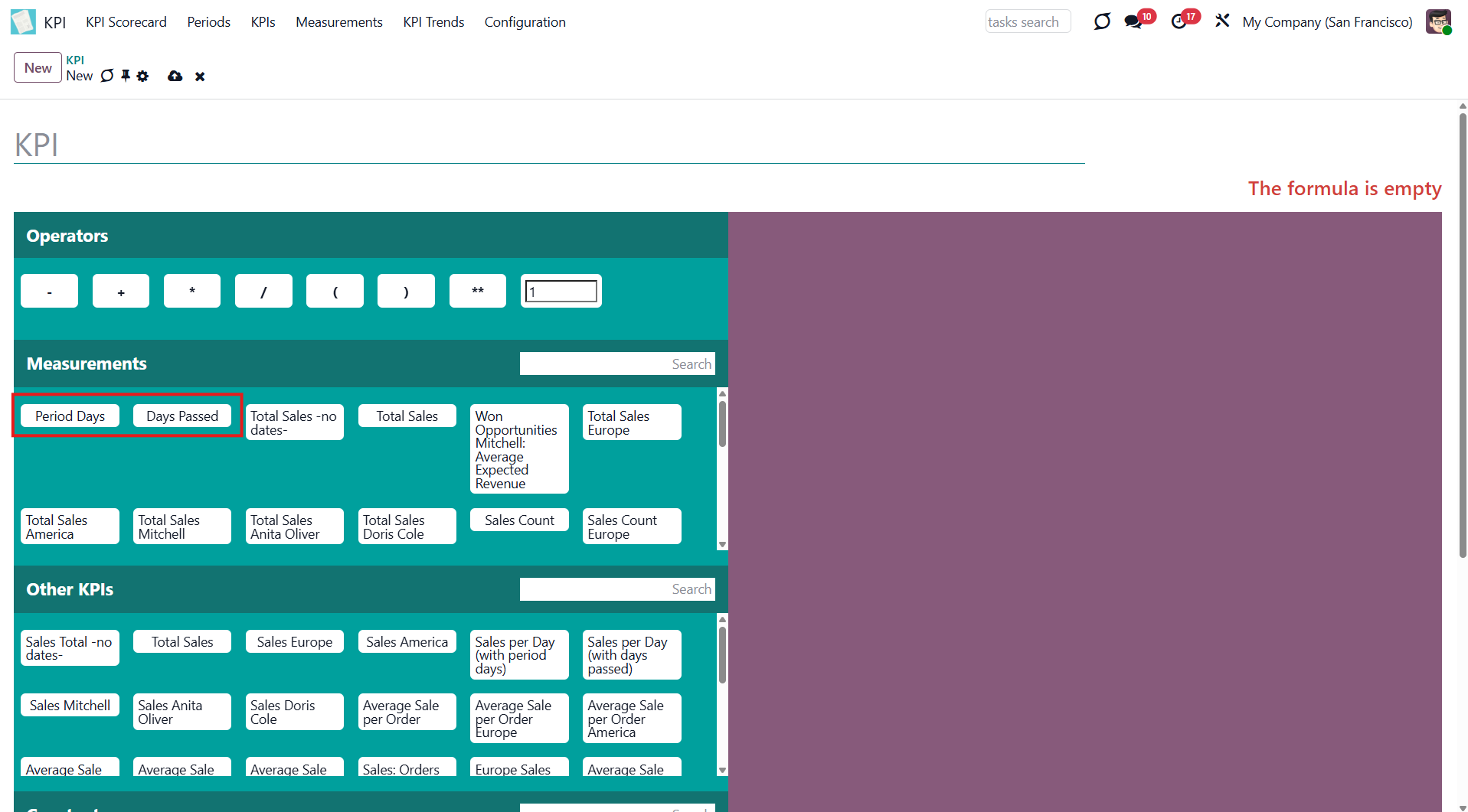
There are two default Variables that you can use to create formulas within the time frame. You can find them in the formula wizard (see KPI Scorecard). Those are:
1. 'Period Days' (the number of days in the period). KPIs using this Variable calculate resultusing this Variable calculate results based on the number of days in the current period. For example, the Q3 (07/01/2026-09/30/2026) Period Days would be 92.
2. 'Days Passed' (the number of passed days in the period). KPIs using this Variable calculate results based on the number of days in the current period. For example, in Q3 2026, on the 15th of July, there are 15 days; on the 1st of September, 62 days; and on the 30th of September, 92 days.
For example, you can see the Total Sales per Day. Both Variables apply to this KPI, but in the first case, you will see the correct result only on the last day of the period because it compares the actual value to the total number of days in the period, even if the period is a month. And, at the moment, only a few days have passed. The Variable 'Days Passed', by contrast, will always yield a more accurate result, as it compares the actual value with the number of days that have passed. And each day, the number of days will change (+1).
Let's create a KPI 'Total Sales' with the Variable 'Period Days' to determine how much you earn per day. Set the KPI Target for the third quarter of 2026. The period is 92 days long, so Total Sales will be divided by the number of days in the period. The results will not be accurate at the start of the period because a few days or weeks have passed, and the period is not yet over.
Now, let's create the same KPI using the 'Days Passed' variable. Here, Total Sales will be compared with the number of days already passed. This number is dynamic and changes over time. So, we set a KPI Target for the 3rd quarter of 2026. Today is the 15th of August; therefore, only 46 days have passed. Today, total sales will be compared with those from 46 days. Tomorrow, with 47 days. So, the result is much more accurate than when we use the 'Period Days' variable (which is accurate only on the last day of the period).
Variables are used to create a KPI. The KPI may relate to a particular company. As you create a Variable, choose the company it relates to, so only the objects related to the company will be considered for calculations. Therefore, you can calculate, for example, the 'Total Sales' of each of your companies separately. For instance, create a Variable 'Sale Team America > company USA' and 'Sales Team Europe > company Belgium' and assign each to the corresponding company. If you don't specify the company, KPI Variables are available to all users across all companies. Otherwise, users would only be able to see those related to company objects under a certain company.
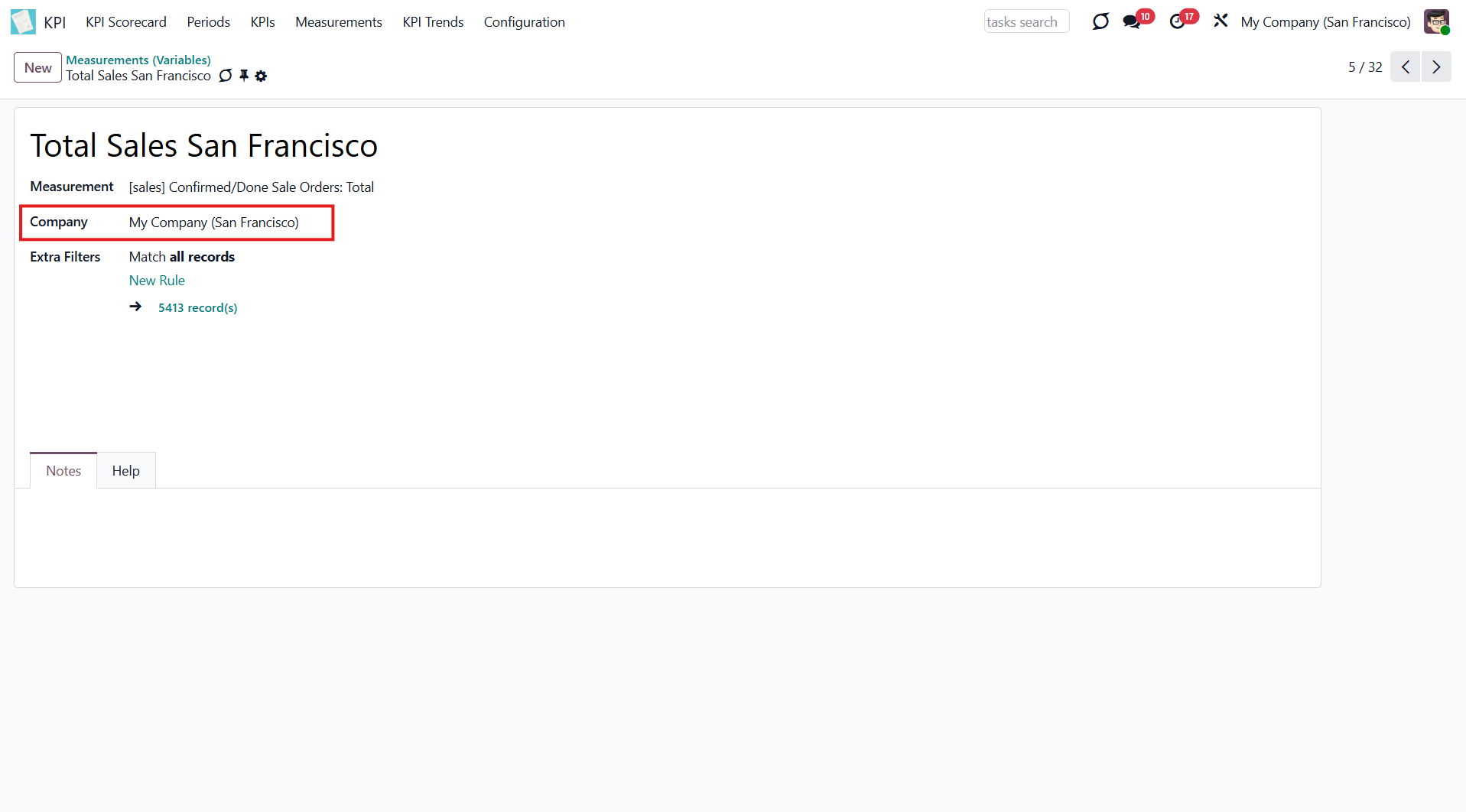
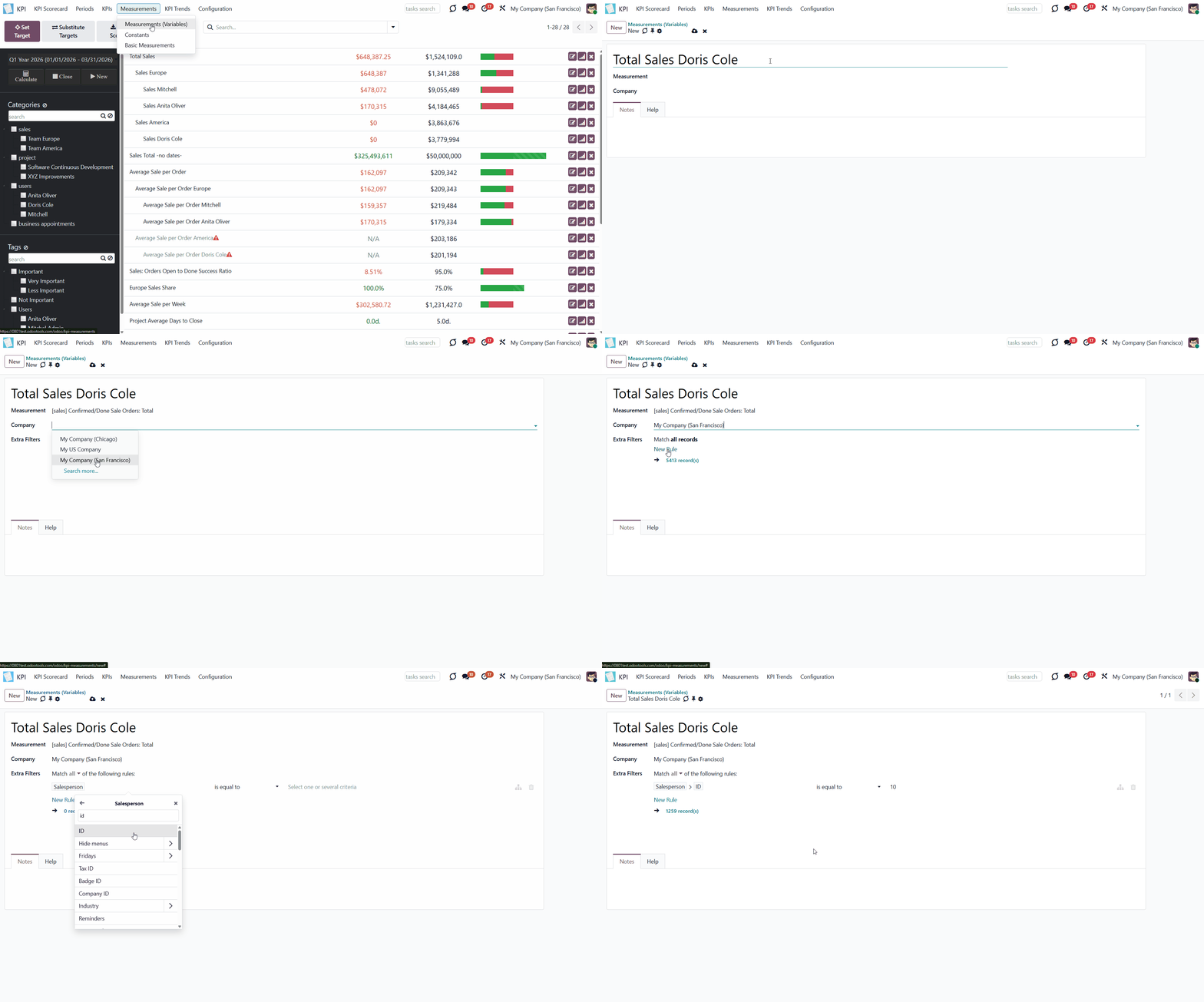
To create a Variable:
1. Go to Measurements > Measurements (Variables)
2. Click 'New'
3. Type the name of the Variable
4. In the field 'Measurement', choose a Basic measurement
5. Choose a company or leave the field empty to make this Variable global
6. Optionally add some filters.
From a Basic measurement form view, you can access all linked variables:
1. Go to Measurements > Basic measurements
2. Open any Basic measurement
3. In the top right corner of the Basic measurement, you will see the number of Variables based on it
4. Click on the button to see the list of Variables
5. Click on any Variable to see its card.
Variables Examples
Here, you can find some possible Variables that specify useful Basic Measurements (see Basic Measurements Examples).
1. Basic Measurement - Leads and Opportunities Count
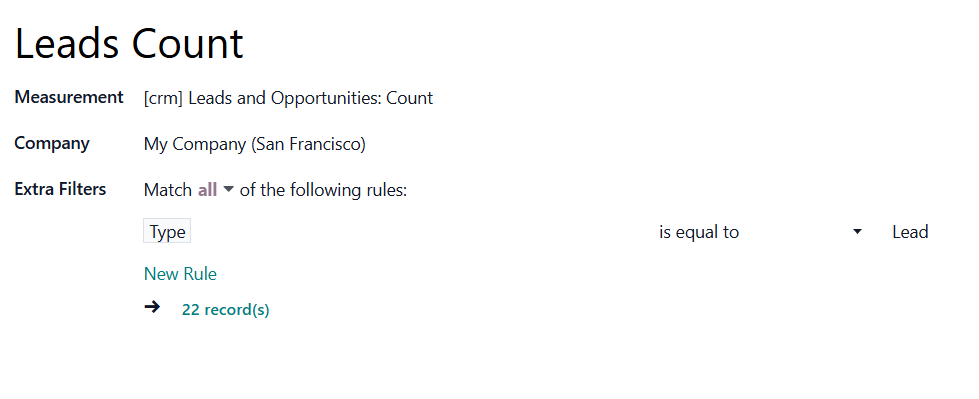
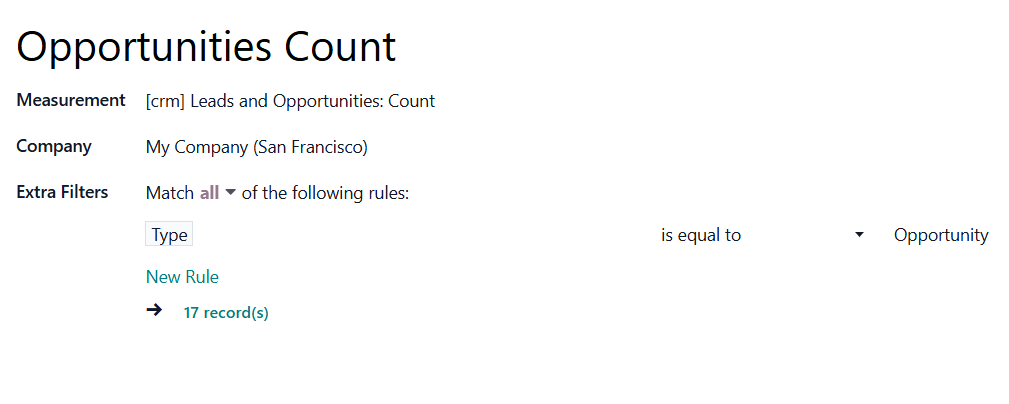
You can separate Leads from Opportunities to see the results for each separately. To do so, add the extra filter Type is equal to Lead or Type is equal to Opportunity.
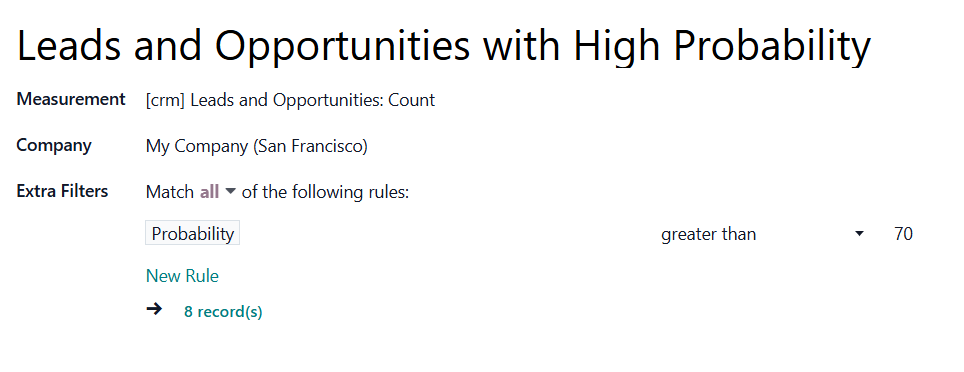
See only Leads and Opportunities with high probability. Add the extra filter Probability is greater than 70, where 70 is the percentage number.
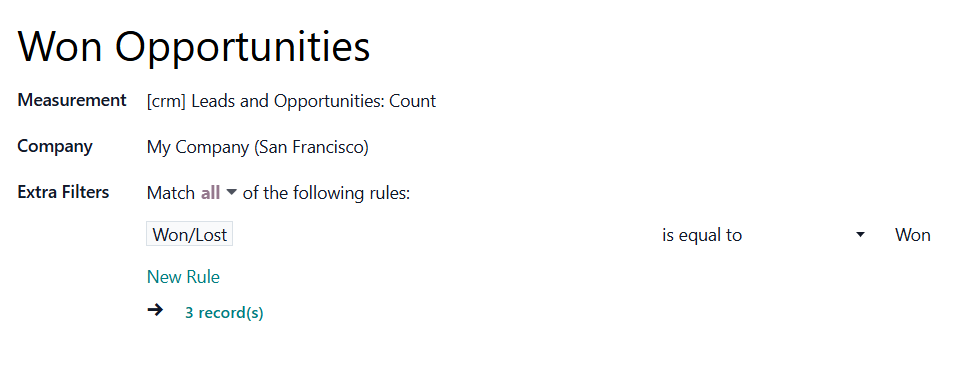
See only won Opportunities to compare their number by periods and track work effectiveness. Add the extra filter Won/Lost is equal to Won.
2. Basic Measurement - Confirmed/Done Sale Orders Total
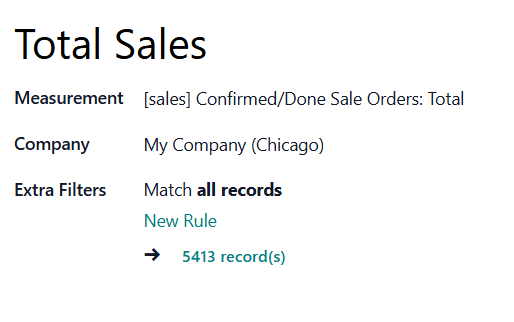
Even if there is no need to specify the Basic measurement, match it to a Variable so it is visible in the formula wizard. Basic measurements are not used to create a formula (see Basic Measurements). Create a Variable 'Total Sales' to know the amount of money earned from sales.
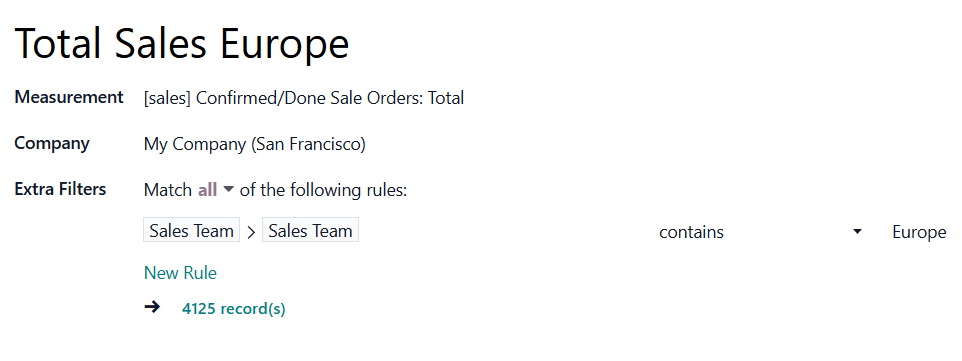
Specify the Basic measurement to view the total earned by a particular team. For that, add an extra filter with the team name: Sales Team > Sales Team contains 'Europe'. If you have several teams and want to see the Total result for each team, you need to create a Variable for each team.
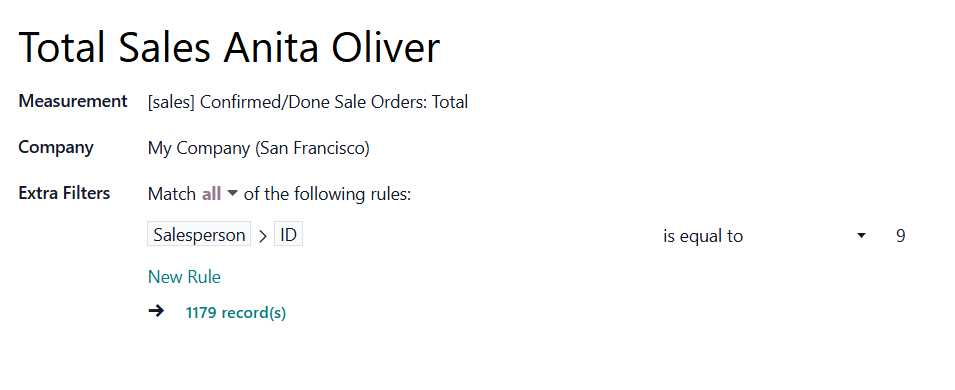
You can also see the results for each salesperson, motivating employees to sell more and earn benefits. Add the extra filter with the person's ID, e.g., Salesperson > ID is equal to 9.
3. Basic Measurement - Customer Invoices Count
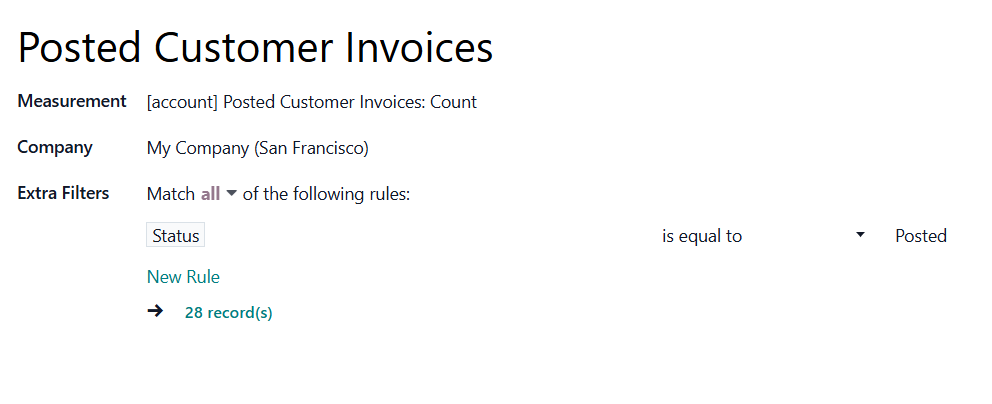
Specify the invoices by their status. Add the extra filter Status is equal to Posted to count all the posted invoices.
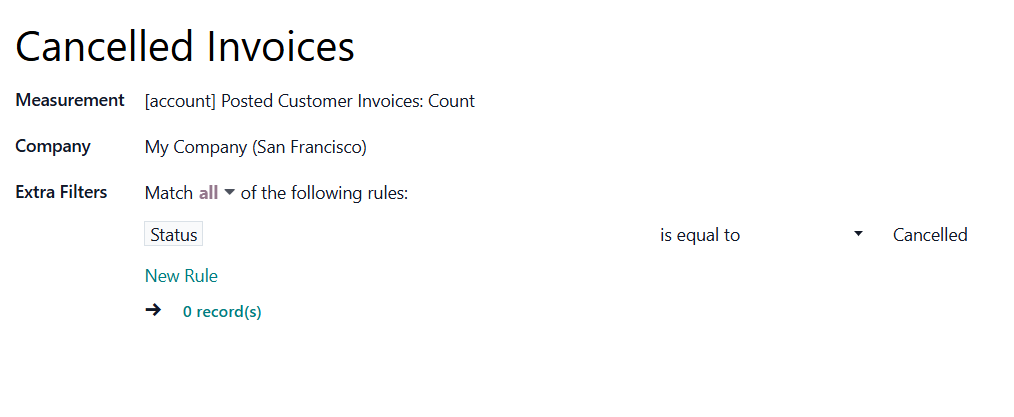
Track the number of cancelled invoices to take timely measures and determine the problem if too many were cancelled. Add the extra filter Status is equal to Cancelled.
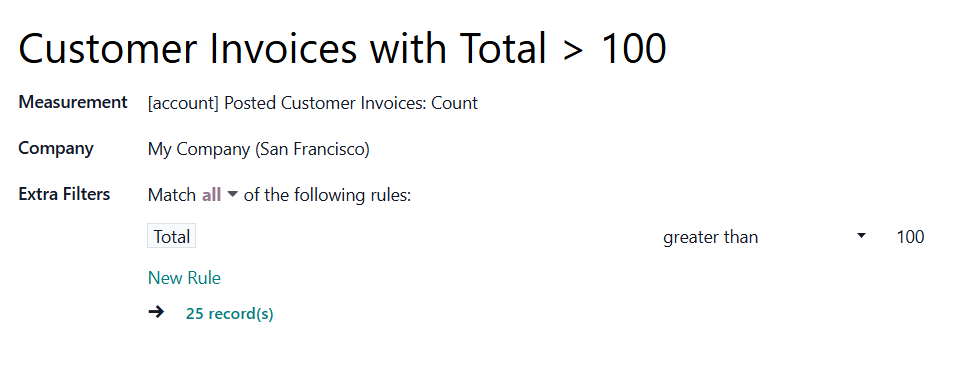
Find out how many invoices with the high Total amount were created. For that, add the extra filter Total greater than 100.
4. Basic Measurement - Purchase Order Total
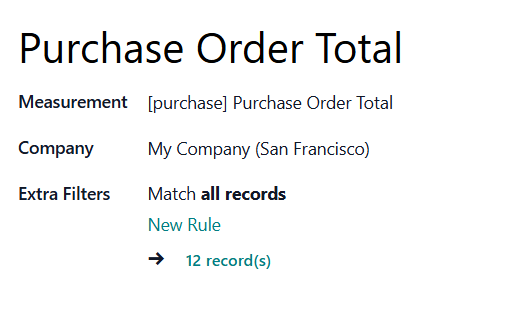
Even if there is no need to specify the Basic measurement, match it to a Variable so it is visible in the formula wizard. Basic measurements are not used to create a formula (see Basic Measurements). Create a Variable 'Purchase Order Total' to display the total amount spent on products.
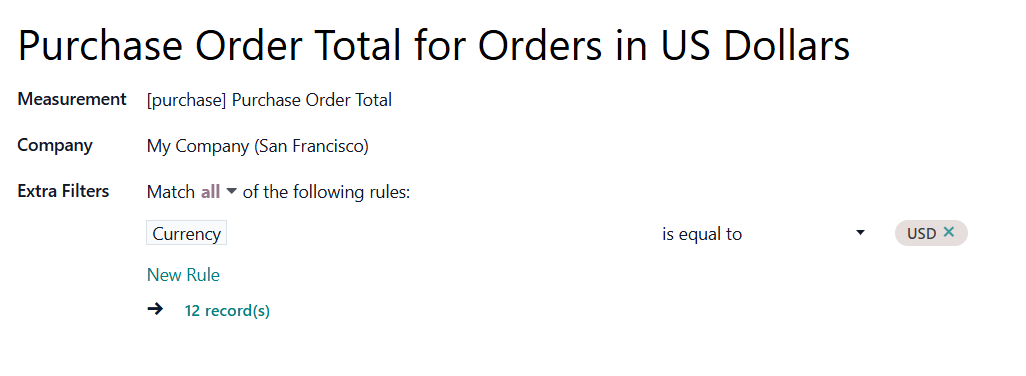
If you have vendors from various countries and pay them in different currencies, you can add, for example, the extra filter 'Currency is equal to USD'. This way, only purchases in US dollars will be considered.
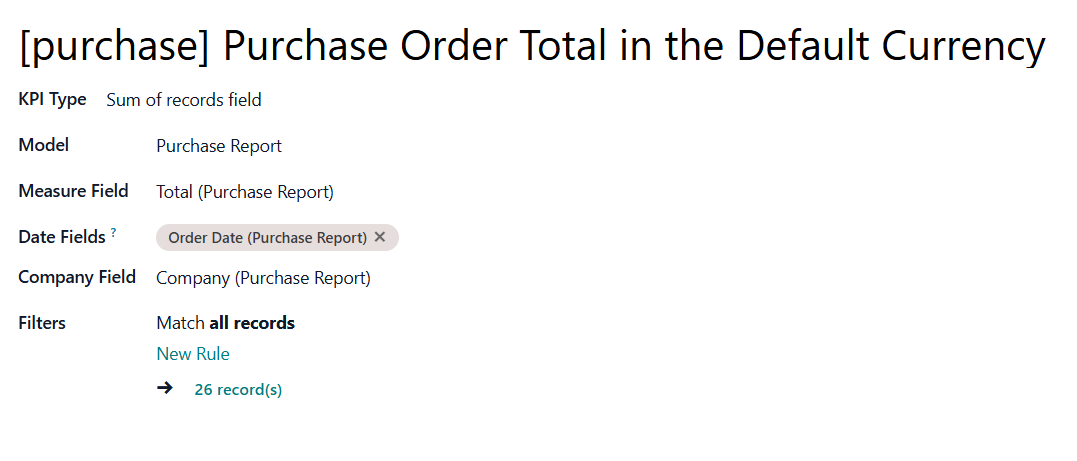
Simultaneously, you can convert all currencies to the default company currency to see the result. In this case, to calculate the purchase total regardless of the currency, you can set another Basic measurement and a Variable.
To that end, edit the Basic measurement or create a new one and change the Model to 'Purchase Report'. This kind of Model and similar ones (like Sale Report, etc.) are insensitive to currency. So, the total will already be summed in the default company currency.
For example, create a Basic measurement 'Purchase orders total in default currency' and choose the Model 'Purchase Report'. Add an additional filter by country or vendor (e.g., Partner Country contains US), and the results will be displayed in the default currency.
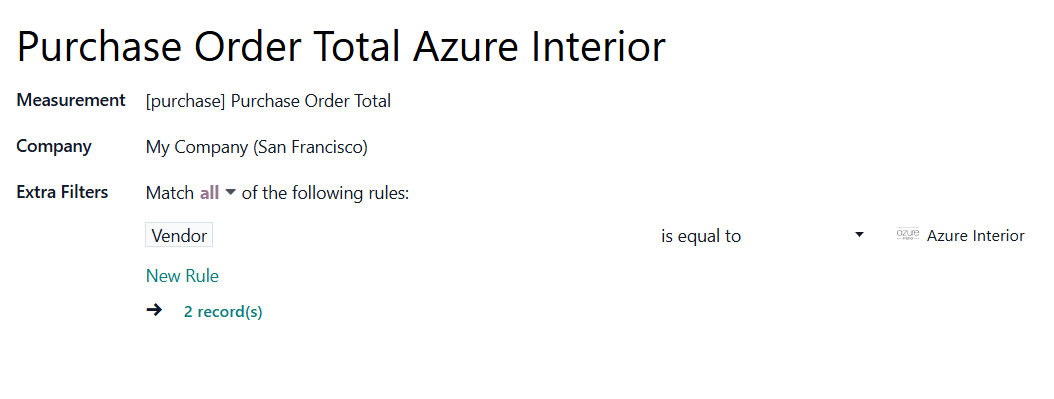
Specify the Basic measurement to calculate the money spent on the products of a particular vendor. Add the extra filter 'Vendor is equal to Azure Interior'.
5. Basic Measurement - Working Days to Close
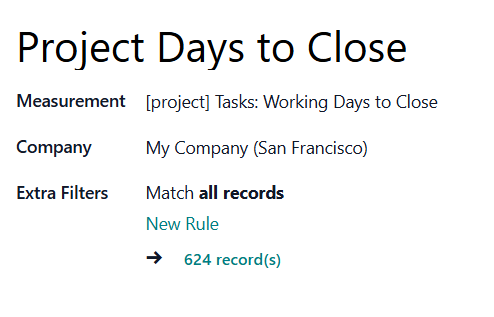
Connect the Basic measurement to a Variable with the same name to see how many days it took the company to finish all the projects.
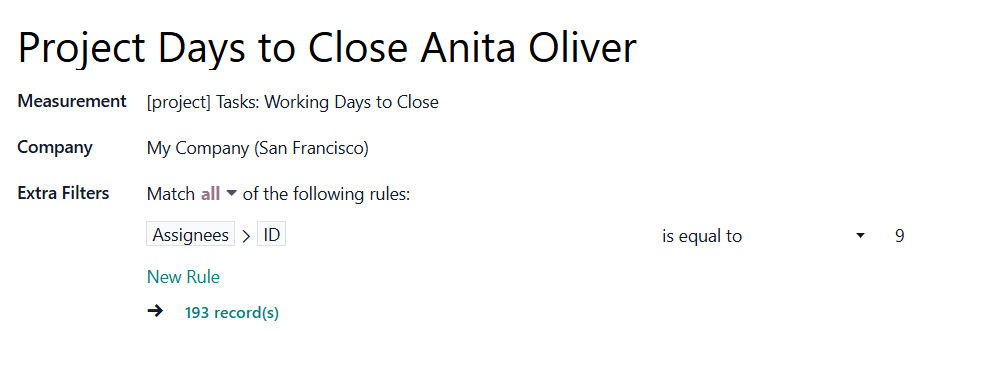
Create a Variable to see the number of days that Anita Oliver needed to finish the projects assigned to her. For that, use the extra filter with the worker ID 'Assigned To > ID is equal to 9'.
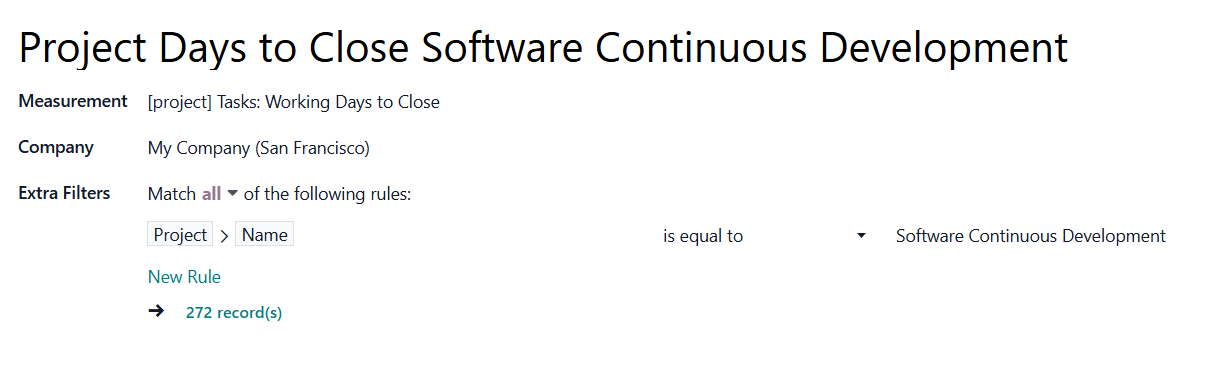
Create a Variable to display the number of days the company spent completing the project. For that, use the extra filter with the Project's title 'Project > Name is equal to 'Software Continuous Development'.
6. Basic Measurement - Products in Stock
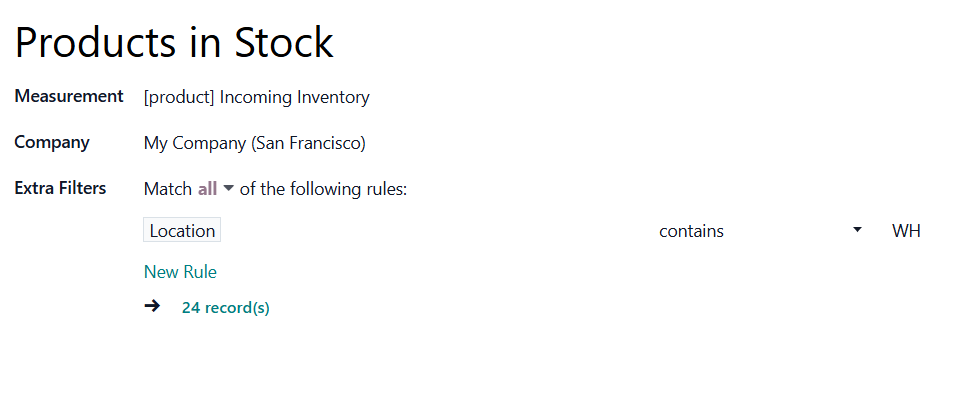
Specify the Basic measurement to count the stock of products with incoming inventory for a particular warehouse over a specified period. For that, add an extra filter with the location title 'Location contains WH'.
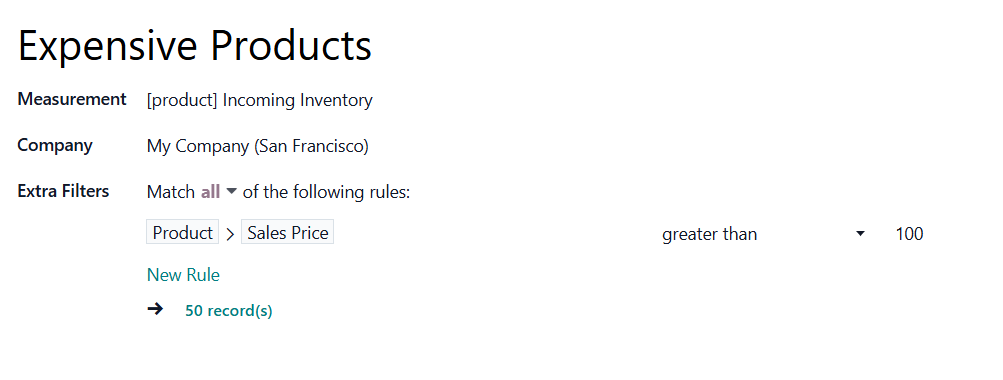
Count the incoming inventories of only expensive products in your shop. For example, those priced over $100. To do this, add the extra filter 'Product > Sales Price greater than 100'.
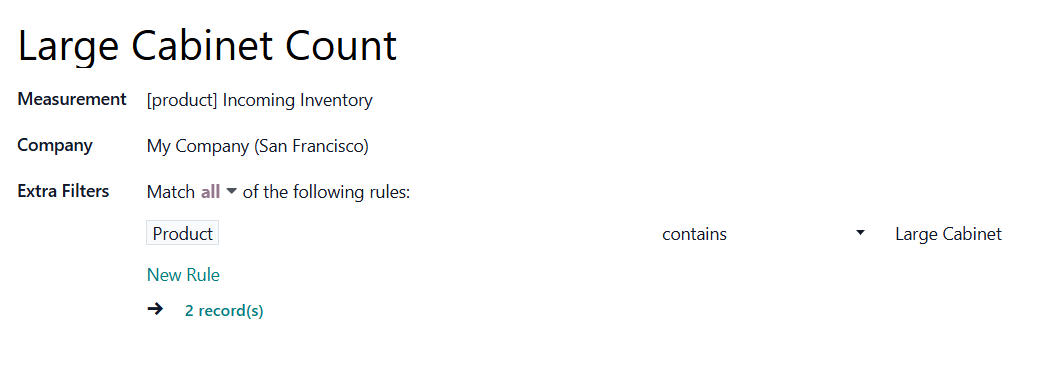
Calculate the incoming inventory of a specific product or products. Add an extra filter with the product's name, for example, "Product contains Large Cabinet".
7. Basic Measurement - Average Duration of an Appointment (for the module Universal Appointments)
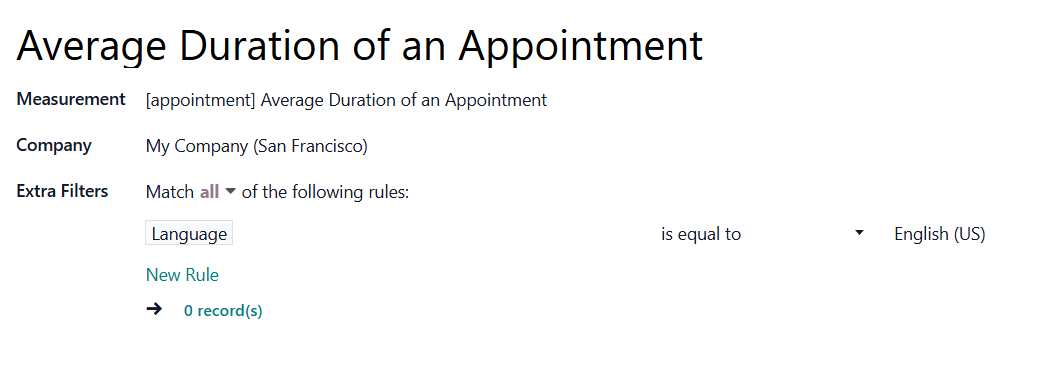
If you hold multiple appointments in different languages with varying durations, you can filter them by language and calculate the average appointment duration. The partner's language determines the appointment's language.
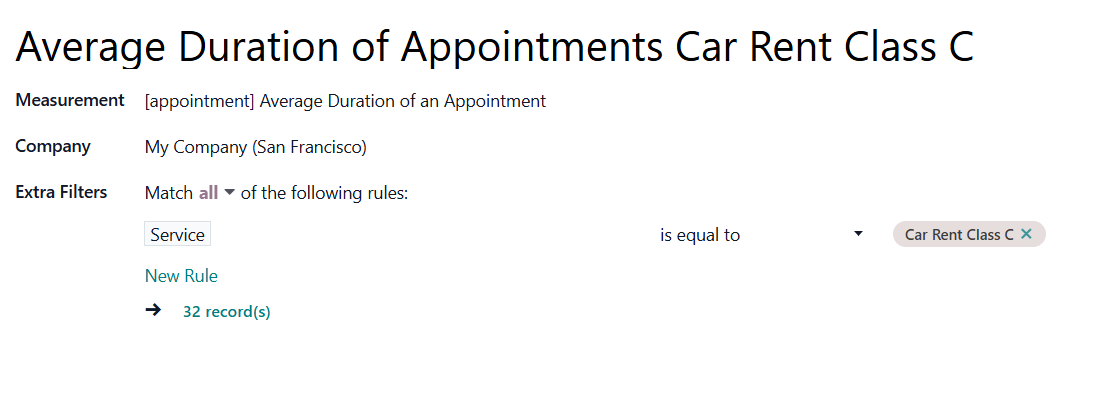
Calculate the average time for an appointment for a particular service to see which service customers book more time for. Add the filter with the name of your service: Service is equal to Car Rent Class C.
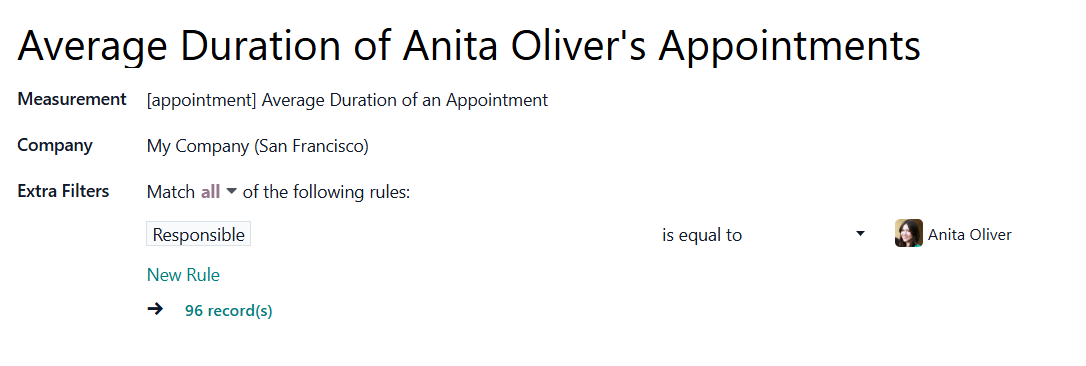
Track which of your employees' customers book more time. Add the filter 'Responsible is equal to Anita Oliver'.
8. Basic Measurement - The Total Number of Likes in an Article (for the module KnowSystem)
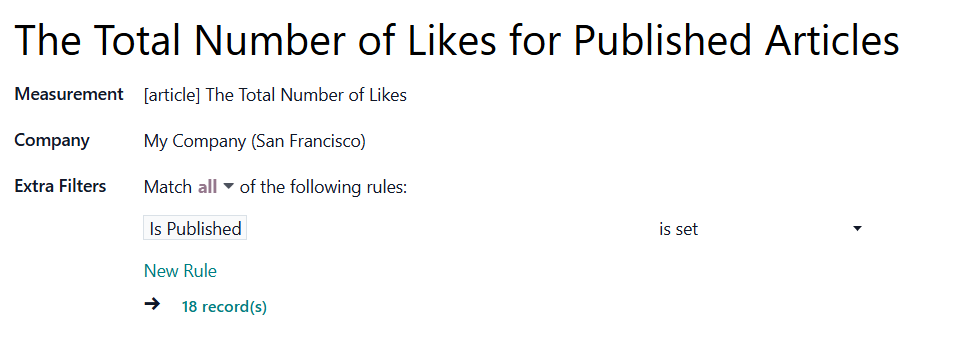
Track the number of likes for the articles that are published. This way, you can track likes only for articles that both internal and portal users can like. Add the extra filter 'Is Published is set'.
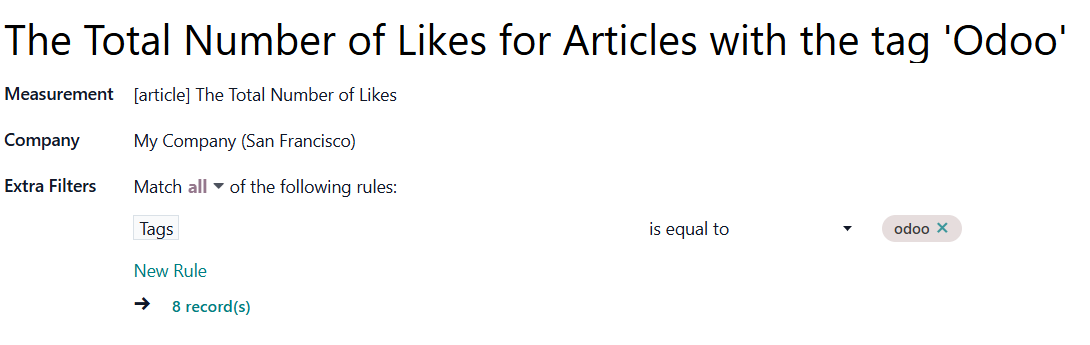
See the total number of likes for articles with a particular tag. You can later compare articles with which tag gets more likes and, therefore, is more popular among users. Add the filter with any of your tags, for example, 'Tags is equal to Odoo'.
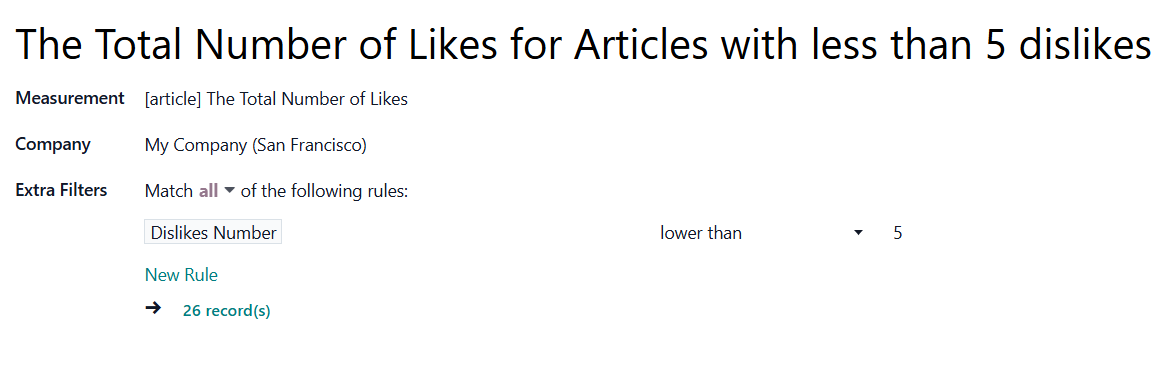
Consider the number of dislikes for an article while counting the total number of likes. Add the extra filter 'Dislikes Number lower than 5'. With this Filter, only articles with four or fewer dislikes will be included in calculations.
KPI Periods
The KPI Scorecard assumes you have not only an overview of actual figures but can also compare them against targets. However, goals should be time-constrained (for example, 'Sell as much as Possible' is not a goal, while 'Generate 100,000 Euro Revenue in the year 2026' is a good target for a salesperson). That is why KPI Periods are introduced.
A KPI Period is a time frame within which companies set their targets to control performance (similar to how financial performance is controlled within accounting/fiscal periods).
The app allows setting periods of any length, including overlapping intervals (and even past periods). For example, you can create ordinary periods in years, quarters, months, weeks, and days, such as 'The Year 2026', '1st Quarter of 2026', '2nd Quarter of 2026', 'September 2026', etc. Or make unusual periods — 'September 1st to 17th' and 'September 7th to 30th'.
When periods cross each other, like in 'The Year 2026' and '1st Quarter of 2026', the objects that were created during the crossing time are used for calculations in both periods. For example, we had 100 sales in 2026, and 20 of them occurred in the first quarter.
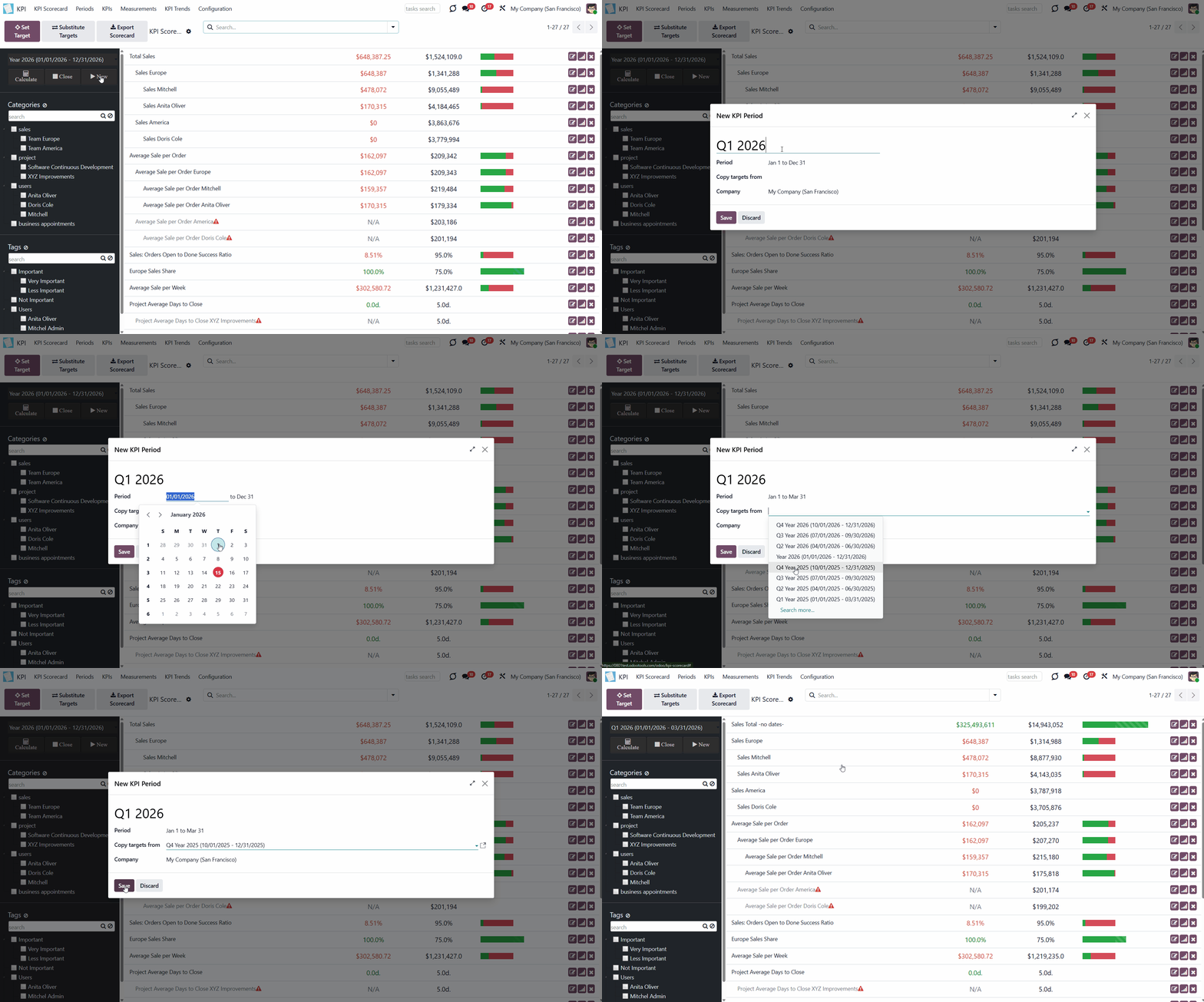
There are two ways to create a period: through the separate menu or directly from the KPI Scorecard interface.
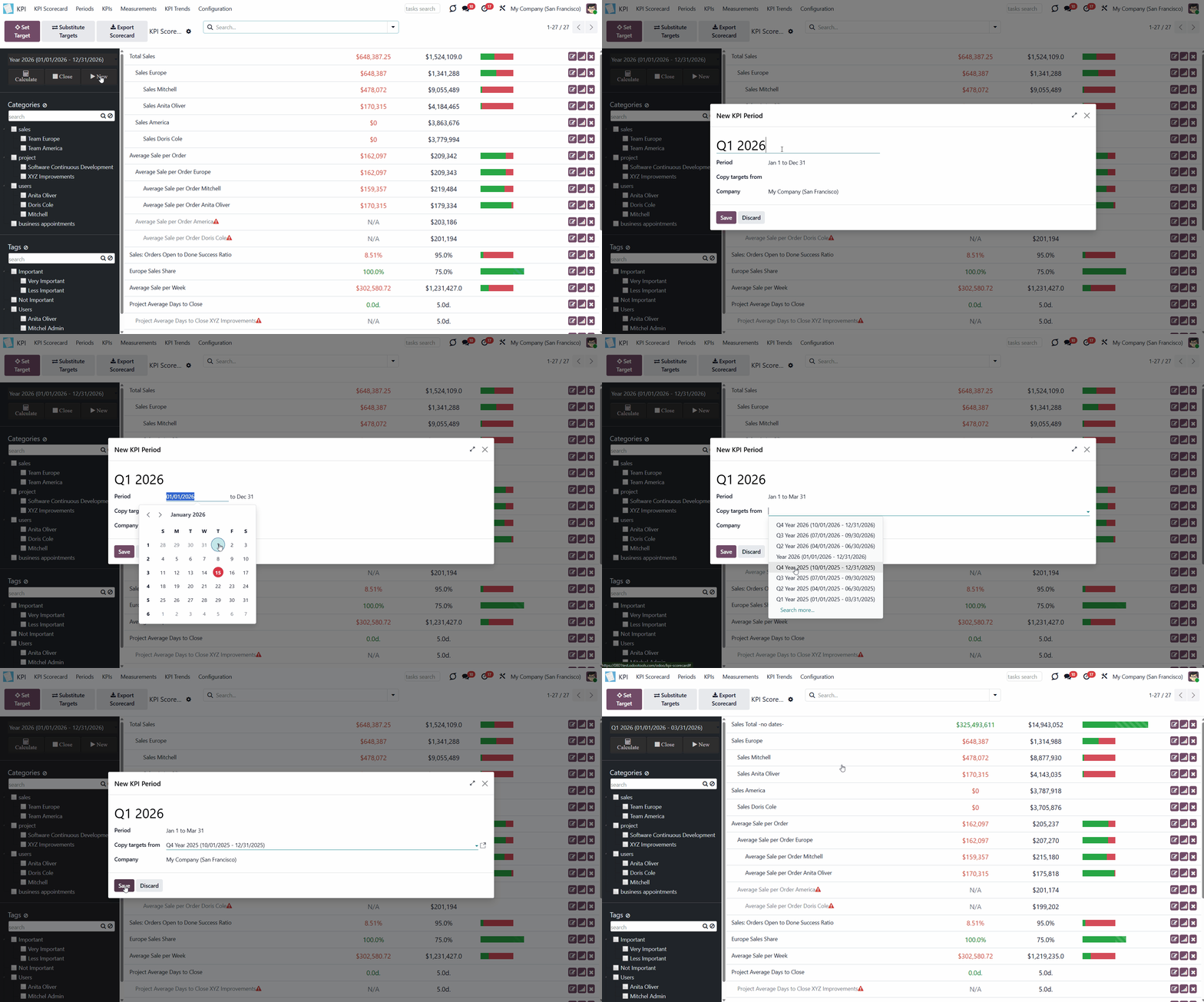
To create the period from the KPI Scorecard Interface:
1. Click on the button 'New'
2. Write the title of the period
3. Choose dates
4. Optionally choose the period to copy the KPI Targets from (to avoid the double work and not to create them again)
5. If you have more than one company, choose the one for which you create the period (in multi-company mode, it cannot be global; it should be created for each company separately).
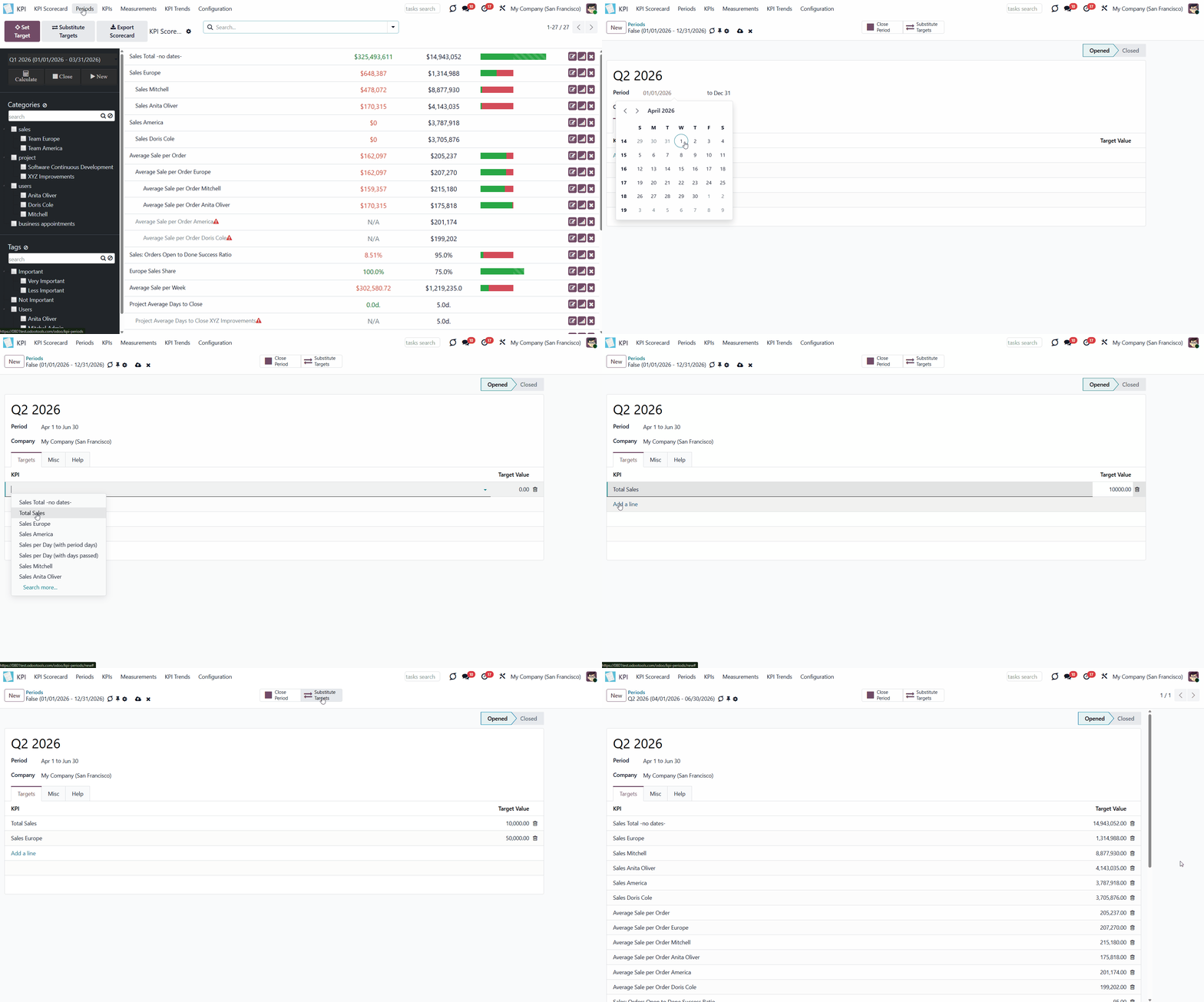
To create a period from the separate menu:
1. Go to the tab 'Periods'
2. Click 'New'
3. Type the period's name
4. Choose the start and end date
5. In multi-company mode, choose the company
6. Optionally add some KPI Targets right from here.
The chosen dates will be used to calculate the KPI's actual value. For example, a KPI formula might include a basic KPI measurement for the total number of sales orders, with the date field set to 'Order date'. Then, only sale orders with an order date within the period will be considered. Thus, the KPI Scorecard would show the total revenue for a given period. This way, the KPI can be used for any period and as many times as needed. The dates will be taken from the period where the KPI Target (based on the KPI) is set.
It is recommended to use a consistent logic for periods to compare results across specific periods and display them in a graph. Usually, KPI targets are set for a whole year and at quarterly/monthly intervals. It lets us not only view KPIs but also check historical trends.
The app automatically considers multiple time periods for comparison and displays a chart of actual values for a specific KPI. To consider periods similar, they should have the same number of days adjusted for a history tolerance.
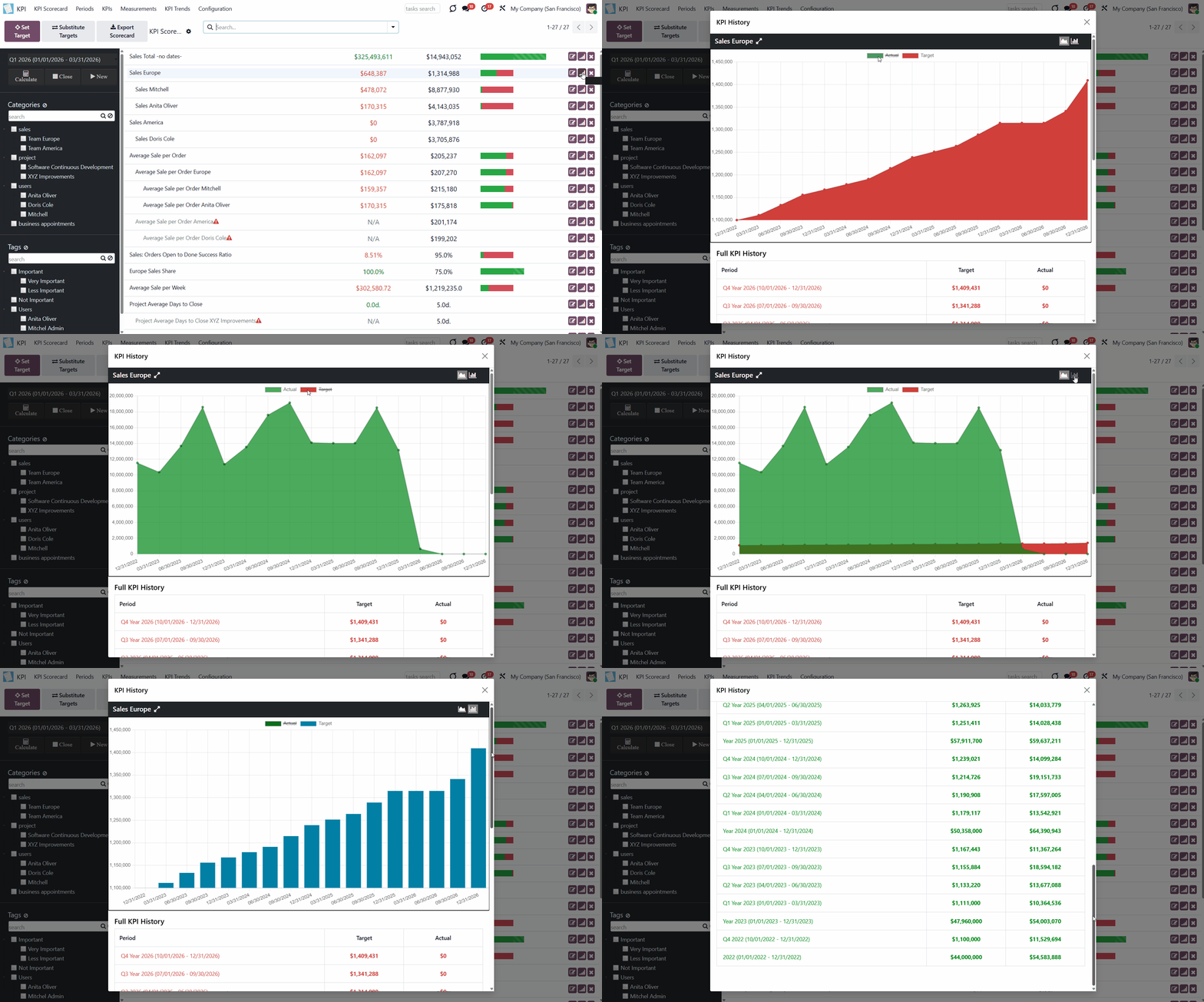
In the KPI single view interface, click the 'History' button to view the automatically generated graph of the KPI Target for various periods. Below the graph is a table showing the selected KPI Target for all periods, regardless of the number of days in each period. Also, you can analyze tendencies by periods on the special 'KPI trends' interface (see KPI History and Trends).
When the end date has already passed, it is preferable to close the period to avoid further updates to KPI target actual values due to subsequent corrections (for example, updating December KPIs in August is not a good practice, even if a sale total needs to be corrected). This action is essentially the same as when an accountant closes a fiscal year.
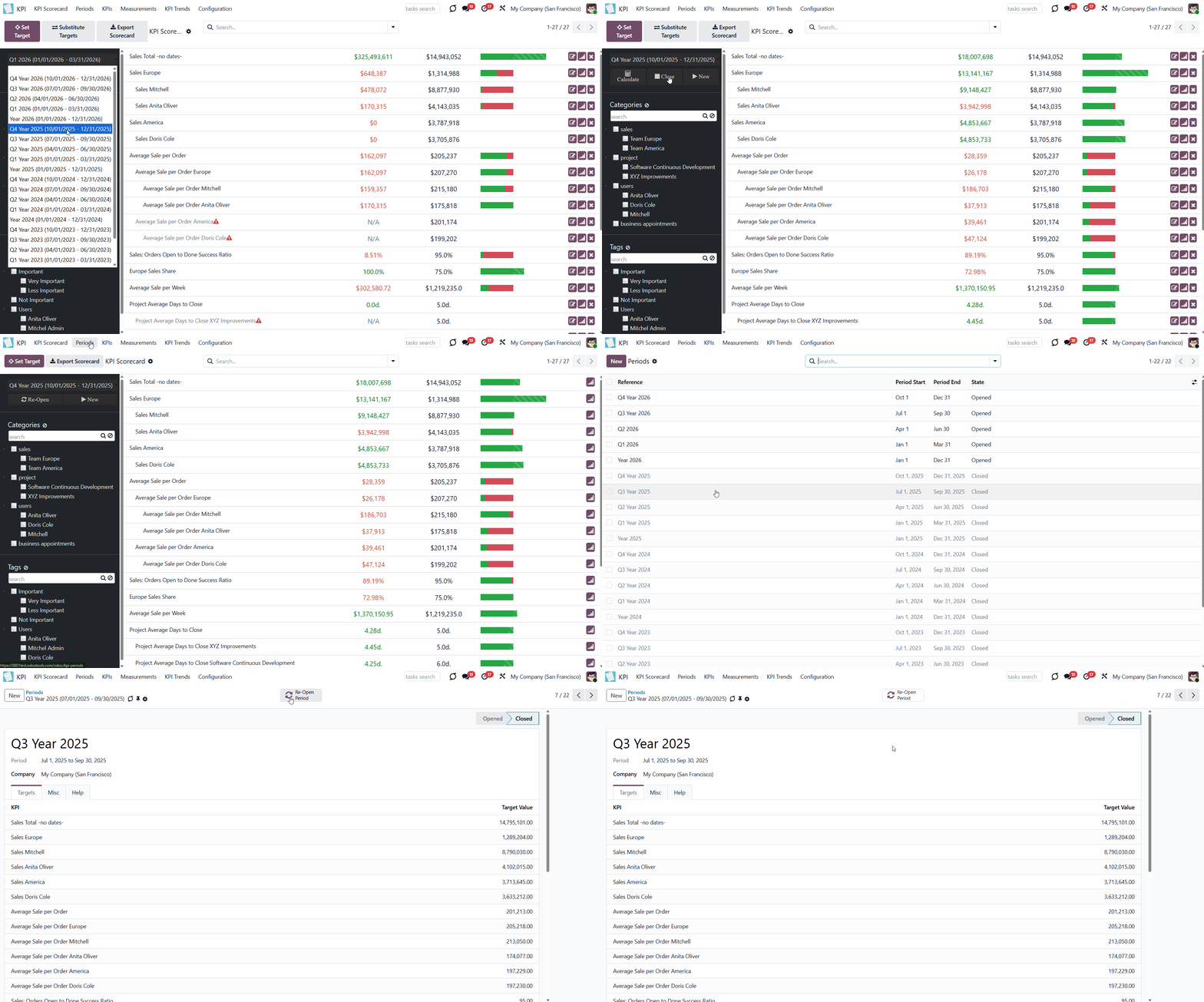
Close periods that have already passed to avoid further recalculations and lock the values. You can always reopen a period if you closed it by mistake or want to revise something. There are two ways to close and reopen a period:
1. From the KPI Scorecard Interface, in the left navigation panel
2. In the tab 'Periods', by choosing a period and clicking 'Close Period'/ 'Re-Open Period'.
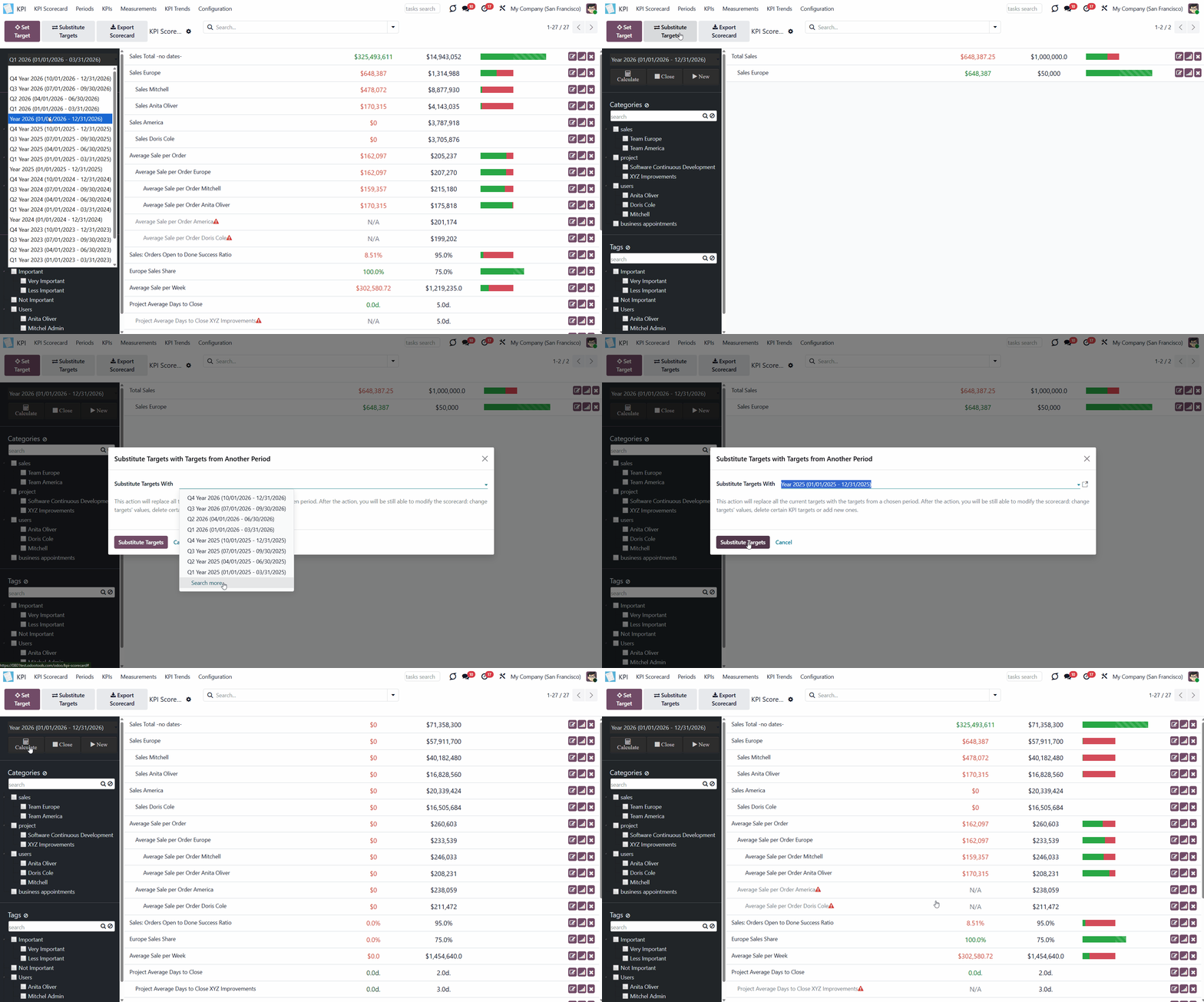
KPI Periods let you copy targets from existing periods (so use them as a template). To that end, just push the button 'Substitute targets' and select a period with proper KPI Targets. After that, a list of KPI targets for the chosen period will be created for the current period as well. The KPI formula and KPI Target will remain the same, but calculations will already take place for the current period.
For example, you have 3 KPI Targets (Total Sales - 10000$; Sales Orders Count - 100; Europe Sales Share - 60%) for the first quarter of 2026 - period 'Q1 of 2026'. You create the period that represents the second quarter of 2026 - 'Q2 of 2026'. When you open the period, it is empty, and you need to set KPI Targets. Then, instead of creating each one again for the second quarter, you can substitute targets. This way, the list of KPIs is copied to the current period, and in both periods, you see the same list of KPI Targets (Total Sales - 10000$; Sales Orders Count - 100; Europe Sales Share - 60%).
It significantly reduces time, since KPI targets typically remain similar across periods of the same length. After that action, you can still change the KPI Target for the current period and calculate the Actual Value for the donor period (until you close the period).
To substitute targets:
1. Open the new period in the left navigation panel, to which you want to copy the KPI Targets
2. Choose the period from which you want to copy KPI Targets
3. Click 'Substitute Targets'
4. All KPI Targets from the chosen period will be copied to the new period
5. Delete the ones you don't need anymore by clicking on a cross on the KPI card.
KPI (KPI Formulas)
A KPI or KPI formula is an instruction on how to get the required data from Odoo for further calculations. That determines how to count the 'Actual Value' in the KPI Target card. This is the third and final step in retrieving data from Odoo.
There are the following levels of getting the data from Odoo:
1. Basic Measurements (the core configuration object used for retrieving actual KPI values from Odoo data)
2. Constants (the value that cannot be extracted from Odoo, but you need it for calculations) and Variables (the connected or specified basic measurements that are required to make a formula)
3. KPI (the formula/instruction for Odoo that defines how to calculate figures based on existing Odoo data and settings)
KPI formulas might combine any number of variables, constants, and other KPIs with mathematical operators. Basic Measurements cannot be used to build a KPI.
The drag-and-drop formula for KPI construction is as simple as writing down a mathematical expression: just drag and drop the parts in the right order with the correct operators. Odoo automatically retrieves data from a database based on a defined parts order for a specified period.
Creating a KPI
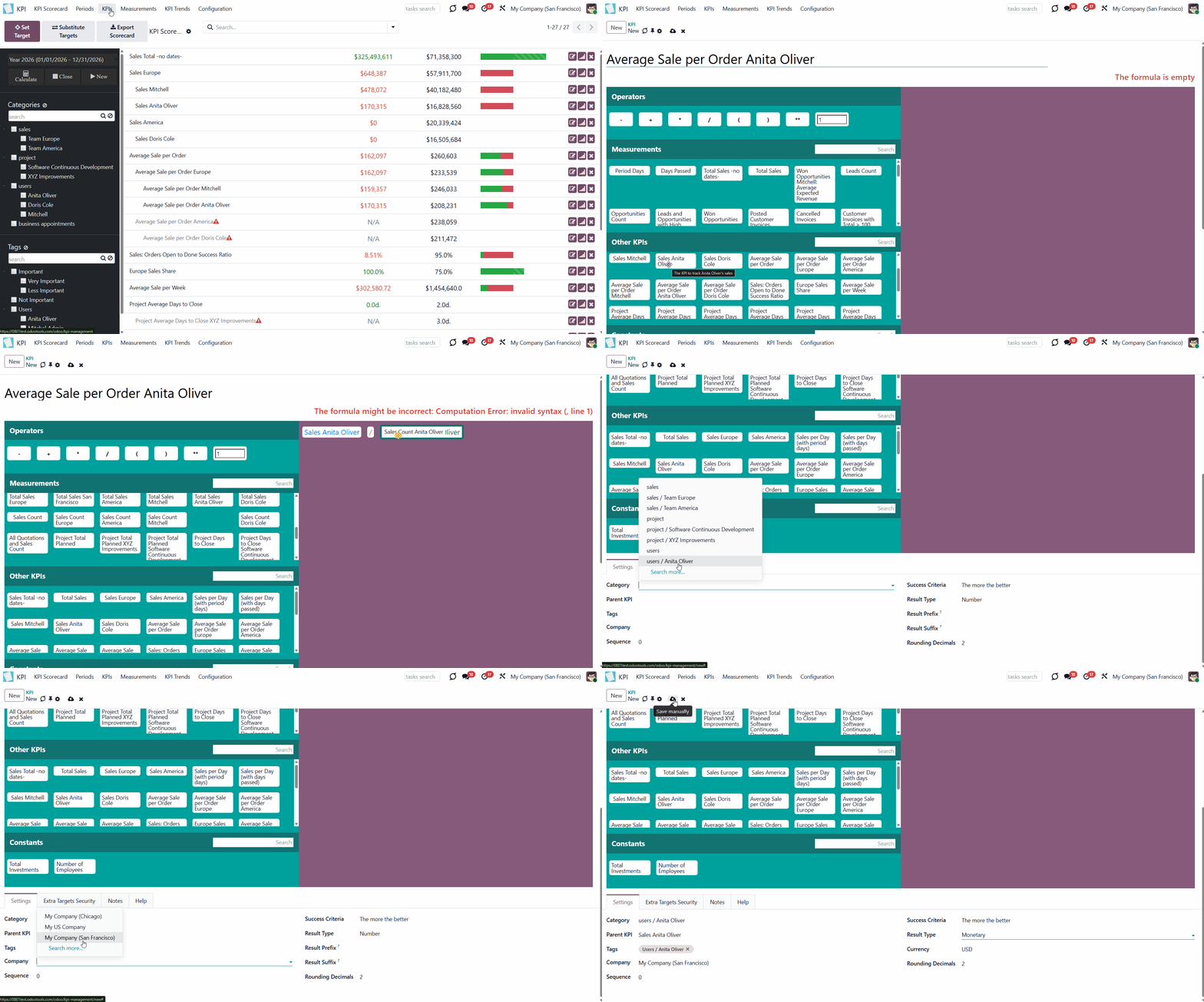
To create a KPI formula:
1. Go to the tab KPIs
2. Click 'New'
3. Drag & Drop Operators, Measurements, Other KPI, and Constants to create a formula (see The Interface of the Formula Wizard)
4. Below the Formula wizard, choose the category of the KPI (see KPI Categories)
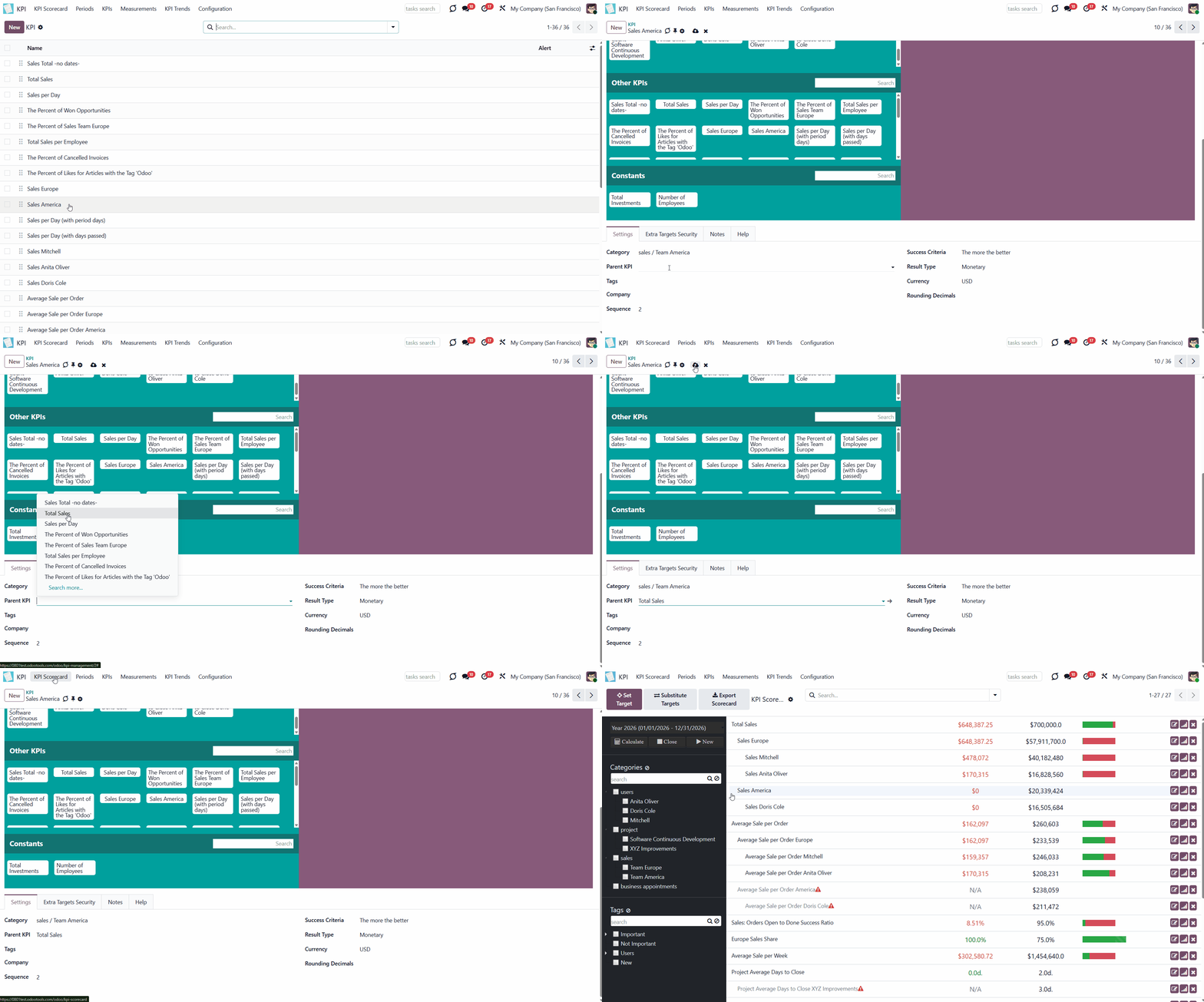
5. Choose a parent KPI (see KPI Scorecard Interface)
6. Optionally, if you turned on 'KPI Tags' in configuration, assign one or several tags to the KPI (see KPI Tags)
7. Choose a company for the KPI (see Access Rights)
8. Apply the success criteria (The more, the better, The less, the better) (see KPI Settings)
9. Choose the result type (see KPI Settings)
10. Optionally add result prefix and/or suffix (see KPI Settings)
11. Choose how to round decimals (see KPI Settings)
12. In the tab 'Extra Targets Security', set the access rights for the current KPI formula (see Access Rights)
13. Optionally, add some notes in the tab 'Notes'.
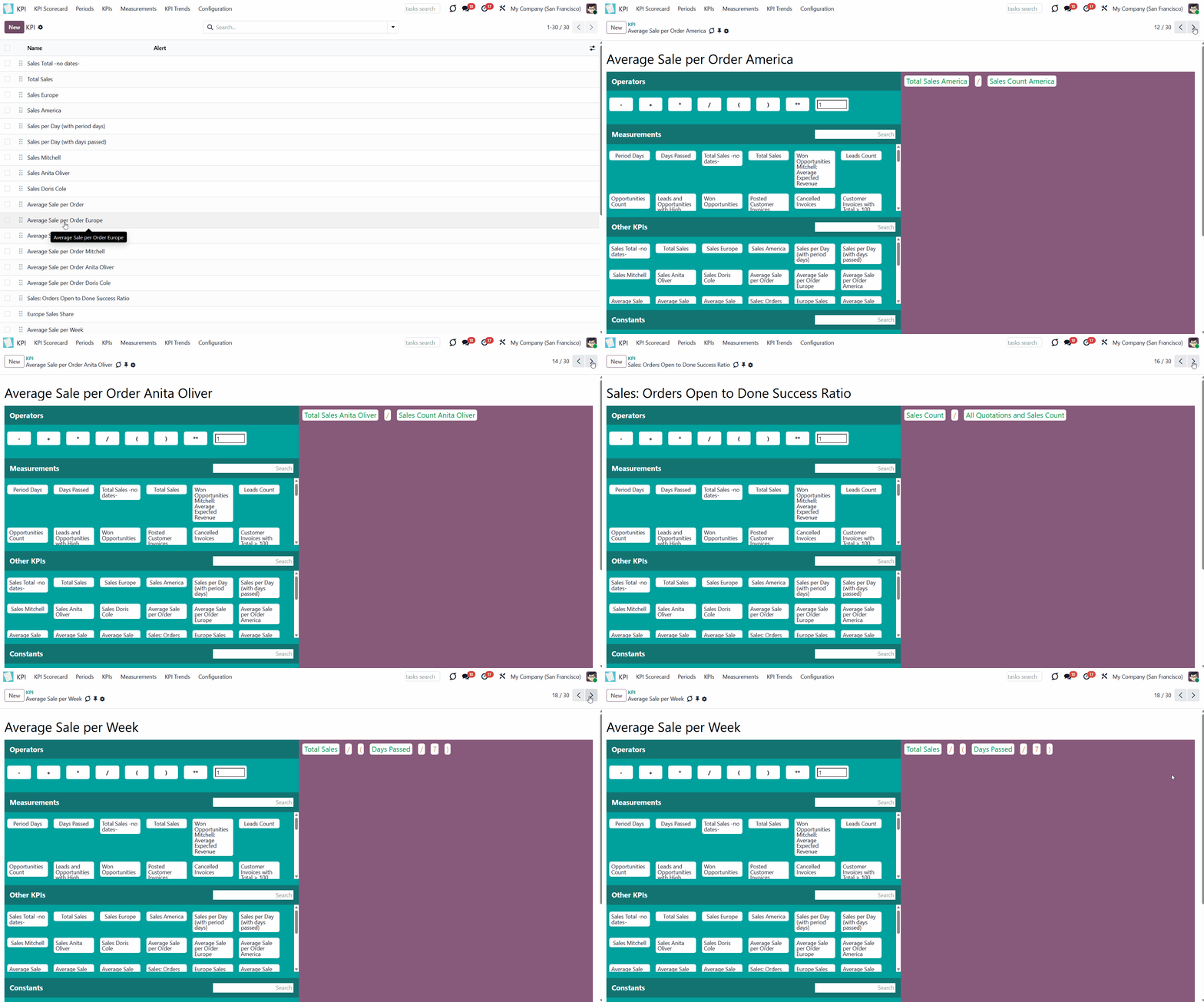
There is a way to view all created KPIs individually to review their formulas or settings. To switch between KPIs quickly:
1. Open any KPI in the tab KPIs
2. Move between KPIs with the help of the back-and-forth arrows.
The Interface of the Formula Wizard
The Formula Wizard is the central configuration object. It introduces a tool for constructing mathematical expressions in a user-friendly drag-and-drop interface. The convenient interface makes it easy to create and configure KPIs (see KPI Settings).
The interface is divided into two parts: the left part, which contains elements for the formula, and the right part, where you create the KPI.
In the left part of the interface, you see the following elements, which can be used to create a KPI:
1. Various operators
2. KPI Variables (including the default Variables 'Period Days' and 'Days Passed', which are required for introducing a time frame into the formula) in the tab Measurements (see Measurements (Variables))
3. Other KPIs (the previously created formulas)
4. KPI constants (see Constants)
The Other KPIs section contains previously created formulas that you can use to create even more complicated ones. For example, 'Opportunity to sales success ratio' is based on KPIs 'Sales count' and 'Opportunities Count'.
The formula might be as complex as you require. The available operators are:
1. Subtraction (-)
2. Addition (+)
3. Multiplication (*)
4. Division (/)
5. Opening and closing brackets
6. Exponent (**)
7. Custom float number (write any number in the box to use it in your formula)
Ensure the operators comply with basic Math rules.
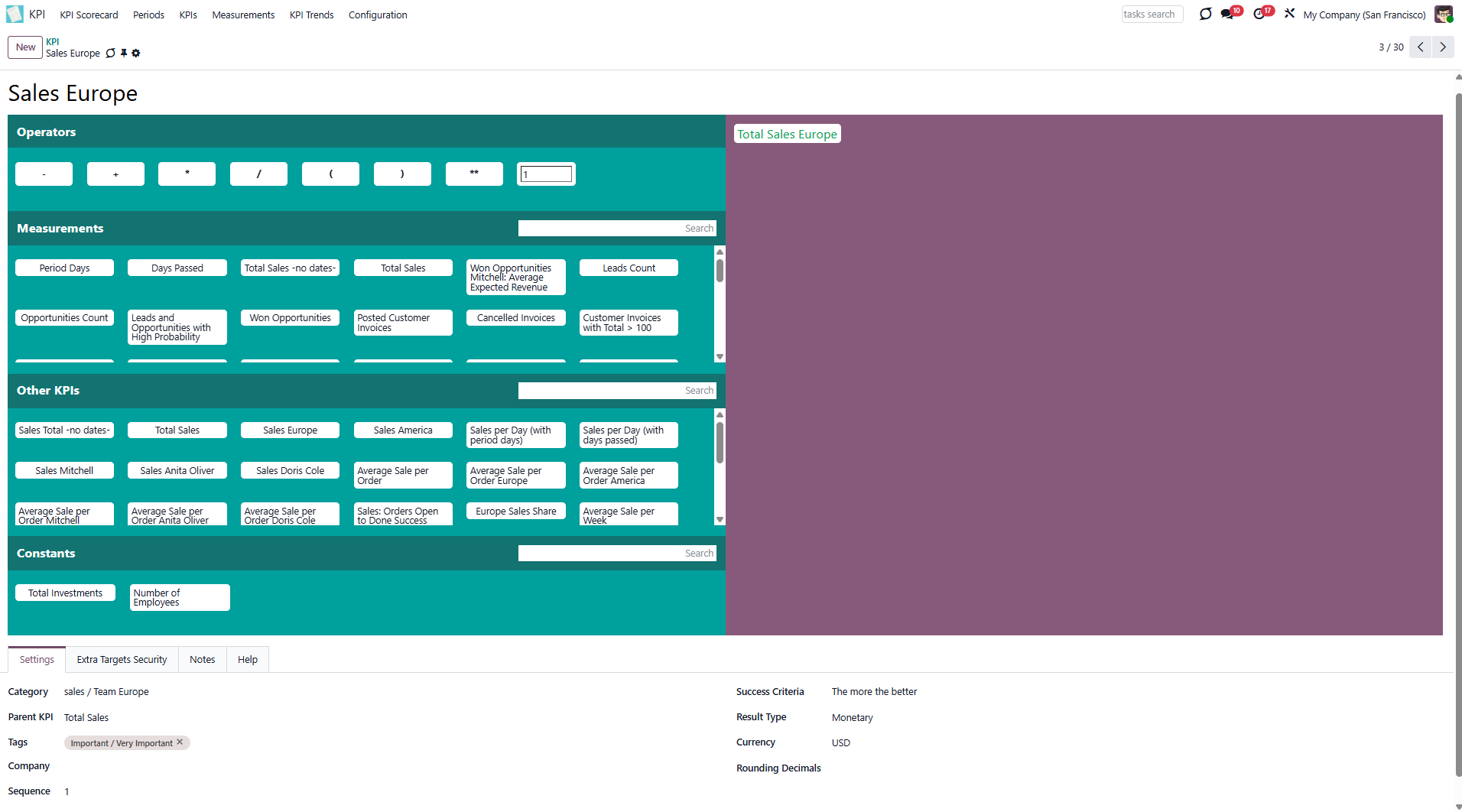
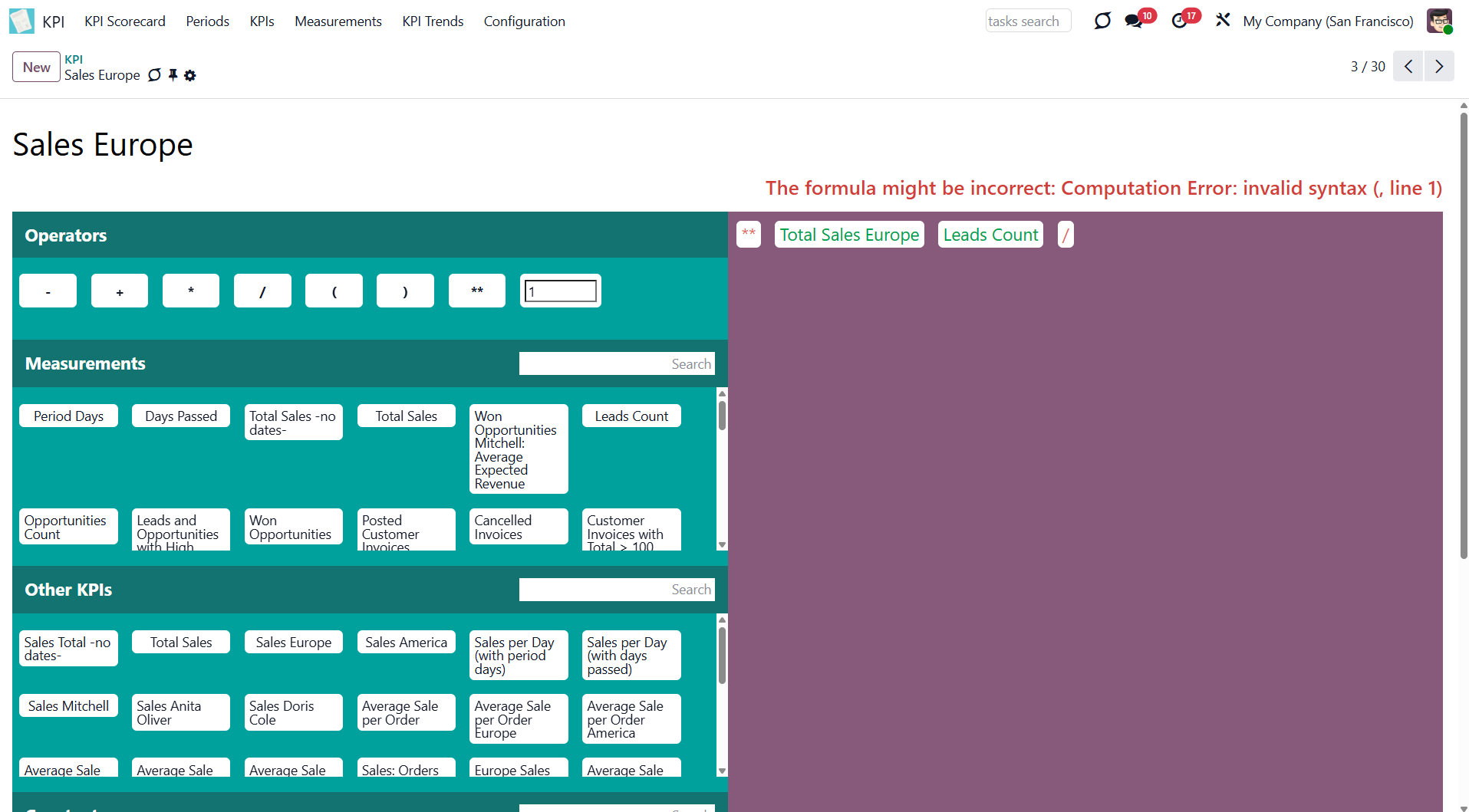
To create a KPI, move elements from the left side of the interface to the right side by Drag & Drop. When elements get to the right side, they change their color according to their type:
1. Operators become red
2. Measurements become green
3. Other KPIs become blue
4. Constants become grey
This makes them easier to distinguish in the formula.
If the formula contains any critical errors, a warning will be displayed above.
KPI Settings
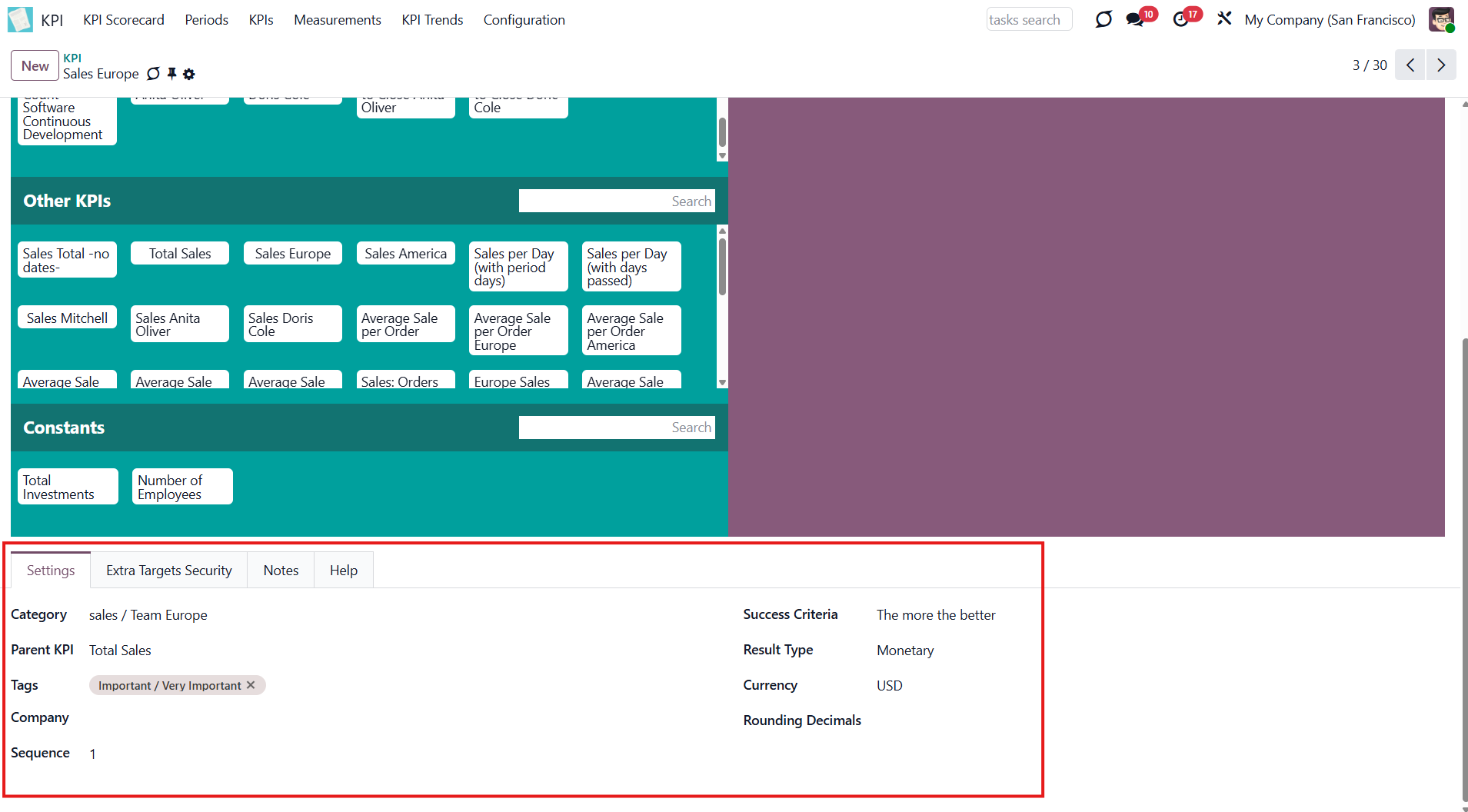
After creating a formula via drag-and-drop, you must complete the setup by configuring its settings. The tab 'Settings' is located below the formula wizard.
There, you can set:
1. Category (see KPI Categories)
2. Parent KPI (see KPI Scorecard Interface)
3. Tags, if the feature 'KPI Tags' is enabled in configuration (see KPI Tags)
4. Company (if you work in a multi-company environment)
5. Sequence (see KPI Scorecard Interface)
6. Success criteria
7. Result type
8. Result Prefix
9. Result Suffix
10. Currency (for the monetary result type)
11. Rounding decimals.
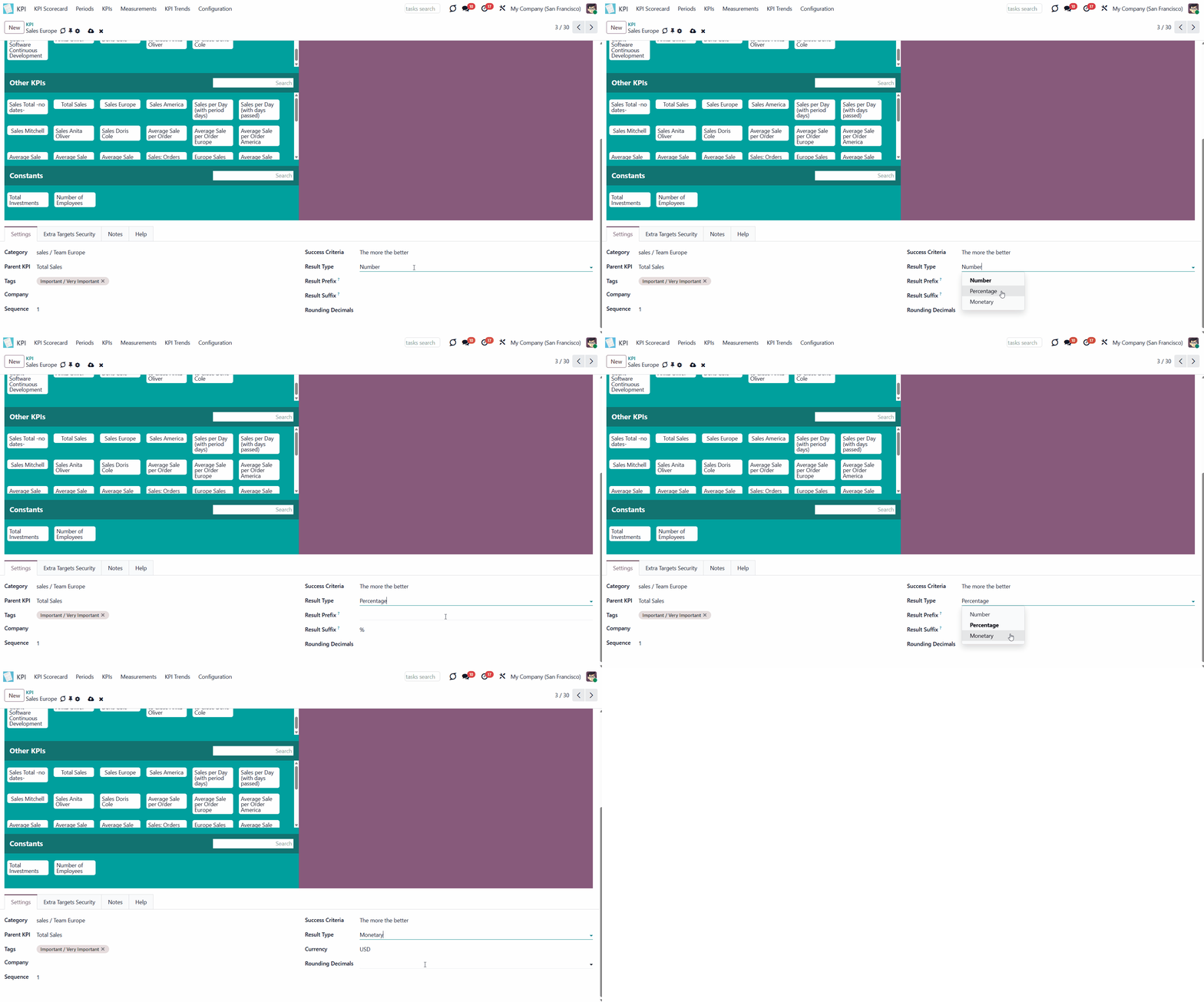
To track the result in the column 'Actual Value' in the KPI Scorecard Interface, which is marked by the color (see KPI Scorecard Interface), you need to choose the success criterion. There are two available success criteria: 'The more, the better' and 'The less, the better'.
For example, use the criterion 'The more, the better' in KPI 'Total sales' or 'The number of sales for 2026'.
For example, use the criterion 'The less, the better' in KPI 'Canceled orders' or 'Lost Opportunities'.
You can also choose the KPI's result type. There are three options: number, percentage, and monetary. The fields change depending on the result type. There are three options: number, percentage, and monetary. The fields change depending on the result type.
To the number and percentage result types, you can add a prefix and a suffix to make the results look good. 'Prefix' is a word or a sign that will be displayed before the result. 'Suffix' is a word or a sign that will be displayed after the result. By default, the percentage result type has the suffix %, which can be changed.
The monetary result type doesn't include the 'Prefix' and 'Suffix' fields, but it adds the 'Currency' field, which lets you select one of the supported currencies.
The module's KPIs don't convert currency, so for accurate calculations, all company transactions should be in a single currency. Optionally, you can use the 'Sales Analysis reports' model when you create a basic variable. Then, the currencies will be converted into a single currency, which is the company's default.
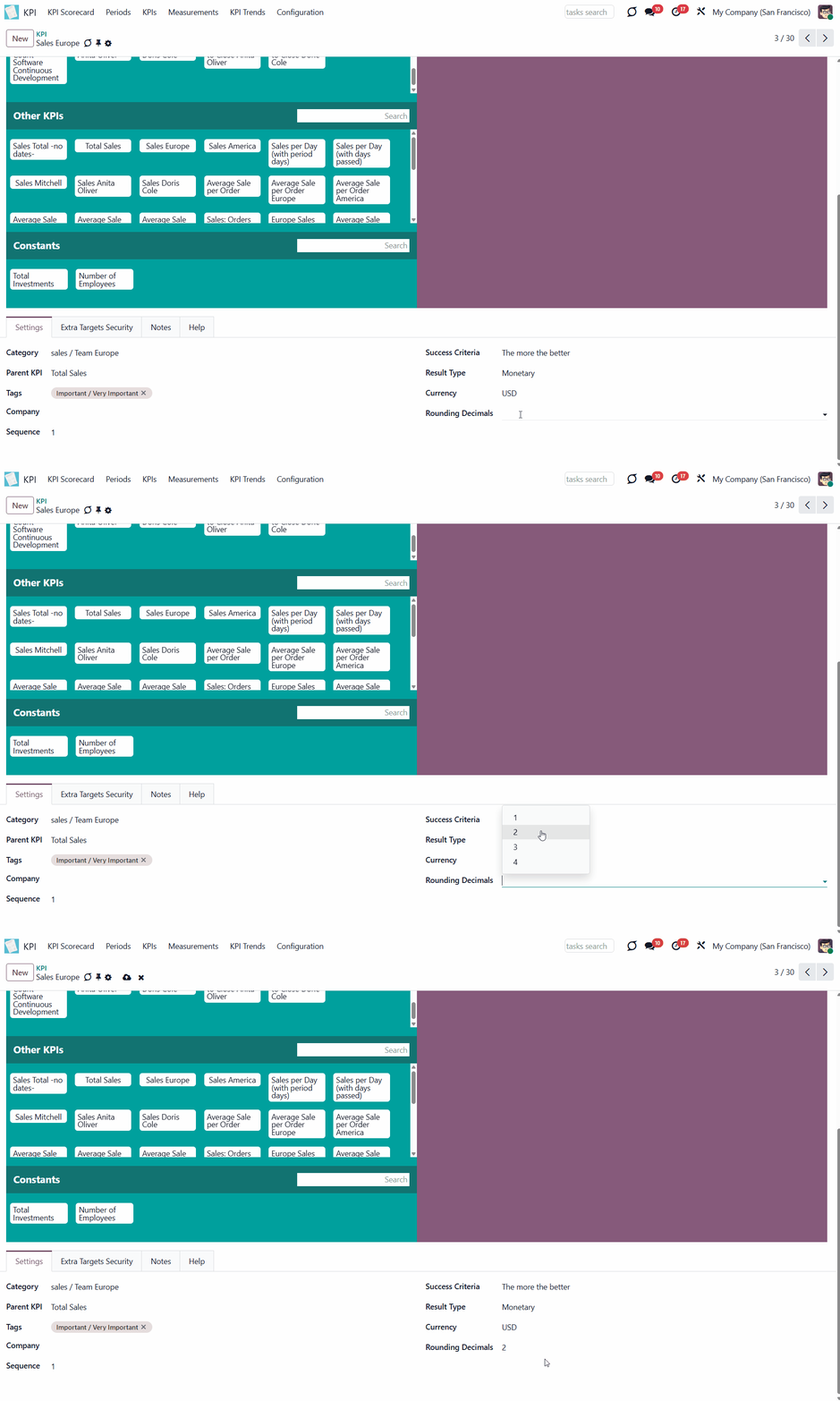
Sometimes, in some formulas, the result may have a remainder, for example, after division. To improve results, define rounding rules 1 - 4 decimals (1 > 1.2 > 1.23 > 1.235 > 1.2346). After that, only up to 4 digits after the decimal point will be shown.
KPI Examples
Here, you can find some useful examples based on our previously created Variables. We can distinguish several kinds of formulas:
1. KPIs, consisting of one Variable. This kind of KPI doesn't require any other operators. The whole formula is one Variable. To create such a KPI, drag and drop the required Variable to the right side of the interface.
All Variables from the example list can be used to create such KPIs. To set a KPI target, create the corresponding KPI.
2. KPIs, consisting of 2 or more Variables. This kind of KPI is a complex formula that combines several Variables and operators.
Here are some examples with previously created Variables:
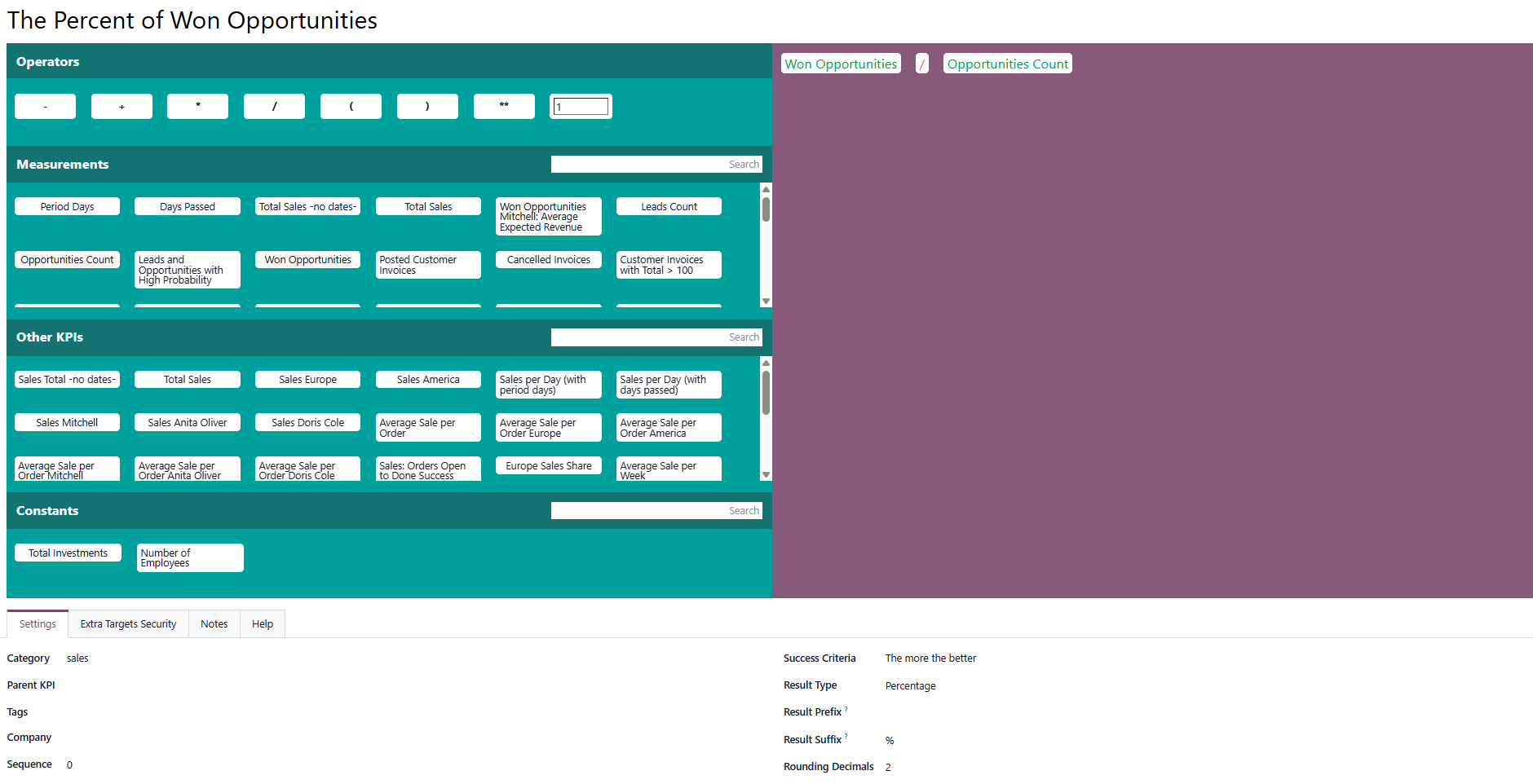
Use this KPI to see the percentage of won opportunities. The number of opportunities on the stage 'Won' is compared with the total number of opportunities.
For example, you have 5 won opportunities and 10 opportunities in total. The set KPI Target was to have at least 70% of the won opportunities. Thus, the result is negative, as only 50% of the won ones are present.
Keep in mind that to count the result as a percentage, you need to choose the Result Type 'Percentage'. As for the success criteria, it should be 'The more the better' as we want to win opportunities to prevail.
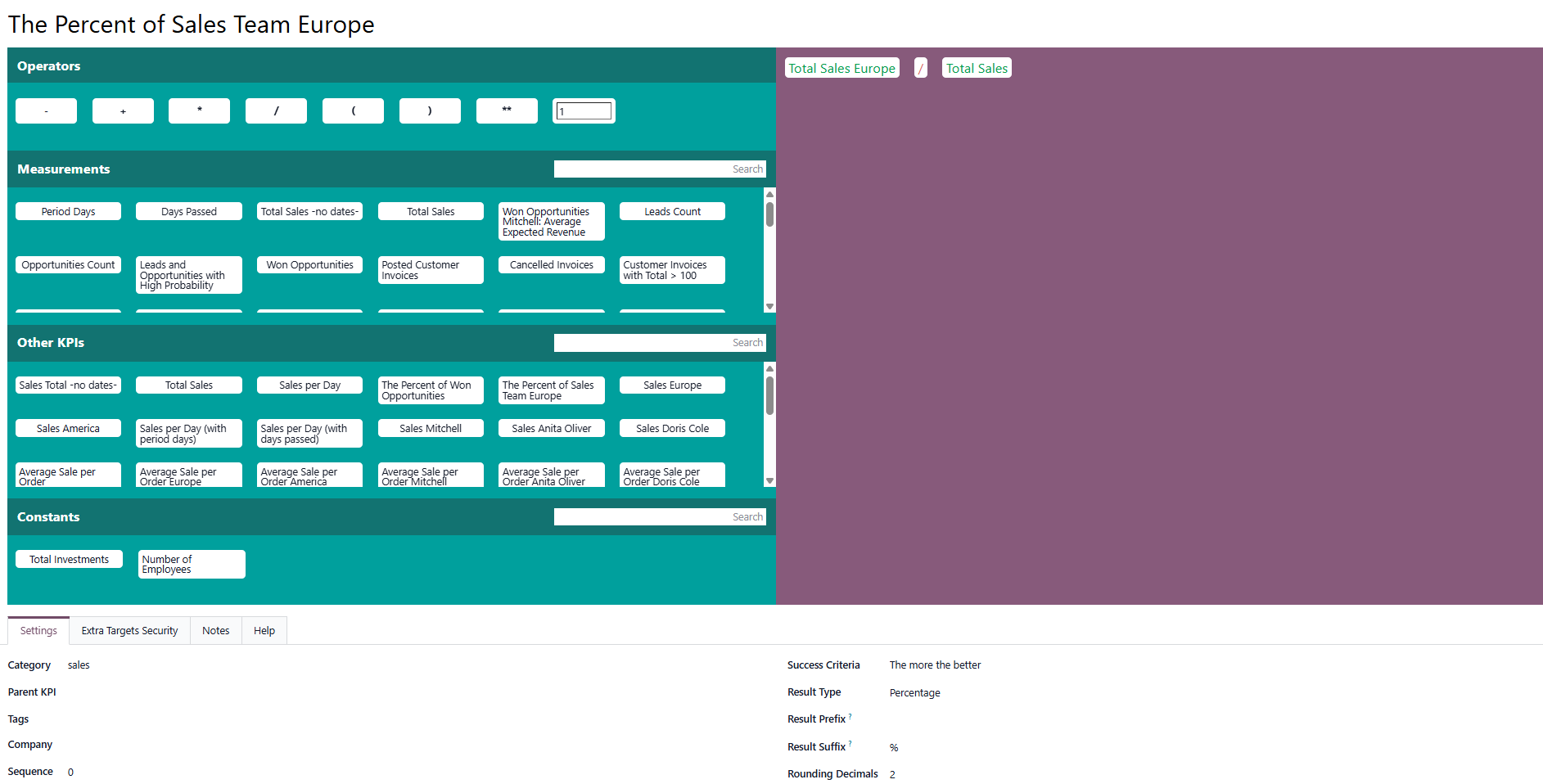
Use this KPI to see the percentage of sales of one of your teams, for example, Europe. The total earned by the team Europe is compared with the total earned by the whole company.
For example, the team Europe earned $100, while total sales were $ 1,000. With 20 teams, the KPI Target was to achieve 5% of total sales. The team delivered great results, doubling the target. Whether that was the success of the team Europe or the failure of the other teams remains to be investigated.
Keep in mind that to count the result as a percentage, you need to choose the Result Type 'Percentage'. The Success Criteria can be 'The more the better', as the team should show good results.
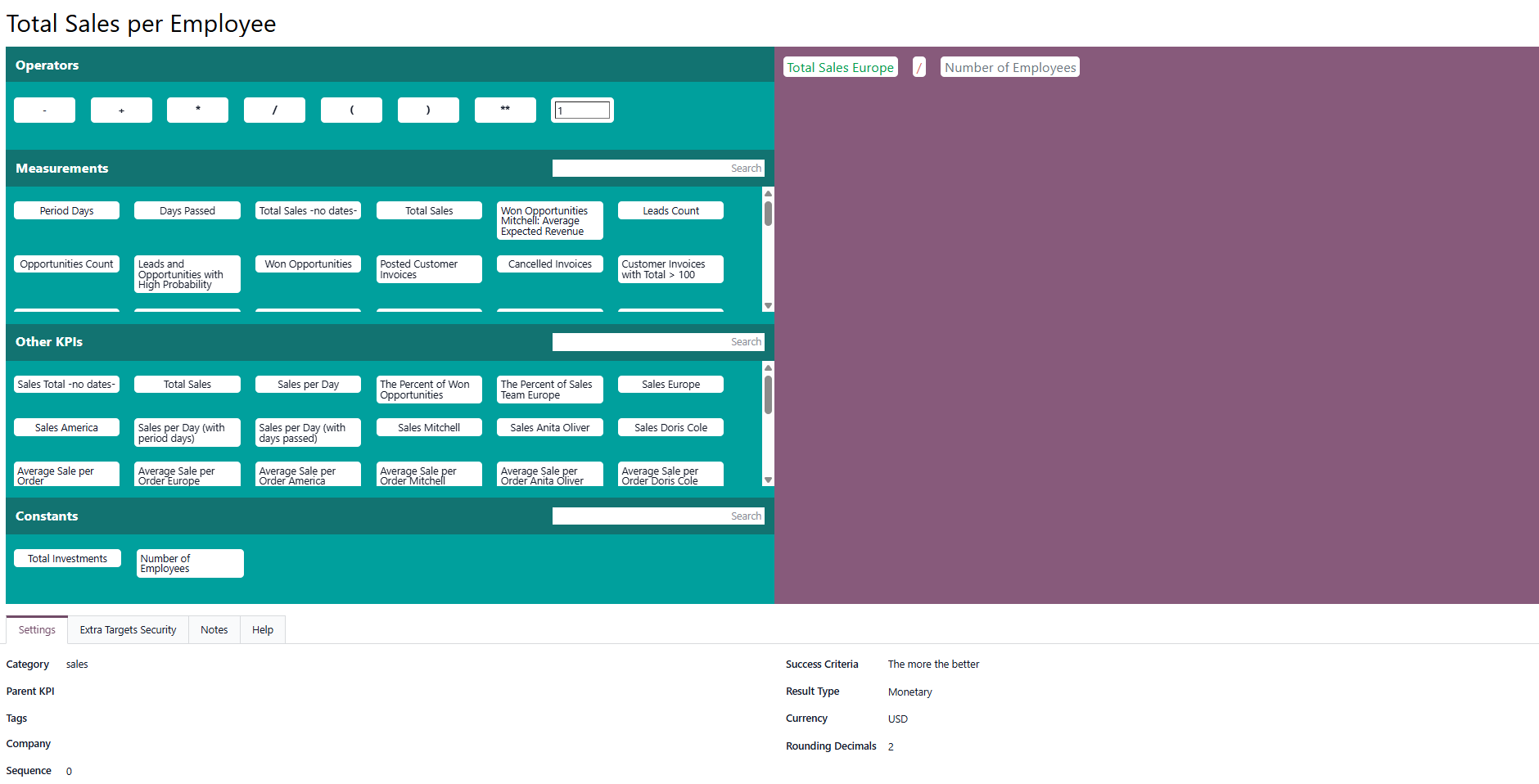
Use this KPI to see the amount of money earned per employee. The total earned by the company is compared with the number of employees per company, which was created as a constant.
For example, total sales were $1000. We have 20 employees, and the KPI Target was to earn $40 per worker. The result is $50, so the target is reached.
The number of employees might vary over time. The corresponding configurations can be made while creating the constant. The constant will be chosen considering the period for which the KPI Target is set (see Constants).
The Result Type for receiving value in money should be 'Monetary'. The Success Criteria should be 'The more the better', as people tend to buy more at a time.
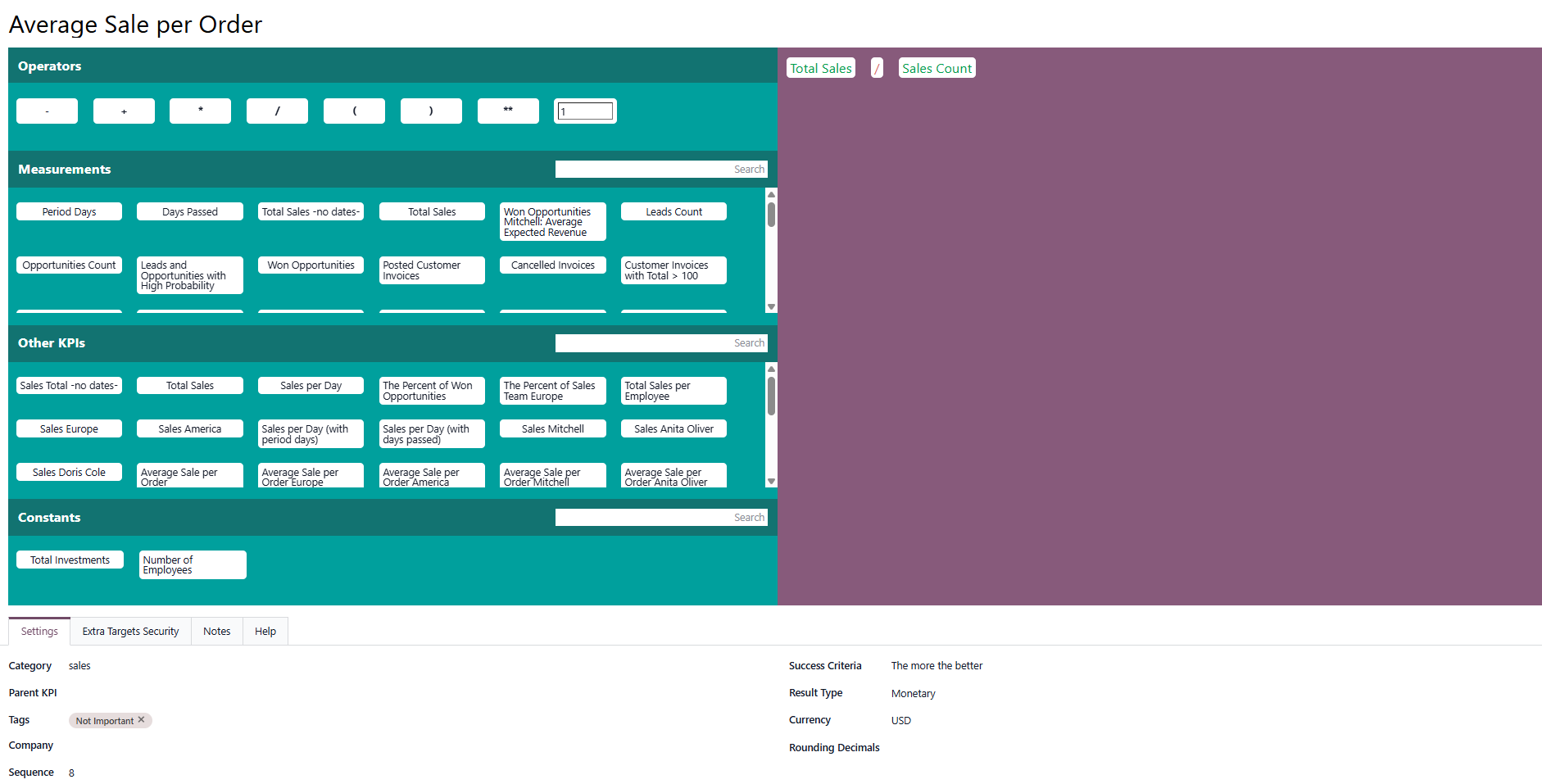
Use this KPI to see the average revenue per order. The company's total earnings are compared with the number of sales orders.
For example, total sales were $1000, and we had 50 sales orders; the KPI Target was to have the average receipt of $50. The result is $50, so the target is reached.
The Result Type for receiving the value in money should be 'Monetary'. The Success Criteria should be 'The more the better', as we tend to buy more at a time.
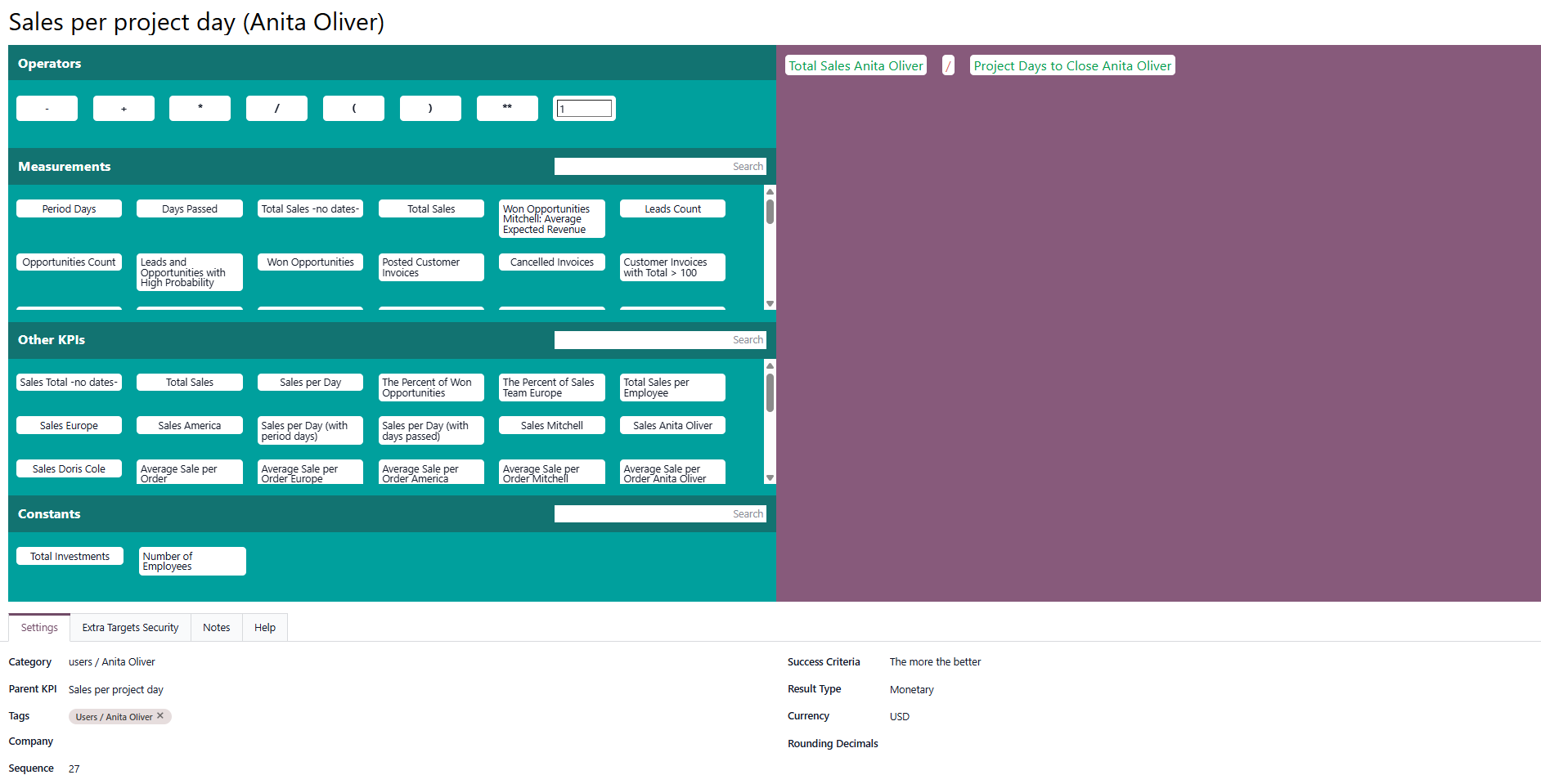
Use this KPI to see how much Anita Oliver earns daily. The amount of money she has earned is compared with the number of days it took her to close all her projects.
For example, Anita Oliver worked on five projects over 20 working days. In total, she earned $1000, so her daily earnings were $50. The KPI Target is to earn $60 per day, so the result is negative, and Anita should work faster.
The Result Type for receiving the value in money should be 'Monetary'. The Success Criteria can be 'The more, the better', as we want Anita Oliver to earn more money.
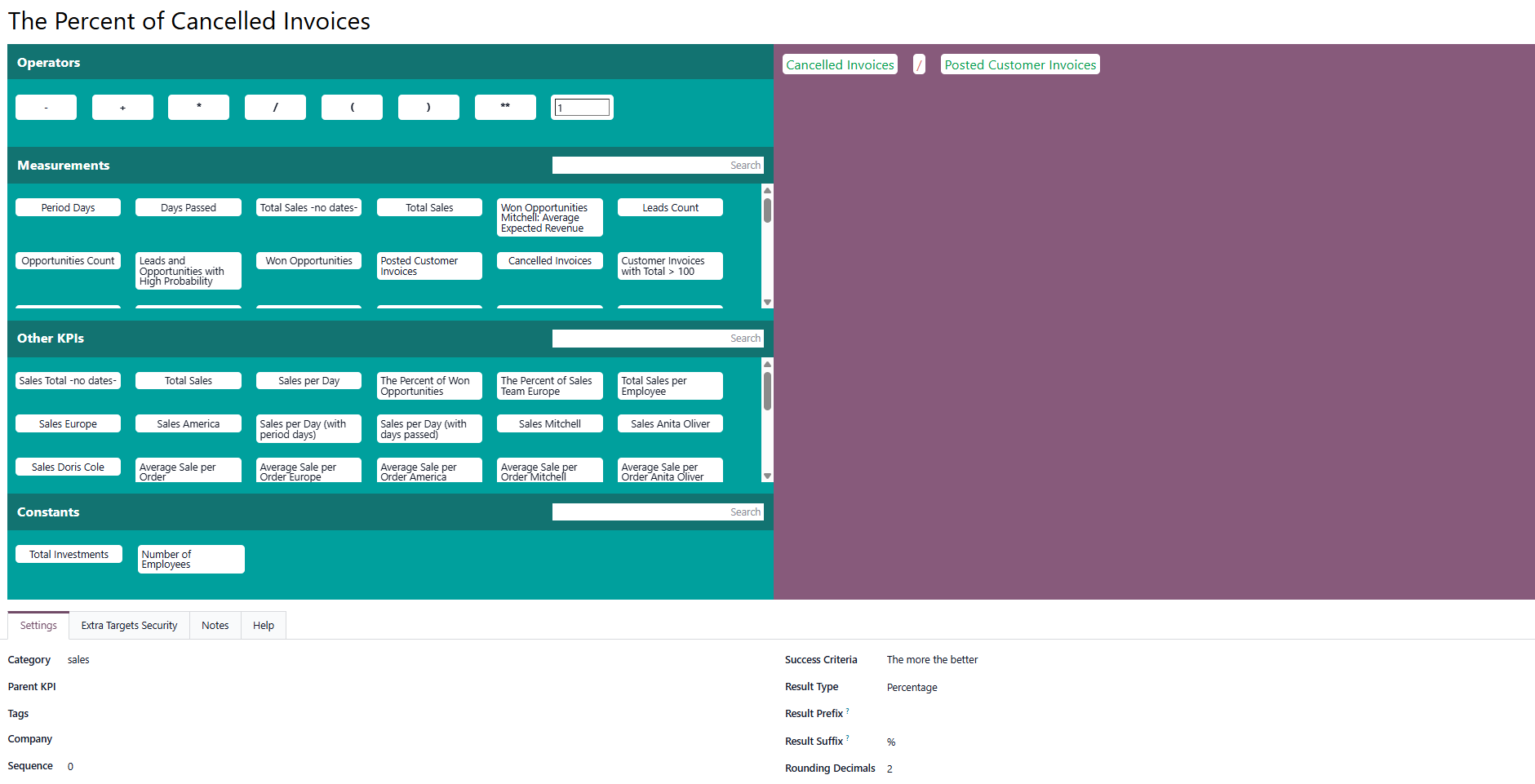
Use this KPI to calculate the percentage of canceled invoices. Compare the total number of invoices with the number of canceled invoices.
For example, about 50 invoices were created. Five of them were later canceled. The KPI Target was to have fewer than 5% of invoices canceled. The result is 10%, so the target is not reached.
The Result Type for receiving the value in money should be 'Percentage'. The Success Criteria should be 'The less, the better,' since we don't want invoices canceled.
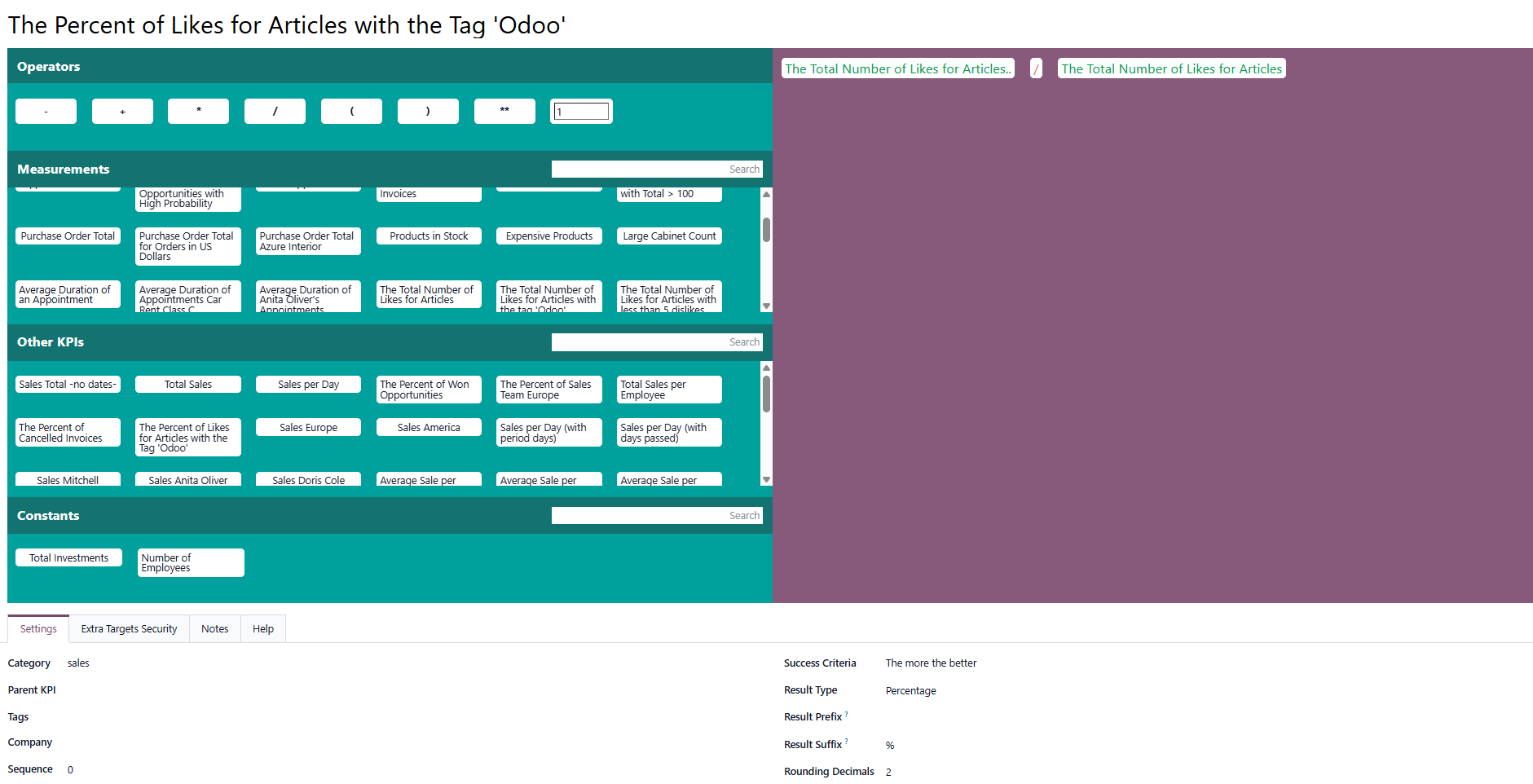
Use this KPI to see the percentage of likes for an article with a particular tag. Compare the number of likes per article with the total number of likes for the tag.
For example, the total number of likes was 100. The number of likes for articles with the tag 'Odoo' was 40. The KPI Target was to achieve 50% of articles with the tag receiving likes. The result is 40%, so the target is not reached. But here, we also need to consider our KPI Target for the Total Number of Likes. We received many more likes than we hoped.
The Result Type should be 'Percent'. The Success Criteria can be 'The more, the better', as we want articles with the 'Odoo' tag to receive praise from readers.
3. Complex KPIs with Variables of time (Period Days, Days Passed)
Period Days - shows the number of days in a period.
Days Passed - shows the days of the period that have passed for the current day. Unlike the Period Days, it shows a more accurate result at the beginning of the period. When using period days, results may be drastic at the beginning of the month because there wasn't enough time to show improvement.
For example, you set the KPI Target to see Total Sales per Period. Let's say you want to earn $1000 per month (from 1.09 to 30.09). As of September 3rd, the company has earned $200.
If you use the KPI Formula Total Sales / Period Days, 200 will be divided by 30 (the total number of days in the period), and therefore, the result will be negative and will not reflect reality. However, $200 per 3 days is a good result compared to our target ($1000).
If you use the KPI Formula Total Sales / Days Passed, 200 will be divided by 3 (days passed by now), and the result will be marked as positive. Because the calculations run daily, the next day the module will already divide the Total Sales by 4, then by 5, and so on. So, the result will always be acute.
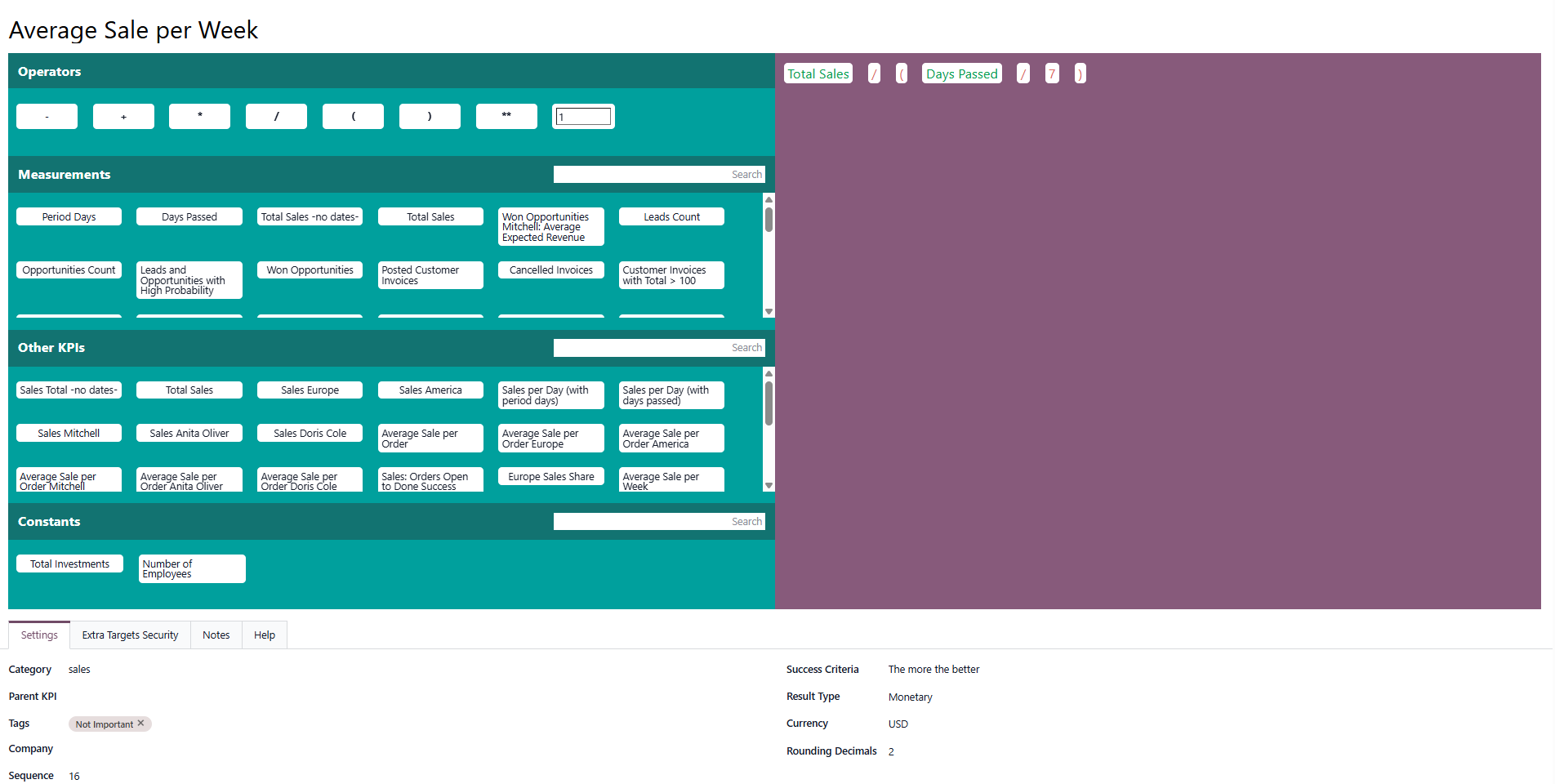
Use this KPI to see the average profit for a week. The total earned on sales is divided by the passed time (in weeks).
For example, we earned $1000 for the month. The KPI Target was $200 per week; the result was $250, so the target was met.
The Result Type should be 'Monetary'. The Success Criteria can be 'The more, the better', as we would rather earn more per week.
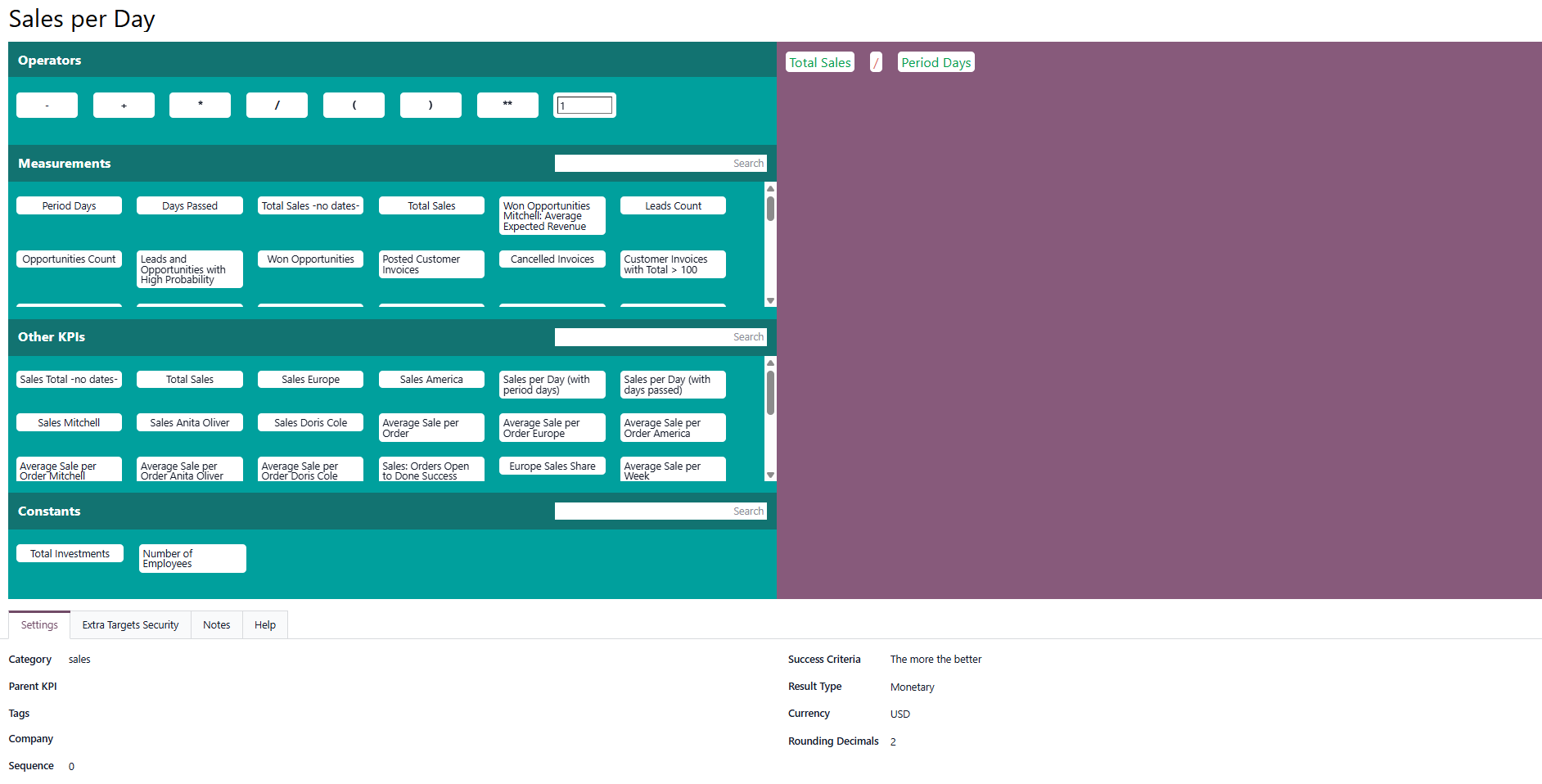
Use this KPI to see the average profit for a day. The total earned on sales is divided by the days passed.
For example, today is September 20th, and by now, we have earned $1000. The KPI Target was to earn $50 per day. The result is $50, so the target is reached. But we still have 10 more days until the end of September, so we should keep up with it.
The Result Type should be 'Monetary'. The Success Criteria can be 'The more, the better', as we would rather earn more per day.
KPI Categories
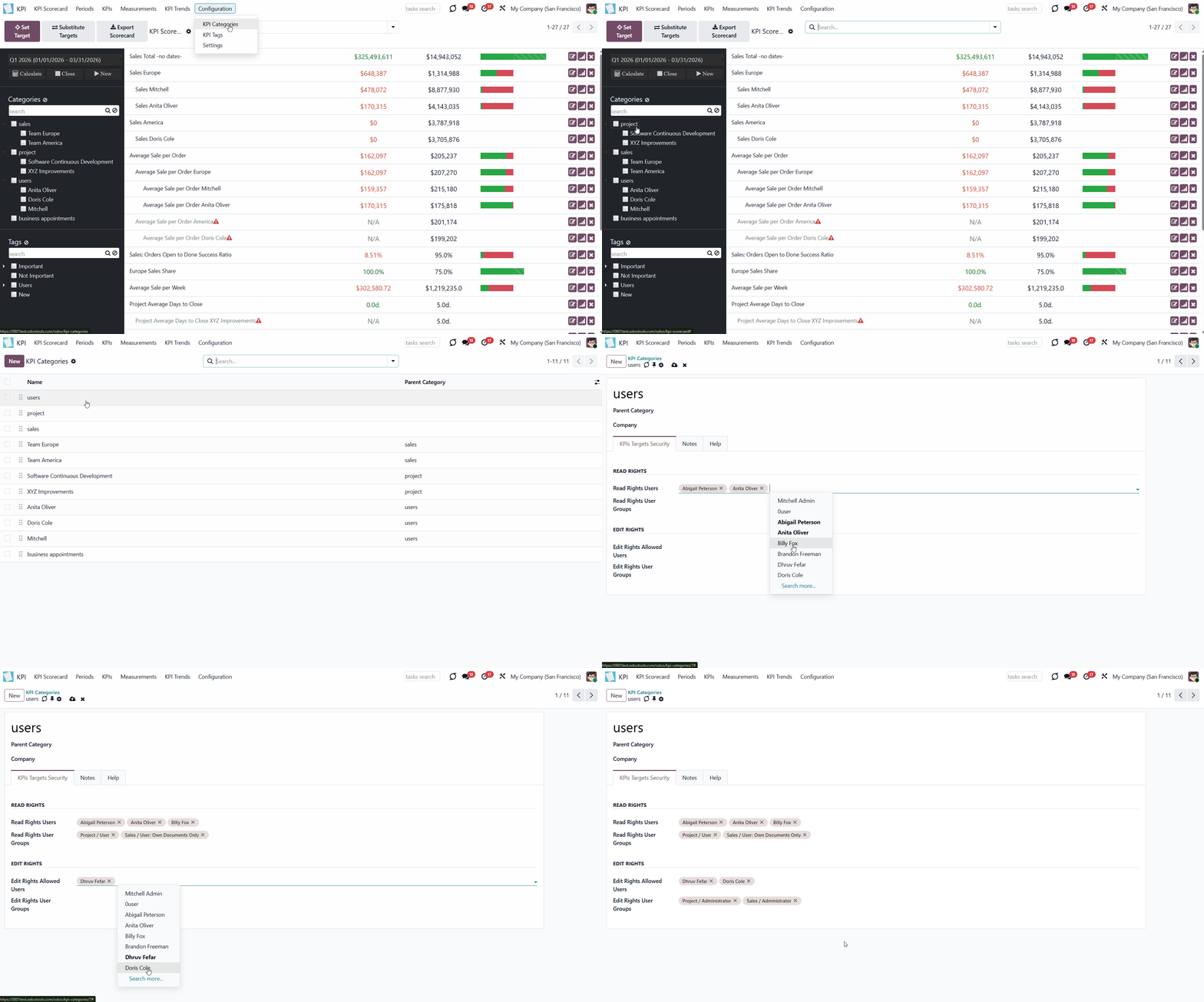
A KPI Category – a KPIs' storage, which is used for convenient navigation over KPIs and managing access rights to them. To control KPIs for specific areas, group them into corresponding categories. For example, to check targets only in sales (category 'sales') or targets of a specific sales team (category 'sales > sales team Europe').
Each KPI should be assigned to a single category so that the required targets can be quickly identified by checking the boxes in the scorecard interface.
Categories support hierarchy. A category may have a parent and sub-categories.
To create a category:
1. Go to Configuration > Categories
2. Click 'New'
3. Type the category's name
4. Choose the parent category, if any
5. In multi-company mode, choose the company
6. If you want some users or user groups to have access to see the category and its KPI Targets, state them in the 'Read Rights' section (see Access Rights)
7. If you want some users or user groups to have access to edit the KPI Targets of a category, state them in the 'Edit Rights' section (see Access Rights)
8. Optionally, add some notes in the tab 'Notes'.
Move the categories in the list (Configuration > Categories) by dragging and dropping them to change their sequence. This will help maintain a particular order in the left navigation panel of the KPI Scorecard Interface. Keep in mind that the order of sub-categories will not affect the order of the parent categories. Therefore, sub-categories will always follow their parent category.
If you have many categories and subcategories, you may find it difficult to navigate them and quickly select the ones you need. Thus, for extra convenience, a special search bar above the categories list in the single-view interface was introduced. Just start typing the word and click 'Enter' or the search button, and the matching results will be shown and marked red. Click the 'Reset' button on the right side of the search bar to clear the search.
KPI Tags
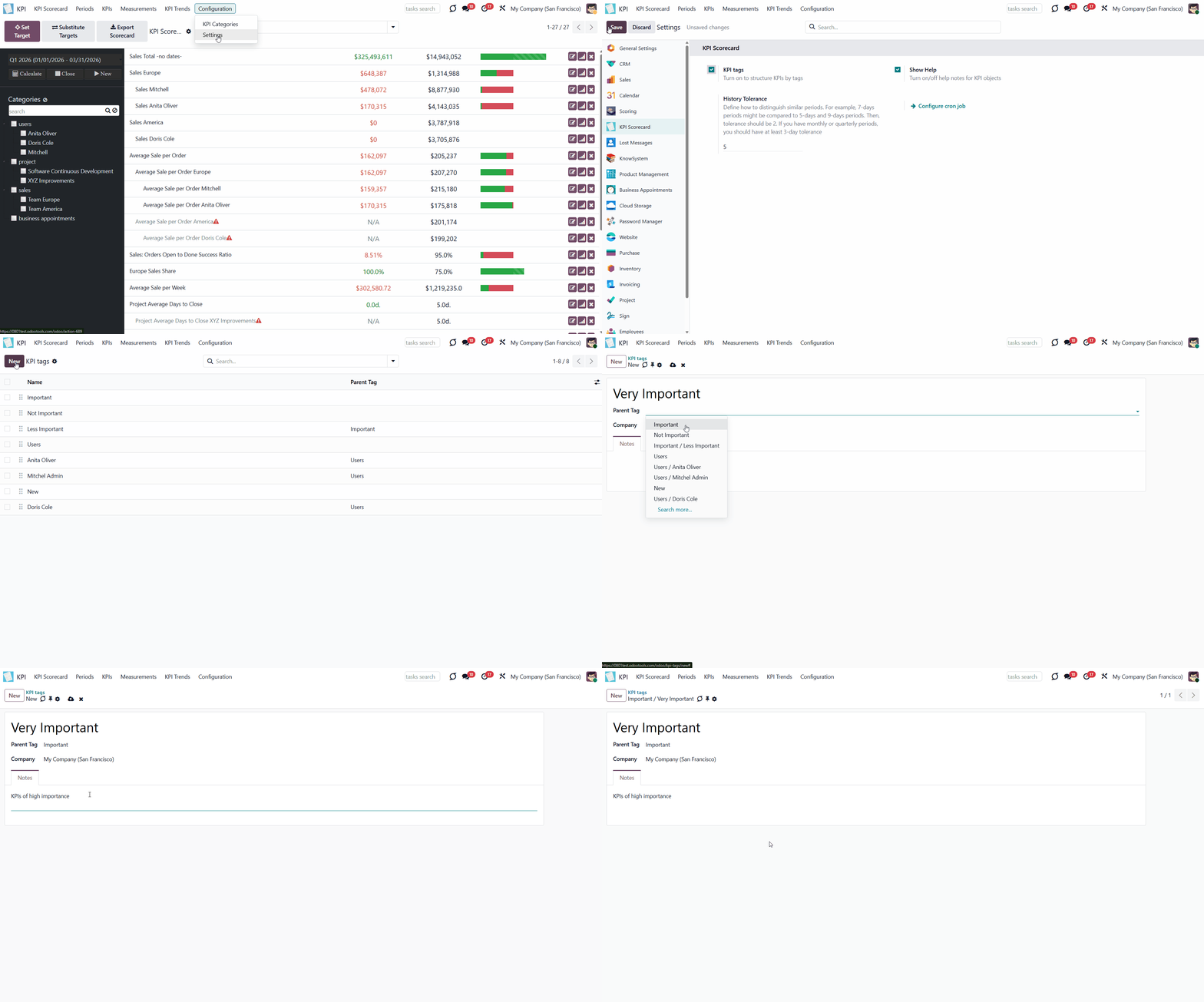
With tags, you can structure KPIs to manage related KPI Targets more effectively. This way, you can create your own KPI classification that reflects the specifics of your business. For example, tags can be created based on the scope of the related KPIs, the users involved, or their importance.
To create and manage KPI Tags, enable the 'KPI Tags' option in the module's settings. After that, the tree of tags will appear in the KPI Scorecard Interface, and the separate KPI Tags menu will appear.
There are two ways to create tags: through the separate menu or by typing the tag's name in the field 'Tags' and clicking the button 'create' as you create or edit a KPI Formula.
Tags support hierarchy. A tag may have a parent and sub-tags.
To create a tag through the separate menu:
1. Go to Configuration > KPI Tags
2. Click 'New'
3. Type the tag's name
4. Choose the parent tag, if any
5. In multi-company mode, choose the company
6. Optionally, add some notes in the tab 'Notes'.
In the field KPI Tags, you can assign tags to a KPI. A single KPI might have an unlimited number of tags assigned.
If you have many tags and subtags, you may find it difficult to navigate them and quickly select the ones you need. Thus, for extra convenience, a special search bar above the tags list in the single-view interface was introduced. Just start typing the word and click 'Enter' or the search button, and the matching results will be shown and marked red. Click the 'Reset' button on the right side of the search bar to clea'Reset' button on the right side of the search bar to clear the search.
KPI Scorecard Interface
After creating one or more KPIs, the next step is to set a KPI Target. Setting a KPI Target implies setting a goal. For example, to earn 50000 for the first quarter of 2026. Setting a KPI Target helps track the company's progress toward that goal and take preventive measures if there is a negative trend in current results.
The KPI Target is set for a particular period. In the main module interface, you can switch between all created periods to see the list of set KPI Targets for each.
Manage KPI Targets by updating target values as needed.
Set the KPI Target once and use it multiple times for different periods to avoid duplicate work using the 'Substitute Targets' function.
Compare the Actual Results for the same targets over similar periods on a graph to make future KPI Targets more realistic.
KPI Targets
KPI Target is the key element in evaluating the results of a company, its teams, or an employee's work. It is your plan for a particular KPI for a given period. By setting a target value, you indicate the result you want to achieve by the end of the period and track the actual result to identify gaps.
To set a target:
1. Click on the button 'Set Target'
2. Choose the KPI formula
3. Type the target value
4. Click 'Save & Close'.
The KPI Target is created for the period, that is chosen in the left navigation panel.
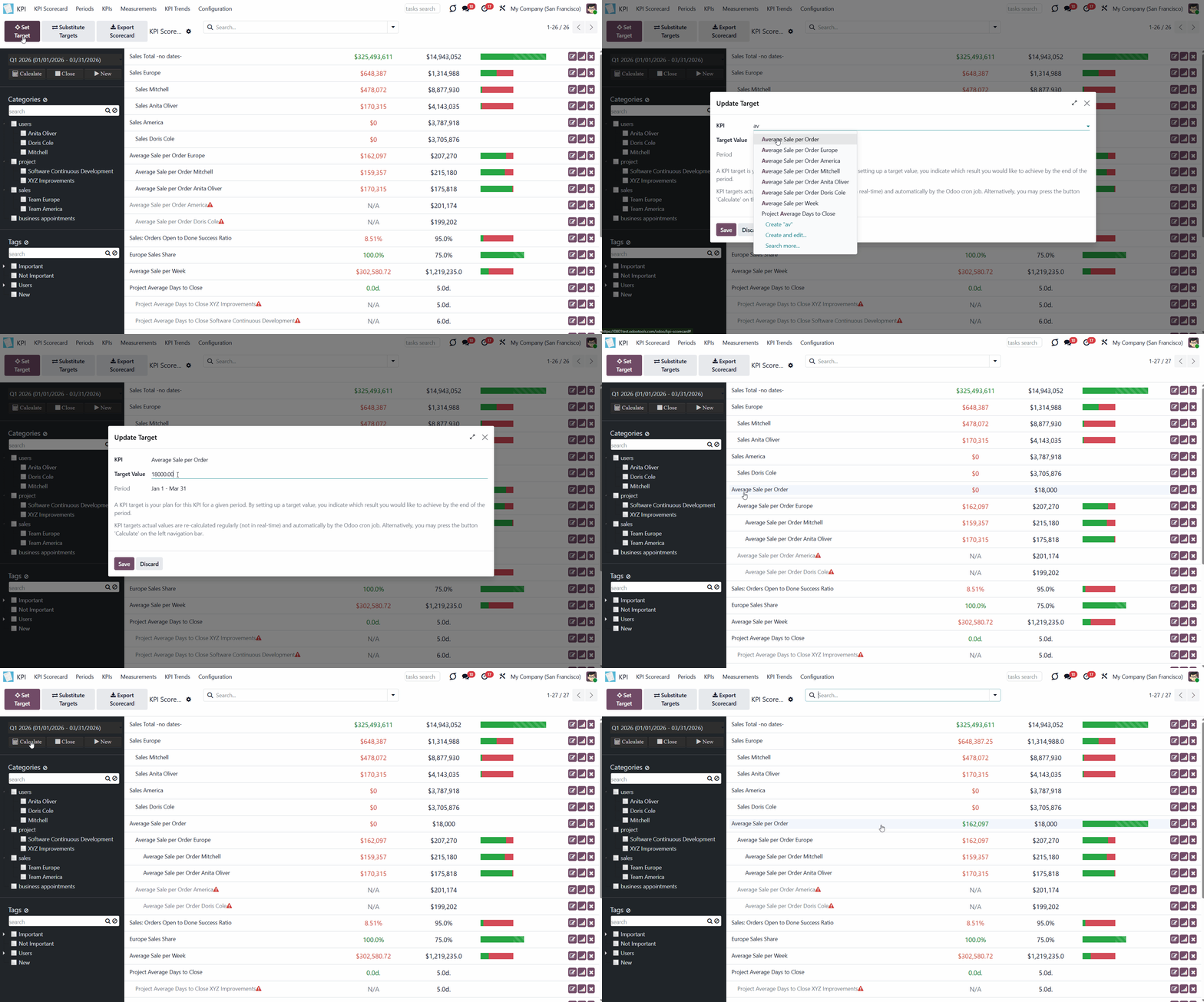
As you set the KPI Target, it appears in the target list in the main panel. Each KPI Target card includes the title, actual value, target value, and actions panel.
Actual value lets you track the current progress toward fulfilling the target's value. Depending on the chosen 'Success Criteria' (the more, the better; or the less, the better), the Actual Value is analyzed against the target value, and the result is marked with color (see KPI formulas).
If the actual value is red, then it shows a negative result. The green actual value shows a positive result. If you added some notes to a KPI, then the note will appear as you hover over the linked KPI Target.
A grey KPI Target with an exclamatory mark and 'N/A' in the field 'Actual value' shows that either there is not enough data for calculation, or there is a mistake in the formula. Hover over the exclamatory mark to see the error type.
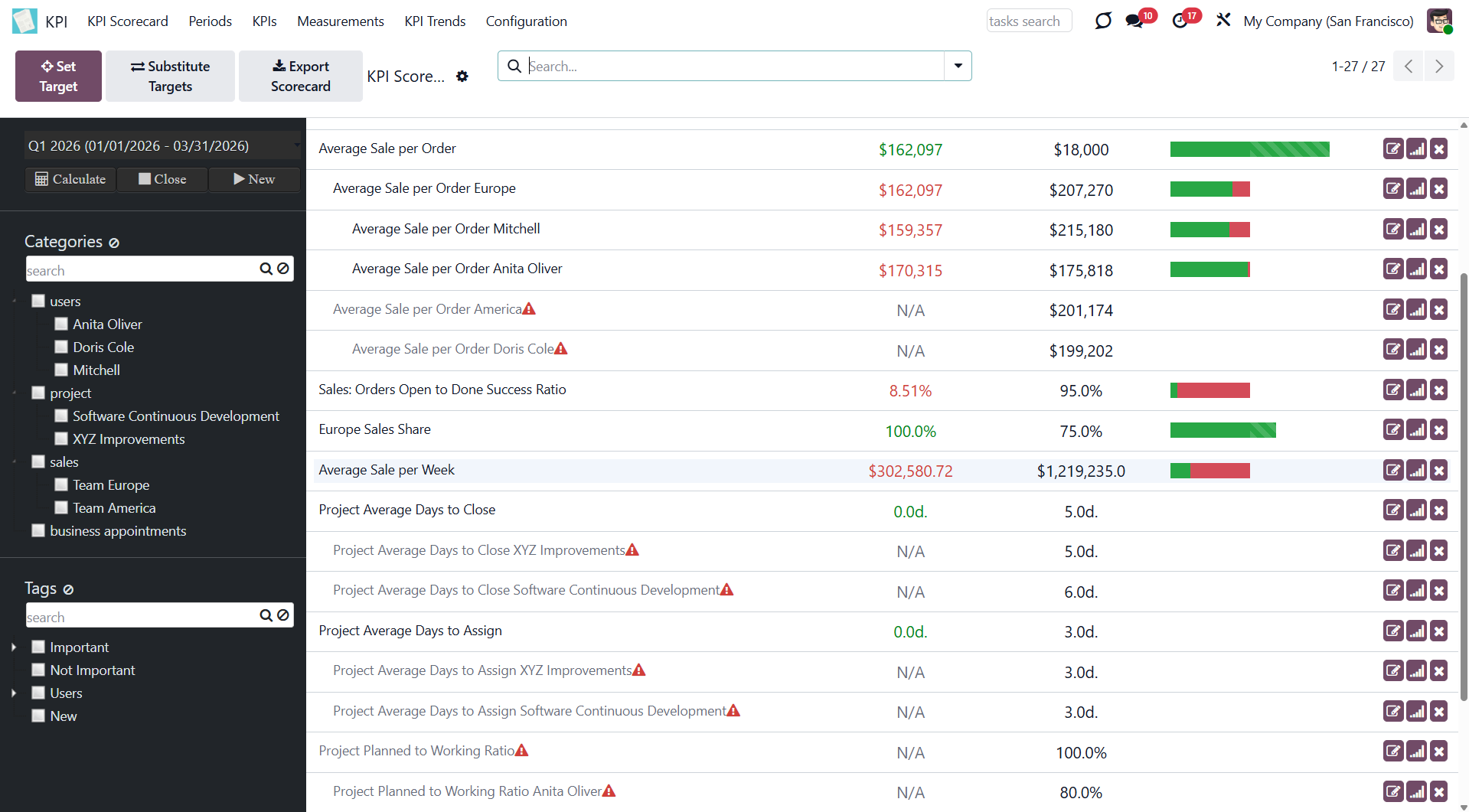
The KPI interface displays a progress bar column that shows the percentage completion for positive goals and positive actual values. It works differently across different success criteria (the more, the better; the less, the better).
If the success criterion 'The more, the better' is chosen, then the shown colors have the following meaning:
1. Red - the KPI Target is under-fulfilled
2. Green - the KPI Target is fulfilled
3. Green with stripes - the KPI Target is over-fulfilled
If the success criterion 'The less, the better' is chosen, then the shown colors have the following meaning:
1. Red - the Actual Value is overspent
2. Green - the Actual Value is within the KPI Target
3. Green with stripes - the Actual Value is lower than the KPI Target and can be further raised
If the percentage exceeds 100, it is still shown graphically up to 200, while the width of each row remains 1%.
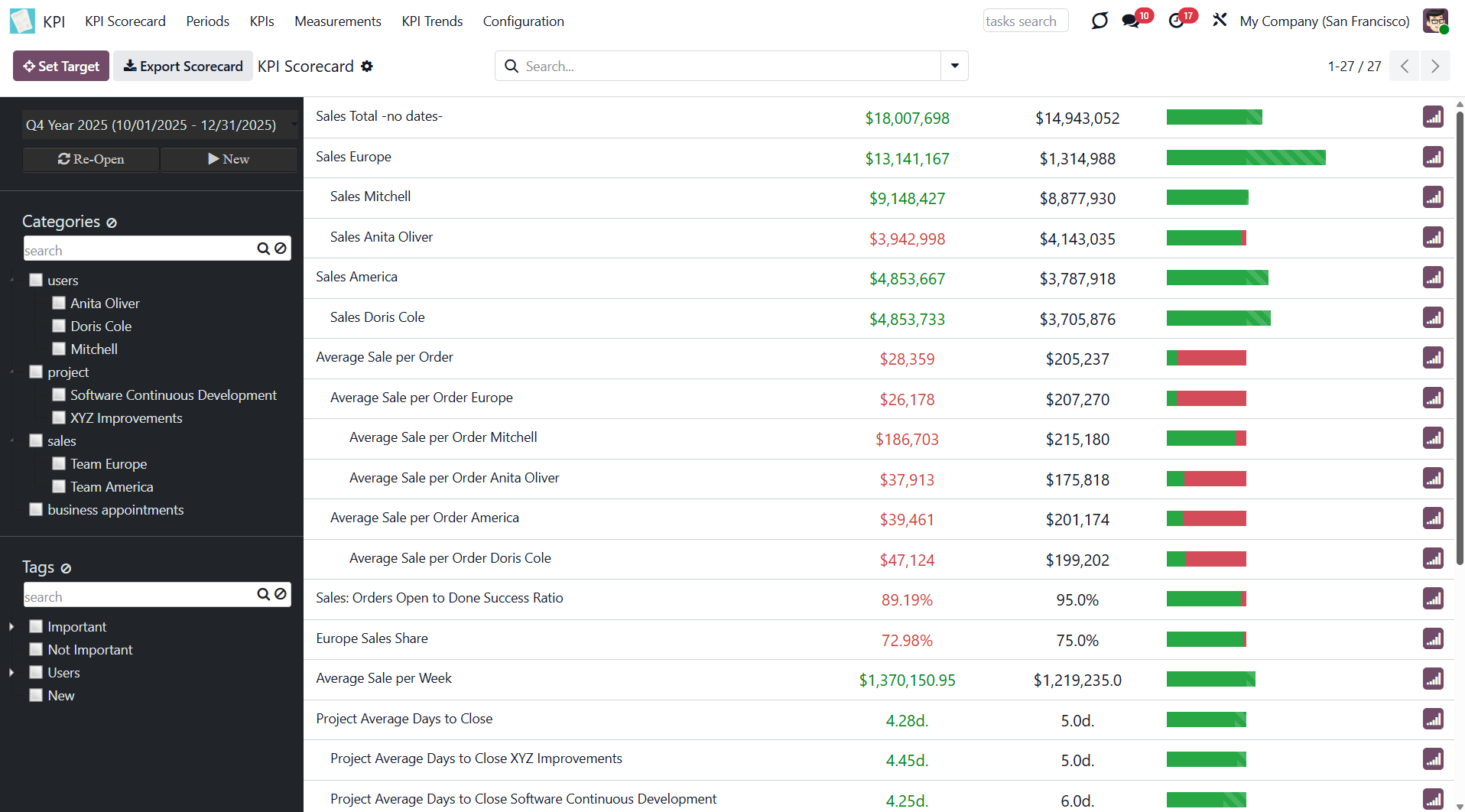
On the right side of a KPI Target's card, there are some buttons that you can click:
1. Change Target
2. See the history
3. Delete Target
To change the Target, click on the 'Change Target' icon on the right side of the KPI Target. In the pop-up window, you can switch between the available KPIs and manually type the target value.
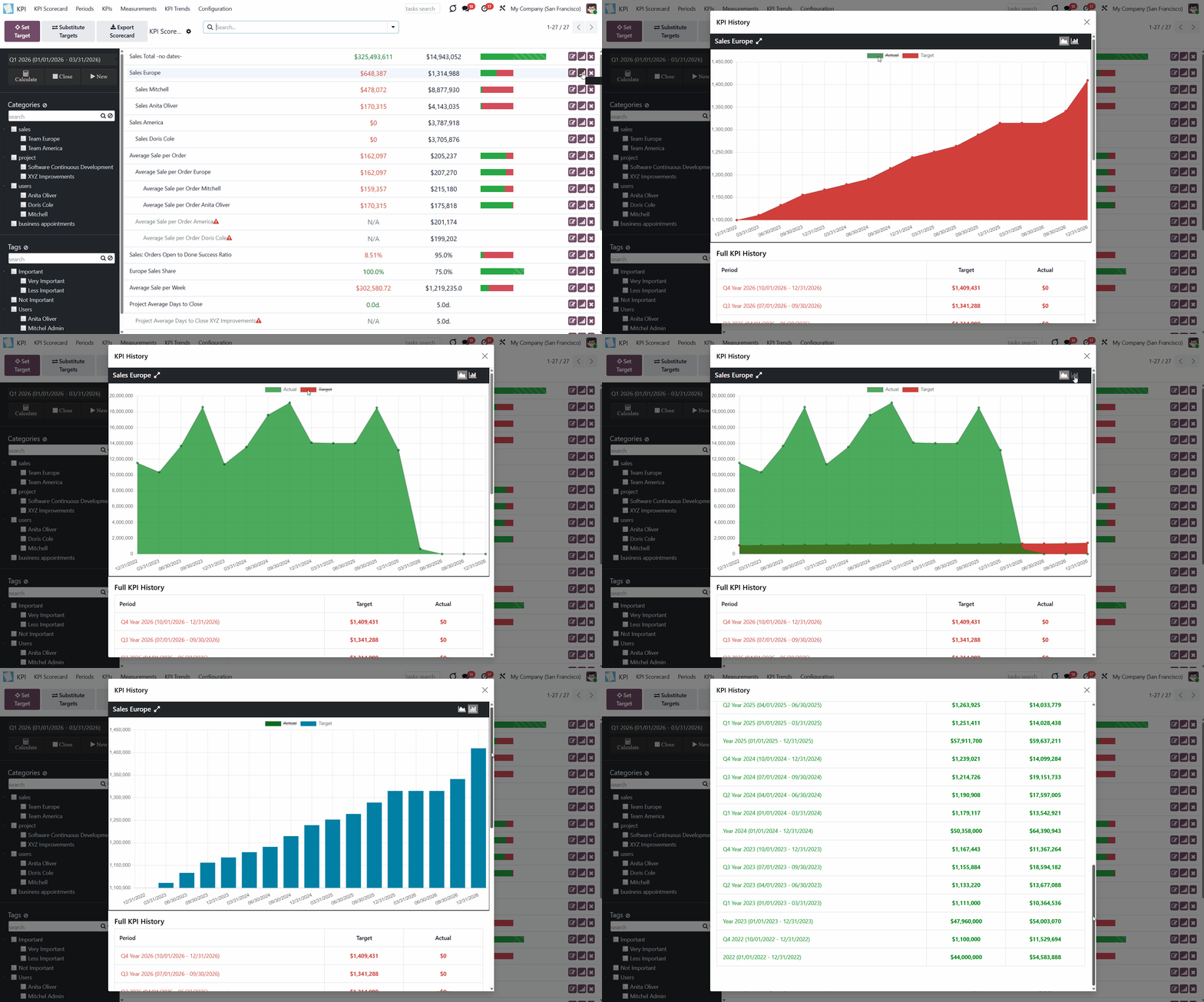
If you have sufficient data and multiple instances of the same KPI across periods, you can view the KPI history. To see the history of KPIs by periods, click on the 'History' icon. In the pop-up window, you will see a diagram of 'History by similar periods'. The app automatically considers various periods that might be compared to this one and shows users a chart of actual values by a specific KPI (see KPI History and Trends).
To delete the Target, click on the 'Cross' icon on the right side of the KPI Target. In the pop-up window, you will be asked to confirm the decision.
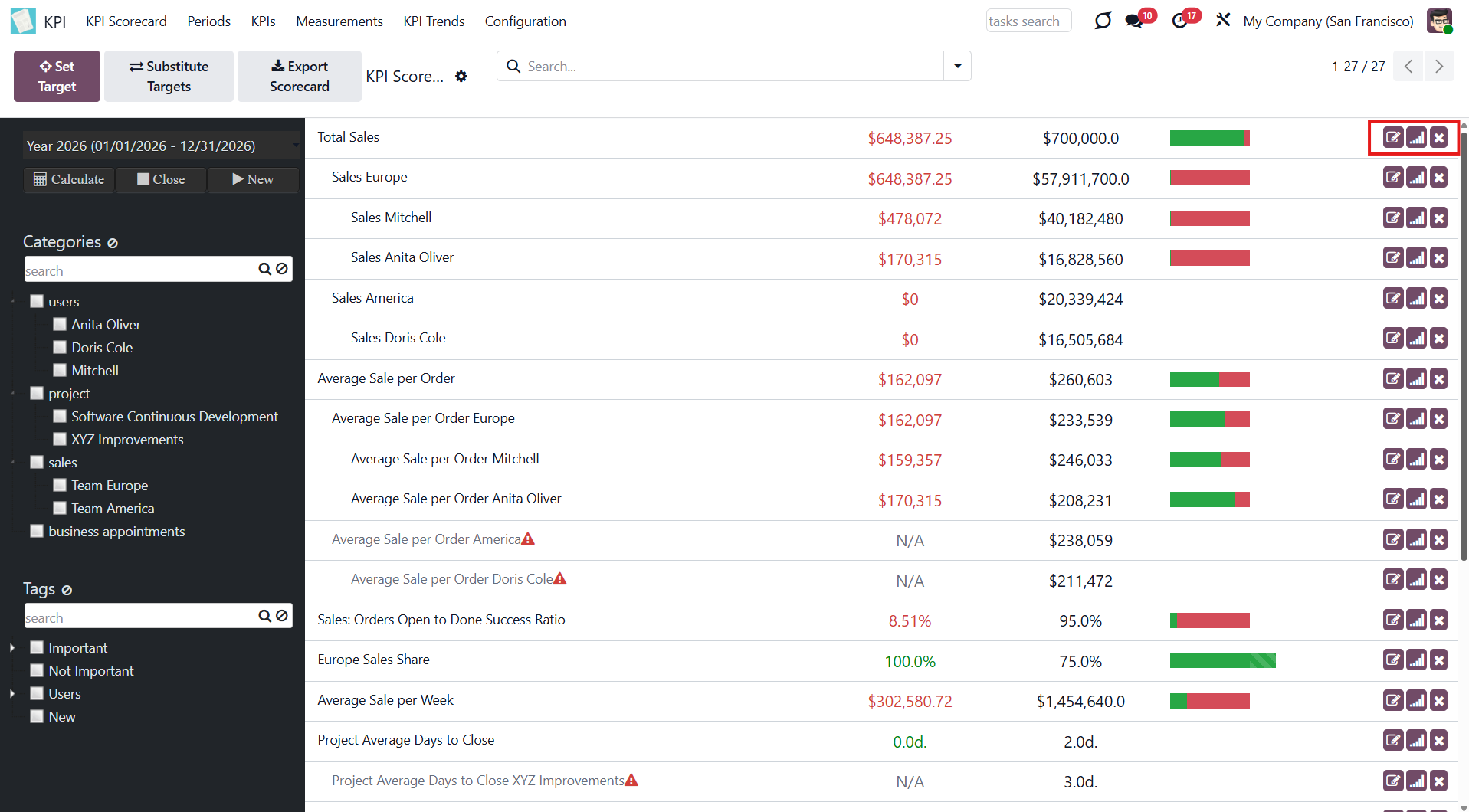
The KPI Targets list is organized by hierarchy. Hierarchy allows highlighting targets with indicative padding for an instant overview of sub-KPI Targets.
The hierarchy is set according to:
1. KPIs sequence
2. Parent/child relations
To change the sequence of KPIs, move them in the tab KPIs by drag & drop or open any KPI and type the number in the field 'Sequence'. To be at the top, the sequence should be smaller.
KPIs' relations are more important than their sequence, so the parent KPI will always be higher than its sub-KPIs. The sub-KPIs will not be divided by other KPIs, regardless of their sequence.
You can set the parent KPI below the Formula wizard when creating or editing a KPI (see KPI (KPI Formulas)).
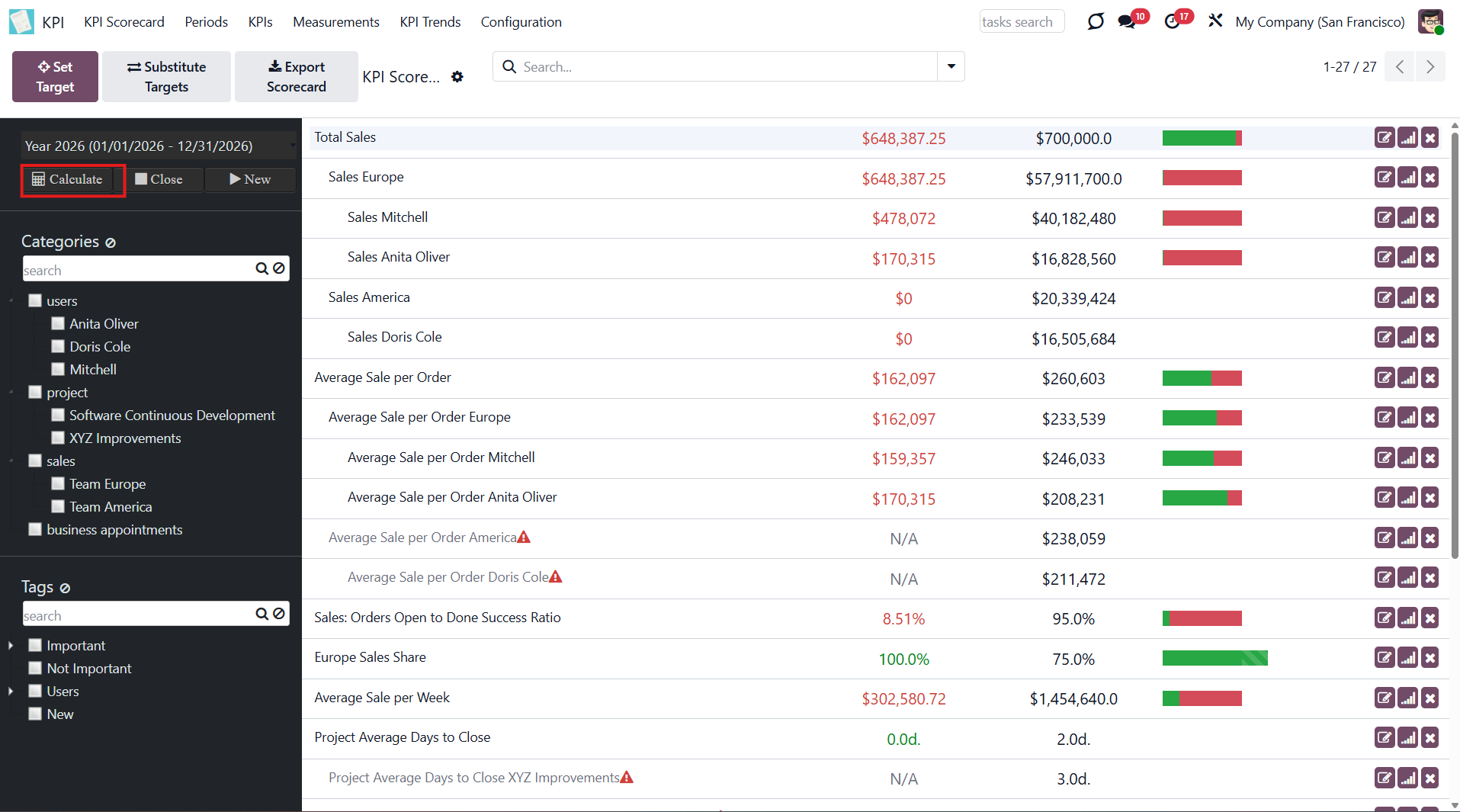
All the calculations in the KPI module are made once or twice per day according to the system schedule. When you set the KPI Target, you don't see the current result immediately. However, you can also trigger the calculation manually by clicking 'Calculate' in the KPI Scorecard interface.
After setting a Target, keep in mind that calculations take place according to the system schedule. To avoid waiting and seeing the 'Actual Value' right away, click 'Calculate'.
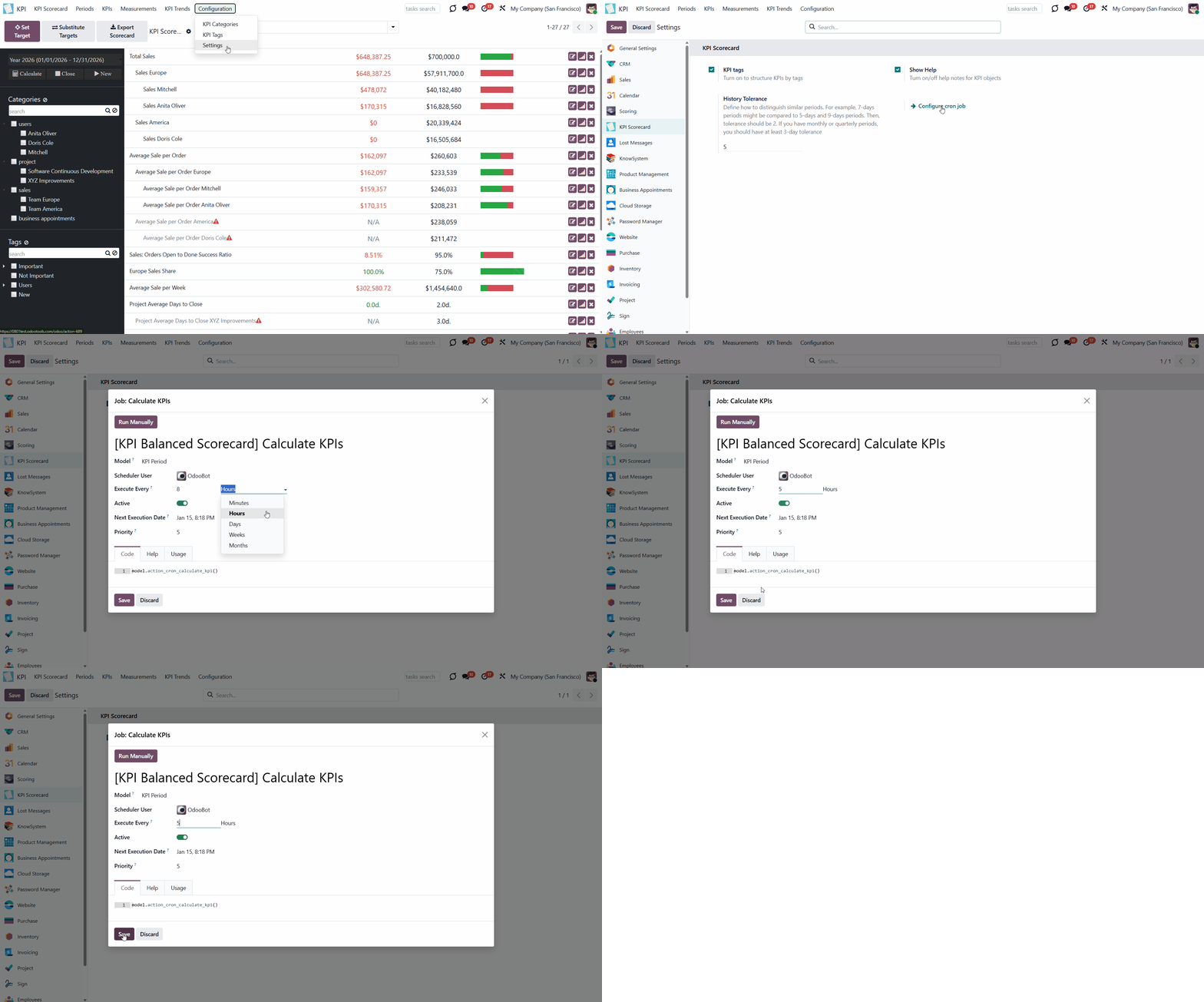
You can adjust the frequency of automatic KPI calculations. For that:
1. Go to Configuration > Settings
2. Click 'Configure Cron Job'
3. In the field 'Execute every', choose the number and type of period the actual KPI should be recalculated
4. Click 'Save'.
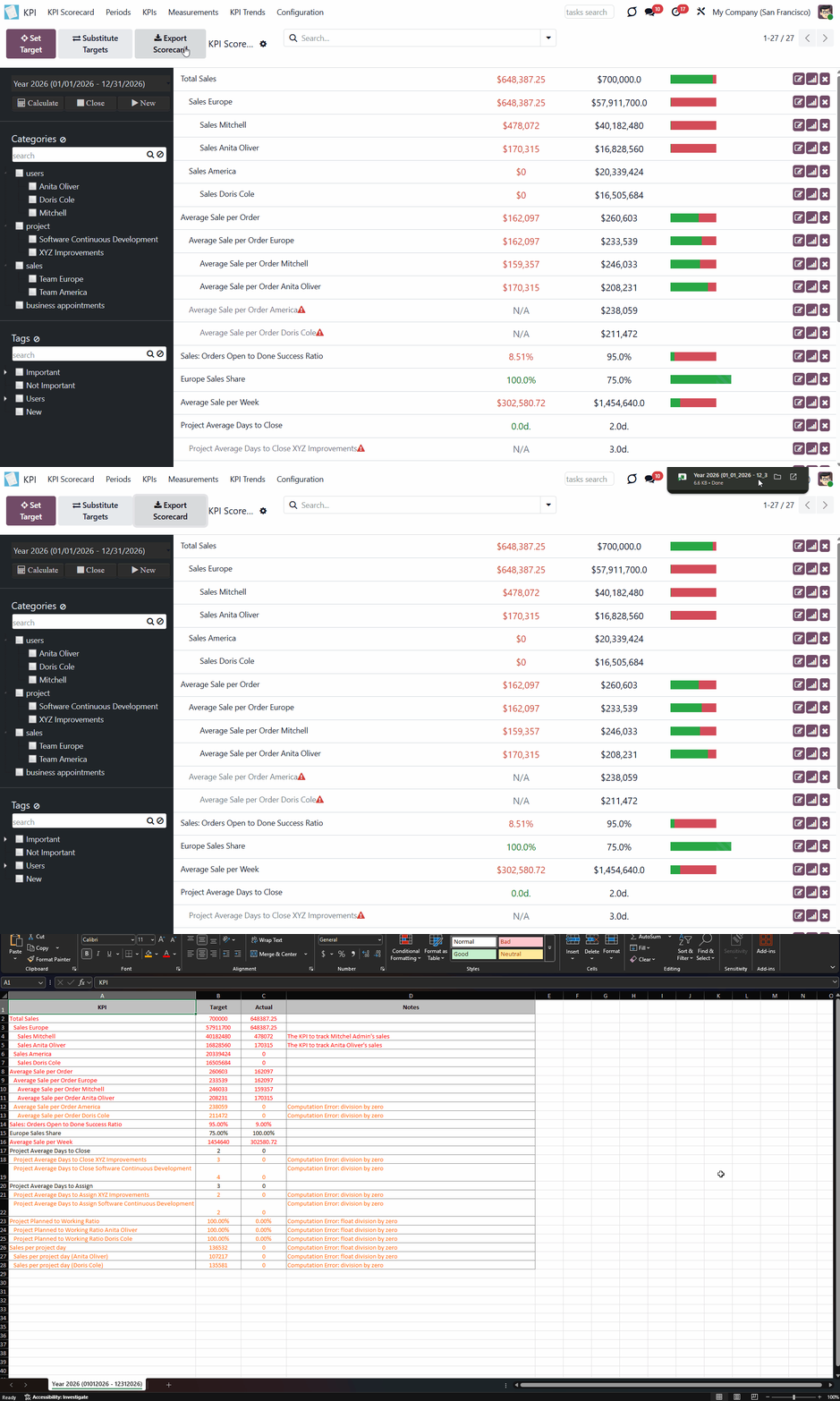
The module supports exporting KPIs. The KPIs are exported and imported in the .xlsx format.
To export KPIs:
1. Click on the button 'Export KPI' in the KPI Scorecard Interface
2. The downloading will start automatically
The KPIs are exported for a specific period selected in the left navigation panel. The following fields are exported: KPI, KPI Target, Actual Value, and Notes. The exported KPIs save the order and are structured hierarchically. The file itself is named after the period that it represents.
KPI Periods
The displayed KPI Targets list belongs to the period chosen in the left navigation panel. Switching between periods allows you to see all KPI Targets that belong to a particular period. To switch between periods, click the dates line and select the period you want to view KPI Targets for.
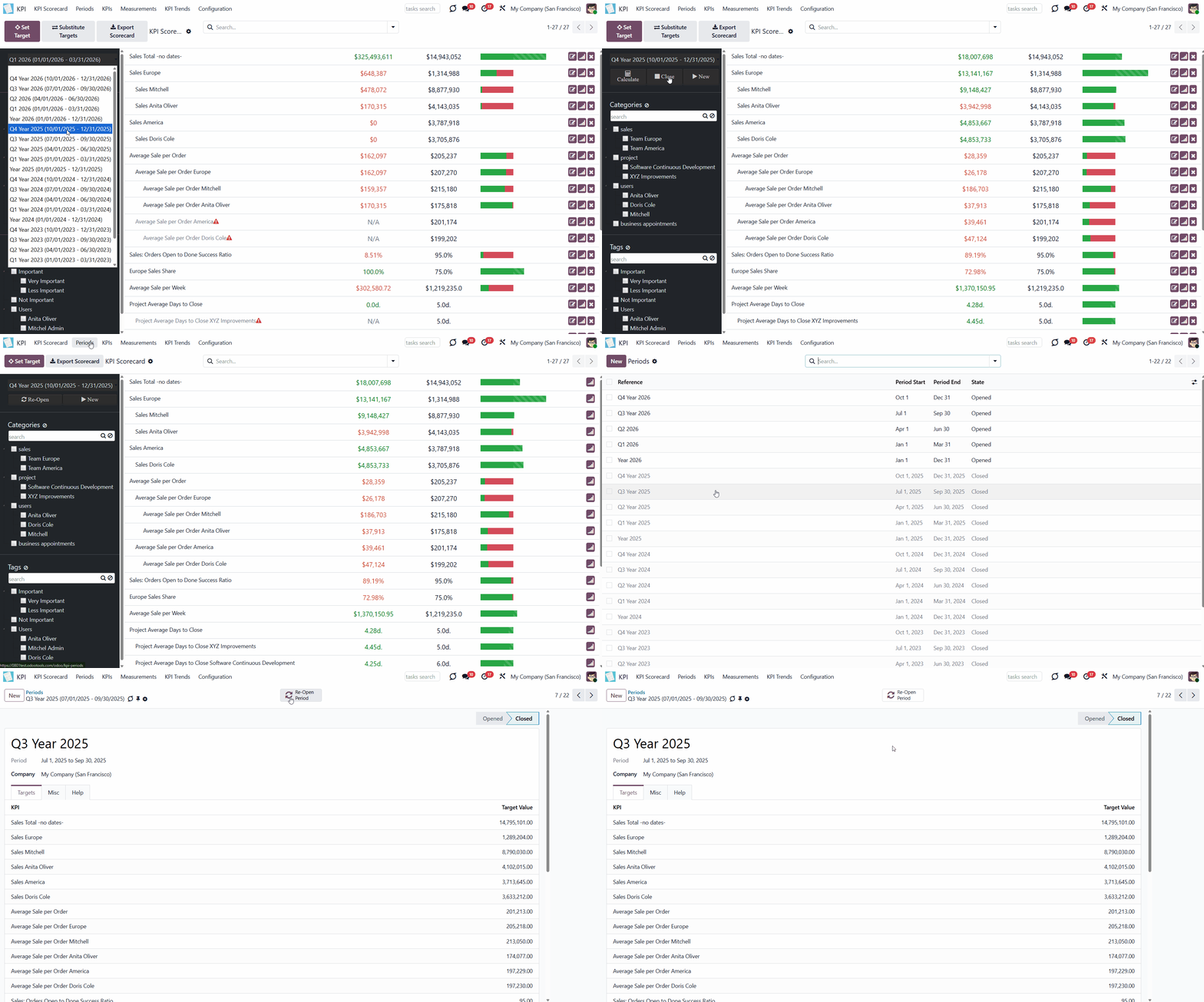
When the end date has already passed, it is preferable to close the period to avoid further updates to KPI targets' actual values due to corrections (e.g., it is not a good idea to update December KPIs in the next August, even if a sale total needs to be corrected). This action is the same as when an accountant finishes a fiscal year.
Close periods that have already passed to avoid further recalculations and lock the values. You can always reopen a period if you closed it by mistake or want to revise something. There are two ways to close and reopen a period:
1. From the KPI Scorecard Interface, in the left navigation panel
2. In the tab 'Periods', by choosing a period and clicking 'Close Period'/ 'Re-Open Period'.
Periods are important for calculating the Actual Value. Only objects within the period dates are considered for the calculation according to the chosen Date Fields for a Basic Measurement. For example:
1. You created a Basic Measurement, 'Done Sale Orders: Total'
2. In the 'Date fields', choose 'Order Date'
3. Connected a Variable 'Done Sale Orders: Total', so it appeared in the formula (as Basic Measurements can't be used directly for formulas)
4. Created a period 'Year 2026' and stated its dates
5. Created a formula and set a KPI Target for the period 'Year 2026'
6. Only Sale Orders, which have been created in 2026, will be considered for the calculations of Actual Value.
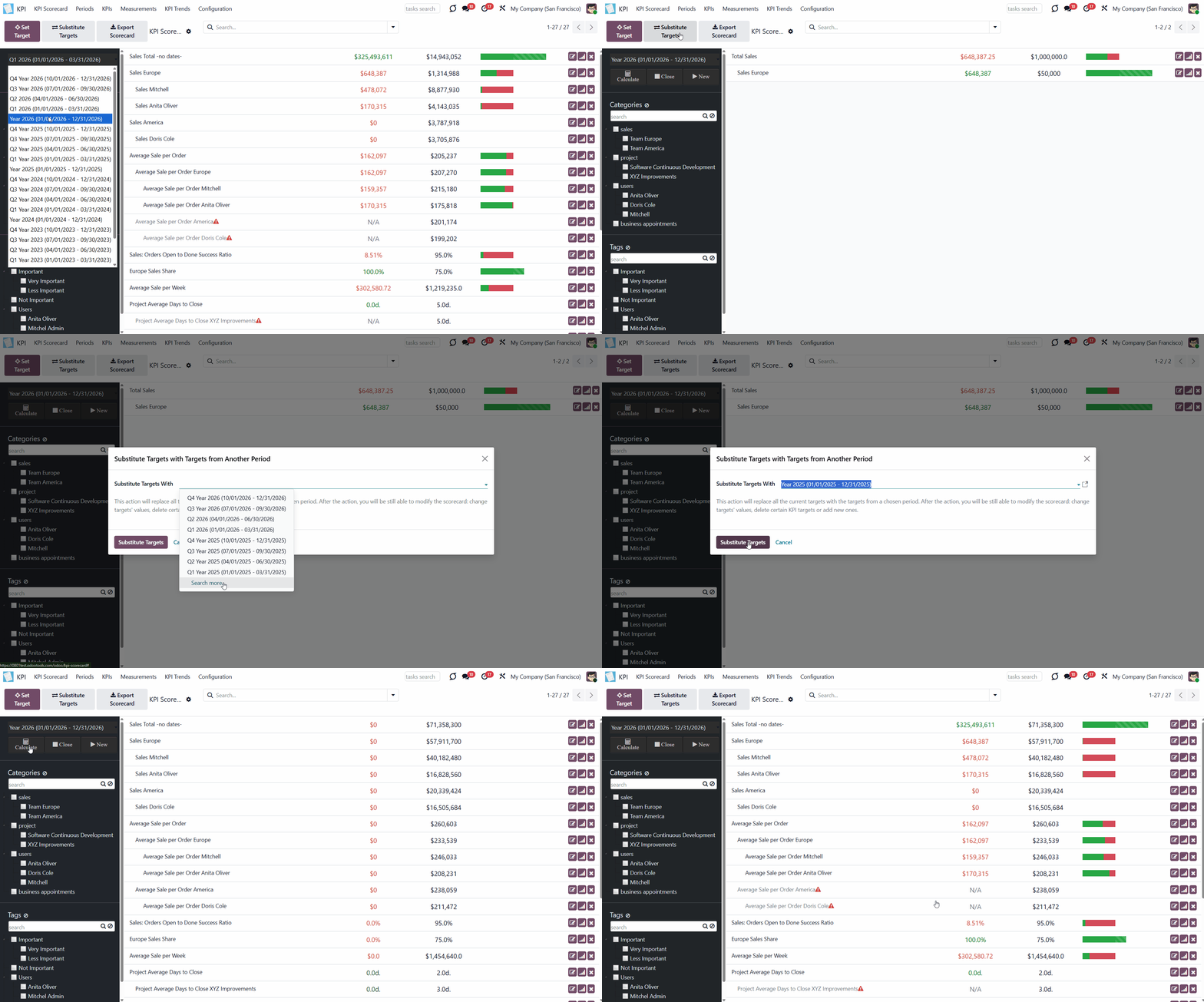
This way, when dates are not used in measurements or KPIs, there is no need to rewrite them for each period. You can use the button 'Substitute Targets' to copy KPI Targets from one period to another. It significantly reduces time, since KPI targets typically remain similar across periods of the same length. After that action, you would still be able to change the actual scorecard for this period (of course, until a period is closed) (see KPI Periods).
To substitute targets:
1. Open the new period in the left navigation panel to which you want to copy the KPI Target, and click 'Substitute Targets'.
2. In the pop-up window, choose the period from which you want to copy KPI Targets
3. Click 'Substitute Targets'
4. All KPI Targets from the chosen period will be copied to the new period
5. Delete the ones you don't need anymore by clicking on a cross on the KPI card.
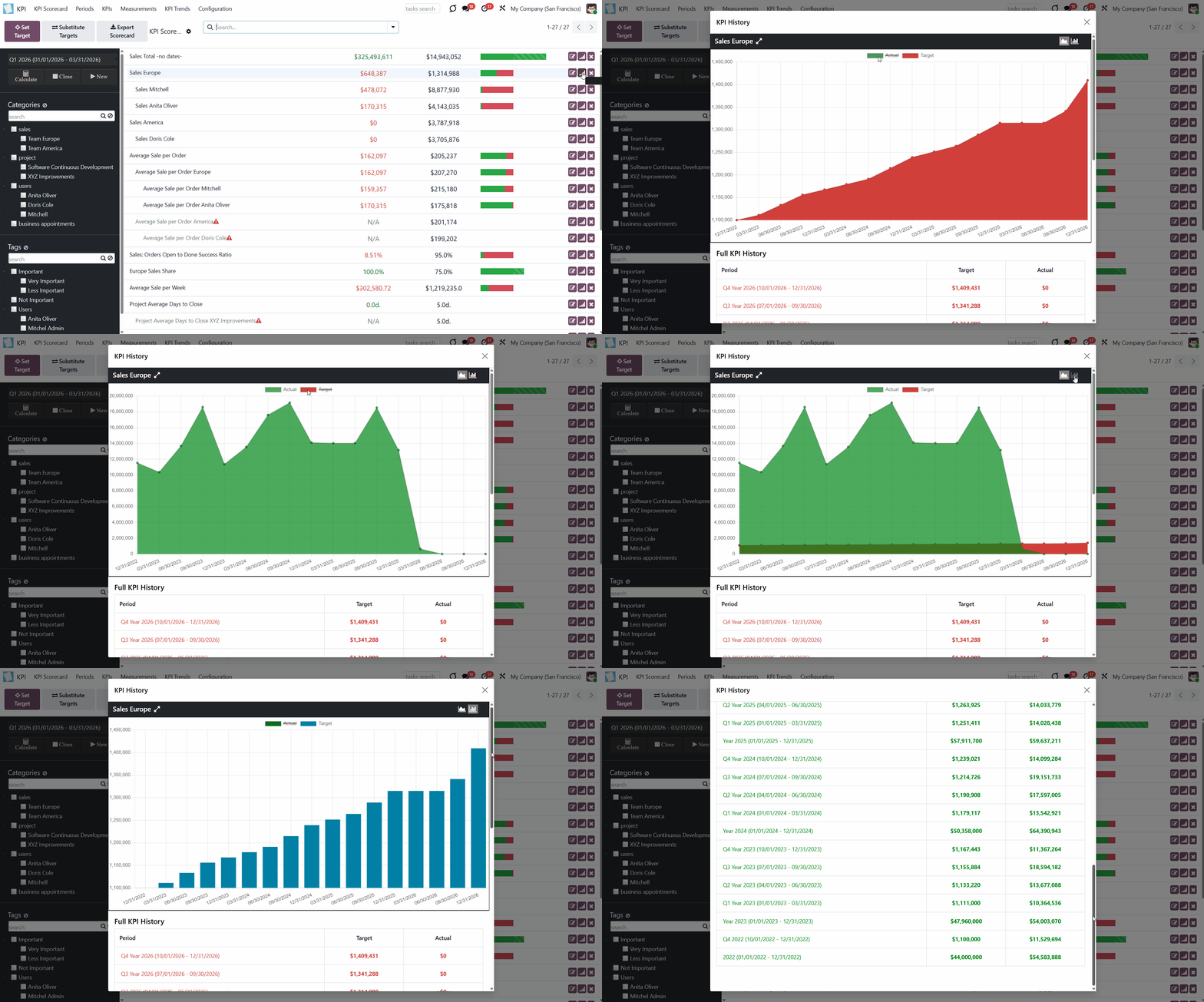
To track fulfillment progress and changes in achieving the KPIs, use the 'History' button on the right side of a KPI Target in the KPI Scorecard Interface. It allows us to compare KPI Targets and actual values across similar periods. To be considered, the periods should have the same number of days adjusted for a history tolerance (see KPI History and Trends).
Navigation
There are several ways to navigate among the KPI Targets:
1. By the category
2. By tags, if the feature 'KPI Tags' is enabled in the configuration
3. By the search bar
4. By referring to the previously saved search parameters
KPI Categories is a great tool that lets you store connected KPI Targets and quickly browse them. Categories also enable batch management of access to KPI Targets (see Access Rights).
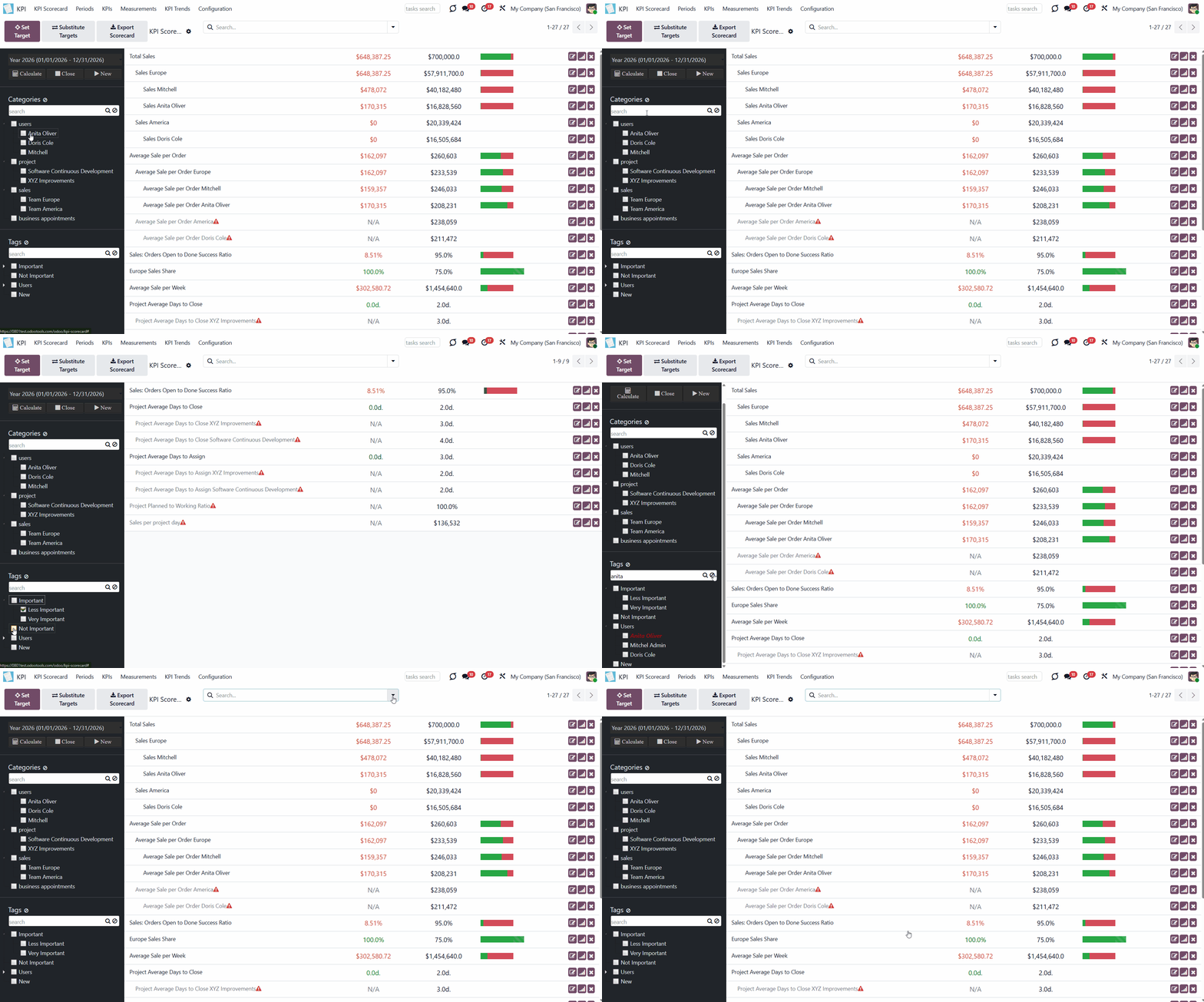
Tick a category to see all its KPIs. If you select a parent category, you will also see all KPIs from its subcategories. To reset the choice, click on the icon '' by the word 'Categories' (see KPI Categories).
If you have many categories and subcategories, you may find it difficult to navigate them and quickly select the ones you need. Thus, for extra convenience, a special search bar above the categories list was introduced. Just start typing the word and click 'Enter' or the search button, and the matching results will be shown and marked red. Click the 'Reset' button on the right side of the search bar to clear the search.
Simultaneously, you can use the search bar above the main part of the interface to find the KPI Targets by the connected KPI. Just start typing the KPI's title and click 'Enter'. To reset the search, click the cross icon next to it.
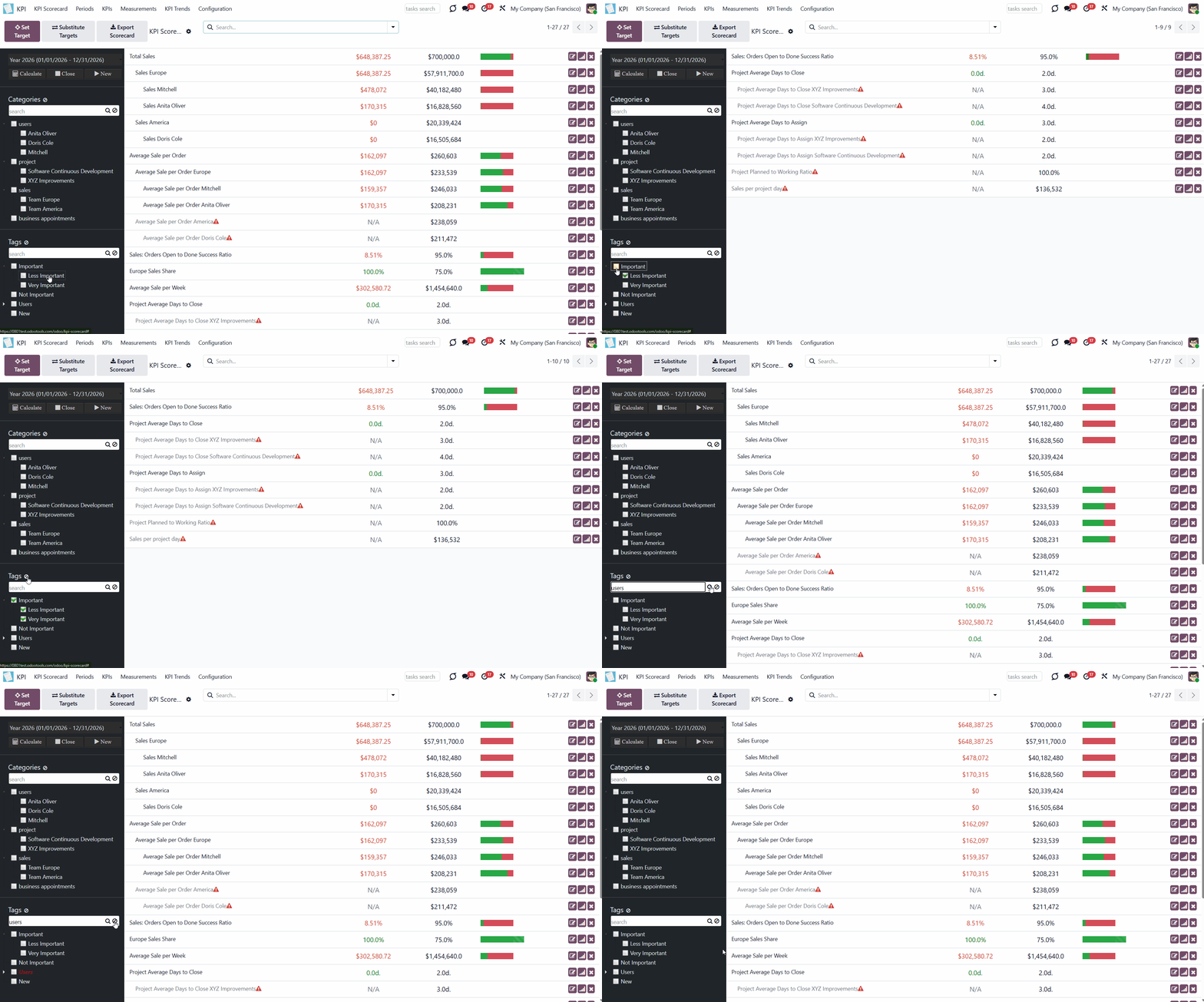
Tags can help classify KPIs. For example, you can create user-related tags or tags to mark the importance of certain KPIs. Make sure the 'KPI Tags' option is enabled on the configuration page.
Tick a tag to see all its KPIs. If you select a parent tag, you will also see all KPIs from its sub-tags. To reset the choice, click on the icon '' by the word 'Tags' (see KPI Tags).
If you have many tags and subtags, you may find it difficult to navigate them and quickly select the ones you need. Thus, for extra convenience, a special search bar above the tags list was introduced. Just start typing the word and click 'Enter' or the search button, and the matching results will be shown and marked red. Click the 'Reset' button on the right side of the search bar to clear the search.
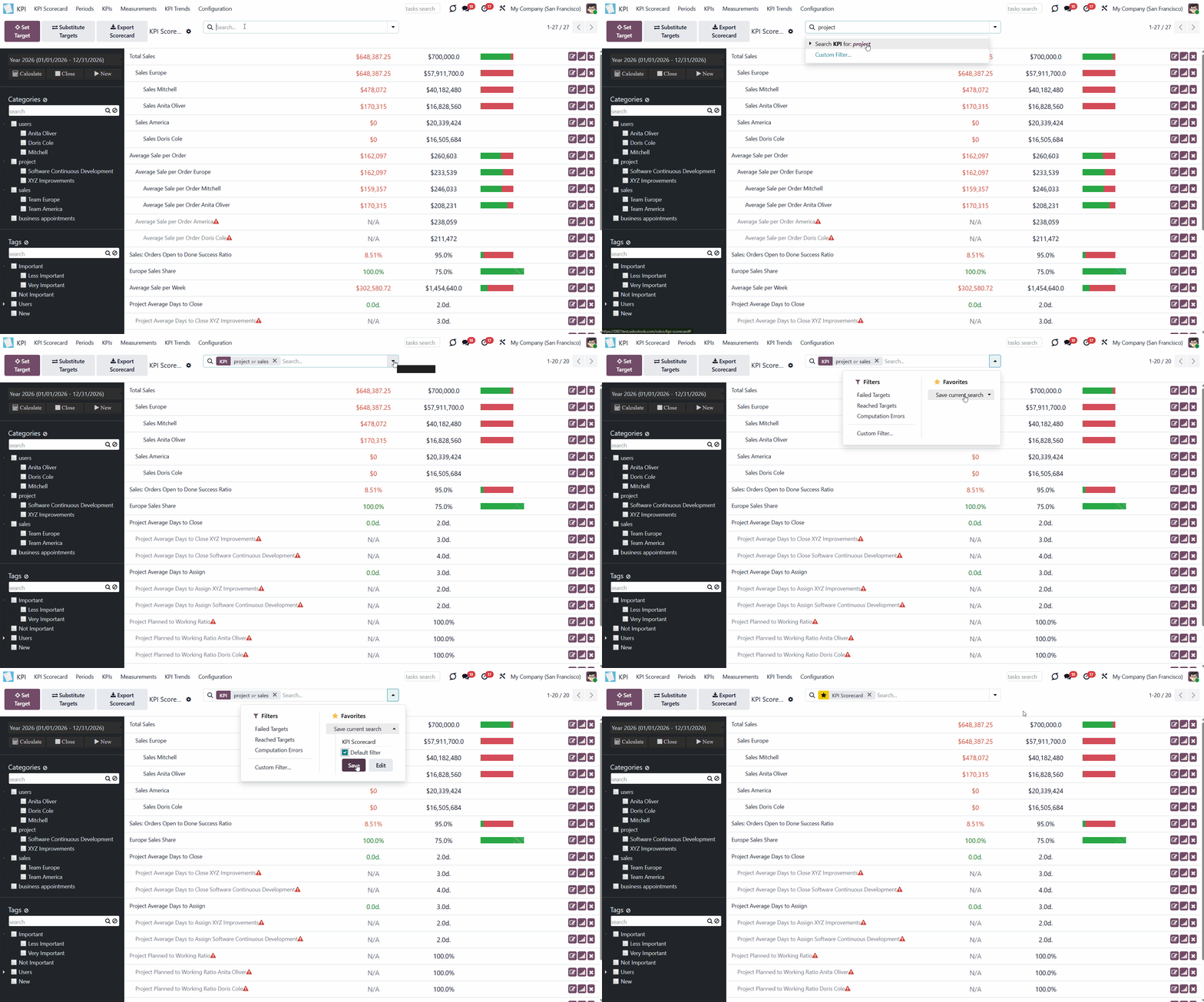
It is possible to save search parameters and quickly access search results. For that:
1. Apply one or several search parameters
2. Click 'Favorites'
3. Choose 'Save current search'
4. Type the search name
5. Tick 'Use by default' if you want to see the KPIs this way as you open the app, OR tick 'Share with all users' if you want other people to be able to see and apply these search parameters
6. Click 'Save'.
After that, you can quickly switch to this search by clicking 'Favorites' and choosing it.
KPI History and Trends
The module tracks the history of set KPI Targets and related Actual Values by period. It is recommended to use a consistent period-based logic to compare results over a given time period and visualize them in a graph. The app automatically considers various comparison periods and shows users a chart of actual values for a specific KPI. To consider periods similar, they should have the same number of days adjusted for a history tolerance.
For example, you have 2 KPI Targets, 'Total Sales' and 'Sales Count'. The first KPI Target is set for each quarter of 2026 and the year 2026. The second KPI Target was set for January and February, the whole year 2026, and the first quarter of 2026. The KPI Target 'Total Sales' will have an automatic graph generated by quarter (including those that have already begun or passed), as the periods are somewhat similar. As for the KPI Target 'Sales Count', it is not possible to generate a corresponding graph; however, we can still see the table below with results for all available periods.
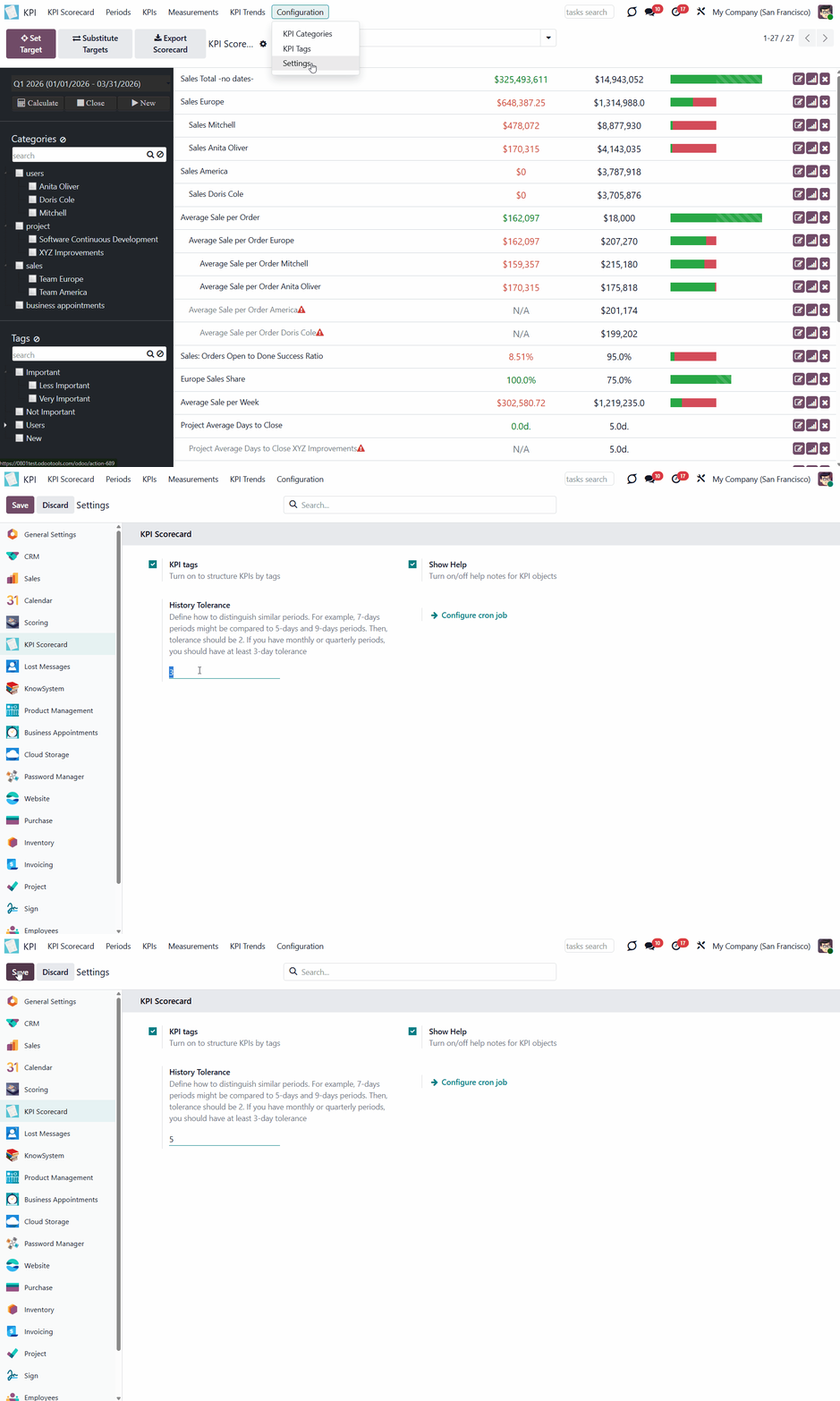
Sometimes, the length of periods cannot be precise. For example, in February there are 28 or 29 days. You can instruct the module, but the duration of periods cannot be precise. For example, in February there are 28 or 29 days. This way, you can instruct the module which periods are considered similar by setting the tolerance on the configuration page.
To set the tolerance, go to Configuration > Settings and locate the 'History Tolerance' field. Type the difference (number of days) that periods must be similar to be considered. For example, 7-day periods might be compared to 5-day and 9-day periods. Then, tolerance would be 2.
It is necessary to have at least a 2-day tolerance for comparing quarterly periods (since a quarter may span 90-92 days) and a 3-day tolerance for months (since February may last 28 days).
In the KPI Scorecard Interface, click on the 'History' button to see the automatically created graph of the KPI Target for the related period. Switch between bar and line graphs to conveniently analyze the results. By default, the line graph is shown.
On the graph, you will see the set KPI Target and the Actual Value for the related period. Both the goal and the actual value can be hidden from the chart. Just click on the related label above the graph. Click one more time to make it visible on the graph again.
The progress of the KPI completion is expressed by the color scheme.
On the line graph, red indicates the KPI Target has not been met, light green indicates the target has been overfulfilled, and dark green indicates the KPI Target has been planned and met.
In the bar graph, the KPI Target is always green, and the Actual Value can be red (the goal is unmet) or green (the goal is met).
Below the graph, a table shows the selected KPI Target for all periods, regardless of their length.
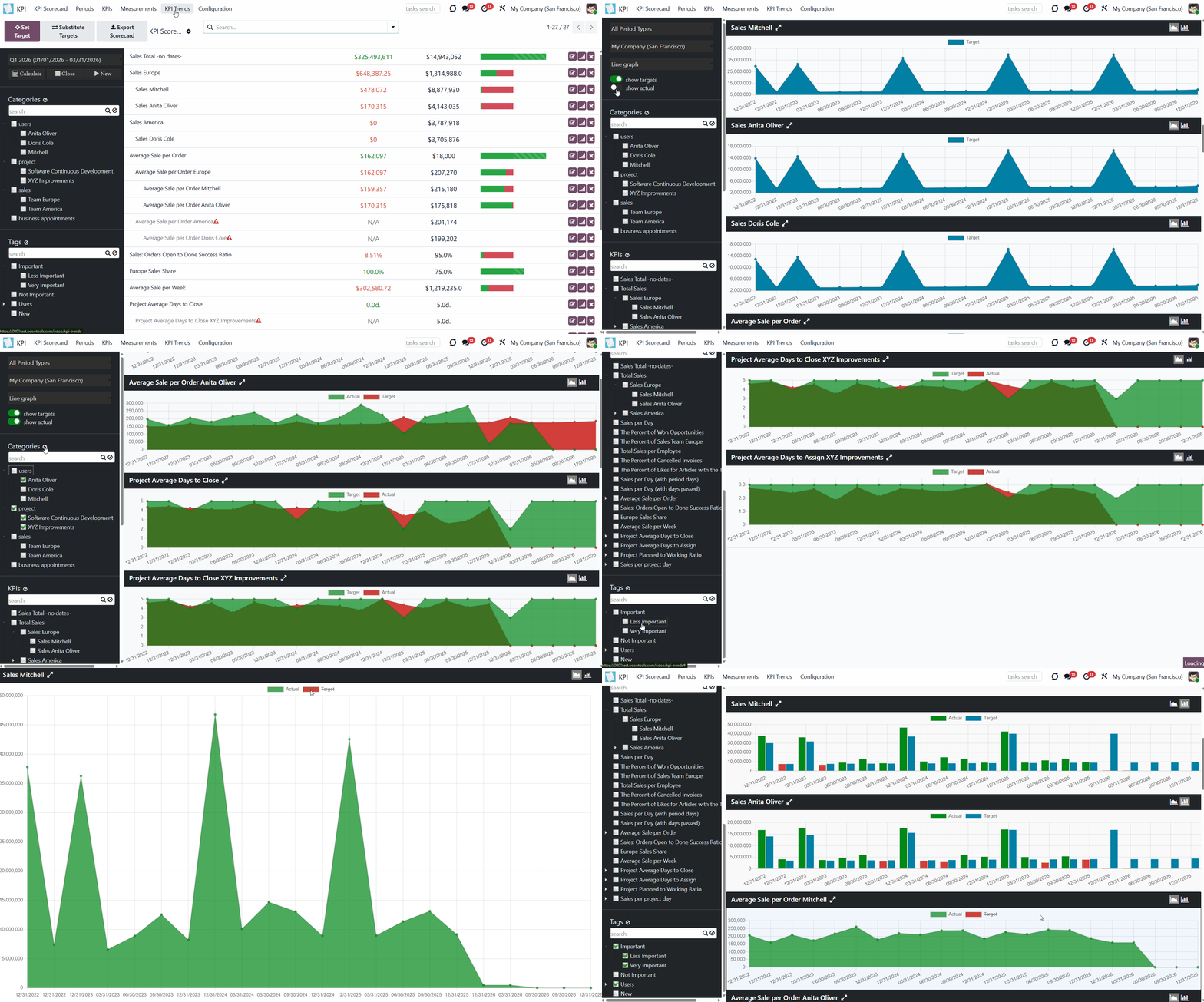
KPI Managers can also view KPI fulfillment statistics in the KPI Trends interface. You can find the related button in the system tray when you open the KPI app. KPI Trends lists all historical charts/graphs for KPIs with KPI Targets set.
Depending on the existing periods, Odoo will calculate the available period types according to the specified tolerance parameter. This way, goals will be shown by duration, e.g., quarterly and yearly goals. To see the statistics for all available period types, choose the option 'All period types'.
If you work in a multi-company environment and have access to multiple companies, you can switch between them to view the relevant KPIs.
For all charts, you can switch between the line/bar views. Just choose the view type on the left functional interface.
For all charts at once, you can hide KPI Targets/Actual Values. To hide KPI Targets, click the slider button 'Show Targets'. To show KPI Targets, click the slider button again.
You can filter KPIs by category. To do that, just tick the category/categories in the left-hand functional interface. If you select a parent category, you will also see all KPIs from its subcategories. To reset the choice, click on the icon '' by the word 'Categories'.
If you have many categories and subcategories, you may find it difficult to navigate them and quickly select the ones you need. Thus, for extra convenience, a special search bar above the categories list was introduced. Just start typing the word and click 'Enter' or the search button, and the matching results will be shown and marked red. Click the' Reset' button on the search bar's right side to empty the search.
If the option 'KPI Tags' is enabled, you can also filter KPIs by tags. To do that, just tick the tag (s) in the left functional interface. If you choose a parent tag, you will also see all its sub-tag KPIs. To reset the choice, click on the icon '' by the word 'Tags'. Optionally, use the tag search bar above to quickly find the ones you need.
The list of available charts is in the main interface. Above it, you will see the KPI reference, the '' icon button that expands the graph to the whole screen and hides it back, and the buttons to switch between the line and bar graphs.
You can show/hide KPI Targets/Actual Values of a particular graph. To do that, click the relevant label above the graph. Click one more time to make it visible on the graph again.
Scroll down to see all available history graphs, or use the KPI filters, organized hierarchically in the left functional panel, to quickly find the related KPI Targets. For that, just tick one of the KPIs. If you select a parent KPI, you will also see all included KPIs. To reset the choice, click on the icon '' by the word 'KPIs'.
Above the KPI filters in the left functional panel, you will also find a search bar to quickly locate the required ones. Just start typing the word and click 'Enter' or the search button, and the matching results will be shown and marked red. Click the' Reset' button on the search bar's right side to empty the search.
Access rights
The rights to administer KPIs are assigned to two user roles: 'KPI User' and 'KPI Manager'. If an internal user doesn't have one of the KPI roles assigned, the related menu will be hidden for that user.
Simple KPI users see only the KPI Targets to which they have rights. They can set KPI targets available to them and edit KPI targets they have the right to edit.
Access to all KPIs and their linked targets is available only to users with the 'KPI Manager' role. KPI managers have full access to all KPIs, regardless of settings, while other users have access only to KPIs allowed by their settings (or category settings).
KPI managers would have full rights for all KPIs disregarding the settings.
Rights to view or edit KPIs are managed at two levels: for a single KPI (in the form view, below the formula wizard) and for the entire category. KPI category rights and KPI own rights are combined.
There are two types of access rights: 'Read Rights' and 'Edit Rights'. 'Read Rights' lets users only observe shared KPIs. 'Edit Rights' would also allow setting and changing targets. The latter might be useful if you ask your manager to set department-level goals.
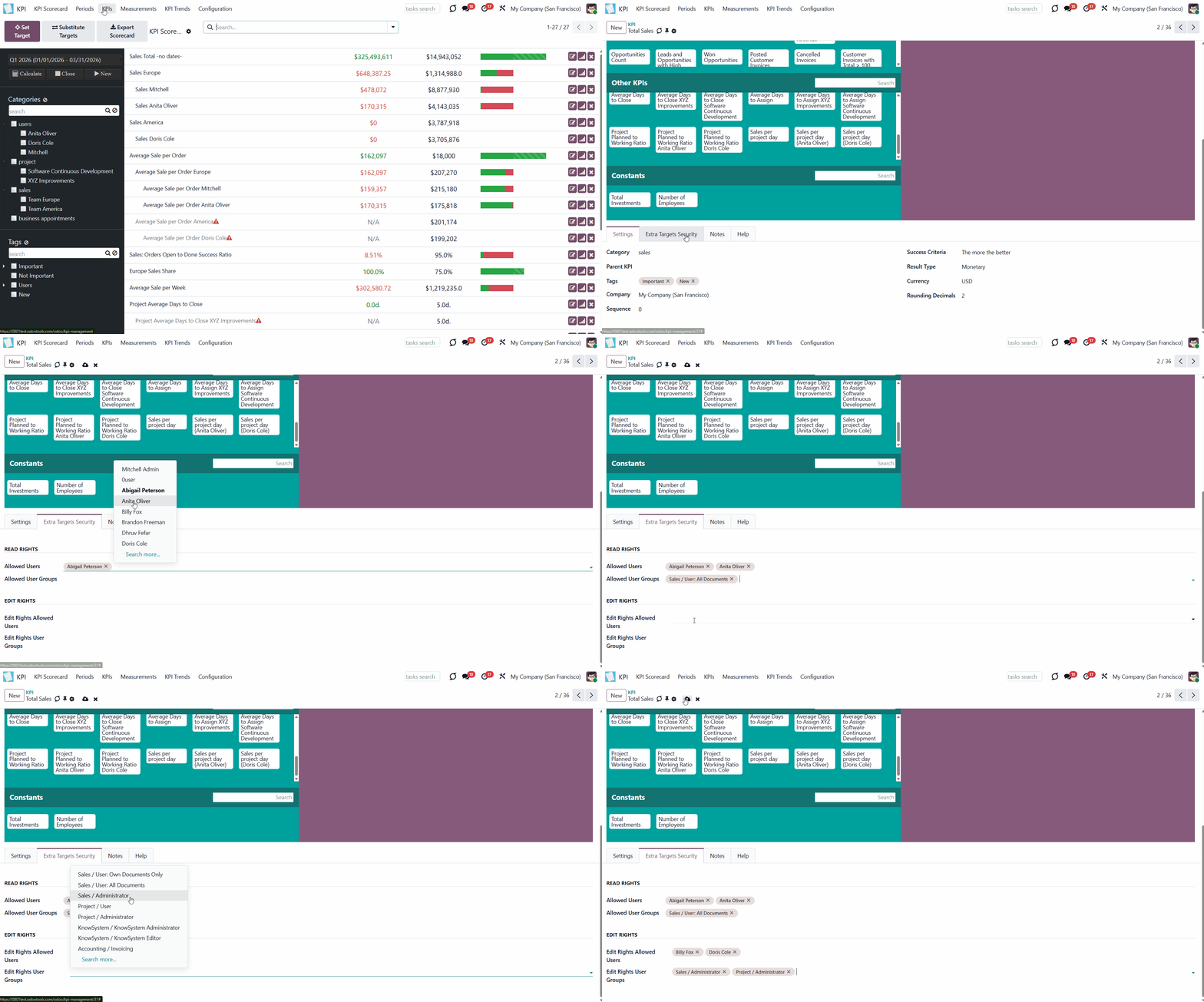
To give access to a particular KPI to a user or a user group:
1. Go to the tab KPIs and start creating or editing a KPI
2. Scroll down and open the tab 'Extra target security'
3. Choose users or a whole user group that will be able to see only or edit the KPI.
You can also manage user access in bulk by configuring access rights for an entire category. When editing a KPI category, specify who can read or edit it. A person or user group that has a certain right to a category doesn't have access to its subcategories.
For example, you might want to share task targets with relevant project users so they can manage their own completion. Edit rights assume sharing access to set specific targets. For instance, you may find it beneficial to involve the sales manager in setting sub-targets for their sales team.
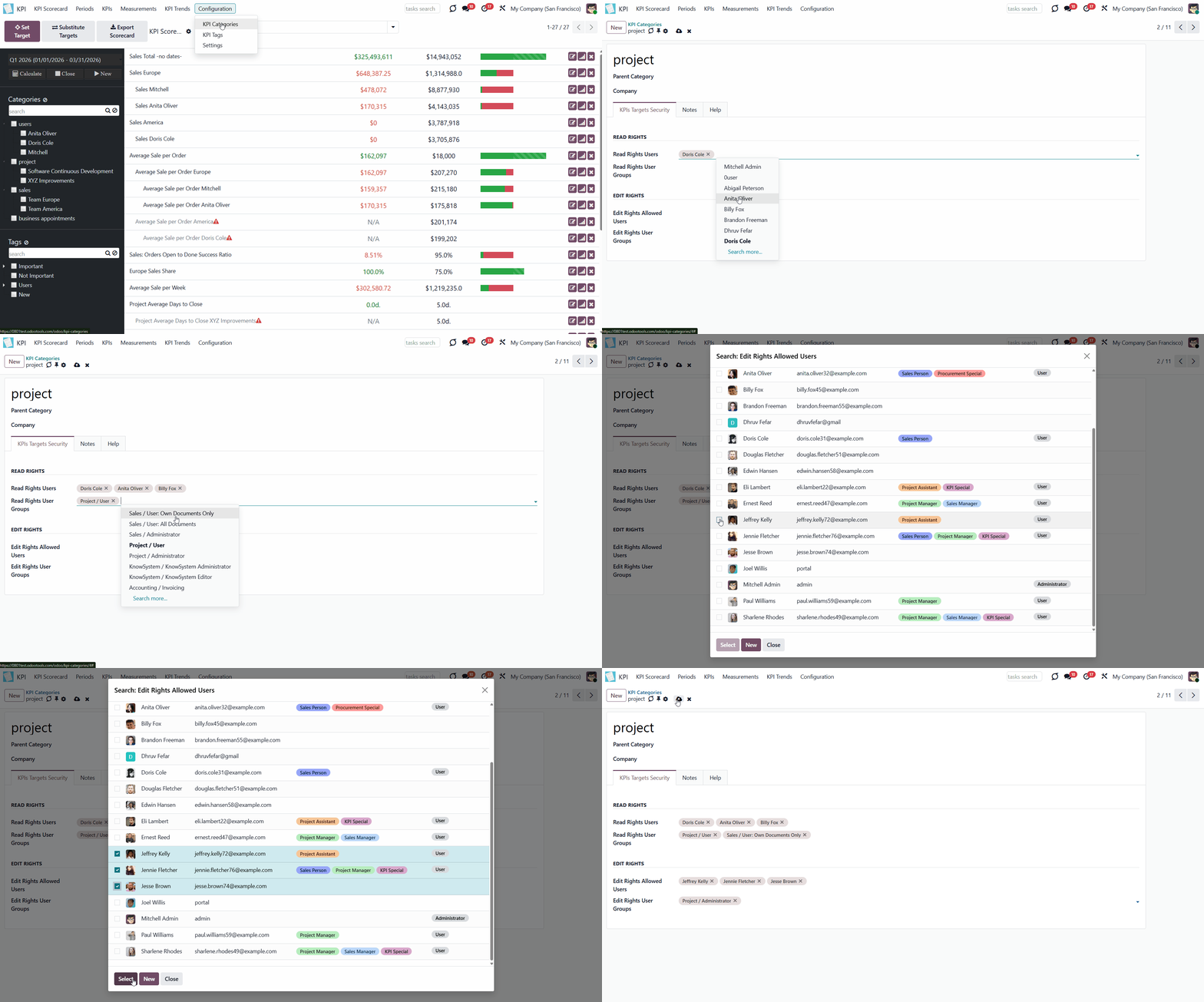
To give access to a particular category:
1. Go to Configuration > Categories
2. Start creating or editing a category
3. If you want some users or user groups to have access to see the category and its KPI Targets, state them in the 'Read Rights' section
4. If you want some users or user groups to have access to edit the KPI Targets of a category, state them in the 'Edit Rights' section.
By default, KPIs and their linked targets are available only to users with the 'KPI Manager' permission. KPI managers have full rights to all KPIs, regardless of settings, while other users have rights only to KPIs when their settings (or category settings) allow it.
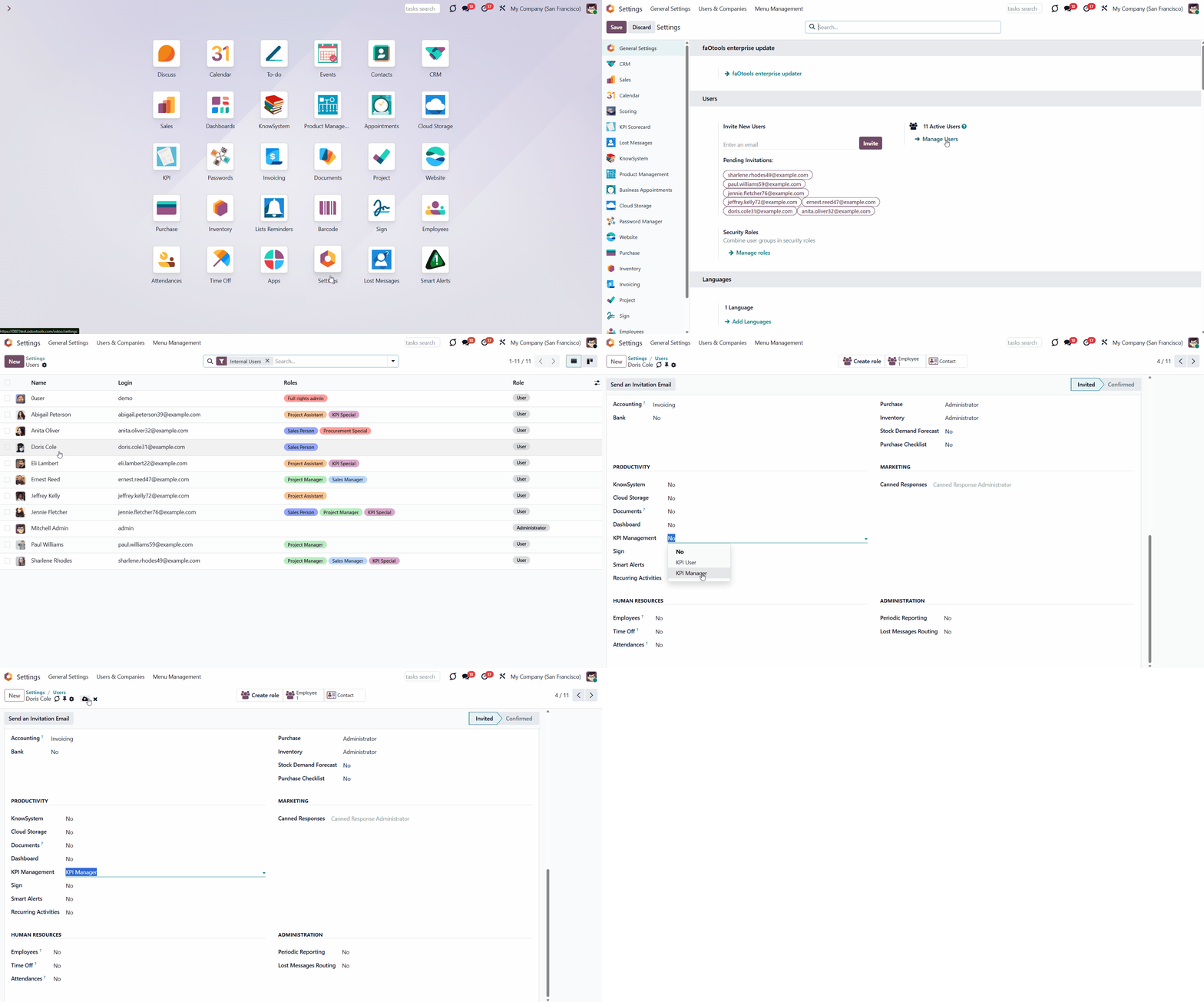
To assign a KPI Manager:
1. Go to Settings > Manage Users
2. Choose a particular user
3. Scroll to the section 'Productivity'
4. In the field 'KPI Management', choose the option 'KPI Manager'.
Multi-Company Environment
The module supports the multi-company environment. So, if you have several companies in your Odoo environment, then you face the following peculiarities:
1. The 'Company Field' should be chosen when a Basic measurement is created. So, when you create a Variable to calculate something within a particular company and choose the company, the module will know where to find the information
2. Basic measurements and Categories are general and seen by all companies
3. Variables, Constants, and KPIs can be either mutual (available for both companies) or company-related (only the related company will see those)
4. KPI Targets and Periods are seen only within the company where they were created (even the general ones, which refer to the parent company)
5. The KPI Manager may only manage those KPI Targets that refer to the manager's company. If the KPI Manager has access to several companies within the platform, then it is possible to switch between them in the top right corner
Users who belong to one company but are granted access to KPIs or KPI Categories of another company they do not have access to will not be able to see those KPIs.
Configuration Page
The module includes a configuration page where you can make the necessary changes to streamline your workflow.
History Tolerance: define how to distinguish similar periods. For example, 7-day periods might be compared to 5-day and 9-day periods. Then, tolerance should be 2. If you have monthly or quarterly periods, you should have at least a 3-day tolerance (see KPI History and Trends).
Configure Cron Job: specify when and how often KPI actual values should be recalculated (see KPI Targets).
KPI tags: turn on to structure KPIs by tags (see KPI Tags).
Show Help: add a special tab 'Help' to KPI objects to get information about them. For example, if enabled, you can find a 'Help' tab as you create or edit a 'Basic Measurement' with information about this type of measurement and its calculation types and settings.
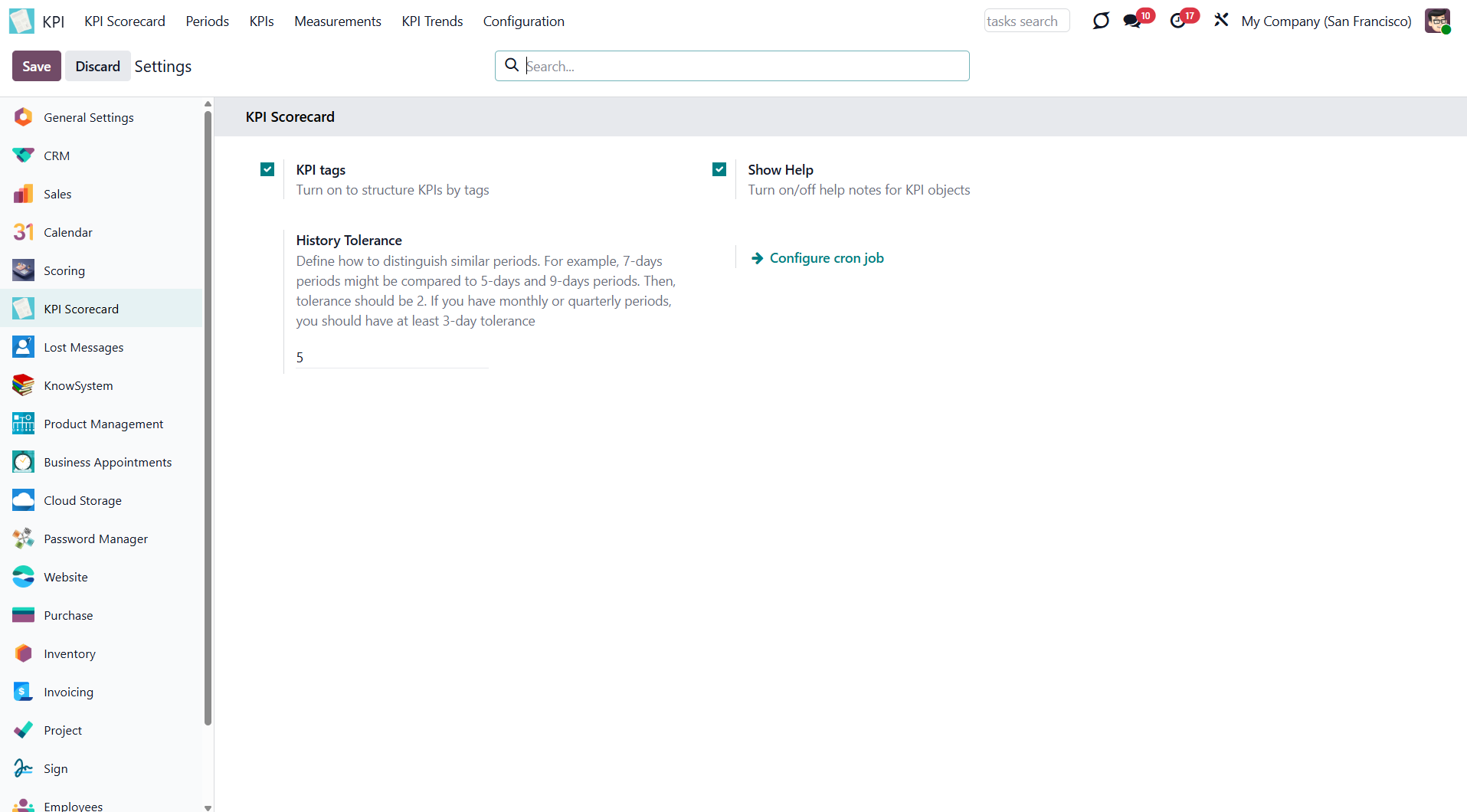
About KPI Balanced Scorecard
KPI Balanced Scorecard is an Odoo app that allows users to set KPI targets and track their fulfillment over periods. The app introduces a convenient KPI dashboard for managing both company and personal targets. It helps organize work into a set of periodic goals and manage them across any business or functional area. For that purpose:
- The app introduces a clear system to get Odoo storable details: a count of records, a sum or an average of numeric fields, or even pure Python code.
- Actual values are recalculated by a dedicated Odoo cron job. So, it is always possible to identify which KPIs require more attention at a glance.
- You can share KPI targets with interested users to organize a transparent dashboard of goals, from global to particular ones.
- It is possible to consider only those KPIs that are of interest: for example, only sales-related or for a definite user. Hierarchy allows highlighting targets with indicative padding for an instant overview of sub-KPIs.
- Help hints are available for most objects to simplify KPIs setup (turn on/off help tabs through the app configuration page).
- The module supports a multi-company environment, and, therefore, all KPI calculations and settings are configured for each company separately.
Set KPI Targets by periods
Drag and drop interface for KPI formulas
Use any Odoo data to calculate KPIs
Auto and regularly updated KPIs
Concepts and terms
Here, you can find all the terms used in the documentation.
KPI (KPI Formula, Key Performance Indicator) – the formula/instruction for Odoo that defines how to calculate figures based on existing Odoo data and settings. This central configuration object enables the tool to construct mathematical expressions via drag-and-drop. Examples of KPIs are 'Total Sales in Europe' and 'Done Tasks per Day of John Brown'.
A KPI Period – a time frame for which companies set their targets to control performance (in a similar way as financial performance is controlled within accounting/fiscal periods). You can set periods of any length, and for any date. Typically, an annual (2026, 2025), quarterly (Q1 2026, Q2 2026), or monthly (Jan 2026, Feb 2026) approach is applied. KPI Targets are calculated for each specific period.
KPI Target – actual company goal based on a specific KPI and KPI period. It allows you to set a planned KPI value and automatically calculate the actual value based on Odoo data and the KPI formula for this KPI period. Responsible managers regularly set KPI targets for each analytic period and may share them among interested users to continuously control results. These are the examples of KPI Targets: Total Sales in Europe in 2026 (target: $1,000,000; actual: $800,000); Done Tasks per Day by John Brown in July 2026 (target: 1,5; actual: 2).
Basic measurement – the core configuration object for retrieving actual KPI values from Odoo data. Although basic measurements are not used for formula constructions, they are required to prepare any formula variables. These are the examples of basic measurements: Aggregated Sum by Done Sales Orders (the period is defined according to a sale order date); The Total Number of Tasks in the State ‘Done’ (the period is defined according to the last stage update date).
Python code measurement – a specific type of basic measurement that requires technical knowledge and allows the creation of instructions for the module on how to get the data from Odoo.
Measurements (Variables) – a specification of a basic measurement. The key idea of distinguishing KPI Variables from Basic measurements is to simplify data preparation. You define 'Total Sales' once and then use it unlimitedly for 'Sales Europe', 'Sales John Brown', 'Website Sales', etc. Measurements are used to build KPI formulas (available for drag-and-drop).
Constant – the specific KPI Variables used when data can not be retrieved from modules, and/or when figures remain the same during the whole period. For example, 'Total Investments' or 'Number of Employees' are often frozen for a specific period. Constants are used to build KPI formulas (available for drag-and-drop).
KPI Scorecard – the special interface to configure and control targets, which are shown according to a chosen period. The interface allows you to choose, close, and reopen periods; set, substitute, and filter KPI Targets (see KPI History).
A KPI Category – KPIs storage, which is used for convenient navigation over KPIs and managing access rights to them. To control KPIs for specific areas, combine them into corresponding categories. For example, 'Sales KPIs' and 'Team Europe KPIs'.
A KPI Tag – a special object to structure KPI targets for convenient management and search.
KPI History – the special interface of a specific KPI target to control its KPI values for all periods, including a graph of similar periods.
Closing KPI period – the special action to stop KPI re-calculations and finalize the period results (it can be compared with closing a fiscal year).
KPI User – any internal user who can see or edit one or several KPIs or KPI Categories.
KPI Manager – the assigned user or users with full rights for all KPIs, regardless of the settings.
The difference between KPI and KPI Target
Two important concepts are used in the module: KPI and KPI Target. They have significant differences.
A KPI (or Key Performance Indicator) is a formula that represents a measurable value that demonstrates how effectively a company is achieving key business objectives. It is used to evaluate the extent to which a company's goals are achieved. It may focus on the overall performance of the business, of some smaller departments (sales, appointments, HR, etc.), or even particular employees.
The company's performance, based on a specified formula, is displayed in the 'Actual Value' column of the Single View Interface (see Single View Interface).
A KPI Target is a goal, a particular number/amount. It has guidelines and requires a calculation formula. Therefore, we can imagine it as Formula (KPI) + Period.
In the Single View Interface, KPI Targets are specified in the 'Target Value' column (see Single View Interface).
A KPI Target is set manually by the person responsible. To be valid, the goal should be SMART. The letter in the abbreviation SMART stands for:
1) Specific (related to a particular Odoo model)
2) Measurable (see Measurements)
3) Achievable (possible to fulfill)
4) Relevant (acute for the company development)
5) Time-specific (see Periods).
KPIs (key performance indicators) - measurements that evaluate a specific activity's organizational or personal success. Different companies have different KPIs depending on their strategy and business area. However, all KPIs share a common core attribute: they must be measurable within a target period. To that end, KPIs enable the construction of formulas to retrieve Odoo datasets and convert them into numerical figures. Formula preparation is as simple as writing down a mathematical expression: drag and drop formula parts in the right order with correct operators. KPIs, KPI periods, and KPI targets. KPIs are success metrics you can use to plan your company's activities. Simultaneously, measurements are almost senseless unless you have target values for those KPIs. That is possible only within a time-constrained period. For example, 'Sell as much as you can' is not a goal, whereas 'Generate 100,000 Euro Revenue in the year 2026' is a clear objective for a salesperson. To that end, KPI periods are introduced.
A combination of a KPI and a KPI period results in a KPI target. Exactly with those targets, you work on the scorecard interface. For each KPI you would like to manage in this period, you should define a planned value to compare to the actual value at the end of the period.
In this way, a KPI itself defines how to compute the actual value for a period and how to estimate the result ('the more, the better' or 'the less, the better'), but does not assume setting targets. The latter should be done for each period.
Basic Measurements
Basic measurements are the core object for retrieving actual KPI values from Odoo data. Although Basic measurements are not used for formula constructions, they are required to prepare any Variable.
A Basic measurement provides the most general instructions for the module to retrieve the data, while Variables specify the data to retrieve. For example, 'Total Number of Sales Orders' should be a Basic measurement. In contrast, a narrower 'Number of Quotations of the Sales Team Europe' is recommended as a precision of that basic measurement - Variable. Each Basic measurement may have an unlimited number of linked Measurements (Variables).
By default, the KPI module contains some Basic measurements, which you can use to create Variables.
To create a Basic measurement:
1. Go to Measurements > Basic Measurement
2. Click 'New'
3. Type a name and optionally add a model type before it (for example, [purchase]) to find the measurement quickly
4. Choose a KPI Type to activate a set of further fields and define the way the module will get the information for calculations (for example, the records can be counted, or the value of particular record fields will be counted)
5. Choose a Model, an Odoo object from which the data will be taken (for example, Sale Orders, Purchases, Quotations)
6. Based on the KPI Type, you will see a set of other fields
7. Add a 'Measure field' for the analysis (the fields from which the module will take the data to count, to calculate the sum of records, or count the average value of the fields (Only for types: 'Sum of records field', 'Average of records field')
8. Add one or several date fields (those will be considered in the calculations when the period is stated, for example, order date or delivery date). If you choose several fields, then for the record to be considered for calculations, both of those fields should be within the period
9. Add a company field for the analysis if you work in a multi-company environment (for example, if you have two or more companies, you may want to calculate KPI for each of them, so for the app to be able to distinguish companies, the field should be added as you create a Basic measurement)
10. It is possible to add some filters. However, it is recommended to add only basic ones and then specify them while creating a Measurement (Variable) (thus, your Basic measurement will be more general, and you will have more possibilities for creating a Variable. For example, you created a Basic measurement 'Sales Total', which you can use to create Variables: Sales Total Team America, Sales Total Team Europe, Sales Total John White...).
The first field, 'KPI Type', defines how Odoo data should be calculated:
1) Choose the KPI Type 'Count of records' if you want to count all matching records, for example, the number of registered leads or the number of posted customer invoices
2) Choose the KPI Type 'Sum of records field' if you want to sum up a particular number field of records, for example, the sum of the total amount of all orders, or the sum of paid taxes by invoices
3) Choose the KPI Type 'Average of records field' to get the average of record's number of records, for example, average planned hours per task or average days to assign a lead
4) Choose the KPI Type 'Executing Python code' to compute any figures based on any Odoo data. This type requires technical knowledge (see Executing Python code)
The second field, 'Model', defines an object from which the information is taken. It assumes that you determine how records should be searched and which record fields should be used for computations. For example, 'Sales Order', 'Task', 'Lead/Opportunity'. You can also rely on standard or custom objects (including those created in the Odoo studio)
The third field, 'Measure field', is required only for calculating the KPI types 'Average' and 'Sum'. It defines which figure you use for calculations, such as the 'total amount' of the Sales Analysis Report or the 'work hours of tasks'. It is a 'Column' in the database table related to the model above.
The list of fields varies by chosen model. For example, the 'Articles' model has measure fields such as the number of likes or dislikes, and the number of times it is referred to in emails. The 'Sale Order' model has total, delivery orders, and invoice counts.
The fourth field, 'Date fields', is required to determine whether a specific document type falls within the considered period and to define how to distribute objects by time intervals. It assumes that you define how records should be searched and which record fields should be used for computations.
Each model has a list of available date fields. The object's fields that store time-related information can be selected. For example, for tasks, you might use the create date to analyze jobs registered within this KPI period (e.g., 'Total number of tasks created in January 2026'), the order date for a sale order, the revision date for an article, and the reserved time for an appointment.
For example, you create a Basic measurement 'Total Sales' for the model 'Sales Order'. In the 'Date Fields' field, you choose 'order date'. Then, after creating the corresponding Variable and KPI Formula, you set a KPI Target of $100,000 for the Period 'The Year 2026'. The module will receive instructions to consider only sales orders created during this period. Sales orders from the period will be used to calculate the actual value.
It is also possible to apply a few date fields, so matching ALL those date objects will be considered(e.g., 'Opportunities opened and won in January 2026').
If date fields are not specified, the calculation will consider all records across all time periods. For example, you created the Basic measurement 'Total Sales' and left the date field empty. After setting the KPI Target, the module won't receive instructions on how to filter objects by date or where to obtain the date information. That means the KPI Period would not influence this Basic measurement. Therefore, all existing sales orders, regardless of the period, will be used for calculations.
The fifth field, 'Company Field,' is required for a multi-company environment. This field instructs the module on where to search for the related company model.
Even after selecting this field at the Basic measurement level, you can create a global Variable that counts the result, ignoring the company. For that, leave the field 'Company' empty.
For example, you create a Variable 'Total Sales Chicago' based on the Basic measurement 'Total Sales', and in the 'Company' field, select 'Company Chicago'. If you didn't select the field on which the module will decide to which company an object relates (while creating the Basic measurement), then as you set the KPI Target, you still will see the global result - the total sales of all teams.
The 'Filters' section displays records for the selected module, which will be used to calculate values. 'Filters' also allow you to restrict records set by any stored field. For example, you can count only won opportunities by stage settings, or only posted customer invoices by journal entry type and state.
Let's add some filters to create a Basic measurement 'Posted Customer Invoice'. In this case, we need to filter records by type and status. The first filter is 'Move Type is equal to Customer Invoice', and the second one is 'Invoice Status is equal to Open'. Above the filtering options, we can choose whether the records should match ALL or ANY of our filters. When we select ALL, only records that match both move type and invoice status are included in subsequent calculations. Click on 'N records' to see all the matching invoices.
It is recommended to use 'Filters' for low-level filtering in Basic measurements and then specify them in KPI Variables. This way, you avoid double work and create more Variables based on one Basic measurement.
Also, avoid adding dates to the filtering options, as you will be required to change dates every time you create a KPI Target for a new Period. If you don't add date restrictions as a filter, you can simply 'Substitute Targets', and records will be analyzed based on the fields chosen in the fourth field, 'Date Fields' (for example, 'Create Date') (see KPI Scorecard).
Executing Python code
'Python code' is a special type of basic measurement. This type requires technical knowledge, but lets you compute any figures from any Odoo data without restrictions. Such measurement might be any Python basic script with the possibility of SQL queries (through using 'env.cr') In calculations, you may rely upon the special variables: 'period_start' (the first date of the period), 'period_end' (the last date of the period), 'period_company_id' - res.company object for which Odoo makes calculations at the moment (according to a KPI period under consideration) Correct Python code assumes saving the value into the special variable 'result'.
Basic measurements for the 'Execute Python code' type can no longer be specified because they do not correspond to any records. However, such measurements should be linked to a single KPI variable.
Basic Measurements Examples
Based on one Basic Measurement, you can create multiple Variables for different KPIs (see Measurements (Variables)). Here are some Basic Measurement Examples that you can make:
The Purpose of the Basic Measurement is to count all Leads and Opportunities. This way, you can find the exact number of Leads and Opportunities your salespeople processed.
The Basic Measurement that sums the total value of All done Sale Orders. Choose the 'Measure field' - 'Total', so the module will sum the value from it. To consider only 'done' orders, add 2 Filters: Status is equal to Sales Order; Status is equal to Sales Done. Make sure that records match 'Any' of those filters. This way, you can determine how much the company earned on sales.
The Purpose of the Basic Measurement is to count all posted customer invoices. In the field Filters, choose 'Type is equal to Customer Invoice' and 'Status is equal to Posted'. This will tell you how well the sales process goes.
The Basic Measurement that sums the total value of All Purchases. Choose the 'Measure field' - 'Total', so the module will sum the value from it. This way, you will know how much was spent on the vendor's products over a particular period.
Count all the product quants in stock. This way, you can find out how many products are available for sale.
The Basic Measurement can count the number of days for which all tasks were completed. This way, you can find out how much time your workers need to finish their work.
When the appointment time isn't set and can vary, create this Basic Measurement to track the average appointment time. For example, the average time users rent a car. This way, you can determine what services require more time and, therefore, introduce interesting discounts to make other appointments last longer.
Use the Basic Measurement 'The Total Number of Likes' to assess the quality of the articles in general. To consider only popular articles, add a Filter Views > 10. This way, you can see the users activity on the article's page and whether the articles are successful.
Constants
KPI Constants are a special type of KPI Variable used when data cannot be retrieved from modules or when figures remain the same throughout the period. For example, 'Total Investments' or 'Number of Employees' are often frozen for a specific period.
Compared with measurements, KPI Constants are fixed and do not depend on actual Odoo data. This allows the introduction of figures that cannot be retrieved from modules and/or should remain constant throughout the whole period. For example, you might set the 'Total Size of Investments' to calculate return on investments or the 'Number of Salesmen' to get sales revenue per person.
To create a Constant:
1. Go to Measurements > Constants
2. Click 'New'
3. Type the constant's title
4. Put the global value (the number, which will be used for all periods except for the specified ones).
KPI Constant value might be defined for each period.
Besides, for each period, the app automatically calculates a parent period. If one period is fully contained within another, the latter is considered a parent for the former. For example, Y2026 (01/01/2026 - 12/31/2026) is a parent of Q3 (07/01/2026 - 09/30/2026); Q3 is a parent of July (07/01/2026 - 09/30/2026); but for 06/30/2026 - 07/31/2026, the parent would be Y2026, since this period is not fully inside Q3.
The global value is applied if there is no value for this period and for its parent.
To define a value for a particular time frame:
1. Start creating or editing a Constant
2. Find the tab 'By periods' and click 'Add a line'
3. Choose an existing period and type the value for this period that will be used for calculations instead of the global value.
As an example, let's create a constant 'Number of Employees'.
The Global Value - the general number of employees - is 20. This value will be used for all calculations containing the constant 'Number of employees'.
For example, let's create a constant 'Number of Employees'.
However, during the year, we experienced some changes. In the first quarter of 2026, the company had 18 employees. During the second quarter, we hired one additional employee, bringing our total to 19. So, let's add the values for these periods. Now, 18 is used for calculations for the first quarter of 2026 and 19 for the second.
As we don't state the number of employees for the third quarter, the value for its parent - Y2026-'21' will be used for calculations.
Quarter 4 of 2025 doesn't have a value and doesn't have a parent value, so the global value - '20' - would be applied.
Measurements (Variables)
Measurement (Variable) - is a specification of a basic measurement. The key idea is to simplify data preparation. You define 'Total Sales' once and then use it unlimitedly for 'Sales Europe', 'Sales John Brown', 'Website Sales', etc.
Specify Basic measurements through the Odoo built-in domain constructor, which lets you filter by any storable attributes. Create a variable to add more filters to Basic measurements.
For example, create a Basic measurement 'Sales Count' for the Model 'Sale Order', which counts the number of sale orders. The Basic measurement uses the KPI Type 'Count of records'. Apply filters Status is equal to 'sale'; Status is equal to 'done' to the Basic measurement. Based on the Basic measurements, you can create other Variables: Sales Count America and Sales Count Europe using the filter 'Sales Team > Sales Team contains 'Europe'/ 'America'. You can also create a variable to count sales of a particular salesperson by the filter 'Salesperson ID is equal to 2'.
Another example is based on the Basic measurement 'Opportunities: Average Expected Revenue' for the Model 'Lead/Opportunity', which calculates the average revenue and uses the KPI Type 'Average of records field'. Based on this measurement, you can create a Variable to count the average expected revenue only on the 'Won' stage. For that purpose, use the Filter 'Won/Lost is equal to Won'. You can also create a Variable to view the expected revenue for a particular salesperson, including opportunities at the Won stage only. You can use the same filter, 'Won/Lost is equal to Won', and add one more filter, 'Salesperson ID is equal to 2'.
Based on one Basic measurement, you may create as many Variables as you need. You can also create a Variable by linking it to a Basic measurement (Basic measurements are not used to create a formula by themselves). For example, create a Basic Measurement 'Total Sales' and link it to a Variable 'Total Sales'.
An exception is Basic measurements of the 'Execute Python Code' type. As they work on the code level, they cannot be specified anymore. So, there can be only one linked Variable (see Execute Python Code).
There are two default Variables that you can use to create formulas within the time frame. You can find them in the formula wizard (see KPI Scorecard). Those are:
1. 'Period Days' (the number of days in the period). KPIs using this Variable calculate resultusing this Variable calculate results based on the number of days in the current period. For example, the Q3 (07/01/2026-09/30/2026) Period Days would be 92.
2. 'Days Passed' (the number of passed days in the period). KPIs using this Variable calculate results based on the number of days in the current period. For example, in Q3 2026, on the 15th of July, there are 15 days; on the 1st of September, 62 days; and on the 30th of September, 92 days.
For example, you can see the Total Sales per Day. Both Variables apply to this KPI, but in the first case, you will see the correct result only on the last day of the period because it compares the actual value to the total number of days in the period, even if the period is a month. And, at the moment, only a few days have passed. The Variable 'Days Passed', by contrast, will always yield a more accurate result, as it compares the actual value with the number of days that have passed. And each day, the number of days will change (+1).
Let's create a KPI 'Total Sales' with the Variable 'Period Days' to determine how much you earn per day. Set the KPI Target for the third quarter of 2026. The period is 92 days long, so Total Sales will be divided by the number of days in the period. The results will not be accurate at the start of the period because a few days or weeks have passed, and the period is not yet over.
Now, let's create the same KPI using the 'Days Passed' variable. Here, Total Sales will be compared with the number of days already passed. This number is dynamic and changes over time. So, we set a KPI Target for the 3rd quarter of 2026. Today is the 15th of August; therefore, only 46 days have passed. Today, total sales will be compared with those from 46 days. Tomorrow, with 47 days. So, the result is much more accurate than when we use the 'Period Days' variable (which is accurate only on the last day of the period).
Variables are used to create a KPI. The KPI may relate to a particular company. As you create a Variable, choose the company it relates to, so only the objects related to the company will be considered for calculations. Therefore, you can calculate, for example, the 'Total Sales' of each of your companies separately. For instance, create a Variable 'Sale Team America > company USA' and 'Sales Team Europe > company Belgium' and assign each to the corresponding company. If you don't specify the company, KPI Variables are available to all users across all companies. Otherwise, users would only be able to see those related to company objects under a certain company.
To create a Variable:
1. Go to Measurements > Measurements (Variables)
2. Click 'New'
3. Type the name of the Variable
4. In the field 'Measurement', choose a Basic measurement
5. Choose a company or leave the field empty to make this Variable global
6. Optionally add some filters.
From a Basic measurement form view, you can access all linked variables:
1. Go to Measurements > Basic measurements
2. Open any Basic measurement
3. In the top right corner of the Basic measurement, you will see the number of Variables based on it
4. Click on the button to see the list of Variables
5. Click on any Variable to see its card.
Variables Examples
Here, you can find some possible Variables that specify useful Basic Measurements (see Basic Measurements Examples).
1. Basic Measurement - Leads and Opportunities Count
You can separate Leads from Opportunities to see the results for each separately. To do so, add the extra filter Type is equal to Lead or Type is equal to Opportunity.
See only Leads and Opportunities with high probability. Add the extra filter Probability is greater than 70, where 70 is the percentage number.
See only won Opportunities to compare their number by periods and track work effectiveness. Add the extra filter Won/Lost is equal to Won.
2. Basic Measurement - Confirmed/Done Sale Orders Total
Even if there is no need to specify the Basic measurement, match it to a Variable so it is visible in the formula wizard. Basic measurements are not used to create a formula (see Basic Measurements). Create a Variable 'Total Sales' to know the amount of money earned from sales.
Specify the Basic measurement to view the total earned by a particular team. For that, add an extra filter with the team name: Sales Team > Sales Team contains 'Europe'. If you have several teams and want to see the Total result for each team, you need to create a Variable for each team.
You can also see the results for each salesperson, motivating employees to sell more and earn benefits. Add the extra filter with the person's ID, e.g., Salesperson > ID is equal to 9.
3. Basic Measurement - Customer Invoices Count
Specify the invoices by their status. Add the extra filter Status is equal to Posted to count all the posted invoices.
Track the number of cancelled invoices to take timely measures and determine the problem if too many were cancelled. Add the extra filter Status is equal to Cancelled.
Find out how many invoices with the high Total amount were created. For that, add the extra filter Total greater than 100.
4. Basic Measurement - Purchase Order Total
Even if there is no need to specify the Basic measurement, match it to a Variable so it is visible in the formula wizard. Basic measurements are not used to create a formula (see Basic Measurements). Create a Variable 'Purchase Order Total' to display the total amount spent on products.
If you have vendors from various countries and pay them in different currencies, you can add, for example, the extra filter 'Currency is equal to USD'. This way, only purchases in US dollars will be considered.
Simultaneously, you can convert all currencies to the default company currency to see the result. In this case, to calculate the purchase total regardless of the currency, you can set another Basic measurement and a Variable.
To that end, edit the Basic measurement or create a new one and change the Model to 'Purchase Report'. This kind of Model and similar ones (like Sale Report, etc.) are insensitive to currency. So, the total will already be summed in the default company currency.
For example, create a Basic measurement 'Purchase orders total in default currency' and choose the Model 'Purchase Report'. Add an additional filter by country or vendor (e.g., Partner Country contains US), and the results will be displayed in the default currency.
Specify the Basic measurement to calculate the money spent on the products of a particular vendor. Add the extra filter 'Vendor is equal to Azure Interior'.
5. Basic Measurement - Working Days to Close
Connect the Basic measurement to a Variable with the same name to see how many days it took the company to finish all the projects.
Create a Variable to see the number of days that Anita Oliver needed to finish the projects assigned to her. For that, use the extra filter with the worker ID 'Assigned To > ID is equal to 9'.
Create a Variable to display the number of days the company spent completing the project. For that, use the extra filter with the Project's title 'Project > Name is equal to 'Software Continuous Development'.
6. Basic Measurement - Products in Stock
Specify the Basic measurement to count the stock of products with incoming inventory for a particular warehouse over a specified period. For that, add an extra filter with the location title 'Location contains WH'.
Count the incoming inventories of only expensive products in your shop. For example, those priced over $100. To do this, add the extra filter 'Product > Sales Price greater than 100'.
Calculate the incoming inventory of a specific product or products. Add an extra filter with the product's name, for example, "Product contains Large Cabinet".
7. Basic Measurement - Average Duration of an Appointment (for the module Universal Appointments)
If you hold multiple appointments in different languages with varying durations, you can filter them by language and calculate the average appointment duration. The partner's language determines the appointment's language.
Calculate the average time for an appointment for a particular service to see which service customers book more time for. Add the filter with the name of your service: Service is equal to Car Rent Class C.
Track which of your employees' customers book more time. Add the filter 'Responsible is equal to Anita Oliver'.
8. Basic Measurement - The Total Number of Likes in an Article (for the module KnowSystem)
Track the number of likes for the articles that are published. This way, you can track likes only for articles that both internal and portal users can like. Add the extra filter 'Is Published is set'.
See the total number of likes for articles with a particular tag. You can later compare articles with which tag gets more likes and, therefore, is more popular among users. Add the filter with any of your tags, for example, 'Tags is equal to Odoo'.
Consider the number of dislikes for an article while counting the total number of likes. Add the extra filter 'Dislikes Number lower than 5'. With this Filter, only articles with four or fewer dislikes will be included in calculations.
KPI Periods
The KPI Scorecard assumes you have not only an overview of actual figures but can also compare them against targets. However, goals should be time-constrained (for example, 'Sell as much as Possible' is not a goal, while 'Generate 100,000 Euro Revenue in the year 2026' is a good target for a salesperson). That is why KPI Periods are introduced.
A KPI Period is a time frame within which companies set their targets to control performance (similar to how financial performance is controlled within accounting/fiscal periods).
The app allows setting periods of any length, including overlapping intervals (and even past periods). For example, you can create ordinary periods in years, quarters, months, weeks, and days, such as 'The Year 2026', '1st Quarter of 2026', '2nd Quarter of 2026', 'September 2026', etc. Or make unusual periods — 'September 1st to 17th' and 'September 7th to 30th'.
When periods cross each other, like in 'The Year 2026' and '1st Quarter of 2026', the objects that were created during the crossing time are used for calculations in both periods. For example, we had 100 sales in 2026, and 20 of them occurred in the first quarter.
There are two ways to create a period: through the separate menu or directly from the KPI Scorecard interface.
To create the period from the KPI Scorecard Interface:
1. Click on the button 'New'
2. Write the title of the period
3. Choose dates
4. Optionally choose the period to copy the KPI Targets from (to avoid the double work and not to create them again)
5. If you have more than one company, choose the one for which you create the period (in multi-company mode, it cannot be global; it should be created for each company separately).
To create a period from the separate menu:
1. Go to the tab 'Periods'
2. Click 'New'
3. Type the period's name
4. Choose the start and end date
5. In multi-company mode, choose the company
6. Optionally add some KPI Targets right from here.
The chosen dates will be used to calculate the KPI's actual value. For example, a KPI formula might include a basic KPI measurement for the total number of sales orders, with the date field set to 'Order date'. Then, only sale orders with an order date within the period will be considered. Thus, the KPI Scorecard would show the total revenue for a given period. This way, the KPI can be used for any period and as many times as needed. The dates will be taken from the period where the KPI Target (based on the KPI) is set.
It is recommended to use a consistent logic for periods to compare results across specific periods and display them in a graph. Usually, KPI targets are set for a whole year and at quarterly/monthly intervals. It lets us not only view KPIs but also check historical trends.
The app automatically considers multiple time periods for comparison and displays a chart of actual values for a specific KPI. To consider periods similar, they should have the same number of days adjusted for a history tolerance.
In the KPI single view interface, click the 'History' button to view the automatically generated graph of the KPI Target for various periods. Below the graph is a table showing the selected KPI Target for all periods, regardless of the number of days in each period. Also, you can analyze tendencies by periods on the special 'KPI trends' interface (see KPI History and Trends).
When the end date has already passed, it is preferable to close the period to avoid further updates to KPI target actual values due to subsequent corrections (for example, updating December KPIs in August is not a good practice, even if a sale total needs to be corrected). This action is essentially the same as when an accountant closes a fiscal year.
Close periods that have already passed to avoid further recalculations and lock the values. You can always reopen a period if you closed it by mistake or want to revise something. There are two ways to close and reopen a period:
1. From the KPI Scorecard Interface, in the left navigation panel
2. In the tab 'Periods', by choosing a period and clicking 'Close Period'/ 'Re-Open Period'.
KPI Periods let you copy targets from existing periods (so use them as a template). To that end, just push the button 'Substitute targets' and select a period with proper KPI Targets. After that, a list of KPI targets for the chosen period will be created for the current period as well. The KPI formula and KPI Target will remain the same, but calculations will already take place for the current period.
For example, you have 3 KPI Targets (Total Sales - 10000$; Sales Orders Count - 100; Europe Sales Share - 60%) for the first quarter of 2026 - period 'Q1 of 2026'. You create the period that represents the second quarter of 2026 - 'Q2 of 2026'. When you open the period, it is empty, and you need to set KPI Targets. Then, instead of creating each one again for the second quarter, you can substitute targets. This way, the list of KPIs is copied to the current period, and in both periods, you see the same list of KPI Targets (Total Sales - 10000$; Sales Orders Count - 100; Europe Sales Share - 60%).
It significantly reduces time, since KPI targets typically remain similar across periods of the same length. After that action, you can still change the KPI Target for the current period and calculate the Actual Value for the donor period (until you close the period).
To substitute targets:
1. Open the new period in the left navigation panel, to which you want to copy the KPI Targets
2. Choose the period from which you want to copy KPI Targets
3. Click 'Substitute Targets'
4. All KPI Targets from the chosen period will be copied to the new period
5. Delete the ones you don't need anymore by clicking on a cross on the KPI card.
KPI (KPI Formulas)
A KPI or KPI formula is an instruction on how to get the required data from Odoo for further calculations. That determines how to count the 'Actual Value' in the KPI Target card. This is the third and final step in retrieving data from Odoo.
There are the following levels of getting the data from Odoo:
1. Basic Measurements (the core configuration object used for retrieving actual KPI values from Odoo data)
2. Constants (the value that cannot be extracted from Odoo, but you need it for calculations) and Variables (the connected or specified basic measurements that are required to make a formula)
3. KPI (the formula/instruction for Odoo that defines how to calculate figures based on existing Odoo data and settings)
KPI formulas might combine any number of variables, constants, and other KPIs with mathematical operators. Basic Measurements cannot be used to build a KPI.
The drag-and-drop formula for KPI construction is as simple as writing down a mathematical expression: just drag and drop the parts in the right order with the correct operators. Odoo automatically retrieves data from a database based on a defined parts order for a specified period.
Creating a KPI
To create a KPI formula:
1. Go to the tab KPIs
2. Click 'New'
3. Drag & Drop Operators, Measurements, Other KPI, and Constants to create a formula (see The Interface of the Formula Wizard)
4. Below the Formula wizard, choose the category of the KPI (see KPI Categories)
5. Choose a parent KPI (see KPI Scorecard Interface)
6. Optionally, if you turned on 'KPI Tags' in configuration, assign one or several tags to the KPI (see KPI Tags)
7. Choose a company for the KPI (see Access Rights)
8. Apply the success criteria (The more, the better, The less, the better) (see KPI Settings)
9. Choose the result type (see KPI Settings)
10. Optionally add result prefix and/or suffix (see KPI Settings)
11. Choose how to round decimals (see KPI Settings)
12. In the tab 'Extra Targets Security', set the access rights for the current KPI formula (see Access Rights)
13. Optionally, add some notes in the tab 'Notes'.
There is a way to view all created KPIs individually to review their formulas or settings. To switch between KPIs quickly:
1. Open any KPI in the tab KPIs
2. Move between KPIs with the help of the back-and-forth arrows.
The Interface of the Formula Wizard
The Formula Wizard is the central configuration object. It introduces a tool for constructing mathematical expressions in a user-friendly drag-and-drop interface. The convenient interface makes it easy to create and configure KPIs (see KPI Settings).
The interface is divided into two parts: the left part, which contains elements for the formula, and the right part, where you create the KPI.
In the left part of the interface, you see the following elements, which can be used to create a KPI:
1. Various operators
2. KPI Variables (including the default Variables 'Period Days' and 'Days Passed', which are required for introducing a time frame into the formula) in the tab Measurements (see Measurements (Variables))
3. Other KPIs (the previously created formulas)
4. KPI constants (see Constants)
The Other KPIs section contains previously created formulas that you can use to create even more complicated ones. For example, 'Opportunity to sales success ratio' is based on KPIs 'Sales count' and 'Opportunities Count'.
The formula might be as complex as you require. The available operators are:
1. Subtraction (-)
2. Addition (+)
3. Multiplication (*)
4. Division (/)
5. Opening and closing brackets
6. Exponent (**)
7. Custom float number (write any number in the box to use it in your formula)
Ensure the operators comply with basic Math rules.
To create a KPI, move elements from the left side of the interface to the right side by Drag & Drop. When elements get to the right side, they change their color according to their type:
1. Operators become red
2. Measurements become green
3. Other KPIs become blue
4. Constants become grey
This makes them easier to distinguish in the formula.
If the formula contains any critical errors, a warning will be displayed above.
KPI Settings
After creating a formula via drag-and-drop, you must complete the setup by configuring its settings. The tab 'Settings' is located below the formula wizard.
There, you can set:
1. Category (see KPI Categories)
2. Parent KPI (see KPI Scorecard Interface)
3. Tags, if the feature 'KPI Tags' is enabled in configuration (see KPI Tags)
4. Company (if you work in a multi-company environment)
5. Sequence (see KPI Scorecard Interface)
6. Success criteria
7. Result type
8. Result Prefix
9. Result Suffix
10. Currency (for the monetary result type)
11. Rounding decimals.
To track the result in the column 'Actual Value' in the KPI Scorecard Interface, which is marked by the color (see KPI Scorecard Interface), you need to choose the success criterion. There are two available success criteria: 'The more, the better' and 'The less, the better'.
For example, use the criterion 'The more, the better' in KPI 'Total sales' or 'The number of sales for 2026'.
For example, use the criterion 'The less, the better' in KPI 'Canceled orders' or 'Lost Opportunities'.
You can also choose the KPI's result type. There are three options: number, percentage, and monetary. The fields change depending on the result type. There are three options: number, percentage, and monetary. The fields change depending on the result type.
To the number and percentage result types, you can add a prefix and a suffix to make the results look good. 'Prefix' is a word or a sign that will be displayed before the result. 'Suffix' is a word or a sign that will be displayed after the result. By default, the percentage result type has the suffix %, which can be changed.
The monetary result type doesn't include the 'Prefix' and 'Suffix' fields, but it adds the 'Currency' field, which lets you select one of the supported currencies.
The module's KPIs don't convert currency, so for accurate calculations, all company transactions should be in a single currency. Optionally, you can use the 'Sales Analysis reports' model when you create a basic variable. Then, the currencies will be converted into a single currency, which is the company's default.
Sometimes, in some formulas, the result may have a remainder, for example, after division. To improve results, define rounding rules 1 - 4 decimals (1 > 1.2 > 1.23 > 1.235 > 1.2346). After that, only up to 4 digits after the decimal point will be shown.
KPI Examples
Here, you can find some useful examples based on our previously created Variables. We can distinguish several kinds of formulas:
1. KPIs, consisting of one Variable. This kind of KPI doesn't require any other operators. The whole formula is one Variable. To create such a KPI, drag and drop the required Variable to the right side of the interface.
All Variables from the example list can be used to create such KPIs. To set a KPI target, create the corresponding KPI.
2. KPIs, consisting of 2 or more Variables. This kind of KPI is a complex formula that combines several Variables and operators.
Here are some examples with previously created Variables:
Use this KPI to see the percentage of won opportunities. The number of opportunities on the stage 'Won' is compared with the total number of opportunities.
For example, you have 5 won opportunities and 10 opportunities in total. The set KPI Target was to have at least 70% of the won opportunities. Thus, the result is negative, as only 50% of the won ones are present.
Keep in mind that to count the result as a percentage, you need to choose the Result Type 'Percentage'. As for the success criteria, it should be 'The more the better' as we want to win opportunities to prevail.
Use this KPI to see the percentage of sales of one of your teams, for example, Europe. The total earned by the team Europe is compared with the total earned by the whole company.
For example, the team Europe earned $100, while total sales were $ 1,000. With 20 teams, the KPI Target was to achieve 5% of total sales. The team delivered great results, doubling the target. Whether that was the success of the team Europe or the failure of the other teams remains to be investigated.
Keep in mind that to count the result as a percentage, you need to choose the Result Type 'Percentage'. The Success Criteria can be 'The more the better', as the team should show good results.
Use this KPI to see the amount of money earned per employee. The total earned by the company is compared with the number of employees per company, which was created as a constant.
For example, total sales were $1000. We have 20 employees, and the KPI Target was to earn $40 per worker. The result is $50, so the target is reached.
The number of employees might vary over time. The corresponding configurations can be made while creating the constant. The constant will be chosen considering the period for which the KPI Target is set (see Constants).
The Result Type for receiving value in money should be 'Monetary'. The Success Criteria should be 'The more the better', as people tend to buy more at a time.
Use this KPI to see the average revenue per order. The company's total earnings are compared with the number of sales orders.
For example, total sales were $1000, and we had 50 sales orders; the KPI Target was to have the average receipt of $50. The result is $50, so the target is reached.
The Result Type for receiving the value in money should be 'Monetary'. The Success Criteria should be 'The more the better', as we tend to buy more at a time.
Use this KPI to see how much Anita Oliver earns daily. The amount of money she has earned is compared with the number of days it took her to close all her projects.
For example, Anita Oliver worked on five projects over 20 working days. In total, she earned $1000, so her daily earnings were $50. The KPI Target is to earn $60 per day, so the result is negative, and Anita should work faster.
The Result Type for receiving the value in money should be 'Monetary'. The Success Criteria can be 'The more, the better', as we want Anita Oliver to earn more money.
Use this KPI to calculate the percentage of canceled invoices. Compare the total number of invoices with the number of canceled invoices.
For example, about 50 invoices were created. Five of them were later canceled. The KPI Target was to have fewer than 5% of invoices canceled. The result is 10%, so the target is not reached.
The Result Type for receiving the value in money should be 'Percentage'. The Success Criteria should be 'The less, the better,' since we don't want invoices canceled.
Use this KPI to see the percentage of likes for an article with a particular tag. Compare the number of likes per article with the total number of likes for the tag.
For example, the total number of likes was 100. The number of likes for articles with the tag 'Odoo' was 40. The KPI Target was to achieve 50% of articles with the tag receiving likes. The result is 40%, so the target is not reached. But here, we also need to consider our KPI Target for the Total Number of Likes. We received many more likes than we hoped.
The Result Type should be 'Percent'. The Success Criteria can be 'The more, the better', as we want articles with the 'Odoo' tag to receive praise from readers.
3. Complex KPIs with Variables of time (Period Days, Days Passed)
Period Days - shows the number of days in a period.
Days Passed - shows the days of the period that have passed for the current day. Unlike the Period Days, it shows a more accurate result at the beginning of the period. When using period days, results may be drastic at the beginning of the month because there wasn't enough time to show improvement.
For example, you set the KPI Target to see Total Sales per Period. Let's say you want to earn $1000 per month (from 1.09 to 30.09). As of September 3rd, the company has earned $200.
If you use the KPI Formula Total Sales / Period Days, 200 will be divided by 30 (the total number of days in the period), and therefore, the result will be negative and will not reflect reality. However, $200 per 3 days is a good result compared to our target ($1000).
If you use the KPI Formula Total Sales / Days Passed, 200 will be divided by 3 (days passed by now), and the result will be marked as positive. Because the calculations run daily, the next day the module will already divide the Total Sales by 4, then by 5, and so on. So, the result will always be acute.
Use this KPI to see the average profit for a week. The total earned on sales is divided by the passed time (in weeks).
For example, we earned $1000 for the month. The KPI Target was $200 per week; the result was $250, so the target was met.
The Result Type should be 'Monetary'. The Success Criteria can be 'The more, the better', as we would rather earn more per week.
Use this KPI to see the average profit for a day. The total earned on sales is divided by the days passed.
For example, today is September 20th, and by now, we have earned $1000. The KPI Target was to earn $50 per day. The result is $50, so the target is reached. But we still have 10 more days until the end of September, so we should keep up with it.
The Result Type should be 'Monetary'. The Success Criteria can be 'The more, the better', as we would rather earn more per day.
KPI Categories
A KPI Category – a KPIs' storage, which is used for convenient navigation over KPIs and managing access rights to them. To control KPIs for specific areas, group them into corresponding categories. For example, to check targets only in sales (category 'sales') or targets of a specific sales team (category 'sales > sales team Europe').
Each KPI should be assigned to a single category so that the required targets can be quickly identified by checking the boxes in the scorecard interface.
Categories support hierarchy. A category may have a parent and sub-categories.
To create a category:
1. Go to Configuration > Categories
2. Click 'New'
3. Type the category's name
4. Choose the parent category, if any
5. In multi-company mode, choose the company
6. If you want some users or user groups to have access to see the category and its KPI Targets, state them in the 'Read Rights' section (see Access Rights)
7. If you want some users or user groups to have access to edit the KPI Targets of a category, state them in the 'Edit Rights' section (see Access Rights)
8. Optionally, add some notes in the tab 'Notes'.
Move the categories in the list (Configuration > Categories) by dragging and dropping them to change their sequence. This will help maintain a particular order in the left navigation panel of the KPI Scorecard Interface. Keep in mind that the order of sub-categories will not affect the order of the parent categories. Therefore, sub-categories will always follow their parent category.
If you have many categories and subcategories, you may find it difficult to navigate them and quickly select the ones you need. Thus, for extra convenience, a special search bar above the categories list in the single-view interface was introduced. Just start typing the word and click 'Enter' or the search button, and the matching results will be shown and marked red. Click the 'Reset' button on the right side of the search bar to clear the search.
KPI Tags
With tags, you can structure KPIs to manage related KPI Targets more effectively. This way, you can create your own KPI classification that reflects the specifics of your business. For example, tags can be created based on the scope of the related KPIs, the users involved, or their importance.
To create and manage KPI Tags, enable the 'KPI Tags' option in the module's settings. After that, the tree of tags will appear in the KPI Scorecard Interface, and the separate KPI Tags menu will appear.
There are two ways to create tags: through the separate menu or by typing the tag's name in the field 'Tags' and clicking the button 'create' as you create or edit a KPI Formula.
Tags support hierarchy. A tag may have a parent and sub-tags.
To create a tag through the separate menu:
1. Go to Configuration > KPI Tags
2. Click 'New'
3. Type the tag's name
4. Choose the parent tag, if any
5. In multi-company mode, choose the company
6. Optionally, add some notes in the tab 'Notes'.
In the field KPI Tags, you can assign tags to a KPI. A single KPI might have an unlimited number of tags assigned.
If you have many tags and subtags, you may find it difficult to navigate them and quickly select the ones you need. Thus, for extra convenience, a special search bar above the tags list in the single-view interface was introduced. Just start typing the word and click 'Enter' or the search button, and the matching results will be shown and marked red. Click the 'Reset' button on the right side of the search bar to clea'Reset' button on the right side of the search bar to clear the search.
KPI Scorecard Interface
After creating one or more KPIs, the next step is to set a KPI Target. Setting a KPI Target implies setting a goal. For example, to earn 50000 for the first quarter of 2026. Setting a KPI Target helps track the company's progress toward that goal and take preventive measures if there is a negative trend in current results.
The KPI Target is set for a particular period. In the main module interface, you can switch between all created periods to see the list of set KPI Targets for each.
Manage KPI Targets by updating target values as needed.
Set the KPI Target once and use it multiple times for different periods to avoid duplicate work using the 'Substitute Targets' function.
Compare the Actual Results for the same targets over similar periods on a graph to make future KPI Targets more realistic.
KPI Targets
KPI Target is the key element in evaluating the results of a company, its teams, or an employee's work. It is your plan for a particular KPI for a given period. By setting a target value, you indicate the result you want to achieve by the end of the period and track the actual result to identify gaps.
To set a target:
1. Click on the button 'Set Target'
2. Choose the KPI formula
3. Type the target value
4. Click 'Save & Close'.
The KPI Target is created for the period, that is chosen in the left navigation panel.
As you set the KPI Target, it appears in the target list in the main panel. Each KPI Target card includes the title, actual value, target value, and actions panel.
Actual value lets you track the current progress toward fulfilling the target's value. Depending on the chosen 'Success Criteria' (the more, the better; or the less, the better), the Actual Value is analyzed against the target value, and the result is marked with color (see KPI formulas).
If the actual value is red, then it shows a negative result. The green actual value shows a positive result. If you added some notes to a KPI, then the note will appear as you hover over the linked KPI Target.
A grey KPI Target with an exclamatory mark and 'N/A' in the field 'Actual value' shows that either there is not enough data for calculation, or there is a mistake in the formula. Hover over the exclamatory mark to see the error type.
The KPI interface displays a progress bar column that shows the percentage completion for positive goals and positive actual values. It works differently across different success criteria (the more, the better; the less, the better).
If the success criterion 'The more, the better' is chosen, then the shown colors have the following meaning:
1. Red - the KPI Target is under-fulfilled
2. Green - the KPI Target is fulfilled
3. Green with stripes - the KPI Target is over-fulfilled
If the success criterion 'The less, the better' is chosen, then the shown colors have the following meaning:
1. Red - the Actual Value is overspent
2. Green - the Actual Value is within the KPI Target
3. Green with stripes - the Actual Value is lower than the KPI Target and can be further raised
If the percentage exceeds 100, it is still shown graphically up to 200, while the width of each row remains 1%.
On the right side of a KPI Target's card, there are some buttons that you can click:
1. Change Target
2. See the history
3. Delete Target
To change the Target, click on the 'Change Target' icon on the right side of the KPI Target. In the pop-up window, you can switch between the available KPIs and manually type the target value.
If you have sufficient data and multiple instances of the same KPI across periods, you can view the KPI history. To see the history of KPIs by periods, click on the 'History' icon. In the pop-up window, you will see a diagram of 'History by similar periods'. The app automatically considers various periods that might be compared to this one and shows users a chart of actual values by a specific KPI (see KPI History and Trends).
To delete the Target, click on the 'Cross' icon on the right side of the KPI Target. In the pop-up window, you will be asked to confirm the decision.
The KPI Targets list is organized by hierarchy. Hierarchy allows highlighting targets with indicative padding for an instant overview of sub-KPI Targets.
The hierarchy is set according to:
1. KPIs sequence
2. Parent/child relations
To change the sequence of KPIs, move them in the tab KPIs by drag & drop or open any KPI and type the number in the field 'Sequence'. To be at the top, the sequence should be smaller.
KPIs' relations are more important than their sequence, so the parent KPI will always be higher than its sub-KPIs. The sub-KPIs will not be divided by other KPIs, regardless of their sequence.
You can set the parent KPI below the Formula wizard when creating or editing a KPI (see KPI (KPI Formulas)).
All the calculations in the KPI module are made once or twice per day according to the system schedule. When you set the KPI Target, you don't see the current result immediately. However, you can also trigger the calculation manually by clicking 'Calculate' in the KPI Scorecard interface.
After setting a Target, keep in mind that calculations take place according to the system schedule. To avoid waiting and seeing the 'Actual Value' right away, click 'Calculate'.
You can adjust the frequency of automatic KPI calculations. For that:
1. Go to Configuration > Settings
2. Click 'Configure Cron Job'
3. In the field 'Execute every', choose the number and type of period the actual KPI should be recalculated
4. Click 'Save'.
The module supports exporting KPIs. The KPIs are exported and imported in the .xlsx format.
To export KPIs:
1. Click on the button 'Export KPI' in the KPI Scorecard Interface
2. The downloading will start automatically
The KPIs are exported for a specific period selected in the left navigation panel. The following fields are exported: KPI, KPI Target, Actual Value, and Notes. The exported KPIs save the order and are structured hierarchically. The file itself is named after the period that it represents.
KPI Periods
The displayed KPI Targets list belongs to the period chosen in the left navigation panel. Switching between periods allows you to see all KPI Targets that belong to a particular period. To switch between periods, click the dates line and select the period you want to view KPI Targets for.
When the end date has already passed, it is preferable to close the period to avoid further updates to KPI targets' actual values due to corrections (e.g., it is not a good idea to update December KPIs in the next August, even if a sale total needs to be corrected). This action is the same as when an accountant finishes a fiscal year.
Close periods that have already passed to avoid further recalculations and lock the values. You can always reopen a period if you closed it by mistake or want to revise something. There are two ways to close and reopen a period:
1. From the KPI Scorecard Interface, in the left navigation panel
2. In the tab 'Periods', by choosing a period and clicking 'Close Period'/ 'Re-Open Period'.
Periods are important for calculating the Actual Value. Only objects within the period dates are considered for the calculation according to the chosen Date Fields for a Basic Measurement. For example:
1. You created a Basic Measurement, 'Done Sale Orders: Total'
2. In the 'Date fields', choose 'Order Date'
3. Connected a Variable 'Done Sale Orders: Total', so it appeared in the formula (as Basic Measurements can't be used directly for formulas)
4. Created a period 'Year 2026' and stated its dates
5. Created a formula and set a KPI Target for the period 'Year 2026'
6. Only Sale Orders, which have been created in 2026, will be considered for the calculations of Actual Value.
This way, when dates are not used in measurements or KPIs, there is no need to rewrite them for each period. You can use the button 'Substitute Targets' to copy KPI Targets from one period to another. It significantly reduces time, since KPI targets typically remain similar across periods of the same length. After that action, you would still be able to change the actual scorecard for this period (of course, until a period is closed) (see KPI Periods).
To substitute targets:
1. Open the new period in the left navigation panel to which you want to copy the KPI Target, and click 'Substitute Targets'.
2. In the pop-up window, choose the period from which you want to copy KPI Targets
3. Click 'Substitute Targets'
4. All KPI Targets from the chosen period will be copied to the new period
5. Delete the ones you don't need anymore by clicking on a cross on the KPI card.
To track fulfillment progress and changes in achieving the KPIs, use the 'History' button on the right side of a KPI Target in the KPI Scorecard Interface. It allows us to compare KPI Targets and actual values across similar periods. To be considered, the periods should have the same number of days adjusted for a history tolerance (see KPI History and Trends).
Navigation
There are several ways to navigate among the KPI Targets:
1. By the category
2. By tags, if the feature 'KPI Tags' is enabled in the configuration
3. By the search bar
4. By referring to the previously saved search parameters
KPI Categories is a great tool that lets you store connected KPI Targets and quickly browse them. Categories also enable batch management of access to KPI Targets (see Access Rights).
Tick a category to see all its KPIs. If you select a parent category, you will also see all KPIs from its subcategories. To reset the choice, click on the icon '' by the word 'Categories' (see KPI Categories).
If you have many categories and subcategories, you may find it difficult to navigate them and quickly select the ones you need. Thus, for extra convenience, a special search bar above the categories list was introduced. Just start typing the word and click 'Enter' or the search button, and the matching results will be shown and marked red. Click the 'Reset' button on the right side of the search bar to clear the search.
Simultaneously, you can use the search bar above the main part of the interface to find the KPI Targets by the connected KPI. Just start typing the KPI's title and click 'Enter'. To reset the search, click the cross icon next to it.
Tags can help classify KPIs. For example, you can create user-related tags or tags to mark the importance of certain KPIs. Make sure the 'KPI Tags' option is enabled on the configuration page.
Tick a tag to see all its KPIs. If you select a parent tag, you will also see all KPIs from its sub-tags. To reset the choice, click on the icon '' by the word 'Tags' (see KPI Tags).
If you have many tags and subtags, you may find it difficult to navigate them and quickly select the ones you need. Thus, for extra convenience, a special search bar above the tags list was introduced. Just start typing the word and click 'Enter' or the search button, and the matching results will be shown and marked red. Click the 'Reset' button on the right side of the search bar to clear the search.
It is possible to save search parameters and quickly access search results. For that:
1. Apply one or several search parameters
2. Click 'Favorites'
3. Choose 'Save current search'
4. Type the search name
5. Tick 'Use by default' if you want to see the KPIs this way as you open the app, OR tick 'Share with all users' if you want other people to be able to see and apply these search parameters
6. Click 'Save'.
After that, you can quickly switch to this search by clicking 'Favorites' and choosing it.
KPI History and Trends
The module tracks the history of set KPI Targets and related Actual Values by period. It is recommended to use a consistent period-based logic to compare results over a given time period and visualize them in a graph. The app automatically considers various comparison periods and shows users a chart of actual values for a specific KPI. To consider periods similar, they should have the same number of days adjusted for a history tolerance.
For example, you have 2 KPI Targets, 'Total Sales' and 'Sales Count'. The first KPI Target is set for each quarter of 2026 and the year 2026. The second KPI Target was set for January and February, the whole year 2026, and the first quarter of 2026. The KPI Target 'Total Sales' will have an automatic graph generated by quarter (including those that have already begun or passed), as the periods are somewhat similar. As for the KPI Target 'Sales Count', it is not possible to generate a corresponding graph; however, we can still see the table below with results for all available periods.
Sometimes, the length of periods cannot be precise. For example, in February there are 28 or 29 days. You can instruct the module, but the duration of periods cannot be precise. For example, in February there are 28 or 29 days. This way, you can instruct the module which periods are considered similar by setting the tolerance on the configuration page.
To set the tolerance, go to Configuration > Settings and locate the 'History Tolerance' field. Type the difference (number of days) that periods must be similar to be considered. For example, 7-day periods might be compared to 5-day and 9-day periods. Then, tolerance would be 2.
It is necessary to have at least a 2-day tolerance for comparing quarterly periods (since a quarter may span 90-92 days) and a 3-day tolerance for months (since February may last 28 days).
In the KPI Scorecard Interface, click on the 'History' button to see the automatically created graph of the KPI Target for the related period. Switch between bar and line graphs to conveniently analyze the results. By default, the line graph is shown.
On the graph, you will see the set KPI Target and the Actual Value for the related period. Both the goal and the actual value can be hidden from the chart. Just click on the related label above the graph. Click one more time to make it visible on the graph again.
The progress of the KPI completion is expressed by the color scheme.
On the line graph, red indicates the KPI Target has not been met, light green indicates the target has been overfulfilled, and dark green indicates the KPI Target has been planned and met.
In the bar graph, the KPI Target is always green, and the Actual Value can be red (the goal is unmet) or green (the goal is met).
Below the graph, a table shows the selected KPI Target for all periods, regardless of their length.
KPI Managers can also view KPI fulfillment statistics in the KPI Trends interface. You can find the related button in the system tray when you open the KPI app. KPI Trends lists all historical charts/graphs for KPIs with KPI Targets set.
Depending on the existing periods, Odoo will calculate the available period types according to the specified tolerance parameter. This way, goals will be shown by duration, e.g., quarterly and yearly goals. To see the statistics for all available period types, choose the option 'All period types'.
If you work in a multi-company environment and have access to multiple companies, you can switch between them to view the relevant KPIs.
For all charts, you can switch between the line/bar views. Just choose the view type on the left functional interface.
For all charts at once, you can hide KPI Targets/Actual Values. To hide KPI Targets, click the slider button 'Show Targets'. To show KPI Targets, click the slider button again.
You can filter KPIs by category. To do that, just tick the category/categories in the left-hand functional interface. If you select a parent category, you will also see all KPIs from its subcategories. To reset the choice, click on the icon '' by the word 'Categories'.
If you have many categories and subcategories, you may find it difficult to navigate them and quickly select the ones you need. Thus, for extra convenience, a special search bar above the categories list was introduced. Just start typing the word and click 'Enter' or the search button, and the matching results will be shown and marked red. Click the' Reset' button on the search bar's right side to empty the search.
If the option 'KPI Tags' is enabled, you can also filter KPIs by tags. To do that, just tick the tag (s) in the left functional interface. If you choose a parent tag, you will also see all its sub-tag KPIs. To reset the choice, click on the icon '' by the word 'Tags'. Optionally, use the tag search bar above to quickly find the ones you need.
The list of available charts is in the main interface. Above it, you will see the KPI reference, the '' icon button that expands the graph to the whole screen and hides it back, and the buttons to switch between the line and bar graphs.
You can show/hide KPI Targets/Actual Values of a particular graph. To do that, click the relevant label above the graph. Click one more time to make it visible on the graph again.
Scroll down to see all available history graphs, or use the KPI filters, organized hierarchically in the left functional panel, to quickly find the related KPI Targets. For that, just tick one of the KPIs. If you select a parent KPI, you will also see all included KPIs. To reset the choice, click on the icon '' by the word 'KPIs'.
Above the KPI filters in the left functional panel, you will also find a search bar to quickly locate the required ones. Just start typing the word and click 'Enter' or the search button, and the matching results will be shown and marked red. Click the' Reset' button on the search bar's right side to empty the search.
Access rights
The rights to administer KPIs are assigned to two user roles: 'KPI User' and 'KPI Manager'. If an internal user doesn't have one of the KPI roles assigned, the related menu will be hidden for that user.
Simple KPI users see only the KPI Targets to which they have rights. They can set KPI targets available to them and edit KPI targets they have the right to edit.
Access to all KPIs and their linked targets is available only to users with the 'KPI Manager' role. KPI managers have full access to all KPIs, regardless of settings, while other users have access only to KPIs allowed by their settings (or category settings).
KPI managers would have full rights for all KPIs disregarding the settings.
Rights to view or edit KPIs are managed at two levels: for a single KPI (in the form view, below the formula wizard) and for the entire category. KPI category rights and KPI own rights are combined.
There are two types of access rights: 'Read Rights' and 'Edit Rights'. 'Read Rights' lets users only observe shared KPIs. 'Edit Rights' would also allow setting and changing targets. The latter might be useful if you ask your manager to set department-level goals.
To give access to a particular KPI to a user or a user group:
1. Go to the tab KPIs and start creating or editing a KPI
2. Scroll down and open the tab 'Extra target security'
3. Choose users or a whole user group that will be able to see only or edit the KPI.
You can also manage user access in bulk by configuring access rights for an entire category. When editing a KPI category, specify who can read or edit it. A person or user group that has a certain right to a category doesn't have access to its subcategories.
For example, you might want to share task targets with relevant project users so they can manage their own completion. Edit rights assume sharing access to set specific targets. For instance, you may find it beneficial to involve the sales manager in setting sub-targets for their sales team.
To give access to a particular category:
1. Go to Configuration > Categories
2. Start creating or editing a category
3. If you want some users or user groups to have access to see the category and its KPI Targets, state them in the 'Read Rights' section
4. If you want some users or user groups to have access to edit the KPI Targets of a category, state them in the 'Edit Rights' section.
By default, KPIs and their linked targets are available only to users with the 'KPI Manager' permission. KPI managers have full rights to all KPIs, regardless of settings, while other users have rights only to KPIs when their settings (or category settings) allow it.
To assign a KPI Manager:
1. Go to Settings > Manage Users
2. Choose a particular user
3. Scroll to the section 'Productivity'
4. In the field 'KPI Management', choose the option 'KPI Manager'.
Multi-Company Environment
The module supports the multi-company environment. So, if you have several companies in your Odoo environment, then you face the following peculiarities:
1. The 'Company Field' should be chosen when a Basic measurement is created. So, when you create a Variable to calculate something within a particular company and choose the company, the module will know where to find the information
2. Basic measurements and Categories are general and seen by all companies
3. Variables, Constants, and KPIs can be either mutual (available for both companies) or company-related (only the related company will see those)
4. KPI Targets and Periods are seen only within the company where they were created (even the general ones, which refer to the parent company)
5. The KPI Manager may only manage those KPI Targets that refer to the manager's company. If the KPI Manager has access to several companies within the platform, then it is possible to switch between them in the top right corner
Users who belong to one company but are granted access to KPIs or KPI Categories of another company they do not have access to will not be able to see those KPIs.
Configuration Page
The module includes a configuration page where you can make the necessary changes to streamline your workflow.
History Tolerance: define how to distinguish similar periods. For example, 7-day periods might be compared to 5-day and 9-day periods. Then, tolerance should be 2. If you have monthly or quarterly periods, you should have at least a 3-day tolerance (see KPI History and Trends).
Configure Cron Job: specify when and how often KPI actual values should be recalculated (see KPI Targets).
KPI tags: turn on to structure KPIs by tags (see KPI Tags).
Show Help: add a special tab 'Help' to KPI objects to get information about them. For example, if enabled, you can find a 'Help' tab as you create or edit a 'Basic Measurement' with information about this type of measurement and its calculation types and settings.