Universal Appointments and Time Reservations v.15
The tool for time-based service management from booking appointments to sales and reviews
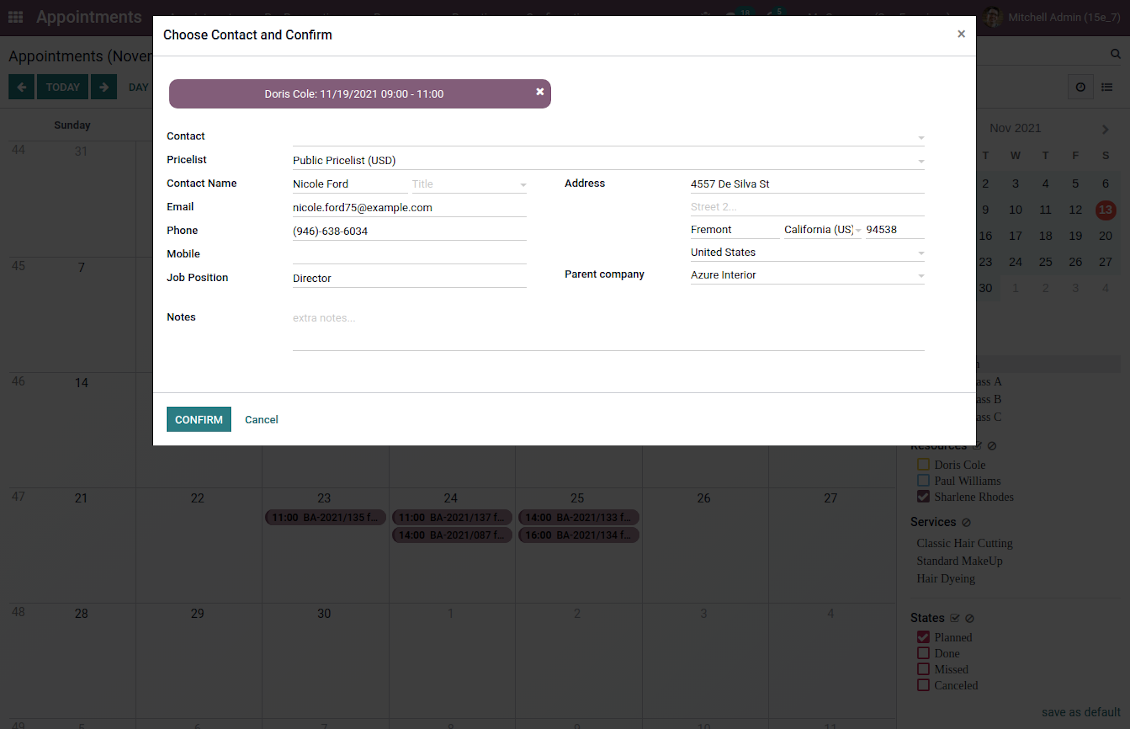
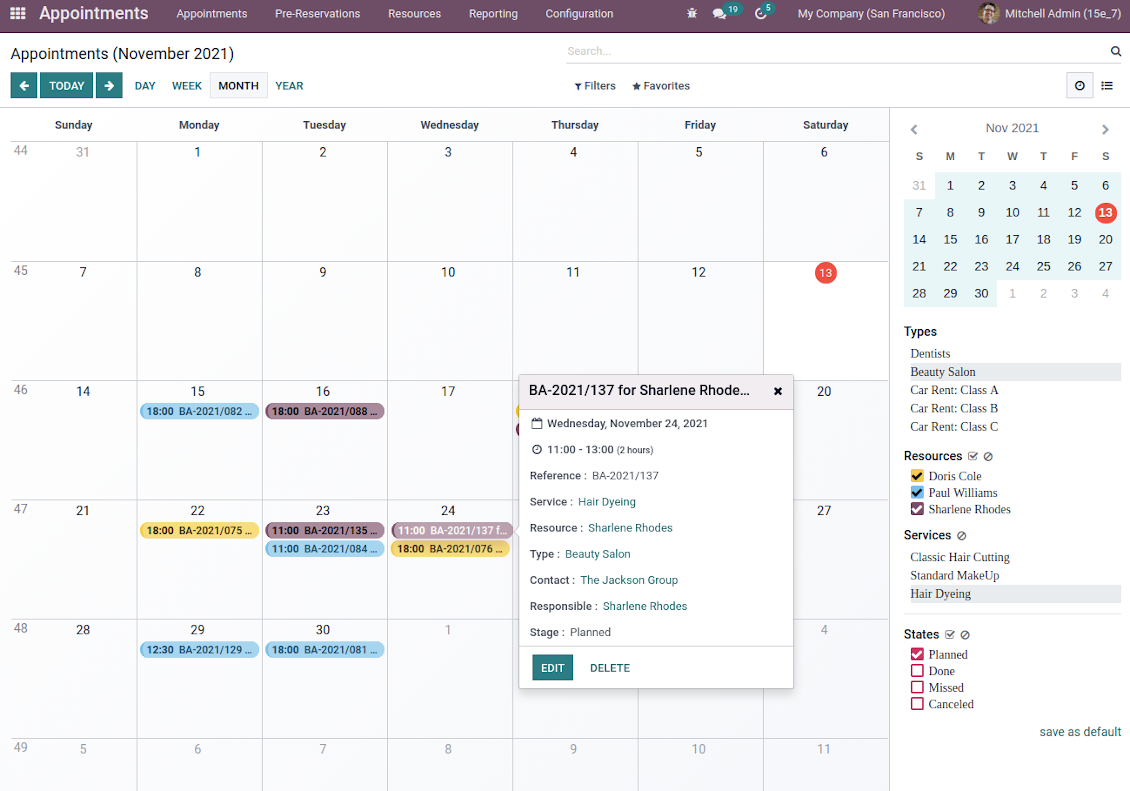
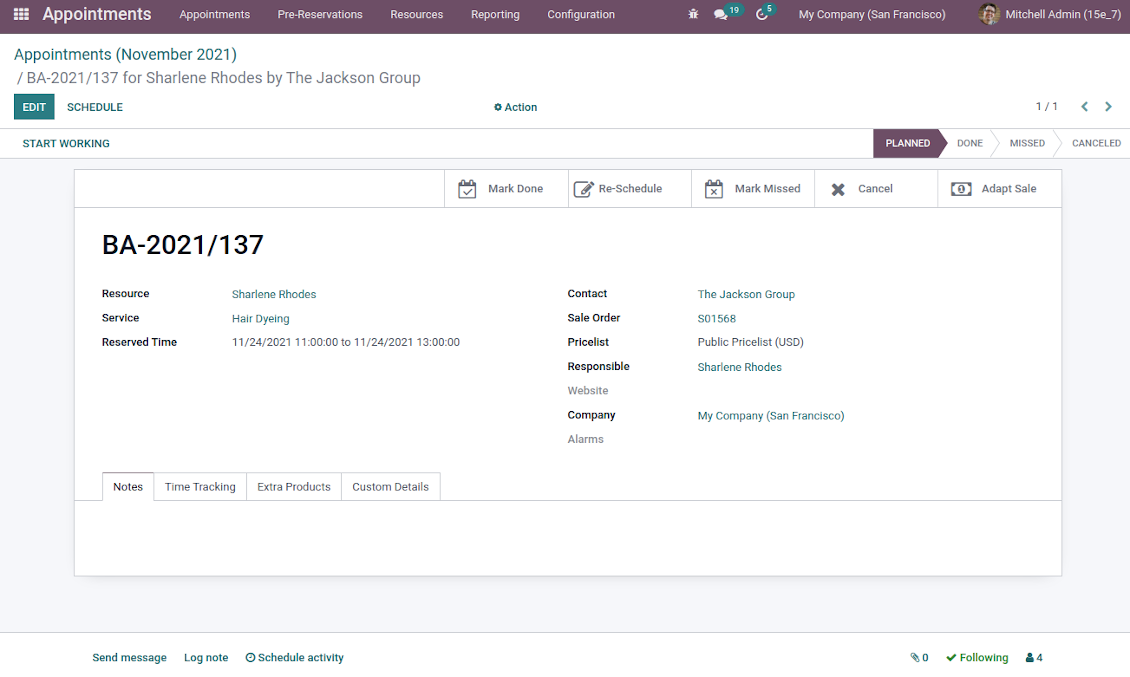
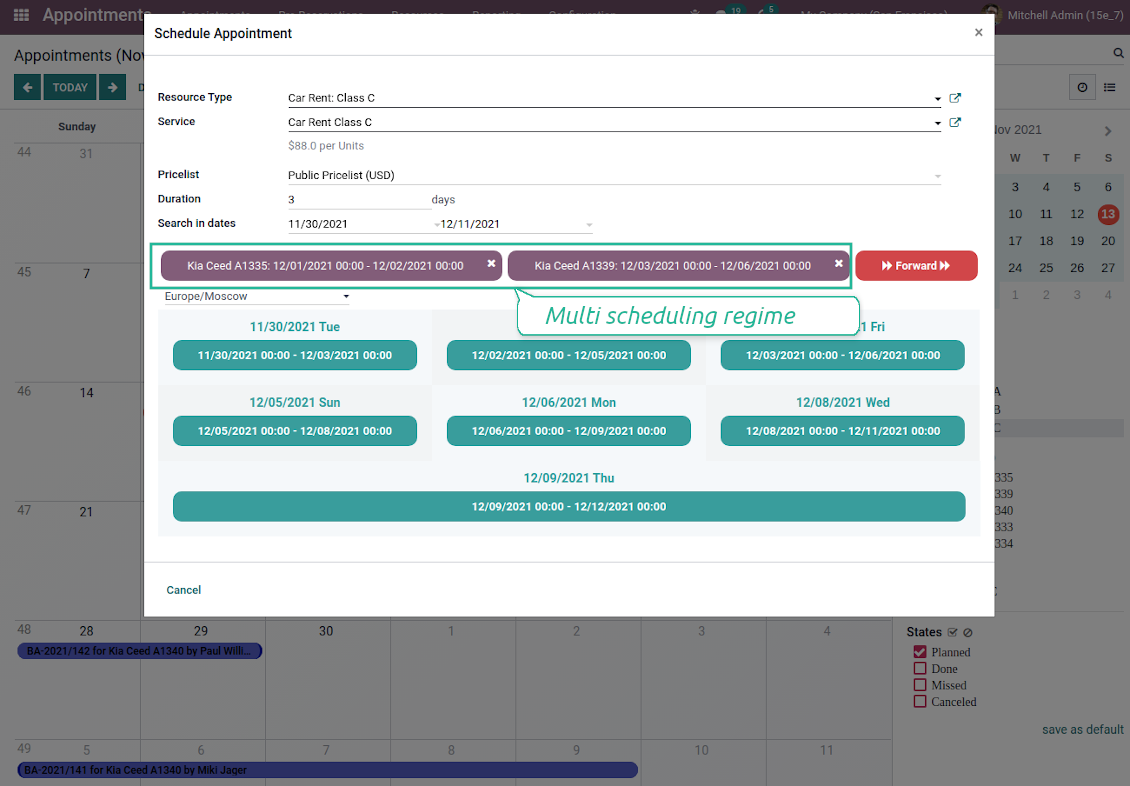
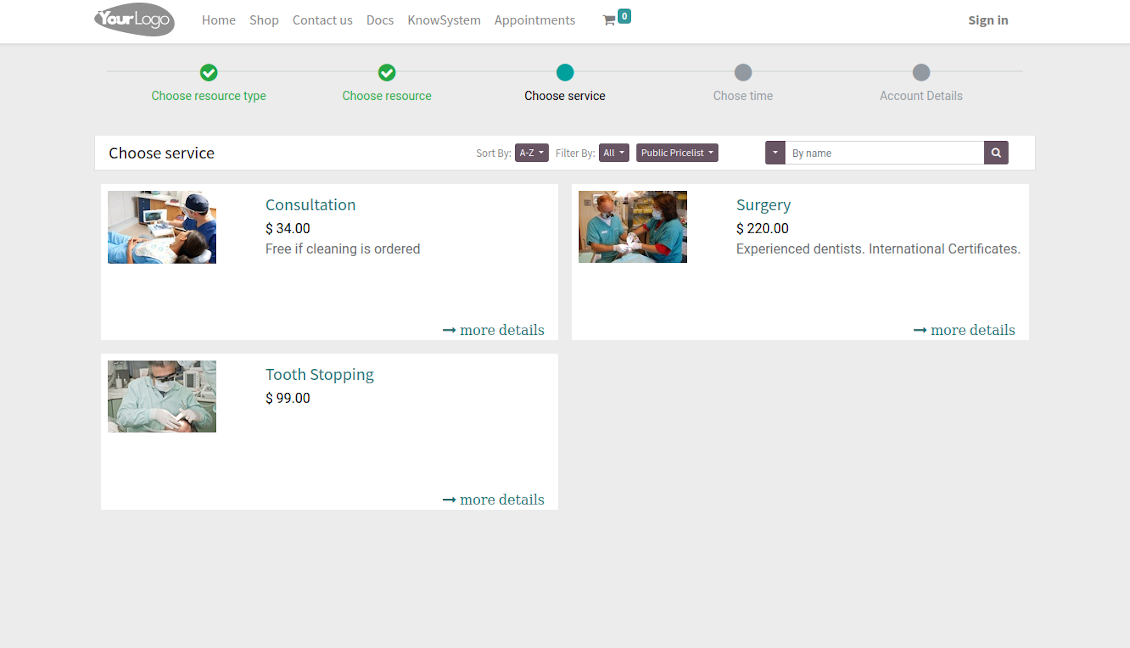
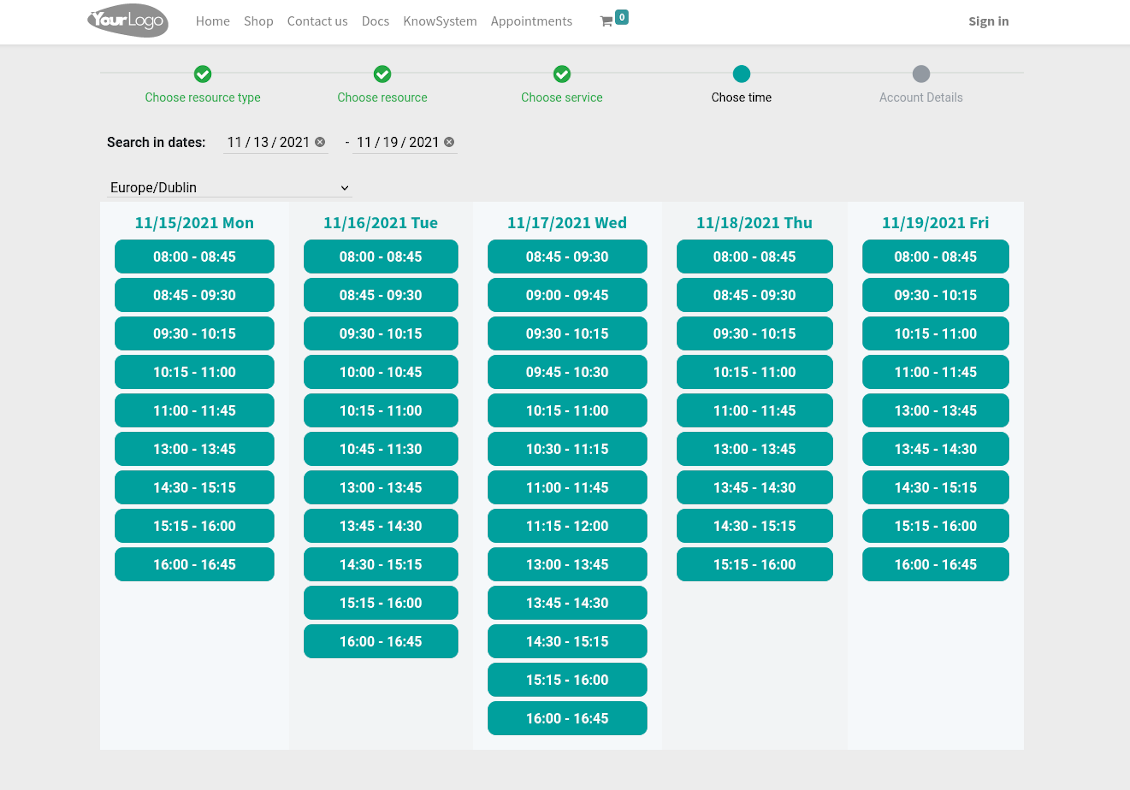
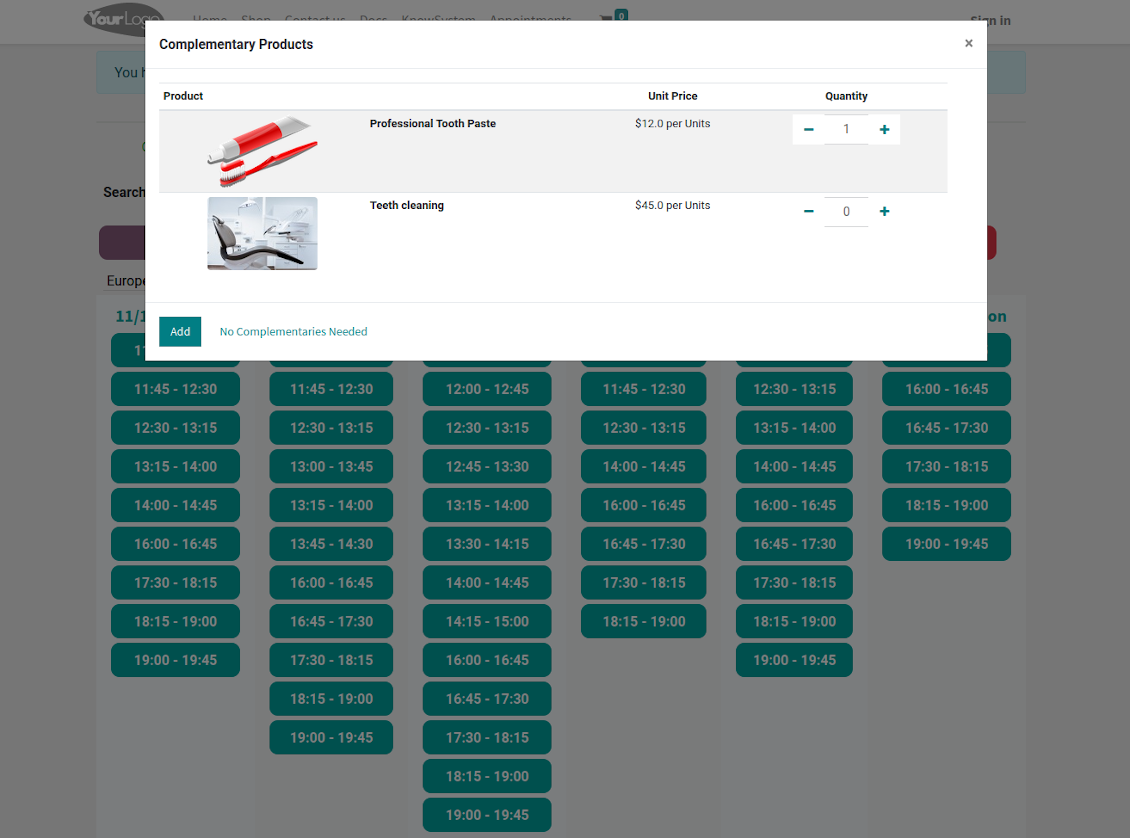
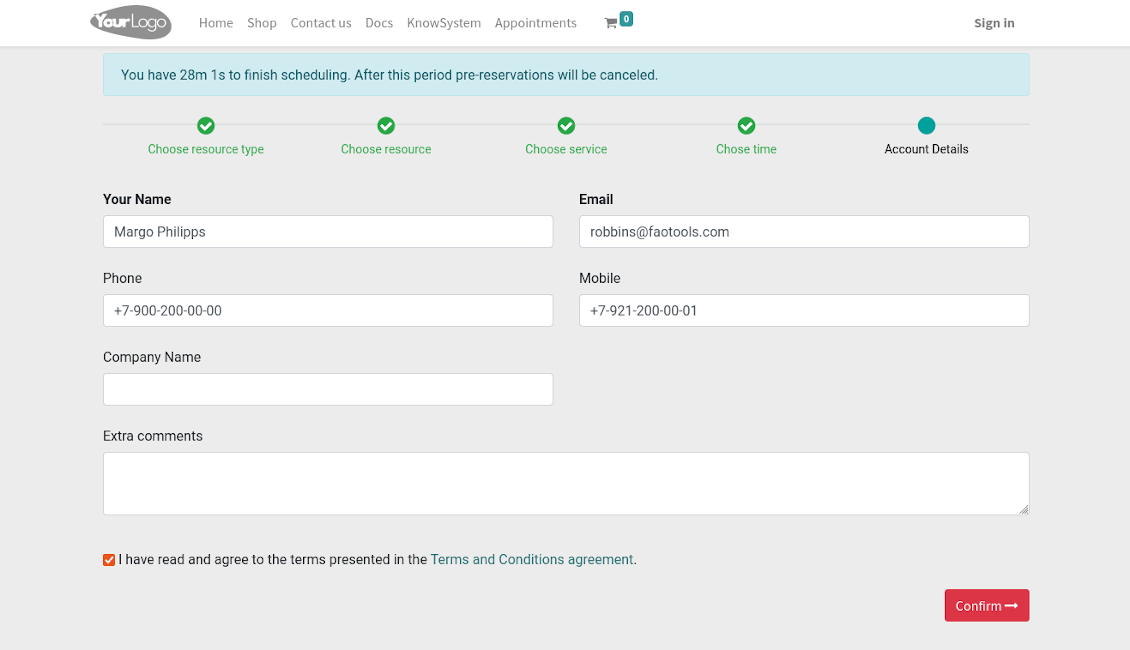
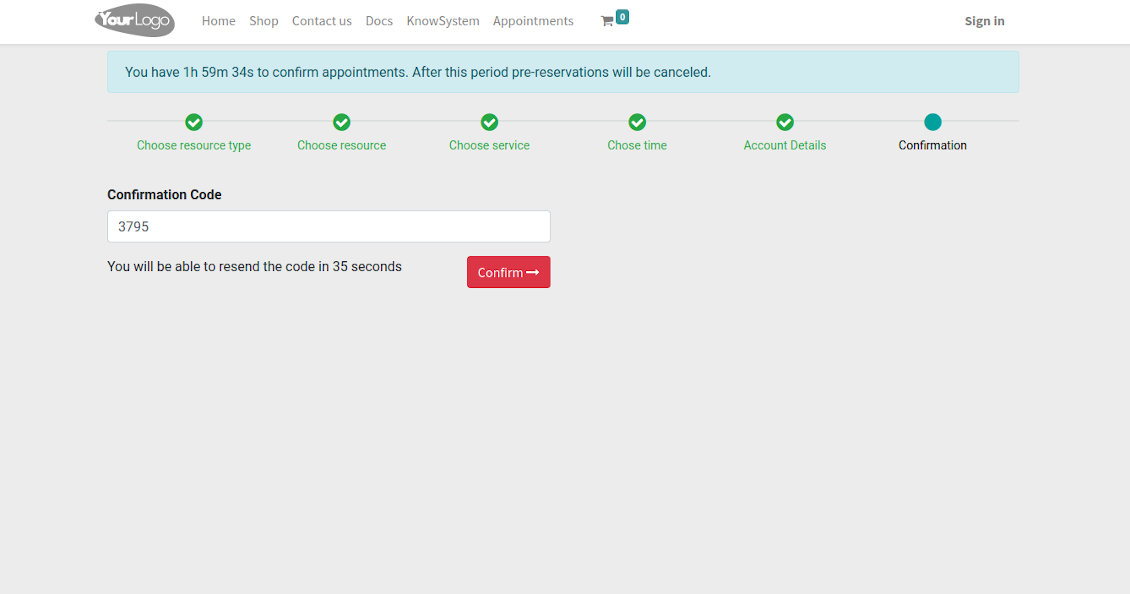
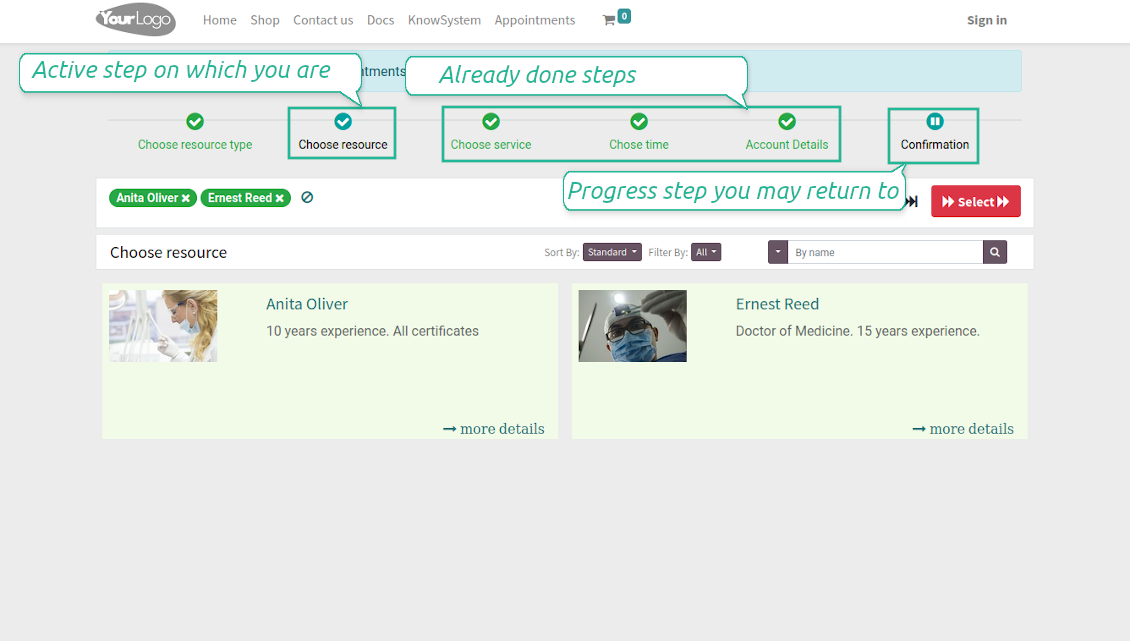
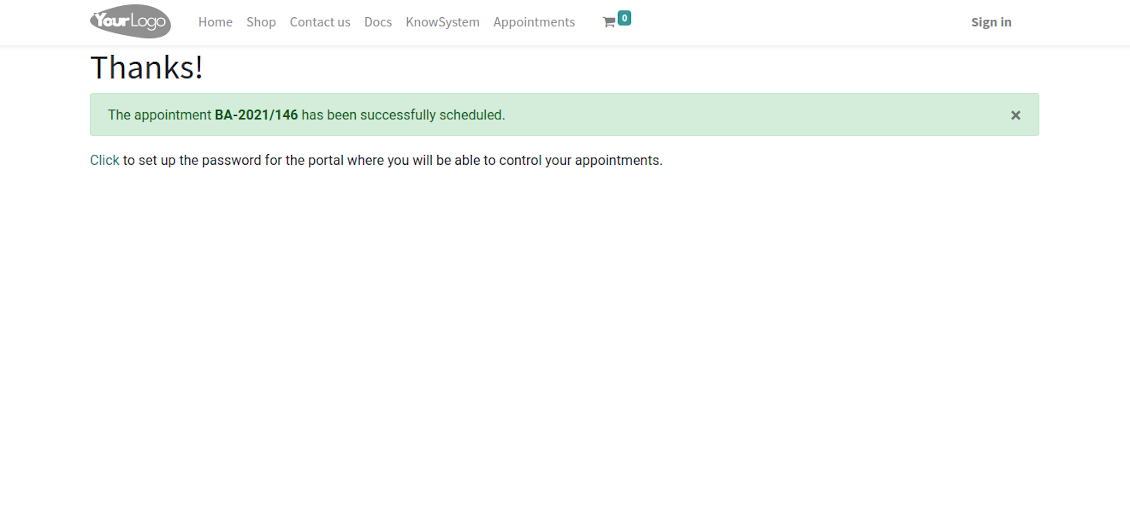
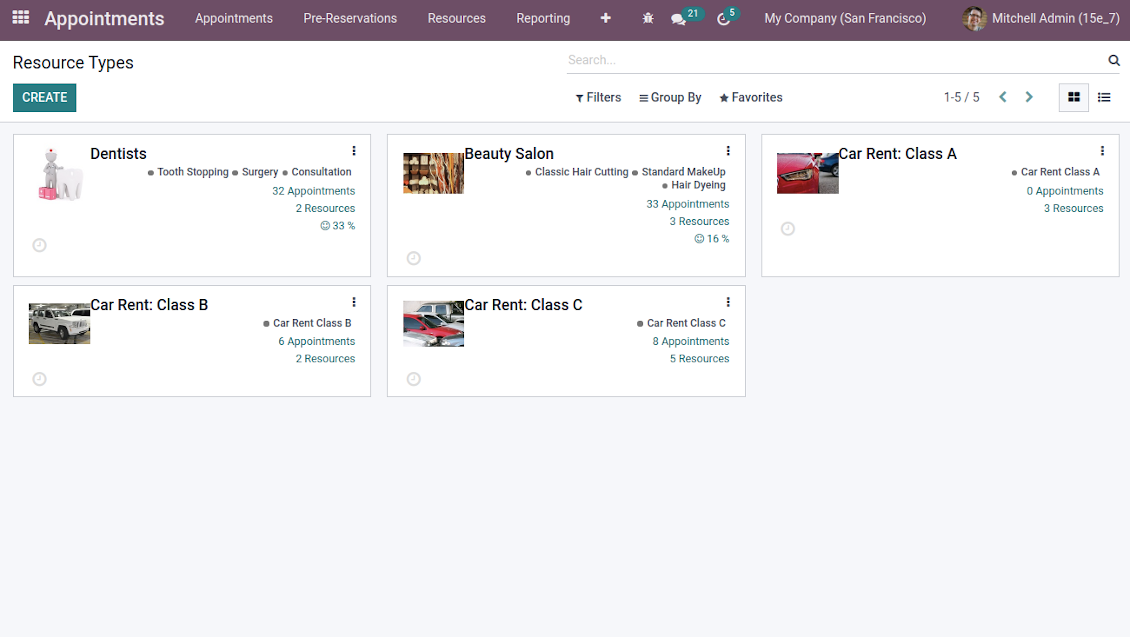
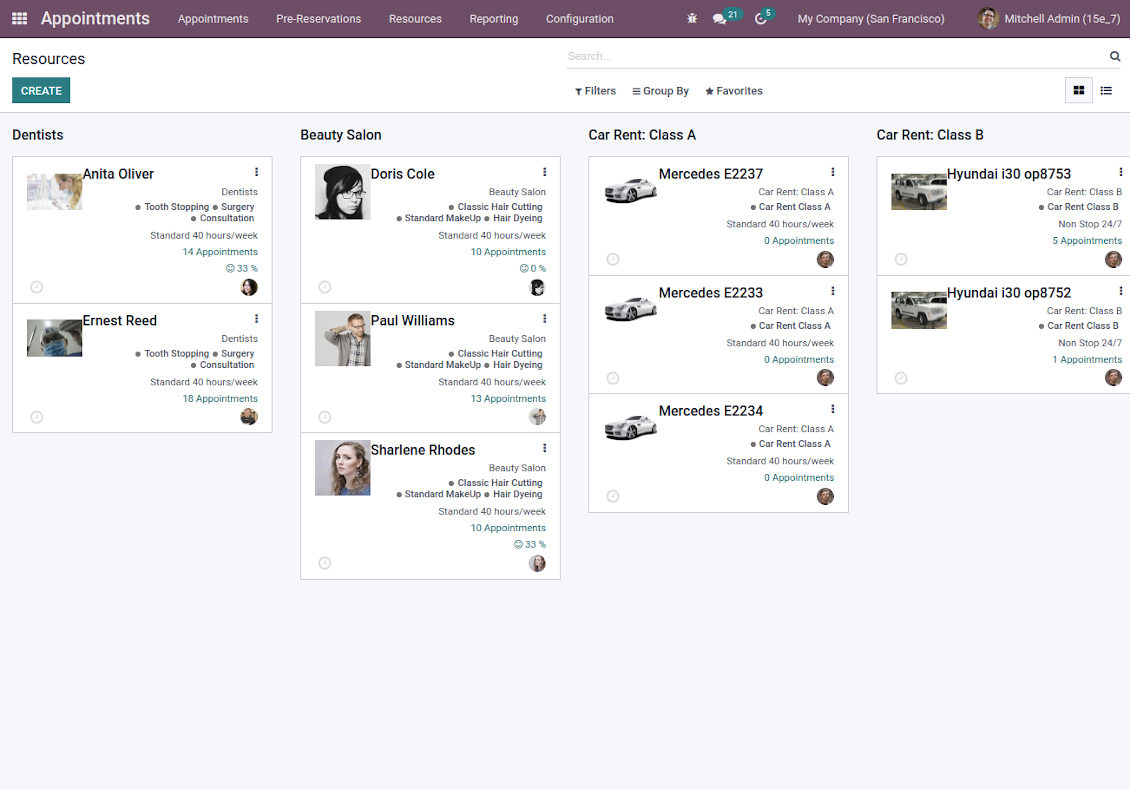
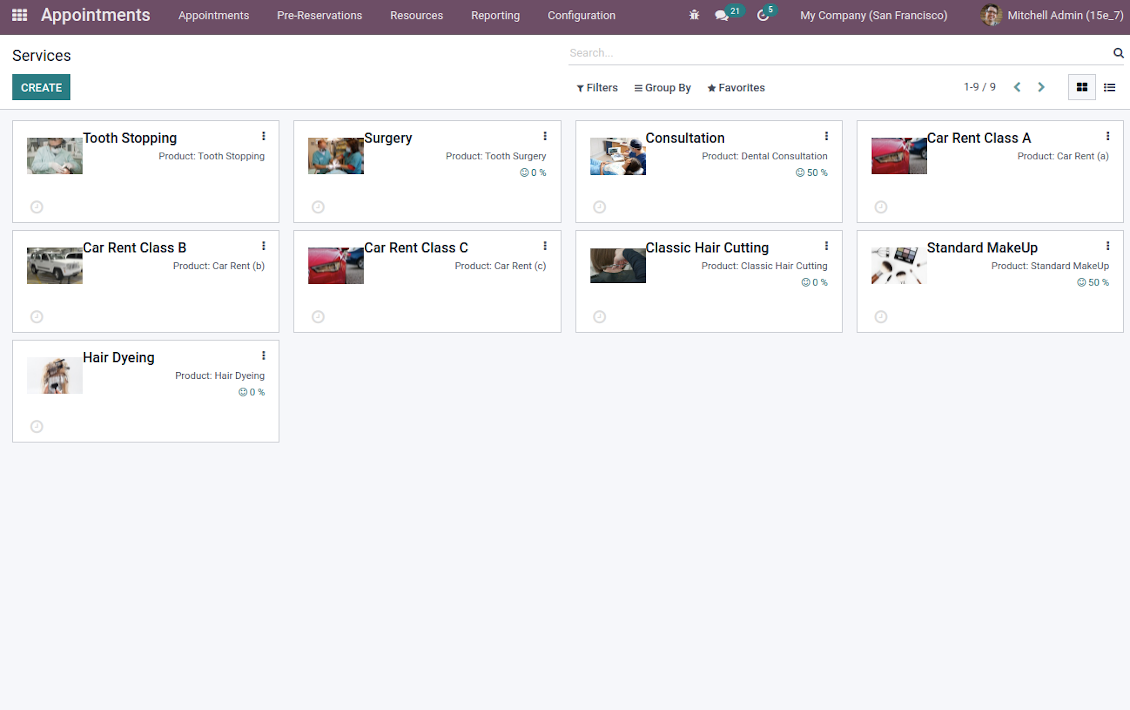
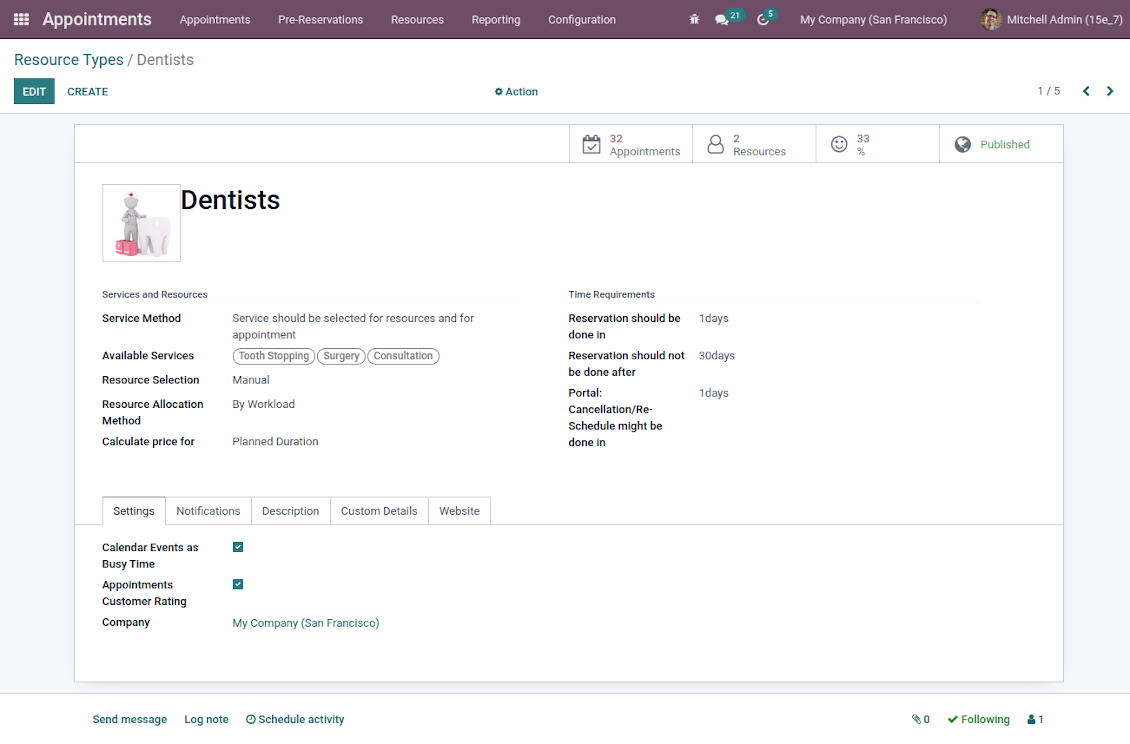
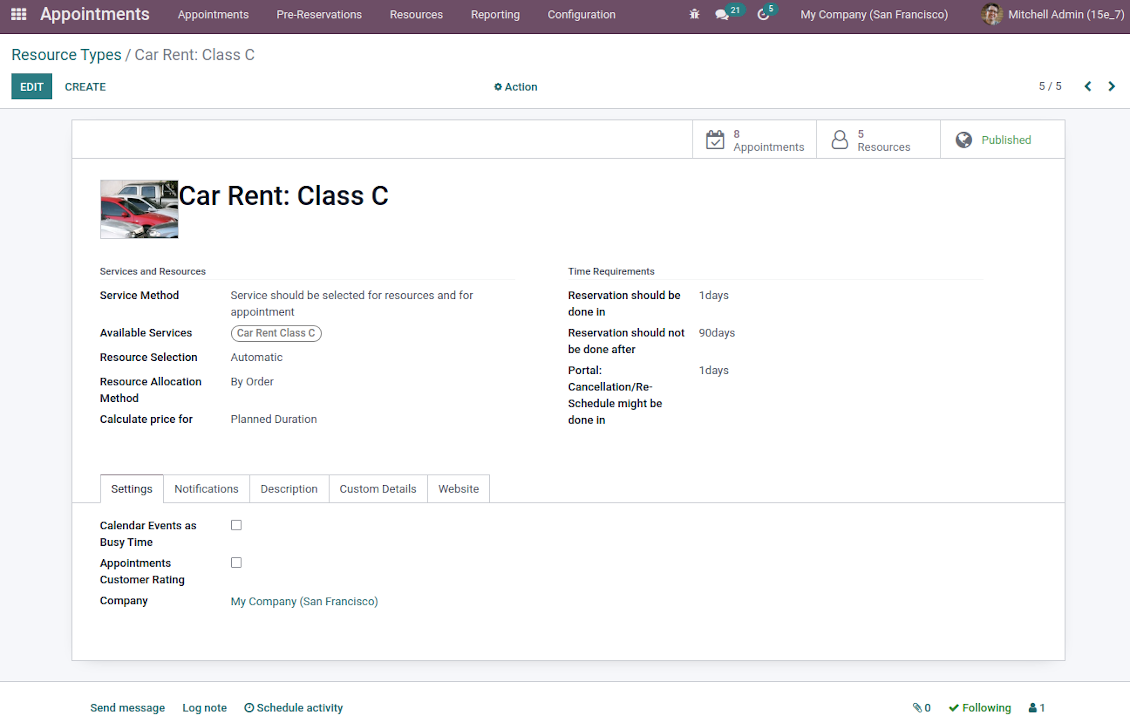
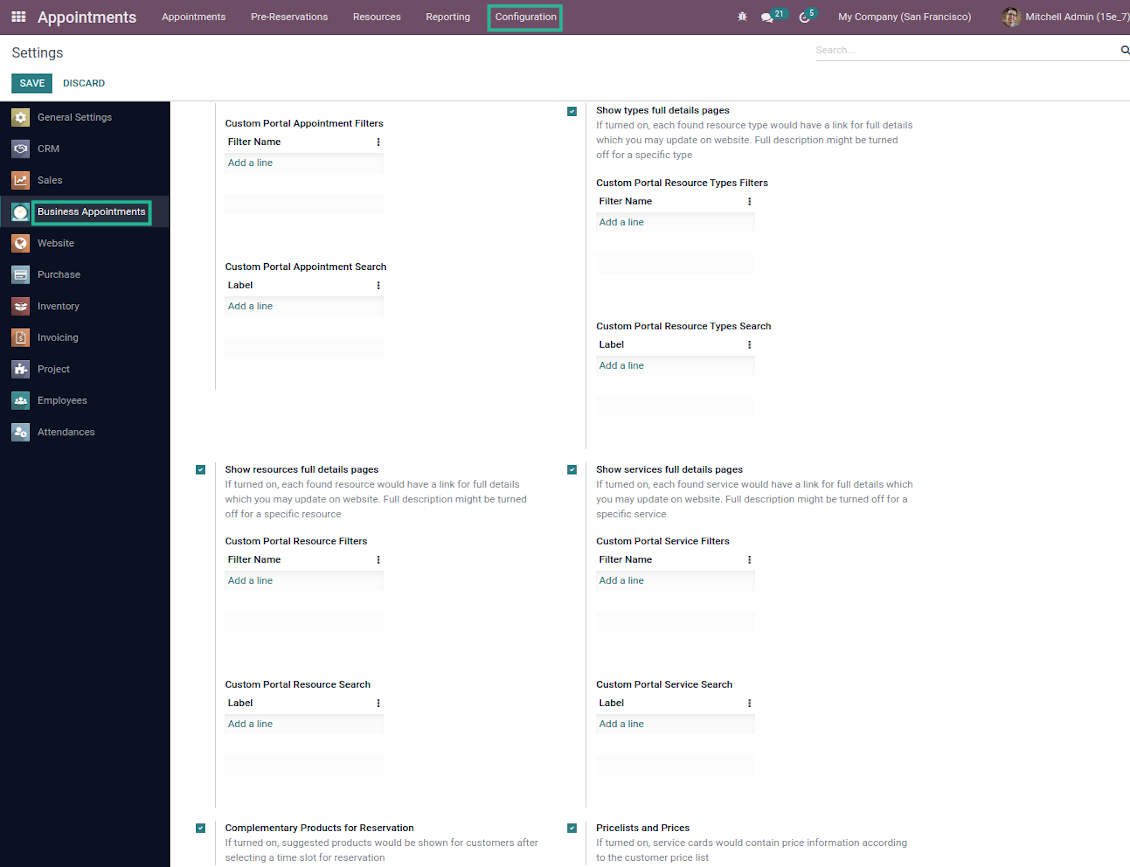
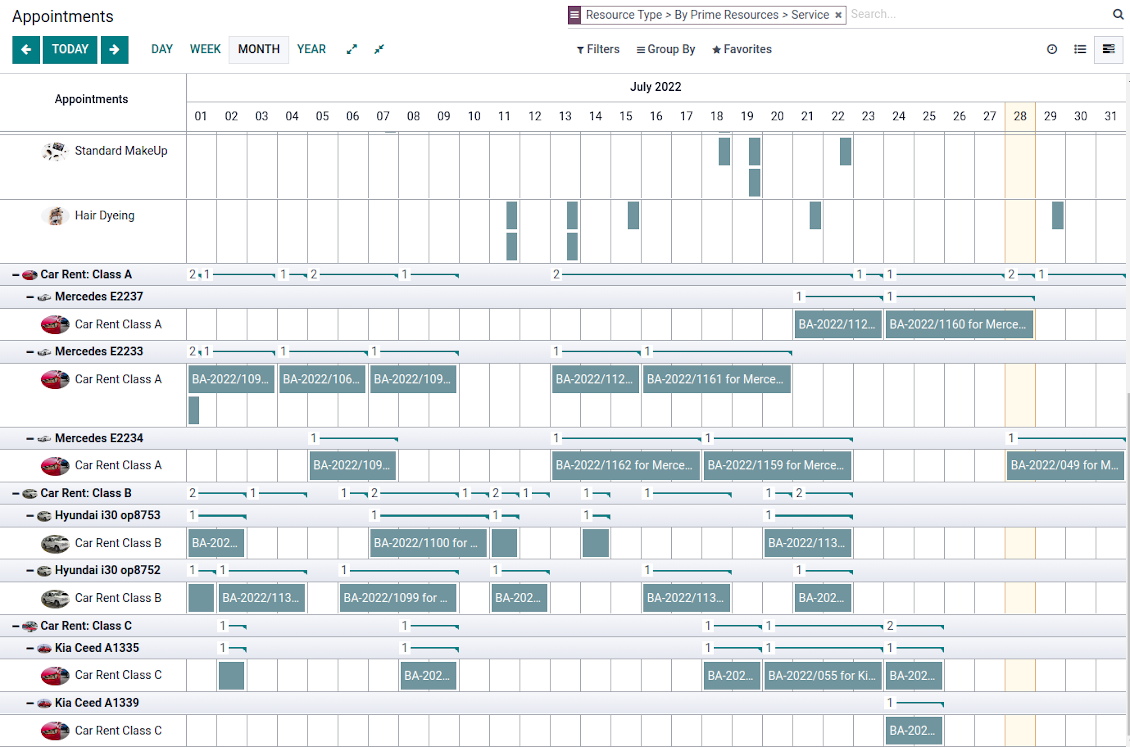
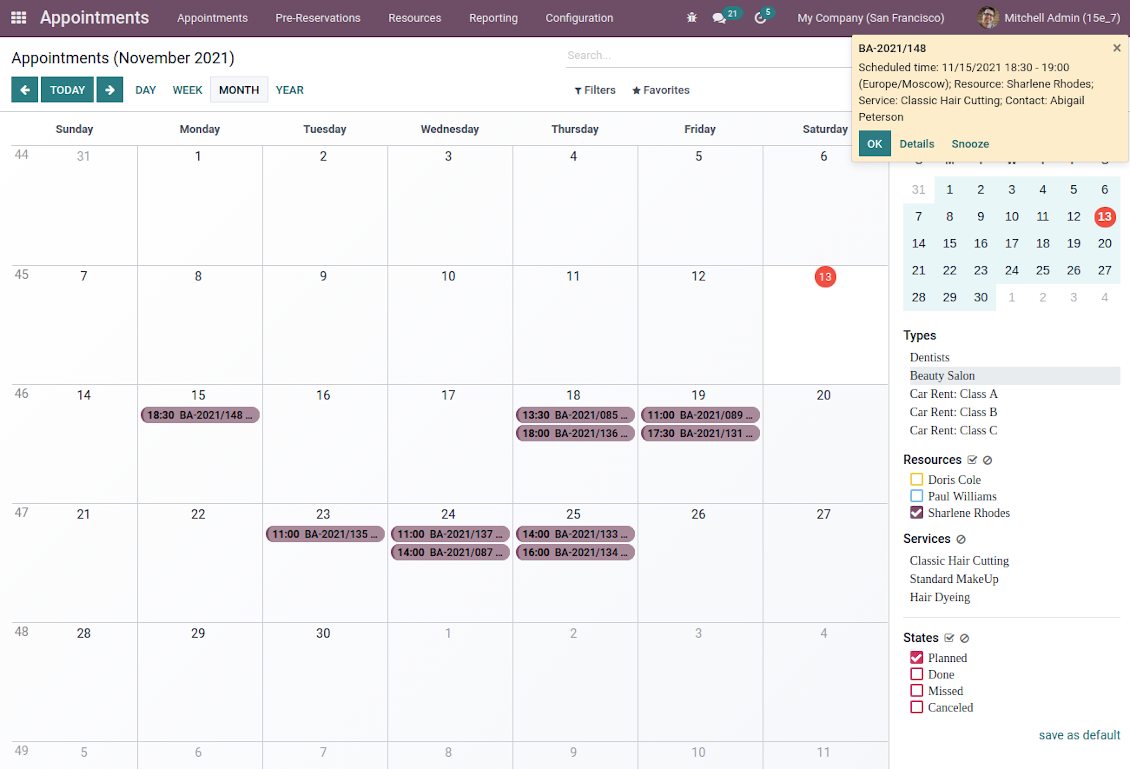
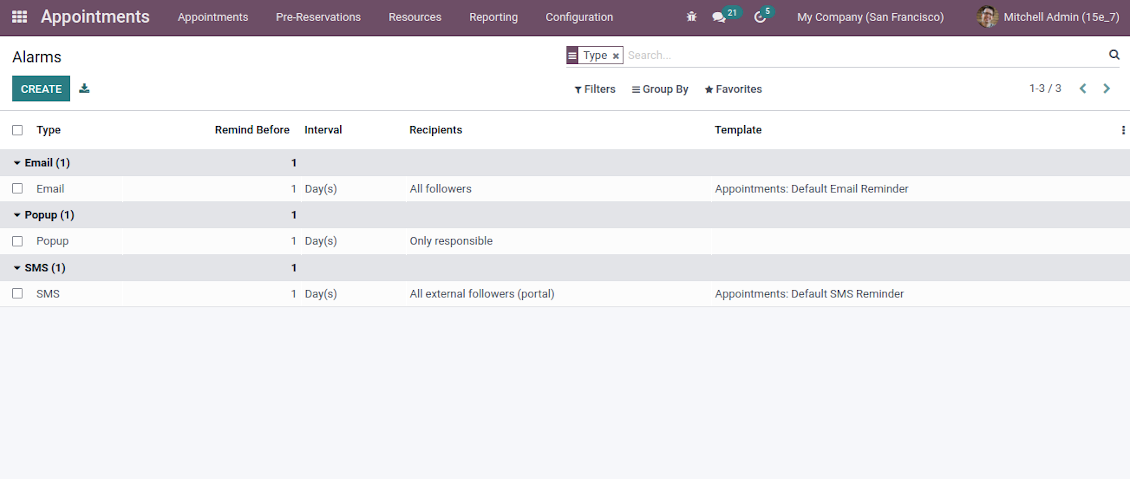
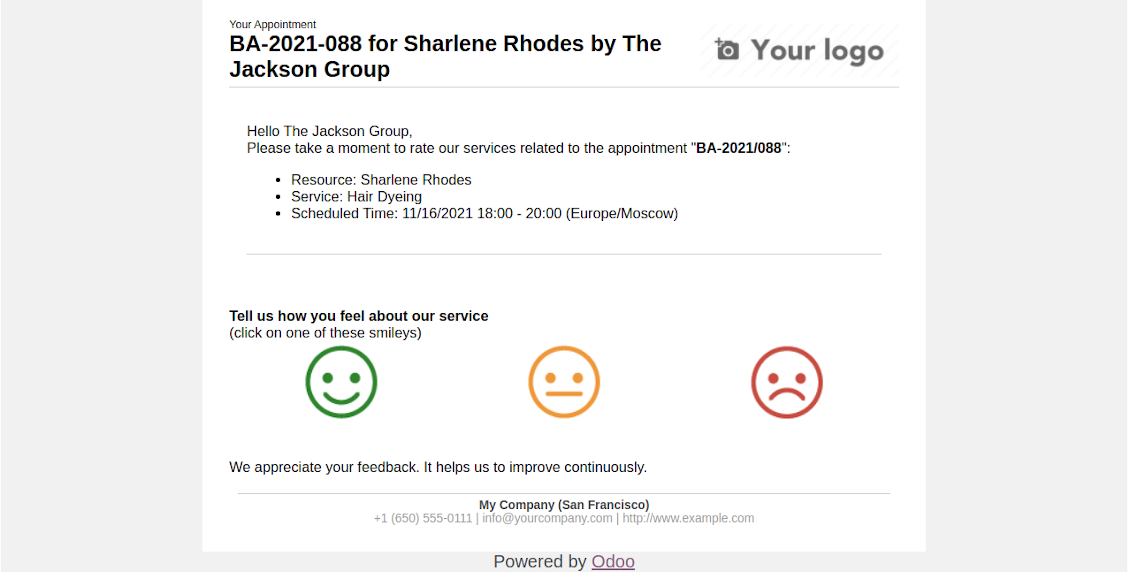
This is an Odoo full-featured app to administrate, control, and improve service management workflow. The tool lets you organize flawless time reservations, control fulfillment, evaluate customer satisfaction, sale and upsell goods in almost any industry. With all options installed the tool represents a structured e-shop for your services.
Flexible module setup allows to reflect specifics of your business or even multiple businesses: automate resources distribution or let select those; have predefined appointment duration or let choose it manually; show or hide prices; apply booking restrictions or grant full freedom. Apply your own settings to automate the provision of your services.
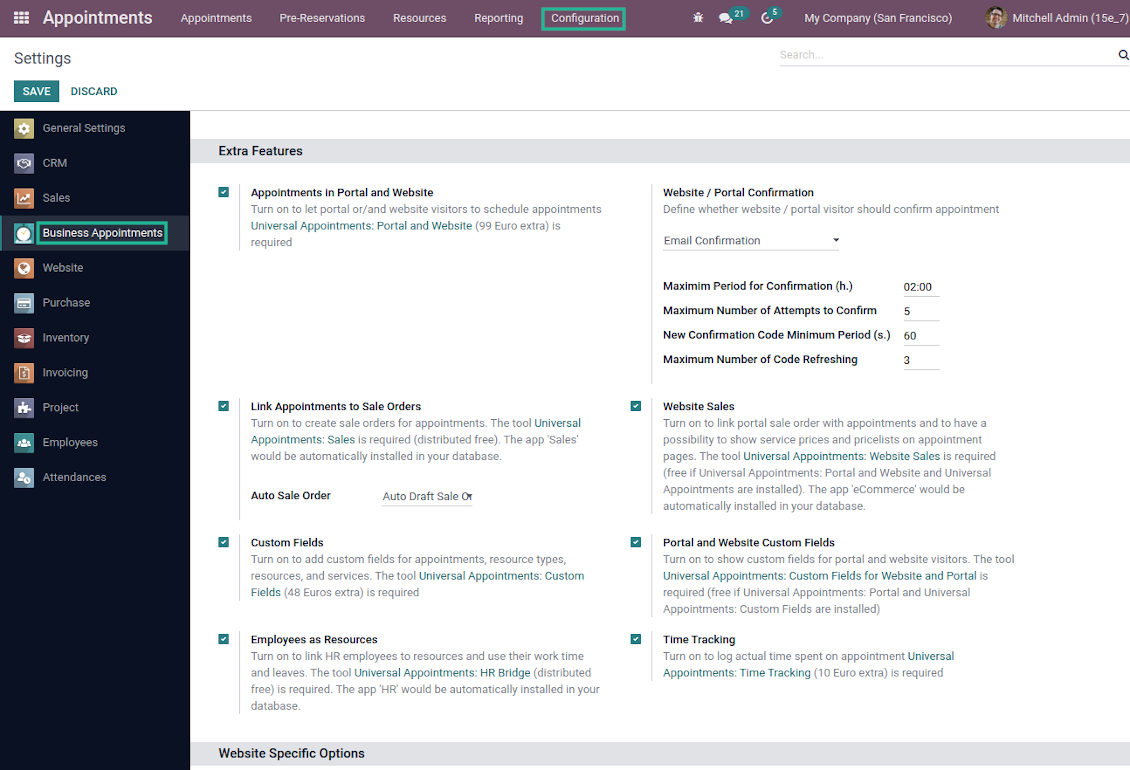
- the core app to manage bookings. It might be used stand-alone for internal control of appointments and scheduling by phone, for example. De prijs is 398€.
- the optional module that introduces the website booking process and lets external users schedule appointments and control reservations in the portal. The features assumed by this add-on are marked by the icon . De prijs is 98€.
- the optional free module to introduce service pricing information and to link appointments with sales. The features assumed by this add-on are marked by the icon
- the optional free module to include service price lists and prices into the reservation checkout process. The features assumed by this add-on are marked by 2 icons simultaneously: and
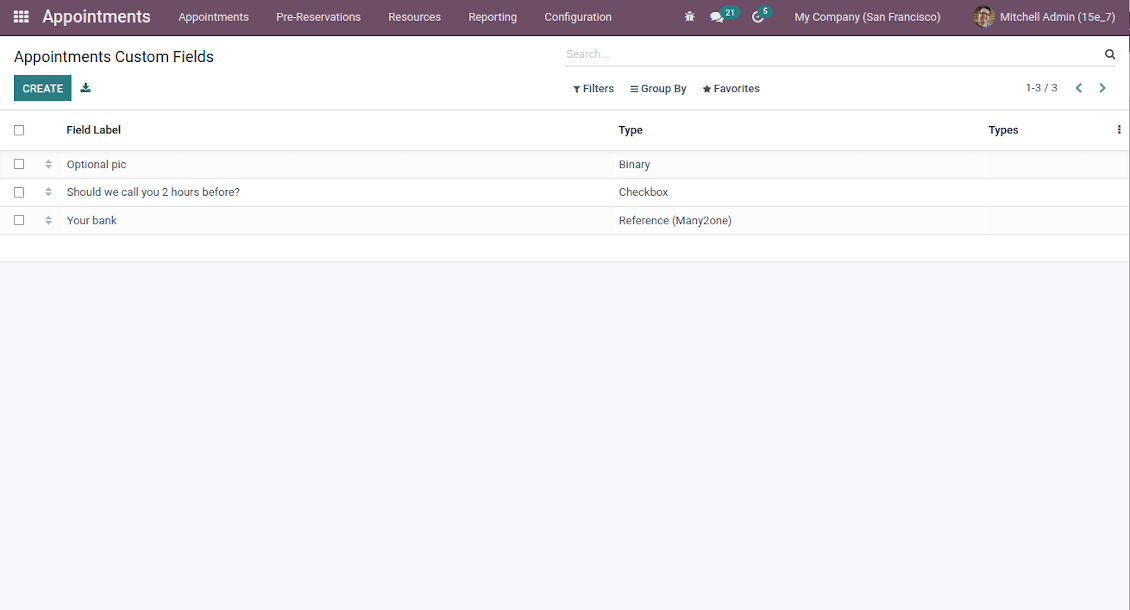
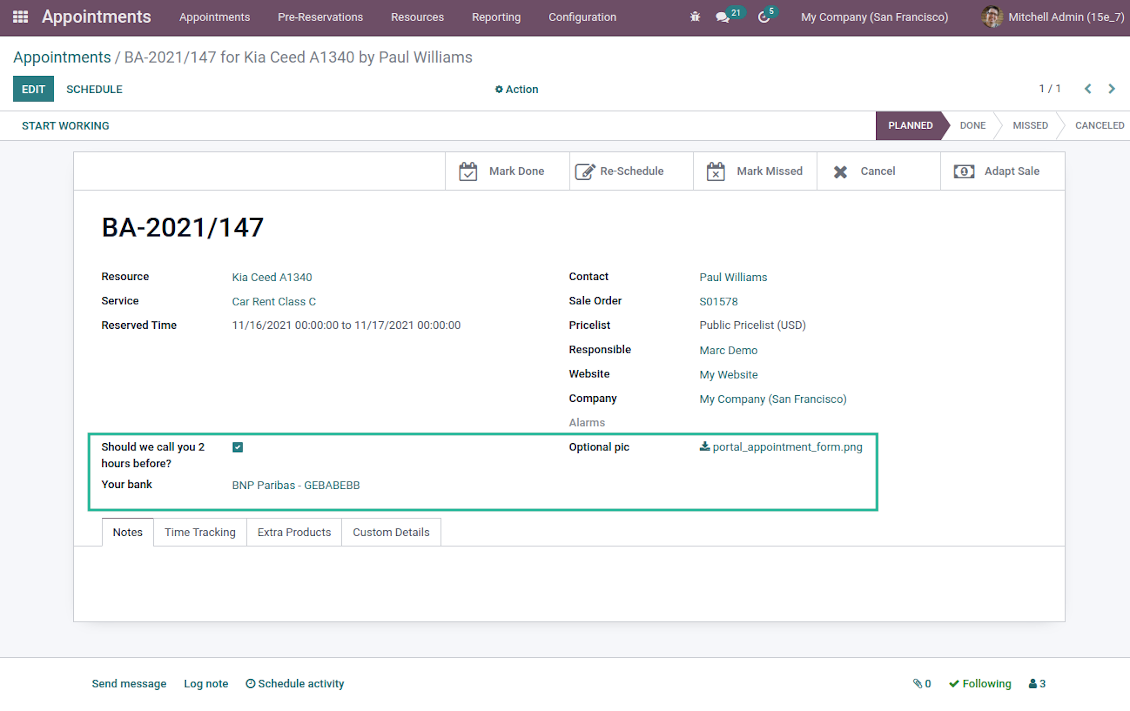
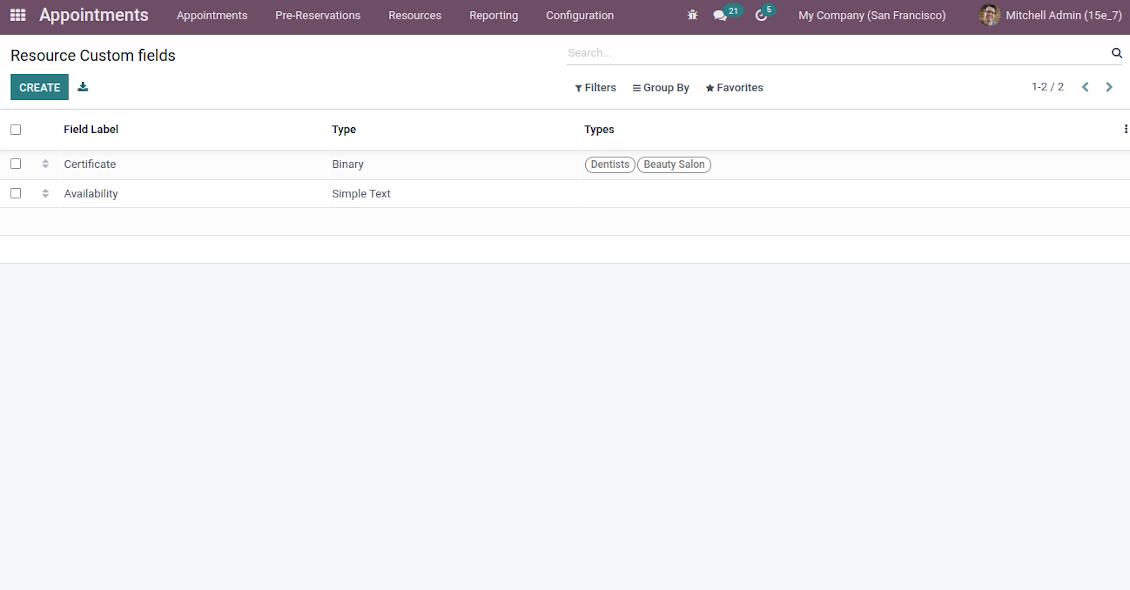
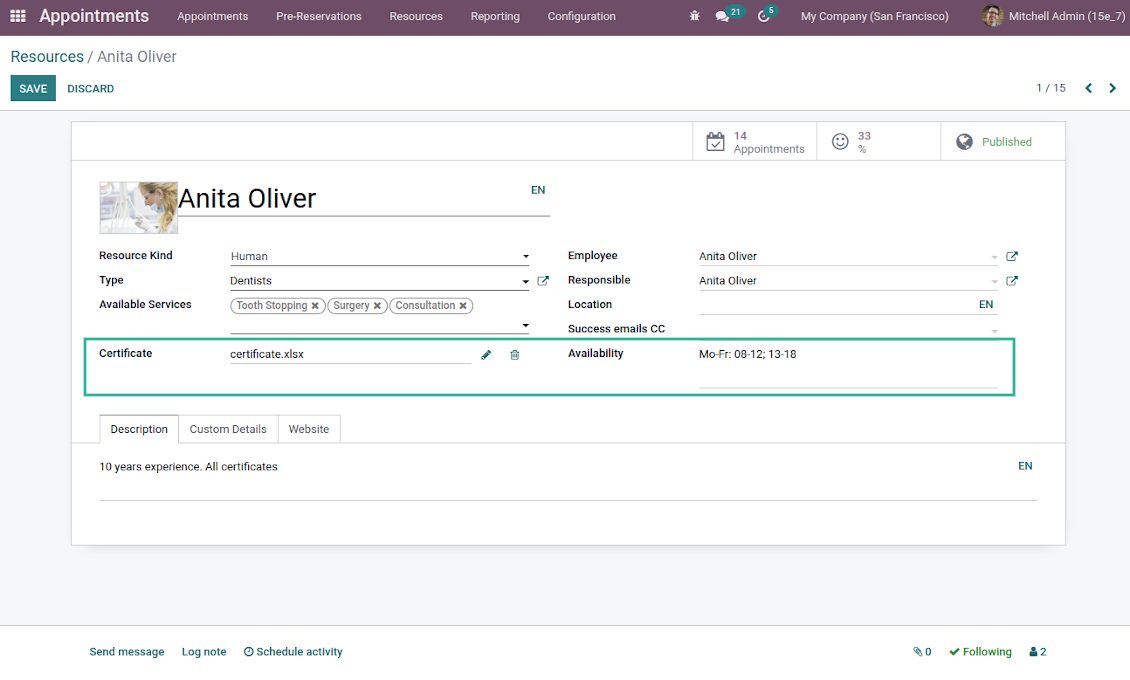
- the optional module that lets you add and show custom fields for appointments and related objects. The features assumed by this add-on are marked by the icon . De prijs is 48€.
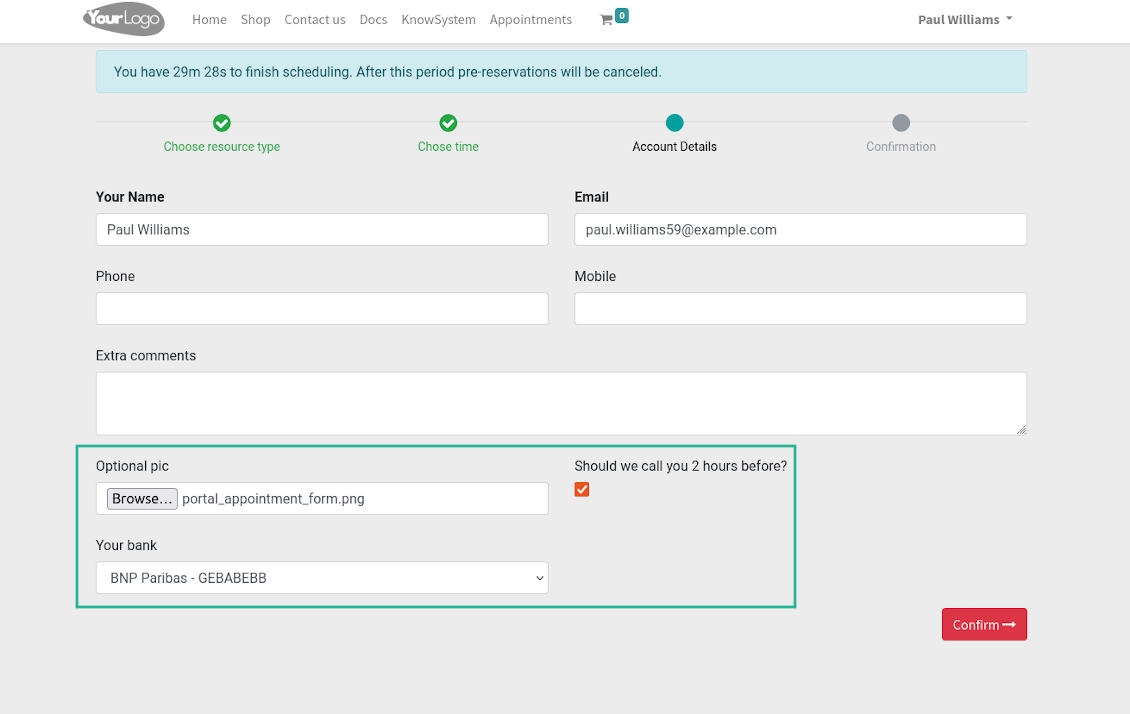
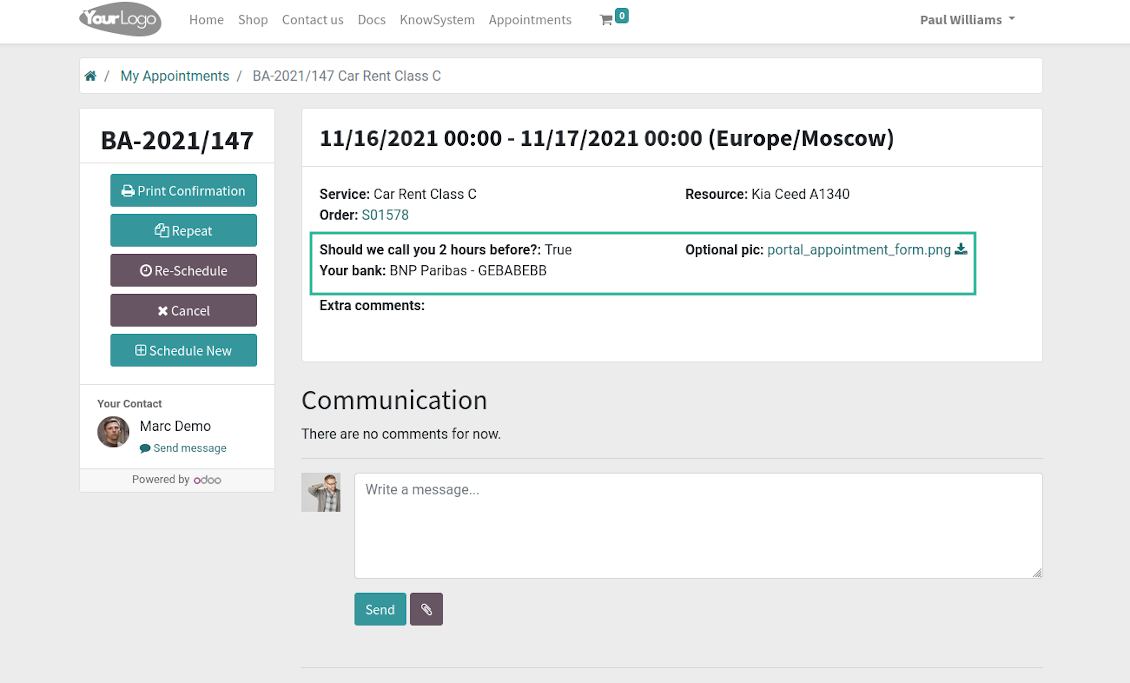
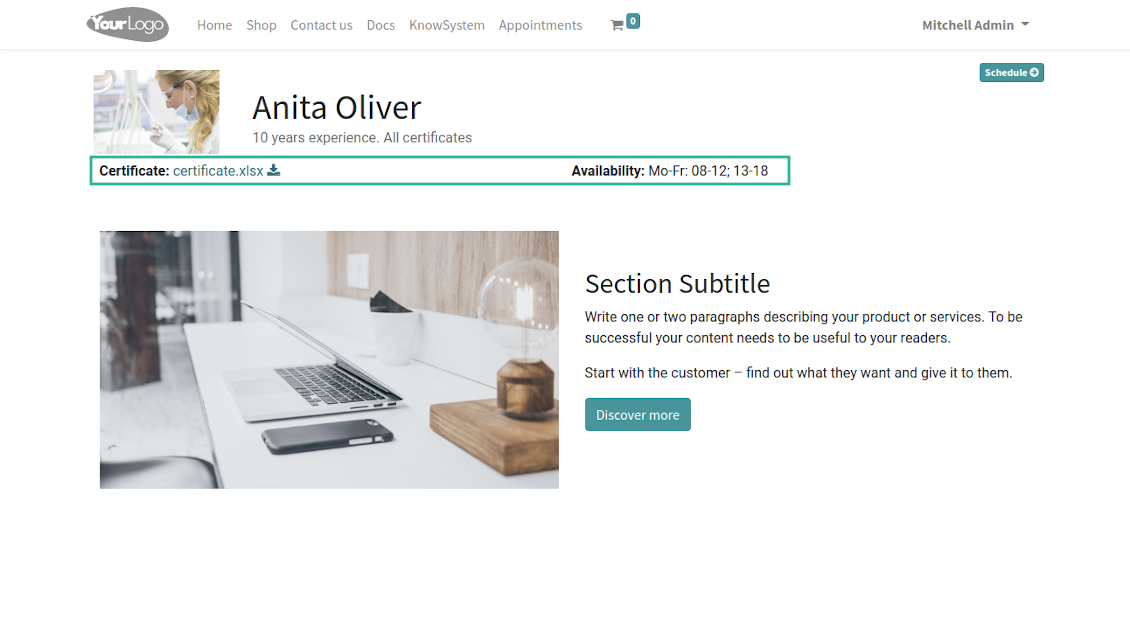
- the optional free module that shows custom fields on website and portal pages (frontend). The features assumed by this add-on are marked by 2 icons simultaneously: and
- the optional module that allows tracking time spent on each appointment. The features assumed by this add-on are marked by the icon . De prijs is 10€.
- the optional free module that allows considering employees as appointment resources. The features assumed by this add-on are marked by the icon
- the optional free extension that introduces the Odoo Enterprise Gantt view for appointments. The features assumed by this add-on are marked by the icon
Smart time slots
Vacant slots for appointments are automatically generated based on working calendars, service peculiarities, and specifics of managed businesses
Universal reservations
Set up the structure of resources and services to reflect your company's workflows. Assign specialists and equipment manually or automatically. Flexibly manage appointment duration rules
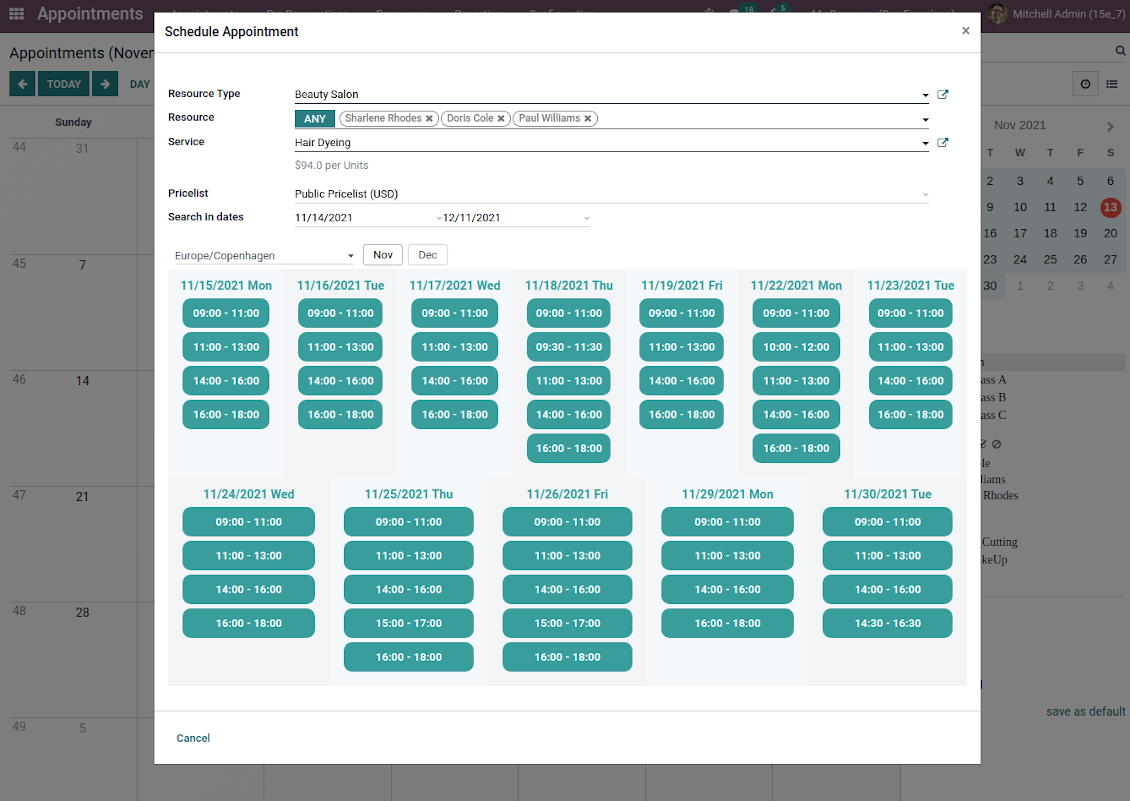
Comfortable scheduling without conflicts
The appointment scheduler allows making a new reservation in a few clicks. It is quick and simple but with full control over potential intersections
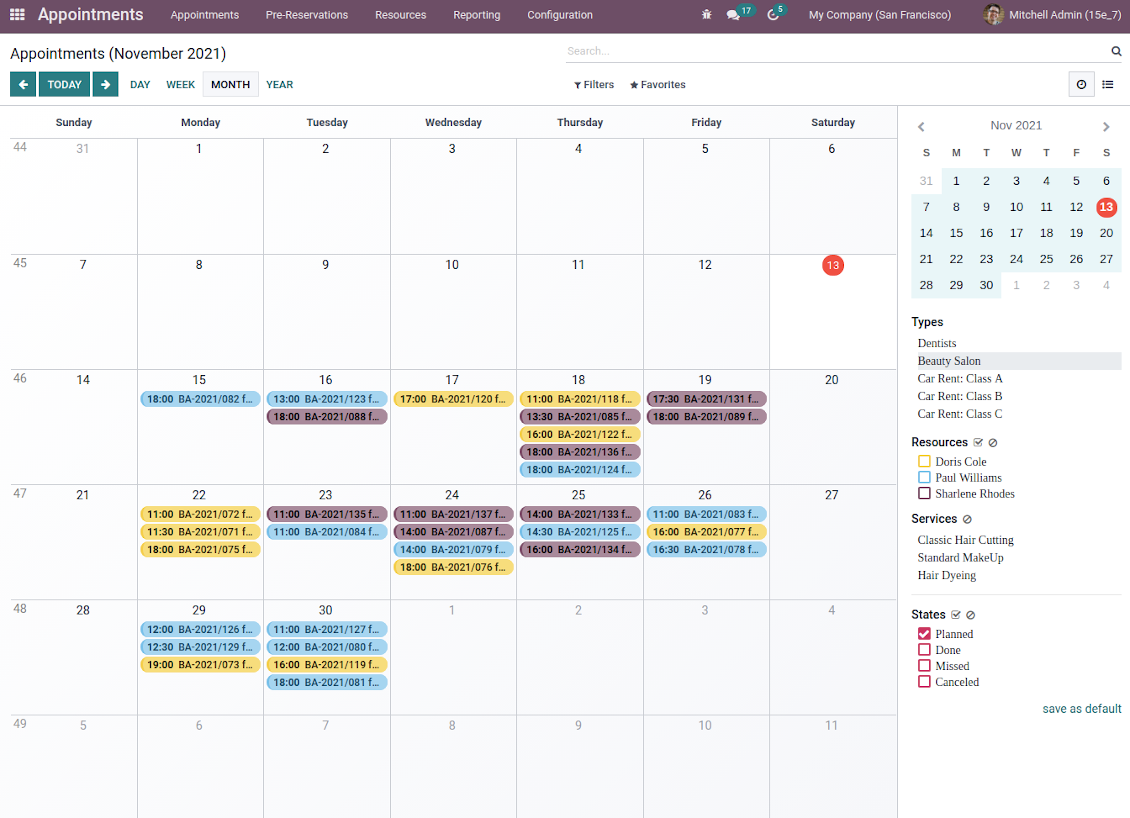
Innovative appointments calendar
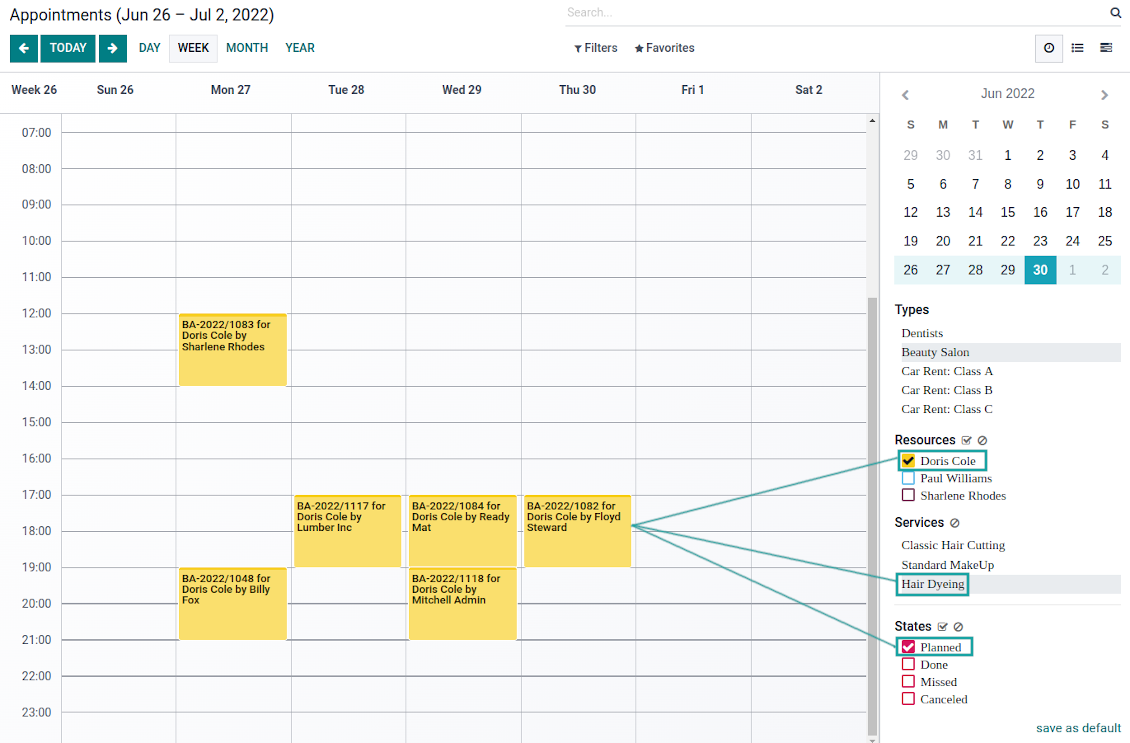
Users administrate reservations from the single calendar view: with quick filtering by appointment details and instant access to required information
Clear website bookings
Let portal partners and website visitors schedule an appointment through the configurable multi-step process of checkout and confirmation
Sell and upsell services
Link bookings with Odoo sale orders and price lists. Boost revenues by upselling accessories
Customer satisfaction and reports
Automatically request client reviews. Analyze appointments by planned and tracked duration, generated revenue
Customizable website and portal pages
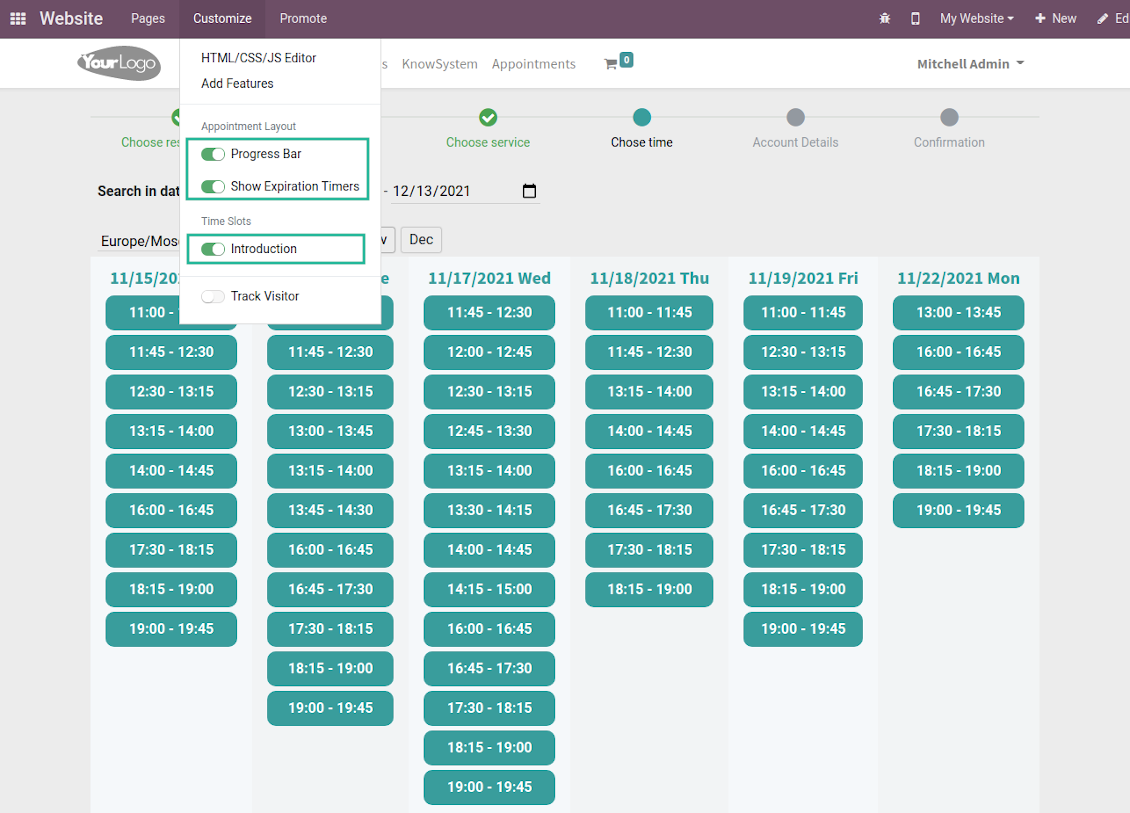
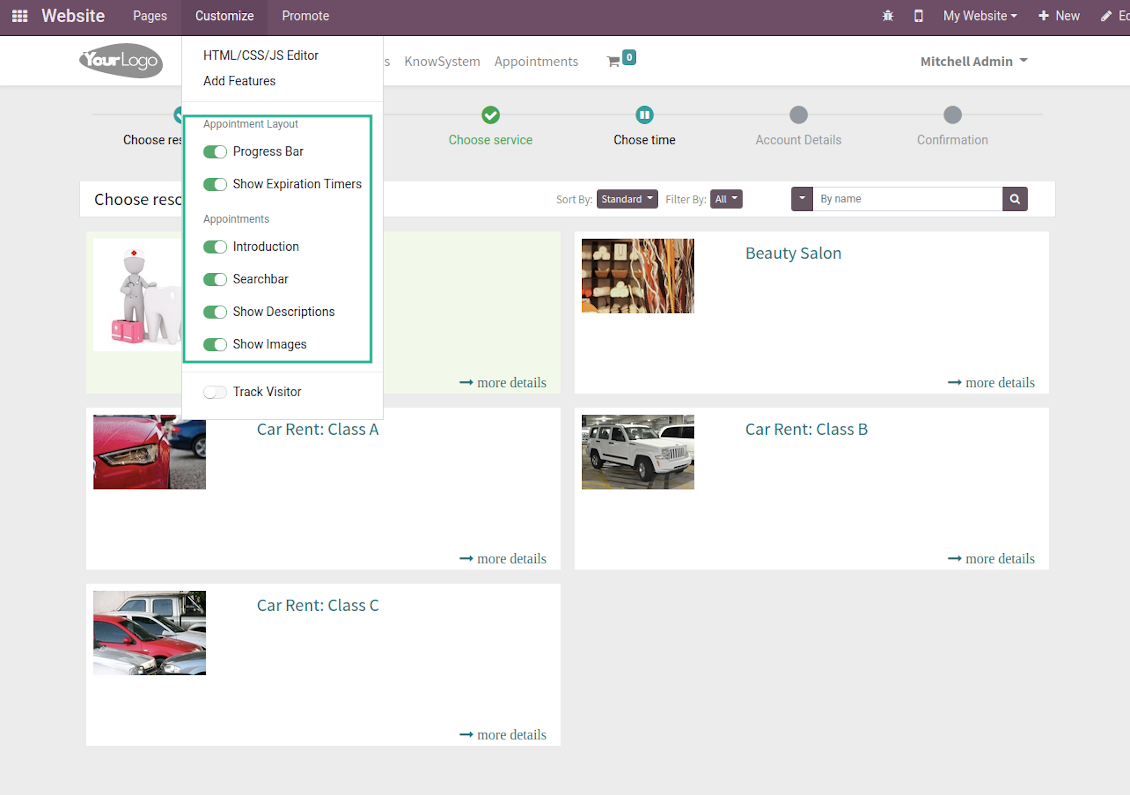
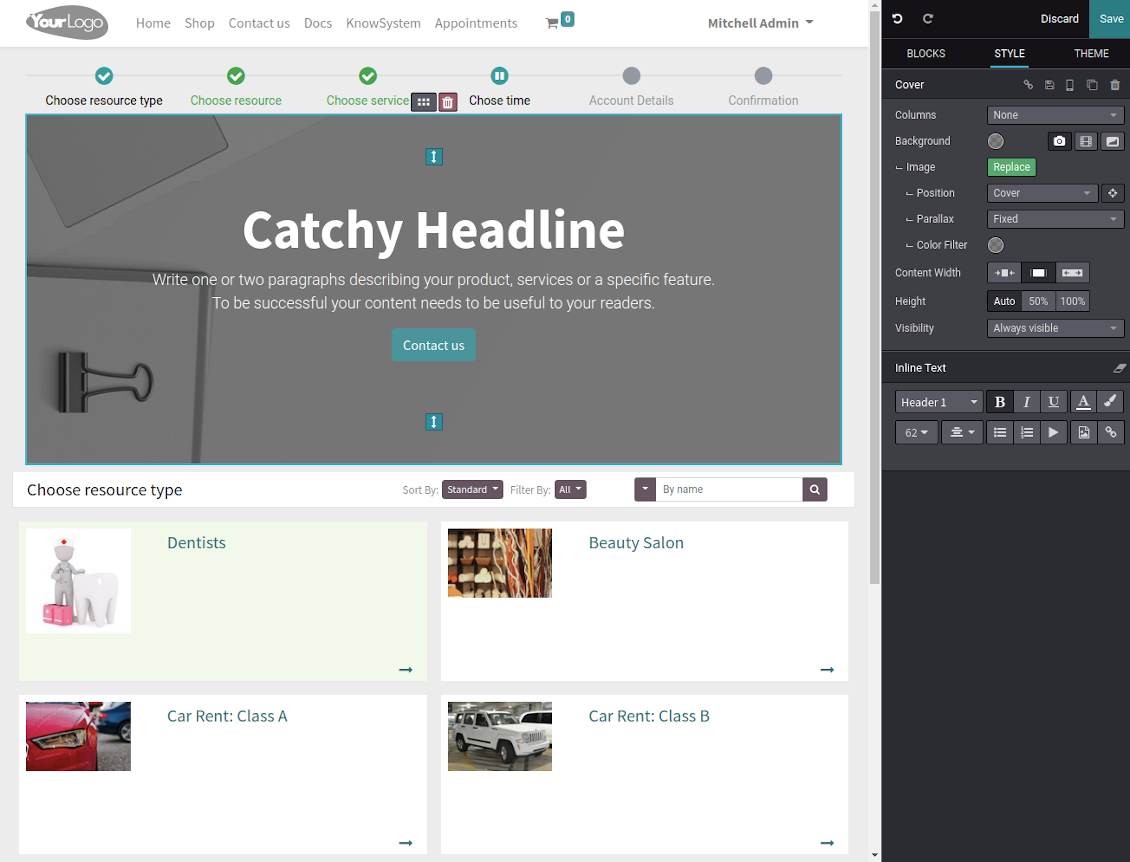
Turn on/off optional layout elements. Introduce your own titles and welcome texts. Exclude booking steps
Compatible with Odoo standard features
The app is configurable for multi companies and for multi-website environments. Appointment resources might be linked with employees, while reservations - with Odoo quotations
Custom details and reminders
Apply popup alarms, add success emails, and prepare SMS reminders. Introduce custom fields for reservations, resource types, resources, and services.
Comprehensive and well thought booking app
The app allows backend user to do some simple configuration to make the booking app able to fit in our different business models.
Very good support and also there is module enhancement from time to time with great usability improvements of more use cases.
Just great App and the best support you can imagine
Dear Olga and Alex
Thank you so much for this function which makes the tool perfect!
I've already installed it and tested it -- it works exactly the way the customers need it
This really makes your Appointment App the best tool available for Odoo :-)
I would also like to thank you for understanding my wishes and for taking care of them. That's exactly why I will choose and recommend faotools the nex time again.
Innovative backend scheduling
Auto time slots generation
-
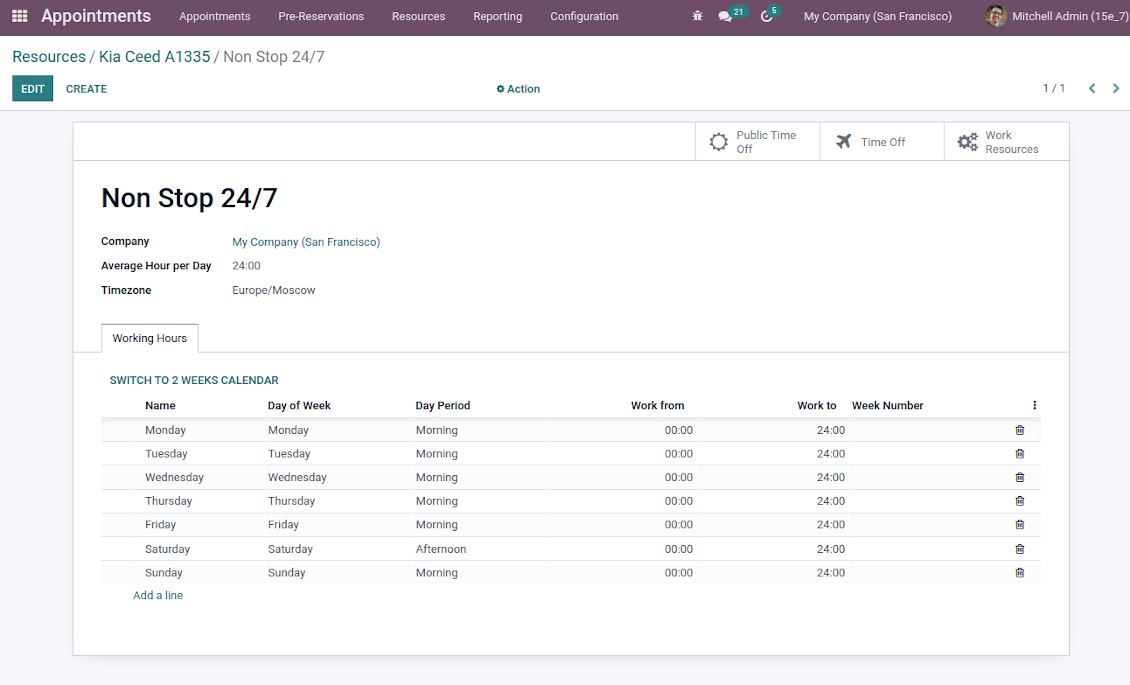
Slots are generated according to resource business calendars. Each resource has its own working time and leaves: it is impossible to schedule an appointment when an employee or equipment is absent
-
The algorithm is based on the service settings: duration, time step, rounding, checkout period, and extra calendar restrictions. You can flexibly configure the appearance and final choice of time slots
-
The app lets plan specific business activities both of predefined duration or of the one entered manually
-
For each service, it is possible to define extra resources required to provide that. The busyness of those resources is also taken into account
-
Per each resource type, define when an appointment might be scheduled. For example, time slots are available not later than 2 days before, and not earlier than 30 days before. Similar rules are applicable for re-scheduling and cancellations
-
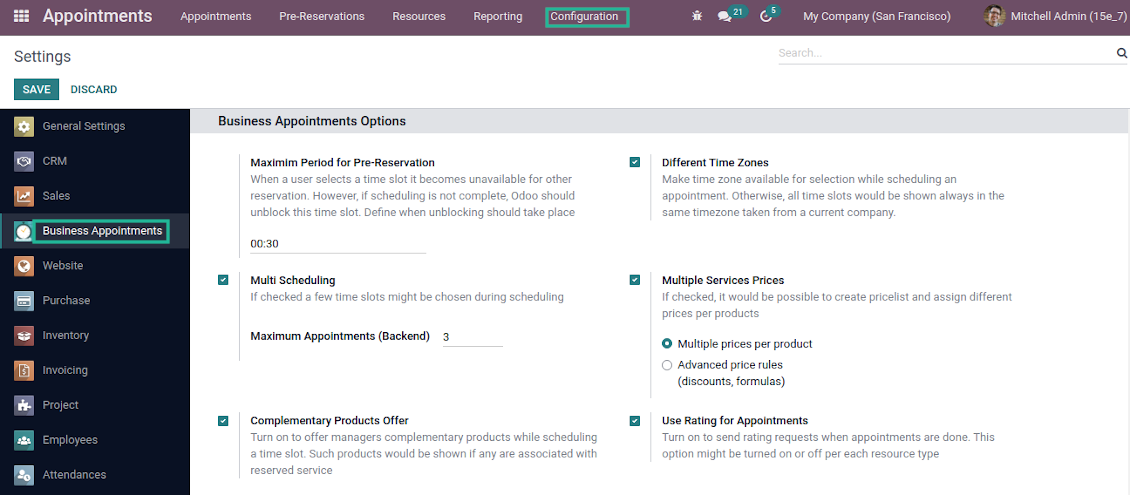
Reserved time slots are not available for other bookings. Even not yet confirmed appointments (pre-reservations) temporarily block target slots. Pre-reservation would be canceled if not done within a specified period (you may change this limit on the configuration page)
-
If the resource type is configured for that, the app would also consider simple meetings of responsible-for-resources users as busy time slots
-
The tool is also perfect for multi-timezone appointments. Either let users choose the time zone by themselves (default is the OS browser tz), or set the same timezone for all cases
Smart Odoo reservations
-
No appointment might be entered manually, but it should be selected among available slots and according to the principles you set up
-
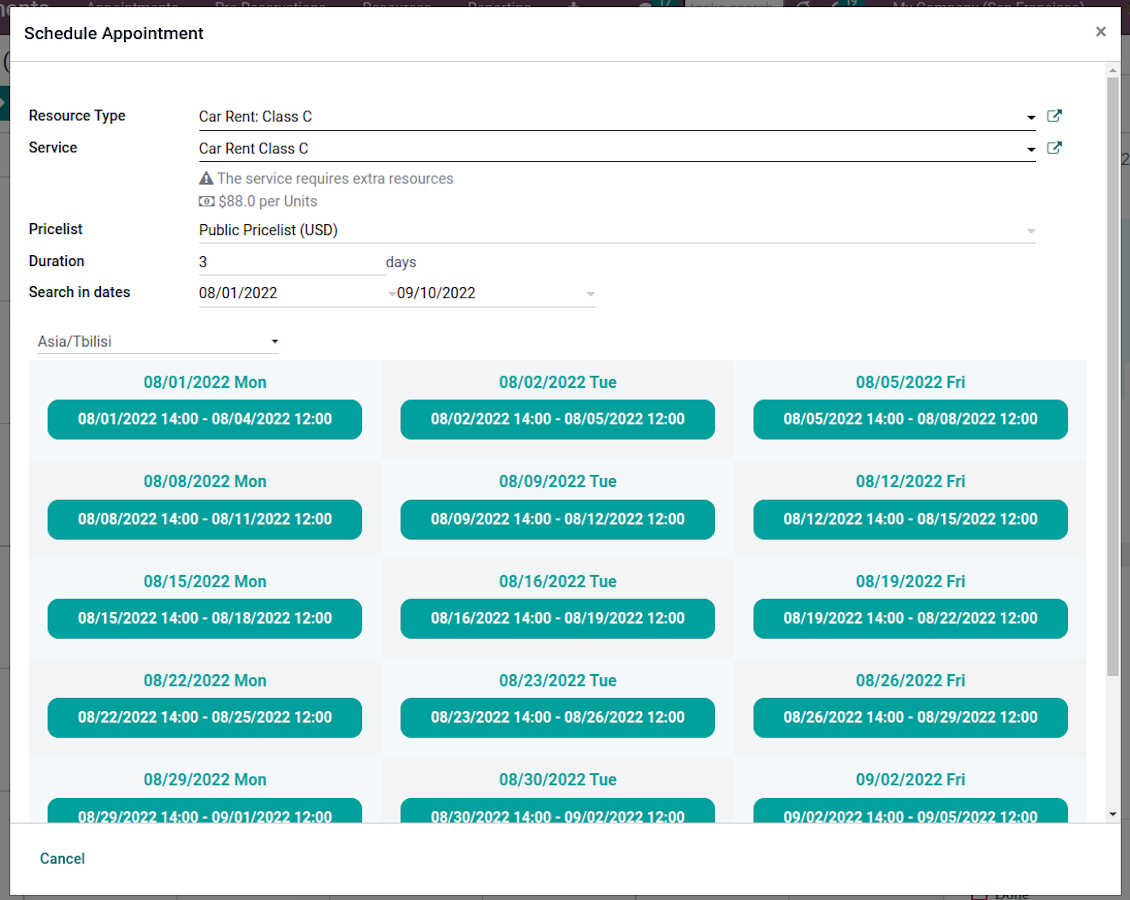
To start new scheduling pick up a required time period on the calendar: the wizard would be automatically initiated. Chosen dates are used as time range for slots
-
In the wizard, you can change which resource type, resource, and service should be scheduled. The tool automatically checks and restricts viable options
-
As soon as wizard details are filled up, the tool would generate and show time slots. A manager should merely select the desired one
-
When a slot is selected, the app automatically adds chosen type and service, allocates a proper resource, and assigns reservation responsible
-
Slot selection also means that the period is pre-reserved and can not be used for other bookings
-
Afterward, the only thing left is to enter client details or choose an existing customer
-
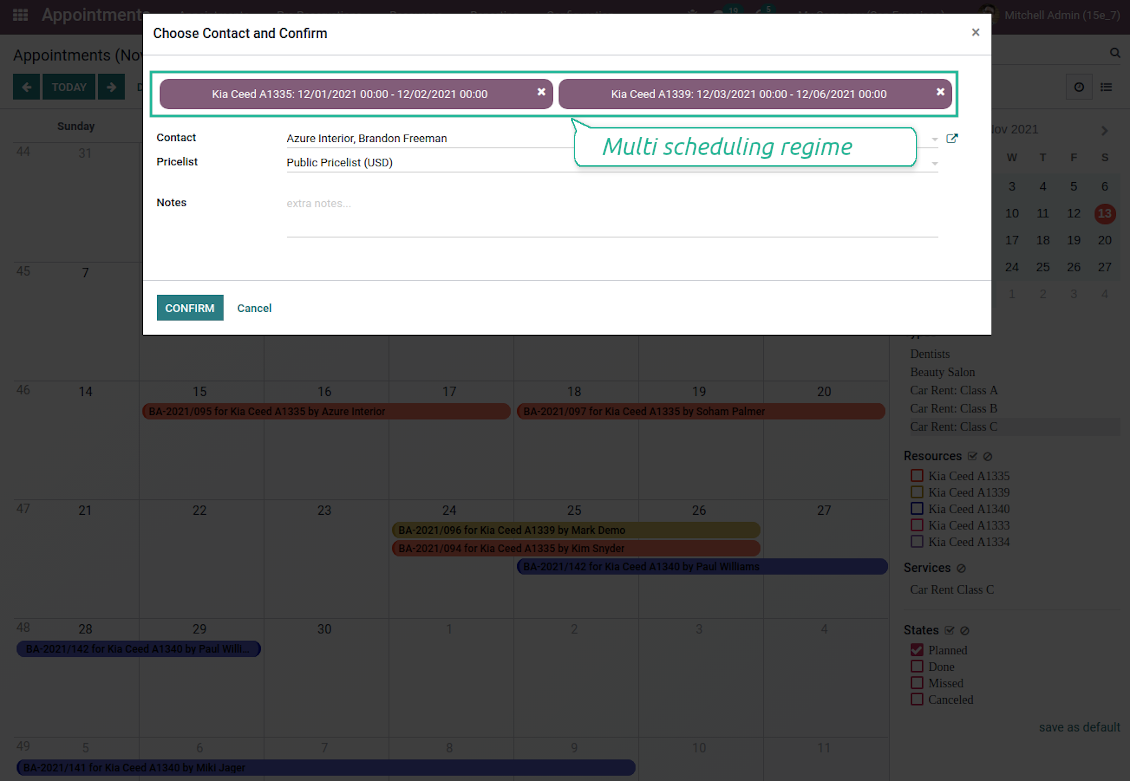
If needed, let managers schedule a few appointments simultaneously (regulated by the special setting on the configuration page). For a few or one resource types/resources/services.
-
From the appointments calendar, you may also re-schedule reservations. To that end just drag and drop an event, and the tool would prepare possible time slots. The principles of calculating availability are the same as for simple scheduling.
Universal website bookings
-
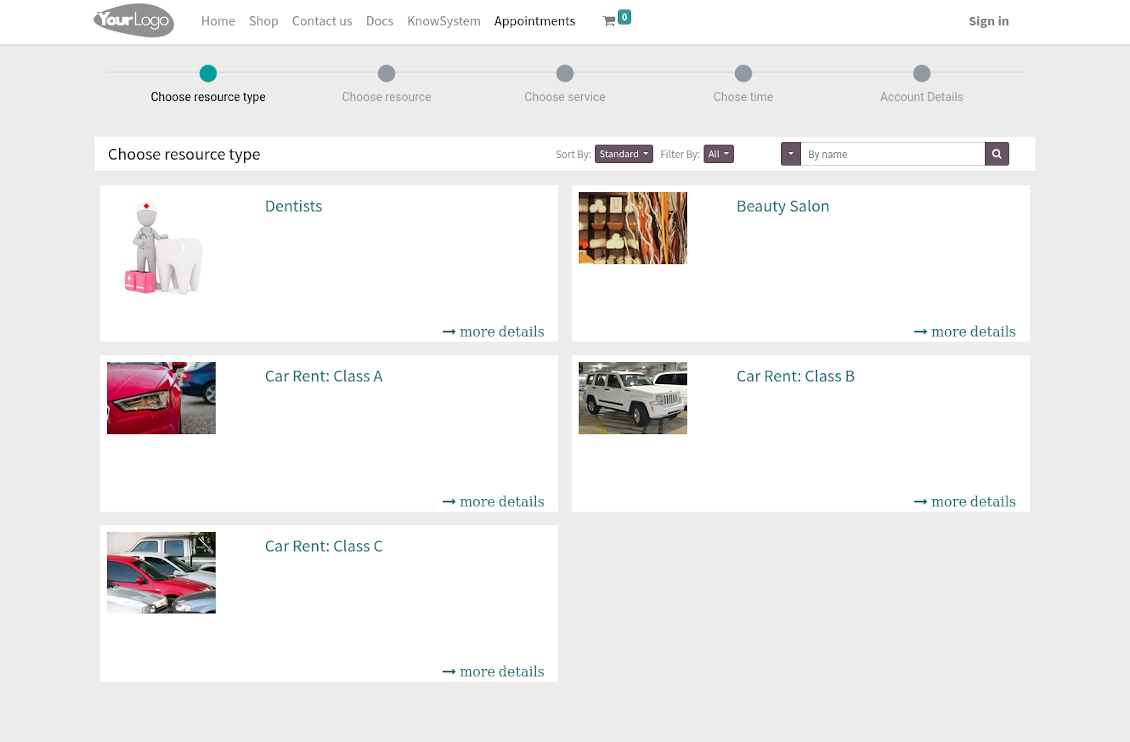
Scheduling an appointment through the Odoo portal and website is organized as the multi-steps checkout process
-
A customer searches among resource types and selects a required one. For example, "Beauty salon" or "Class C Cars". The step would not be shown if there is a single published resource type for this website
-
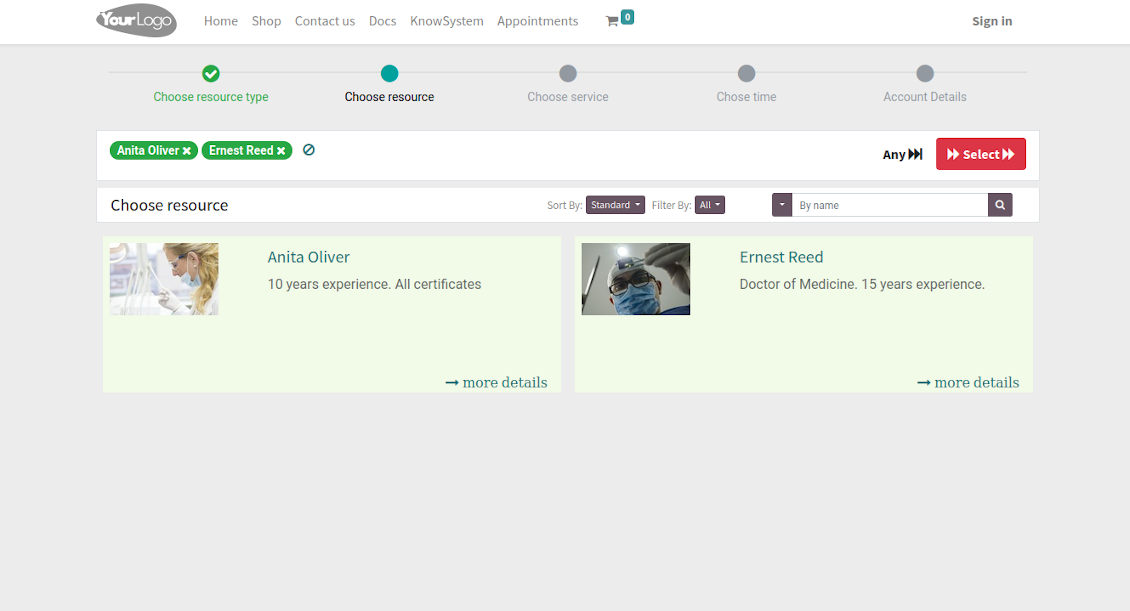
A customer navigates over resources available for this type and chooses one, a few, or applies any (all). For example, "Hair Dresser John Brown" or "Opel Astra 1234". The step is missed in case there is a single published resource, or the chosen resource type assumes automatic allocation
-
A customer chooses the desired service provided by selected resources. For example, "Classic Hair Cutting" or "Car Rent Class C". Clients would not be asked to choose a service if there is only one published on this website
-
A customer is shown available time slots. The interface lets adopt time frames for search, change the time zone, and insert duration (for services with manual duration). Each action results in slots recalculation. Website visitors might be optionally allowed to book a few time slots for a chosen service
-
The slots selection is required and might be not missed. As soon as pre-reservation is done, nobody else can book the same slot. Simultaneously, clients have limited time to make confirmation after which pre-reservation would be canceled (the exact time is up to you)
-
After pre-reservation appears, you may force the public (not logged-in users) to sign in, only offer to do so, or just let them add their details
-
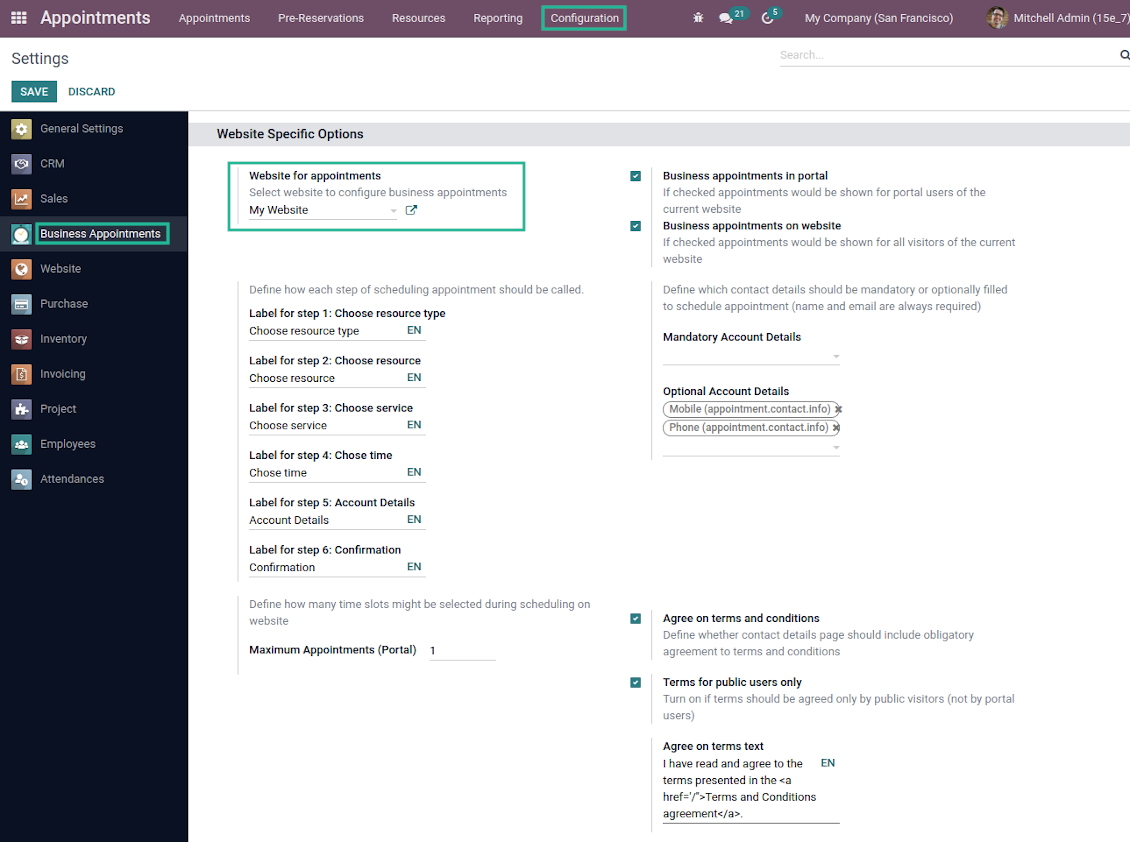
A customer should enter contact details, a set of which might be configured per website. By default required ones are name and email. Previously registered (portal) users would have fields auto-populated. Optionally add here a checkbox to agree with the terms and conditions
-
Optionally ask customers to confirm email or mobile number. If the confirmation option is turned on, website visitors would be obliged to insert received codes. In case a correct code is not introduced in time (set up on the configuration page), appointments would be canceled. If you selected SMS confirmation (depends on Odoo SMS IAP) but your balance is not sufficient, a confirmation code would be forwarded by email
-
As soon as all steps are done, a customer receives a confirmation email and is redirected to the success page/new appointments(s) page. For not yet registered users, Odoo would offer to enter the password for the Odoo portal
-
Optionally configure success redirection to a created sale order, so a customer may sign/pay that right after finishing the reservation (based on the Odoo standard sales workflow)
-
During the whole process, customers might see the progress bar (if you have not purposefully turned it off). The progress bar lets safely return to any previous step.
Configurable appointment pages
-
Show/hide progress bar. Introduce your own names for progress steps
-
Show/hide introduction block, images, short description for resource types, resources, and services
-
Prepare your own full details pages for resource types, resources, and services using Odoo standard website builder. Show/hide links for those pages
-
Show/hide pre-reservation and confirmation timers
-
Choose contact details fields required to be entered. Define custom fields that should be entered for appointments
-
Define filters and sorting criteria for resource types, resources, and service pages
-
Show/hide the agreement with terms and conditions for portal/public users. Introduce your own text and link for that agreement
-
Show/hide prices
Portal control of reservations
-
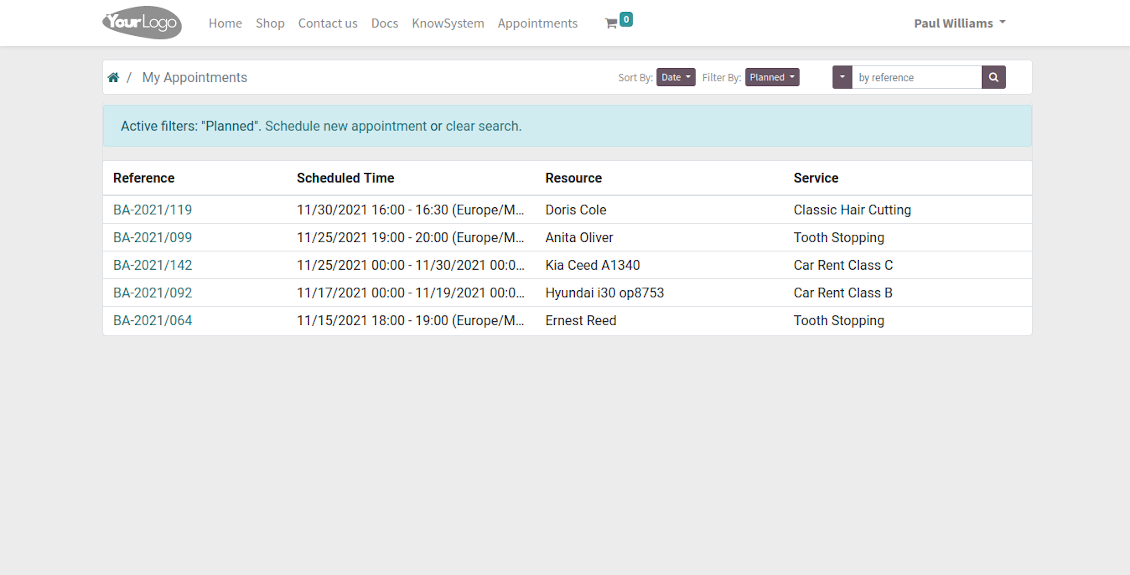
Customers may control their appointments right in the Odoo portal
-
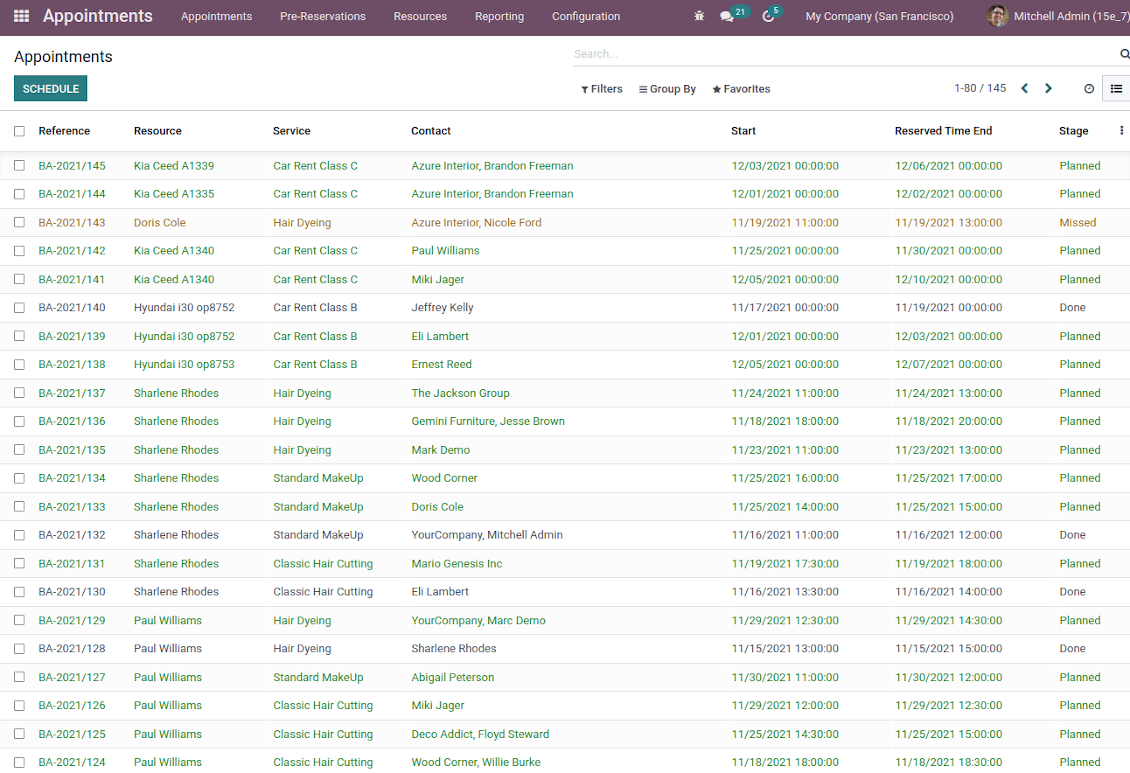
Portal users observe the list of planned and done appointments and may check any of those
-
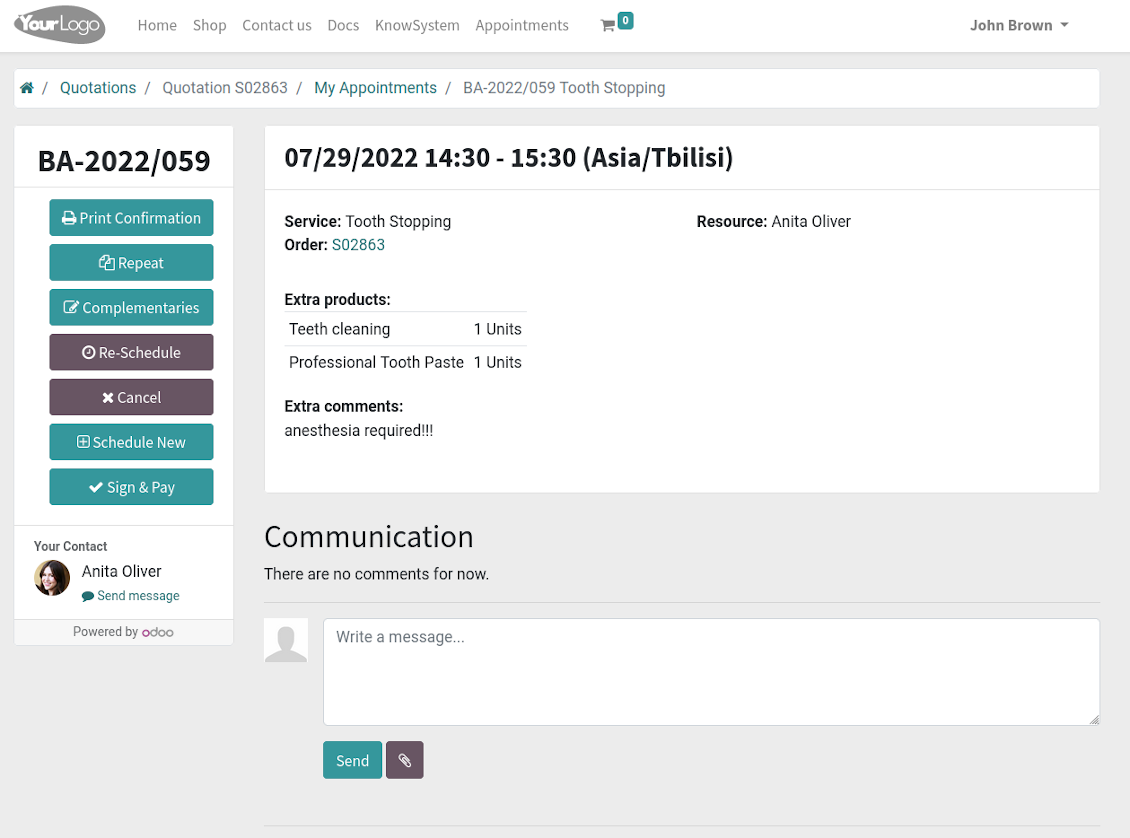
The Odoo portal allows to schedule new or repeat existing reservations, cancel or re-schedule planned ones
-
Each appointment has a chatterbox that allows direct communication with the resource manager and other followers
-
From the portal appointment page, users can also print a voucher, so reservation confirmation
-
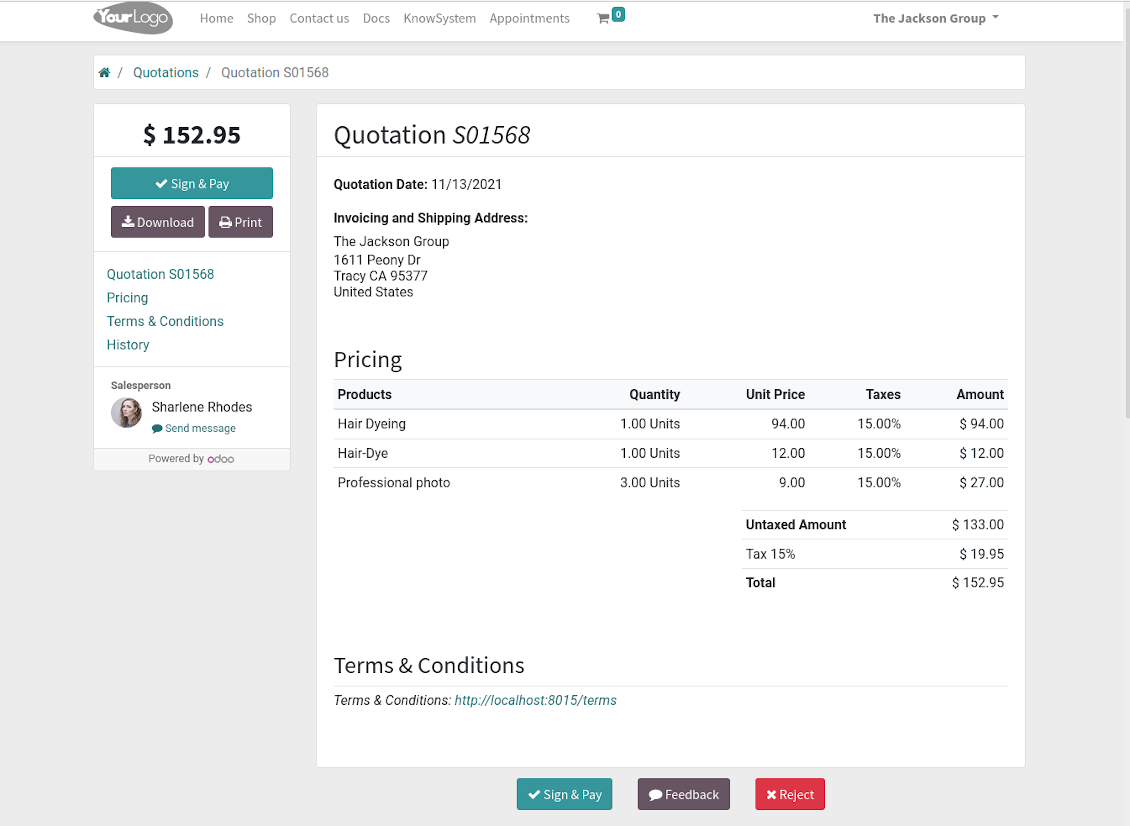
If an appointment has a linked sale order (sent, confirmed, or done) it would be also available through the standard Odoo portal entries 'Quotations' and 'Sale Orders', and right from the reservation page
-
Based on the Odoo standard sales functionality, customers may also sign and pay orders linked to their reservations.
Structured service management
Resource types
-
Resource types might be particular businesses you manage. For example, 'beauty salon', 'dentistry', or just 'hairdressers'
-
Another approach is to consider a resource type as a group of particular resources. For instance, 'class B cars' and 'class C cars' for rental business
-
Resource types contain main settings of how to organize service provision: how to allocate resources, how to calculate appointment total price, what are time restrictions, which services are possible, etc.
Resources
-
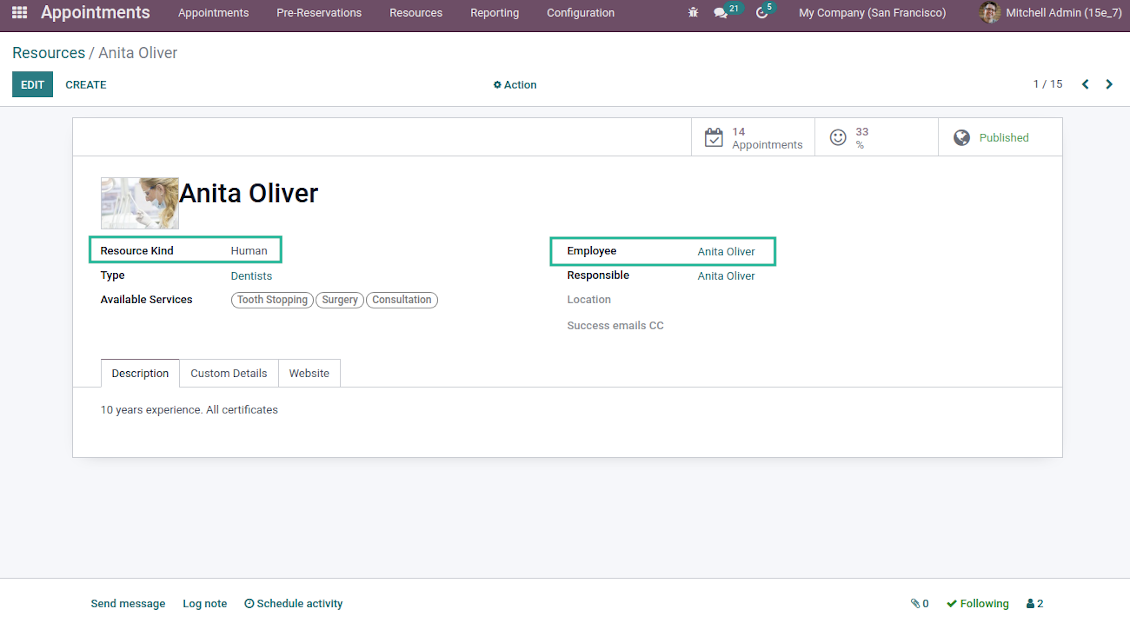
A resource in many service businesses assume certain specialists: For example, 'Dentist John Brown', 'Hairdresser Anna Green'
-
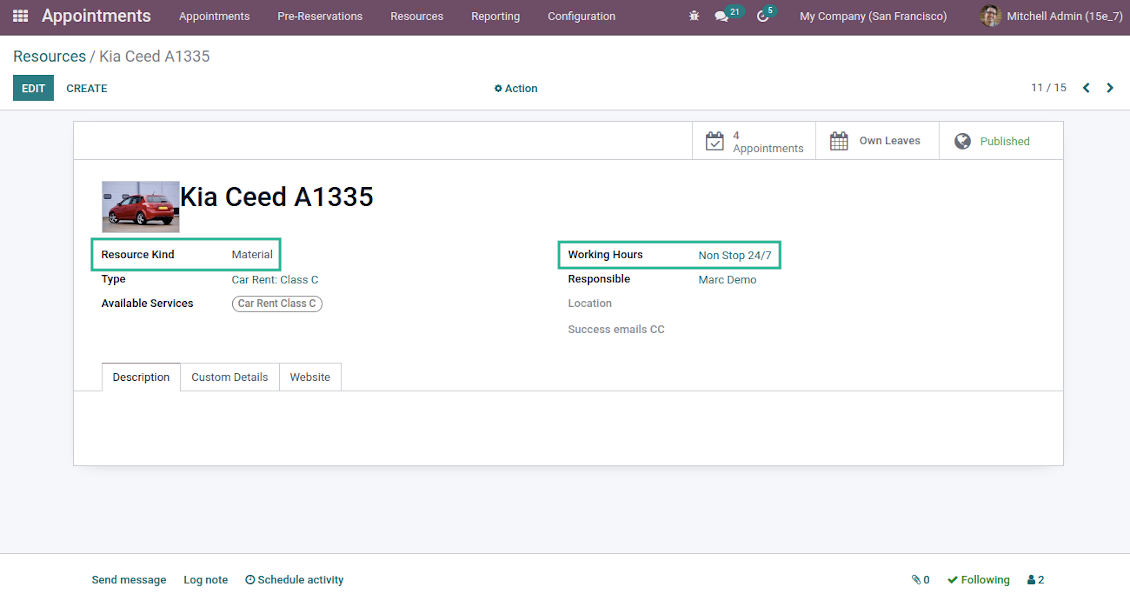
In other companies, it might be particular equipment or facility. For instance, 'Mercedes A1231', 'Room 12'
-
Resources are the Odoo object which working calendar you are planning. Thus, they define available days, timetables and time-offs, responsible users, etc.
Services
-
An appointment service defines what actually should be done. For instance, 'consultation', 'tooth surgery', 'classic hair cutting', 'car class C rent'
-
Services are not equal to Odoo products, but they are linked to each other to manage pricing details
-
Services regulate time settings of appointments (how long should it take, when it can be started, what is the time step, extra restrictions and extra services needed), which goods might be suggested as complementaries
3 layers to reflect specifics
-
The decision of what to consider resource types, resources, and services is completely up to you. Such an approach lets reflect almost any service business
-
The tool does not force you to have multiple instances for each layer. In simple cases, there might be just a single representative for each step. For example, Lawyers - Attorney Chris Black - Consultation
-
If there is a single option, the app would reflect that by simplifying appointment scheduling. So, steps without actual choice are auto missed.
Sale and upsell services
Sale orders and appointments
-
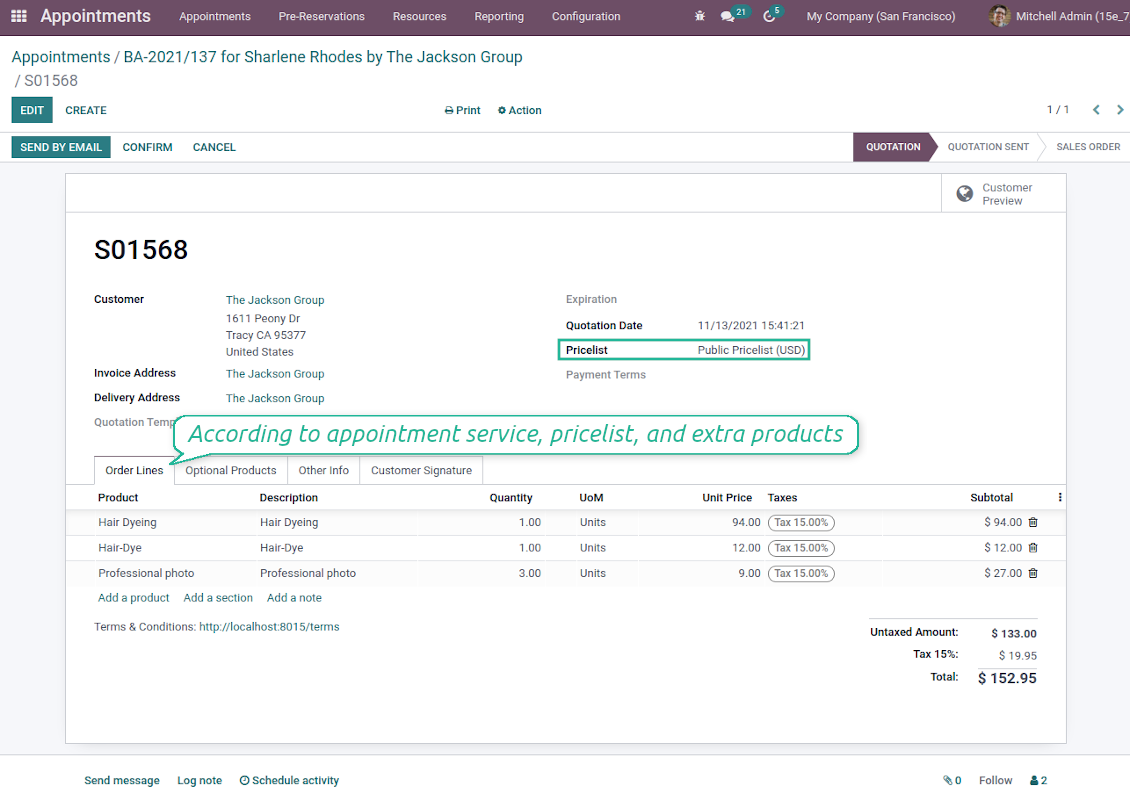
The app lets you link appointments and sale orders. You have 4 configuration options
-
Sent sale orders: if chosen, a sent quotation would be prepared based on the appointment. This way, a portal user will be able to sign and pay such a quotation. The method is suitable in case your service is standard, and you accept customer approval/online payment
-
Automatically confirmed sale orders: if chosen, a sale order would be created as soon as an appointment is scheduled. The method is suitable in case your service is standard, and final sale positions and details would hardly be changed during that appointment. For example, fixed-price hair cutting
-
Draft sale orders: if chosen, only a quotation would be generated. In such a way you would be more flexible in updating an order during service provision or beforehand. For example, if you want to add extra complementaries during a visit or to grant clients individual discounts
-
Manual sale orders: if chosen, managers would have to create quotations while providing service. The method might be applicable when most of sale lines become clear only during the visit itself. For example, a mobile phone repair business assumes initial diagnostics and only after that offers the price
-
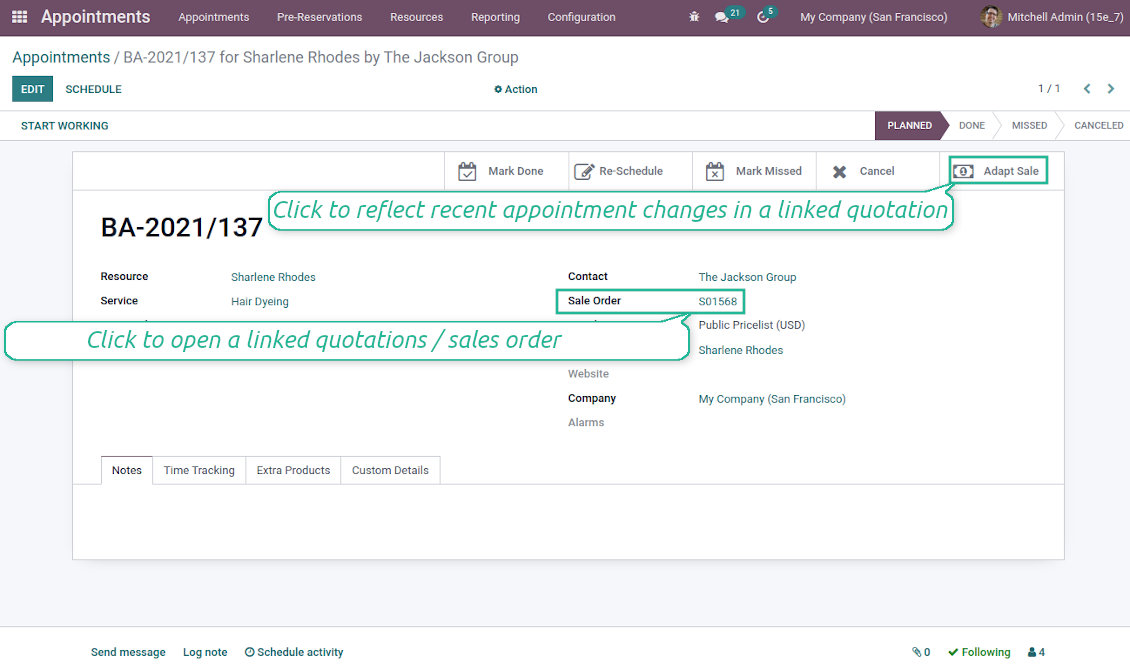
Until an appointment sale order is not confirmed, you would be also able to update that right from a reservation form. Both service, quantity, and complementary products are re-calculated in that case
Service pricing
-
The tool lets you configure pricing method per each resource type
-
Per planned duration: if chosen, Odoo quotations would be created based on initial reservation plans. For example, it might be suitable for car rent or massage
-
Per units: if chosen, sale orders consider appointments for the same price disregarding their duration. For example, standard haircutting or tire mounting is invoiced the same disregarding how much time they take
-
Per tracked (real) duration: when you want to invoice actual time spent on service provision. For example, the approach might be suitable for consultation or legal services
-
Prices are price list dependent. It means, that a manager might select individual conditions during scheduling. In such a way, it is possible to apply various currencies, discounts, promos
-
The latter feature is also applicable for website / portal users. In case there are a few to-select price lists, users would be able to choose the most suitable (e.g. in a correct currency). For the portal users, their partner price list is selected by default
Complementaries and upselling
-
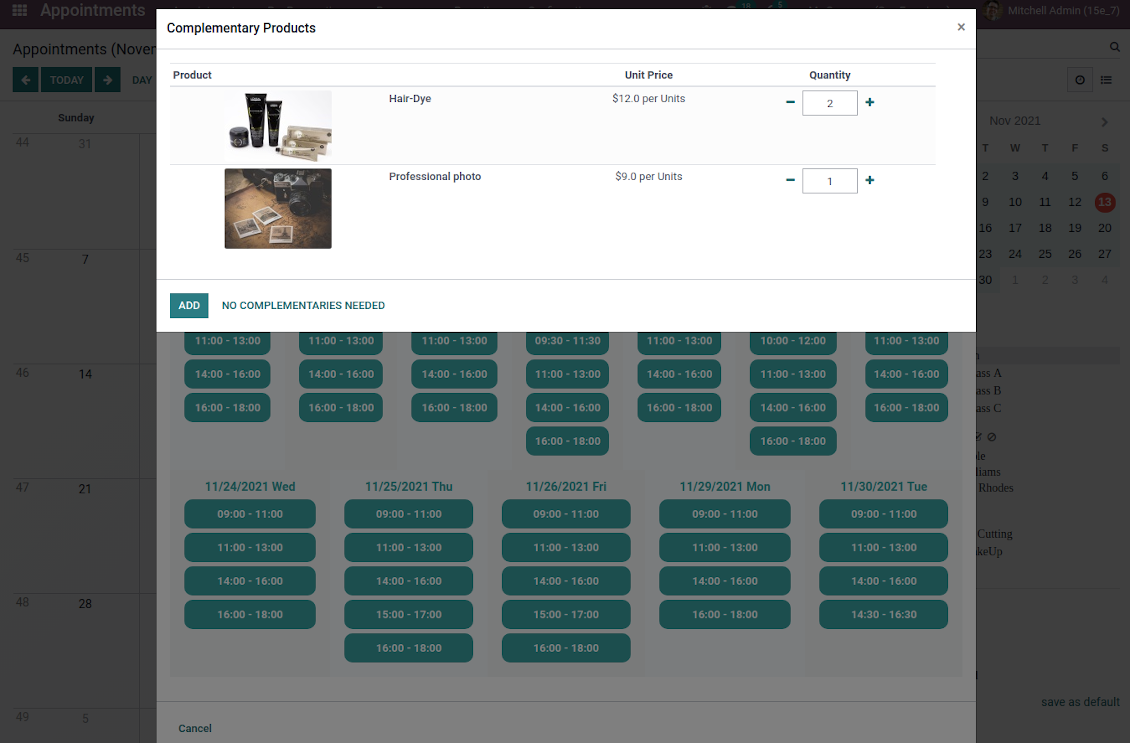
When a client finishes scheduling, it seems a good moment to increase a bill by offering complementary products. The tool aims to help you in that
-
Odoo would show the popup with suggested products for backend managers immediately after reserving a time slot
-
Website visitors/portal customers would see accessories dialog also when they select the time for reservation
-
The popup allows both adding one or a few complementaries or merely missing the step if suggested products are not required
-
The feature is turned on/off on the configuration page: for the backend in general and for each website. The popup would be shown only in case there are complementaries defined for a booked service.
Flexible configuration and automatization
Service time settings
-
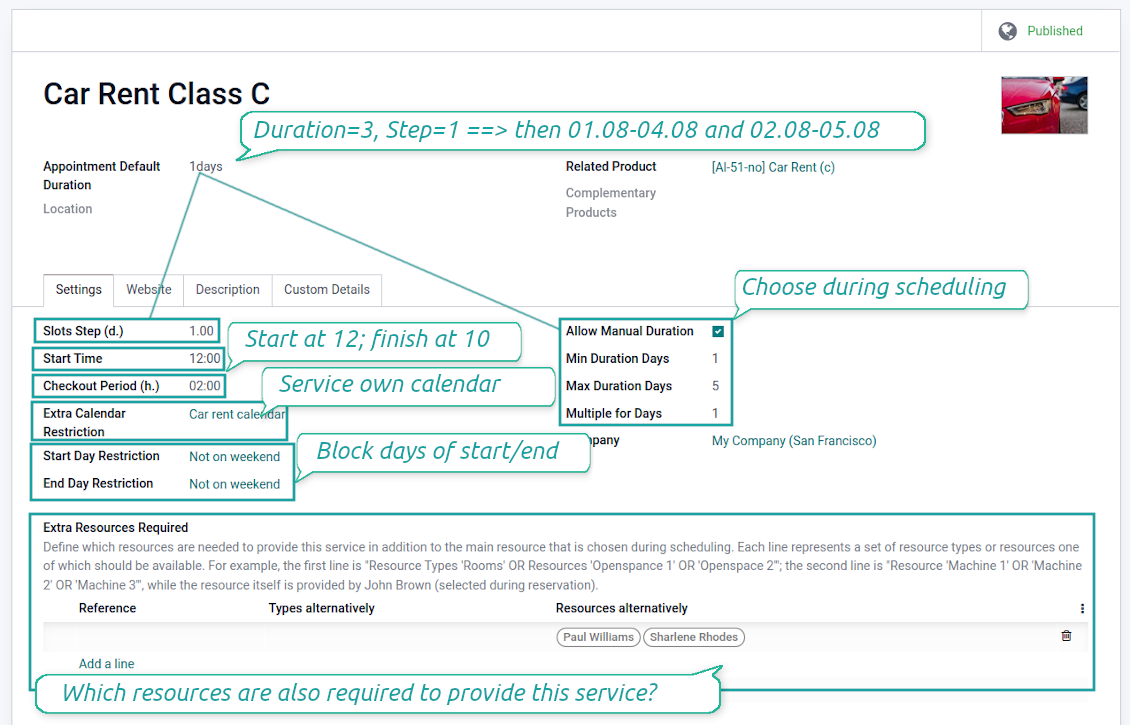
It is possible to configure the service to have a rigid duration (for example, standard hairdressing always lasts an hour) or let clients/managers select that manually (for example car rental might take from a day or 60 days)
-
Duration is defined either in hours (for example, it might be suitable for consulting or repair) or in days (for example, applicable for equipment or room rent, conference translator services)
-
For the manual duration, it is possible to apply restrictions: the maximum/minimum order and the multiplier. For instance, you can simply apply the rule: a service should last not less than an hour, not more than 8 hours, but the duration should be always multiplied by 30 minutes (1:20 is not possible, while 01:00 and 01:30 are fine)
-
The app allows configuring the rule to round time slots start. Sometimes applied restrictions might result in a calculated start you do not like. For example, an hour-long service start at 12:23 is hardly good. To solve the problem you can simply set up rounding for an hour (other available options are 5, 10, 30 minutes; 2 hours; midnight or midday tomorrow)
-
Together with duration, 'Slots step' defines the frequency of available time periods, including whether it is possible to have overlapping periods. When the chosen duration is equal to the slots step there would be no intersections: 12:00-13:00; 13:00-14:00 for the duration and the slots step set as an hour. When the duration is bigger than the slots step periods would be intersected: 12:00-13:00; 12:30-13:30; 13:00-14:00 for the duration of one hour and the slots step 30 minutes. Finally, if the duration is smaller than the slots step there would be breaks between the periods: 12:00-13:00; 13:30-14:30 for the duration of one hour, and the slots step 90 minutes
-
The checkout period is the setting that might give resources to finish service until the next one is started. For example, to have a cleanup after room rental, assign manual duration in days with the rounding 14:00 and with the checkout period 2 hours. Then, the potential time slot for a customer would be 01/08 14:00 - 03/08 12:00, while the resource would be anyway registered for the whole period 01/08 14:00 - 03/08 14:00
-
If there are certain restrictions on the service in addition to the resource timetable, introduce the 'Extra service calendar'. For example, although your beach is open 24/7, sunbed rental is available only from 08:00 to 17:00. Thus, you can define its own service working time
-
For services lasting a few days, sometimes it is needed to define when the provision cannot be started or finished. Then, the settings Start/End Day Restriction may be used. They allow defining weekdays or specific dates when start/finish is not possible. For example, accepting/discharging patients is not possible on weekends and holidays but indoor treatment is possible. So, for the service 'Indoor treatment' block Saturdays and Sundays using the named settings
Resource allocation
-
When there are a few resources of the same type, the challenge of how to distribute appointments among those arises. There are 2 general approaches introduced by the app
-
Manual allocation - applied when each resource is unique, and you prefer to give clients a right to select among those. For example, a customer would like to be consulted by a certain doctor or to be serviced by a definite hairdresser. Manual allocation does not force a client to select resources. This is the right, which might be simply missed by explicitly choosing "any" or a few resources
-
Automatic allocation - applied when all resources are considered equally good for clients. For example, a customer would hardly compare Opel Astra 1234 vs. Opel Astra 1235. Automatic allocation is configured per each resource type depending on your business specifics
-
Automatic distribution by resource workload lets assigning appointments according to the total planned duration of all open appointments. For example, it might be fair in a beauty salon to equally spread tasks
-
Automatic allocation by appointments number does not take into account real duration, but only absolute quantity. For example, it might be suitable for tire mounting where the price is set up not per duration but per units
-
Automatic distribution by order means that each resource has its own priority, and allocation is done on a queue basis. Thus, the resource with the highest priority would be always chosen until it has available slots for the target moment. After that, the second-important resource is under consideration until it is also occupied, and so on. For example, such an approach might work for facilities booking or car rental
Resource aliases and extra service resources
-
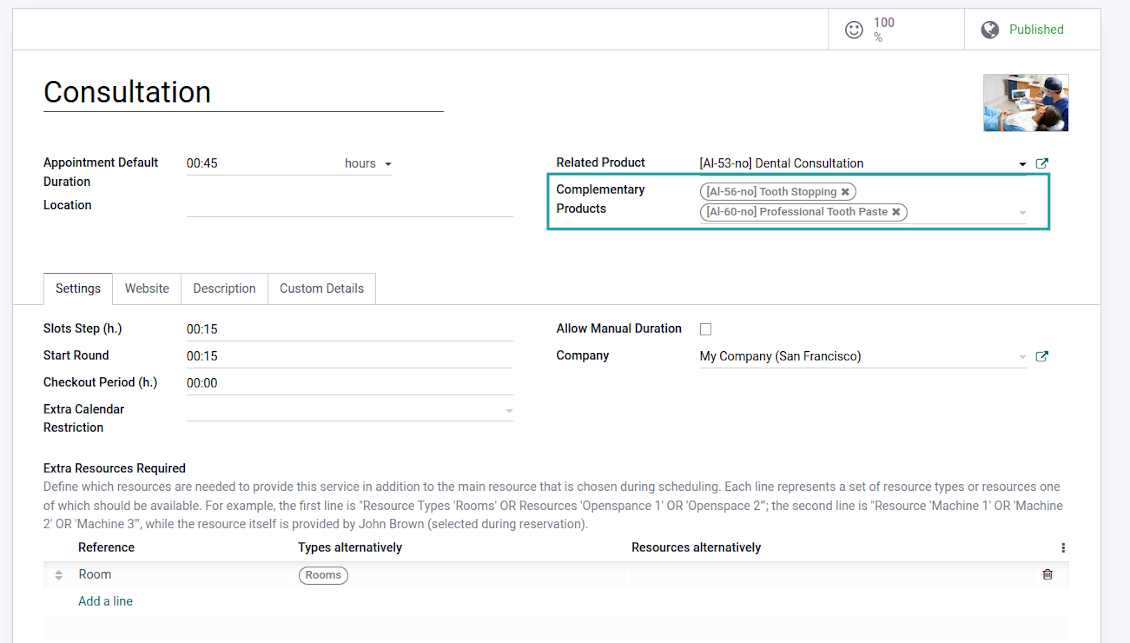
When a service requires multiple resources then it is possible to assign special service rules. The app lets configure as many extra resources involved as it is needed
-
Each service extra resource rule assumes either resource types or resources that alternatively are required for the service. For example, either any resource of the type 'Rooms' OR the resource 'Hall 1' OR the resource 'Openspace'
-
If there are a few rules, to reserve service at least a single resource in each line should be available. Thus, the number of extra appointment resources would equal the number of service rules. If some of the lines cannot result in a real resource, a service cannot be reserved. Please take into account that alias resources cannot be extra resources: their prime resources would be used instead
-
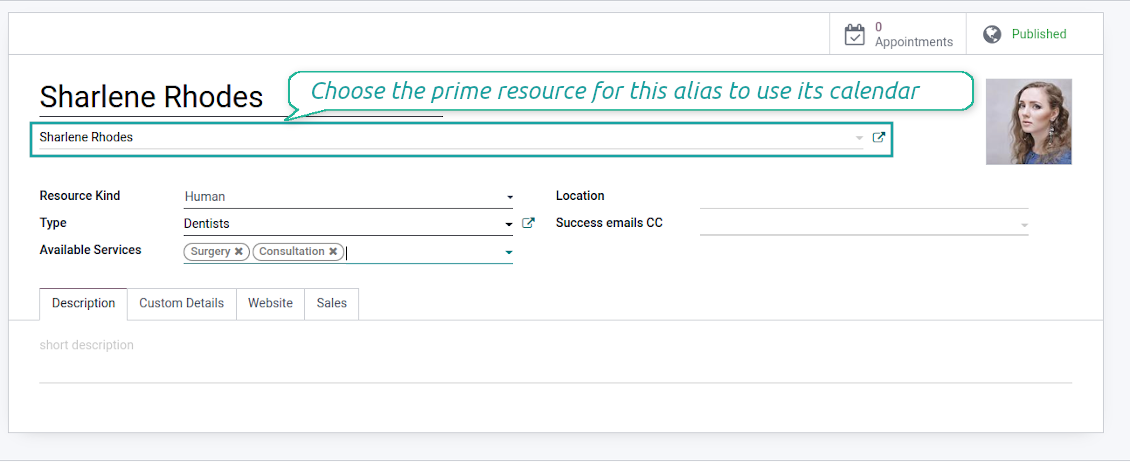
When a resource is involved in a few business activities (so, relate to different resource types and have different services), use resource aliases. A resource alias is a resource that does not have its own working calendar and its own responsible user. Instead of that, it uses the prime resource settings. For example, Anita Oliver can be both a hairdresser and a dental consultant. Then, you should create the prime resource 'Anita Oliver' (the type 'Beauty salon'), and the alias resource 'Anita Oliver' (the type 'Dentistry') with the prime 'Anita Oliver, Beauty Salon'. In this way, she can be reserved both for the 'hair dressing' service and for the 'Dental consultation', but the busyness in one sphere would block availability in the other
-
Alias resources have their own configuration, including description, image, sale settings, etc. So, the only differences from the normal resources are a working calendar and a responsible user, which are taken from their prime resource.
Complementary features
Configurable reminders
-
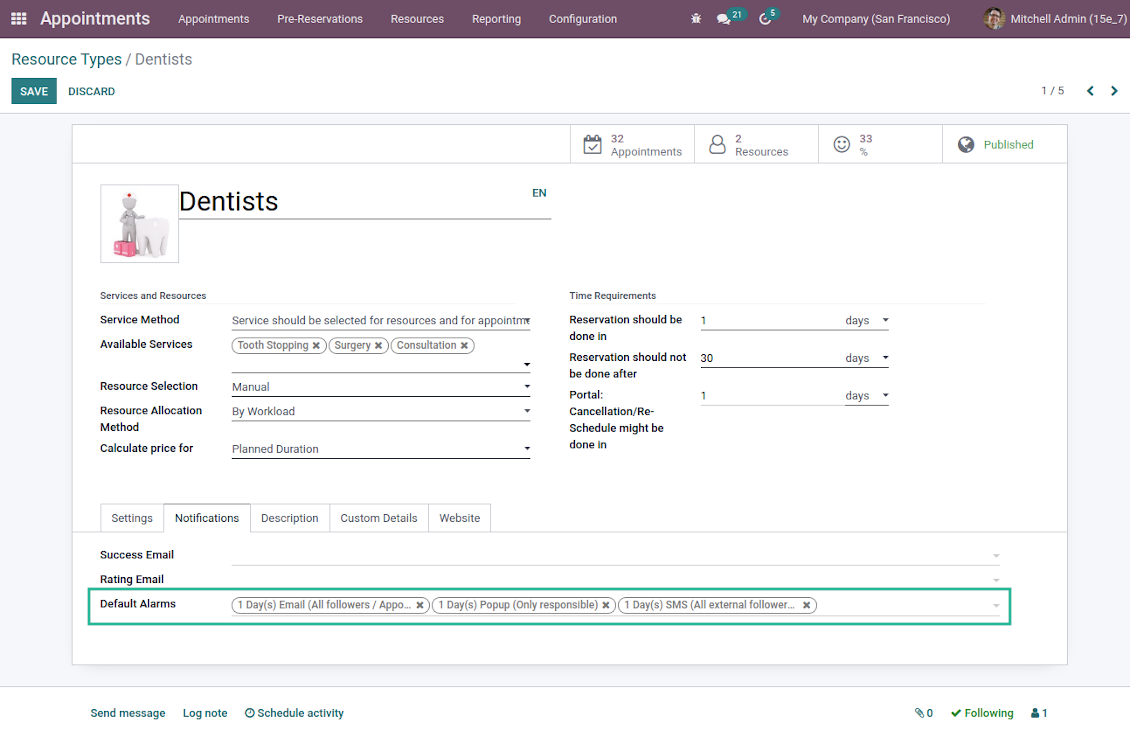
The app allows preparing of 3 types of appointment alerts: pop-ups, emails, and SMS. You can quickly create those through the special configuration menu entry. SMS reminders are sent using the Odoo SMS server (make sure that you have sufficient balance for Odoo SMS IAP)
-
Select default alarms for each resource type. Such alarms would be automatically applied to all new appointments of this type. Otherwise, you may choose those for specific appointments
-
Define who should be notified: a responsible manager, external followers (clients), internal followers, or all followers. Popup alarms are available only for backend users
-
Specify a period for alert: it is possible to apply a time range in days, hours, or minutes. For instance, 2 days before the scheduled date
-
For SMS and email alarms you should also assign a template that is rendered based on appointment details.
Misc
-
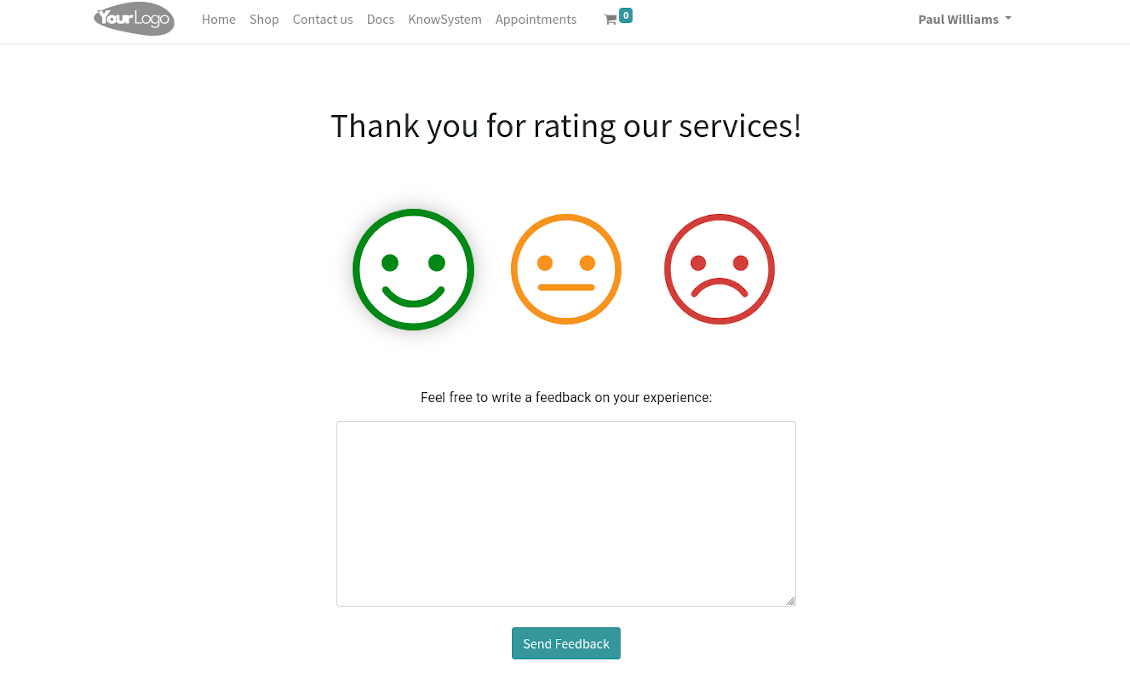
Optionally configure automatic requests for a customer review when an appointment is done. Clients should select among 3 simple "smiles": satisfied, not satisfied, and highly dissatisfied. The final rating is calculated for resource types, resources, and services
-
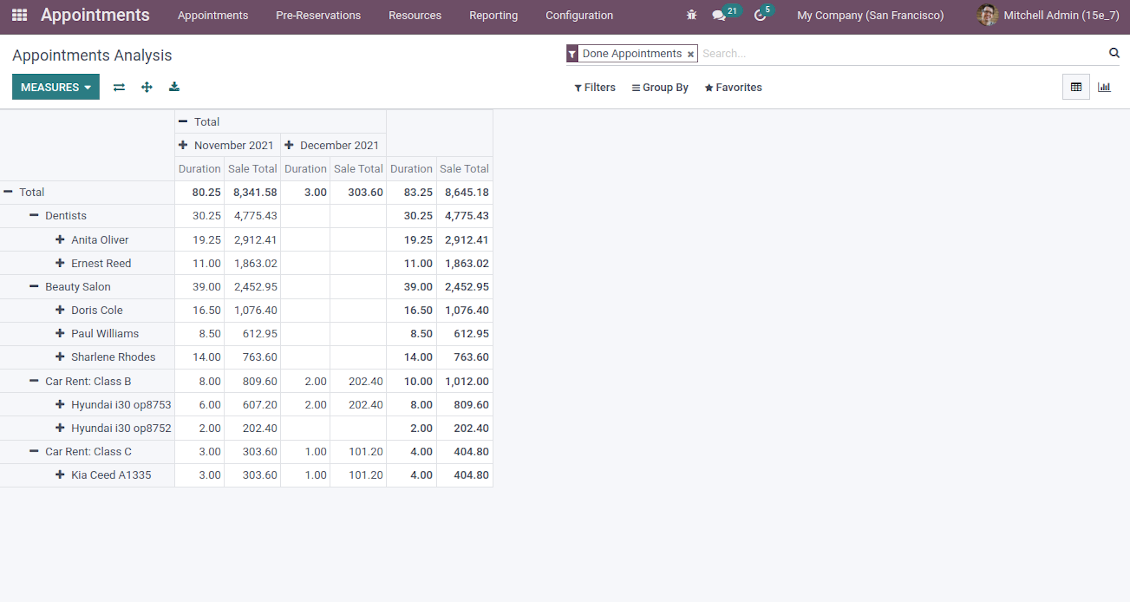
The tool has its own report view, where you can analyze appointments on pivot and graph views
-
Appointments have automatic numbering. You may change its logic (suffix, prefix, step, etc.) by configuring the related Odoo sequence
-
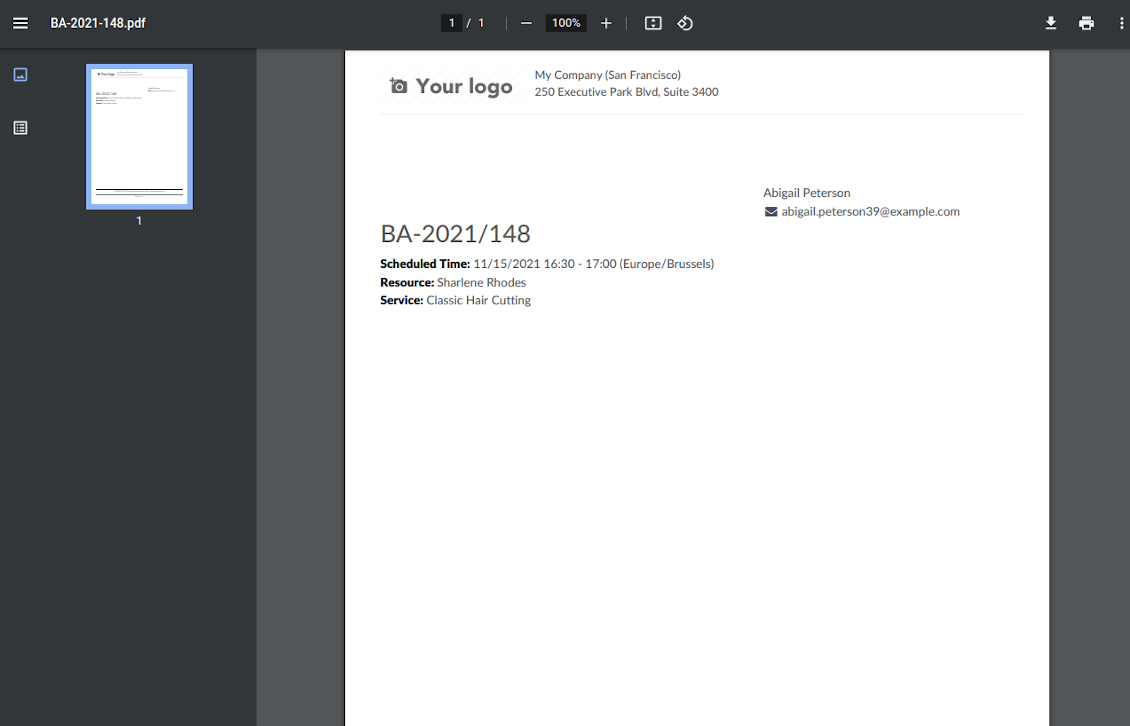
Each appointment has a printing version that might be generated in the backend and optionally in the portal, and which is attached to all appointment confirmation emails. The printing version relies upon standard Odoo layouts and might be also used as a service voucher.
Optional add-ons features
-
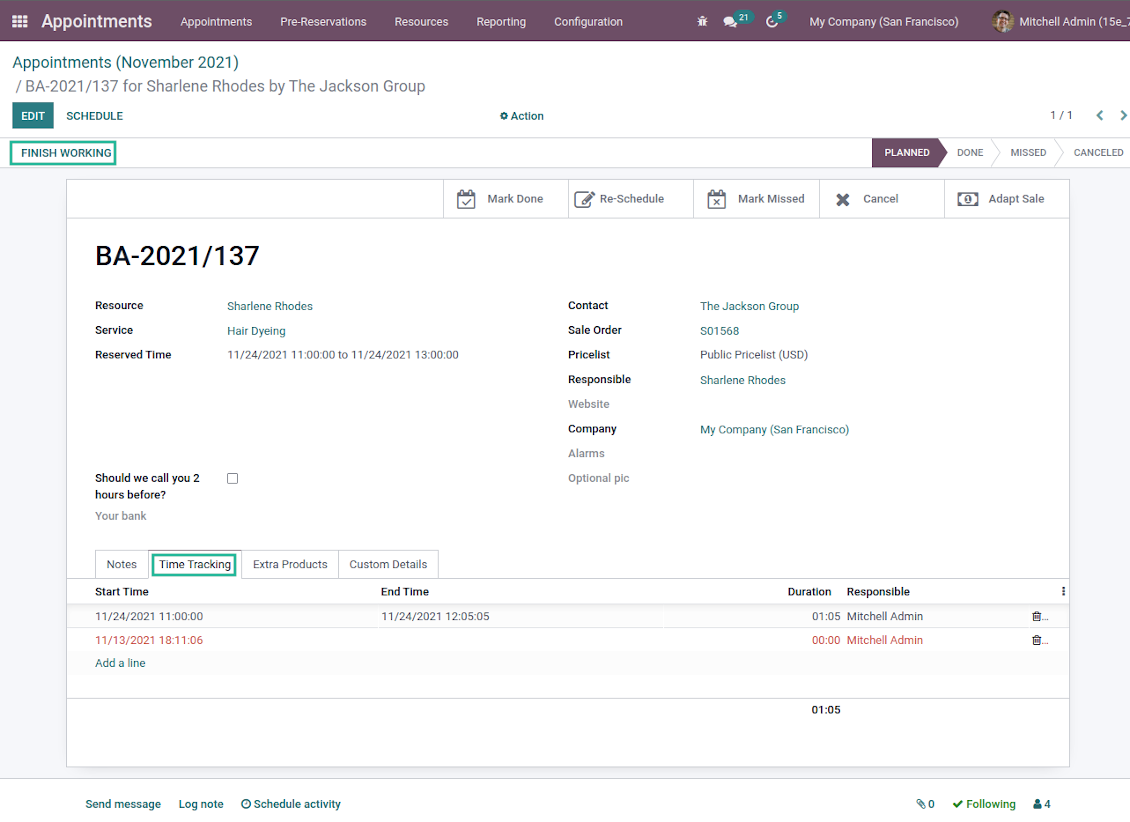
The app allows appointment managers to track time spent on providing service. This "real" time might be used not only for statistics but also to calculate the total appointment price.
-
The tool lets link resources and employees to automatically apply working calendars of the latter for appointments of this resource
-
Appointments might be shown on the special Odoo Enterprise Gantt view for instant resources workload observation.
Secured appointments
-
The tool introduces its own user rights system to make sure business data is secured. For the backend users, there are 2 groups that are allowed to work with appointments: "Appointments: Only Own" and "Appointments: Administrator"
-
Appointments admins are allowed to manage all settings and update any appointment-related objects of their company(s)
-
The 'only own' group has limitations and its users have rights: (a) only to read resource types and services; (b) to observe only resources, in which they are responsible managers or which do not have such managers at all; (c) to create and to update appointments related to resources which they can observe
-
Portal and website security is managed independently
-
Resource types, resources, and services should be website published in order to become available for selection for both public and portal visitors
-
Any website visitor might schedule an appointment and access resources/services without registration if you turned the option "Business appointments on website"
-
Portal users have the same rights even if the latter option is not turned on, but you switched the option "Business appointments in portal".
Custom fields
-
Custom attributes' creation does not require any technical knowledge. In order to show a new property, just add a new field and enter the details
-
The tool lets prepare new fields for resource types, resources, services, and reservations
-
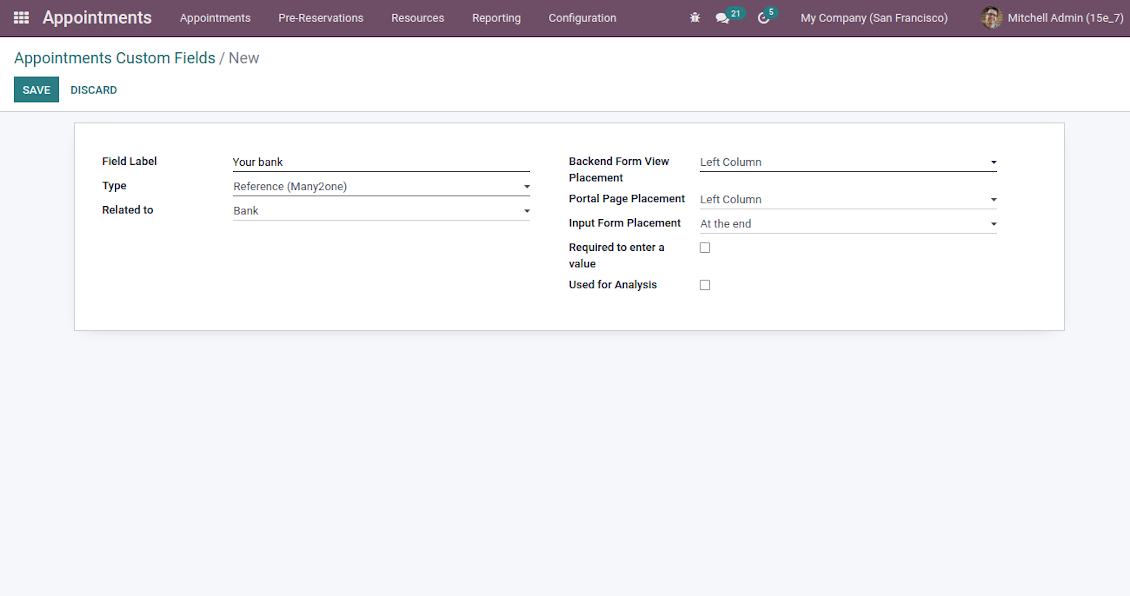
It is possible to add custom fields of the following types: single-line text (char), simple text without formatting (text), rich text (HTML-formatted text), integer or float numbers, drop-down choice with your own options (selection), checkbox (boolean), date or date and time, binary (a file to upload), reference to another Odoo document (e.g. for sale order, contact; many2one)
-
The tool lets you comfortably select an interface position of a custom field from a closed list of options. Optionally you may select also portal / website position to make properties visible to public users
-
For the website booking process, it is possible to force users to select custom appointment details
-
Have different resource fields depending on resource type (for example, dentists' details differ from cars' details).
Configuratie- en installatietips voor Universal Appointments and Time Reservations Odoo v.15
Python dependency
The tool depends on the external Python library 'phonenumbers'. Install this library for your Odoo server through the command:
pip3 install phonenumbersVeelgestelde vragen over Universal Appointments and Time Reservations Odoo v.15
Wat is een afspraakvoucher? Hoe pas ik die aan?
De afspraak heeft een eigen pdf-bijlage (voucher). Deze bijlage wordt automatisch gegenereerd op basis van Odoo-websjablonen. Met enige technische kennis of met hulp van een Odoo-partner/leverancier kunt u die sjabloon aanpassen (zoals bij offertes, facturen enz. van Odoo). Standaard gebruikt hij de standaard bedrijfsopmaak die in de app is ingevoerd.
Kan ik in een enkele boeking meerdere diensten/Resources tegelijk reserveren?
In de backend kunt u de optie ‘Multi scheduling’ inschakelen: de manager kan dan meerdere boekingen voor een klant maken voor verschillende diensten/Resources en meerdere tijdslots kiezen. In het portaal is er de optie ‘Multi scheduling’. Daarmee boekt de klant een dienst/Resource, maar voor meerdere tijdslots. Om meer dan een dienst/Resource te boeken, moet de klant meerdere boekingen doen.
Welke meldingen krijgen afspraakmanagers?
Voor managers/specialisten kunt u abonnementen per brontype en Resource configureren. Meldingen over nieuwe afspraken zijn bijvoorbeeld gekoppeld aan het e-mailsubtype 'New appointments and recovering'. Daarnaast kunt u herinneringen instellen om betrokkenen te attenderen. Zie de Appointments-app > Configuratie > Herinneringen.
Krijgen klanten e-mail- en afdrukbevestiging van een boeking?
Zodra alle stappen klaar zijn, ontvangt de klant een bevestigings-e-mail en wordt hij/zij standaard naar de succespagina gestuurd (een pdf met een voucher zit bij die e-mail). Op de succespagina kan de voucher ook worden afgedrukt.
Wat is een pre-reservering in de fase 'Waiting for confirmation'?
Wanneer een klant een dienst begint te reserveren en een tijdslot kiest, wordt dat slot onbeschikbaar voor anderen en ontstaat een pre-reservering. Om het weer vrij te maken, stelt u de maximale tijd voor de reservering in. Na die tijd, als de klant de reservering niet afrondde, is het slot weer beschikbaar.
Om de tijd voor pre-reservering in te stellen:
1. Open de Appointments-app
2. Ga naar Configuratie>Configuratie
3. Stel in 'Maximum Period for Pre-Reservation' de tijd in
Als we meerdere vestigingen hebben, kunnen we de Resources daarnaar verdelen?
De verdeling van Resources kan anders worden geconfigureerd. Een aanpak is Odoo multi-bedrijven. Bij het aanmaken van brontypen/Resources/diensten kunt u optioneel het bedrijf opgeven. Of ze ‘global’ maken, voor alle bedrijven. Zo kan de set per bedrijf verschillen.
U kunt het afspraakproces ook per website/vestiging anders zetten. Kies de website die een bepaald brontype/Resources/diensten toont. Die vestigingen kunnen zelfs totaal andere terreinen dekken: de ene site voor Engelse les, de tweede voor een tijd in de gym.
Zelfs zonder verschillende bedrijven of websites kunt u afspraken voor verschillende bedrijfsonderdelen inrichten. De app laat u zelf bepalen welke stap bij welke activiteiten hoort. Een brontype kan een tandkliniek in het centrum zijn, het tweede chirurgische tandheelkunde in een woonwijk. Zo beheert u via brontypen vestigingen en deelt u Resources ook zonder multi-bedrijven.
Kan ik eerst de dienst en daarna de Resource selecteren?
Kan een gebruiker een afspraak maken zonder account?
Ja, een gebruiker kan zonder account een afspraak maken, maar alleen de eerste keer. Zodra iemand een afspraak maakt, is het e-mailadres in de basis gereserveerd en kan het niet opnieuw. Voor verdere registraties of bestaande contacten moet men inloggen om een afspraak te maken.
Een gebruiker kan zich aanmelden via de bevestigings-e-mail of rechtstreeks in Odoo. De uitnodigingslink is kort geldig: wie de kans mist, moet daarna een wachtwoord resetten of uw hulp vragen.
Hoe wijzig ik de taal van de succes-e-mails?
Om de taal van een e-mailsjabloon te wijzigen:
1. Zorg dat de doeltalen in uw Odoo zijn geïnstalleerd.
2. Zet daarna de ontwikkelaarsmodus aan en ga naar Technisch > Sjablonen
3. Zoek daar het sjabloon 'Appoints: Success Email'
4. Begin het sjabloon te bewerken en klik op het taalpictogram rechtsboven in het artikelsjabloon.
5. U ziet de artikeltekst in alle systeemtalen. Vertaal de doeltalige e-mail handmatig, maar verwijder de code niet. Sla het resultaat op.
Wijzig daarna ook de taal van het contact (op de contactkaart, veld 'Taal'). Zulke contacten ontvangen de e-mail dan in die taal.
Als iemand voor het eerst een afspraak maakt op uw website, krijgt die standaard de taal van de geopende site. De bevestigings-e-mail gaat in die taal.
Waar staat het veld 'Start Round' op de dienstkaart voor?
Het veld 'Start round' rondt de tijd af op dit getal, om lelijke tijden te vermijden. Als het nu 9:48 is en ik een dienst uiterlijk een dag van tevoren moet boeken, is de eerste tijd morgen 9:48 — geen mooie tijd. Rondt u af op een uur (01:00), dan is de beschikbare tijd 10:00.
Meer opties en voorbeelden van afronden ('Help') ziet u als u over de veldtitel hovert.
Ik vind het uiterlijk van gegenereerde e-mails / SMS niet mooi
U mag ze aanpassen. De sjablonen staan onder Configuratie > Meldingen > E-mailsjablonen en SMS-sjablonen.
U kunt ook per brontype andere sjablonen gebruiken. Open een willekeurig brontype > Meldingen.
Ik heb niet alle stappen nodig bij het boeken op de website. Kan ik er enkele uitsluiten / verbergen?
De tool doet dit al automatisch voor u:
als er een enkel gepubliceerd brontype is, wordt de eerste stap niet getoond;
als de toewijzing van de Resource automatisch is of er een enkele gepubliceerde Resource is, wordt de tweede stap overgeslagen;
als er een enkele gepubliceerde dienst is voor het gekozen brontype / Resources, wordt de derde stap overgeslagen.
De enige stap die u moet configureren is de bevestigingspagina: u kunt die aan /uit zetten op de configuratiepagina.
Hoe wijzig ik het referentienummer van de afspraak?
Wat is het updatebeleid van uw tools?
Volgens het huidige beleid van de Odoo Apps Store:
- Elke module gekocht voor versie 12.0 of eerder geeft toegang tot alle versies tot 12.0.
- Vanaf versie 13.0 moet elke moduleversie apart worden gekocht.
- Ongeacht de versie geeft aankoop recht op alle updates en bugfixes binnen een hoofdversie.
Het faOtools-team bepaalt dit beleid niet. Neem voor vragen rechtstreeks contact op met vertegenwoordigers van de Odoo Apps Store.
Hoe installeer ik uw app op Odoo.sh?
De meest directe aanpak is de ingebouwde workflow van de Odoo-store:
1. Open de modulepagina en klik op Deploy on odoo.sh
2. U gaat naar GitHub. Log in en klik op Create a new repo of gebruik een bestaande. De repository moet privé zijn. Apps onder OPL-1 mogen niet openbaar. Maak zo nodig een nieuwe repo voor het Odoo.sh-project
3. Ga daarna naar odoo.sh, klik op Deploy, bevestig en klik op Continue. De installatie start.
Zo installeert u de app op de productiebranch. Voor andere branches of een update:
1. Download de broncode uit de Odoo-store
2. Commit de module naar de GitHub-repository. Geen app-mappen/bestanden in .gitignore. Repo's van odoo.sh negeren soms belangrijke paden (bijv. /lib). Upload alle modulemappen en -bestanden
3. Deploy de doelbranch van het odoo.sh-project of wacht op de automatische build.
Hoe installeer ik uw app op mijn eigen server?
2. Herstart de Odoo-server;
3. Zet de ontwikkelaarsmodus aan (technische instellingen);
4. Werk de applijst bij (Apps-menu);
5. Zoek de app en klik op Activate/Install;
6. Volg de richtlijnen op de app-pagina als die er zijn.
Uw app heeft extra add-ons. Kan ik die later kopen?
Ja. Odoo zet automatisch alle afhankelijkheden in de winkelwagen: sluit eerder gekochte tools uit om dubbel betalen te voorkomen.
Ik heb uw app op Odoo.sh gezet en zie een waarschuwing/fout in de tests
Een rode/oranje waarschuwing beinvloedt de functies van de app niet. Soms halen onze modules de standaard automatische tests niet, omdat die gedrag verwachten dat indruist tegen het doel van de app. We wijzigen bijvoorbeeld de prijscalculatie, terwijl de Odoo-tests de eindprijs met het standaardalgoritme vergelijken.
Controleer eerst de functies van de gedeployde database. Werkt alles?
Als u toch denkt dat de waarschuwing echte functies raakt, neem contact op en stuur de volledige installatielogs en de volledige lijst gedeployde modules (kern en derden).
Kan ik uw app rechtstreeks bij u kopen?
Nee, we verspreiden de tools alleen via de officiele Odoo-appwinkel.
Ik wil graag korting
Helaas hebben we geen technische mogelijkheid voor individuele prijzen.
Kan ik de app installeren op mijn Odoo Online (SaaS)-database?
Nee, apps van derden kunnen niet op Odoo Online. Odoo SaaS blokkeert die mogelijkheid.
Uw tool hangt van andere apps af. Moet ik die kopen?
Ja, de tool heeft alle modules in de afhankelijkheden nodig. De prijs op de app-pagina is inclusief die afhankelijkheden.
Wat is de prijs van de module in Amerikaanse dollars? Waarom is die veranderd?
De prijs van onze modules staat in euro. De Odoo-store rekent om volgens de interne wisselkoers. De prijs in Amerikaanse dollars kan dus wijzigen als die koers wordt bijgewerkt.
De teksten van de app en website in andere talen dan het Engels zijn met AI ondersteund en afgestemd op de officiële Odoo-vertalingen. Als u een fout ziet, een vertaalticket sturen en we corrigeren het.
Fouten melden
Als u bugs of inconsistent gedrag tegenkomt, aarzel dan niet om contact met ons op te nemen. We garanderen dat we binnen 60 dagen na aankoop oplossingen bieden en zijn zeer geïnteresseerd in het verbeteren van onze tools, zelfs na deze periode.
U heeft geen telefoonnummer of creditcard nodig om contact met ons op te nemen. U hoeft slechts een korte e-mailaanmelding door te geven, die niet langer dan 30 seconden duurt.
Vermeld zo veel mogelijk details in uw verzoek: schermafbeeldingen, Odoo-serverlogboeken, een volledige beschrijving om uw probleem te reproduceren enzovoort. Gewoonlijk kost het enkele werkdagen om een werkplan voor een probleem op te stellen (als een bug is bevestigd) of u richtlijnen te geven over wat er moet gebeuren (anders).
Aanvragen voor openbare functies en module-ideeën (gratis ontwikkeling)
We zijn sterk gemotiveerd om onze tools te verbeteren en zijn dankbaar voor alle feedback. Als uw vereisten van openbaar nut zijn en efficiënt kunnen worden geïmplementeerd, zal het team deze opnemen in onze takenlijst.
Zo'n to-dolijst wordt regelmatig verwerkt en er zijn geen extra kosten aan verbonden. Hoewel we geen deadlines en definitief ontwerp kunnen beloven, kan het een goede manier zijn om de gewenste functies te verkrijgen zonder investeringen en risico's.
U heeft geen telefoonnummer of creditcard nodig om contact met ons op te nemen. U hoeft slechts een korte e-mailaanmelding door te geven, die niet langer dan 30 seconden duurt.

De tool om Odoo-bijlagen in mappen te structureren en te synchroniseren met Google Drive, OneDrive/SharePoint, Nextcloud/ownCloud, Dropbox, Amazon S3, Box en NAS. Bestandsbeheer. DMS
398€
De tool om Odoo-bijlagen bidirectioneel met OneDrive te synchroniseren
487€
De tool om Odoo-bijlagen bidirectioneel met Google Drive te synchroniseren
487€
De tool om wachtwoorden veilig in Odoo te bewaren voor gedeeld gebruik. Kluizen

De tool om een diepe kennisbank te bouwen, intern en extern. KMS. Wiki-achtige revisies
398€
De tool om KPI-doelen te zetten en de realisatie per periode te controleren. Dashboards. Grafieken

De tool om Odoo vanuit AI-chats via MCP te beheren. Claude. Elke MCP-AI.

De tool om verschillende Odoo-events in een paar configureerbare superkalenders te combineren
