OneDrive / SharePoint Odoo Integration v.13
The tool to automatically synchronize Odoo attachments with OneDrive files in both ways
- the technical core which provides basic mechanics of auto synchronization. This is a required module for integration. Its price is 398€.
- the connector itself which introduces links between Odoo and OneDrive / SharePoint. Its price is 89€.
- an optional add-on to sync Odoo documents (introduced by the enterprise app 'Documents') with clouds. The features assumed by this add-on are marked by the icon . Its price is 44€.
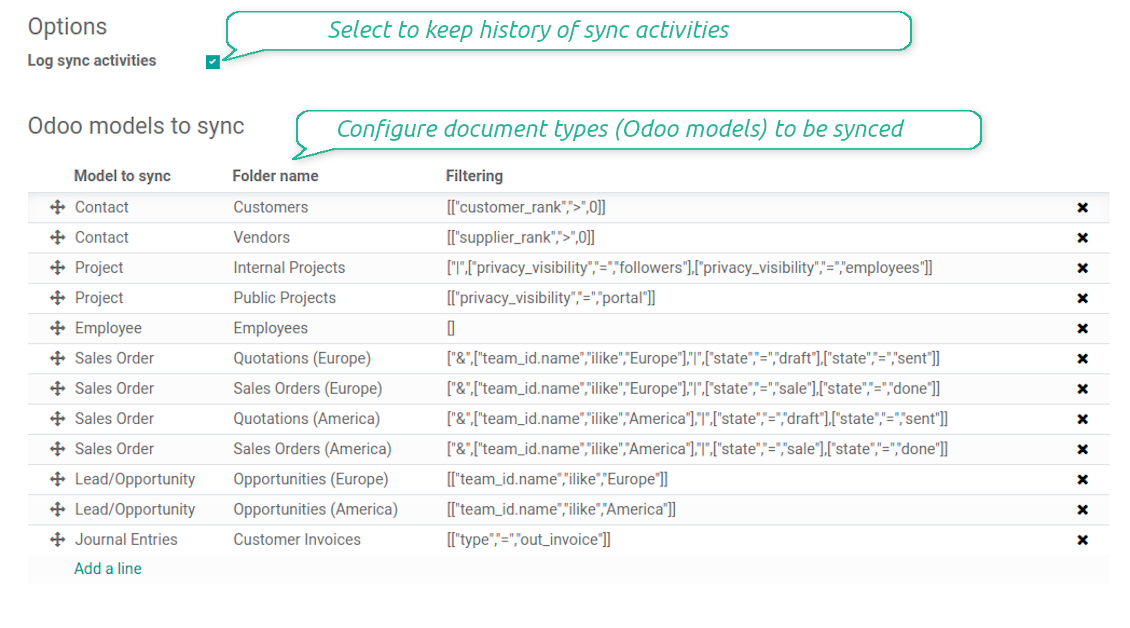
Selectable documents types for sync
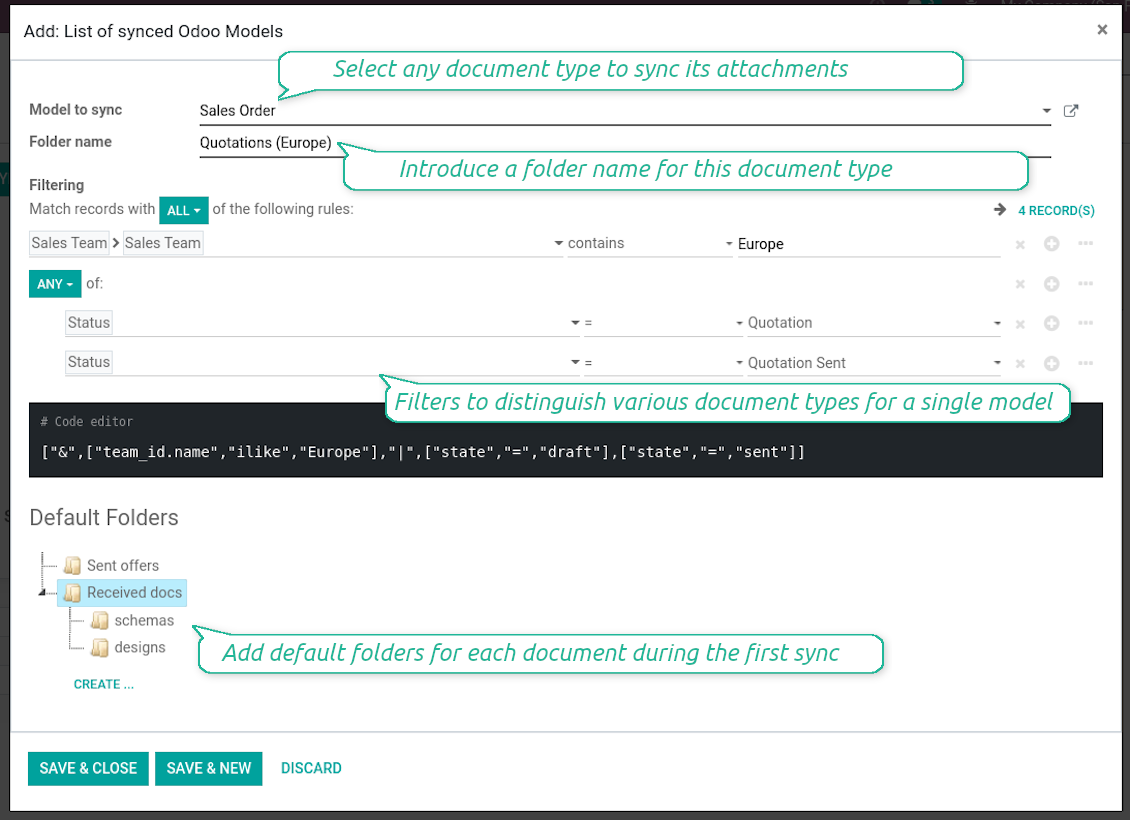
The tool let you split any business model into a few directories. Have a separate folder for individuals and companies, for European and American opportunities, for each project, etc.
Moreover, it is possible to guarantee that only topical documents are synced by using relative periods: leads registered in the last 3 months, invoices updated the last week, and so on.
Typical use cases
- Projects: have an own OneDrive / SharePoint folder for each customer project.
- Customers: add all partner files in a single directory available both from Odoo and from OneDrive / SharePoint. Modify those using default cloud editors and access them when working in Odoo.
- Employees: gather all files by this employee in a single cloud folder: photos, document scans, contracts. Access and upload those from Odoo and OneDrive / SharePoint alternatively.
- Opportunities: carefully store all specifications, requirements, any files which would let you make a good offer.
- Orders: keep all printings and contracts in OneDrive / SharePoint with simple availability from Odoo.
Screenshots
Choose document types to be synced
Document type might have a few folders based on filters
Automatic and bilateral integration
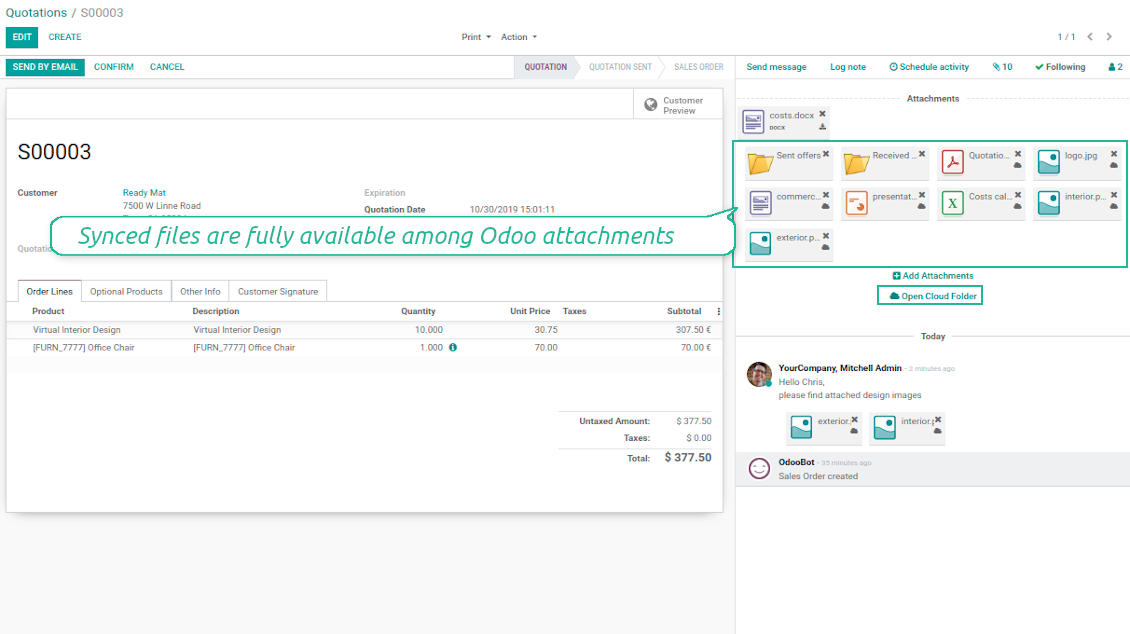
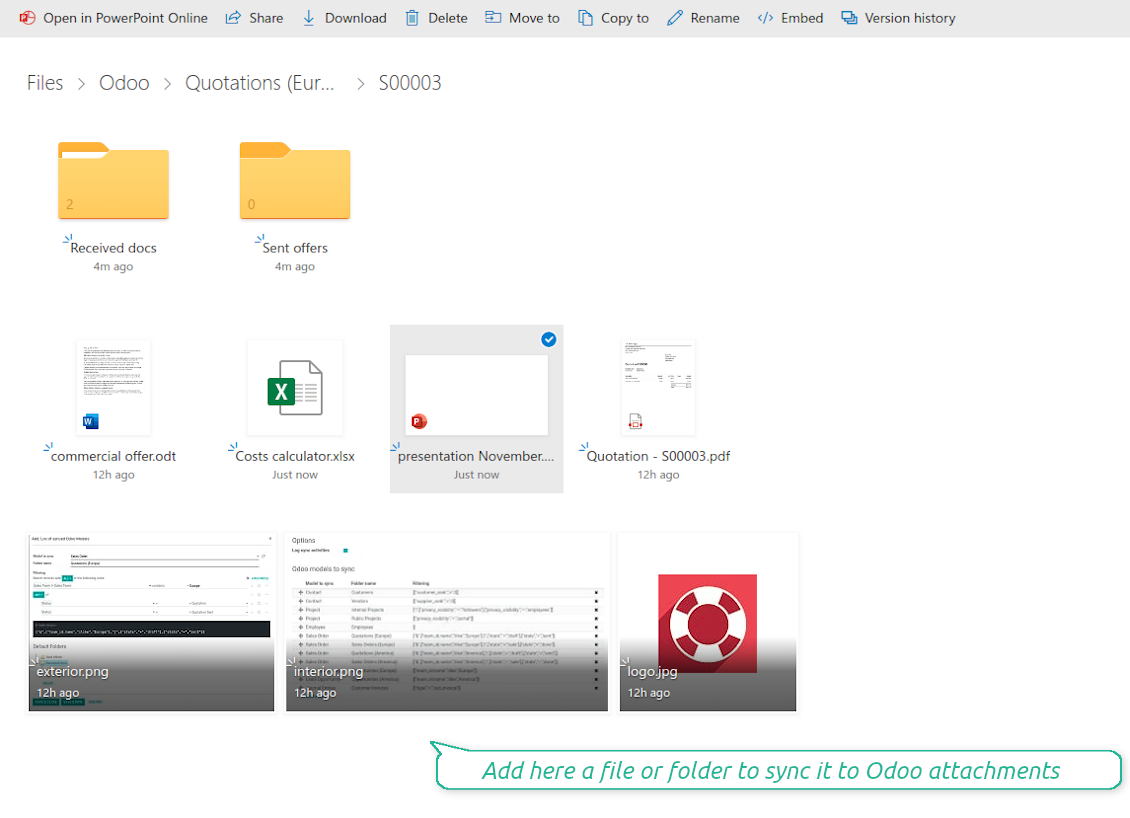
Synced attachments are physically kept only in a cloud storage, what increases Odoo interface performance. Simultaneously, you can open documents from Odoo or download those in a single click.
How files and folders are synced from Odoo to OneDrive / SharePoint
Based on the scheduled job 'Synchronize attachments with cloud' Odoo regularly checks whether:
- Any new attachment should be forwarded to OneDrive / SharePoint;
- Any new document type (e.g. Sale orders) is added / replaced / renamed as a sync model and, hence, whether a directory should be created / removed / renamed in OneDrive / SharePoint;
- Any new document (e.g. Sale Order SO019) is generated / updated / unlinked and, hence, whether a OneDrive / SharePoint folder should be created / moved or renamed / deleted.
- Any new attachment should be removed from OneDrive / SharePoint if it has been deleted from Odoo.
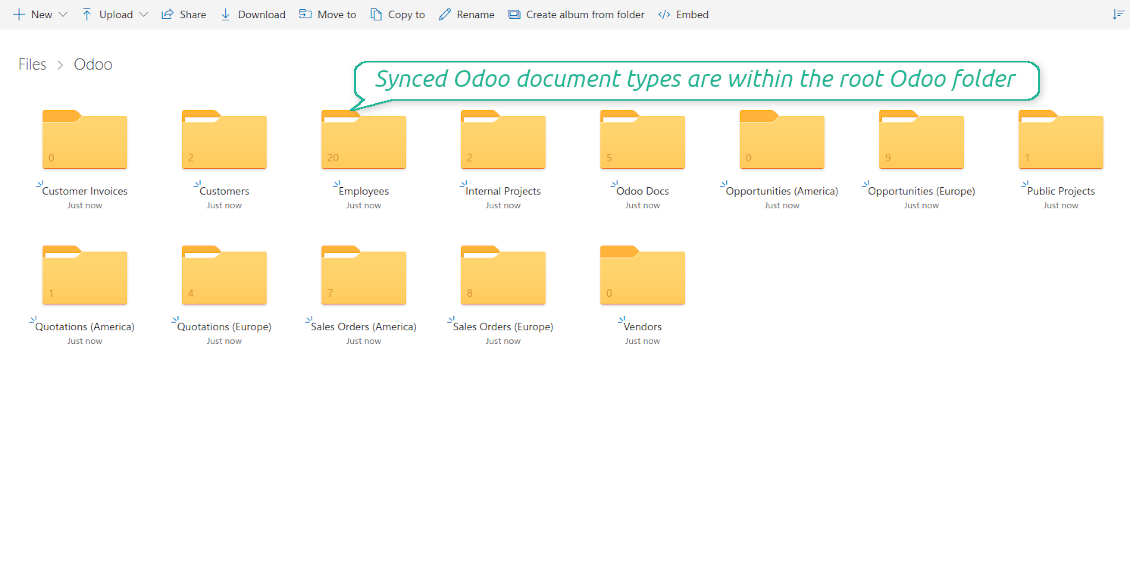
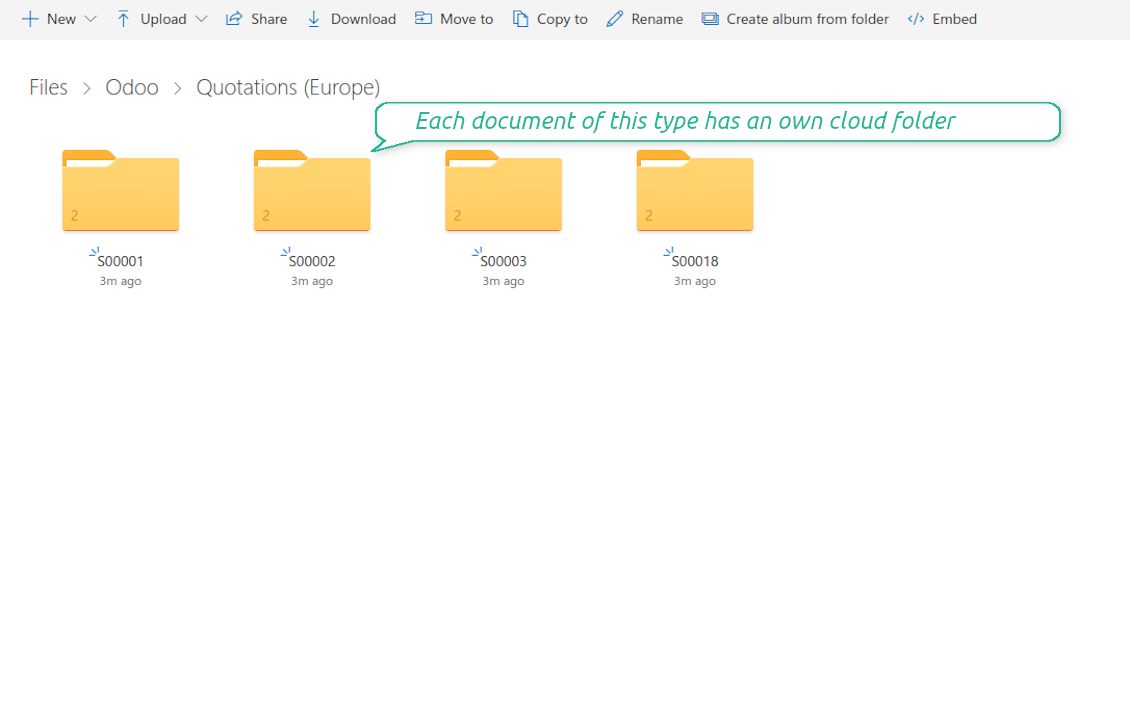
Based on results of that checks, Odoo starts processing queue of changes, and makes sure that all items are located correctly. The final goal is to have the structure 'Odoo / Document Types / Documents / Files. For example, 'Odoo / Quotations / SO019 / commercial offer.pdf'.
During the synchronization all synced Odoo attachments change their type to a link (URL), while binary content is removed with a next Odoo cleaner. So, no actual files would be stored on your Odoo server.
Please take into account:
- Each sync (especially the very first one) might take quite a long. It is not recommended to make sync too frequent: once an hour seems reasonable frequency.
- File names should be managed in OneDrive / SharePoint: each backward sync would recover OneDrive / SharePoint names, Odoo is here less important.
How items are retrieved from OneDrive / SharePoint to Odoo
Based on the scheduled job 'Synchronize attachments from cloud' Odoo regularly checks whether:
- Any file is added / moved / removed in a OneDrive / SharePoint document folder. If yes, Odoo would create a link to this file in a target object (e.g. a new attachment to SO019) or would move / delete such an attachment.
- Any file of a OneDrive / SharePoint document folder is renamed. If yes, an attachment would be renamed in Odoo as well.
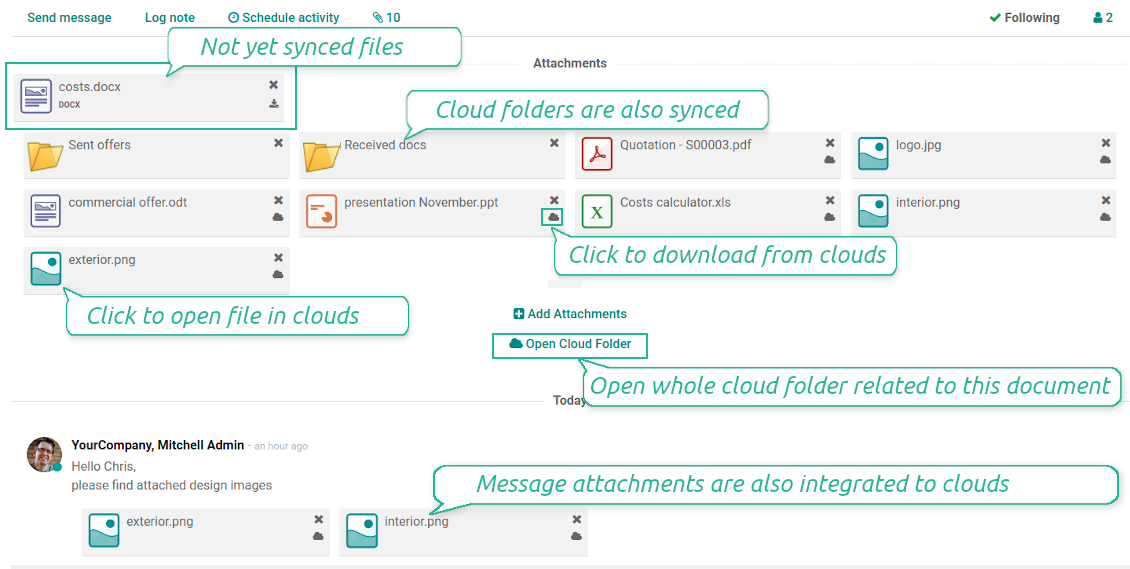
- In document folders you can put not only files but also child folders. In that case a link for this folder (not its content) would be kept in Odoo attachments.
- If you deleted a folder related to this document type or this document, their child files would be deleted as well. Thus, Odoo would remove related attachments. The folders, however, will be recovered with a next direct sync.
- Each backward sync might take quite a long. It is not recommended to make sync too frequent: once an hour seems safe enough.
Screenshots
Synced files are simply found in OneDrive / SharePoint. Add unlimited number of files or folders
Document types folders in OneDrive / SharePoint
All document of this type has an own folder
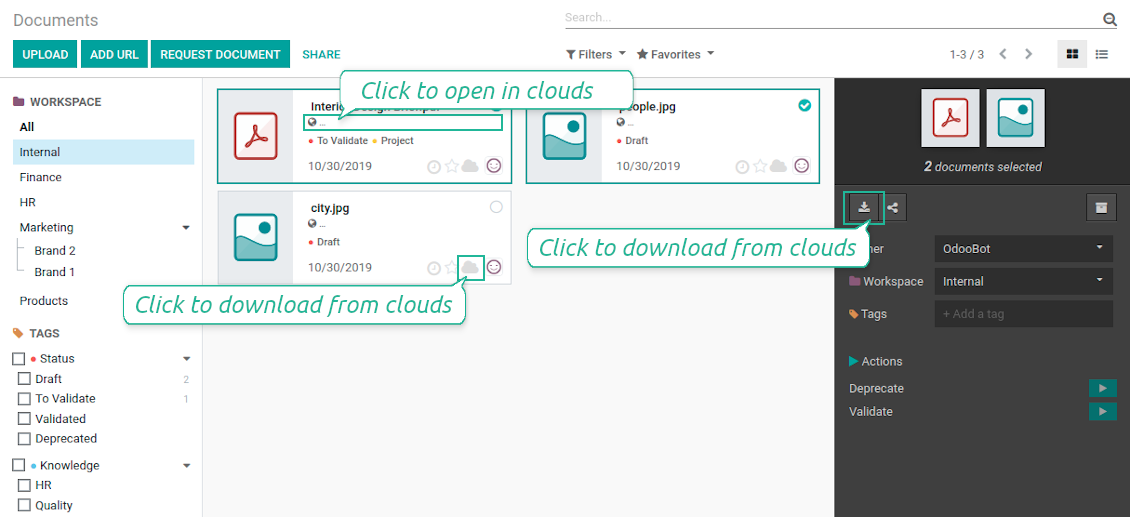
Direct access to OneDrive / SharePoint items
- Click on attachment to open it in OneDrive / SharePoint in a new tab (necessary to be logged in OneDrive / SharePoint);
- Click the icon of cloud to start downloading file from OneDrive / SharePoint (no extra check in is required)
- Push the button "Open cloud folder" to open all files related to this document.
Screenshots
Quick access to OneDrive / SharePoint files and folders
Apply to OneDrive / SharePoint right from Odoo chatter
Fully integrated and compatible with Enterprise Documents
It does not contradict printing, mailing, or Enterprise documents features.
For the latter it is also possible to fully reflect directories structure, not only sync standard attachments.
How Odoo Enterprise Documents are synced
This tool is not in conflict with the 'documents' module provided under the Enterprise license. Attachments related to Enterprise folders would be synced as any other files: according to a document they relate to.
It is not always comfortable, and you might be interested in reflecting directories' structure introduced by the module 'Documents'. To this end the special extension is developed. This extension introduces the following features:
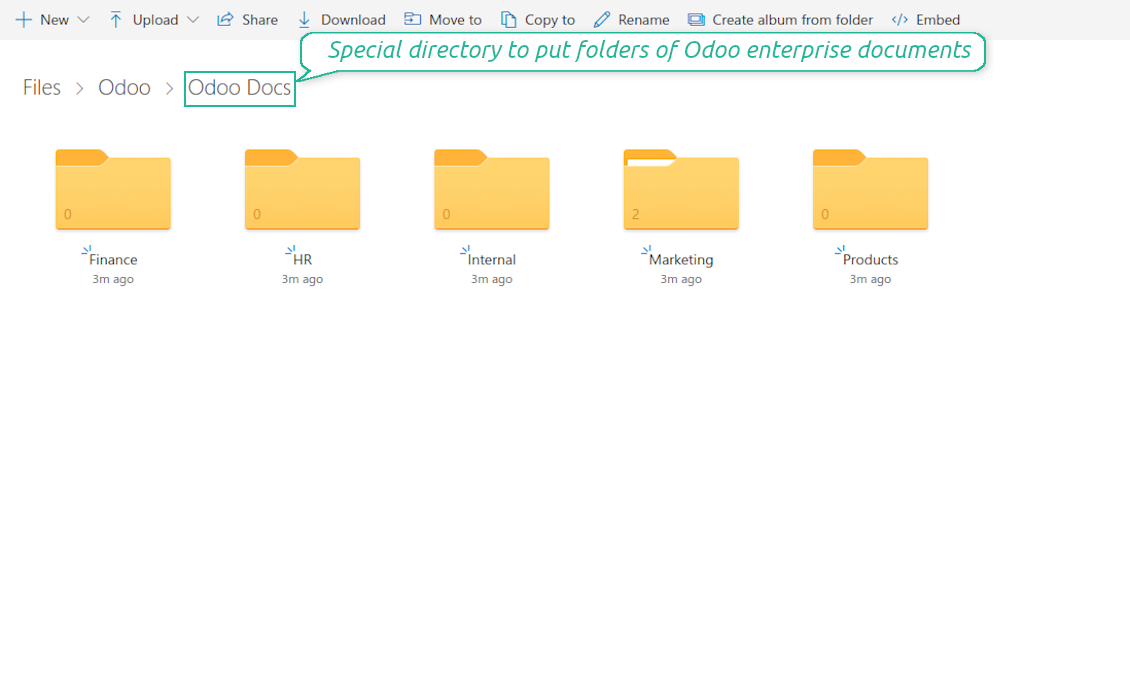
- The documents hierarchy is reflected within the folder 'Odoo / Odoo Docs'
- Each Odoo folder has a linked cloud folder. Take into account that folders created in the cloud storage will be synced as Odoo attachments. The key principle is: folders are managed by Odoo, files are managed by the cloud client
- All files are synced with the same logic as usual attachments. Files created in Odoo will be added to the cloud storage and will be replaced with links in Odoo. Files created in cloud storage will generate attachments within a paired directory
- Please do not name synced models as 'Odoo Docs'. This is the reserved name for Odoo Enterprise Documents
A few other peculiarities to take into account
- Try to avoid the following symbols in folders' and files' names: *, ?, ", ', :, <, >, |, +, %, !, @, \, /,. Direct sync will replace such symbols with '-'. It is done to avoid conflicts with file systems.
Screenshots
Direct access from Odoo documents to OneDrive / SharePoint
Enterprise Documents in OneDrive / SharePoint
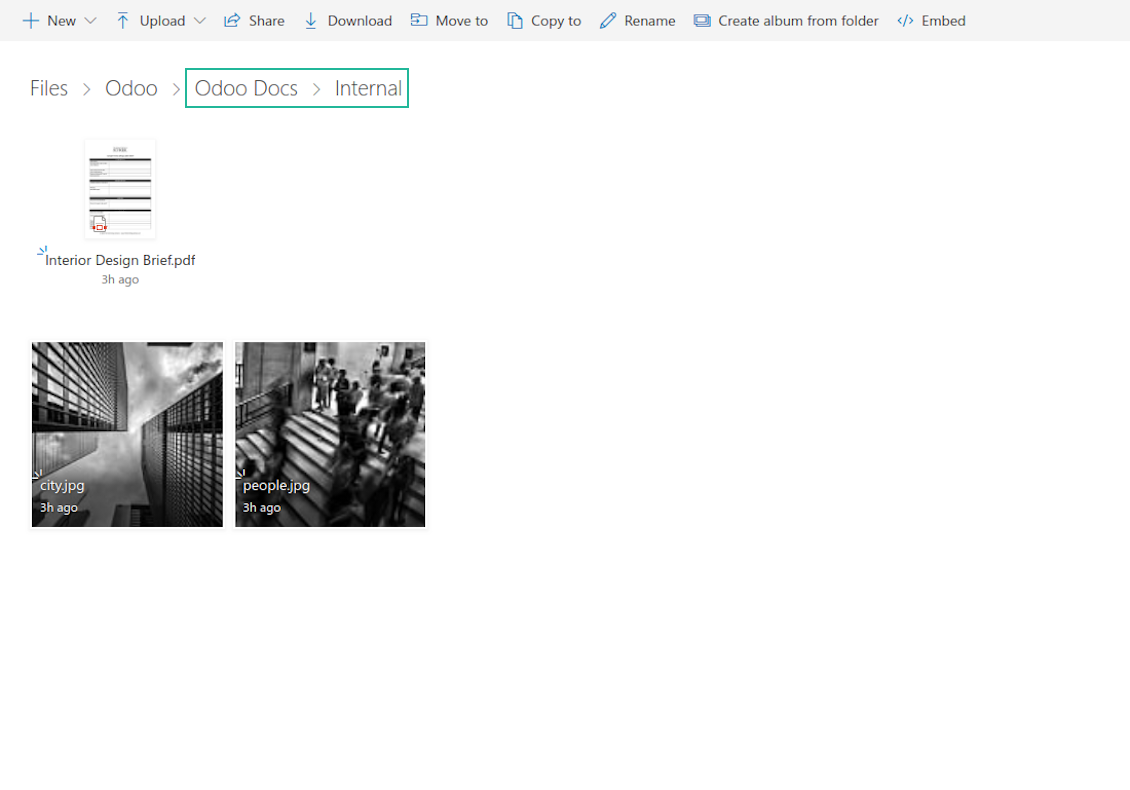
Enterprise files in OneDrive / SharePoint
Works well with SharePoint. Supportive team
We've been using this with SharePoint and it's been working great. One of the best things is having everything, including logs right in Odoo's interface, so you can actually see what's going on. It's also super convenient that you can view or download synced files from the attachment box without having to leave the page or even log in to Sharepoint.
Setup was pretty smooth for us. When we had a few questions about setting up the folder hierarchy and priorities, the developer team got back to us in just a couple of hours and helped us figure it out. Great support and great extension!
Great support, assistance and very good connector!
We are very happy with the support we received when configuring the Sharepoint - Odoo connector. The connector has great functionalities.
All our questions were answered very fast (within one day).
FaOtools helped us optimising our connector and assisted us with future improvements.
We really recommend this connector.
very professional app, excellen t customer service
This app is very well programmed and does its job very well. But the best is the excellent customer service who also helps when the problem lies somewhere else. You receive a lot for your money.
An impressive app and world-class support
I have been very impressed by the way the OneDrive / SharePoint Odoo Integration module synchronises content in both directions and allows me to share documents in Odoo with my SharePoint site. Above all the technical support is top-notch, which greatly increases the value of this product. I highly recommend this product for anyone considering synchronising Odoo with SharePoint/OneDrive.
Works fine, good support
The first experience with the module is excellent. I had some trouble to configure things right on the Microsoft-side, but the team provided quick and good support.
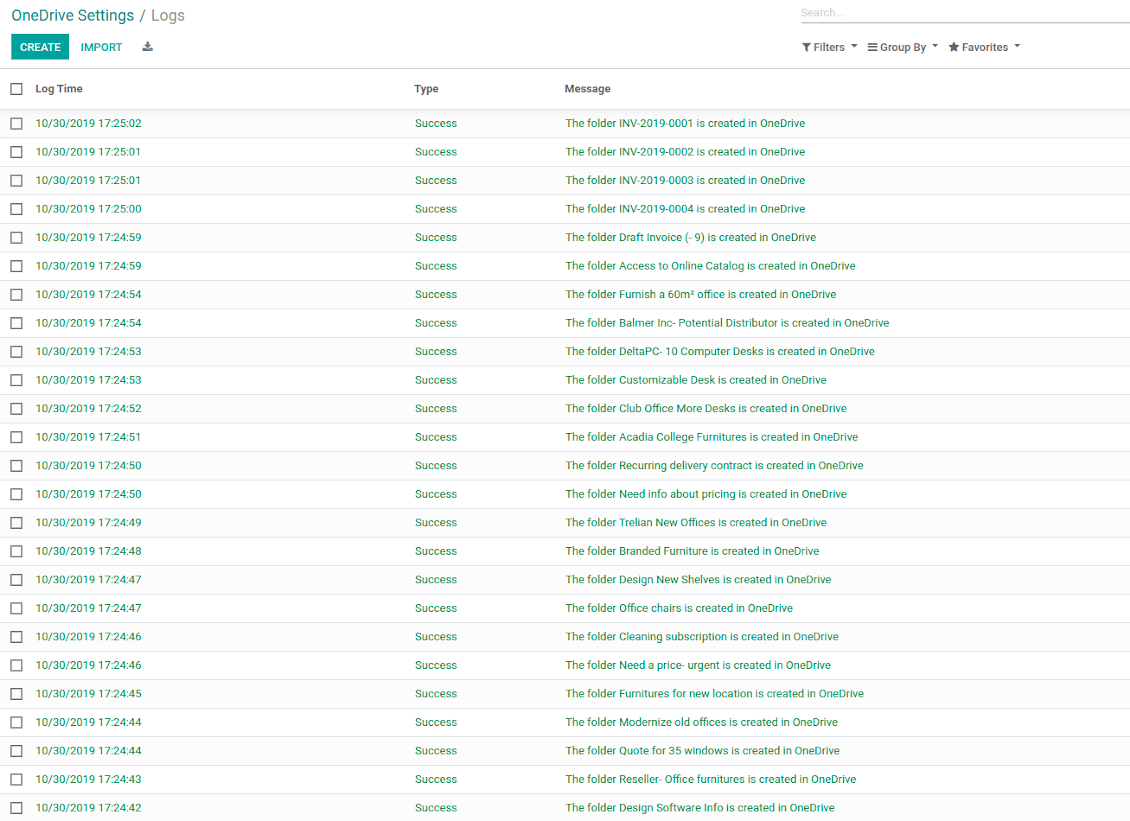
OneDrive / SharePoint Sync logs in Odoo
Screenshots
Logged synchronization activities
Default folders for documents
Configuration and Installation Tips for OneDrive / SharePoint Odoo Integration Odoo v.13
Python dependency
pip3 install microsoftgraph-pythonConfiguration and log in
- Make sure your Microsoft user has full admin rights for OneDrive / SharePoint you want to connect to Odoo. This user is required only to grant permissions, the user data would not be kept any where in Odoo, and would not be used any more. Besides, make sure a Microsoft email address you use does not have a redirection (usually happens when you configure your domain name, while the prime address is still one of Microsoft domains like @outlook.com, @office365, etc.)
- Go to your Azure Portal: https://portal.azure.com/#blade/Microsoft_AAD_RegisteredApps/ApplicationsListBlade
The app must be registered inside a directory (tenant). Microsoft no longer allows creating a new app outside one.
- If you already have a company Microsoft 365 / Azure directory, switch the portal (top right) to it and continue.
- If you only have a personal account (@outlook.com, @hotmail.com, @live.com) and see "these applications are associated with the account ... but are not contained within any directory", you do not have a directory yet. Sign up for a free Azure account with the same Microsoft account: https://azure.microsoft.com/free/ - Try Azure for free. This creates a Default Directory for you at no cost.
- Microsoft asks for a card for identity verification only; a temporary ~1 USD hold is placed and reversed. You are not charged for the directory or for the app registration.
- The directory (Microsoft Entra ID Free) and any app registered in it keep working independently of the 30-day / $200 Azure trial credit. That credit is for paid Azure resources you are not using here. No payment is required for our app.
- If the whole directory sits completely unused for a very long time (Microsoft's own threshold is around 200 days of no activity at all), Microsoft may email a warning and eventually retire it. Since Odoo calls this app every time it syncs, an active connection keeps the directory active - this only matters if you stop syncing entirely for months.
- Once you are in a real directory (not "Microsoft Services"), open App registrations there.
- Click 'New registration'
- Introduce a new name for the application and assign the redirect URI as [YOURODOOSITENAME]/one_drive_token (e.g. https://odootools.com/one_drive_token). As the supported account types choose 'Accounts in any organizational directory (Any Azure AD directory - Multitenant) and personal Microsoft accounts (e.g. Skype, Xbox)'.
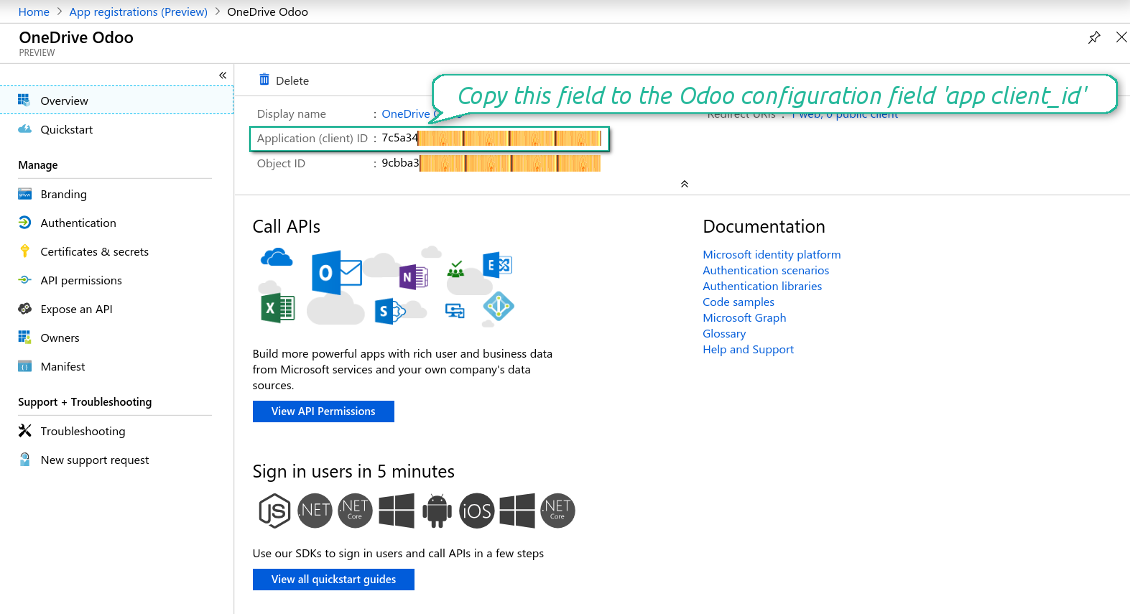
- Copy the Application Client ID to the Odoo field 'App client_id'
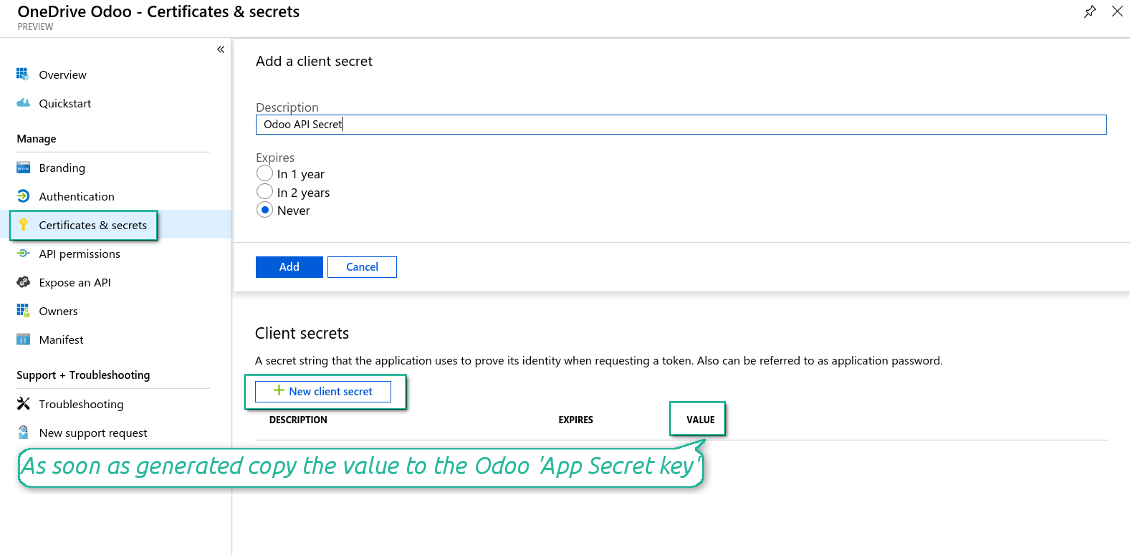
- Go to Certificates & secrets - Click 'New Client Secret'. Copy the secret value to the Odoo field 'App Secret Key'
- For SharePoint sites only:
- Go to your SharePoint site and prepare a new documents' library (drive). You might use one of the existing ones, e.g. 'Documents'. Odoo folder would be put there afterwards, and it would be impossible to move it for another library
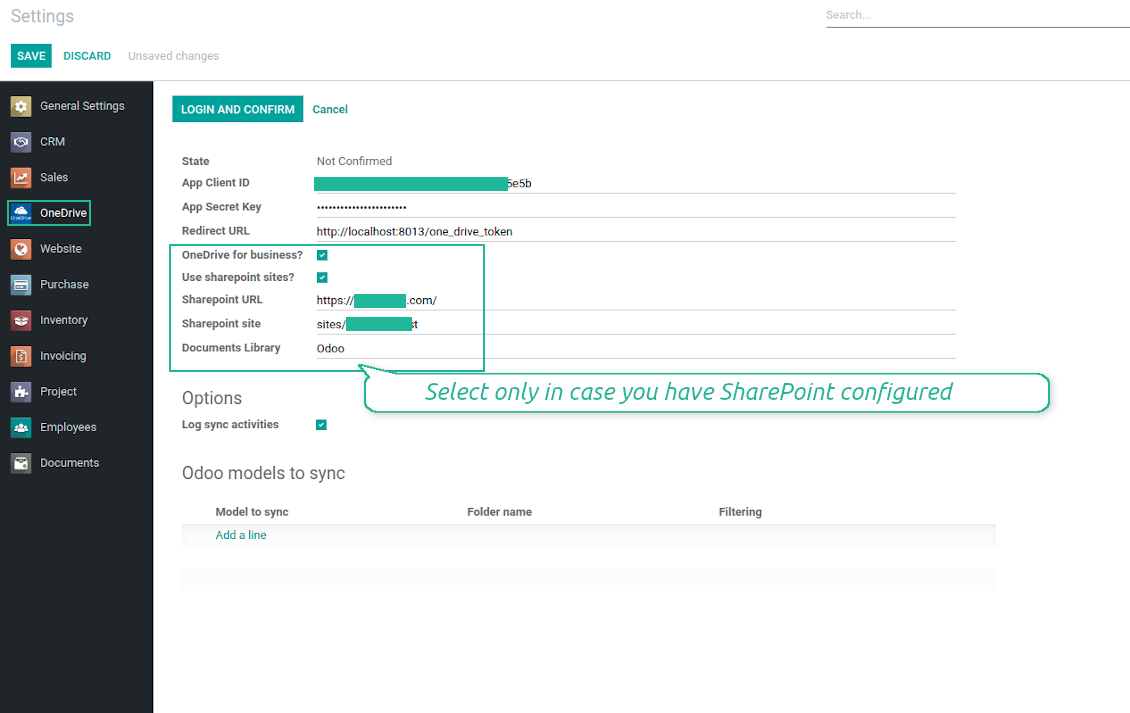
- Check the boxes 'OneDrive for business' and 'Use SharePoint sites'
- The SharePoint URL should be of the type https://[URL]/. The last '/' is required, sitename should not be included into. For example, https://odootools.sharepoint.com/
- SharePoint site should be either my_site_name (in that case it is considered as sites/my_site_name) or sites/my_site_name (instead of 'sites' it might be 'teams' and so on). There should be no '/' at the beginning or at the end. For example, sites/odootools
- As Documents Library use one created in SharePoint
- Press Save on the Odoo configuration Page.
- Press 'Login and Confirm'. Odoo redirects you to Microsoft login page. Check in and grant permissions asked. If Microsoft shows an account already signed in and says it does not exist in tenant 'Microsoft Services' (or any other unrelated tenant), do not click that row. Click 'Use another account' and sign in with the Microsoft account that owns the app's directory.
- After login, Microsoft redirects you back to Odoo. OneDrive - Odoo synchronization is ready to be done.
Create OneDrive application
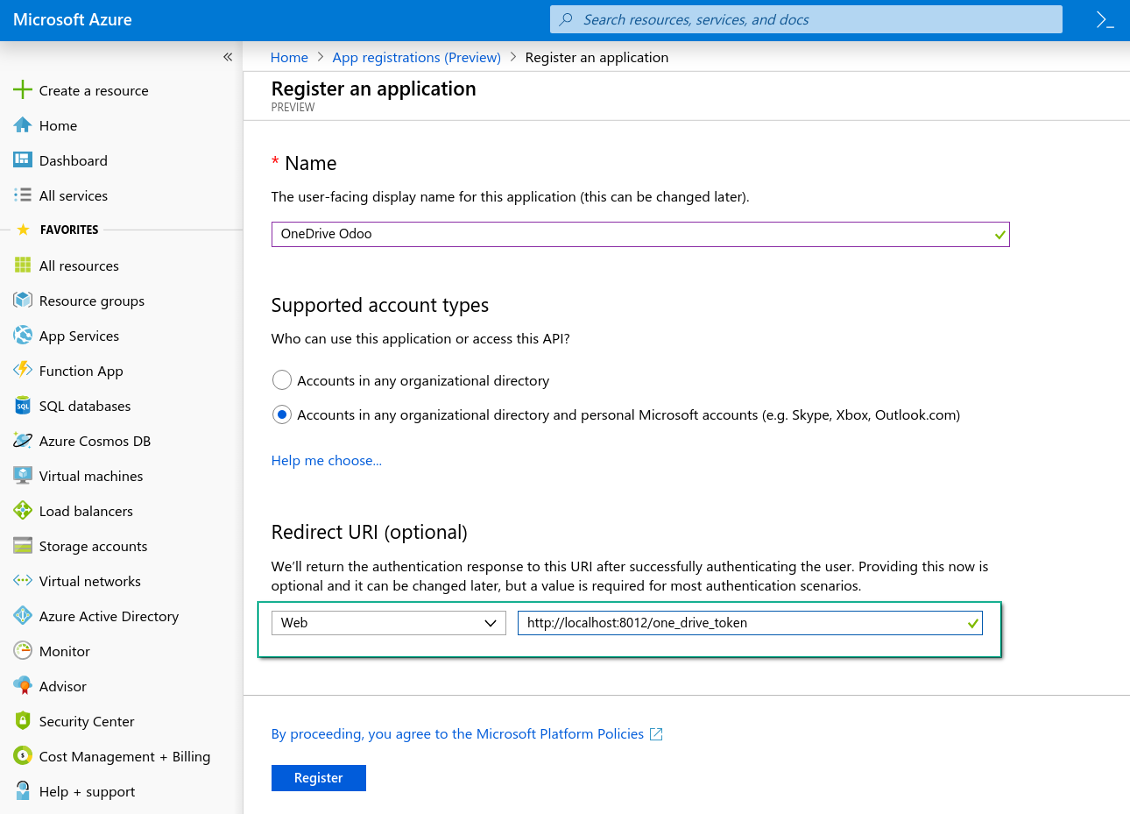
New OneDrive Web platform and redirect url
Generate new secret for your application
Enter configuration keys in Odoo
Odoo server configuration and cron job configuration
To make sure the synchronization works correctly apply proper timeouts to the Odoo configuration file: LIMIT_TIME_CPU, LIMIT_TIME_REAL, LIMIT_TIME_REAL_CRON should be more than 900 seconds.
For Odoo.sh this should not be done, since timeouts are predefined and are not configurable.
Then, timeout should be entered to your Odoo. To that goal find the section 'Settings' on the app configuration page and copy the number there.
Afterwards, it is needed to make the cron jobs suit the applied timeouts. In the debug mode go to the Settings > Technical > Automation > Scheduled Jobs:
- Set up the job 'Synchronize attachments with cloud' as (a) frequency - 2*timeout; (b) the next execution as the next hour +timeout. For example, for 900seconds timeout: frequency - as 30minutes; the next execution - at 08:15
- Set up the job 'Synchronize attachments from cloud' as (a) frequency - 2*timeout; (b) the next execution as the next hour + timeout*2. For example, for 900seconds timeout: frequency - as 30minutes; the next execution- at 08:30.
Reconnection
- Press the button 'Reconnect'
- Press the button 'Login and confirm'
Frequently Asked Questions about OneDrive / SharePoint Odoo Integration Odoo v.13
I see an error when click on the synced image cloud link
The error "This item might have been deleted, expired, or you might not have permission to access it. Contact the owner of this item for more information." indicates that you are not logged in to the service photos.onedrive.com.
May I change frequency of sync jobs?
Yes, you can. To this end:
Turn on debug mode
Go to technical settings > Automation > Scheduled jobs
Find the jobs 'Synchronize attachments with cloud' and 'Update attachments from cloud'.
Take into account that you should not make them too frequent. It is preferable this job is finished until a new one is started. Thus, the configuration should depend on how many items you to sync you have. Usually, the frequency is set up between 15 minutes to 4 hours.
Make also sure that you have set up enough time limits in your Odoo configuration file. Thus, LIMIT_TIME_CPU and LIMIT_TIME_REAL parameters should be equal or bigger than planned cron job time. Starting from the version 13 consider also the parameter LIMIT_TIME_REAL_CRON.
An import notice for Odoo.sh clients: the maximum time for cron job might be set up as 15 minutes only.
May I configure different structure of synced directories rather than assumed by sync?
No, this feature is available only from version 15. Prior to that version, the module works with the pre-defined structure of folders:
Odoo - a core folder for sync
Models - folders for each Odoo document type. For example, 'Projects', 'Partners'. Distinguished by domain there might be more specific folders: e.g., 'Customer 1 Projects', 'Projects of the Customer 2', 'Internal Projects', etc.
Objects - folders for each document, e.g. 'Project 1' or 'Customer 1'
Files and folders related to this Odoo document to be synced.
As a result you may have for instance:
Odoo / Projects / Project 1 / files and folders related to the project 1
Odoo / Customer 1 Projects / Project 1; Odoo / Customer 2 Projects / Project 3, ...
Odoo / Customers / Customer 1 / files and folders related to the customer 1
This structure is always flat, meaning that there are only those levels of hierarchy. Thus, it is correct that various document types can't be done within the same structure. Within the folder 'Customer 1' we can't keep the files related both to sale orders, invoices, and projects. Each of those document type has an own (or a few own) folders. Otherwise, we will not have a chance to make backward synchronisation, since there would be no criteria to rely upon.
Should I set up specific users accesses in Odoo?
No, the tool relies upon a single user end point. It means that all sync processes are done under a single cloud admin (app). Access rights for created folders / files are not automatized. You should administrate those rights in your cloud storage solution.
Where would be synced fields stored? Are they duplicated to Odoo and clouds?
The app assumes that the binary content of attachments is kept in Cloud Client instead of the Odoo server. So, such attachments in Odoo become of the URL type, and you may any time access them either from the attachments box or from the Cloud Client.
After the setup, no manual actions are required, as the synchronisation is fully automatic. Just decide which Odoo document types should be synced and set up a related model to sync for each of those (Customers, Sale or Purchase Orders, Tasks, Projects, etc.).
Can I have a few folders for the the same document type? For example, internal projects and customer projects?
Yes, you can. To that goal, prepare a rule for each, and then those apply filters: for example by type of a project.
Try to make filters self-exclusive in order a document can be definitely assigned. For instance, 'customer but not supplier', 'supplier but not customer'. Otherwise, a specific document folder would jump from one model to another.
Do I need only the Cloud Storage Solution app?
No, the tool is only a technical core. You also need the connector for your cloud client.
Is it Okay if I had many objects to sync, for example, 10000?
Yes, although in the case of many folders/attachments that need to sync, the process might be slow. Simultaneously, our clients reported the environments with >10k partners and ~5k product variants to be synced, and the processes were acceptable.
A few points to emphasize:
- The sync is constructed so that any item will be synced and not lost, although it might not be fast. It is guaranteed by first-in-first-out queues and by each job committed.
- The number of objects might be limited logically. The models' configuration lets you restrict the sync of obsolete items (e.g., there is no sense in syncing archived partners or orders done 2 years ago).
Is it possible to make synchronisation real-time?
No. We have strong reasons to avoid real time sync:
Performance issues. In case a sync is real time, each file upload will result in the loading screen.
Conflict issues. If 2 users simultaneously change an item, it might lead to unresolved situations. In case of regular jobs we can fix it afterwards, while in case of real time we would need to save it as some queue, and it will be even more misleading for users.
Functionality issues. In particular, renaming and restructuring of items. In the backward sync the tool strictly relies upon directories' logic, and during each sync 100% of items are checked. In case it is done after each update, it will be thousands of requests per second. If not: changes would be lost.
May I sync attachments to a few cloud clients
No, this feature becomes available only from version 15.
We use a special editor in our clouds (e.g. OnlyOffice, Office 365, etc.). Would files be opened in that editor?
Yes, depending on your cloud client configuration.
What are the update policies of your tools?
According to the current Odoo Apps Store policies:
- Every module bought for version 12.0 and prior gives you access to all versions up to 12.0.
- Starting from version 13.0, every module version should be purchased separately.
- Disregarding the version, purchasing a tool grants you a right to all updates and bug fixes within a major version.
Please note that the faOtools team does not control those policies. For all questions, please contact the Odoo Apps Store representatives directly.
How can I install your app on Odoo.sh?
The most straightforward approach is to use the Odoo store's built-in workflow:
1. Open the module's page and click the button Deploy on odoo.sh
2. After that, you will be redirected to the GitHub page. Log in to your account, then click 'Create a new repo' or use an existing one. Please ensure your repository is private. It is not permitted to publish the apps under the OPL-1 license. If necessary, create a new repo for your Odoo.sh project
3. Then, go to odoo.sh and click the Deploy button. In the pop-up window, submit the decision and click 'Continue.' This action will trigger the installation process.
These steps will install the app for your project's production branch. If you want to deploy the apps for other branches or update the module, you should undertake the following actions:
1. Upload the source code for the app from the Odoo store
2. Commit the module to a required GitHub repository. Ensure none of the app folders/files are ignored (i.e., not included in your repo's .gitignore). Repositories are automatically created by odoo.sh and may include some crucial items by default (e.g., /lib). You should upload all module directories, subdirectories, and files without exceptions
3. Deploy a target branch of the odoo.sh project or, if your settings assume that, wait until it is automatically built.
How should I install your app on my own server?
2. Re-start the Odoo server;
3. Turn on developer mode (technical settings);
4. Update the apps' list (the apps' menu);
5. Find the app and push the button 'Activate'/'Install';
6. Follow the guidelines on the app's page if those exist.
I noticed that your app has extra add-ons. May I purchase them afterwards?
Yes, sure. Simultaneously, Odoo automatically adds all dependencies to a cart, so you should exclude previously purchased tools to avoid double payment.
I deployed your app on Odoo.sh and see warning/error in tests
A red/orange warning does not influence the app's features. Regretfully, sometimes our modules do not pass standard automatic tests since the latter assume behaviour that conflicts with our app's goals. For example, we change the price calculation, while the standard Odoo module tests compare the final price to a standard algorithm.
So, first of all, please check the deployed database features. Does everything work correctly?
If you still assume that the warning influences real features, please contact us and forward full installation logs and the full list of deployed modules (including core and third-party ones).
May I buy your app from your company directly?
No, we only distribute the tools through the official Odoo apps store.
I would like to get a discount
Regretfully, we do not have the technical means to provide individual prices.
May I install the app on my Odoo Online (SaaS) database?
No, third-party apps can not be used on Odoo Online. Unfortunately, Odoo SaaS blocks such a possibility.
Your tool has dependencies on other app(s). Should I purchase those?
Yes, our tool requires all modules marked in dependencies to work correctly. The price marked on the app page already includes all necessary dependencies.
What is the price for the module in US Dollars? Why did it change?
The price for our modules is set in euros. The Odoo store converts prices to other currencies according to its internal exchange rate. Thus, the price in US Dollars may change when the exchange rate is updated.
App and website wording in languages other than English is AI-assisted and aligned with official Odoo translations. If you spot a mistake, send a translations-correctness ticket and we will fix it.
Bug reporting
If you encounter bugs or inconsistent behaviour, do not hesitate to contact us. We guarantee to provide fixes within 60 days of purchase and are intensely interested in improving our tools even after this period.
You do not need a phone number or credit card to contact us. You should only pass a short email sign-up, which does not take more than 30 seconds.
Please include as many details as possible in your request: screenshots, Odoo server logs, a full description of how to reproduce your problem, and so on. Usually, it takes a few business days to prepare a working plan for an issue (if a bug is confirmed) or provide you with guidelines on what should be done (otherwise).
Public features requests and module ideas (free development)
We are strongly motivated to improve our tools and would be grateful for any feedback. If your requirements are of public use and might be efficiently implemented, the team will include those in our to-do list.
Such a to-do list is processed regularly and does not assume extra fees. Although we cannot promise deadlines and final design, it might be a good way to get desired features without investments and risks.
You do not need a phone number or credit card to contact us. You should only pass a short email sign-up, which does not take more than 30 seconds.


The tool to build a deep and structured knowledge base for internal and external use. Knowledge System. KMS. Wiki-like revisions.
398€
The tool to set up KPI targets and control their fulfillment by periods. KPI dashboards. Dashboard designer. KPI charts

The tool for time-based service management from booking appointments to sales and reviews
398€
The tool to manage your Odoo from your favourite AI chats through MCP. Claude. Any MCP-supporting AI.

The tool to flexibly structure Odoo attachments in folders and synchronize directories with cloud clients: Google Drive, OneDrive/SharePoint, Nextcloud/ownCloud, Dropbox, Amazon S3, Box, and NAS. DMS. File Manager. Document management system
398€
The tool to automatically synchronize Odoo attachments with Google Drive files in both ways
487€
The tool to automatically synchronize Odoo attachments with ownCloud/Nextcloud files in both ways
487€
The tool to automatically synchronize Odoo attachments with NAS Solutions in both ways. Synology, QNAP, TrueNAS and any other WebDav-supporting NAS solutions
487€