Contacts Color Coding v.11
Partner color coding to score contacts and make rational decisions in any business area
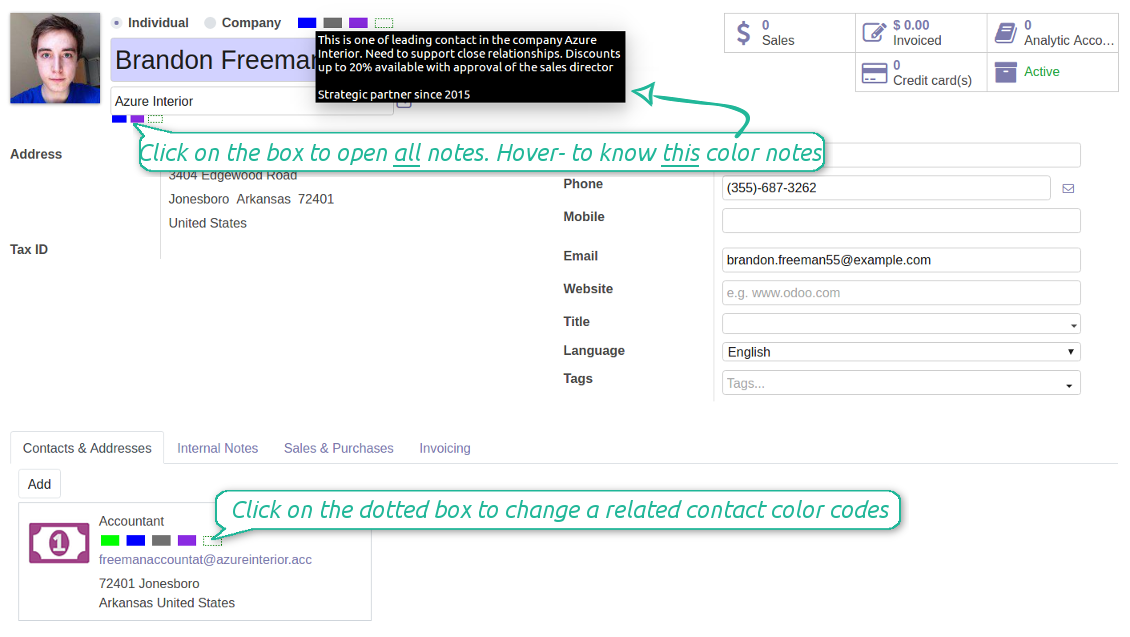
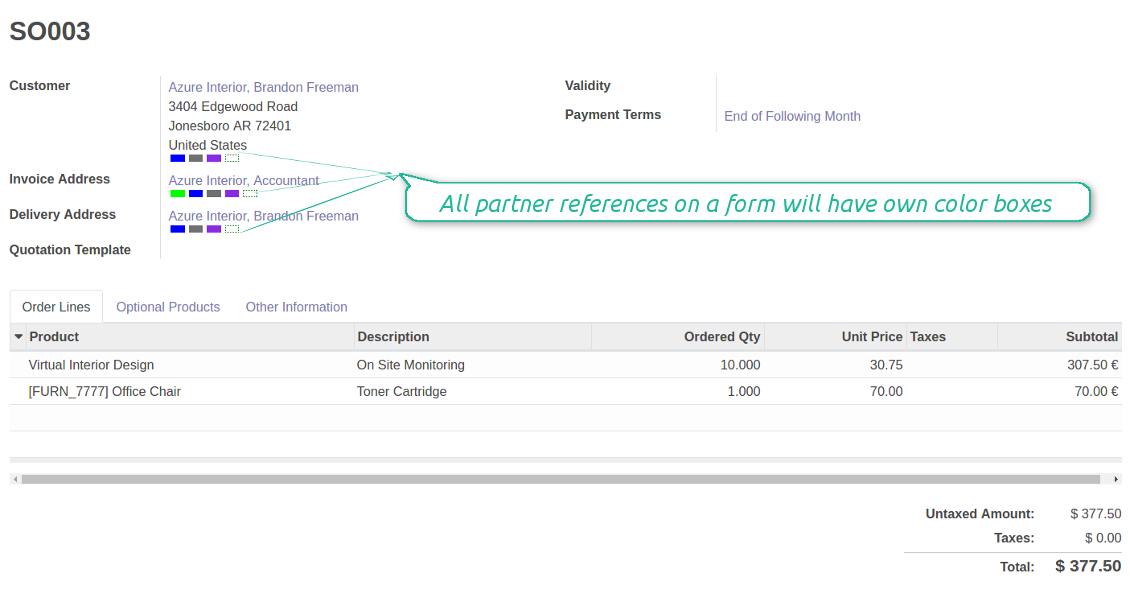
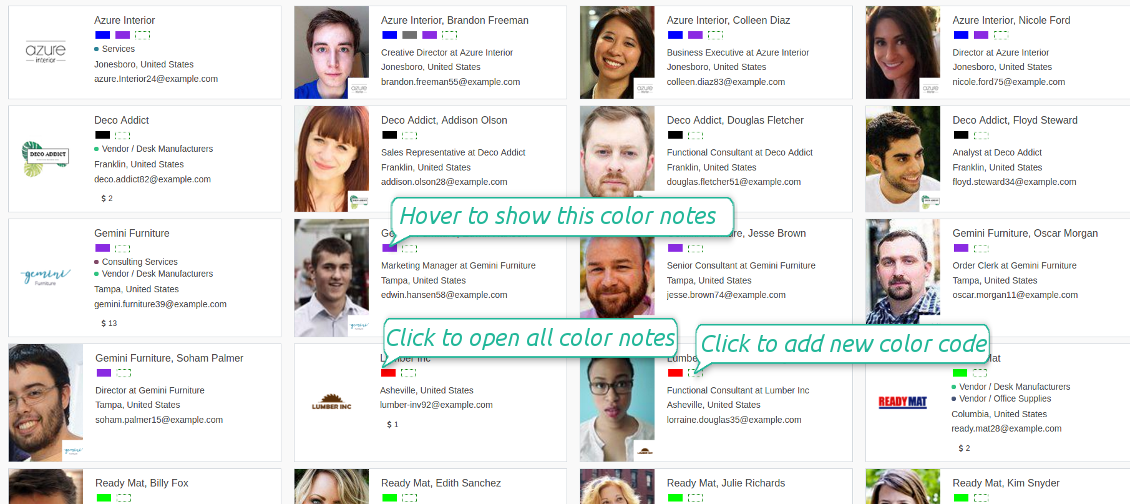
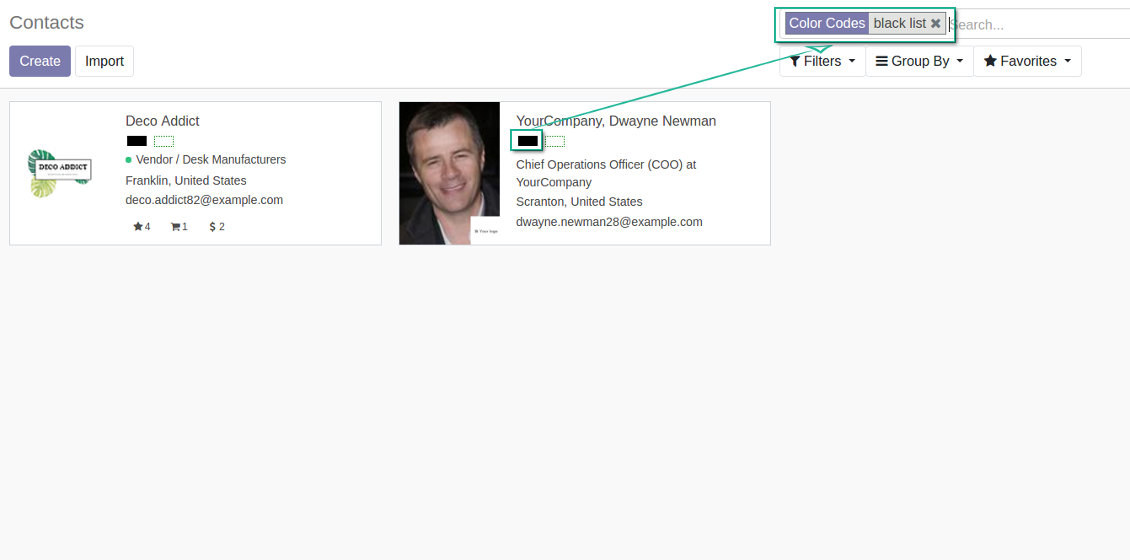
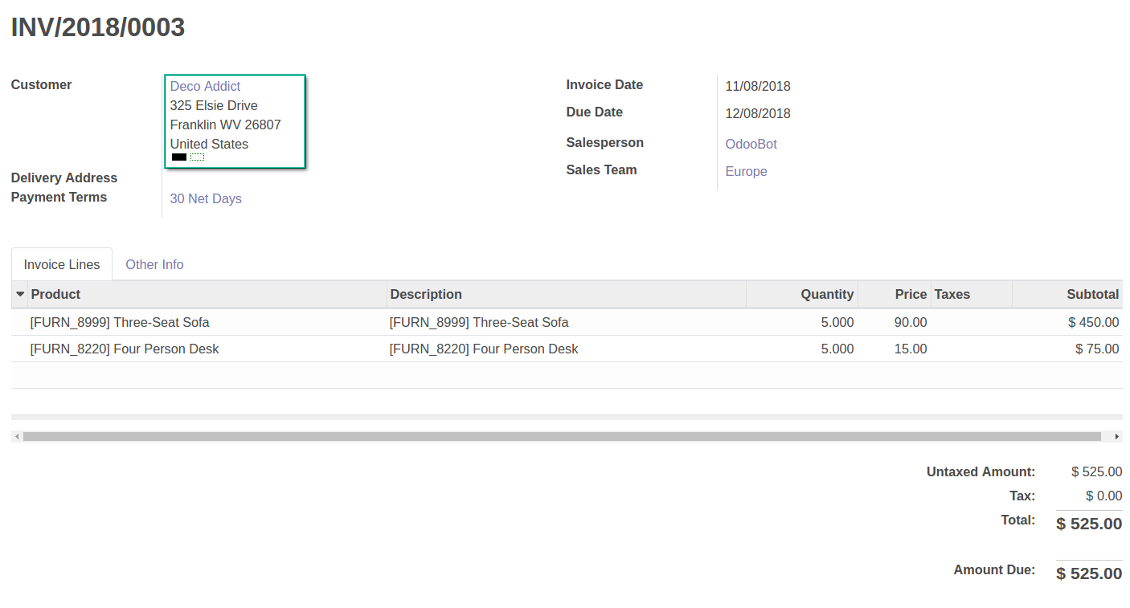
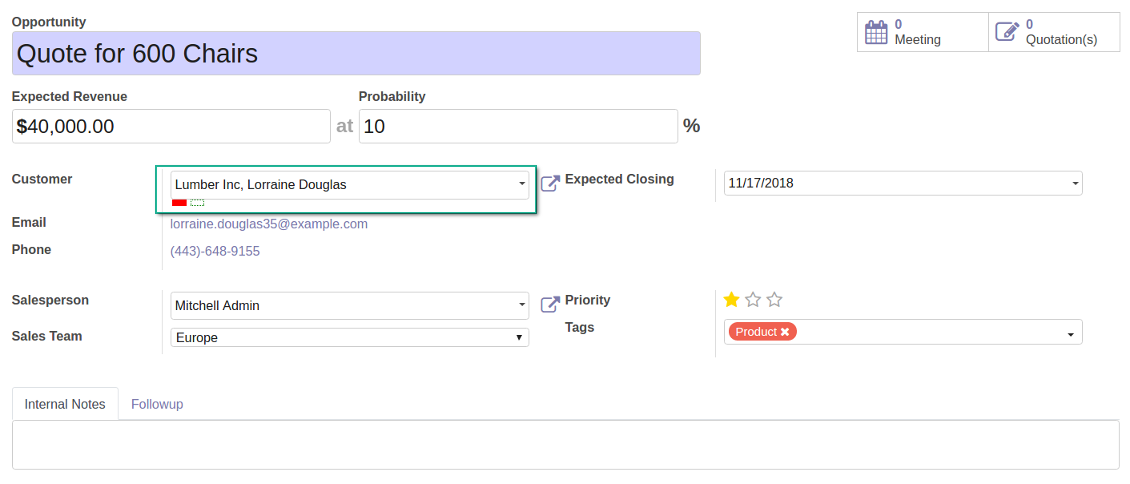
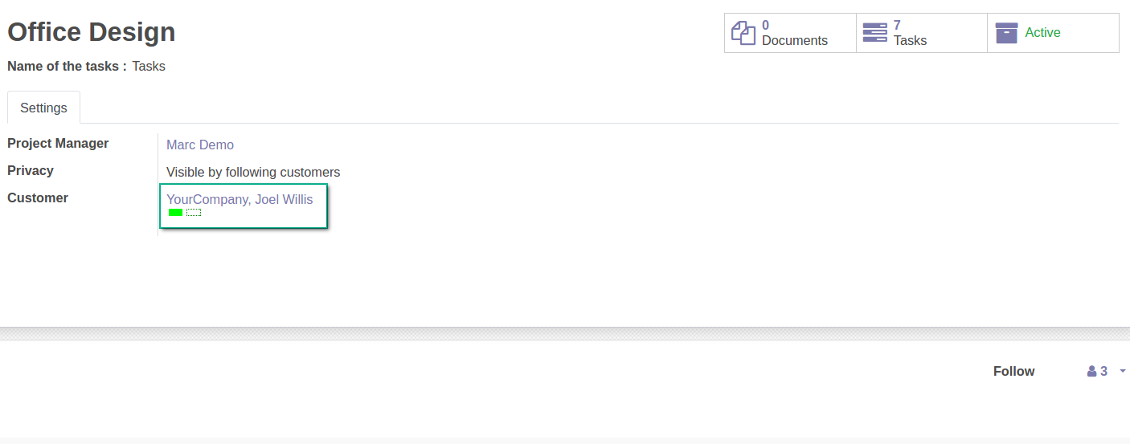
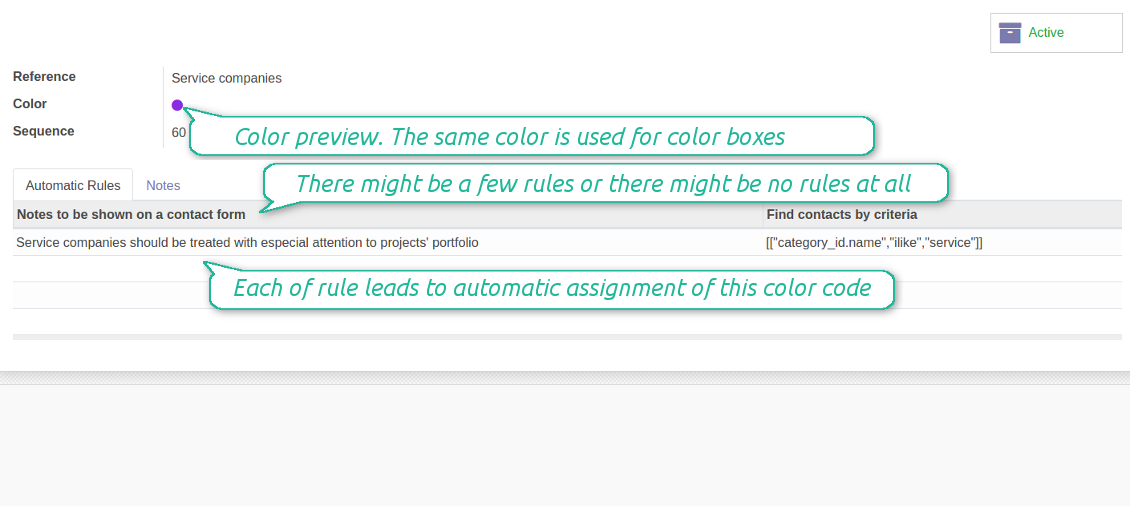
Color codes are on each form where there is a reference for a partner and on each contact card. The scoring information is available at the moment of making a decision. Look at the section Where do I find color codes?
Color codes contain information you think is needed for managers. Look at the section Widget features
Color codes might be updated manually or they might be assigned automatically based on the special rules
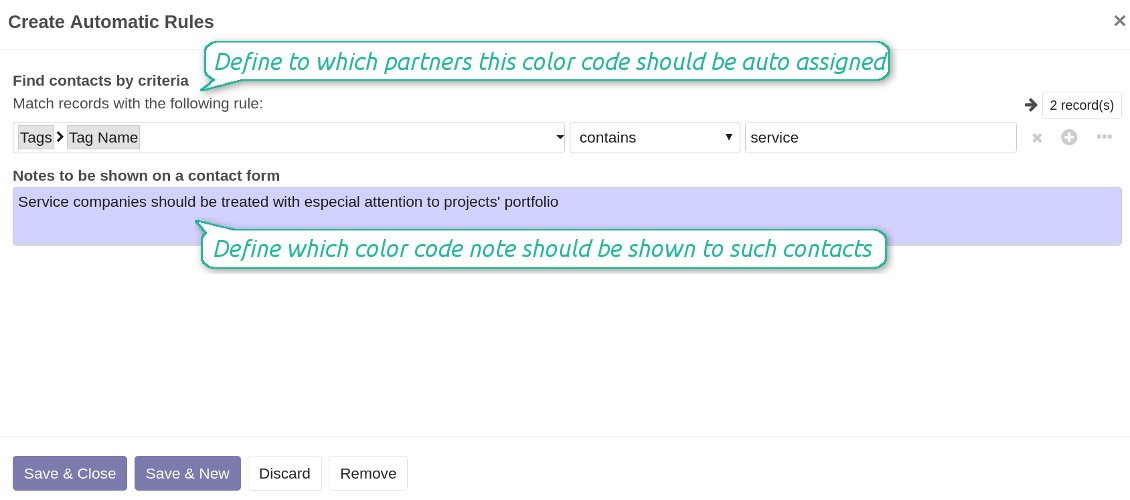
Automatic color codes do not assume any user involvement. Configure rules once, and all matched contacts will receive configured color codes. Look at the section Automatic Color Code Rules
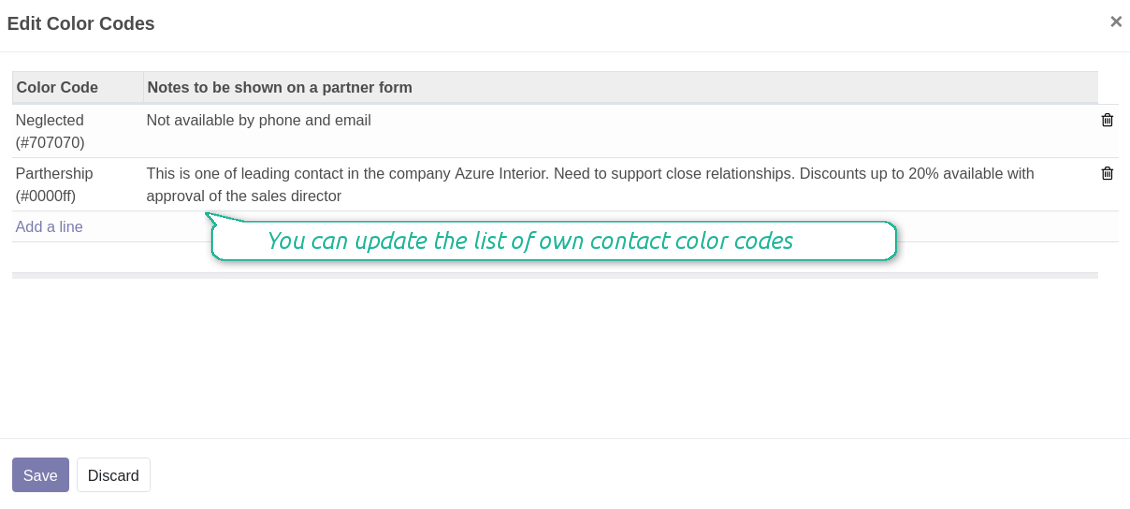
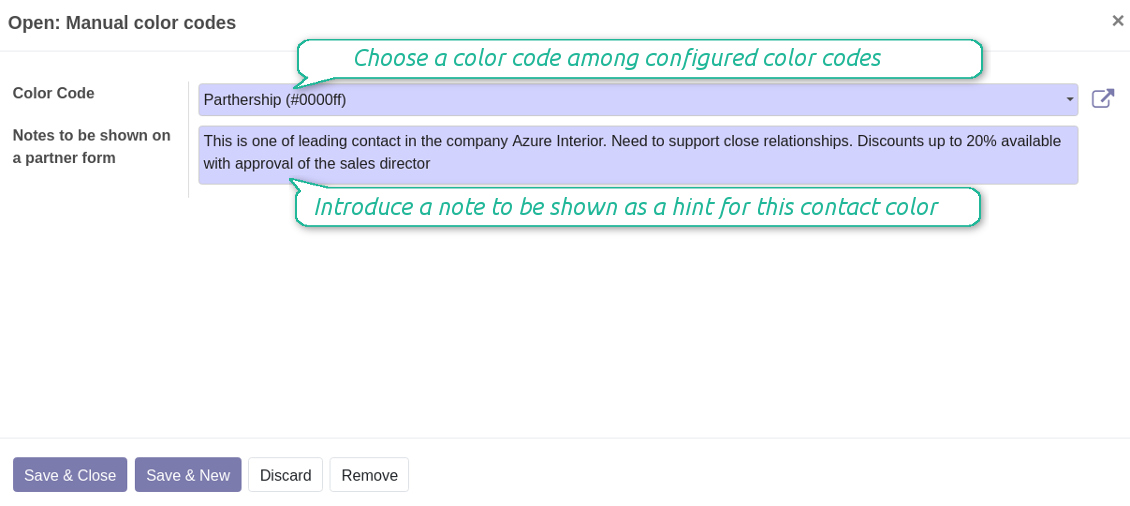
Manual color codes can be updated from any location where you see the widget. Click on the dotted-border rectangle to open the list of a related contact own color codes. Add a new to the table, edit an existing line or fully remove a color code note
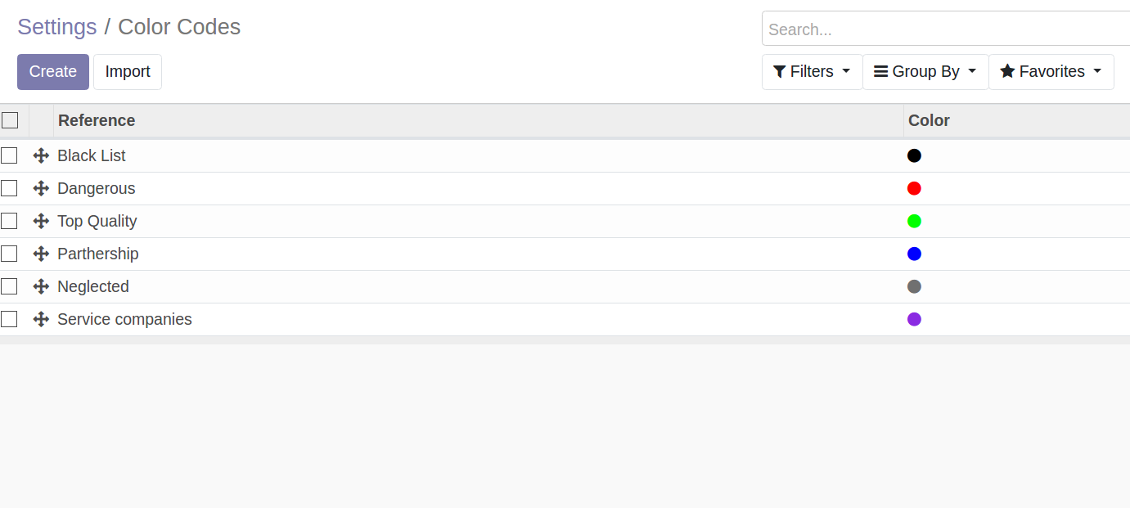
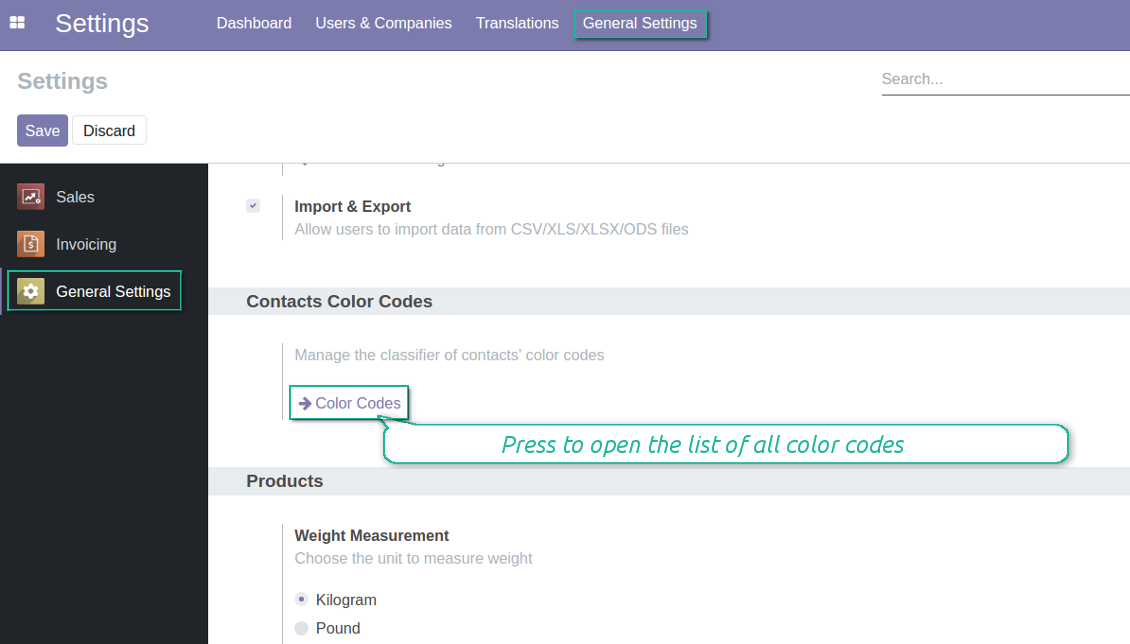
It is possible to have an unlimited number of color codes. Prepare your own classifier through the Odoo General Configuration > the section 'Contacts Color Codes'. Look also at the section Codes Classifier
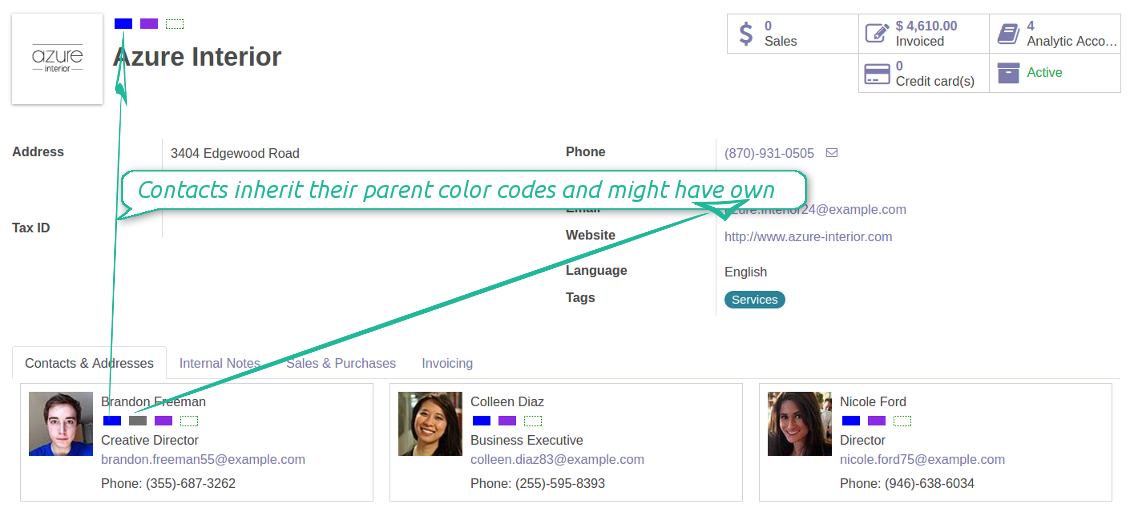
Color codes take into account relations between partners. A contact always inherits color codes from a parent company and may have own color notes
The tool equally works for any type of Odoo partners: companies, individuals or addresses, customers or suppliers
The same color code may have a few notes. For example, 'John Brown' is black-listed since (a) his parent company has a huge debt; (b) he is not available by phone and mobile; (c) he has a tag 'potential fraud' assigned by a financial security officer.
You observe color codes practically everywhere where you see a partner.
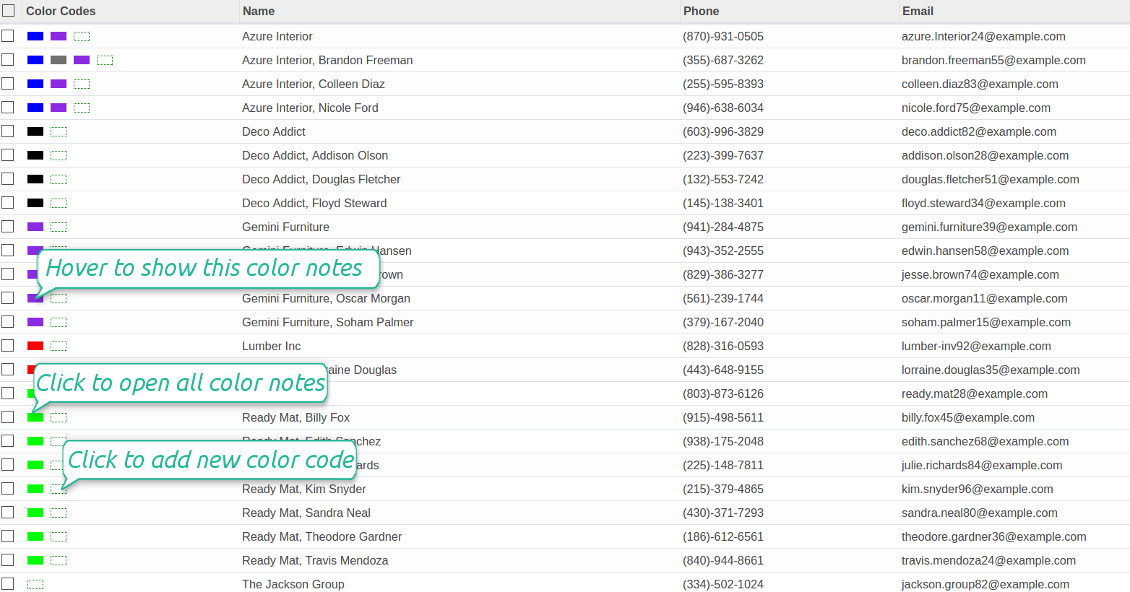
- You see color boxes on all partner views: form, kanban, tree. On default, simplified or address cards
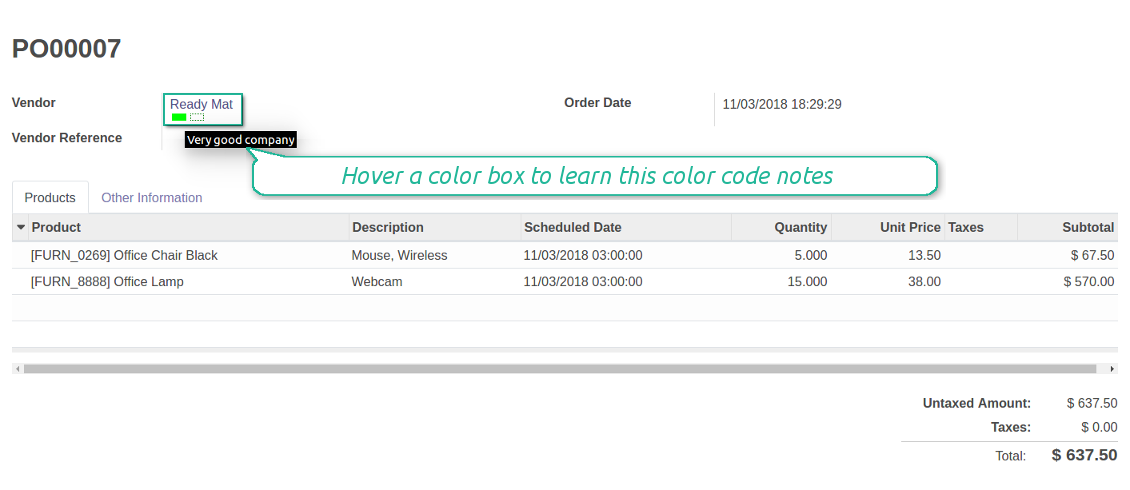
- You access linked supplier or customer color codes on all forms, where there is a reference for a contact. Depending on the modules installed, it might be sale orders, opportunities, projects and issues, purchase or delivery orders, tickets and claims. Thus any, including your custom forms or forms from community-built modules
- Color codes appear as soon as you select or open a contact. In real time. At first sight
- The tool let you search contacts by a color code reference.
Color codes are shown as a set of colourized boxes with user friendly behaviour to retrieve data:
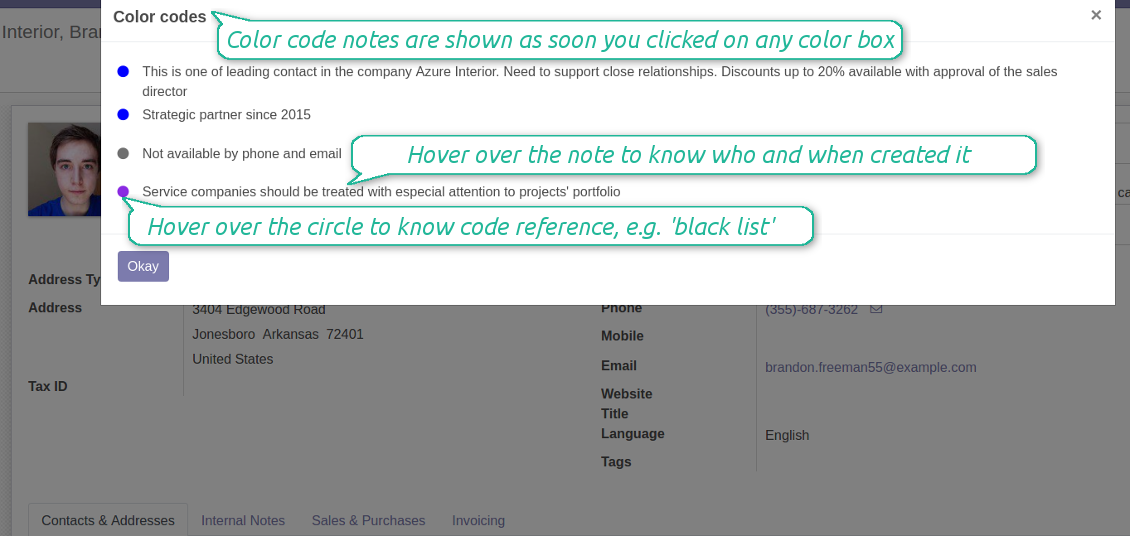
- Click on any color box to open the pop-up with all color notes
- Notes are sorted by color codes. Sequence of colors is defined as a sequence in the configured classifier
- The list aggregates notes by manual and automatic color codes
- Notes gathers hints from parent hierarchy
- Hover over a note to learn its initial author and date (for manual notes) and to which contact, this or any parent, it relates to
- Hover over a circle to know what this color means (color code reference is used)
- Hover over a color box to observe related color notes
- Click on a dotted box to manage manual color codes of this contact.
Use automatic color codes in case you can strictly describe which partners receive those color codes. Thus, you should know exact field values of target customers / suppliers. Look at the use cases below.
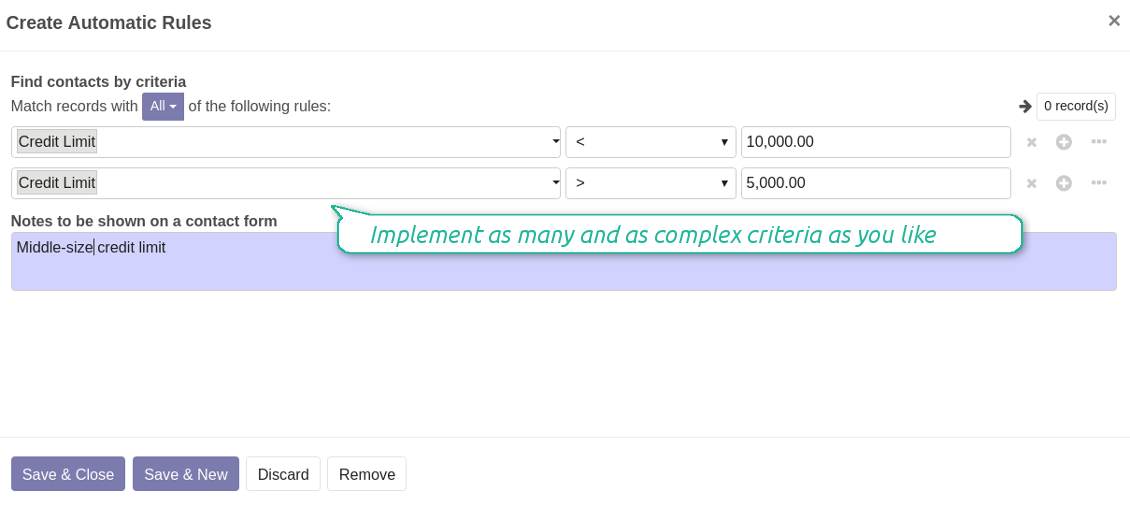
- Define a rule as a set of criteria a contact should satisfy. You may use any partner field in the same way you define a search filter in Odoo
- There might be as many criteria combined by 'any' or 'all' operators as you like
- For a single color code you may have an unlimited number of automatic rules. Matching any of that rule will lead to this color code assignment
- Automatic rules are applied in real time. As soon as you configured a new one, open/reload any form and check contact color codes.
- A contact already has some sort of manual tag. For example, the 'Danger!' tag should lead to the red color code
- All contacts with set 'Blacklist' field should be assigned the black color code
- Customers with low credit limit (e.g. with less than $1000) receive the orange color code
- Mark grey contacts without mobile and phone entered
- Define color codes based on a country or a region, based on 'Degree of trust you have in this debtor', or based on your own custom field
- ....
It is possible to have as many color codes as you like. They may relate to any business facet. For example, introduce 'Black List', 'Not trusted', 'Strategic partners', 'Low credit limit', etc. and etc.
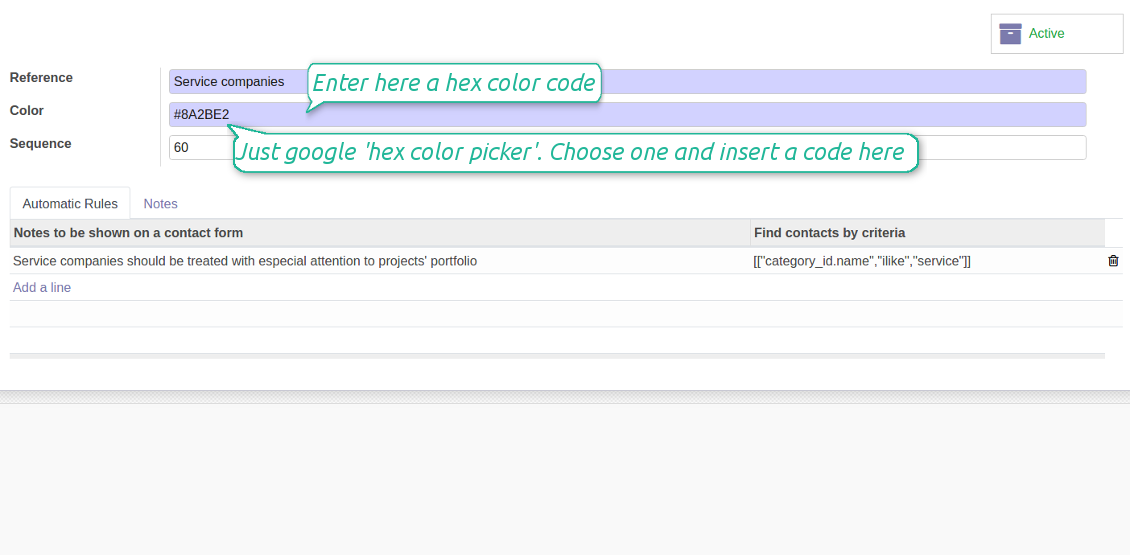
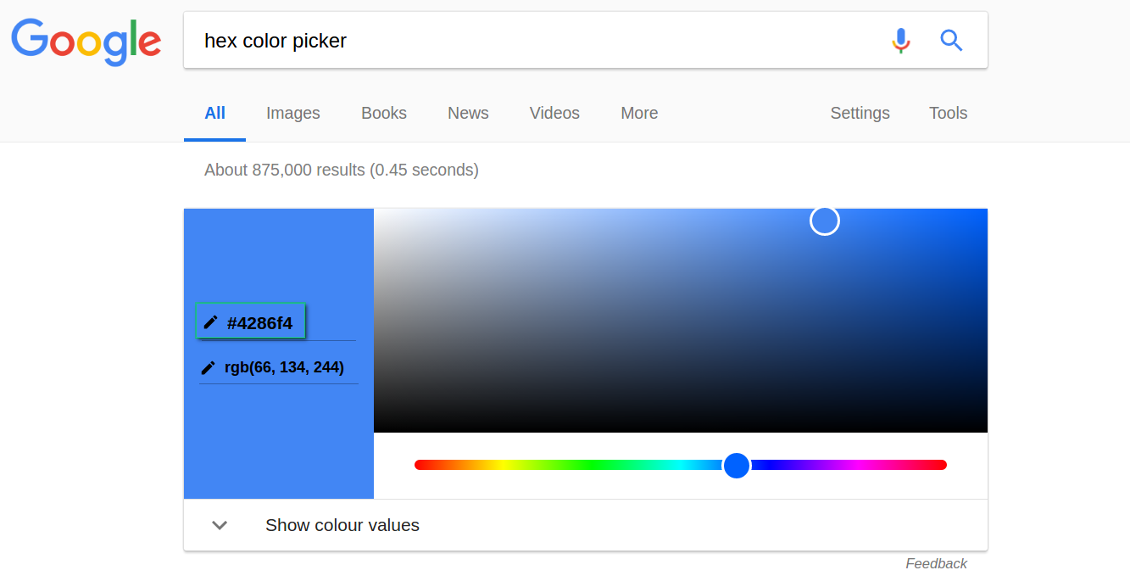
For such codes, you may use almost any color shade. Google 'hex color picker'. The search engine will let you pick a desired color. Copy the 'hex' value to the color field of a code. Click save and make sure it is a color you would like to use.
As soon as you installed the tool, Odoo would prepare a few default color codes. You may simply update or delete those codes to reflect your own color codes' logic.
Installation Tips
Frequently Asked Questions about Contacts Color Coding Odoo v.11
What are the update policies of your tools?
According to the current Odoo Apps Store policies:
- Every module bought for version 12.0 and prior gives you access to all versions up to 12.0.
- Starting from version 13.0, every module version should be purchased separately.
- Disregarding the version, purchasing a tool grants you a right to all updates and bug fixes within a major version.
Please note that the faOtools team does not control those policies. For all questions, please contact the Odoo Apps Store representatives directly.
How can I install your app on Odoo.sh?
The most straightforward approach is to use the Odoo store's built-in workflow:
1. Open the module's page and click the button Deploy on odoo.sh
2. After that, you will be redirected to the GitHub page. Log in to your account, then click 'Create a new repo' or use an existing one. Please ensure your repository is private. It is not permitted to publish the apps under the OPL-1 license. If necessary, create a new repo for your Odoo.sh project
3. Then, go to odoo.sh and click the Deploy button. In the pop-up window, submit the decision and click 'Continue.' This action will trigger the installation process.
These steps will install the app for your project's production branch. If you want to deploy the apps for other branches or update the module, you should undertake the following actions:
1. Upload the source code for the app from the Odoo store
2. Commit the module to a required GitHub repository. Ensure none of the app folders/files are ignored (i.e., not included in your repo's .gitignore). Repositories are automatically created by odoo.sh and may include some crucial items by default (e.g., /lib). You should upload all module directories, subdirectories, and files without exceptions
3. Deploy a target branch of the odoo.sh project or, if your settings assume that, wait until it is automatically built.
How should I install your app on my own server?
2. Re-start the Odoo server;
3. Turn on developer mode (technical settings);
4. Update the apps' list (the apps' menu);
5. Find the app and push the button 'Activate'/'Install';
6. Follow the guidelines on the app's page if those exist.
I noticed that your app has extra add-ons. May I purchase them afterwards?
Yes, sure. Simultaneously, Odoo automatically adds all dependencies to a cart, so you should exclude previously purchased tools to avoid double payment.
I deployed your app on Odoo.sh and see warning/error in tests
A red/orange warning does not influence the app's features. Regretfully, sometimes our modules do not pass standard automatic tests since the latter assume behaviour that conflicts with our app's goals. For example, we change the price calculation, while the standard Odoo module tests compare the final price to a standard algorithm.
So, first of all, please check the deployed database features. Does everything work correctly?
If you still assume that the warning influences real features, please contact us and forward full installation logs and the full list of deployed modules (including core and third-party ones).
May I buy your app from your company directly?
No, we only distribute the tools through the official Odoo apps store.
I would like to get a discount
Regretfully, we do not have the technical means to provide individual prices.
May I install the app on my Odoo Online (SaaS) database?
No, third-party apps can not be used on Odoo Online. Unfortunately, Odoo SaaS blocks such a possibility.
Your tool has dependencies on other app(s). Should I purchase those?
Yes, our tool requires all modules marked in dependencies to work correctly. The price marked on the app page already includes all necessary dependencies.
What is the price for the module in US Dollars? Why did it change?
The price for our modules is set in euros. The Odoo store converts prices to other currencies according to its internal exchange rate. Thus, the price in US Dollars may change when the exchange rate is updated.
App and website wording in languages other than English is AI-assisted and aligned with official Odoo translations. If you spot a mistake, send a translations-correctness ticket and we will fix it.
Bug reporting
If you encounter bugs or inconsistent behaviour, do not hesitate to contact us. We guarantee to provide fixes within 60 days of purchase and are intensely interested in improving our tools even after this period.
You do not need a phone number or credit card to contact us. You should only pass a short email sign-up, which does not take more than 30 seconds.
Please include as many details as possible in your request: screenshots, Odoo server logs, a full description of how to reproduce your problem, and so on. Usually, it takes a few business days to prepare a working plan for an issue (if a bug is confirmed) or provide you with guidelines on what should be done (otherwise).
Public features requests and module ideas (free development)
We are strongly motivated to improve our tools and would be grateful for any feedback. If your requirements are of public use and might be efficiently implemented, the team will include those in our to-do list.
Such a to-do list is processed regularly and does not assume extra fees. Although we cannot promise deadlines and final design, it might be a good way to get desired features without investments and risks.
You do not need a phone number or credit card to contact us. You should only pass a short email sign-up, which does not take more than 30 seconds.

The tool to flexibly structure Odoo attachments in folders and synchronize directories with cloud clients: Google Drive, OneDrive/SharePoint, Nextcloud/ownCloud, Dropbox, Amazon S3, Box, and NAS. DMS. File Manager. Document management system
398€

The tool to build a deep and structured knowledge base for internal and external use. Knowledge System. KMS. Wiki-like revisions.
398€
The tool to automatically synchronize Odoo attachments with OneDrive files in both ways
487€
The tool to set up KPI targets and control their fulfillment by periods. KPI dashboards. Dashboard designer. KPI charts

The tool for time-based service management from booking appointments to sales and reviews
398€
The tool to automatically synchronize Odoo attachments with Google Drive files in both ways
487€
The tool to plan, share and control employees shifts in a form of weekly timetables. Work schedule. Work shift calendar
98€
The tool combines users in roles and simplifies security group assigning. Access group management. Users mass updating