Dropbox Odoo Integration v.16
The tool to automatically synchronize Odoo attachments with DropBox files in both ways
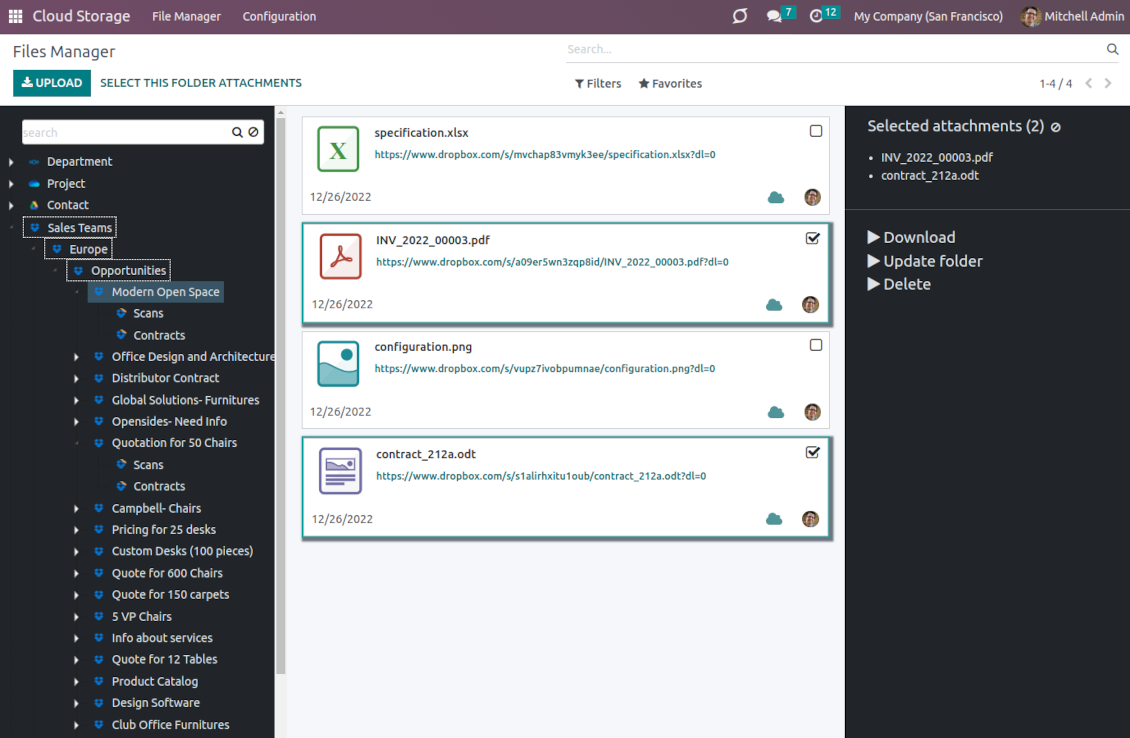
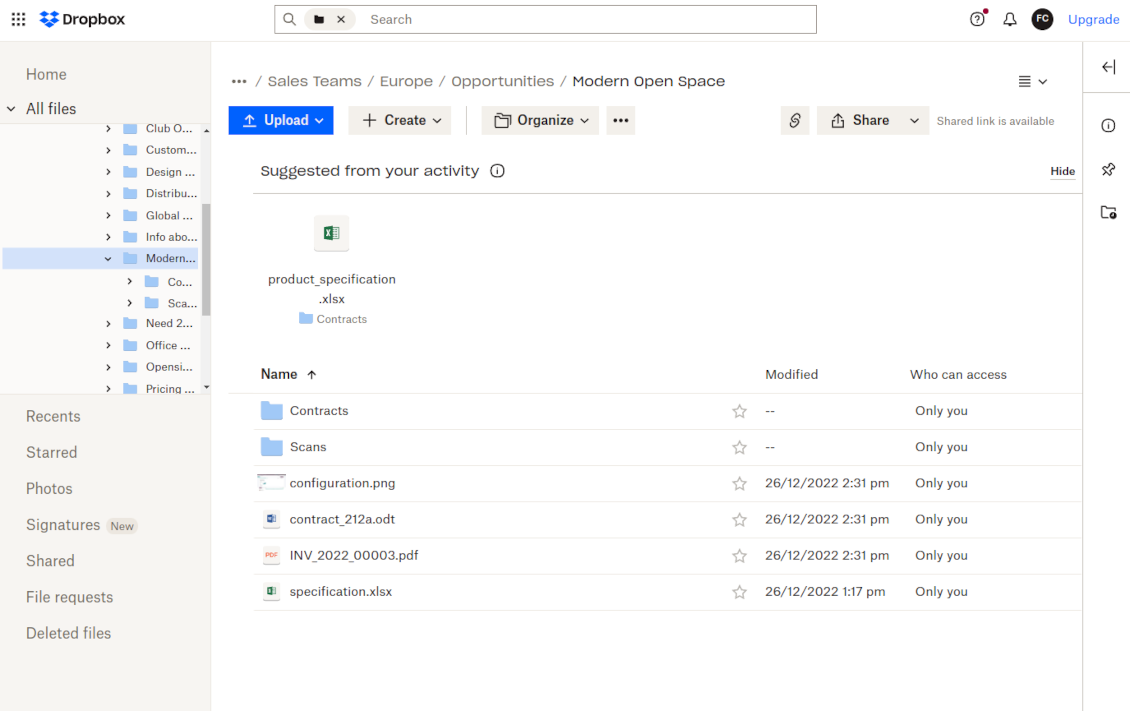
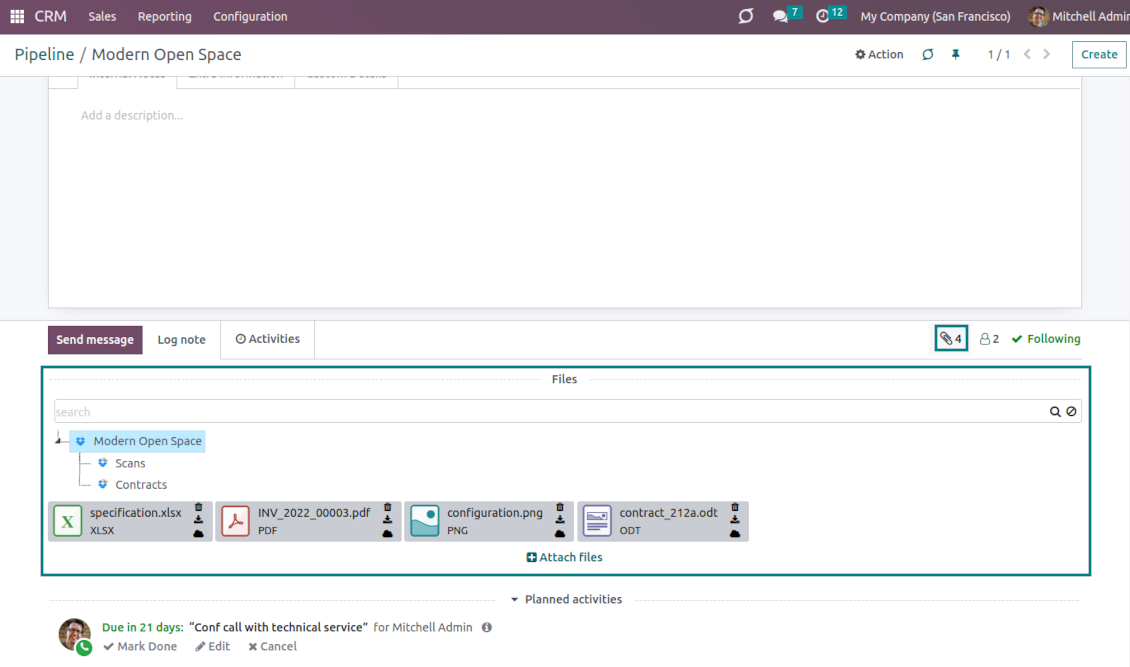
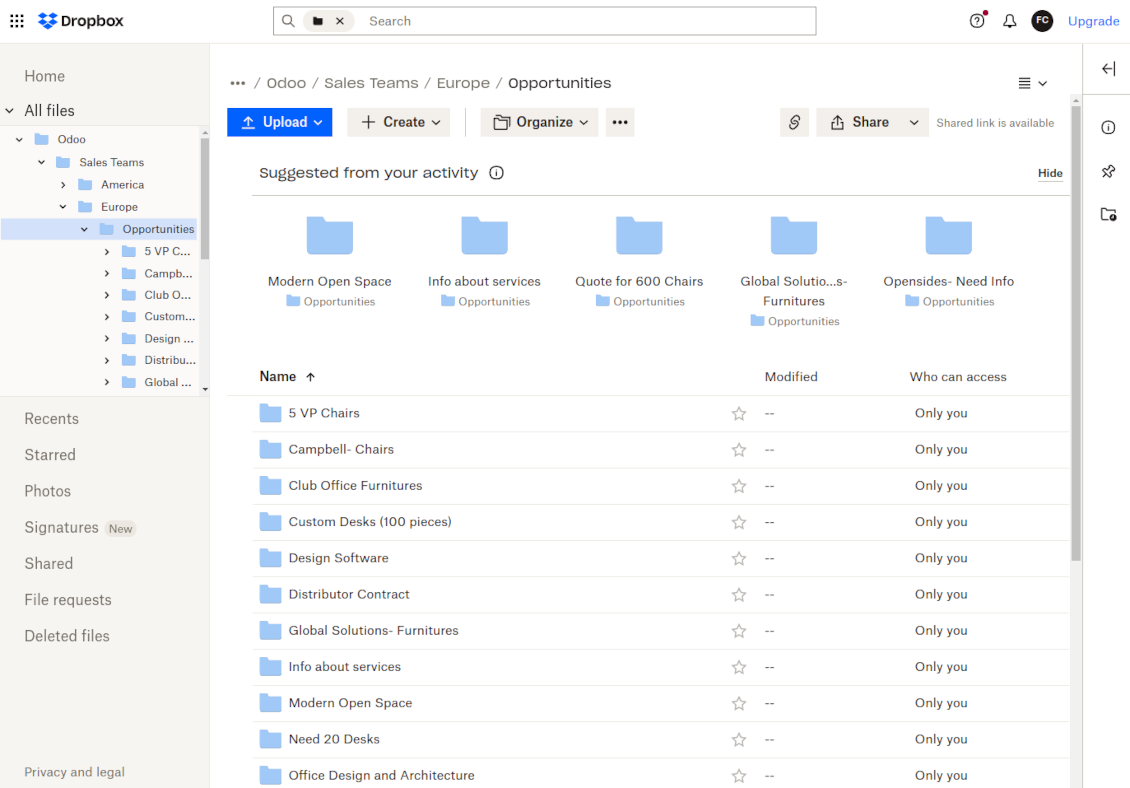
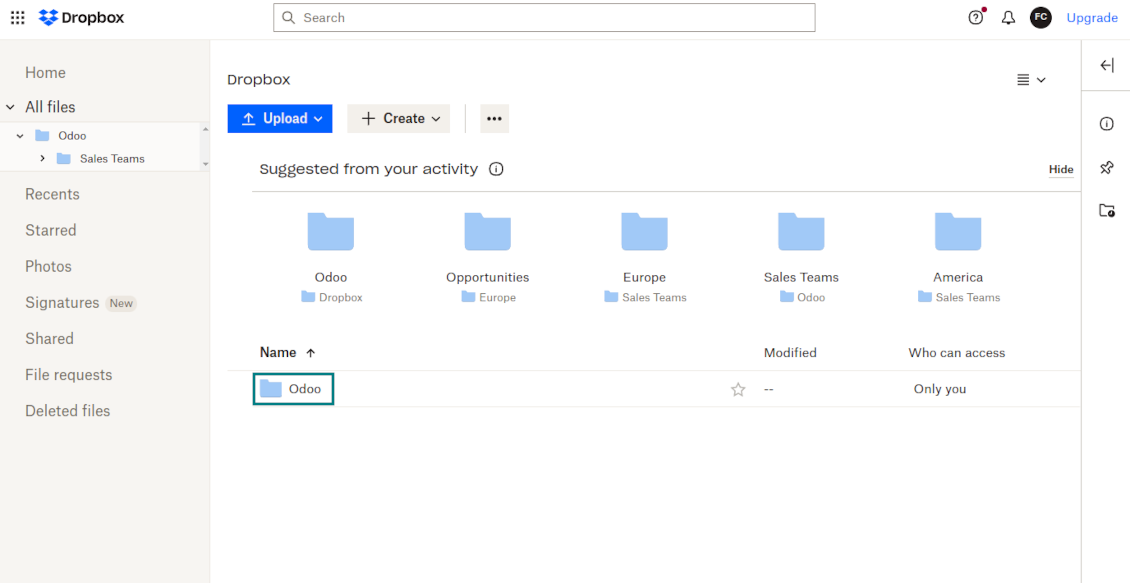
This is the tool to integrate Dropbox features with Odoo folders and files. The app automatically stores Odoo attachments and directories in Dropbox and provides instant access to them via web links.
Automatic folders' structure
Decide which Odoo document types should have their own folders trees and synchronize those to Dropbox
Automatic regular sync
Rely on auto-synchronization between Odoo and Dropbox based on scheduled jobs. No manual interaction is required
Bilateral sync
Odoo sends attachments to Dropbox and retrieves files from there. Binary content is kept in clouds, while Odoo provides direct access to synced items
Cloud synchronization history
Control Dropbox sync logs right in Odoo. Export and share those in case of any issues. Be notified of any client disconnections
File manager interface
Manage synced folders and attachments from a single Odoo view. Comfortably navigate by directories. Search and download files one by one or in batch. Upload and move attachments to folders
Attachment box
Organize files of any Odoo object in a set of subfolders. Instantly access folders and files in the attachment box and in Dropbox.
How synchronization works
Automatic two-sided sync
-
Configure sync for one or multiple Dropbox instances
-
Integration is based on scheduled jobs and is fully automatized. The app regularly checks changes in systems and runs sync operations
-
Synchronization is bilateral. Updates in Odoo are reflected in Dropbox (direct sync); changes in Dropbox modify Odoo folders and attachments (backward sync)
-
Cloud connection with Dropbox might be reset. In this way, the app assumes getting back all items back to Odoo (reverse sync)
-
Odoo folders and attachments might be re-attached to a new cloud client from Dropbox. Hence, items will be first taken back to Odoo (reverse sync) and then put will be put into the new cloud storage (direct sync)
Queue-based synchronization
-
Once in 15 minutes, the app examines updates in Odoo and Dropbox to prepare a synchronization queue
-
Folders' checks follow the First-In-First-Out (FIFO) principle. So, directories that have not been examined for the longest will be processed first
-
Once in 15 minutes, the sync queue is run by the special scheduled job. Firstly, the most important (blocking) tasks would be done
-
Control planned jobs and their fulfillment in the special Odoo logs interface (Cloud Storage > Configuration > Sync Logs). Subscribe for particular cloud clients notifications
-
If the app faces sync failures, it will re-try operations afterward. Sync queue processing would not be stopped if there are items not blocked by such failures
Odoo attachments for Dropbox: direct sync
-
Direct sync prepares the folders' hierarchy and uploads Odoo attachments for Dropbox
-
Direct sync checks whether attachments are added or deleted for synced directories. If so, they would be created or removed in Dropbox. In particular, it means that any file added to a folder-related Odoo object (e.g. Quotation), would be automatically moved to a linked cloud client
-
Direct sync makes all synced Odoo attachments change their type to a link (URL), while binary content is removed with one of the next Odoo cleaners. So, no actual files would be stored on your Odoo server
-
Direct sync checks whether a new folder is added. Disregarding whether it is done manually or automatically, the app would generate a peer directory in Dropbox
-
Direct sync checks whether there are any updates in folders. If so, such changes are reflected in Dropbox
Dropbox files and folders for Odoo: backward sync
-
Backward sync checks whether any files or subfolders are added to Dropbox folders. If so, the app would create URL attachments/subdirectories inside linked Odoo directories (and hence Odoo objects if any)
-
Backward sync checks whether there are any updates in folders or attachments. Such updates would be then reflected in Odoo
-
Backward sync checks whether any files are deleted/moved in a Dropbox document folder. If so, a linked Odoo attachment would be also unlinked or moved
-
If you deleted a Dropbox folder related to a folder rule / Odoo object, their child files would be deleted as well. Thus, Odoo would remove related attachments. The folders, however, will be recovered with a direct sync
-
In case of conflicts, direct sync changes are in general considered more important than backward updates.
Resetting or changing Dropbox: reverse sync
-
In case you decided to reset the connection with Dropbox, files would be moved back to Odoo
-
In case you decided to change the cloud client of a folder rule or a folder, files would be first taken back to Odoo, and then direct sync for a new client would be done
-
Reverse sync operations are prioritized to direct and backward sync operations
-
Not all items can be correctly reversed to Odoo due to cloud client peculiarities. For example, there are documents that may exist only in cloud storage environments. The app would try to convert such documents, but in some cases, it would require manual interactions.
Dropbox URLs
Dropbox has a specific way to generate links for existing files and folders. In particular, there are no concepts of internal or private URLs. Instead, each Dropbox item might get so-called shared URLs. Such shared links are either public or team-only. Moreover, the latter feature is available only for the Dropbox business account.
This tool relies upon shared links' mechanics. It means, that each attachment link is either public (all personal Dropbox accounts) or team-only (all business Dropbox accounts).
Sometimes it is considered to be not fully safe. Although website URLs will be hardly known by external users, there is a slight chance that they become available as a result of some user actions. Besides, sharing link generation is not super fast and might make the sync process slower. That is why the feature to switch off sharing URLs is introduced.
If checked, all Dropbox URLs in Odoo will be of the type https://www.dropbox.com/home/Odoo/[PATH]. Such links will not work in many cases. Thus, if you need to open Dropbox files/folders from Odoo, be careful with the setting 'No links to Dropbox from Odoo'.
Configuration and Installation Tips for Dropbox Odoo Integration Odoo v.16
Python dependency
The tool depends on the external library 'dropbox'. Install this library for your Odoo server through the command:
pip3 install dropboxConfiguration and log in
- Turn on the option 'Dropbox Sync' (cloud Storage > Configuration > Configuration). The optional add-on Dropbox Odoo Integration is required
- Follow the URL https://www.dropbox.com/developers/apps/create
- Choose an API as 'Scoped access'
- Choose the type of access as 'Full Dropbox'
- Select any suitable name for the app and push the button 'Create app'
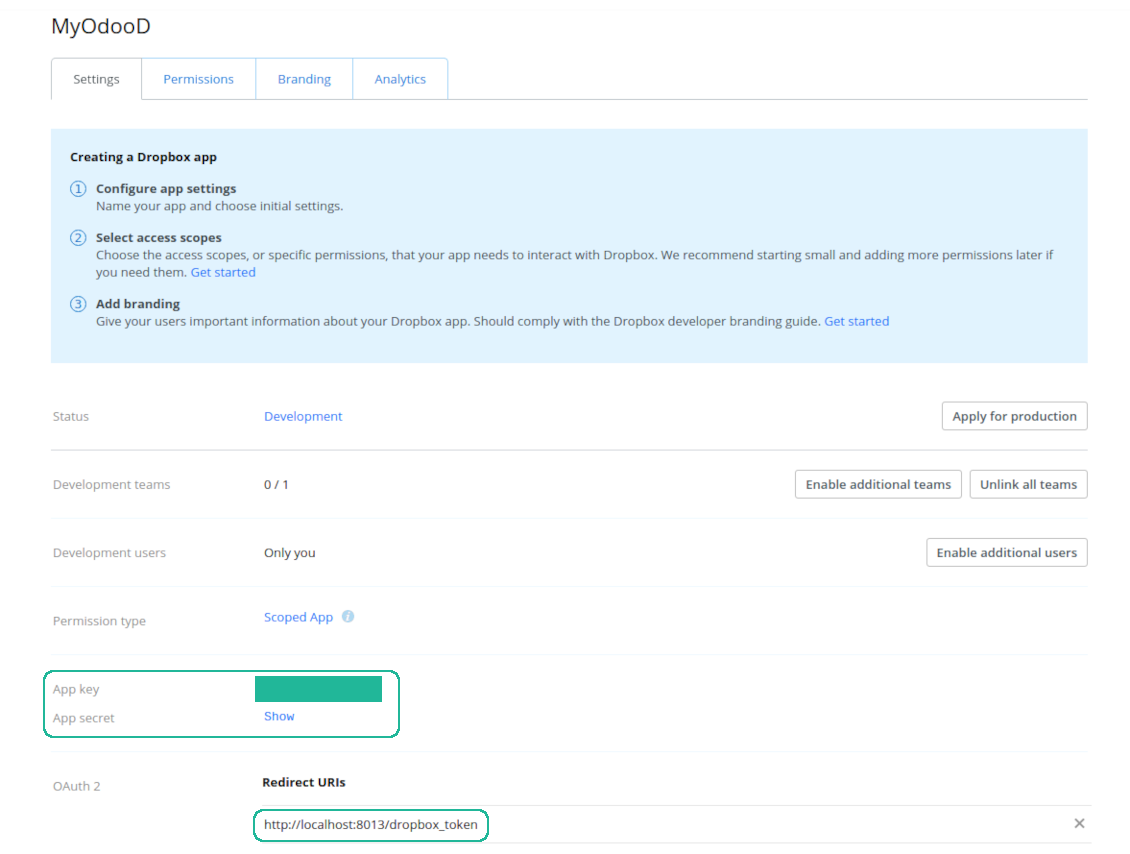
- Add the redirect URI as [YOURODOOSITENAME]/dropbox_token (e.g. https://faotools.com/dropbox_token). A valid SSL certificate (https) is required
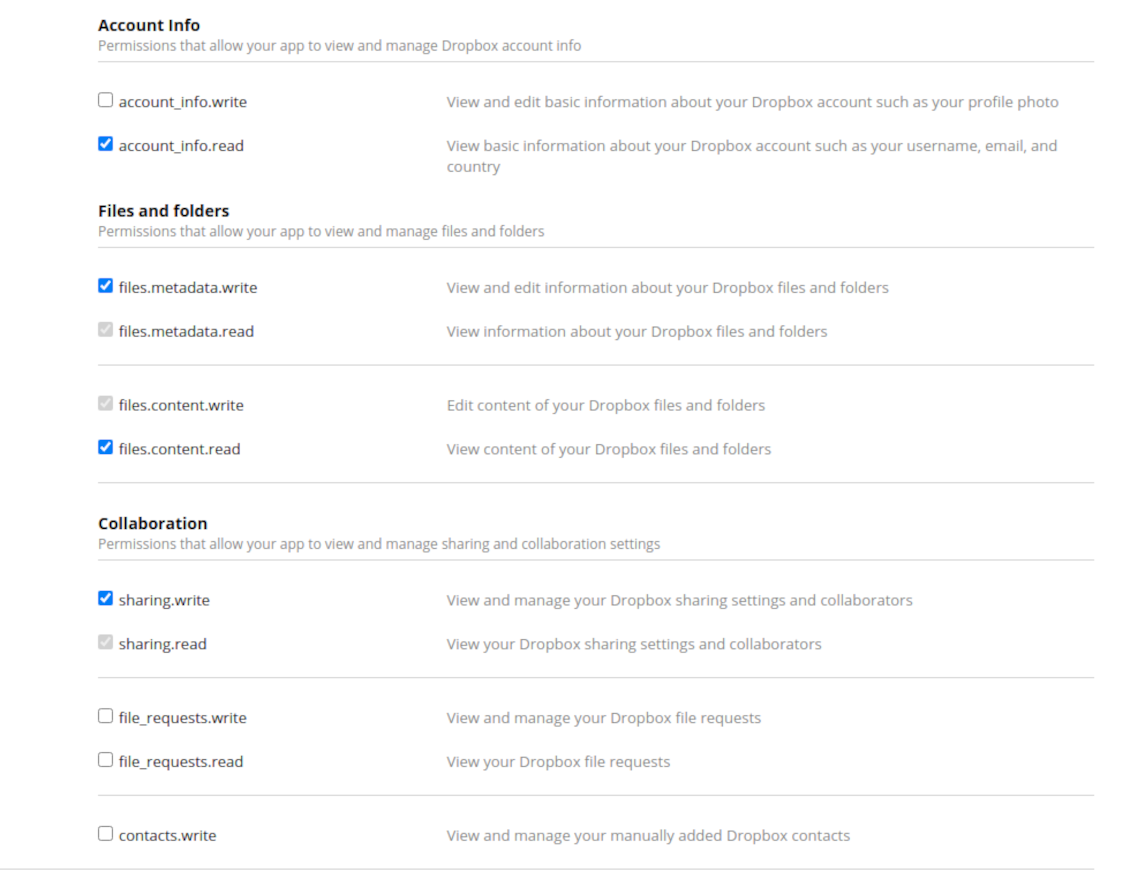
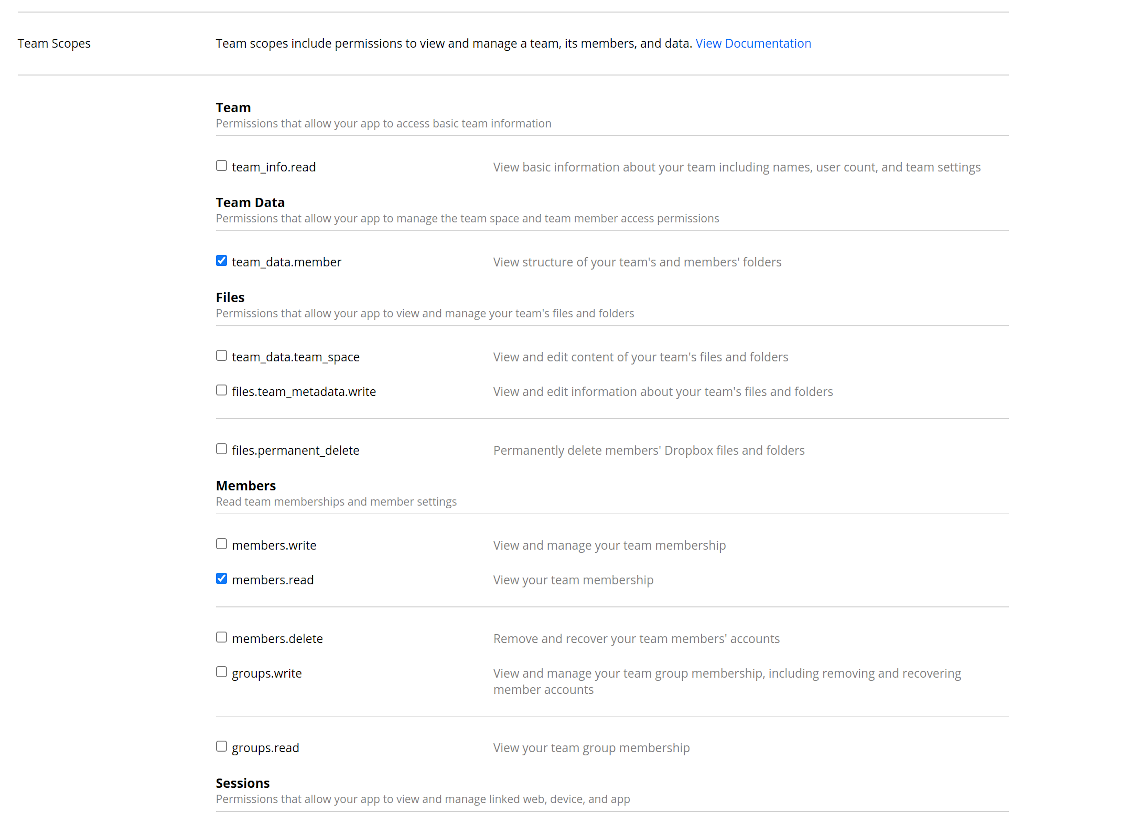
- Grant permissions to the app: 'Account Info (Read)', 'Files and folders Metadata (Write)', 'Files Content (Write)', 'Collaboration (Write)'. For team DropBox assign also 'Team Data Members', 'Members (Read)'. Make sure no other permissions are assigned.
- Submit App
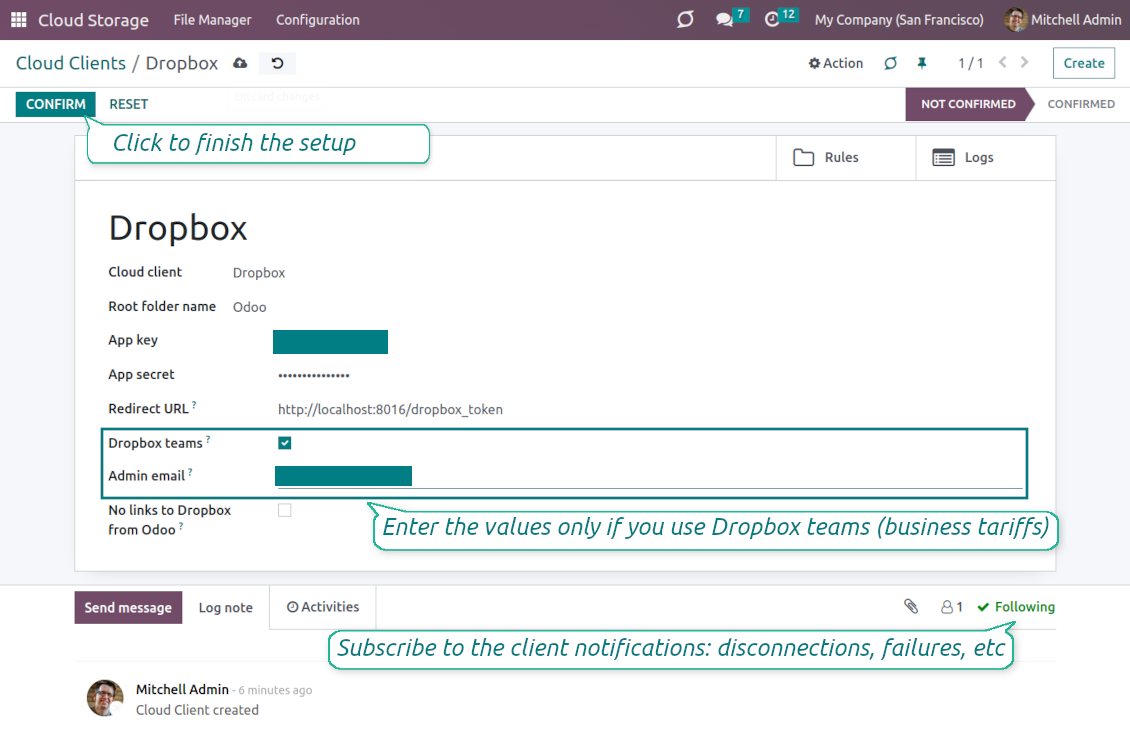
- Go to Odoo Cloud Storage > Configuration > Cloud Clients press 'Create'
- As a reference, introduce any name which would be clear to all users
- As a Cloud client, choose 'Dropbox'
- As a Root folder name, enter a title that will be used as the parent Dropbox directory for all synced folders. For example, 'Odoo' or 'OdooERP'
- Copy 'App key' to the 'App key'
- Copy 'App Secret' into the field 'App secret'
- Insert previously generated redirect URL
- If you use Dropbox team drives
- Check the related box
- Set an Dropbox user email. Inside this user folder, all Odoo-related items will be created, and only after that, they will be shared with all other users. Under this user, all files and folders are created, changed, moved, and deleted
- Press 'Confirm'. Odoo redirects you to the Dropbox login page. Check in the system, agree with all conditions, and grant all permissions asked
- After login, Dropbox redirects you back to Odoo. Dropbox - Odoo synchronization is ready to be done
- Apply the newly created cloud client to folder rules and/or manual folders which should be synced to that Dropbox instance
- Await the sync scheduled job to be started. For testing purposes only: trigger integration manually from Cloud Storage > Configuration > Configuration > the button 'Launch sync'.
Watch also the configuration video
Register a new Dropbox app
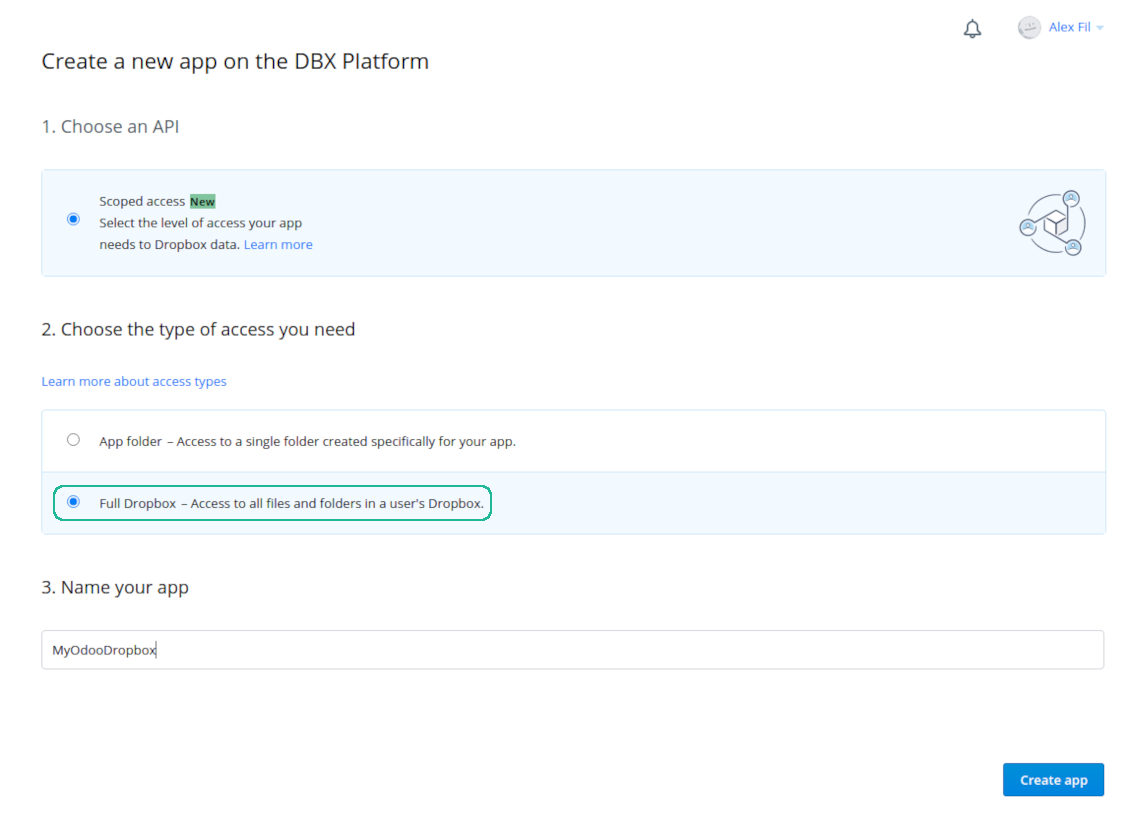
Set up Dropbox App: the redirection URLs
Dropbox permissions for personal accounts
Dropbox permissions for business accounts
Set up Odoo for the Dropbox integration
Frequently Asked Questions about Dropbox Odoo Integration Odoo v.16
Where would be synced fields stored? Are they duplicated to Odoo and clouds?
The app assumes that the binary content of attachments is kept in Cloud Client instead of the Odoo server. So, such attachments in Odoo become of the URL type, and you may any time access them either from the attachments box or from the Cloud Client.
After the setup, no manual actions are required, as the synchronisation is fully automatic. Just decide which Odoo document types should be synced and set up a related model to sync for each of those (Customers, Sale or Purchase Orders, Tasks, Projects, etc.).
Can I have a few folders for the the same document type? For example, internal projects and customer projects?
Yes, you can. To that goal, prepare a rule for each, and then those apply filters: for example by type of a project.
Try to make filters self-exclusive in order a document can be definitely assigned. For instance, 'customer but not supplier', 'supplier but not customer'. Otherwise, a specific document folder would jump from one model to another.
Is it Okay if I had many objects to sync, for example, 10000?
Yes, although in the case of many folders/attachments that need to sync, the process might be slow. Simultaneously, our clients reported the environments with >10k partners and ~5k product variants to be synced, and the processes were acceptable.
A few points to emphasize:
- The sync is constructed so that any item will be synced and not lost, although it might not be fast. It is guaranteed by first-in-first-out queues and by each job committed.
- The number of objects might be limited logically. The models' configuration lets you restrict the sync of obsolete items (e.g., there is no sense in syncing archived partners or orders done 2 years ago).
Is it possible to make synchronisation real-time?
No. We have strong reasons to avoid real time sync:
Performance issues. In case a sync is real time, each file upload will result in the loading screen.
Conflict issues. If 2 users simultaneously change an item, it might lead to unresolved situations. In case of regular jobs we can fix it afterwards, while in case of real time we would need to save it as some queue, and it will be even more misleading for users.
Functionality issues. In particular, renaming and restructuring of items. In the backward sync the tool strictly relies upon directories' logic, and during each sync 100% of items are checked. In case it is done after each update, it will be thousands of requests per second. If not: changes would be lost.
May I change default folders' name in clouds?
You may assign your name for models' directories (sale orders, opportunities, suppliers, etc.) for any document type.
For objects' folders (SO-001, John Smith, etc.), the tool relies upon the Odoo method to construct a display name for this document type. However, you can change that by defining the name expression. The exact syntax for Odoo email templates is used.
May I change frequency of sync jobs?
No, starting from version 15, you should not change scheduled jobs. They are optimized to run every 15 minutes to guarantee the most stable and quick connection.
Ensure that your Odoo server timeouts are set for at least 15 minutes (900 seconds).
If you need to stop sync for a while, do that on a particular cloud client form.
May I sync attachments to a few cloud clients
Yes, starting from version 15, you can set up multiple connections. In this way, it is possible to sync some folders to one cloud client and others - to another.
Take into account that it is not any way possible to sync the same folder for a few cloud storages simultaneously.
We use a special editor in our clouds (e.g. OnlyOffice, Office 365, etc.). Would files be opened in that editor?
Yes, depending on your cloud client configuration.
Do I need only the Cloud Storage Solution app?
Starting from version 15, the app might be used stand-alone to structure attachments in folders and to provide a file manager interface.
However, if your goal is to establish a connection with one of its cloud clients, you would need at least one optional client-related app to be installed.
What happens when I change a folder rule?
When a folder rule changes, the list of folders also changes. So, if a folder no longer matches the conditions of the folder rules - it is removed. If the files have been synced, the reversed sync returns them to Odoo and deletes them from the Cloud Client.
If a document's object doesn't match the conditions of a folder rule, then its folder will not be created. However, if it matches the conditions later, the related folder will be generated.
What are the update policies of your tools?
According to the current Odoo Apps Store policies:
- Every module bought for version 12.0 and prior gives you access to all versions up to 12.0.
- Starting from version 13.0, every module version should be purchased separately.
- Disregarding the version, purchasing a tool grants you a right to all updates and bug fixes within a major version.
Please note that the faOtools team does not control those policies. For all questions, please contact the Odoo Apps Store representatives directly.
How can I install your app on Odoo.sh?
The most straightforward approach is to use the Odoo store's built-in workflow:
1. Open the module's page and click the button Deploy on odoo.sh
2. After that, you will be redirected to the GitHub page. Log in to your account, then click 'Create a new repo' or use an existing one. Please ensure your repository is private. It is not permitted to publish the apps under the OPL-1 license. If necessary, create a new repo for your Odoo.sh project
3. Then, go to odoo.sh and click the Deploy button. In the pop-up window, submit the decision and click 'Continue.' This action will trigger the installation process.
These steps will install the app for your project's production branch. If you want to deploy the apps for other branches or update the module, you should undertake the following actions:
1. Upload the source code for the app from the Odoo store
2. Commit the module to a required GitHub repository. Ensure none of the app folders/files are ignored (i.e., not included in your repo's .gitignore). Repositories are automatically created by odoo.sh and may include some crucial items by default (e.g., /lib). You should upload all module directories, subdirectories, and files without exceptions
3. Deploy a target branch of the odoo.sh project or, if your settings assume that, wait until it is automatically built.
How should I install your app on my own server?
2. Re-start the Odoo server;
3. Turn on developer mode (technical settings);
4. Update the apps' list (the apps' menu);
5. Find the app and push the button 'Activate'/'Install';
6. Follow the guidelines on the app's page if those exist.
I noticed that your app has extra add-ons. May I purchase them afterwards?
Yes, sure. Simultaneously, Odoo automatically adds all dependencies to a cart, so you should exclude previously purchased tools to avoid double payment.
I deployed your app on Odoo.sh and see warning/error in tests
A red/orange warning does not influence the app's features. Regretfully, sometimes our modules do not pass standard automatic tests since the latter assume behaviour that conflicts with our app's goals. For example, we change the price calculation, while the standard Odoo module tests compare the final price to a standard algorithm.
So, first of all, please check the deployed database features. Does everything work correctly?
If you still assume that the warning influences real features, please contact us and forward full installation logs and the full list of deployed modules (including core and third-party ones).
May I buy your app from your company directly?
No, we only distribute the tools through the official Odoo apps store.
I would like to get a discount
Regretfully, we do not have the technical means to provide individual prices.
May I install the app on my Odoo Online (SaaS) database?
No, third-party apps can not be used on Odoo Online. Unfortunately, Odoo SaaS blocks such a possibility.
Your tool has dependencies on other app(s). Should I purchase those?
Yes, our tool requires all modules marked in dependencies to work correctly. The price marked on the app page already includes all necessary dependencies.
What is the price for the module in US Dollars? Why did it change?
The price for our modules is set in euros. The Odoo store converts prices to other currencies according to its internal exchange rate. Thus, the price in US Dollars may change when the exchange rate is updated.
App and website wording in languages other than English is AI-assisted and aligned with official Odoo translations. If you spot a mistake, send a translations-correctness ticket and we will fix it.
Odoo demonstration databases (live previews)
For this app, we might provide a free personalized demo database.
You do not need a phone number or credit card to contact us. You should only pass a short email sign-up, which does not take more than 30 seconds.
By your request, we will prepare an individual live preview database, where you can apply any tests and check assumptions for about two weeks.
Bug reporting
If you encounter bugs or inconsistent behaviour, do not hesitate to contact us. We guarantee to provide fixes within 60 days of purchase and are intensely interested in improving our tools even after this period.
You do not need a phone number or credit card to contact us. You should only pass a short email sign-up, which does not take more than 30 seconds.
Please include as many details as possible in your request: screenshots, Odoo server logs, a full description of how to reproduce your problem, and so on. Usually, it takes a few business days to prepare a working plan for an issue (if a bug is confirmed) or provide you with guidelines on what should be done (otherwise).
Public features requests and module ideas (free development)
We are strongly motivated to improve our tools and would be grateful for any feedback. If your requirements are of public use and might be efficiently implemented, the team will include those in our to-do list.
Such a to-do list is processed regularly and does not assume extra fees. Although we cannot promise deadlines and final design, it might be a good way to get desired features without investments and risks.
You do not need a phone number or credit card to contact us. You should only pass a short email sign-up, which does not take more than 30 seconds.


The tool to build a deep and structured knowledge base for internal and external use. Knowledge System. KMS. Wiki-like revisions.
398€
The tool to set up KPI targets and control their fulfillment by periods. KPI dashboards. Dashboard designer. KPI charts

The tool for time-based service management from booking appointments to sales and reviews
398€
The tool to manage your Odoo from your favourite AI chats through MCP. Claude. Any MCP-supporting AI.

The tool to flexibly structure Odoo attachments in folders and synchronize directories with cloud clients: Google Drive, OneDrive/SharePoint, Nextcloud/ownCloud, and Dropbox. DMS. File Manager. Document management system
398€
The tool to automatically synchronize Odoo attachments with OneDrive files in both ways
487€
The tool to automatically synchronize Odoo attachments with Google Drive files in both ways
487€
The tool to automatically synchronize Odoo attachments with ownCloud/Nextcloud files in both ways
487€